Agent Catalog
An agent is designed to represent a person, animal, or vehicle that can walk, ride, or drive through a scenario and react to the traffic around it. There are three main types of agents:
- Ego agent: the participant's own character or vehicle, the one they control. The scenario's Player Selector creates it when the scene starts, so you don't place it yourself.
- Road agent: another road user that moves on its own, along a route you give it.
- Idle agent: an agent who stays in one place. Idle agents make the scene feel lived in, and they can also play a part in your study, such as someone the participant interacts with or talks to, or someone who gazes or points to draw their attention. They have no movement or controller, so they're much more lightweight than road agents.
You can browse the agents provided by HRI-MobiSim below to learn more.
To change an agent for your study, make a prefab variant of it and edit that instead. A variant stays linked to the original, and the original stays untouched for your next scenario.
Pedestrian
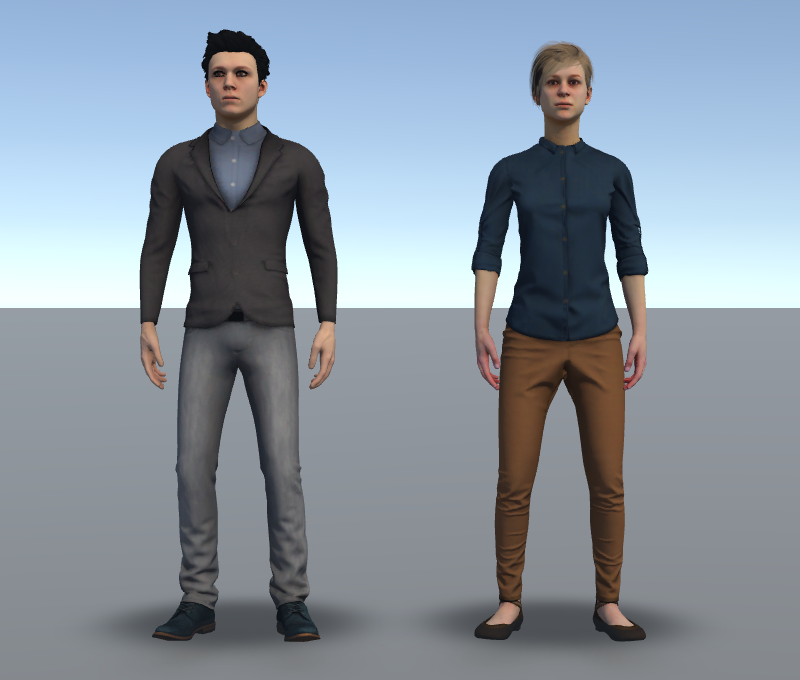
Ego agentA person on foot.
Choosing It
Select your scenario's Player Selector, and pick the pedestrian in Controllable Prefab. See Choosing a Controllable.
Tuning Its Movement
It moves with the Player Pedestrian Driver on the root of its prefab.
Two of its settings are curves. On each curve, the X-axis is the participant's input, and the Y-axis is the speed that input gives. Input runs from −1 to 1:
−1is full input one way, such as holding the back key or pushing the stick fully back.0is no input.0.5is the stick pushed halfway.1is full input the other way, such as holding the forward key or pushing the stick fully forward.
The pedestrian only steps backward when it's facing roughly the same way as the camera. If it isn't, pressing back moves it forward instead, at the matching speed. The driver uses the scene's main camera for this check, so make sure the scene has one. For the camera setup, see Camera Rig.
Changing the Character
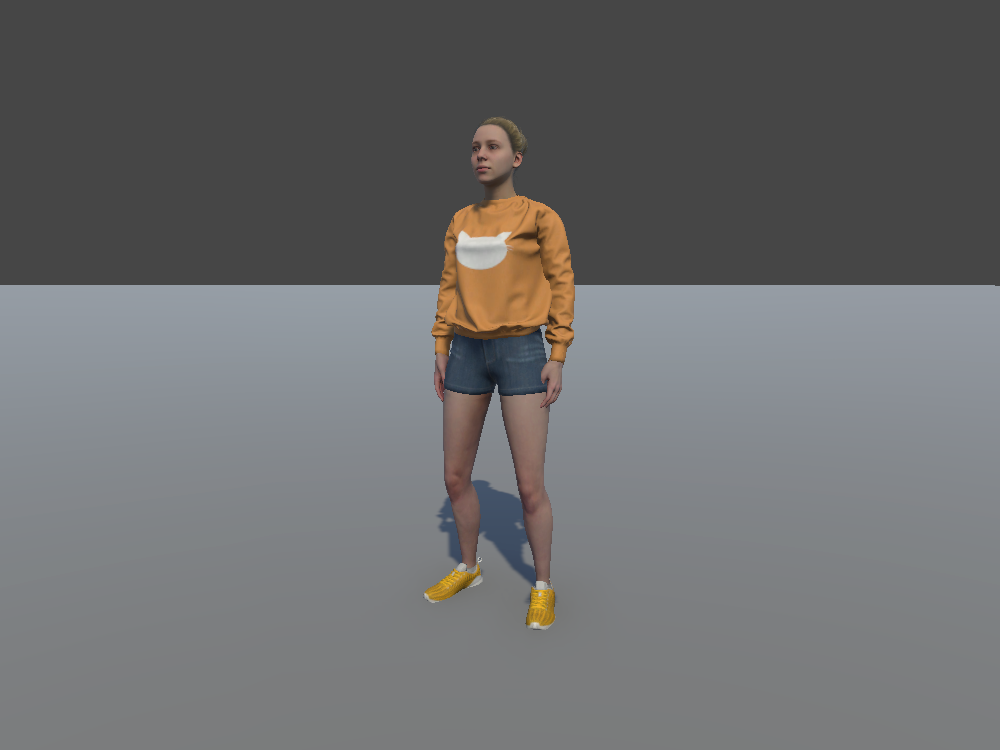
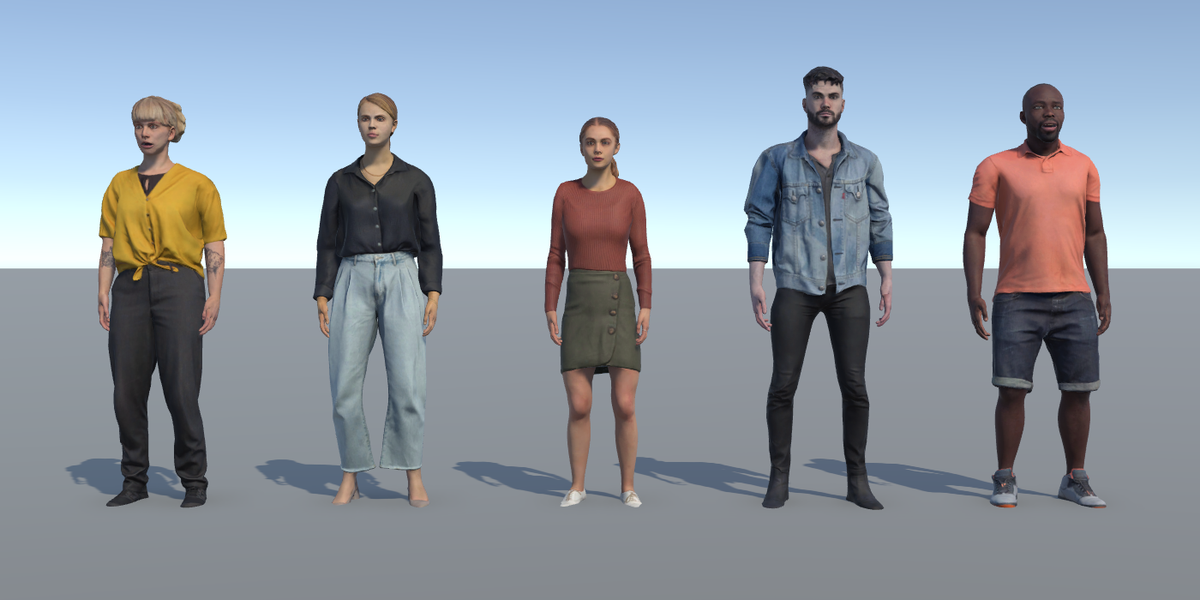
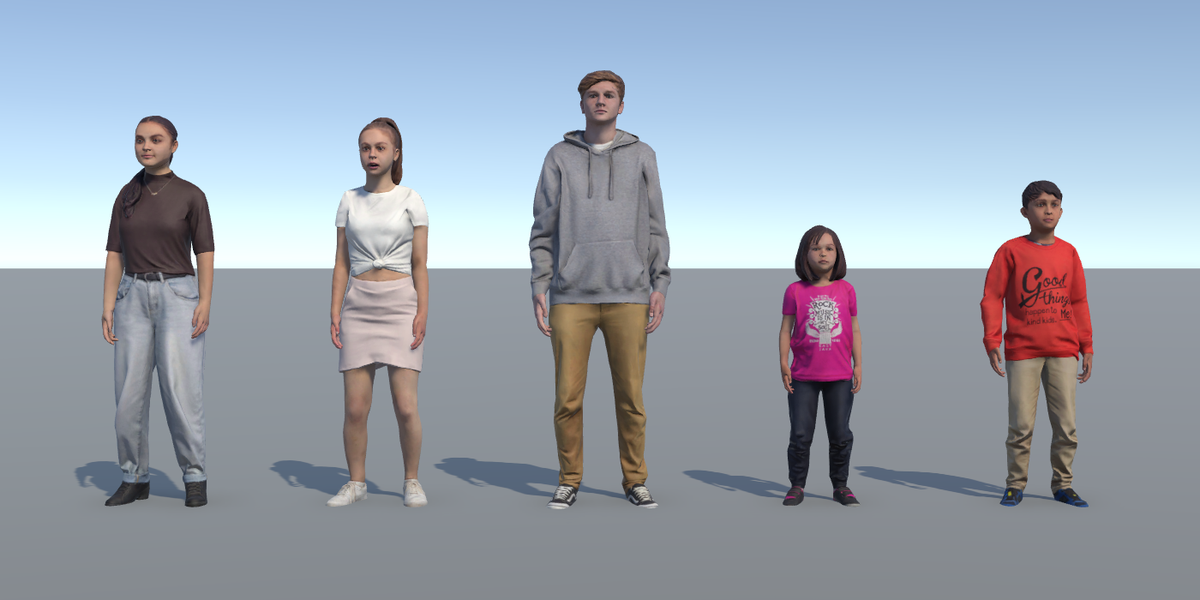
Any pedestrian can be any of these characters. The first eight already have ready-made ego, road, or idle versions. The Actor Core characters are a bigger library, including children, that you turn into pedestrians yourself.
Assets/3rd Party Packages/Pedestrians, each as pedestrian_model_*.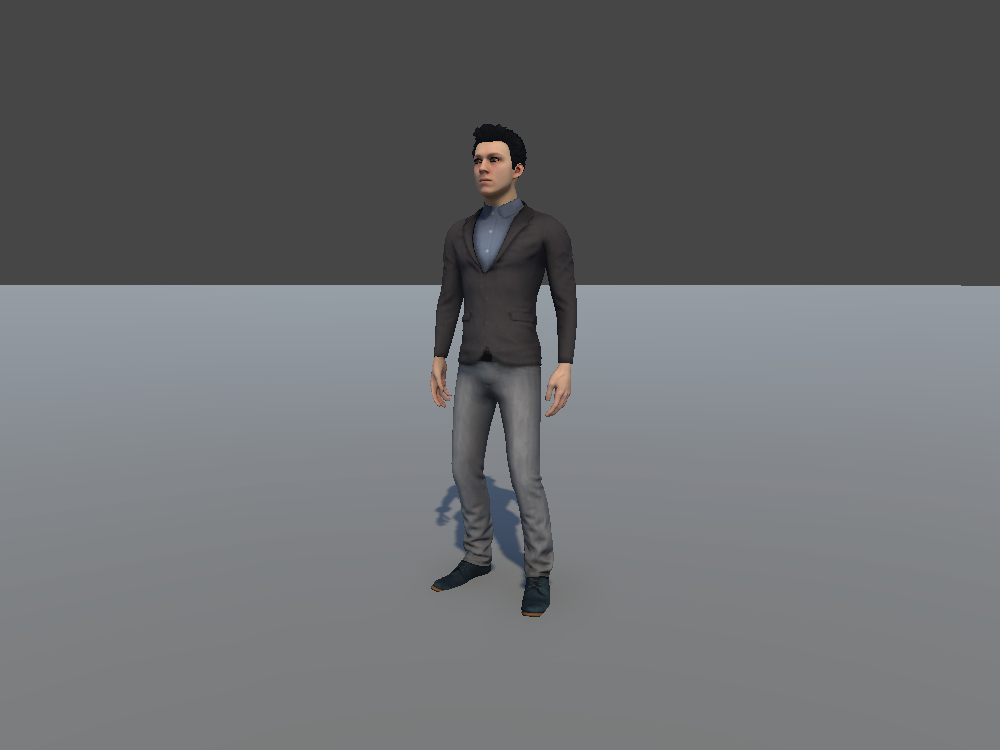
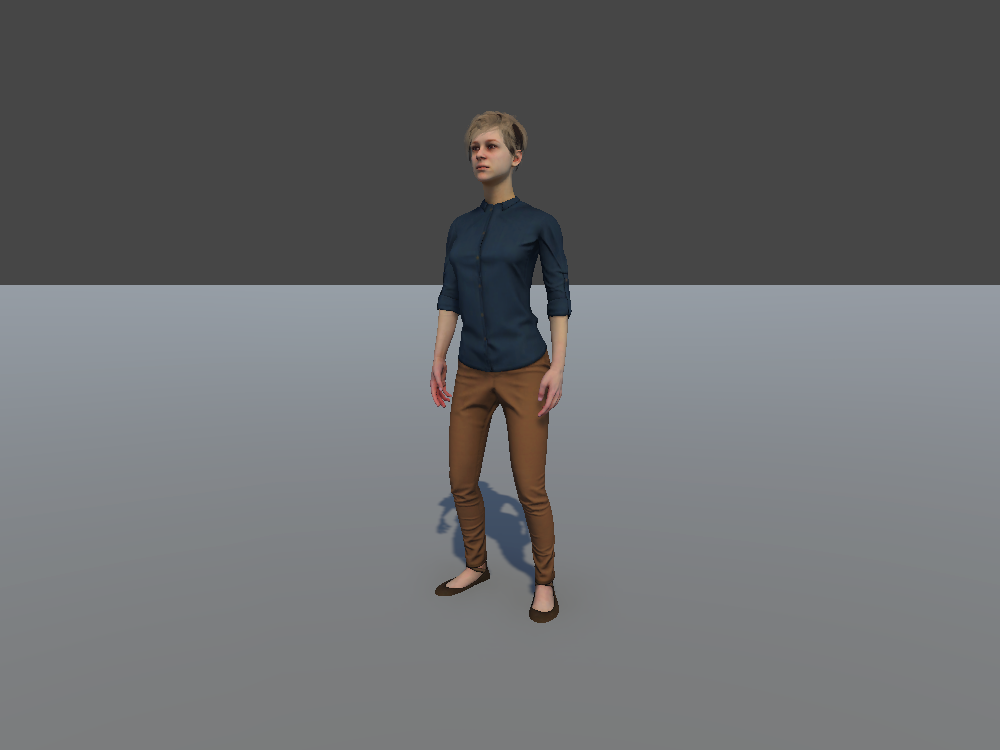
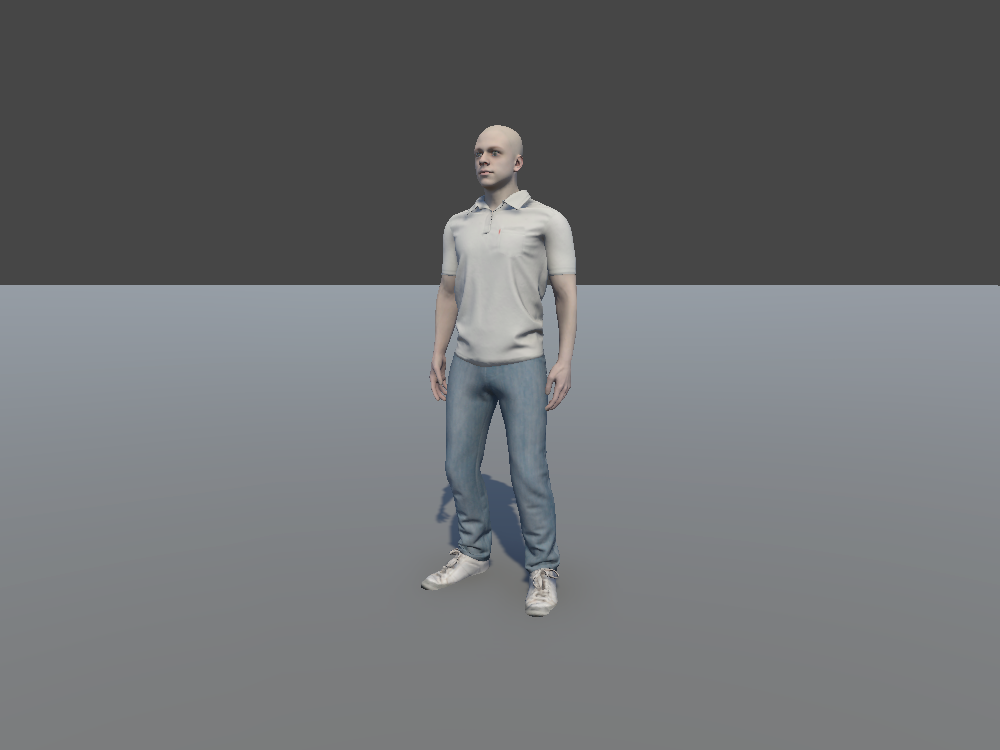
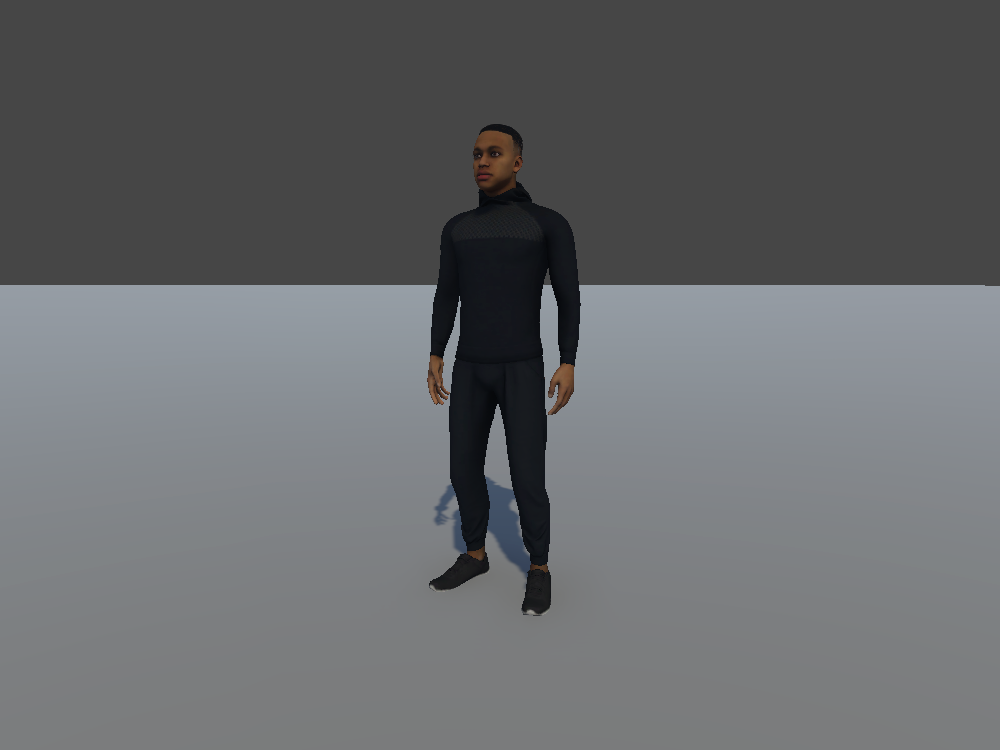
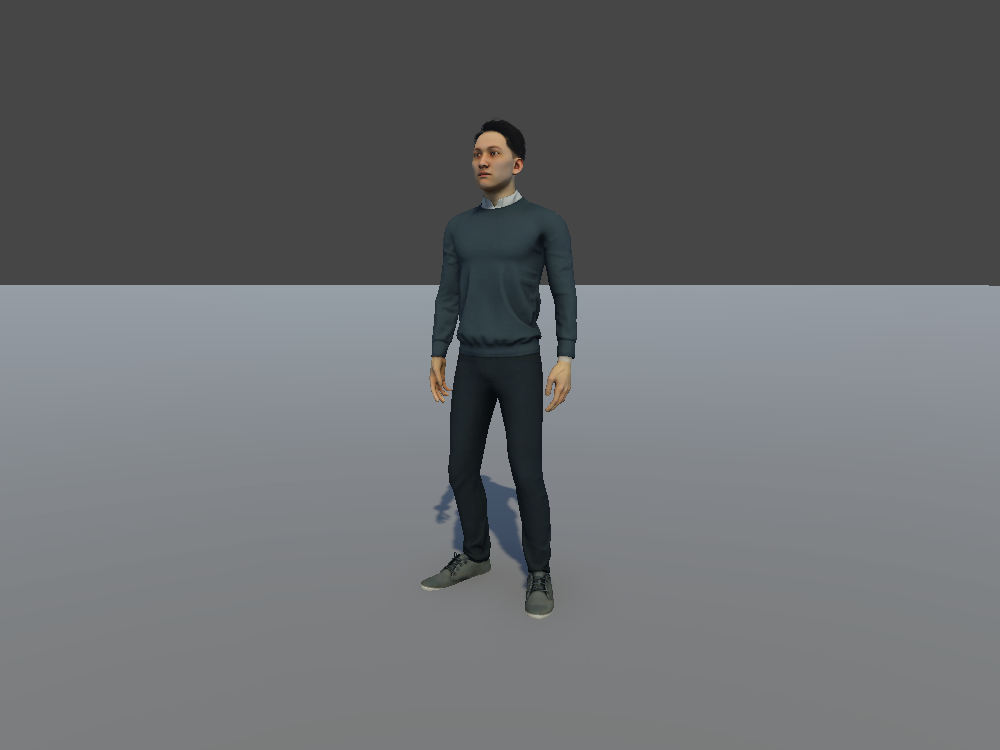
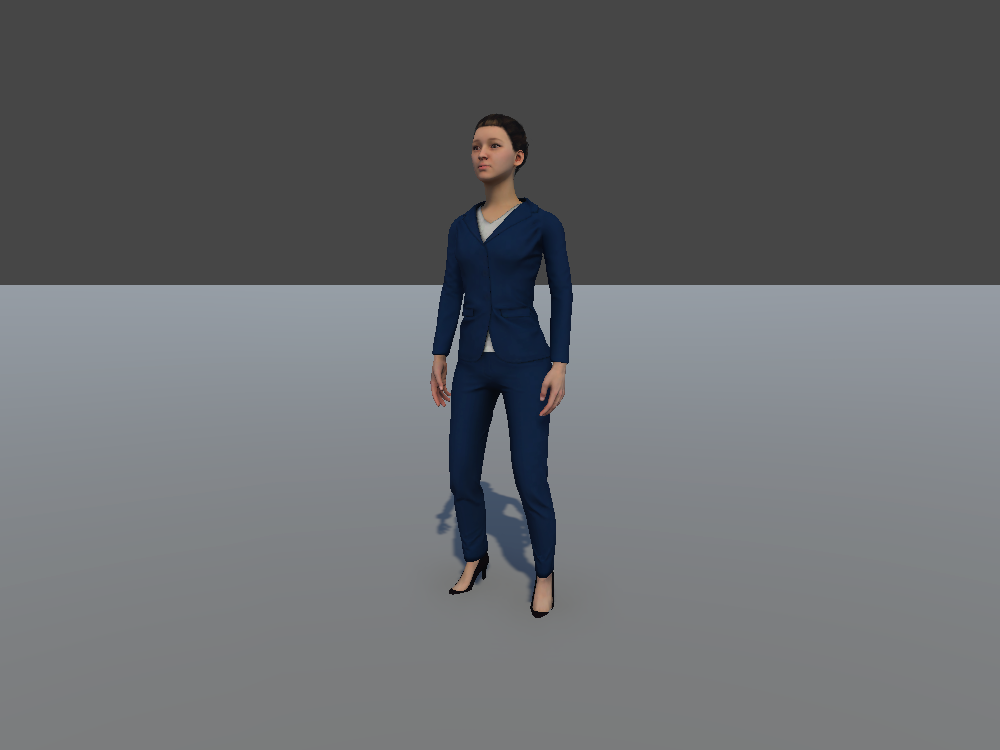
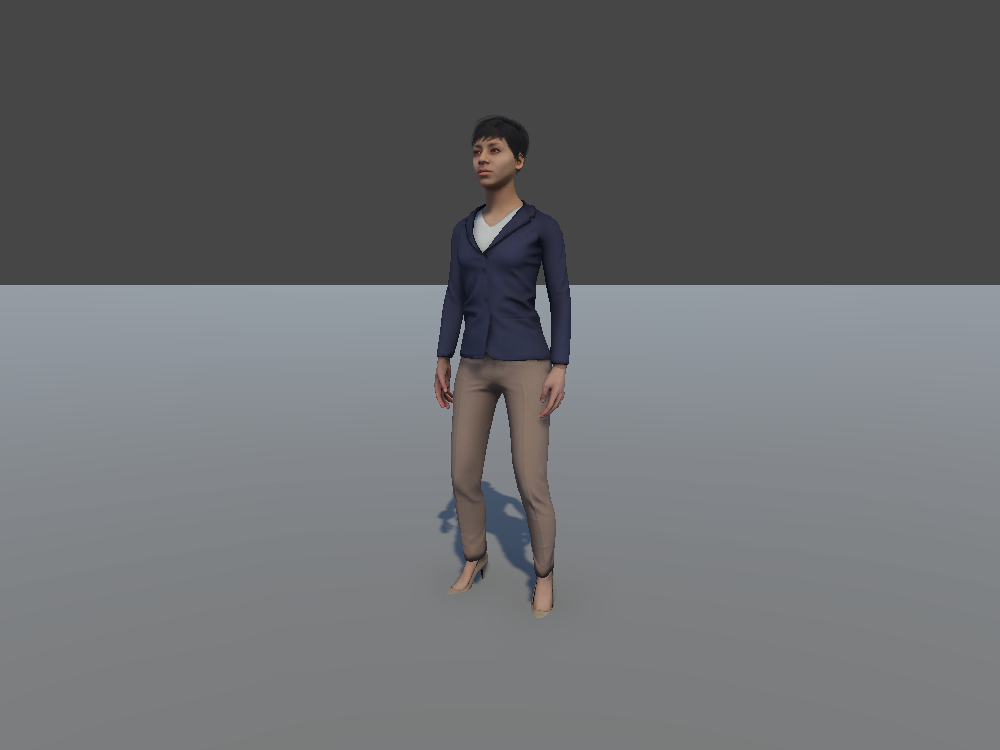
Assets/3rd Party Packages/ActorCore/Actor. Use the prefab whose name ends in Prefab, such as business-f-06-Prefab.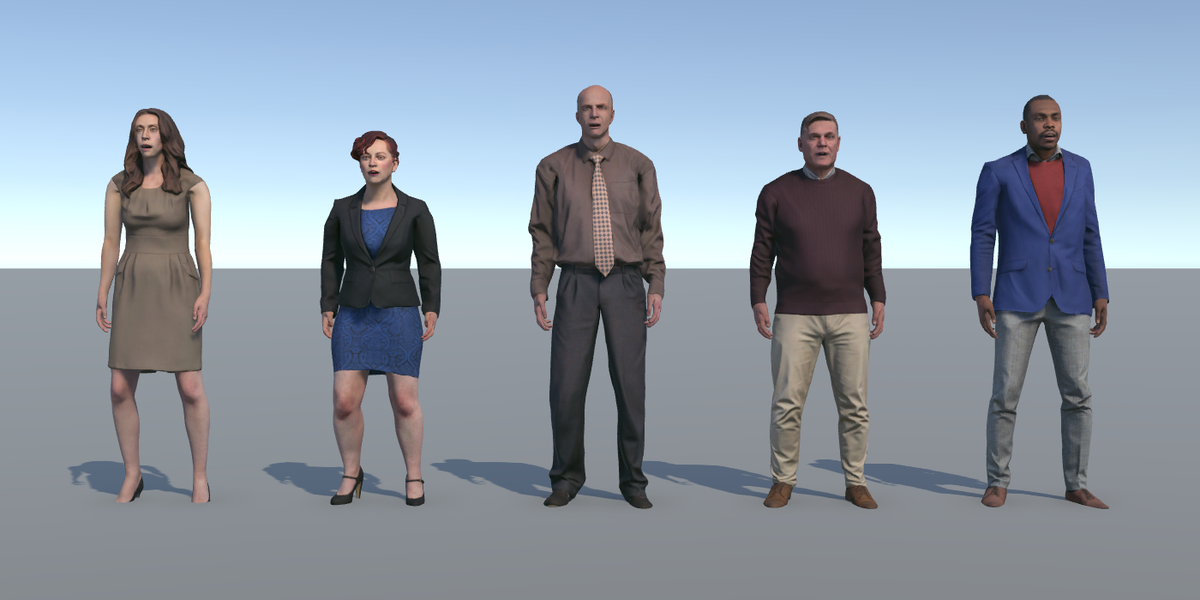
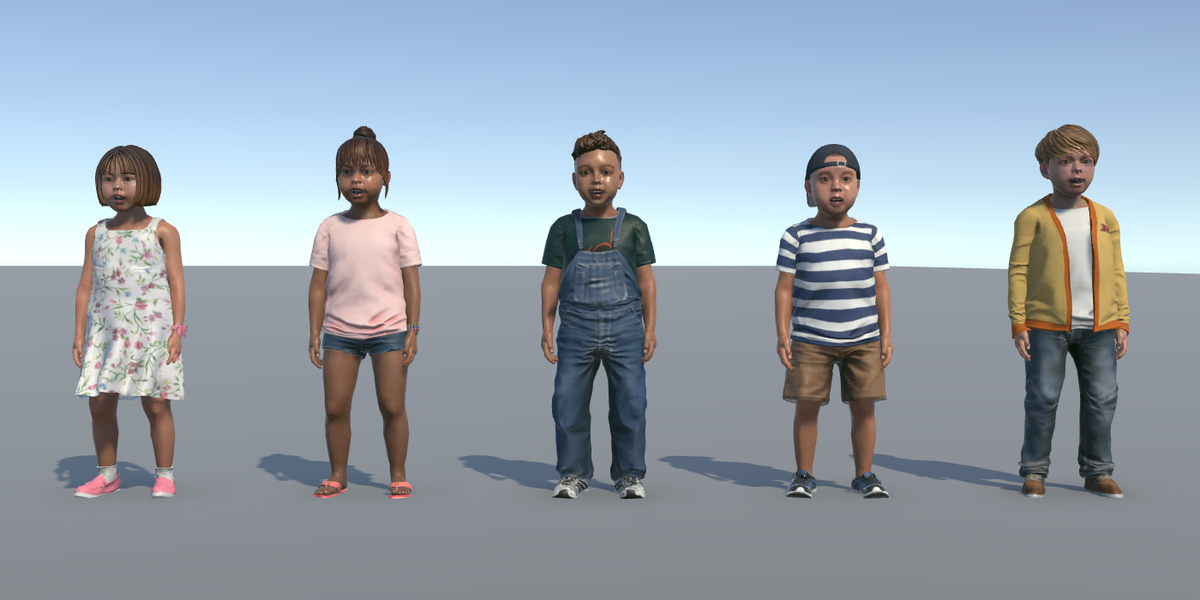
To use a different character, make a prefab variant of the pedestrian base prefab and put the character inside it. Then:
- Give the character's Animator the shared
pedestrian_animation_controller. - Connect the character to the Animator field of the pedestrian's movement component, on the root of the variant.
Assembling Custom Agents walks you through it step by step, for both ego and road pedestrians.
Dog
Road agentA Dalmatian dog.
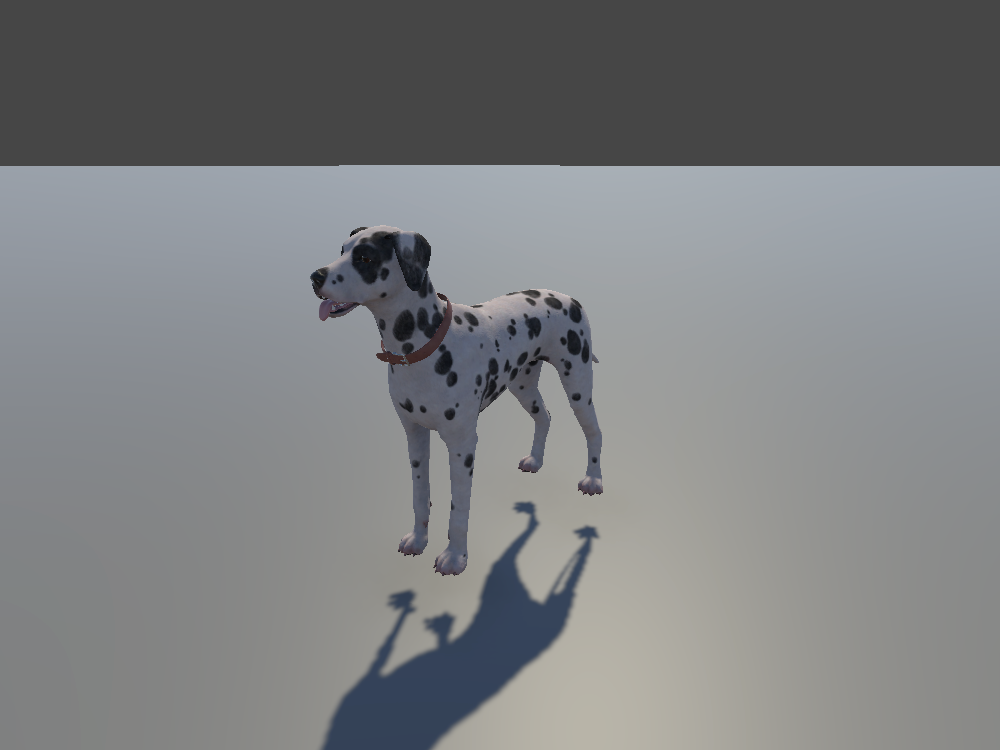
Keep in mind: The dog has its own animation controller, Dog_AnimationController, which plays dog animations in place of the human ones. Keep it, and don't give the dog a human animation controller or avatar.
Placing It
Drag RoadAgent_Dalmatian from the Project window into the Scene view, where the dog should start.
Following a Path
- In the Project window, go to
Assets/mobisim/Traffic/Prefab, and drag a RoadAgent_Path into the scene. - Shape the path along the dog's route.
- Select the dog. On its Character Path Follow Component, drag the path into Path, and click Snap Actor To The Closest Position On Path.
The Inspector marks this component as deprecated, but it still works.
To keep the dog waiting until the participant arrives, tick Linked Event on its AI Brain Component, and drag in an Event Trigger from your scene that has an AI Activation Event, such as the EventTrigger AIActivationEvent prefab from Assets/mobisim/Event/Prefab. It sets off when the event is triggered.
Along the route, it reacts to others just like a pedestrian. To learn how the path, the activation event, and these reactions work, see Making Road Agents Move.
Tuning Its Movement
It moves with the Physics Based Character Controller on the root of its prefab. These are the settings you'll change most often:
Speeds here are in meters per second, not mph. Keep Apply Root Motion unticked on the character's Animator, because this controller does the moving, not the animation.
In Play mode, check that its feet stay on the ground, and that its trot matches its speed.
Changing the Animal
An animal is built like a road pedestrian, with its own model and animations. To make another one:
- Make a prefab variant of RoadAgentBase_Pedestrian, and put the animal's model inside it.
- Give the model an Animator Override Controller that swaps the animal's own idle, walking, and running clips into the pedestrian animation controller, as the dog's does.
For the full steps, see Assembling Custom Agents.
E-Scooter
Ego agentA two-wheeled electric scooter ridden standing up.
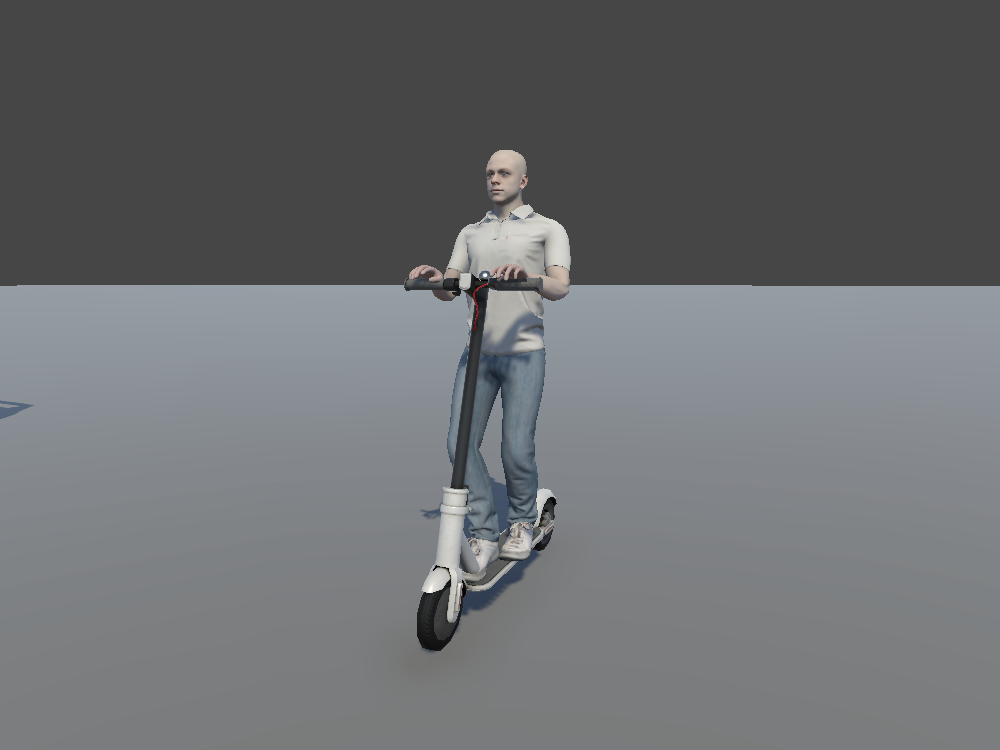
A participant-controlled scooter, with Brian as the default rider. There's also a riderless version, for when you want to add your own rider.
Choosing It
Select your scenario's Player Selector, and pick the scooter in Controllable Prefab. See Choosing a Controllable.
The riderless version doesn't appear in the list until you give it the Controllable label. See Making a Prefab Controllable.
Tuning Its Movement
It moves with the Prometeo Car Controller on the root of its prefab. These are the settings you'll change most often:
Change one setting at a time. After you change the acceleration or braking, check how far the vehicle takes to stop. Then test slow turns, fast turns, reversing, coasting, and braking.
Changing the Rider
You can put a different person on the scooter, or add one to the riderless version:
- Select the scooter. The Vehicle Rider panel appears in the Scene view.
- On the riderless version, click Add Empty Rider first.
- Drag a humanoid character into Replacement Model, and click Set Up / Replace Rider.
The panel places the rider's hands on the handlebar and feet on the deck for you. See Changing a Vehicle's Rider.
iTango
Ego agentA three-wheeled electric micromobility vehicle ridden seated, with handling between a scooter and a car.
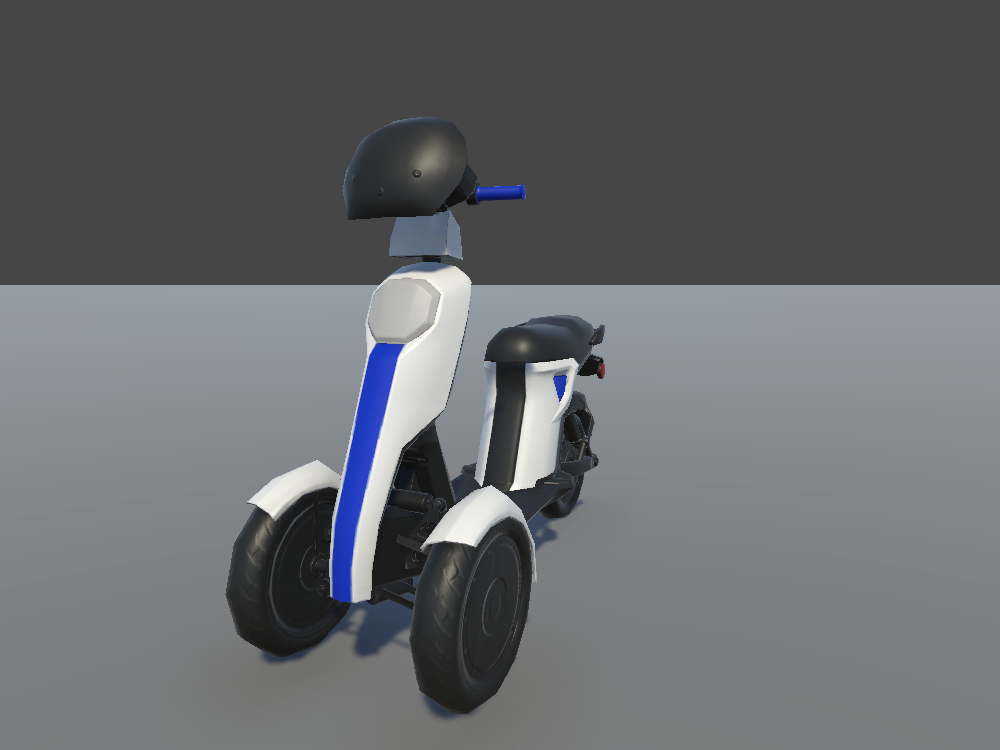
A participant-controlled iTango. It comes in three versions:
- EgoAgent_iTango: the vehicle on its own.
- EgoAgent_iTango_w_Driver: with a seated rider.
- EgoAgent_iTango_VR: for a VR headset, with screens built into the vehicle that show things like battery level and directions.
Choosing It
Select your scenario's Player Selector, and pick the iTango in Controllable Prefab. See Choosing a Controllable.
Tuning Its Movement
It moves with the Prometeo Car Controller on the root of its prefab. These are the settings you'll change most often:
Change one setting at a time. After you change the acceleration or braking, check how far the vehicle takes to stop. Then test slow turns, fast turns, reversing, coasting, and braking.
Tuning Its Sound
Its sounds come from the Prometeo Car Audio Controller on the root of its prefab. It has up to four sounds, and you can tick each one on or off:
Each sound has its own Audio Source, plus a Min Volume, Max Volume, Min Pitch, and Max Pitch. As the vehicle speeds up, the driving sounds move from their minimum volume and pitch toward their maximum. The idle sound changes only its volume.
Tune the sound after the movement feels right. Changing the pitch doesn't change how fast the vehicle goes.
Changing the Rider
You can put a different person in the seat, or add one to the version without a rider:
- Select the iTango. The Vehicle Rider panel appears in the Scene view.
- On the version without a rider, click Add Empty Rider first.
- Drag a humanoid character into Replacement Model, and click Set Up / Replace Rider.
The rider sits in the same pose and position as the original. See Changing a Vehicle's Rider.
Motocompacto
Ego agentA compact, folding, scooter-style vehicle ridden seated, for lightweight urban commuting.
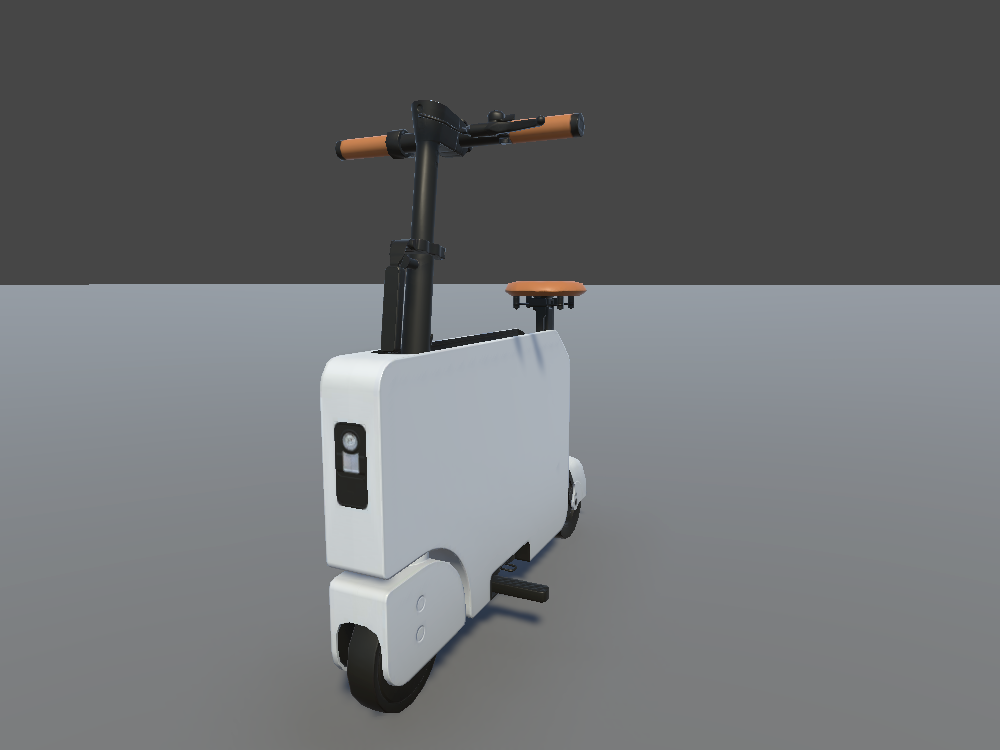
A participant-controlled Motocompacto. It comes on its own, or with a seated rider (EgoAgent_Motocompacto_w_Driver).
Choosing It
Select your scenario's Player Selector, and pick the Motocompacto in Controllable Prefab. See Choosing a Controllable.
Tuning Its Movement
It moves with the Prometeo Car Controller on the root of its prefab. These are the settings you'll change most often:
Change one setting at a time. After you change the acceleration or braking, check how far the vehicle takes to stop. Then test slow turns, fast turns, reversing, coasting, and braking.
Tuning Its Sound
Its sounds come from the Prometeo Car Audio Controller on the root of its prefab. It has up to four sounds, and you can tick each one on or off:
Each sound has its own Audio Source, plus a Min Volume, Max Volume, Min Pitch, and Max Pitch. As the vehicle speeds up, the driving sounds move from their minimum volume and pitch toward their maximum. The idle sound changes only its volume.
Tune the sound after the movement feels right. Changing the pitch doesn't change how fast the vehicle goes.
Changing the Rider
You can put a different person in the seat, or add one to the version without a rider:
- Select the Motocompacto. The Vehicle Rider panel appears in the Scene view.
- On the version without a rider, click Add Empty Rider first.
- Drag a humanoid character into Replacement Model, and click Set Up / Replace Rider.
The rider sits in the same pose and position as the original. See Changing a Vehicle's Rider.
Delivery Robot
Ego agentA small four-wheeled robot that delivers parcels along the sidewalk.
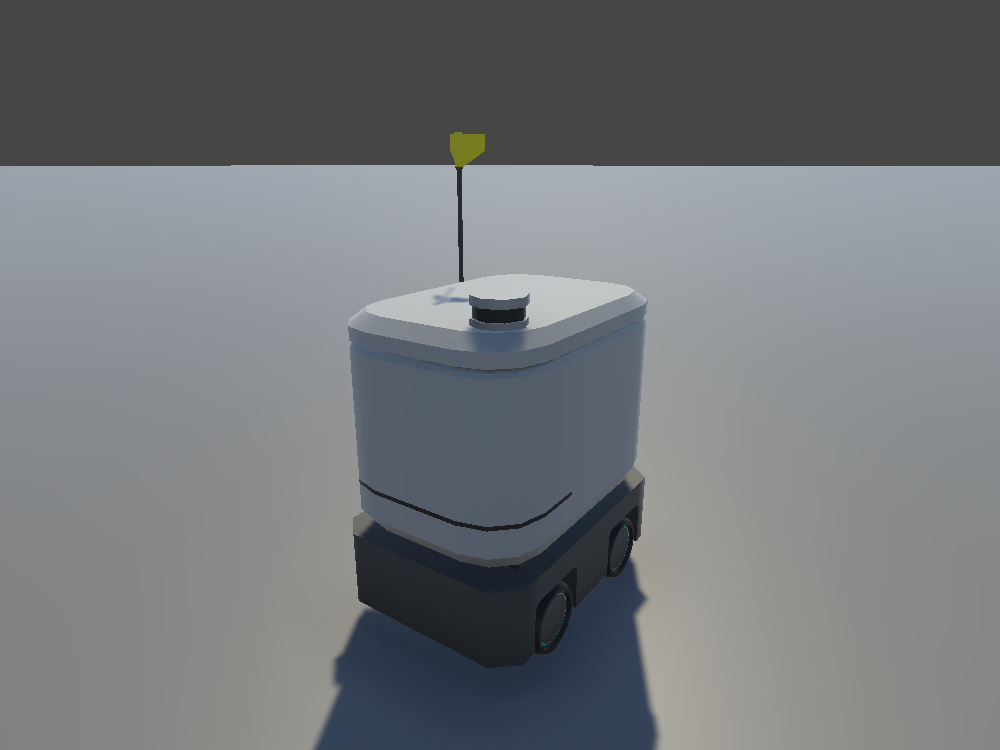
A participant-controlled delivery robot that drives along the sidewalk. It suits studies about last-mile delivery and about moving among pedestrians.
Choosing It
Select your scenario's Player Selector, and pick the robot in Controllable Prefab. See Choosing a Controllable.
Tuning Its Movement
It moves with the Prometeo Car Controller on the root of its prefab. These are the settings you'll change most often:
Change one setting at a time. After you change the acceleration or braking, check how far the vehicle takes to stop. Then test slow turns, fast turns, reversing, coasting, and braking.
Changing Its Look
You can give the robot a different body that drives the same way:
- Make a prefab variant, hide the current body, and add your model.
- Put your wheels under the wheel objects that the wheel colliders spin and steer.
- Fit the colliders to the new shape.
For the full steps, see Assembling Custom Agents.
Smart Delivery Robot
Ego agentA six-wheeled delivery robot with a different design, for when you need a second kind of robot.
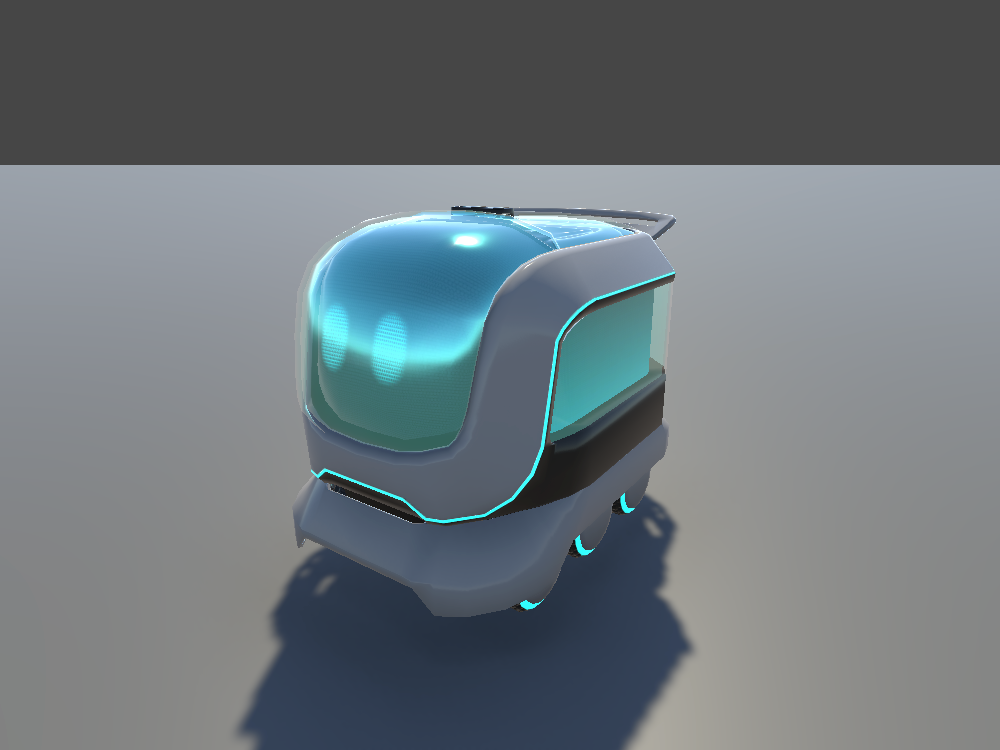
A participant-controlled delivery robot that drives along the sidewalk. It suits studies about last-mile delivery and about moving among pedestrians.
Choosing It
Select your scenario's Player Selector, and pick the robot in Controllable Prefab. See Choosing a Controllable.
Tuning Its Movement
It moves with the Prometeo Car Controller on the root of its prefab. These are the settings you'll change most often:
Change one setting at a time. After you change the acceleration or braking, check how far the vehicle takes to stop. Then test slow turns, fast turns, reversing, coasting, and braking.
Changing Its Look
You can give the robot a different body that drives the same way:
- Make a prefab variant, hide the current body, and add your model.
- Put your wheels under the wheel objects that the wheel colliders spin and steer.
- Fit the colliders to the new shape.
For the full steps, see Assembling Custom Agents.
SUV
Ego agentA full-size four-wheeled car, for driving studies or for traffic around the participant.
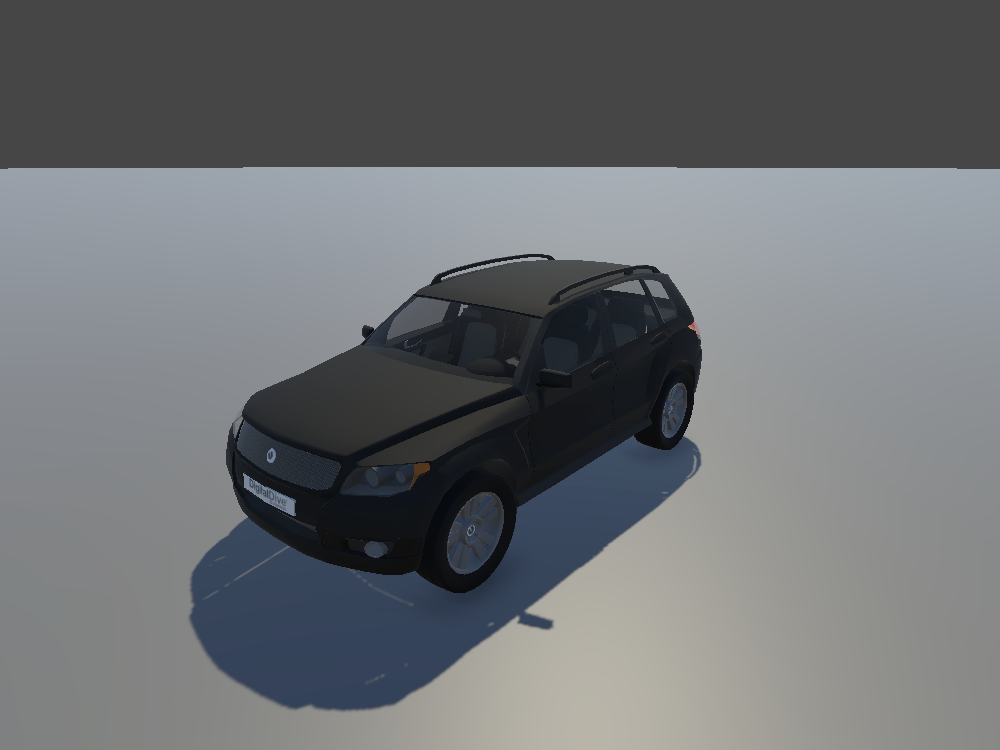
A participant-controlled SUV.
Choosing It
Select your scenario's Player Selector, and pick the SUV in Controllable Prefab. See Choosing a Controllable.
Tuning Its Movement
Two components on the root of its prefab work together:
- The Custom Car Controller handles the car's physics, such as its engine, wheels, and top speed.
- The Player Car Driver turns the participant's input into throttle, braking, steering, and gear changes.
The settings you're most likely to tune are on the Player Car Driver:
The car's top speed is Topspeed on the Custom Car Controller. It's 50, in the unit set by Speed Type (mph to begin with). Leave the controller's other settings as they are.
It's also good to know how the car responds to input:
- The accelerator is either on or off. Any forward or backward input gives full power. Pressing a pedal halfway doesn't give half the power.
- Pressing the opposite way brakes. Pressing back while in Drive, or forward while in Reverse, puts on the brakes.
- Changing gear needs a short hold. When the car has almost stopped, keep pressing the opposite way for 0.3 seconds to switch between Drive and Reverse.
- A gear selector, if your input device has one, picks Drive at 1 or above, and Reverse at −1 or below.
Test with the same input device your study will use.
MicroMobility Car
Ego agentA compact four-wheeled micromobility vehicle.
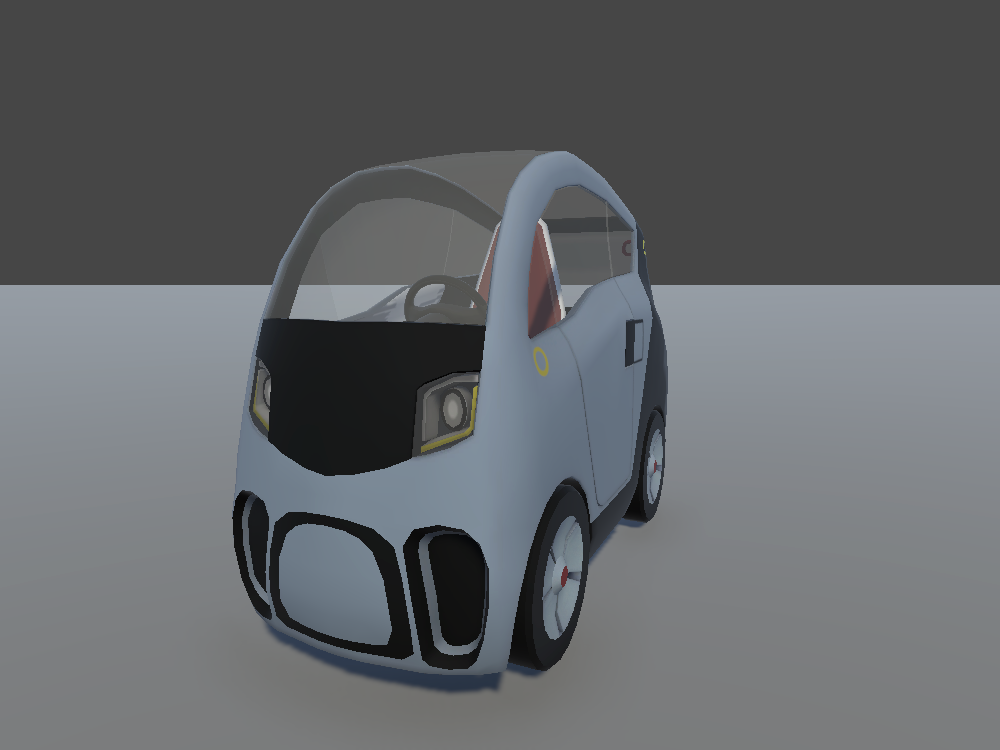
A participant-controlled car.
Choosing It
Select your scenario's Player Selector, and pick the car in Controllable Prefab. See Choosing a Controllable.
Tuning Its Movement
Two components on the root of its prefab work together:
- The Custom Car Controller handles the car's physics, such as its engine, wheels, and top speed.
- The Player Car Driver turns the participant's input into throttle, braking, steering, and gear changes.
The settings you're most likely to tune are on the Player Car Driver:
The car's top speed is Topspeed on the Custom Car Controller. It's 50, in the unit set by Speed Type (mph to begin with). Leave the controller's other settings as they are.
It's also good to know how the car responds to input:
- The accelerator is either on or off. Any forward or backward input gives full power. Pressing a pedal halfway doesn't give half the power.
- Pressing the opposite way brakes. Pressing back while in Drive, or forward while in Reverse, puts on the brakes.
- Changing gear needs a short hold. When the car has almost stopped, keep pressing the opposite way for 0.3 seconds to switch between Drive and Reverse.
- A gear selector, if your input device has one, picks Drive at 1 or above, and Reverse at −1 or below.
Test with the same input device your study will use.