Making Road Agents Move
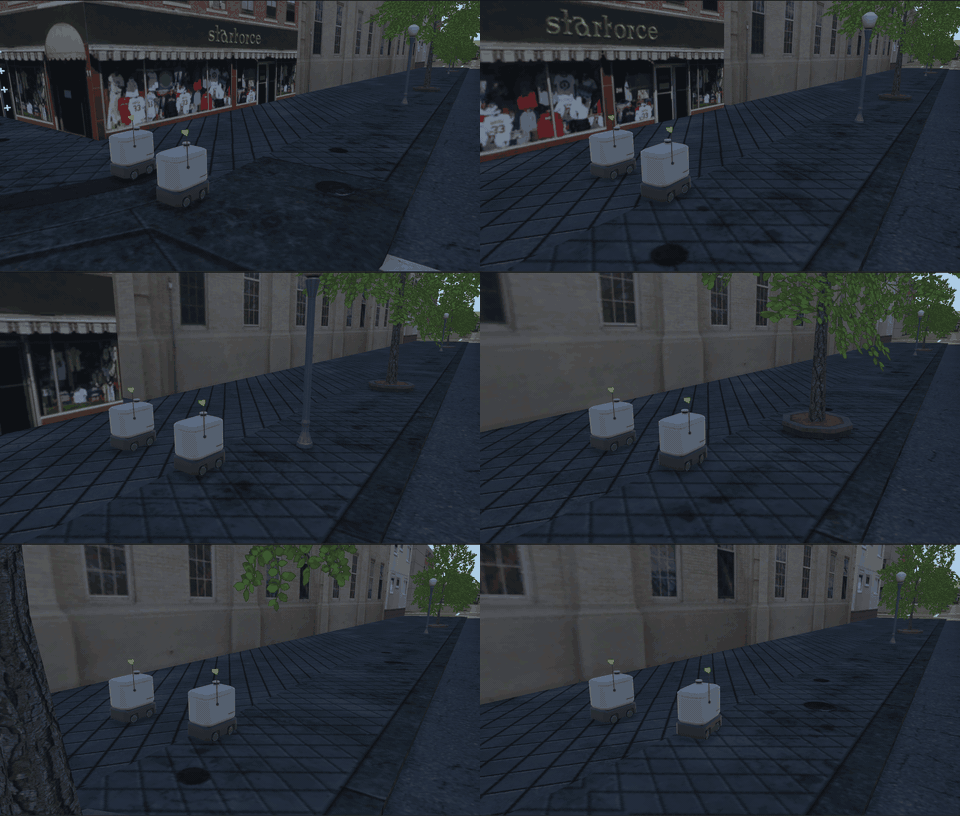
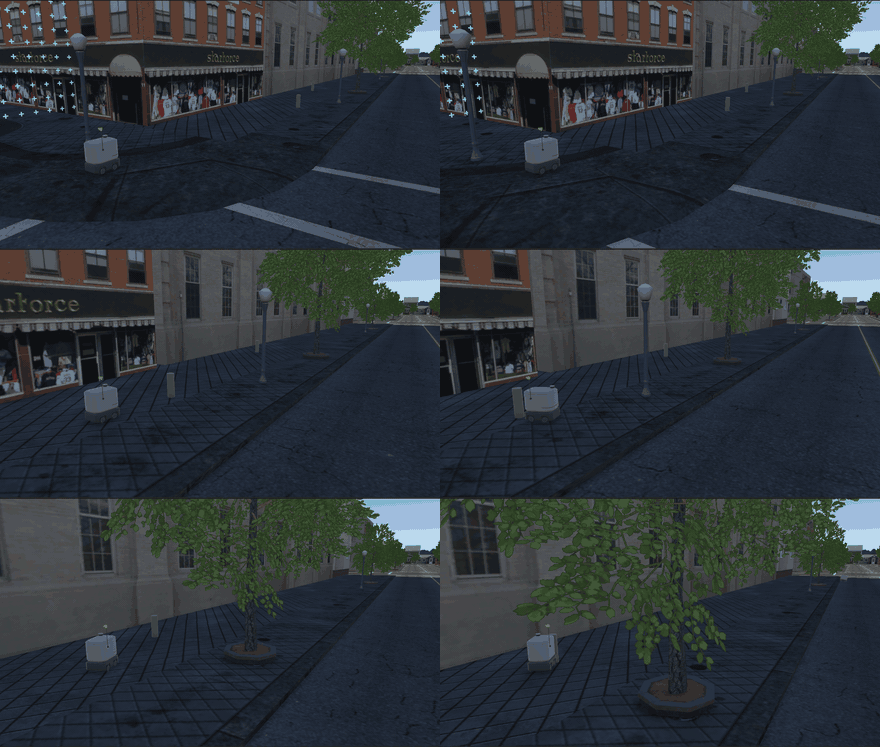
When you place a road agent in a scene, it just stands there. To get it moving, you have two options:
- Give it a path to follow. You draw a route, and the agent travels along it by itself. On the way, it behaves like a real road user: it stops when someone is in its way, and waits at stop lines. Most road agents work this way.
- Command it to move. You tell the agent exactly where to go and when, such as "go to this spot" or "stop now". You send these commands from Timeline or when an event happens. This is handy when you want to plan an encounter step by step. The agent ignores traffic while it does this, and goes straight where you tell it.
Some steps are different for each kind of agent. Choose the one you're setting up:
Following a Path
A path is a line you draw through the scene. It's made of points, and the agent passes through them one after another. Paths are built on Unity's Cinemachine Path, so for everything they can do, see Unity's documentation.
The paths and routes on this page only move road agents. They have nothing to do with the navigation waypoints that show the participant where to go. Road agents ignore navigation waypoints, and the participant never sees these paths.
Setting Up the Path
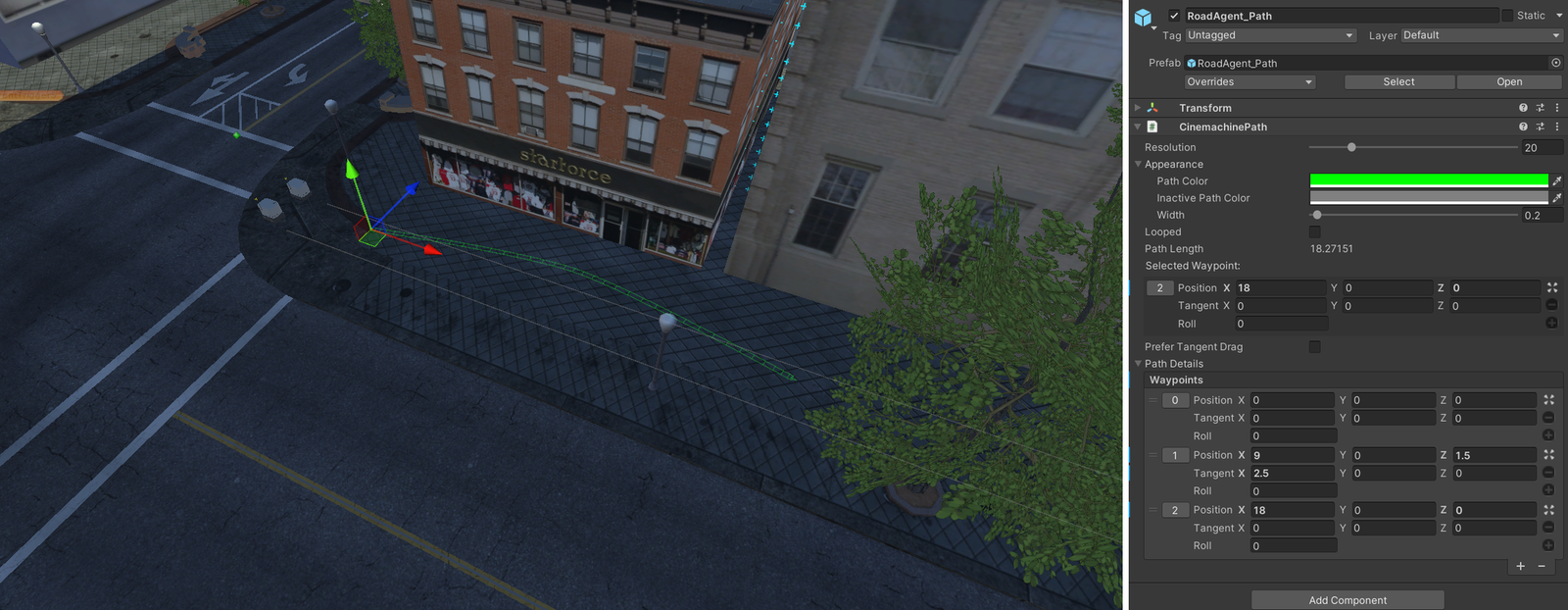
In the Project window, go to Assets/mobisim/Traffic/Prefab, and drag a RoadAgent_Path into the scene, close to where the agent starts. A new path has two points: a start and an end.
To shape it, select the path and look under Path Details in the Inspector:
- Move a point: type its position, or click its number and drag it in the Scene view.
- Add a point: click +. Add as many as you need for longer routes.
- Curve the path: change a point's Tangent.
Let the path carry on a little past the spot where the encounter happens. That way, the agent keeps going naturally afterwards, instead of stopping right there.
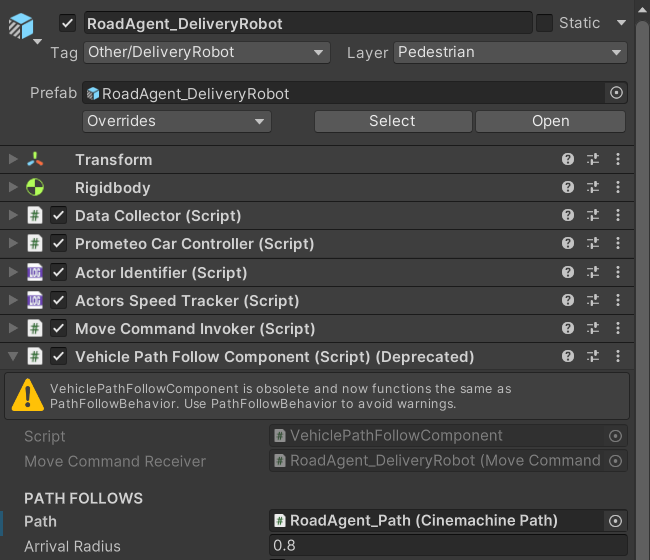
Select the person or animal, and find its Character Path Follow Component in the Inspector.
Drag your path from the Hierarchy into the Path field. Then click Snap Actor To The Closest Position On Path to place the agent on the path. Check that the agent stands on the ground, and isn't sunk into it or floating above it.
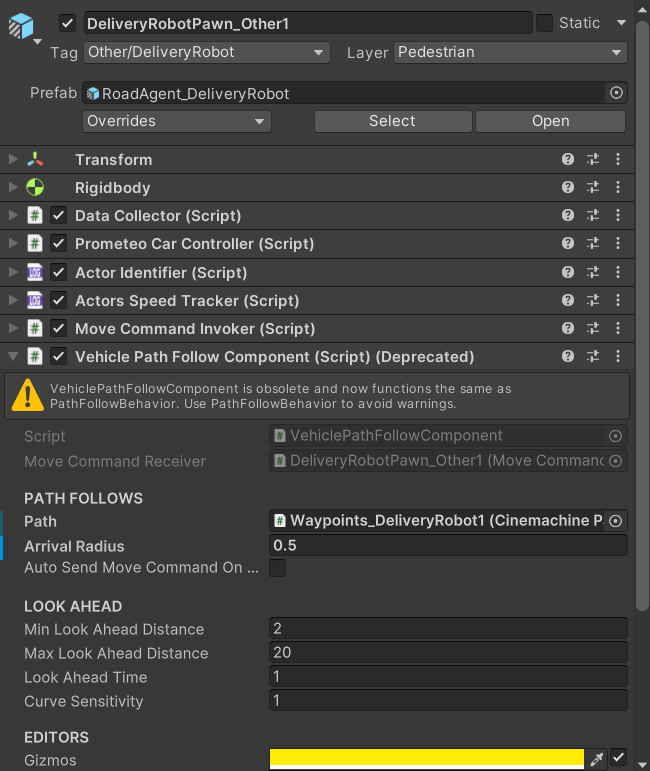
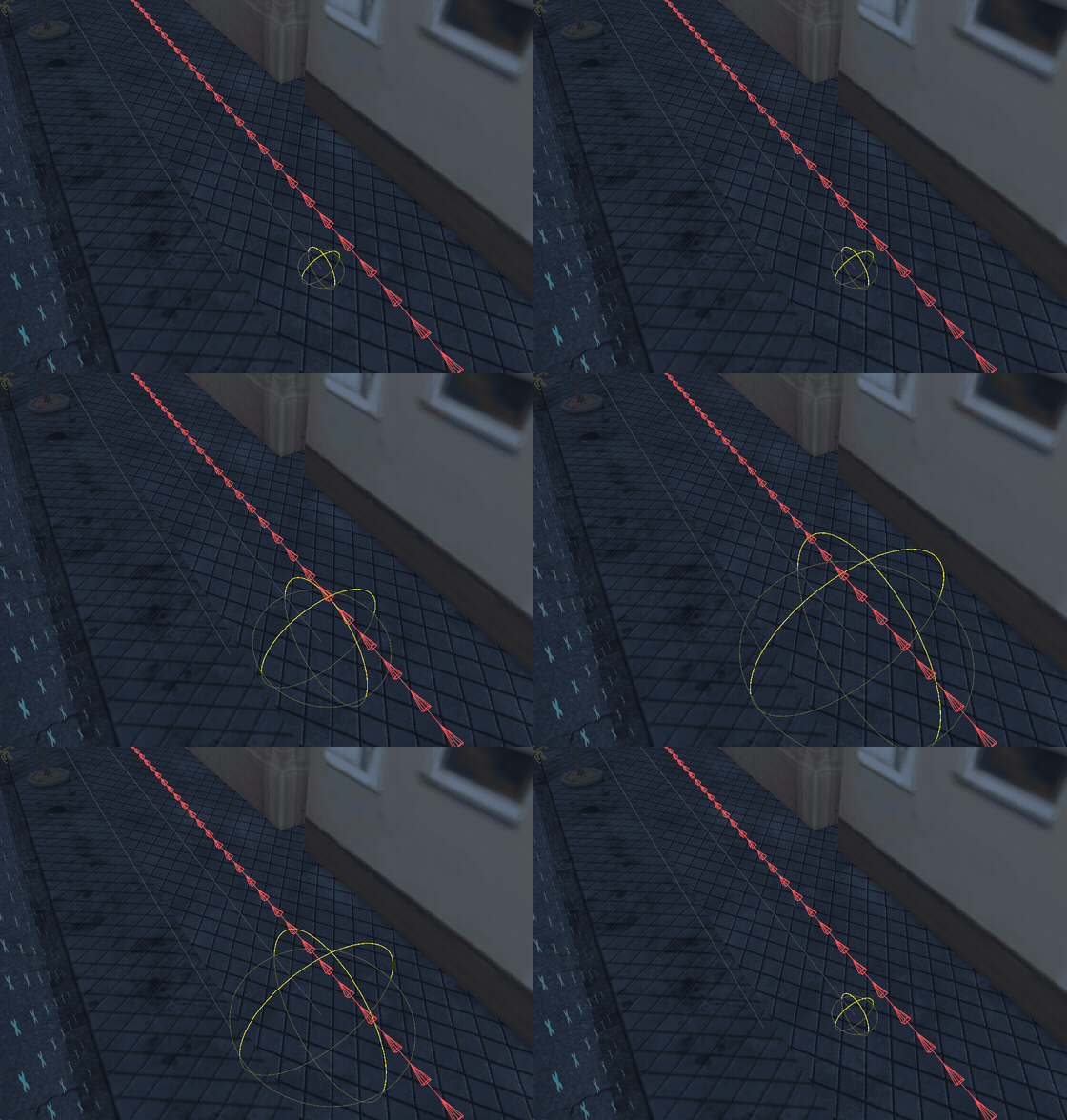
Arrival Radius, on the same component, sets how close the agent has to get to the end of the path before it counts as arrived. Only the distance across the ground counts, not the height.
Leave Auto Send Move Command On Update unticked. This lets the agent decide for itself when to move.
Choosing When It Sets Off
Once it has a path, the agent sets off as soon as the scene starts. If you want it to wait, for example until the participant comes close, link it to an AI Activation Event:
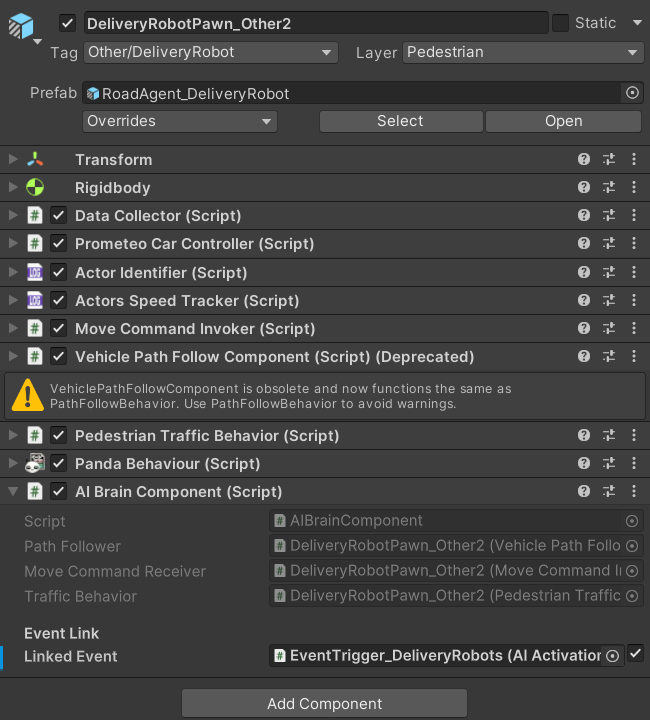
- Add an AI Activation Event to the scene, and choose what triggers it, just like any other scenario event. See Event Triggers.
- Select the agent. On its AI Brain Component, tick Linked Event, and drag the AI Activation Event into it.
Now the agent waits when the scene starts, and sets off when the event is triggered. You can link several agents to the same event to make them set off together.
Keep the agent active in the scene while it waits. If it's switched off, it can't hear the event.
Check two things, one at a time. First, check that the event is actually triggered when you expect. Then, check that the agent is connected to its path or route.
Steering Along the Path
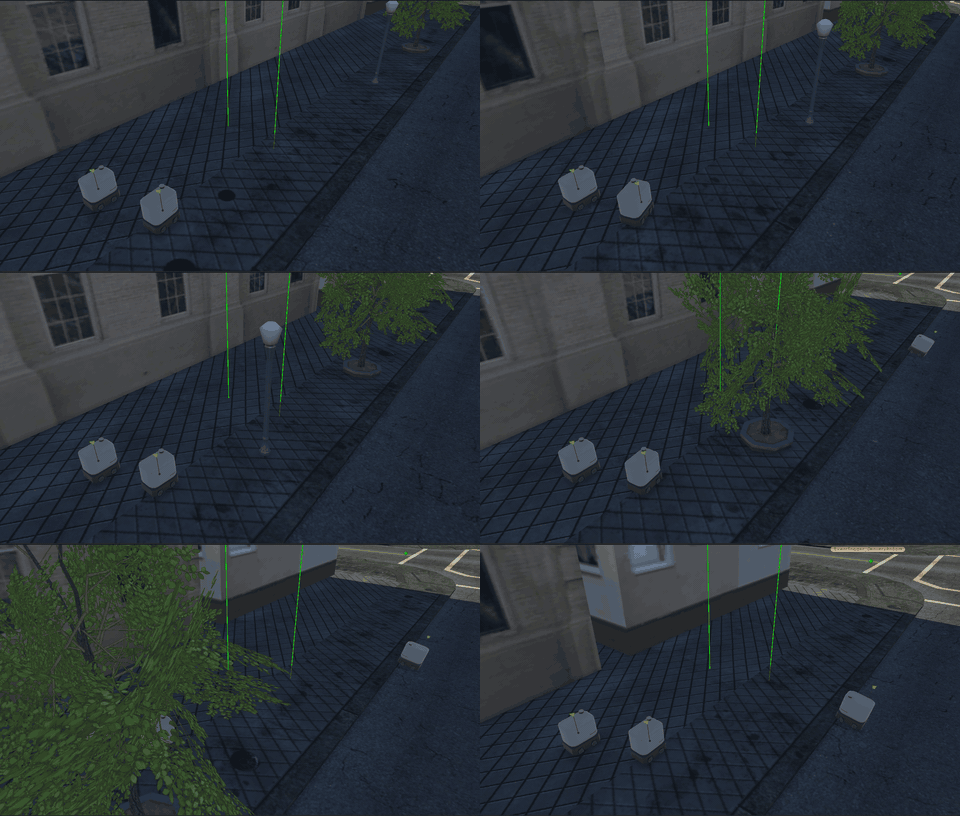
The agent doesn't head straight for the next point on the path. Instead, it aims at a spot a little further along the path, like a driver looking down the road rather than at their feet. This makes its movement smooth.
These settings on the path follow component control how far ahead it looks:
Looking further ahead makes the agent move more smoothly on straight stretches, but it may cut corners. Curve Sensitivity helps with this by making it look less far ahead on bends.
- It weaves from side to side on straight stretches: it's looking too close. Raise Min Look Ahead Distance.
- It cuts across the inside of bends: it's looking too far. Lower Min Look Ahead Distance or Max Look Ahead Distance, or raise Curve Sensitivity.
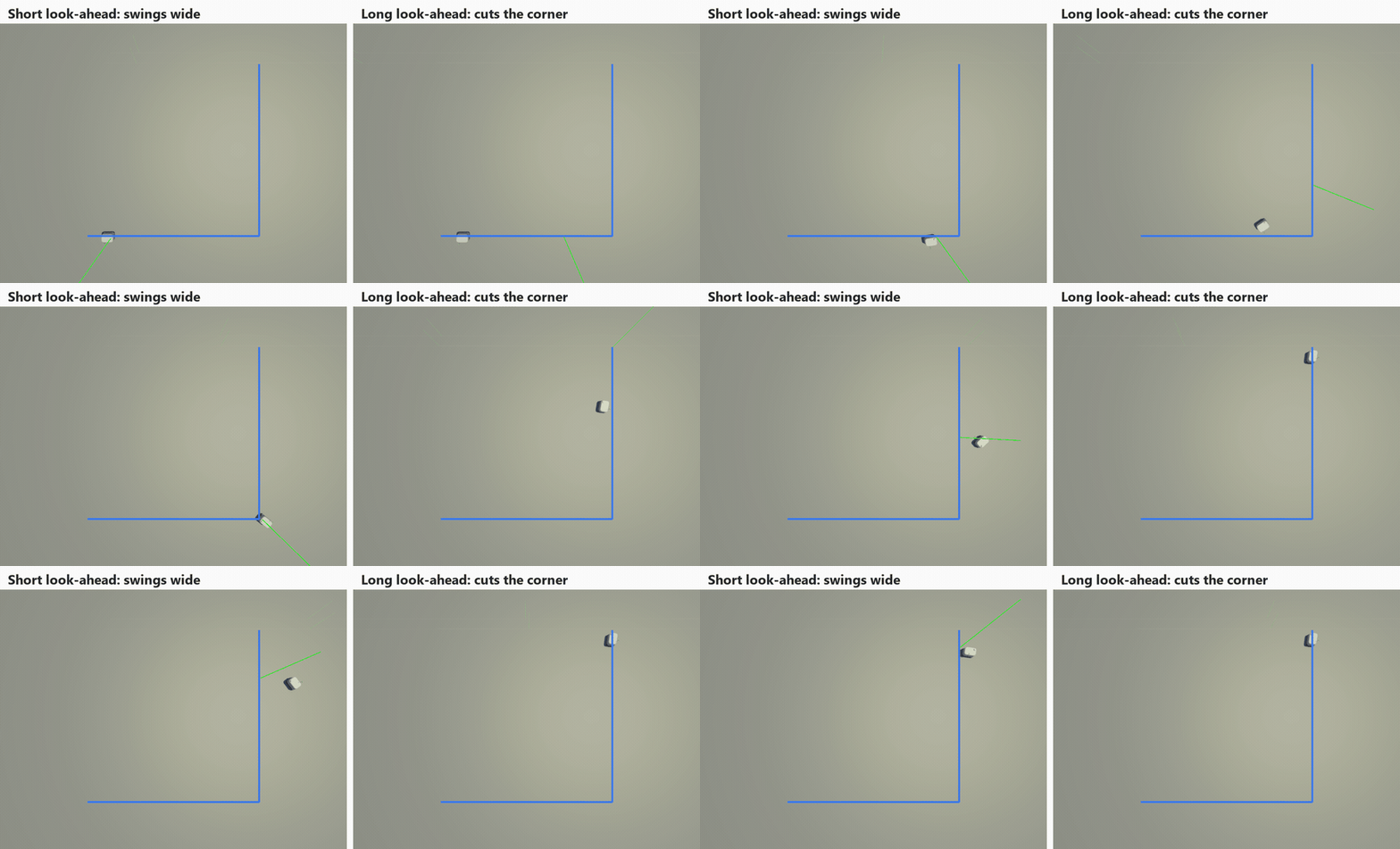
Reacting to Traffic
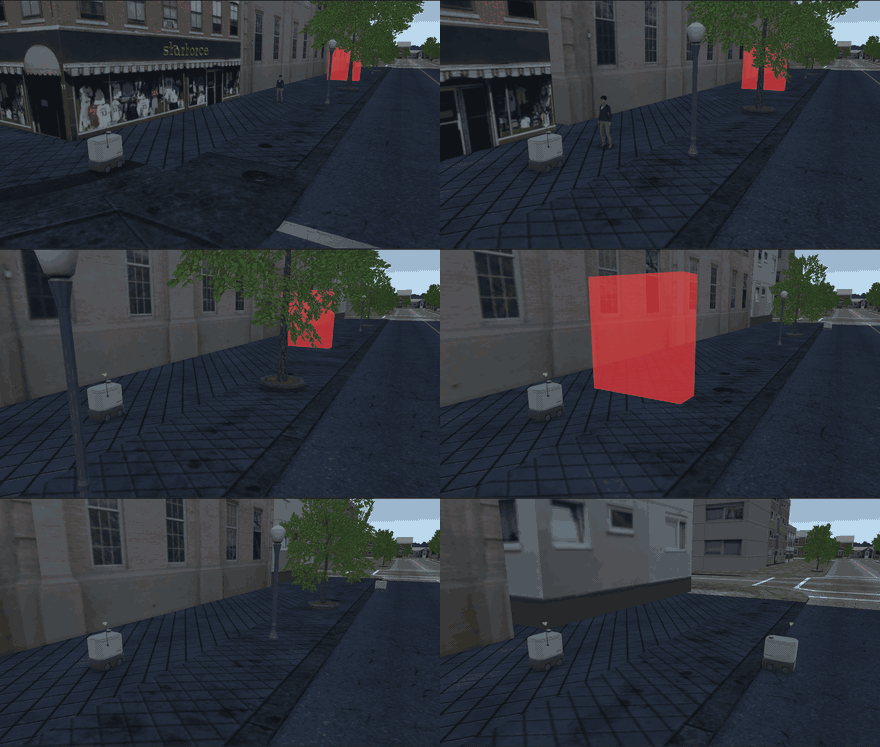
While it moves, the agent uses a sensor to watch the area in front of it:
- When another road user is in its way and too close, it stops. Once the way is clear, it carries on.
- When it reaches a stop line, it stops, waits a moment, and then carries on.
It never steers around anything, and it doesn't slow down gradually. It stays on its path, and simply stops and goes.
People and animals use the Pedestrian Traffic Behavior component for this.
How close it gets
The traffic behavior component has two groups of settings: Traffic Object Contact Parameter for other road users, and Stopline Contact Parameter for stop lines.
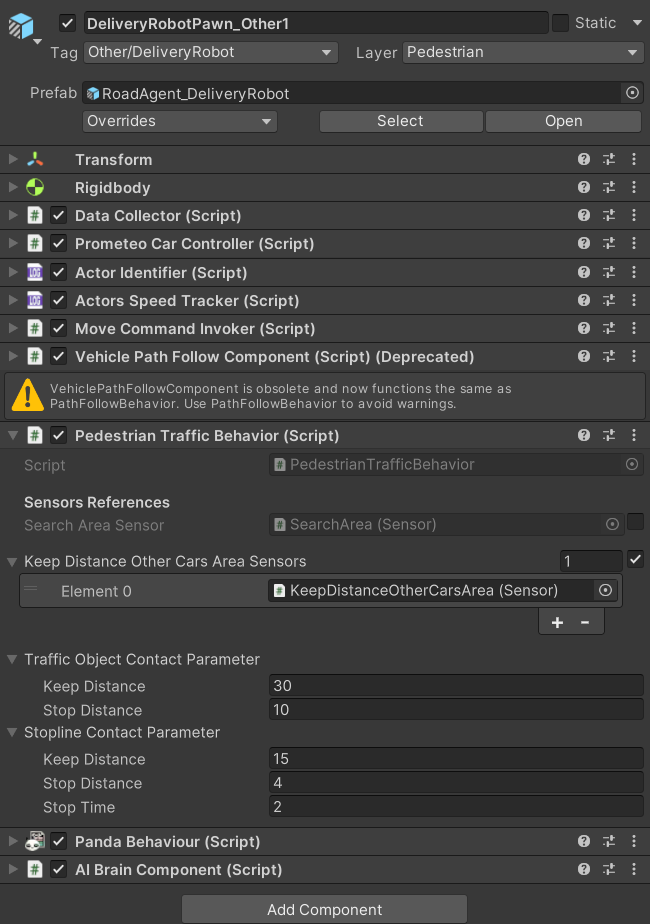
Pick a stop distance that suits the agent's size and speed. Then press Play and watch it move, because a gap that looks right in the Scene view can feel very different in motion.
Where it looks
The agent notices things with its KeepDistanceOtherCarsArea sensor, which you'll find inside the agent under DrivingSensor. Select it, and check in the Scene view that it covers the space in front of the agent at the right height. If it's too high or too low, the agent won't see what's in front of it.
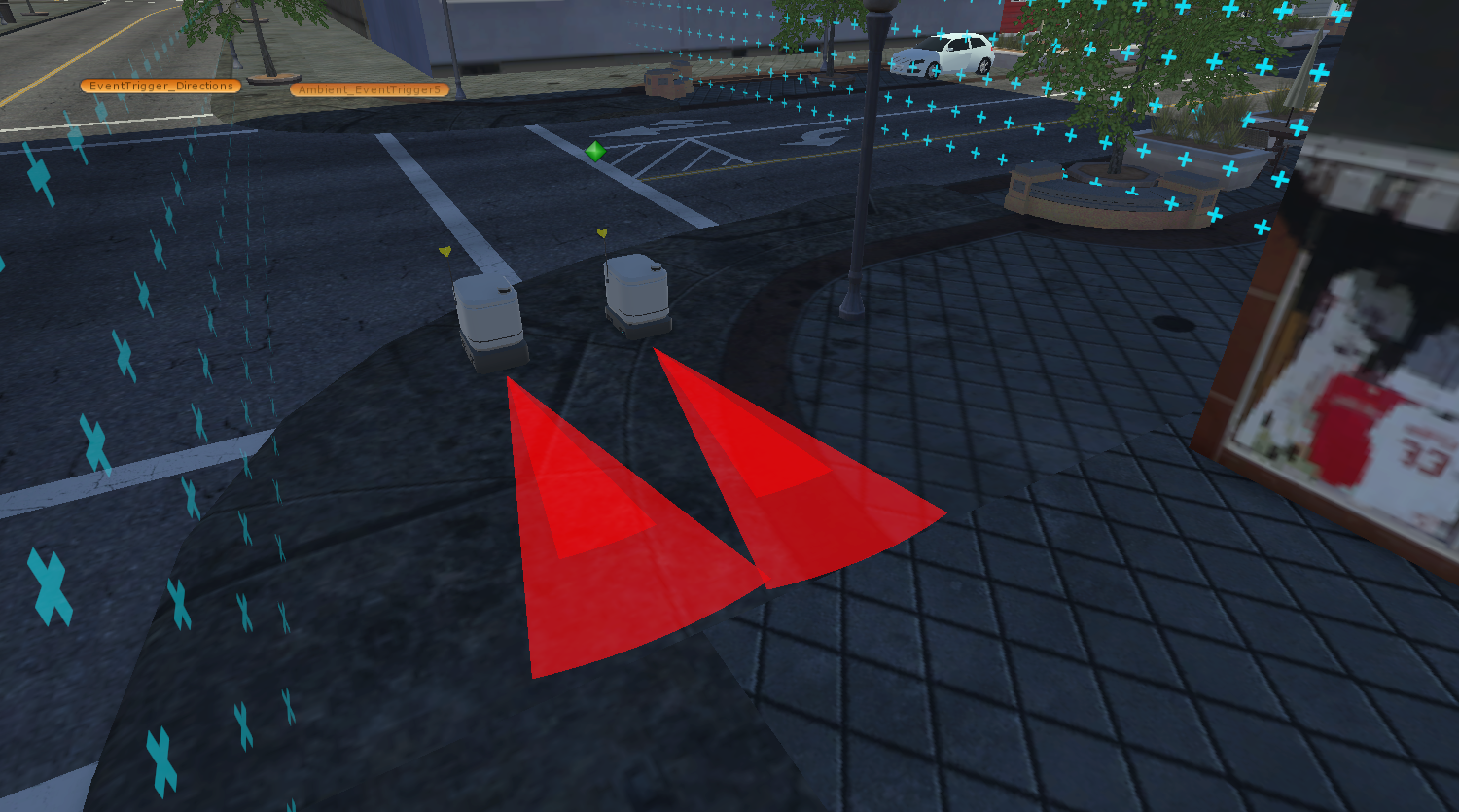
You'll also see a SearchArea sensor next to it. It doesn't affect how the agent reacts at the moment, so you can leave it as it is.
On the traffic behavior component, keep Keep Distance Other Cars Area Sensors ticked, with the KeepDistanceOtherCarsArea sensor in its list. If it's unticked, you'll get errors when the scene starts. If the list is empty, the agent won't react to anything.
What it reacts to
The agent only notices objects on the Car, Mine, or Pedestrian layers. Stop lines must be on the Stopline layer and tagged Other/Stopline/Pedestrian. It ignores stop lines tagged for cars.
If you copy colliders from somewhere else, check that they keep these layers and tags. See Layers and Tags.
Commanding It to Move
When you command an agent, it heads straight for the place you give it, and stops when it gets there. It doesn't follow roads or paths, and it doesn't react to traffic: it won't stop for others or at stop lines. To move it along a longer route, send several commands one after another.
How close it has to get to count as arrived is set by Default Acceptable Radius on the agent's Move Command Invoker. The Delivery Robot uses 0.8 meters.
Switching Off Its AI
The agent's own AI and your commands can't both be in charge. If you leave the AI on, it holds the agent still and cancels your commands almost as soon as they start. So before you send any commands, select the agent and untick these components:
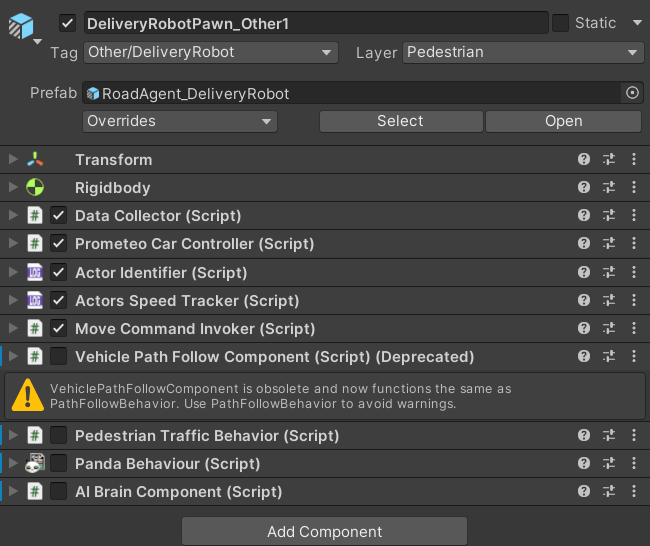
- Character Path Follow Component, which follows a path.
- Pedestrian Traffic Behavior, which reacts to traffic.
- AI Brain Component and Panda Behaviour, which together decide what the agent does.
For an example, open the VR_ExampleScenario_Map scene. Its delivery robots are set up this way and moved from Timeline.
Commanding It from Timeline

To move the agent at set times, use an AI Command Track:
- In your timeline, add an AI Command Track, and drag the agent onto it.
- Add a clip at the moment the agent should act.
- Select the clip, and choose its Command Type in the Inspector:
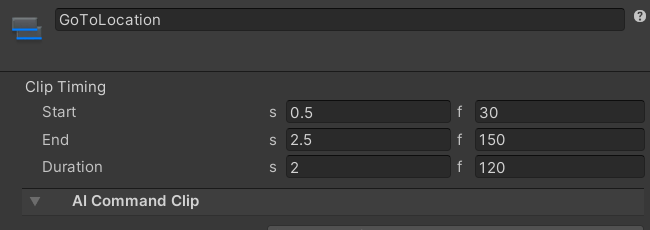
Each clip sends its command once, when the timeline reaches it. A new command replaces the previous one.
The timeline doesn't wait for the agent to arrive before it moves on. To make it wait, see AI Command Track.
Commanding It from an Event
You can also move the agent when something happens, such as the participant walking into an event trigger. In that event, click + to add an entry, drag in the agent, and choose one of these under MoveCommandInvoker:
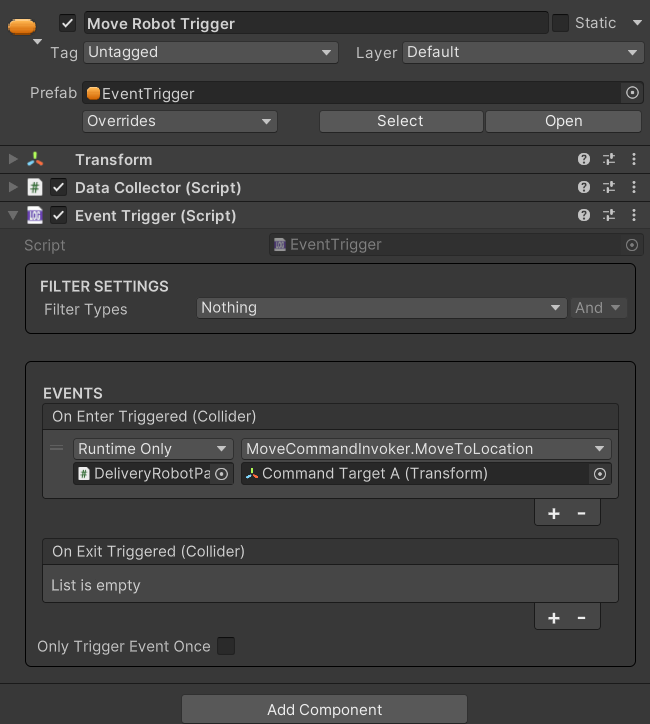
A new command always replaces the previous one, so you can change where the agent is going at any time.