Bootstrap
Every session starts with a bootstrap step that sets up the systems the simulator needs before any scenario runs. This step is handled by the Initialization scene. It is not part of the Scene graph: it loads first, sets up the core systems, and then hands over to the first scene of the active Scene graph.
The Initialization scene is responsible for instantiating all core system GameObjects at runtime when it is loaded. These systems are instantiated from Addressable prefabs and parented under a single DontDestroyOnLoad GameObject named Persistent Object, ensuring they persist across Scenes.
This scene should be the only scene listed in Scenes In Build, and it is the first scene loaded by the bootstrapper when enabled.
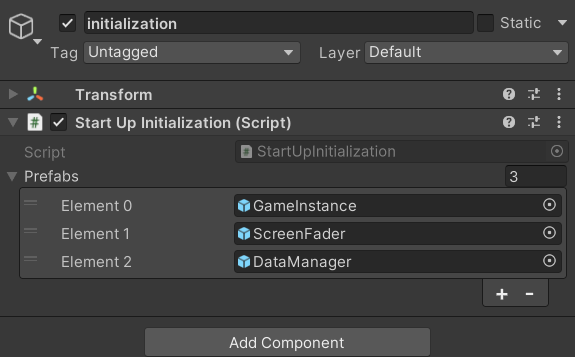
To define which core systems are instantiated, assign the Addressable prefabs to the Prefabs field on the StartUpInitialization component. This component is attached to the sole GameObject in the scene.
The list order determines their order in the Hierarchy, but all instantiated systems are activated at the same time once initialization is complete.
By default, the Initialization scene includes the GameInstance prefab, the ScreenFader prefab, and the DataManager prefab (in that list order).
GameInstance Prefab
The GameInstance prefab is the main controller for the simulator. It’s responsible for initializing the session, connecting to the server for authorization, and managing the overall scene flow. It controls how levels are loaded, handles any error codes returned by the server, and makes sure all necessary data is sent before moving to the next scene.
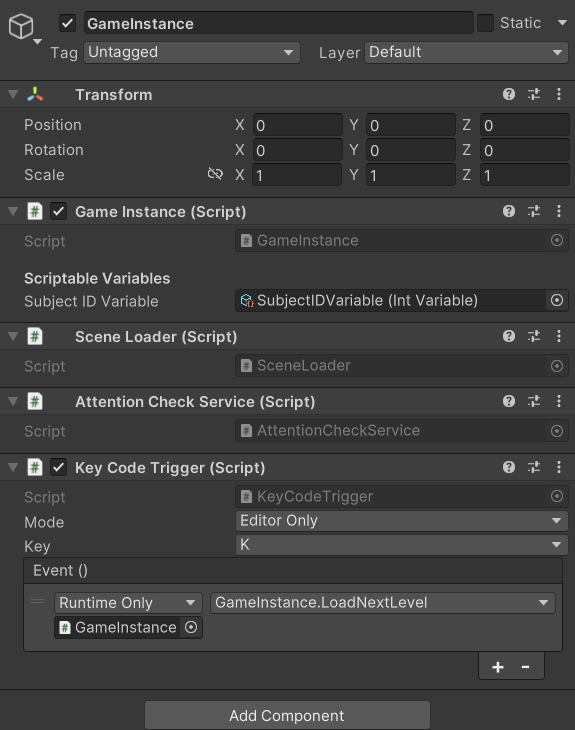
The prefab allows you to assign which Scriptable Variable will be used to store the subject ID received from the server when the session begins. This variable is then accessible to other systems, allowing them to reference the same participant ID across all scenes. This is set in the Subject ID Variable field of the GameInstance component; by default, it references the SubjectIDVariable asset.
The prefab also includes a KeyCodeTrigger component, which listens for a specific key press and performs a predefined action. In this prefab, it’s set up to load the next scene when you press K, but only while running in the Unity Editor (Mode set to Editor Only). This feature is useful for quickly skipping levels during testing. You can change the Key, or set Mode to Editor + Player to enable the trigger in builds (or Off to disable it).
The prefab also carries the SceneLoader and AttentionCheckService components, which load scenes for the GameInstance and track attention check results against the Attention Check settings.
DataManager Prefab
The Data Manager prefab provides services that handle both caching data locally and sending data to the server. It offers methods that other systems can use to save, retrieve, and upload data.
ScreenFader Prefab
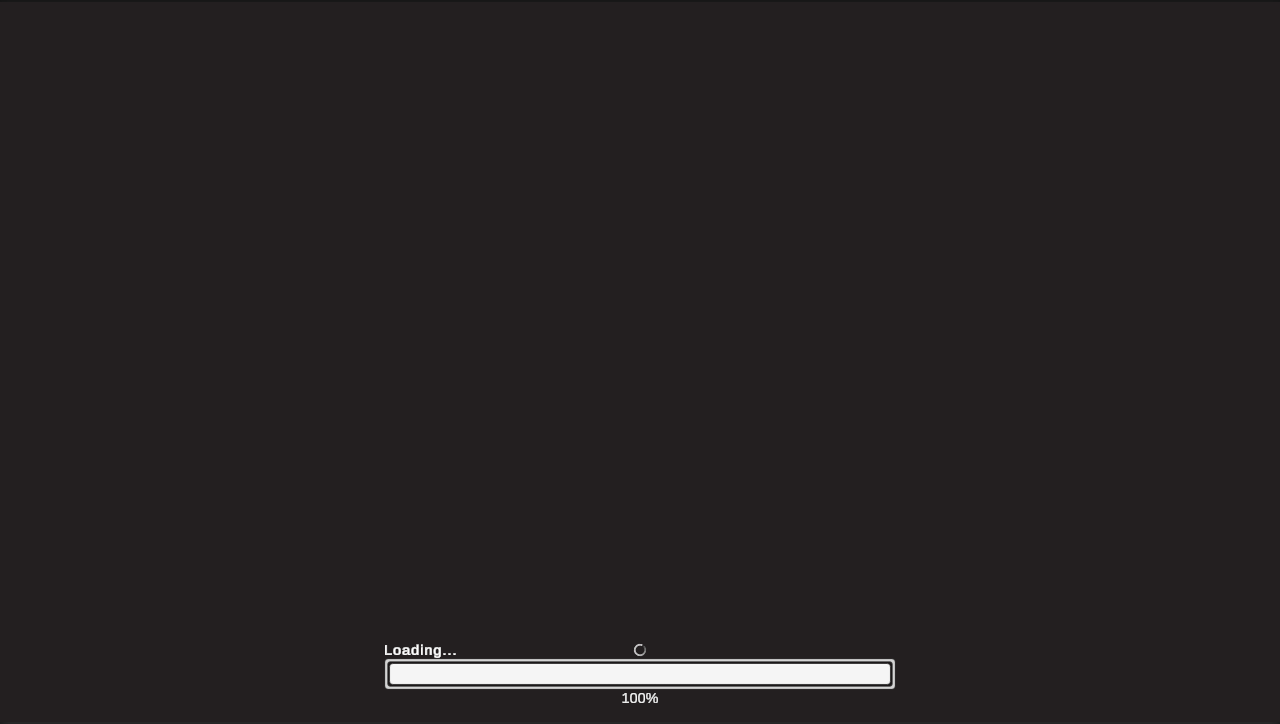
The Screen Fader prefab controls visual transitions between scenes by providing a service that fades the screen in and out. The simulator uses it during level loading and scene changes to create smooth visual transitions.
The prefab chooses which fade method to apply based on the settings defined in your project’s Screen Transition Project Settings. It also includes a loading bar that updates in real time to reflect the scene’s loading progress.