Scene Graphs
A Scene Graph illustrates the flow of the overall experiment from beginning to end.
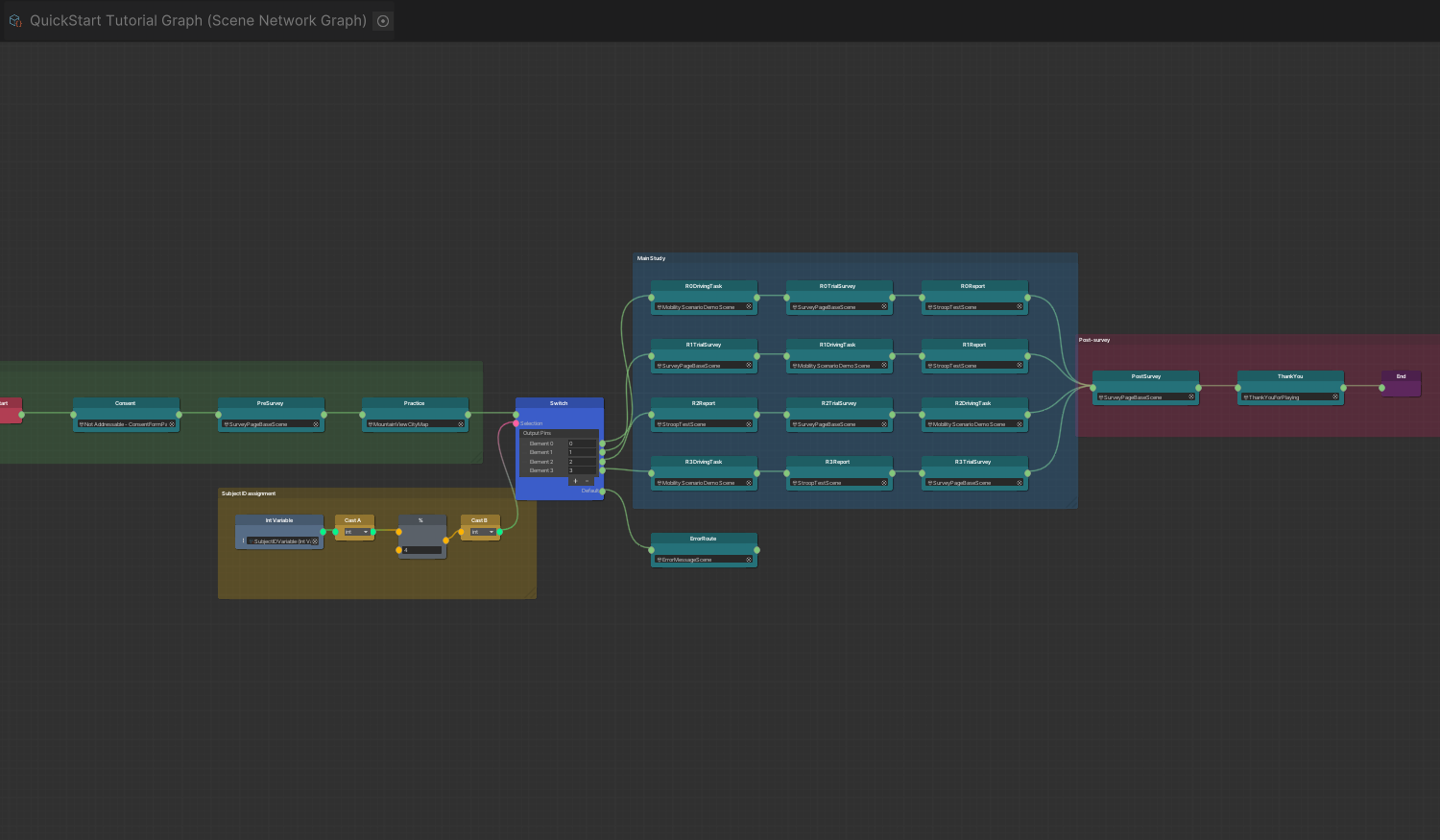
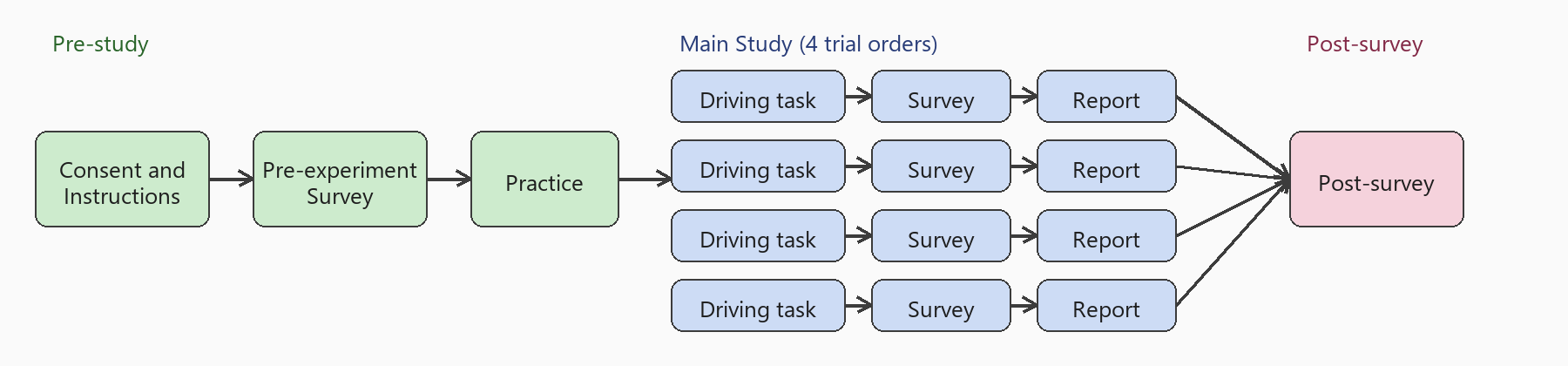
It helps to have your experiment procedure, including any counterbalancing, finalized before you build the Scene Graph; this makes the flow easier to visualize. For example, below is a typical experiment flow. The following example provides an overview of how to structure this procedure using the graph.
Creating a Scene Graph
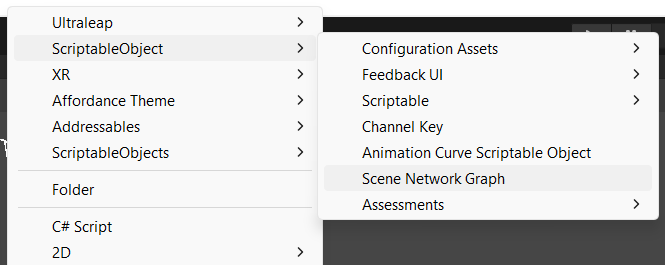
You can right-click in the Project window to create a Scene Graph Asset in the selected location.
- Right-click in the Project window to bring up the context menu.
- Select Create > ScriptableObject > Scene Network Graph.
You can find the sample Scene Graph and any existing Scene Graphs at the following path:
Assets > mobisim > Scenes > Graph
Scene Graph Editor
The Scene Graph Editor is the user interface you use to construct your graph.
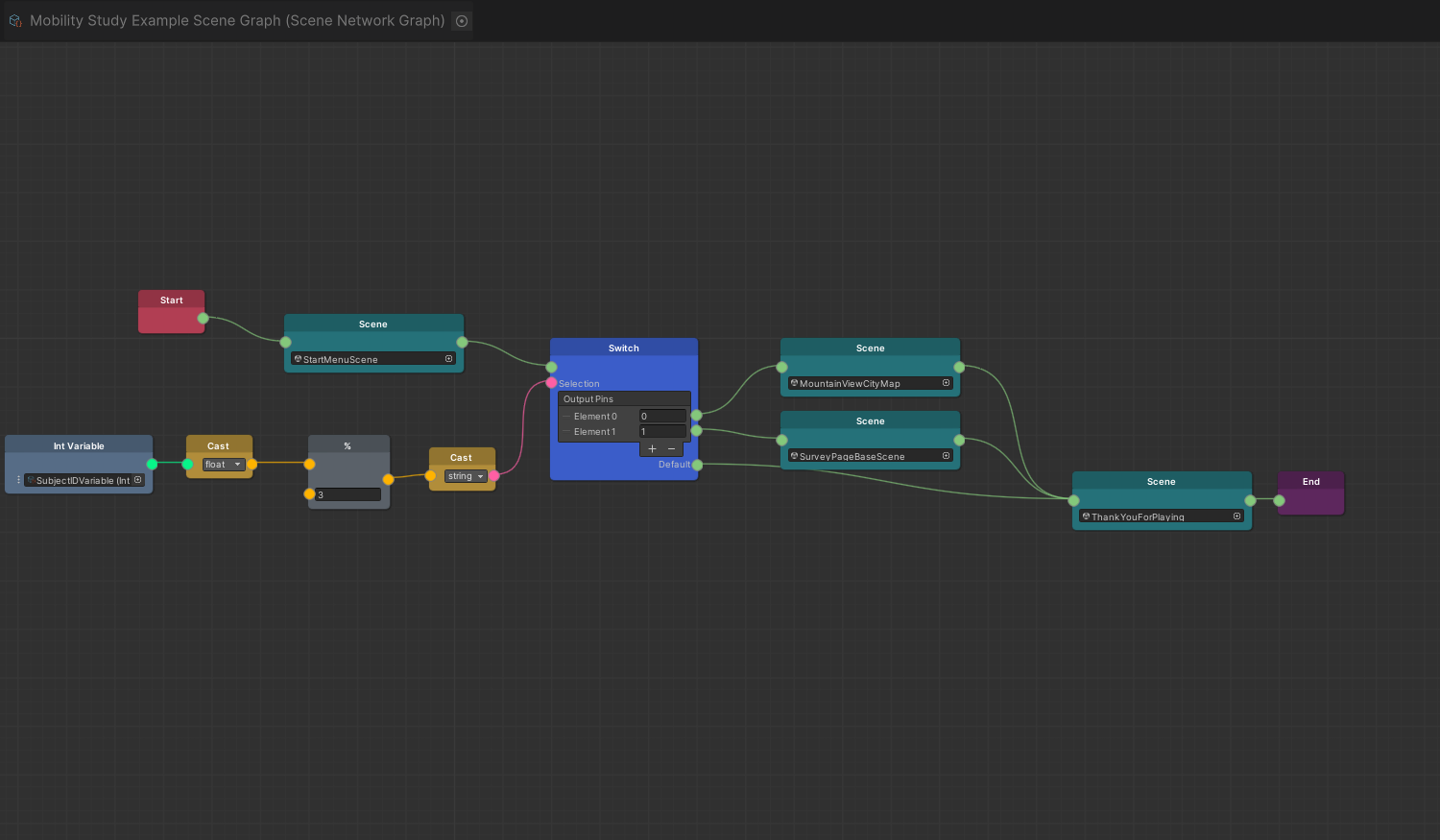
To open the Scene Graph Editor, first locate the Scene Graph asset that you want to edit in the Project window. Then, use either of the following methods:
- Double-click the Scene Graph asset.
- Select the asset, then in the Inspector, click Edit graph.
Both methods open the Scene Graph Editor.
Assigning the Active Scene Graph
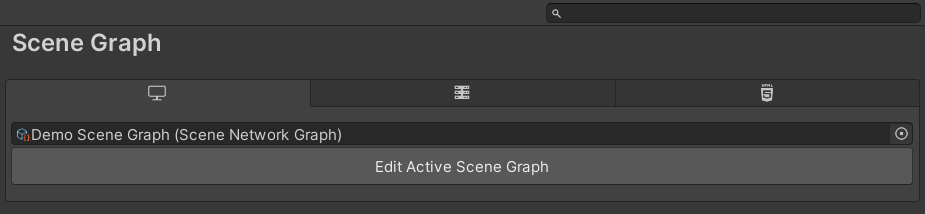
Once you create a Scene Graph asset, you must assign it as the Active Scene Graph in the Project Settings so the simulator uses it at runtime:
- Go to Edit > Project Settings.
- Navigate to the mobisim > Scene Graph section in the sidebar.
- Select the platform you're targeting.
- Assign your Scene Graph asset to the object field at the top. You can then click Edit Active Scene Graph to open it in the Scene Graph Editor.