Scene Graph Quick Start
This guide walks through creating a Scene Graph for a study with four trial orders, where participants are automatically assigned to one based on their Subject ID. By the end, you will have a complete graph assigned as the Active Scene Graph, ready to run when you press Play in the Unity Editor.
The diagram below shows the complete flow of the study, moving from start to finish left to right:
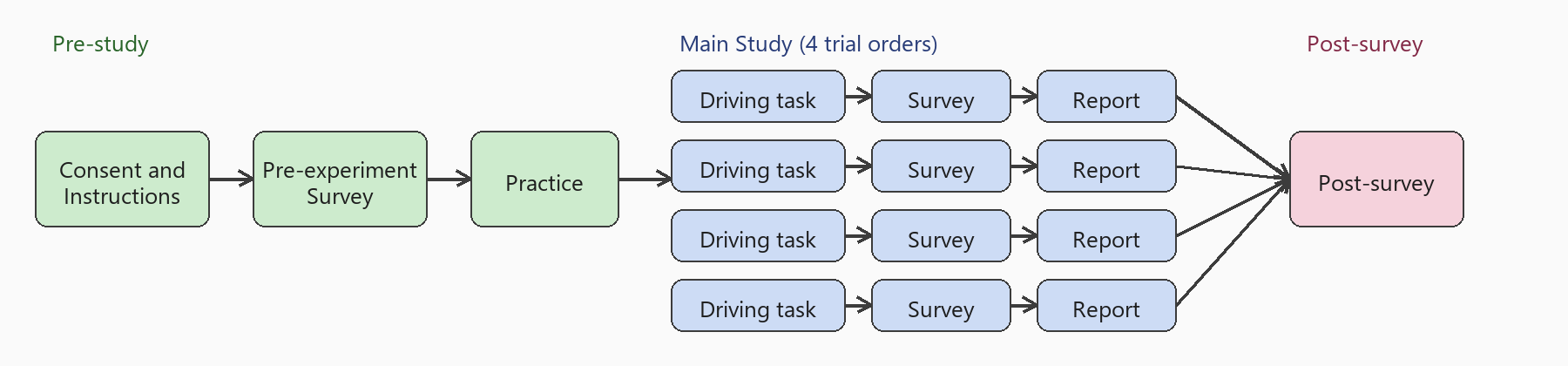
The study begins with a Pre-study consisting of three scenes every participant completes: Consent and Instructions, Pre-experiment Survey, and Practice. This is followed by the Main Study, made up of four trials. Each trial contains a driving task, a survey, and a report. Participants experience the four trials in different orders determined by their Subject ID. After the Main Study, all participants converge on a Post-survey to conclude the session.
Prerequisites
Before starting this guide:
- Confirm all required scene maps are created and marked as Addressable.
- Confirm the Bootloader is enabled so the graph runs from the beginning when you press Play.
1. Create the Scene Graph Asset
In the Project window, navigate to
Assets/mobisim/Scenes/Graph.
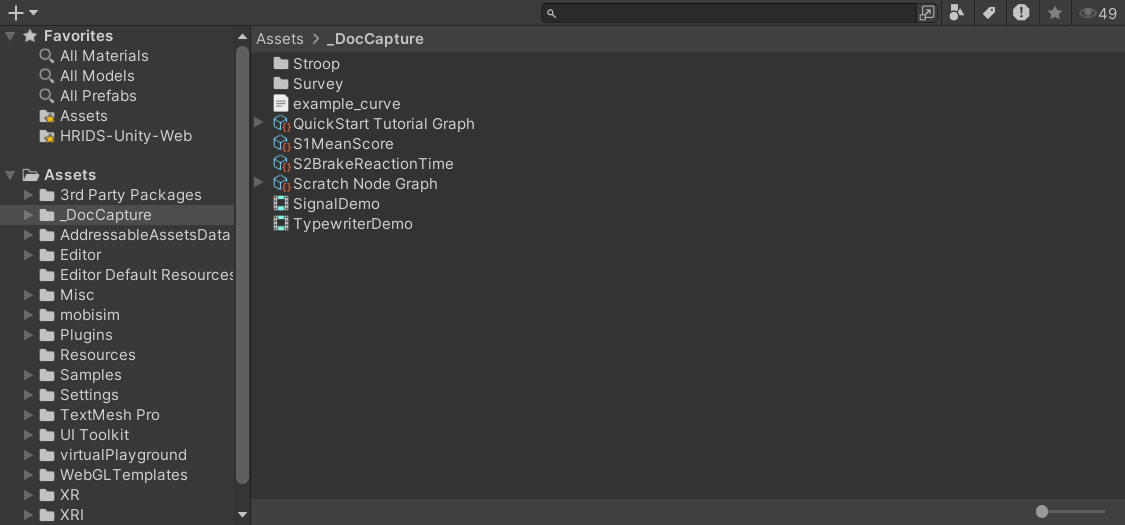
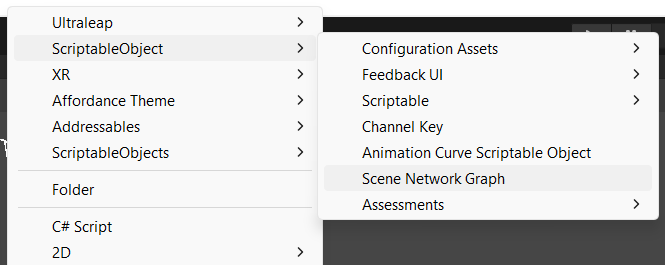
Right-click in the Project window to open the context menu.
Select Create > ScriptableObject > Scene Network Graph.
Rename the asset to reflect the study it represents.
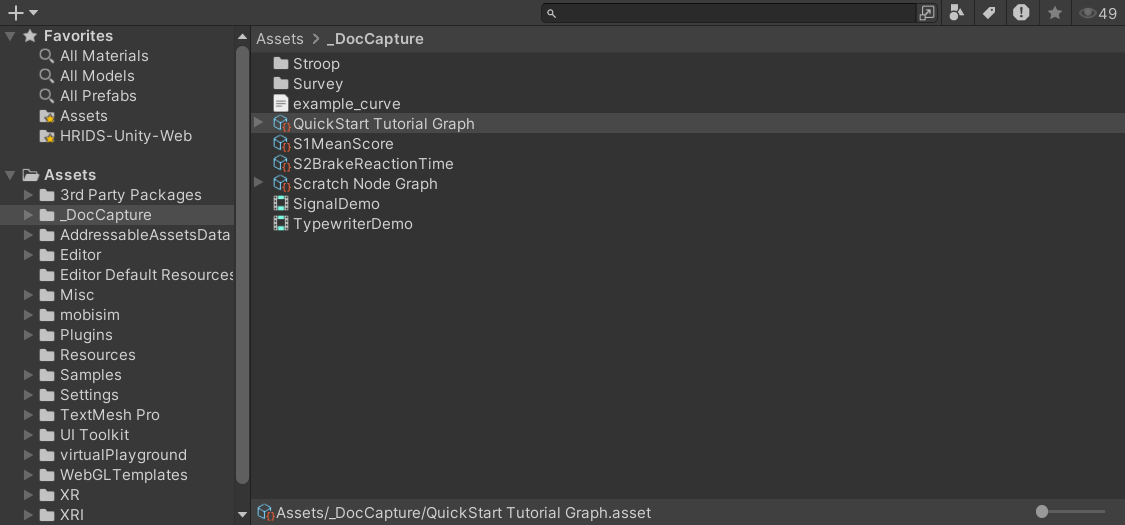
2. Add the Start Node
Every Scene Graph requires a Start node. Without one, the simulator cannot begin the experiment.
Double-click the Scene Graph asset in the Project window to open it in the Scene Graph Editor.
The Scene Graph Editor (window title SceneGraph) opens with an empty graph. Confirm the correct asset is open by checking the read-only object field in the toolbar at the upper left. Changes to the graph are saved automatically (controlled by the xNode Autosave preference, enabled by default).
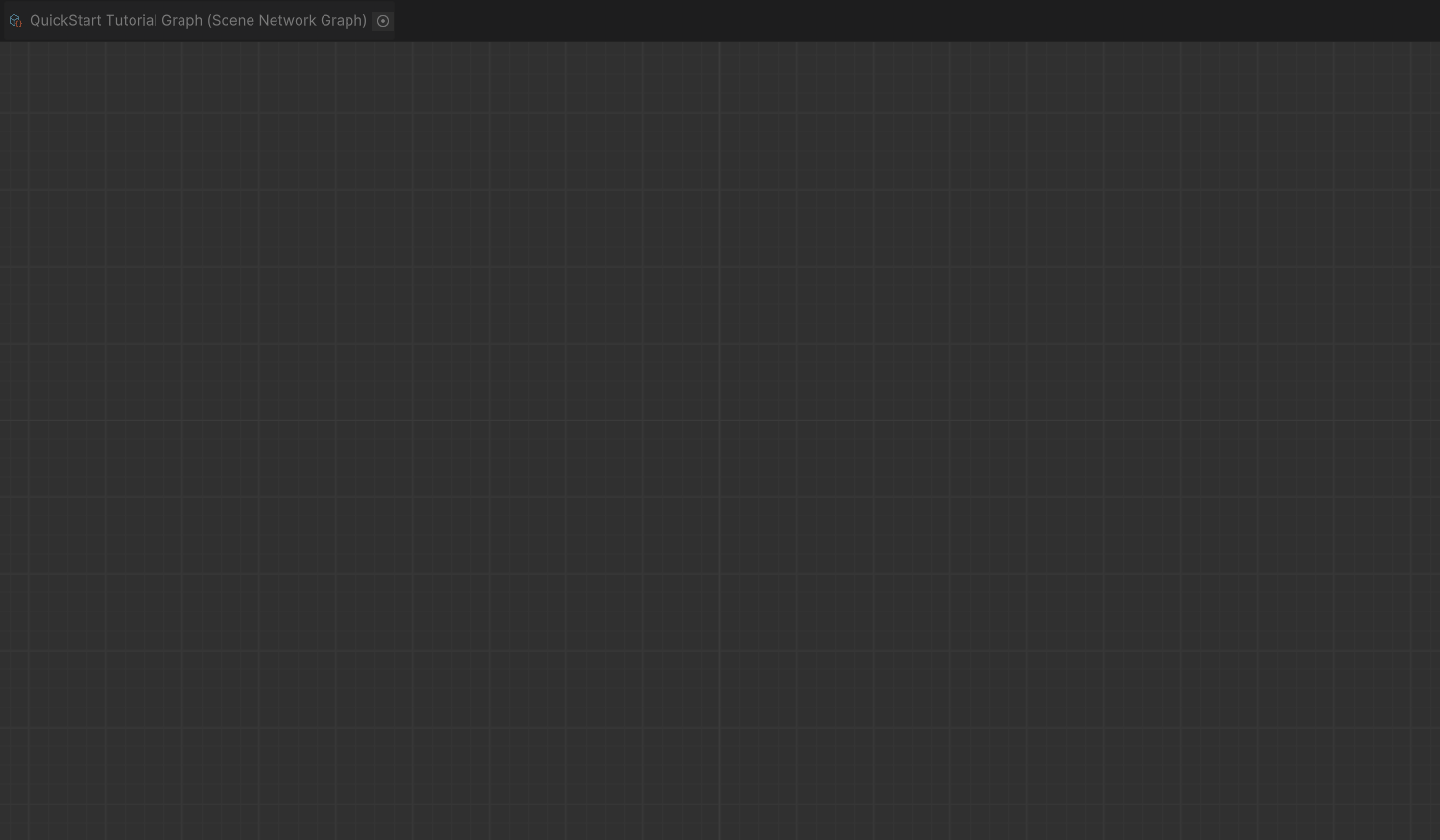
Click the object field to locate the asset in the Project window.
Right-click in an empty area of the graph to open the node context menu.

Right-click and drag to pan around the graph.
Expand Flow Control in the context menu and select Start.
If Start is grayed out, a Start node already exists in the graph.

The graph now has a Start node. The following steps connect nodes to its output pin to define the study flow.

3. Build the Pre-study
The Start node marks the entry point but does not execute anything on its own. Without a connected node, the simulator finds the Start node, detects nothing to execute, and ends the session immediately. Connect the Start node to a Scene node to load the first scene map.
Click the output pin of the Start node, drag the wire into an empty area of the graph, and release it to open the context menu.
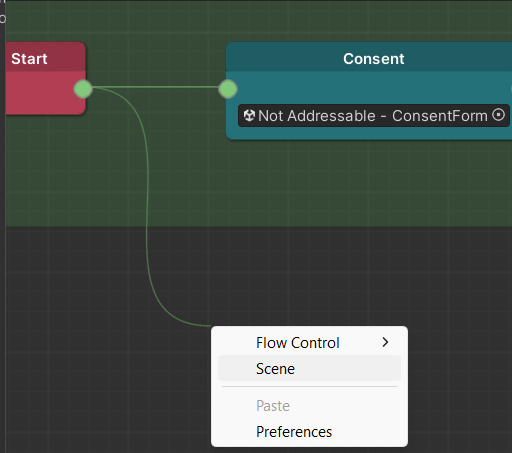
Select Scene from the context menu.
The Scene node is added and connected to the Start node.
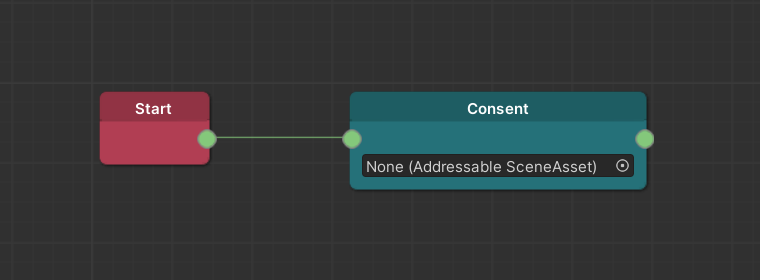
Click the small circle on the right side of the object field in the Scene node to open the asset picker.
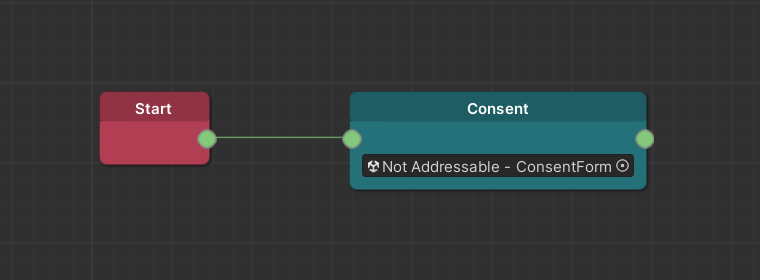
Select the Consent and Instructions
(TODO:-Insert-Scene-Name) scene map.
If the scene map does not appear in the picker, it may not be marked as Addressable. Follow these steps to mark a scene map as Addressable.
Create two additional Scene nodes and assign the
Pre-experiment Survey (TODO:-Insert-Scene-Name) and
Practice (TODO:-Insert-Scene-Name) scene maps
respectively.
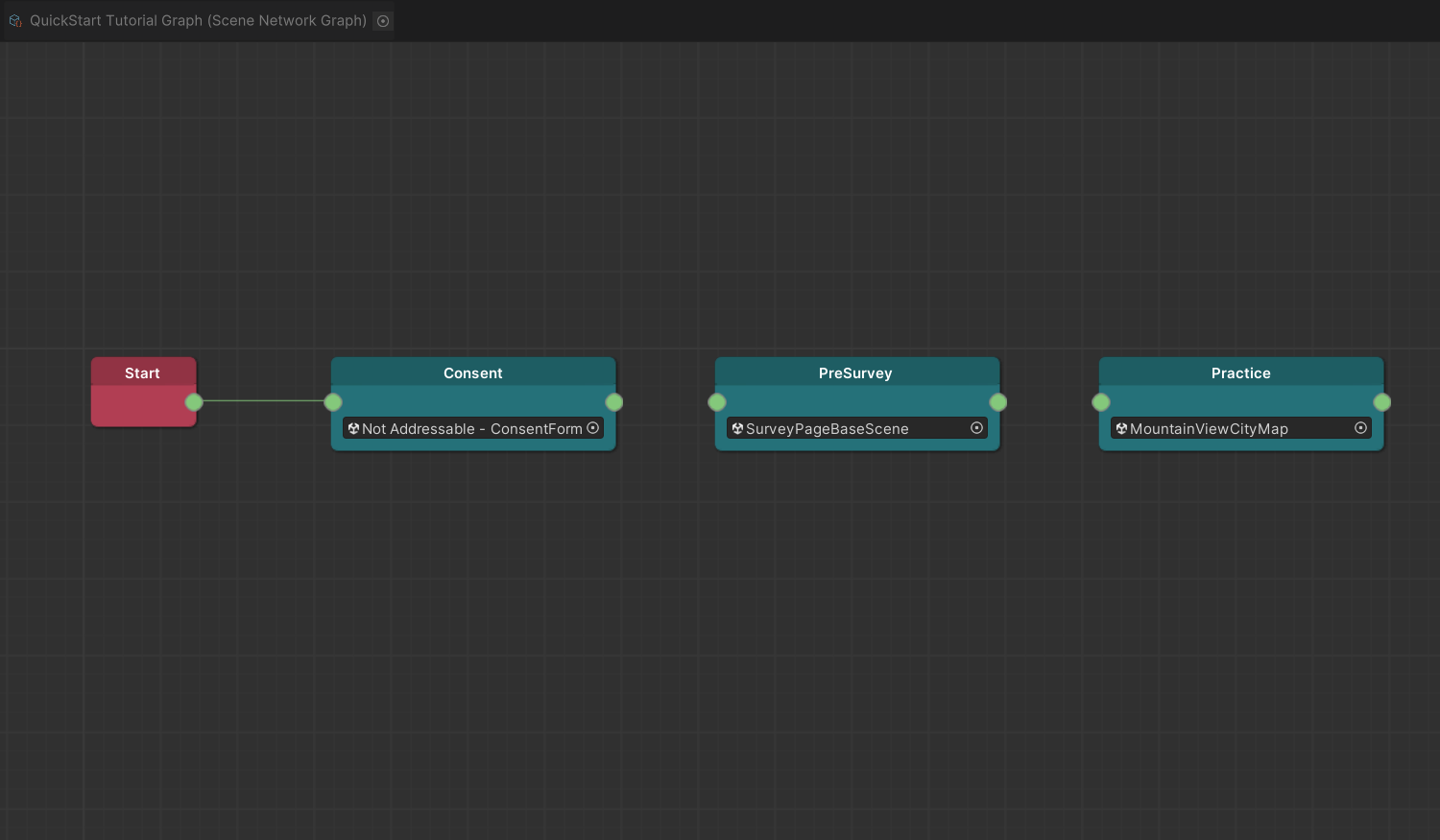
Connect the three Scene nodes in sequence:
- Consent output → Pre-experiment Survey input
- Pre-experiment Survey output → Practice input
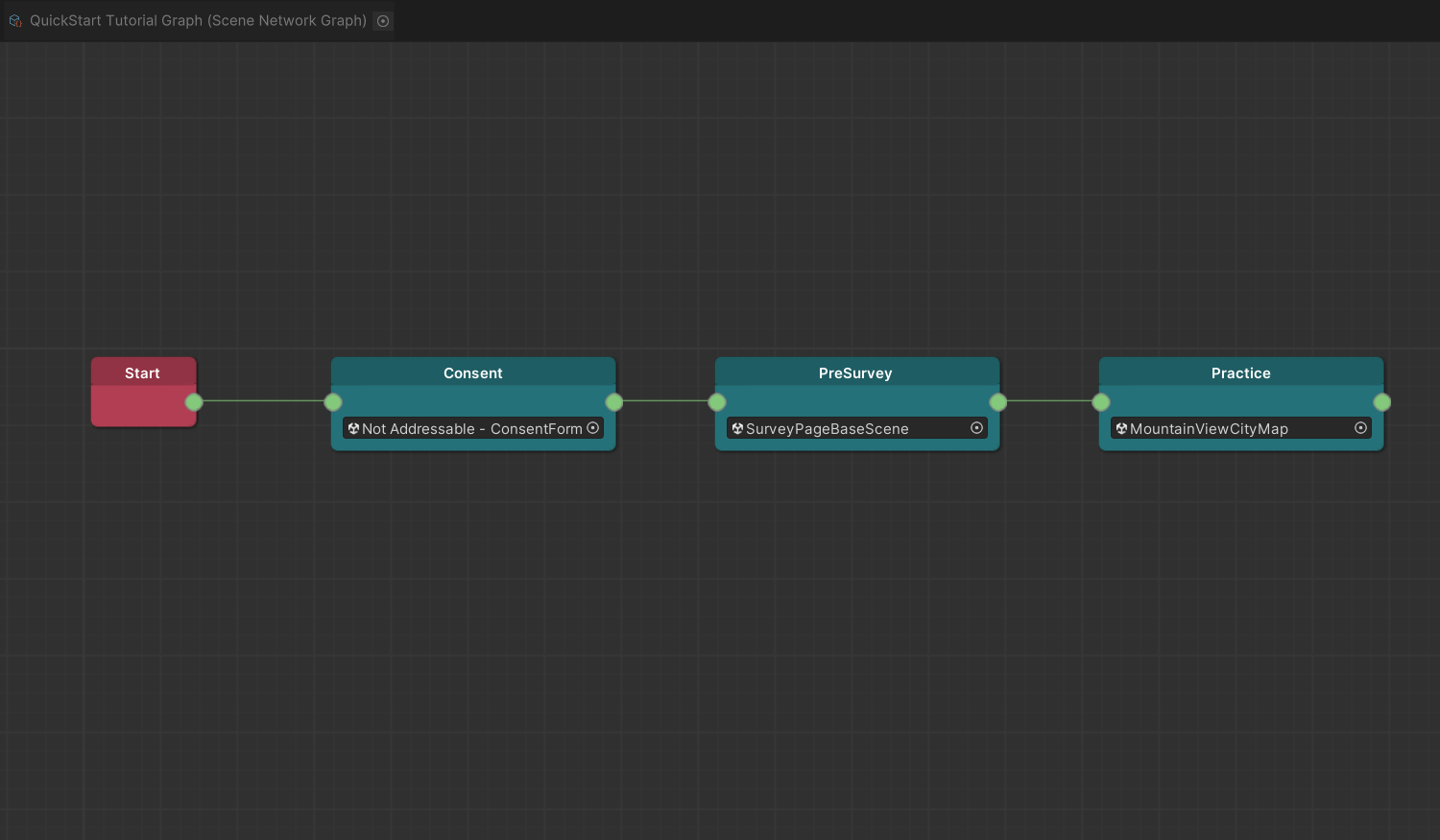
The Pre-study is now configured. The following section sets up the Main Study with branching logic.
4. Construct the Main Study
The Pre-study uses a linear structure — every participant follows the same path. The Main Study assigns each participant to one of four trial orders based on their Subject ID.
The assignment uses a modulo operation: divide the Subject ID by 4 and use the remainder to select the trial order.
| Subject ID | Calculation | Result | Trial Order |
|---|---|---|---|
| 8 | 8 % 4 | 0 | First |
| 5 | 5 % 4 | 1 | Second |
| 10 | 10 % 4 | 2 | Third |
| 7 | 7 % 4 | 3 | Fourth |
Counting starts from 0. A result of 0 corresponds to the
first trial order, 1 to the second, and so on.
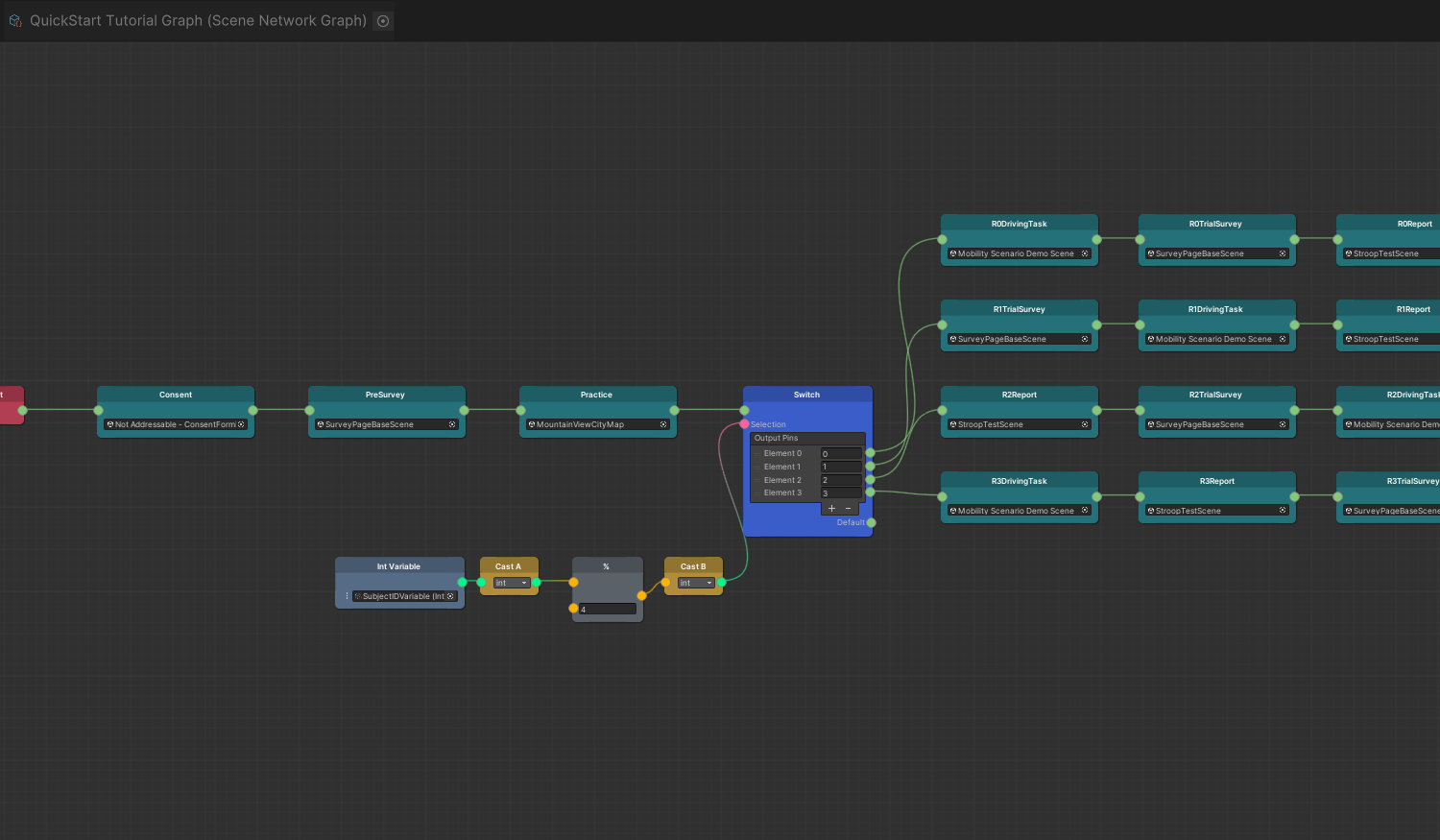
This logic is implemented using an Int Variable node, a Modulo operator node, and a Switch node.
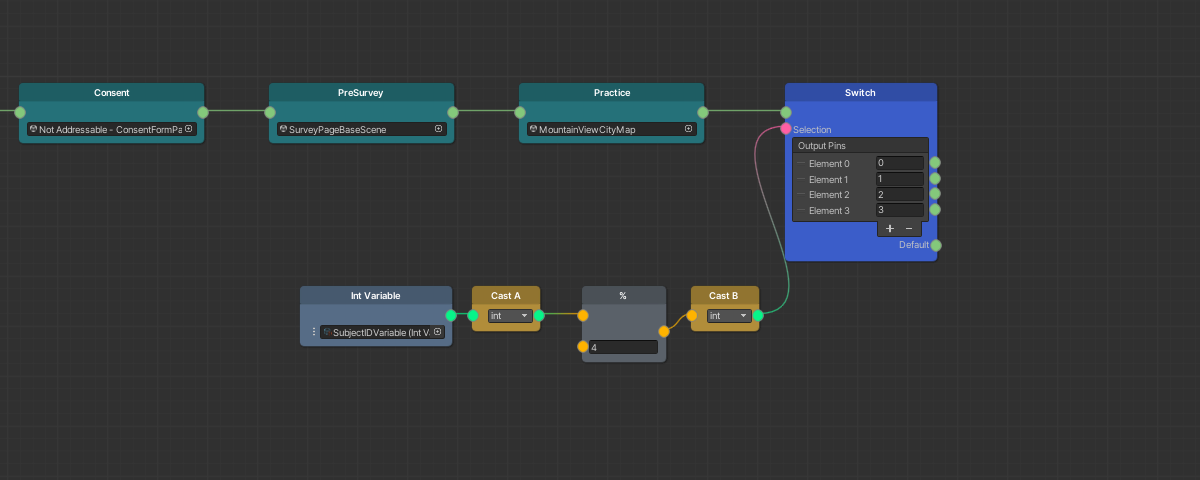
Drag from the output pin of the Practice Scene
(TODO:-Insert-Scene-Name) node and select
Flow Control > Switch from the context menu.

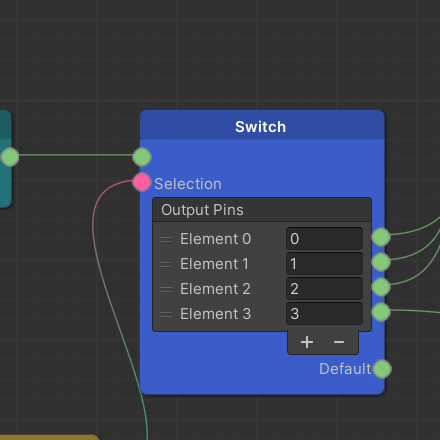
In the Switch node, click + four times to add four
output pins. Label them 0, 1, 2, and 3 respectively.
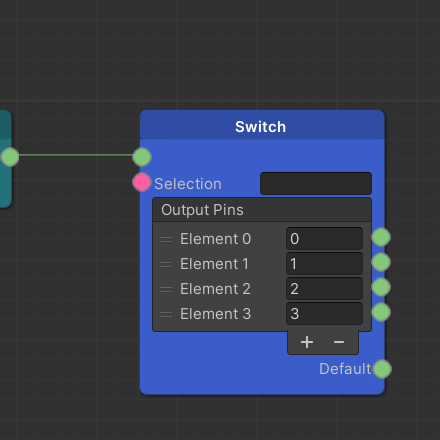
Right-click in an empty area of the graph and select Reference > Int Variable.
Click the three-dot menu on the left side of the Int Variable node and select Use Variable from the dropdown.
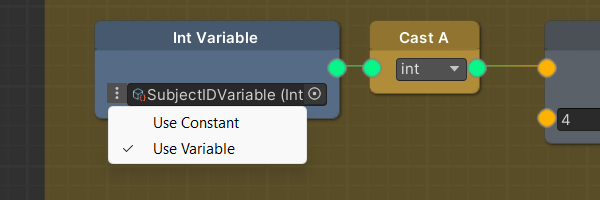
The input field changes to an object field.
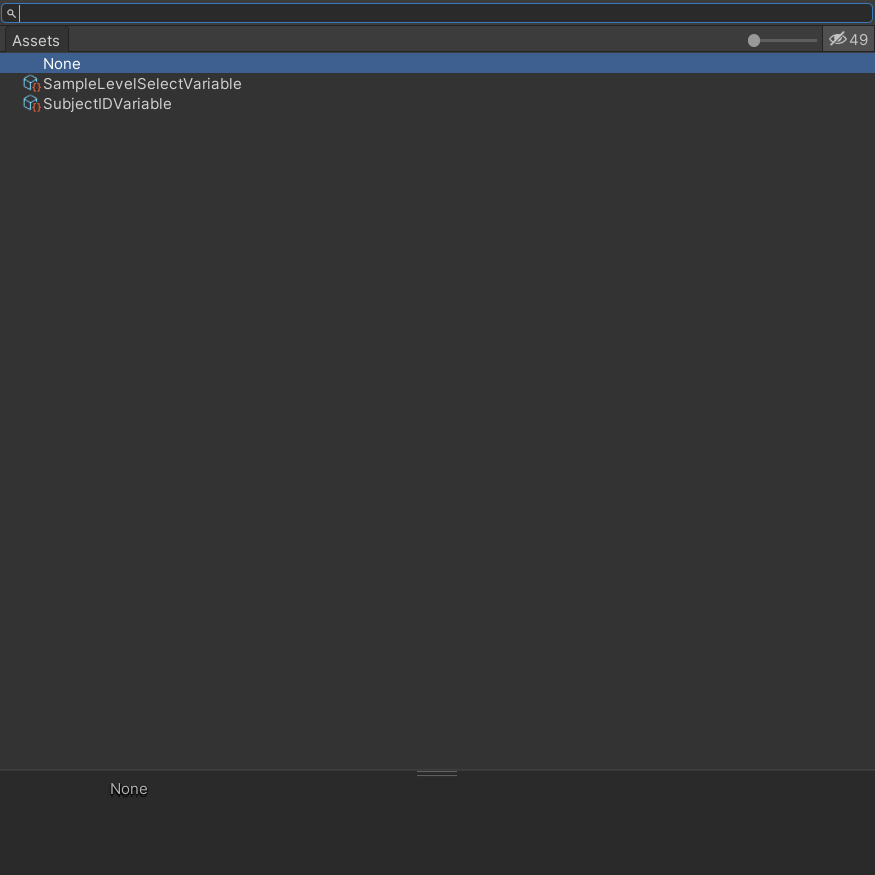
Click the circle icon inside the object field to open the asset picker and select SubjectIDVariable.
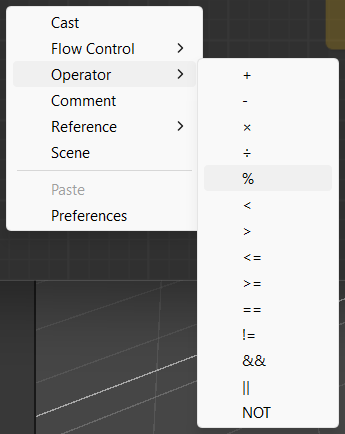
Right-click in an empty area and select Operator > % to add a Modulo node.
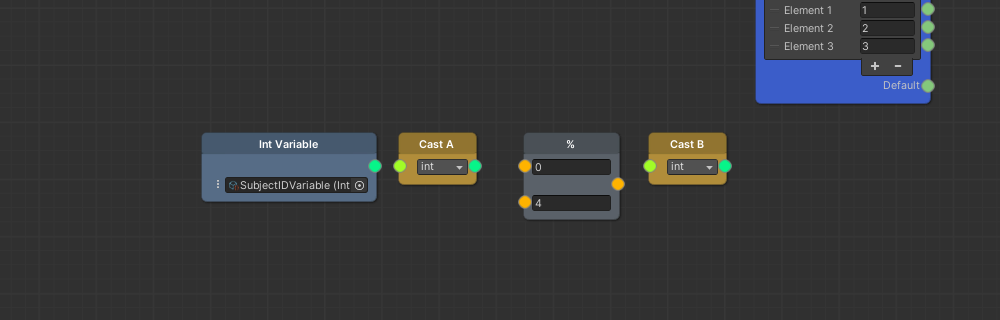
Enter 4 into the bottom input pin of the Modulo node.

The Int Variable node output cannot connect directly to the Modulo node due to a pin type mismatch. Add two Cast nodes from the context menu to resolve this — one between Int Variable and Modulo, and one between Modulo and Switch.
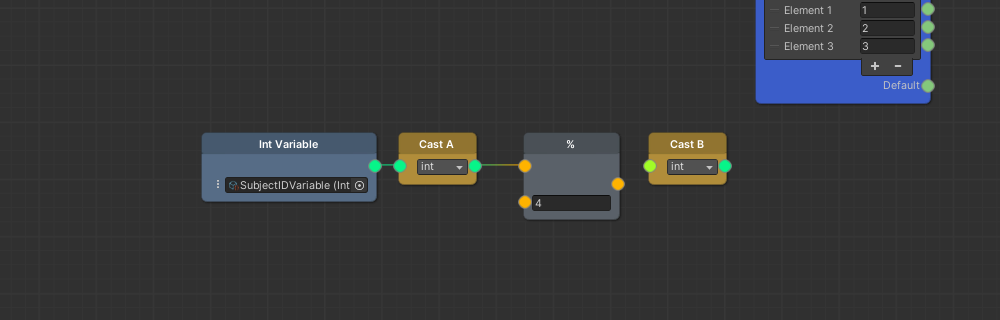
Connect the Int Variable output to the first Cast
node's input. Set its output type to float, then connect
the output to the upper input pin of the Modulo node.
Connect the Modulo output to the second Cast node's
input. Set its output type to string, then connect the
output to the Switch node's Selection input.
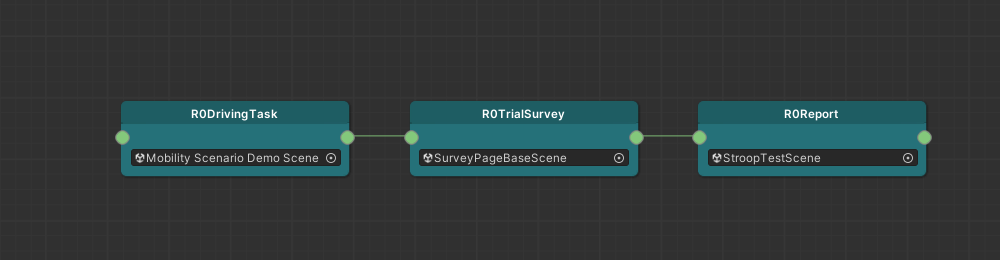
Create the first trial order by adding three Scene nodes
and assigning the driving task, survey, and report
(TODO:-Insert-Scene-Name) scenes respectively. Connect them
in sequence.
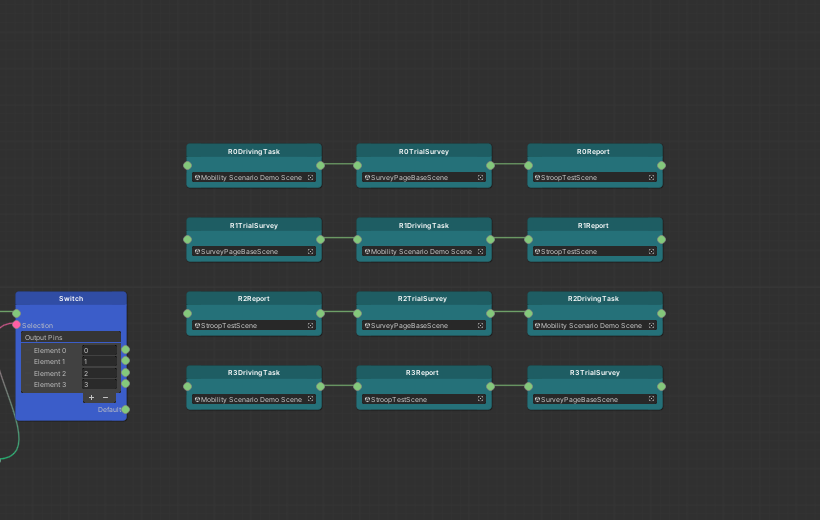
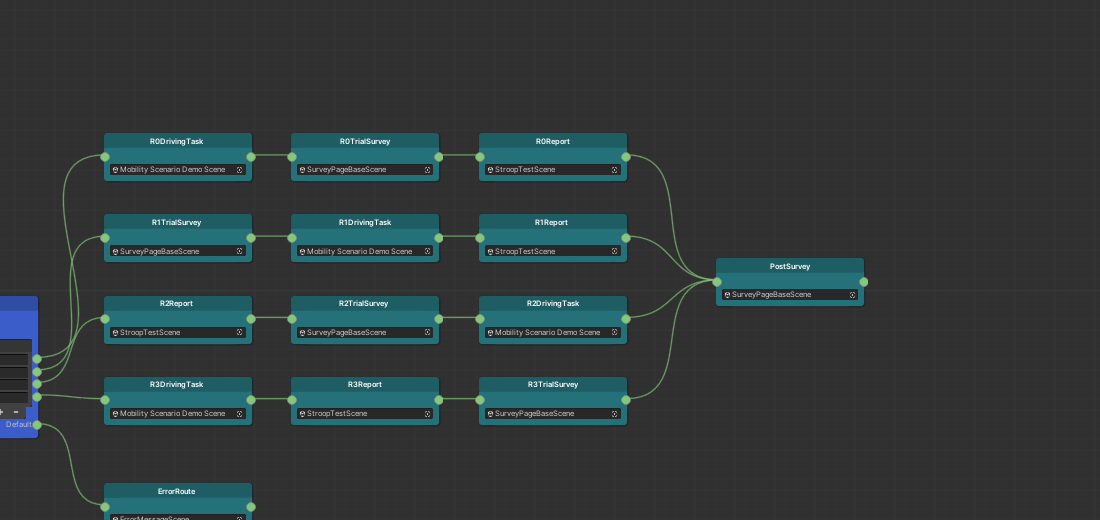
Repeat step 11 for the remaining three trial orders, rearranging the scene order in each to produce four unique sequences. You will have twelve Scene nodes in total.
Copy and paste the first trial order, then reorder the scenes in each copy rather than building each order from scratch.
Connect each output pin of the Switch node (0, 1,
2, 3) to the input pin of the first Scene node in
its corresponding trial order.
Pin 0 routes participants whose Subject ID modulo 4
equals 0, pin 1 routes those where the result equals
1, and so on.
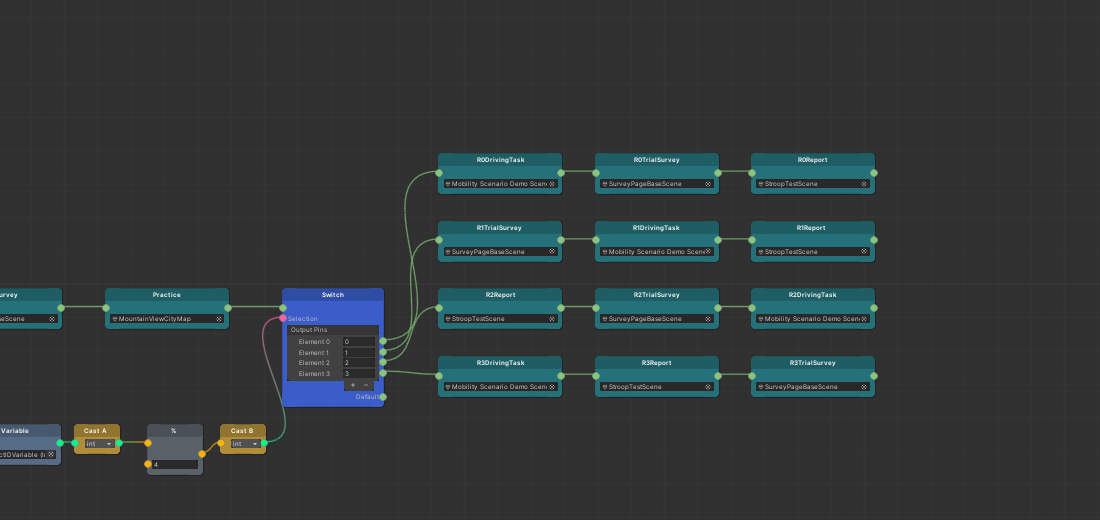
The Main Study portion of the graph is now complete. After the Practice scene, the simulator branches into one of the four trial orders based on the participant's Subject ID.
Configuring the Default Pin
The Switch node includes a Default output pin that activates when no labeled pin matches the incoming value. In this
study, the modulo result is always between 0 and 3, so the Default pin should not activate under normal conditions. However,
if the result is negative, non-integer, or NaN due to an error, the Default pin fires; if it is not connected, the graph ends and the participant is unable to proceed.
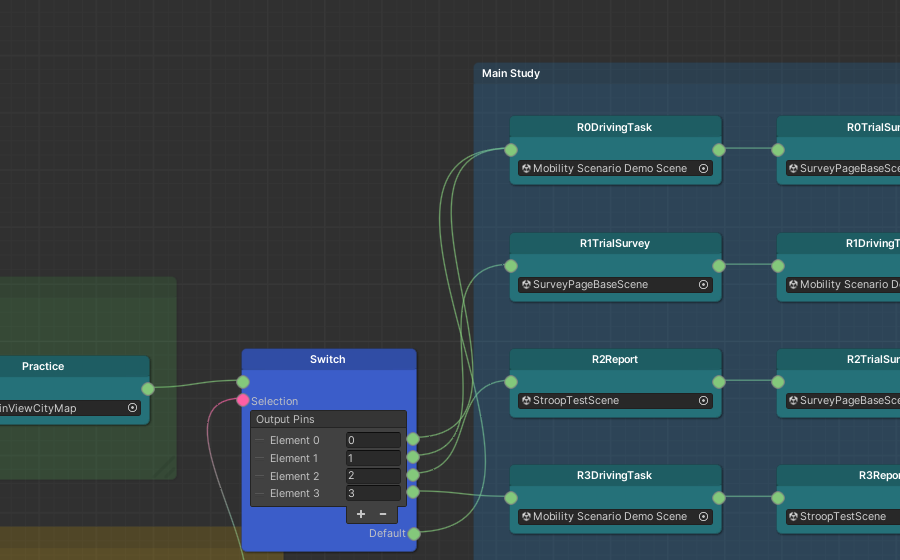
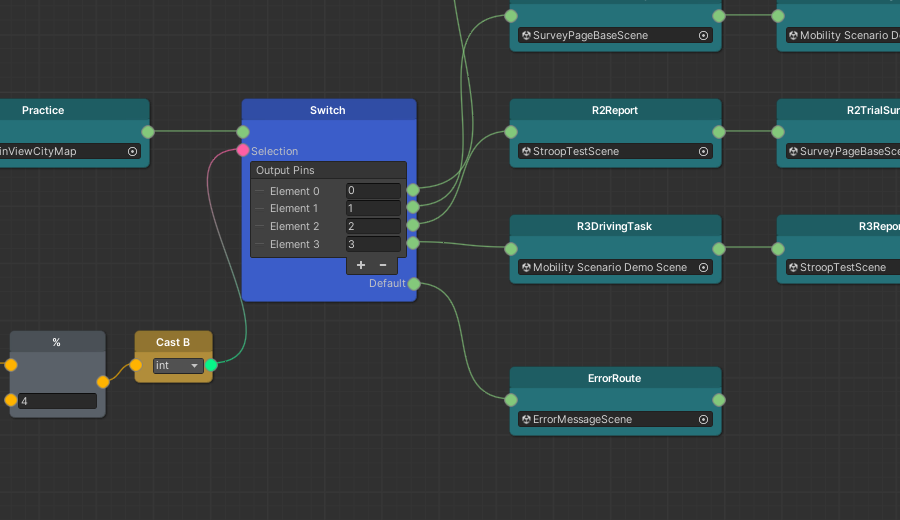
Connect the Default pin using one of the following approaches:
-
Route to an existing trial order — the experiment continues despite the invalid output.
-
Route to an error scene — a dedicated scene informs the participant of the issue.
5. Converge to the Post-survey
All participants complete the post-survey, regardless of trial order. The four trial paths merge into a single flow for this final section.
Create a Scene node and assign the Post Survey
(TODO:-Insert-Scene-Name) scene map.
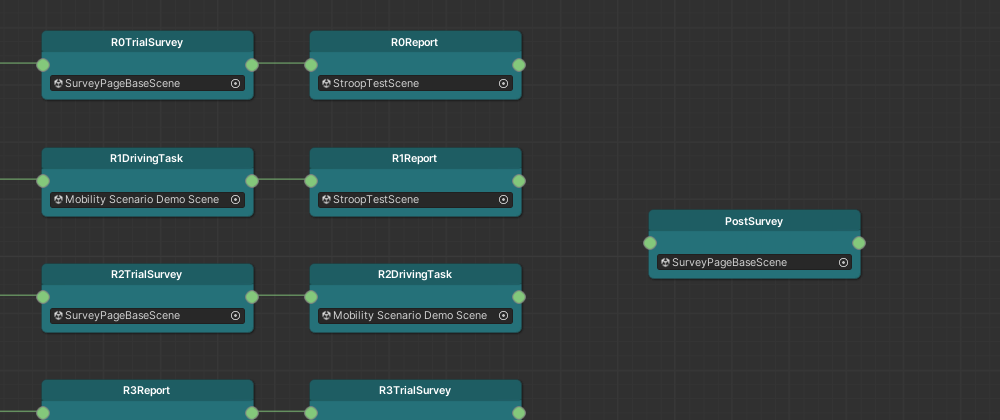
Connect the output pin of the last Scene node in each of the four trial orders to the input pin of the Post Survey Scene node.
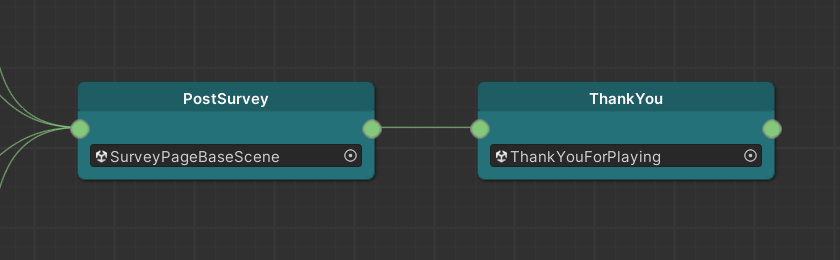
Drag from the output pin of the Post Survey Scene node
and create another Scene node. Assign the
Thank You For Playing (TODO:-Insert-Scene-Name) scene.
Data is saved and transferred immediately before each scene transition. Without a subsequent scene after the post-survey, data may not be saved. A closing scene also signals to participants that the study is complete.
Drag from the output pin of the Thank You Scene node and select Flow Control > End from the context menu.
The simulator adds an End node automatically at runtime when it reaches the end of a flow. Adding one manually improves graph readability.
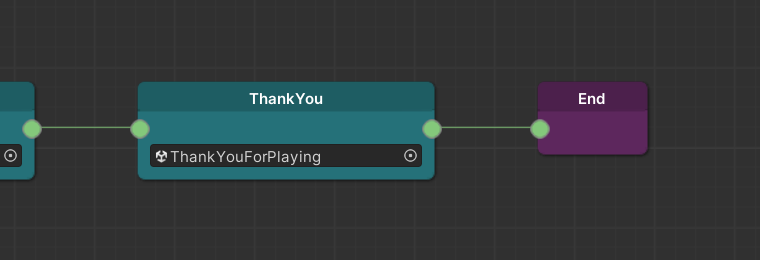
The graph is now complete.
6. Review and Test
To improve readability, add Comment boxes to label sections of the graph. Right-click anywhere in the graph, select Comment, then resize and reposition the box as needed. See Comment Boxes for more details.
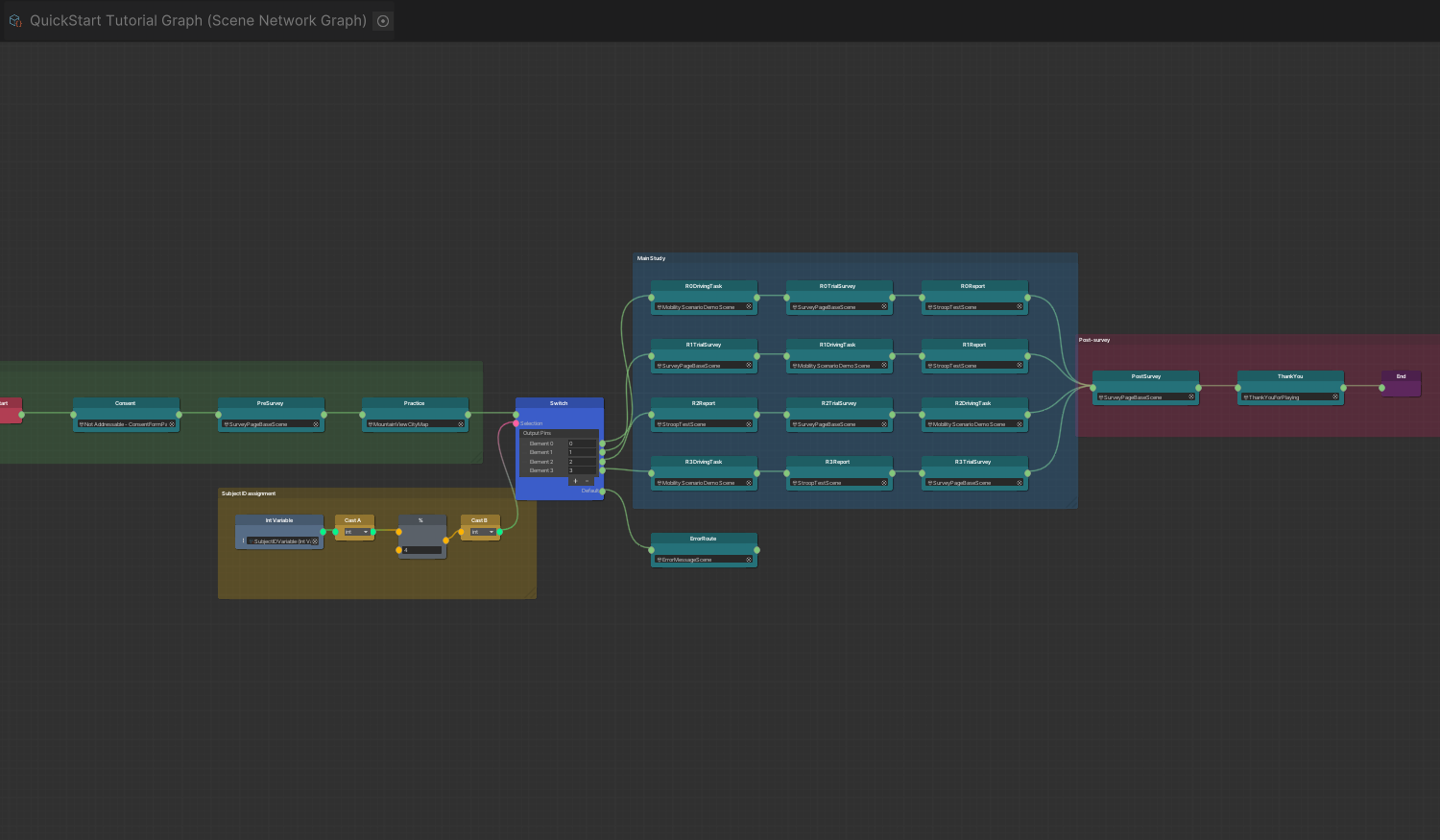
Press Play in the Unity Editor to test the full graph and verify the flow runs as expected.
To test a specific trial order without the modulo logic,
disconnect the second Cast node from the Switch node's
Selection input. A text input field labeled
Selection appears on the Switch node. Enter the branch
number to test — for example, entering 1 runs the trial
order connected to branch 1.
To test a different branch, change the Selection value manually. This method does not cycle through branches automatically.