Node Types Overview
This page provides an overview of the types of nodes available in the Scene Graph. Each node plays a specific role, from controlling flow and loading scenes to referencing variables and performing math operations. Understanding how these nodes work will help you design your Scene Graph.
Flow Control Nodes
Flow Control nodes control how the flow progresses through the graph.
Start Node

The Start node marks the beginning of the Scene Graph.

There should be exactly one Start node per Scene Graph. If a Start node already exists, it is disabled (grayed out) in the Create Node menu.
Branch Node
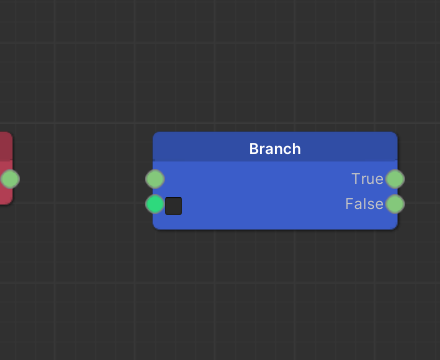
The Branch node is a simple way to create decision-based flow from a single true/false condition. When executed, the Branch node reads the incoming Boolean value on its Condition pin and continues the flow through the True or False output. If nothing is connected to Condition, you can set its value directly with the checkbox on the node.
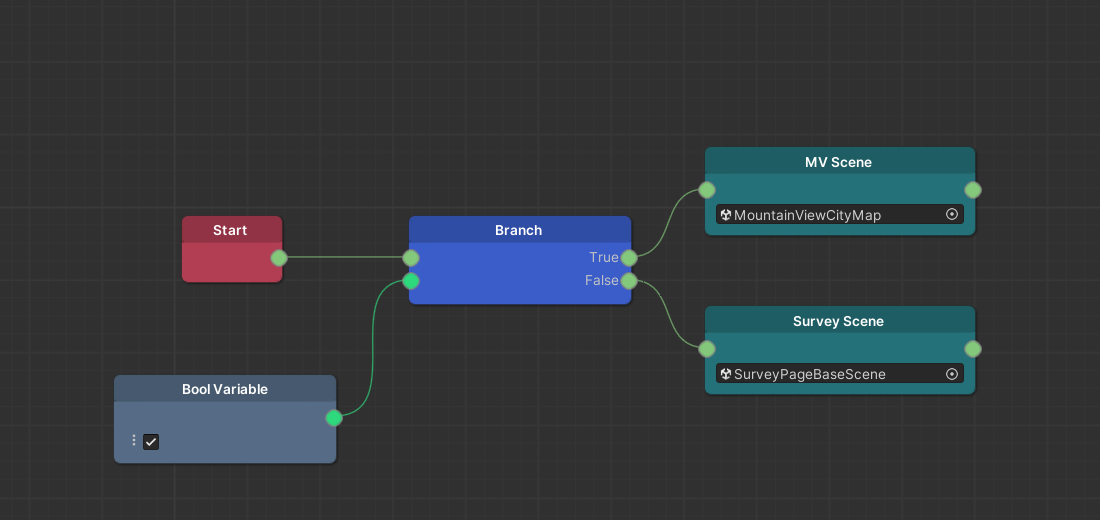
In this simple example, the branch checks the current state of a Boolean variable. If it is true, the flow proceeds to the "mountainview" scene. If it is false, the flow proceeds to the "survey" scene.
Switch Node
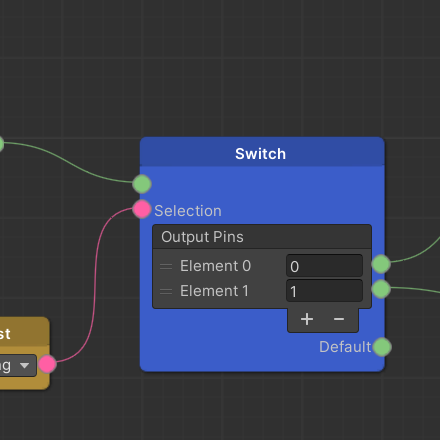
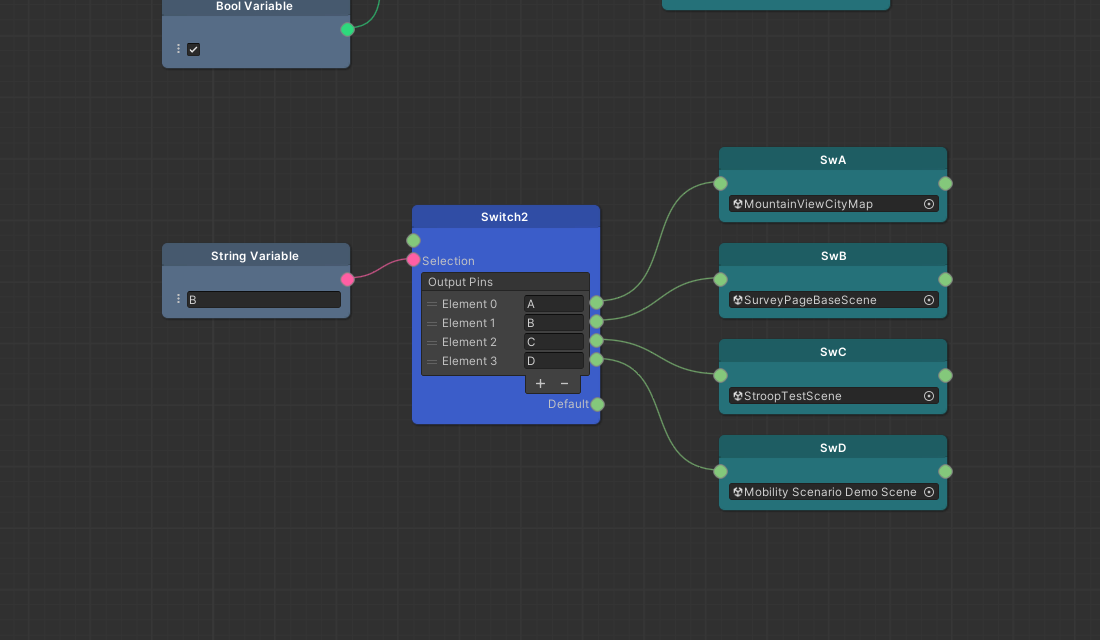
The Switch node routes the flow to one of several possible outputs. When executed, the node reads the value of its Selection string pin (either the attached string, or the text typed into the field when nothing is connected), compares it against the string value of each output pin, and sends the flow through the first pin with a matching label. If no match is found, the flow proceeds through the Default output. You can add or remove output pins with the + and - buttons.
If a matching output pin is not connected to anything, the flow does not fall back to Default; it reaches the end of the graph instead. Make sure every labeled output pin is connected.
In this simple example, there are four different trial orders (possible outputs) based on the counterbalancing design. The Switch checks the current value of the attached string variable. If the value matches one of the trial order values, the flow is routed accordingly and triggers the scene configured on that route.
End Node

The End node marks the termination point of a flow within the graph. End nodes aren't mandatory: if a flow reaches the end of a branch without an explicit End node, one is generated automatically at runtime.
Scene Nodes
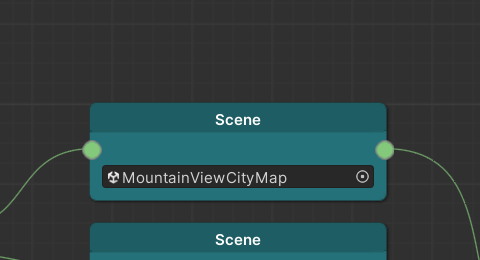
The Scene node holds one of the individual scenes you've created (i.e., the individual pages).
Only scenes marked as Addressable in the Unity Editor can be assigned to a Scene node. Make sure each scene you want to use is marked as Addressable. For more details on working with Addressables, see Addressables.
When executed, the flow pauses and the specified scene loads. Once the user reaches the end of that scene, the flow resumes and continues until it reaches the next Scene node or the end of the graph.
Variable Reference Nodes
Variables are properties that hold a value, such as a number or text, or point to something in your game, like a GameObject.
A Scriptable Variable is a special kind of global data asset. Unlike regular variables tied to objects in a scene, a Scriptable Variable stores data independently, so its value stays saved and accessible across different scenes or trials.
For example, the project includes a Scriptable Variable asset for the Subject ID, which keeps the ID consistent throughout the entire session.
Variable Reference nodes are container nodes that can hold a Scriptable Variable or a constant value. You can either assign a Scriptable Variable to the node to make its value accessible in the Scene Graph, or enter a fixed constant value directly in the node. To switch between a variable and a constant, use the dropdown on the node.
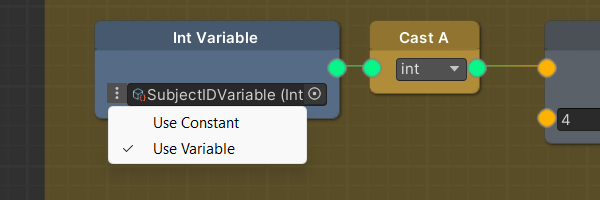
Variable Reference nodes are available in the following types:
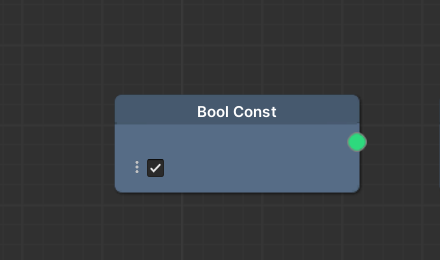
true or false value.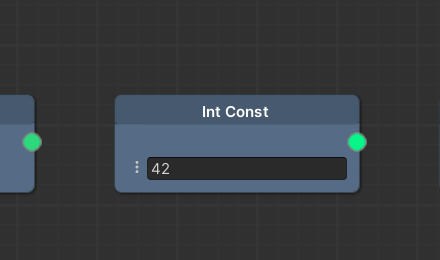
−2,147,483,648 and 2,147,483,647.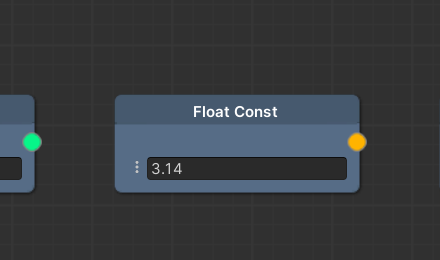
3.14, -0.75, or 100.001.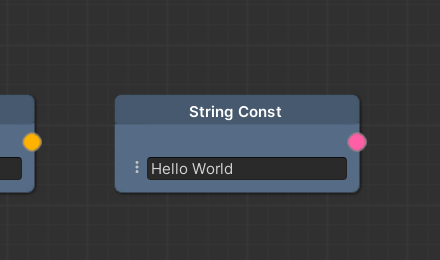
Hello World.Operator Nodes
Operator nodes perform common math or logic operations in the Scene Graph. These nodes typically take two input values (on the left) and return a single result (on the right). The input values can come from other nodes (connected by data wires) or be entered directly in the node.
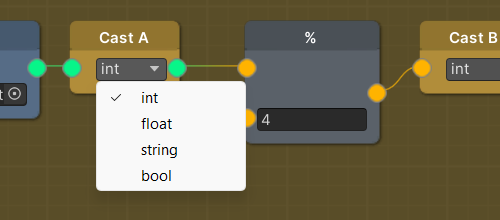
Operator nodes are found under Operator in the Create Node menu. The additive, multiplicative, relational, and equality operators take Float inputs; the logical operators take Boolean inputs. Because pins only connect to pins of exactly the same type, an Int or String value must go through a Cast Node before you can wire it into an operator.
Additive
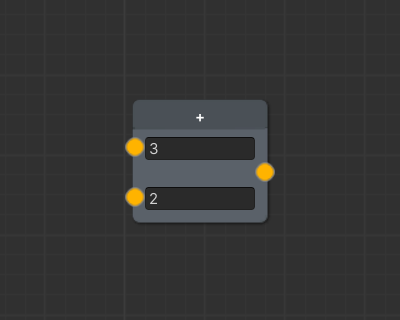
3 + 2 gives 5.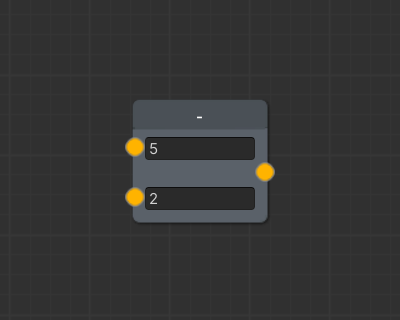
5 - 2 gives 3.Multiplicative
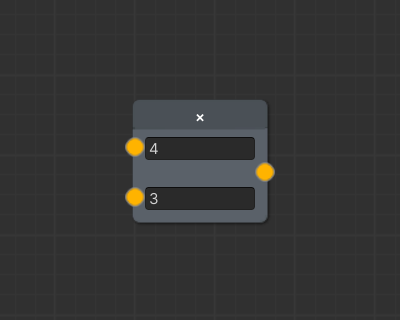
4 * 3 gives 12.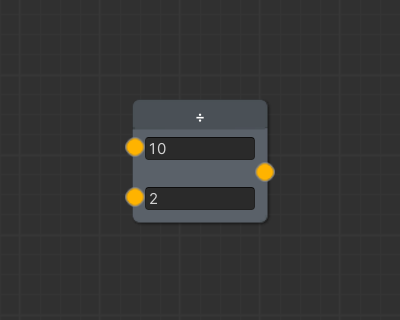
10 / 2 gives 5.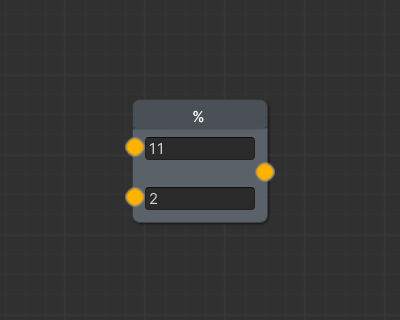
11 % 2 gives 1.Division and modulus by 0 output NaN.
Relational
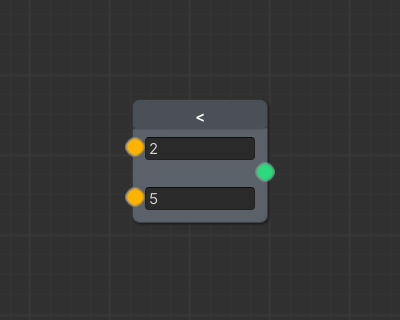
true if the top input is less than the bottom input.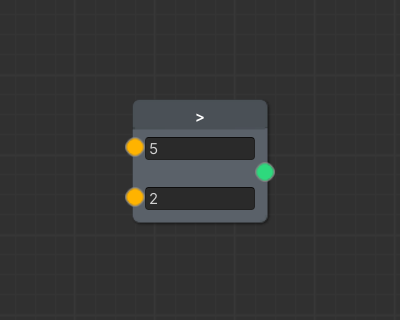
true if the top input is greater than the bottom input.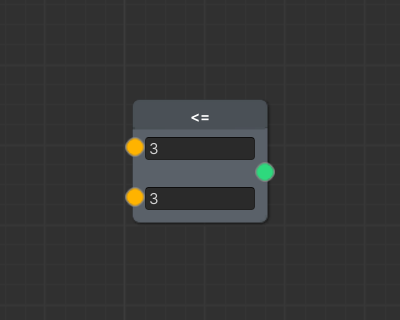
true if the top input is less than or equal to the bottom input.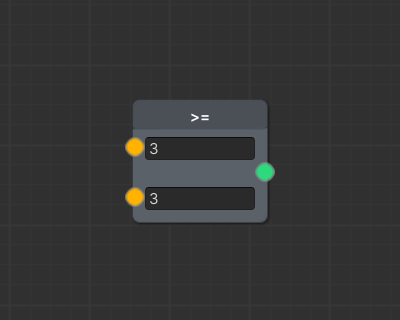
true if the top input is greater than or equal to the bottom input.Equality
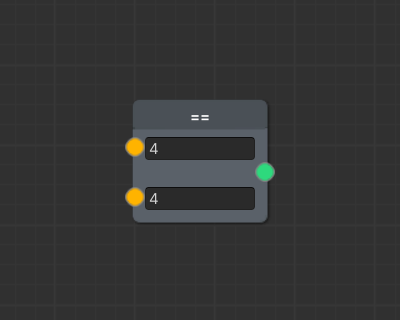
true if the input values are the same.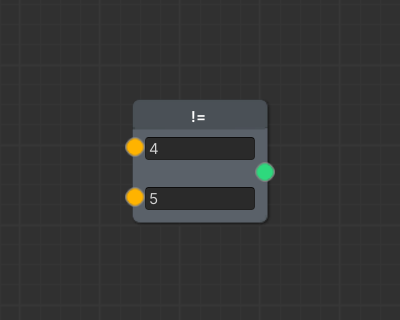
true if the input values aren't the same.Logical
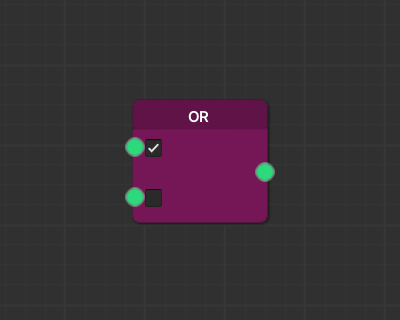
true if either input is true.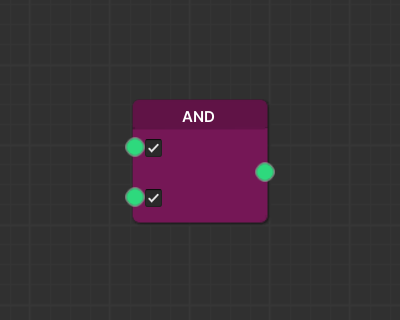
true only if both inputs are true.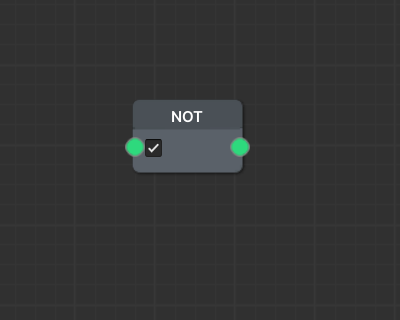
true becomes false, and vice versa).Cast Node
Connections between pins normally require matching data types. The Cast Node, however, lets you bridge different types by converting values from one type to another.
When you drag a wire from a data pin into the Cast Node’s input, the input type automatically adapts to match the connected pin.
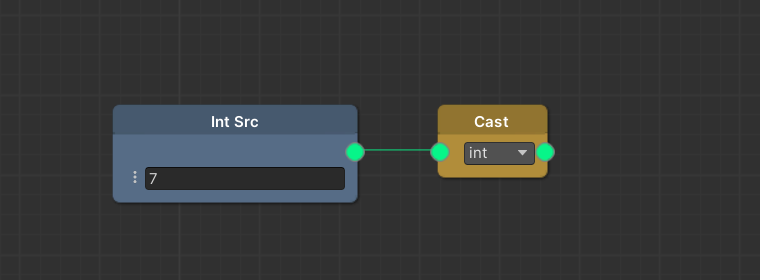
You can then select the desired output type (int, float, string, or bool) from the dropdown on the node. Changing the output type disconnects any existing output wires.
Comment Box
Comment boxes are containers for adding descriptive notes or annotations to a Scene Graph. They help organize your graphs and make them more readable and informative.
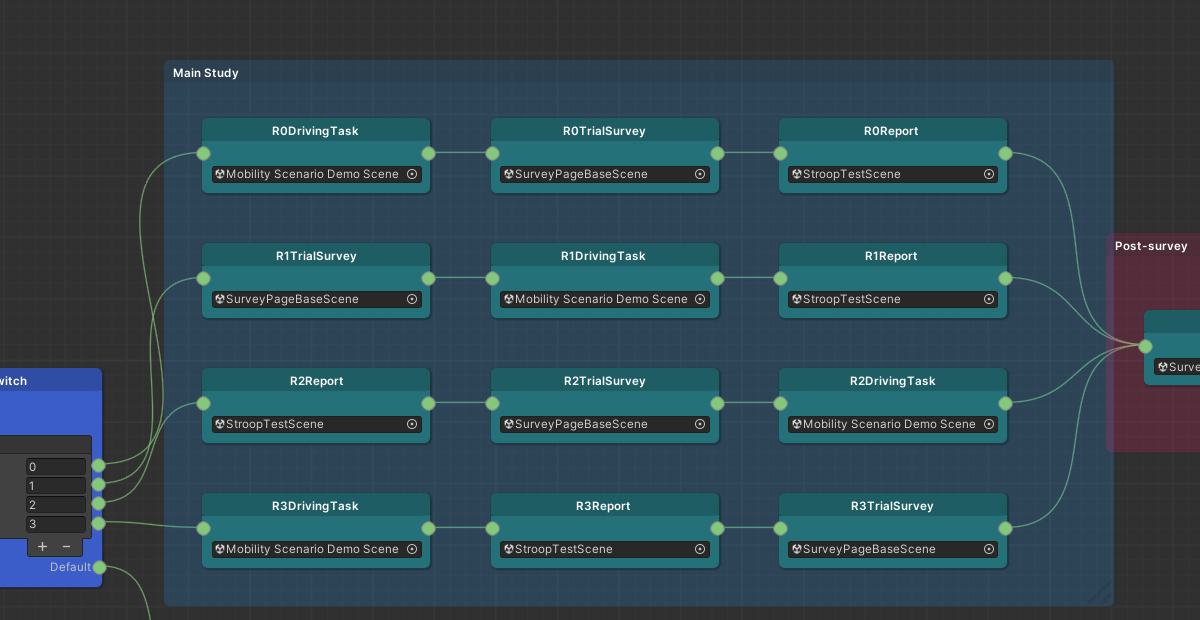
To edit comment text:
- Right-click the comment box and choose Edit Comment from the context menu. An edit window appears.
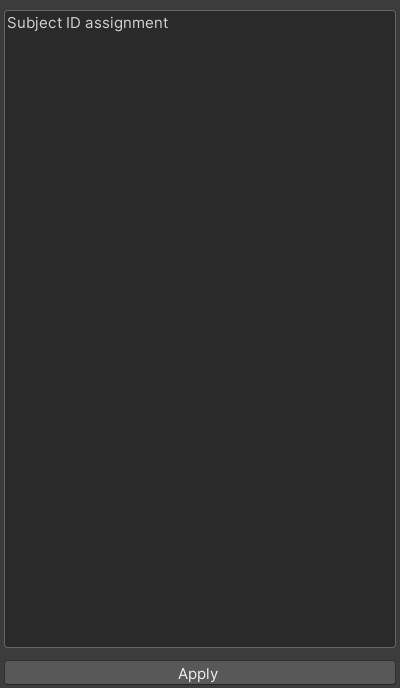
- Enter your comment in the text area and click Apply.
To resize the comment box, drag its lower-right corner.
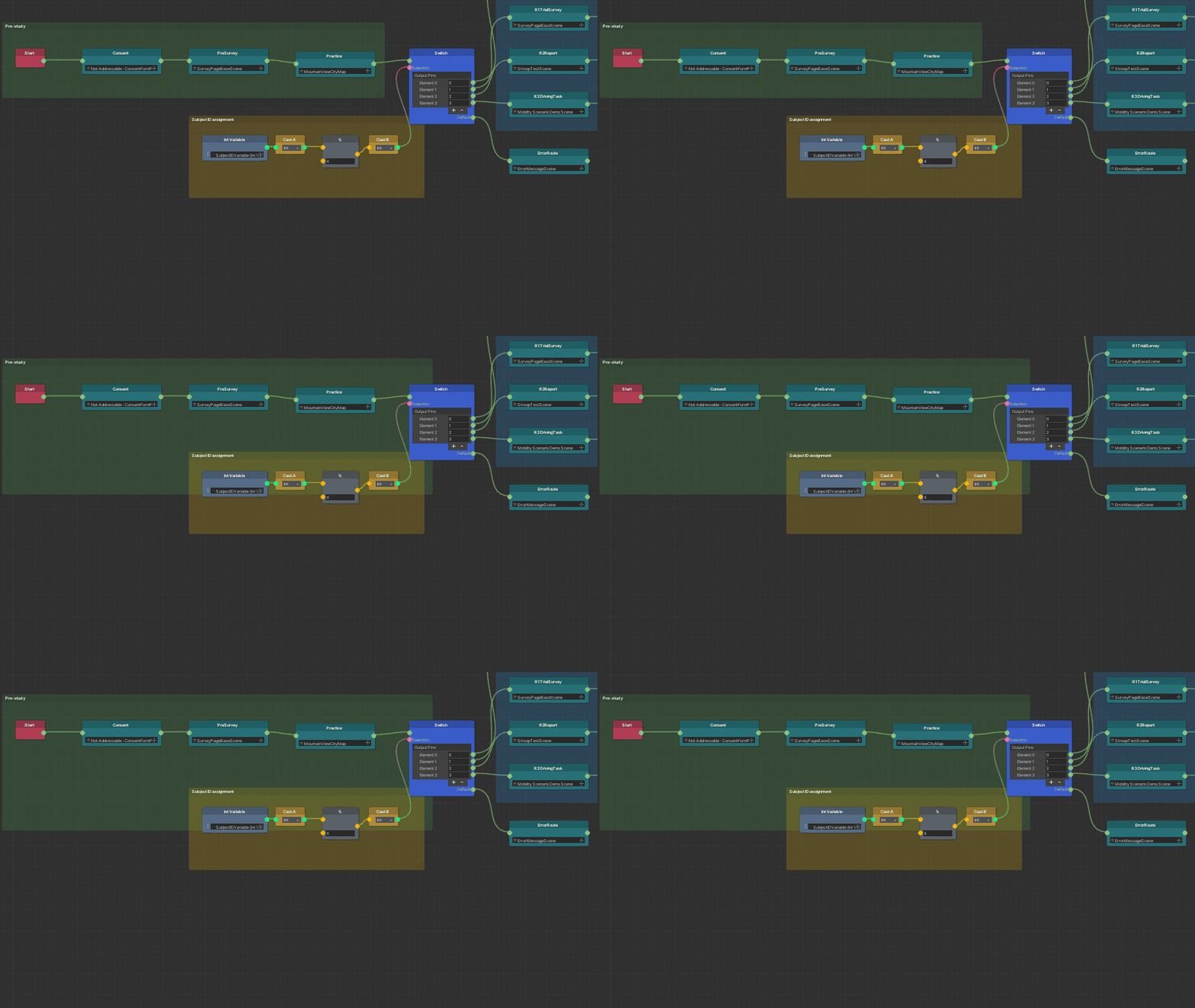
You can change the comment box's color with the Color field in the Inspector.