Working With Nodes
A node represents a single unit or step within the Scene Network Graph. It can correspond to a scene, a decision point, or simply a container for data in your experiment. Nodes are the building blocks of the graph, and you connect them through pins to define how the experiment progresses.
Placing Nodes
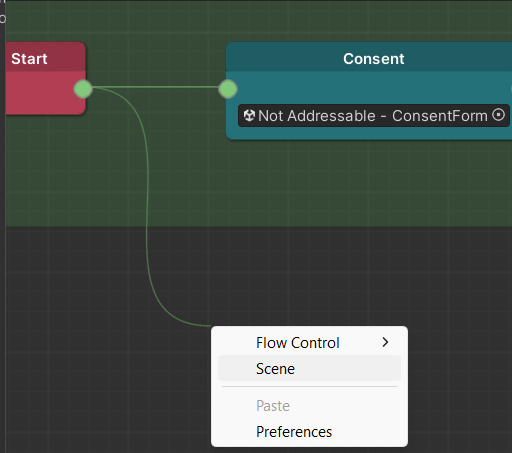
To add a node to the graph, select its type from the Create Node Menu. The node types listed in the menu depend on how you open the menu and what is currently selected.
- Right-clicking an empty space in the Scene Graph Editor brings up a list of all nodes that can be added to the graph.

- Dragging a connection from a pin on a node and releasing it in empty space brings up a list of nodes compatible with the pin's type.
In the Scene Graph Editor, you can:
- Rename a node by right-clicking it and selecting Rename from the context menu.
- Double-click a node's header to center the view on it.
- Press F to automatically frame your nodes in the view.
Selecting Nodes
To select a node, click it in the Scene Graph Editor.
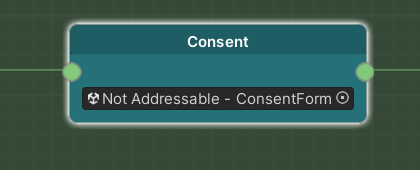
To add a node to, or remove it from, the current selection, hold Ctrl and click the node.
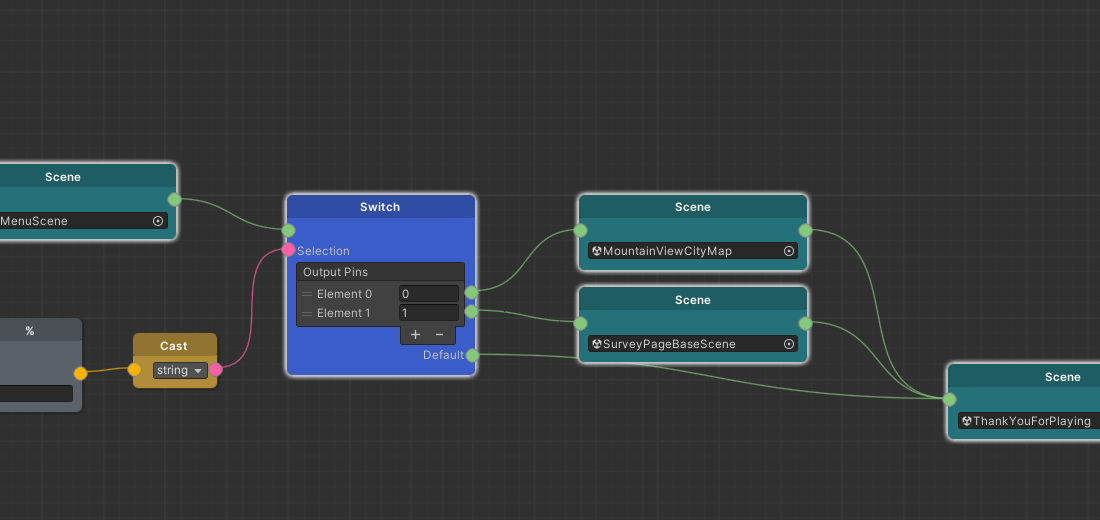
You can select multiple nodes at once with marquee selection.
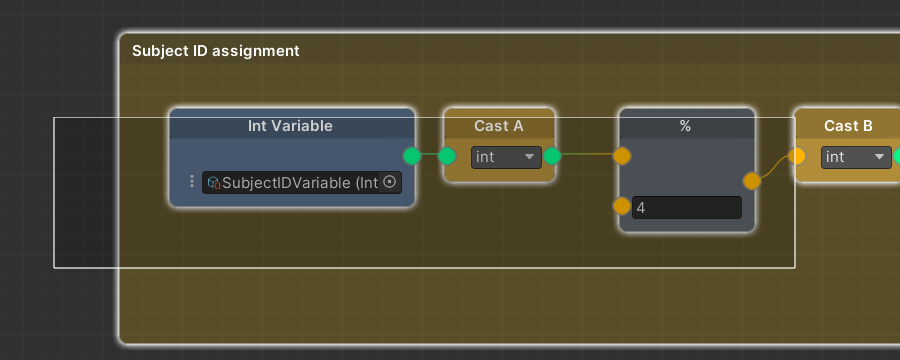
To deselect all nodes, click an empty space in the Scene Graph Editor.
Moving Nodes
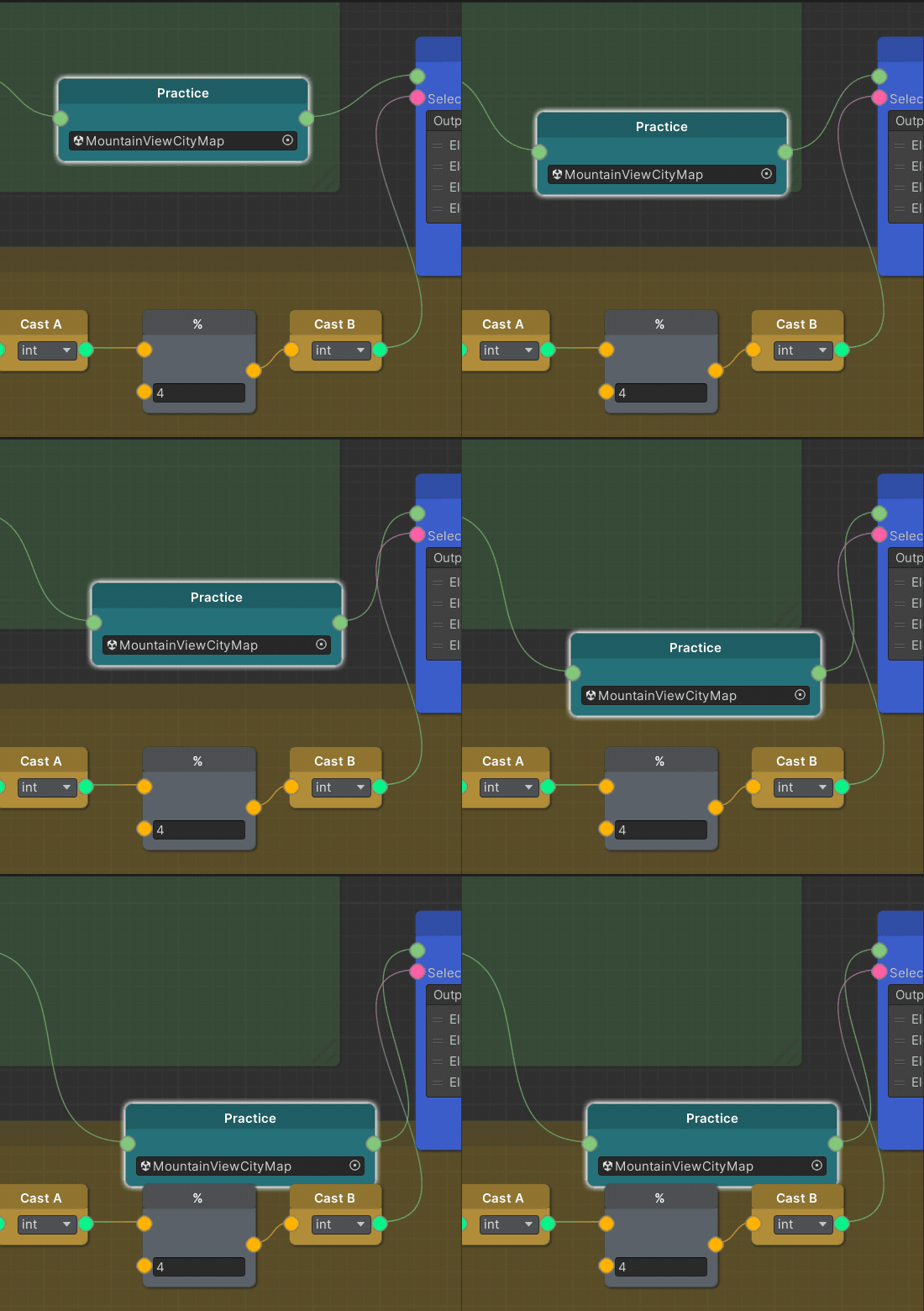
To move a node, drag it. If multiple nodes are selected, dragging any node in the selection moves all of them.
Pins
Nodes can have pins on either side. Pins on the left are input pins, and pins on the right are output pins.
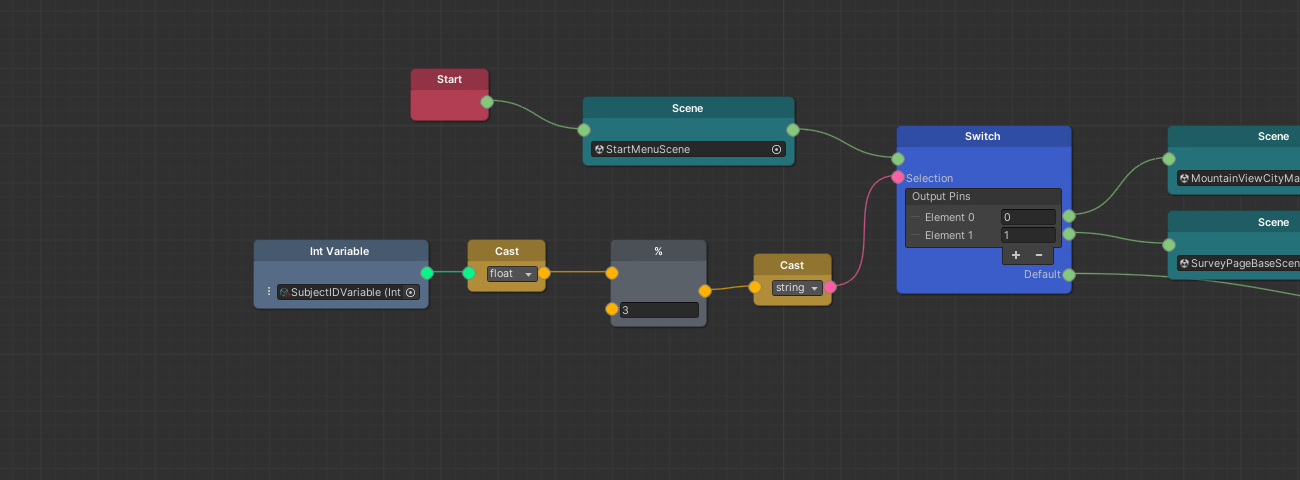
There are two types of pins:
-
Flow Pins:
- Connect nodes together to create a flow of progression.
- An output flow pin can connect to only one input flow pin. An input flow pin, however, can accept connections from multiple output flow pins.
-
Data Pins:
- Take data into a node or output data from a node.
- Are type-specific and can only be wired to data pins of the same type.
- A data output pin can feed multiple input pins, while most data input pins (such as operator inputs) accept only one connection. Connecting a new wire replaces the existing one.
Wires
Connections between pins are called Wires. To create a wire in the Scene Graph Editor, click one pin and drag to another pin of the same type.
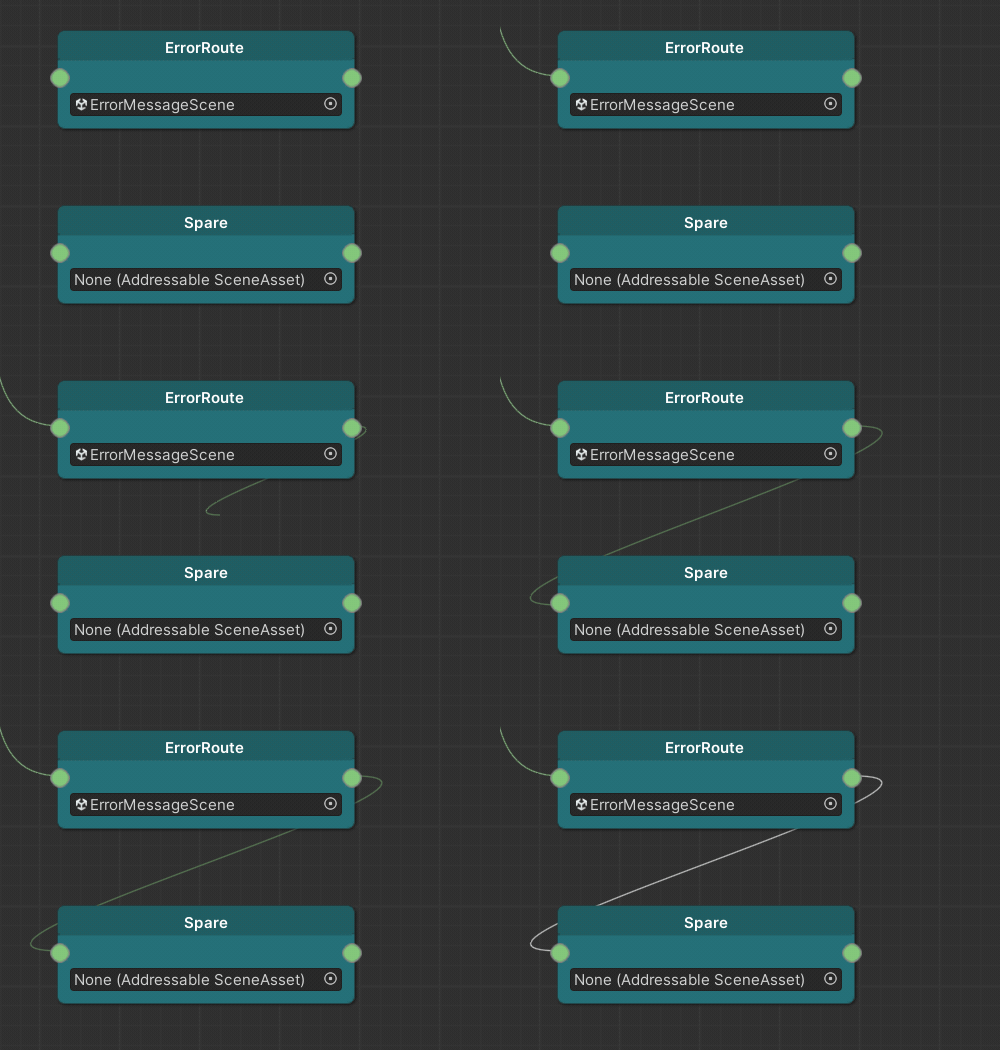
You can only connect two pins of compatible types.
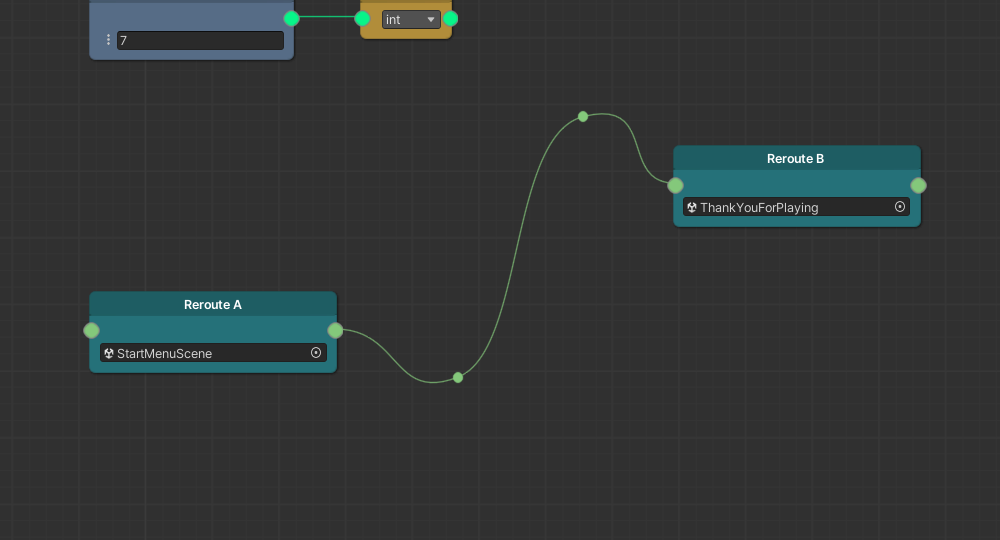
Reroute Wires
You can add a Reroute point to make a wire follow a certain path before it reaches its target pin. Right-click while dragging a wire to place a reroute point.