Included Scenes
HRI-MobiSim comes with a set of scenes you can use as they are or adapt for your study. There are three kinds:
- Scene templates give you a new scene that's already set up for a common task, such as a scenario, a survey, or a Stroop Test.
- Environment maps are ready-made worlds you can use as the setting for a scenario.
- Additional scenes cover the rest of a typical study, such as the start menu, the consent form, and the closing screen.
You'll find the scenes in Assets/mobisim/Scenes/Scenes, and the templates in Assets/mobisim/Scenes/Templates. The scenes behind the playable demo are also included. See Playable Demo for a tour of those.
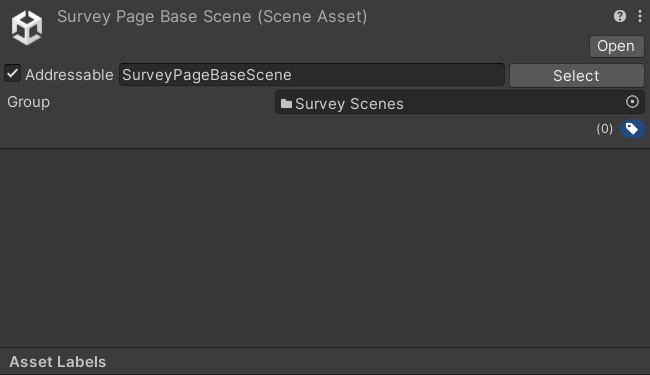
Every scene that the scene graph loads must be Addressable. After you create or copy a scene, select it in the Project window and enable Addressable in the Inspector.
Scene Templates
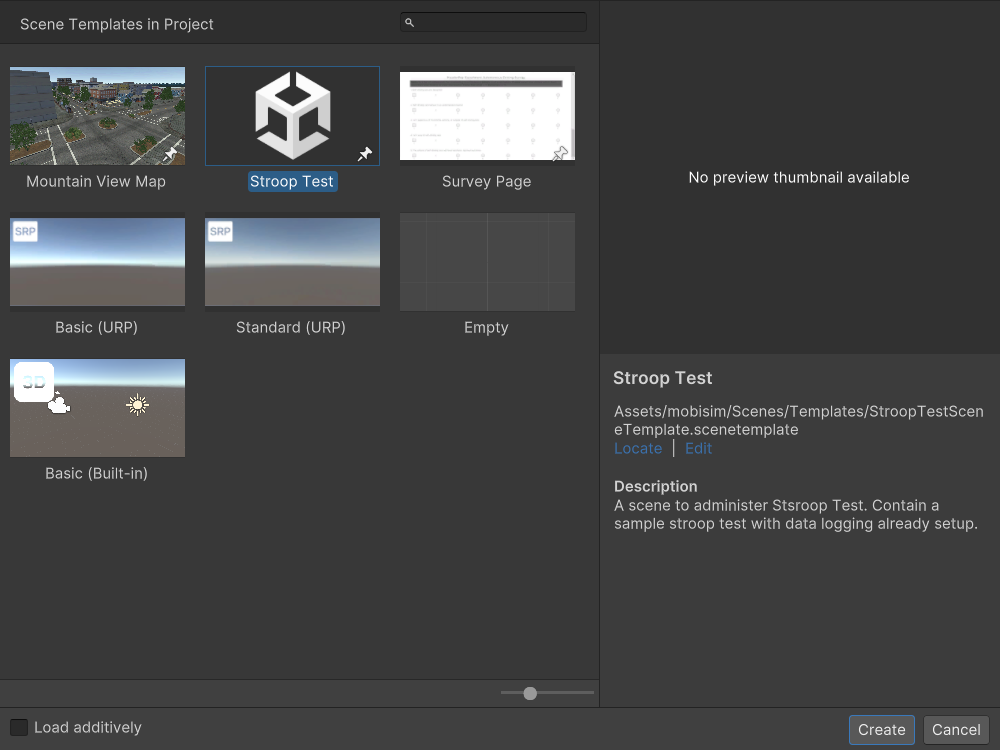
A scene template saves you from building the same setup over and over. When you create a scene from a template, Unity makes a copy of it, so your new scene already has everything the template includes. HRI-MobiSim's templates appear in the New Scene dialog as Mountain View Map, Survey Page, and Stroop Test.
To use one, go to File > New Scene, select the template, and save the new scene in your study folder.
To learn more about how templates work in Unity, see Scene templates and Creating a new scene from the New Scene dialog in the Unity documentation.
Mountain View Map
The Mountain View Map template is the recommended starting point for a scenario. It gives you the Mountain View environment together with a player starting point, data logging, and a time limit, so you can start adding your own interactions straight away. For a full walkthrough, see Creating Your First Scenario.
Each scene you create from this template represents one condition in your study. If your study has several conditions, create one scene for each and name them so you can tell them apart. For example, a study with four conditions might use:
MountainViewCityMap_1MountainViewCityMap_2MountainViewCityMap_3MountainViewCityMap_4
Then set up the interactions for each condition. See Developing Scenarios to learn how.
The template asset is MountainViewCitySceneTemplate.scenetemplate.
Survey Page
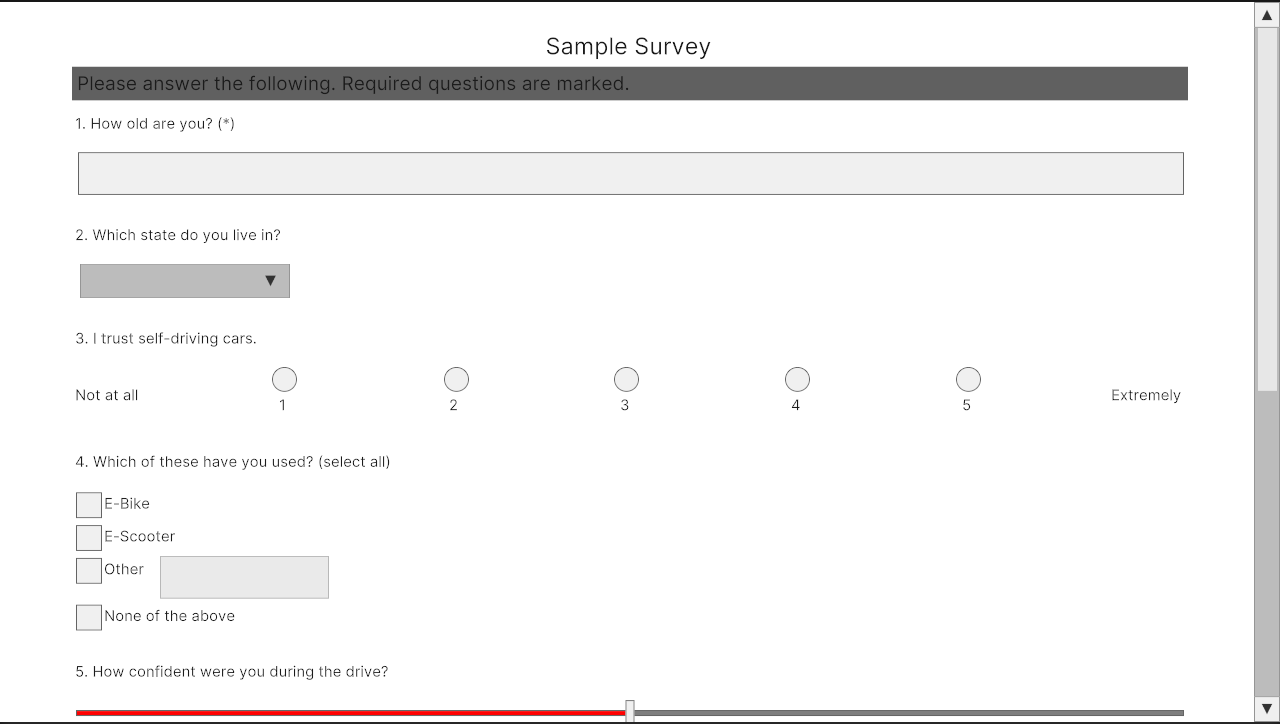
The Survey Page template is for showing a questionnaire inside Unity. Each survey in your study needs its own scene. For example, if your study uses a personality survey, the Satisfaction with Travel Scale, and a PADI survey, create three scenes from this template.
The template gives you the scene structure, but you still need to add your questions before you can use it in a study. See Survey Quick Start to get started.
Stroop Test
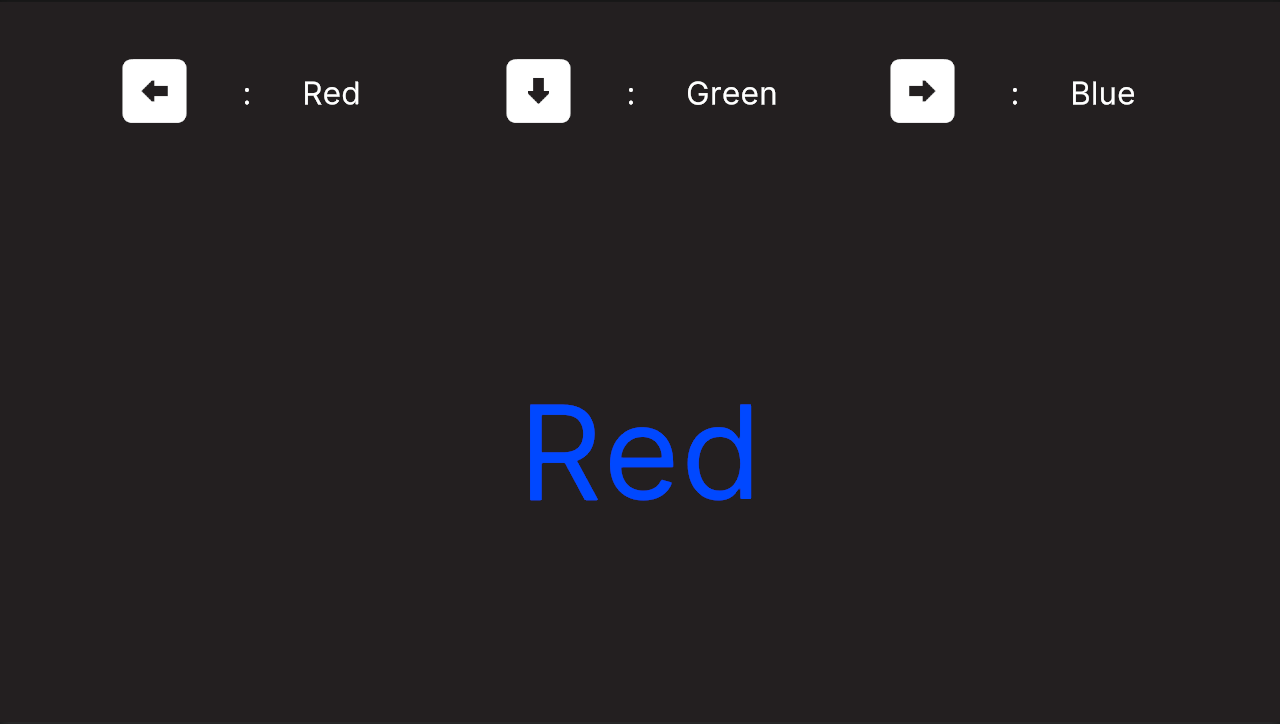
The Stroop Test template is for running a Stroop Test inside Unity. In a Stroop Test, participants name the color a word is printed in rather than the word itself, which measures how well they handle conflicting information.
Like the Survey Page template, it comes with all the GameObjects and components it needs, but you still need to set up your test before you use it in a study. See Stroop Test Quick Start to get started.
Saving Your Own Template
If you find yourself setting up the same kind of scene more than once, save it as a template of your own. Open the scene and choose File > Save As Scene Template. Your template then appears in the New Scene dialog next to HRI-MobiSim's, and every scene you create from it starts as a copy of your setup.
To choose which assets are copied or shared, or to add a description and preview image, see Creating scene templates in the Unity documentation.
Environment Maps
Environment maps are ready-made worlds you can use as the setting for your scenarios. You're free to use whichever map suits your study, and to use it however you like. You'll find them in Assets/mobisim/Scenes/Scenes/Environment Scenes.
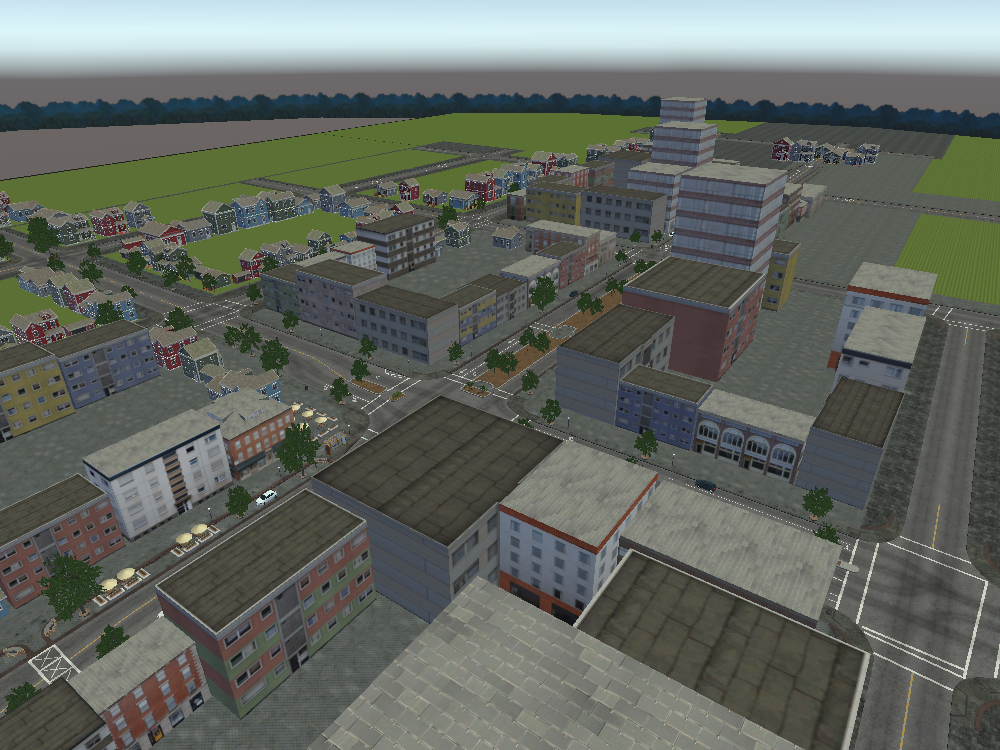
MountainViewCityMap.unity · has a scene template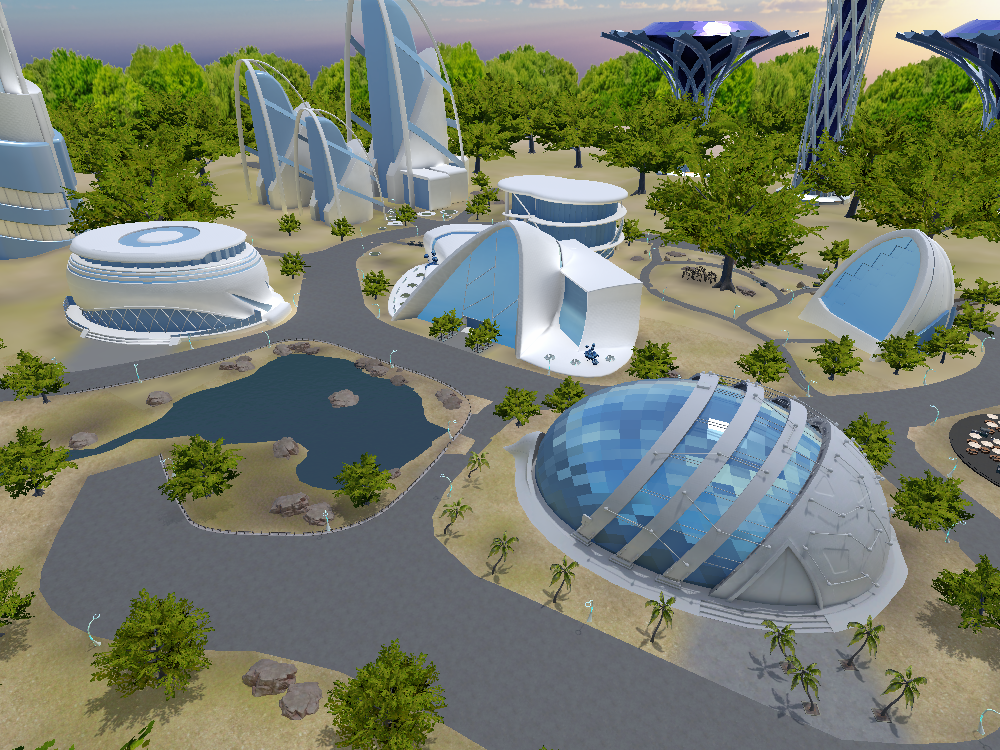
FutureCity.unity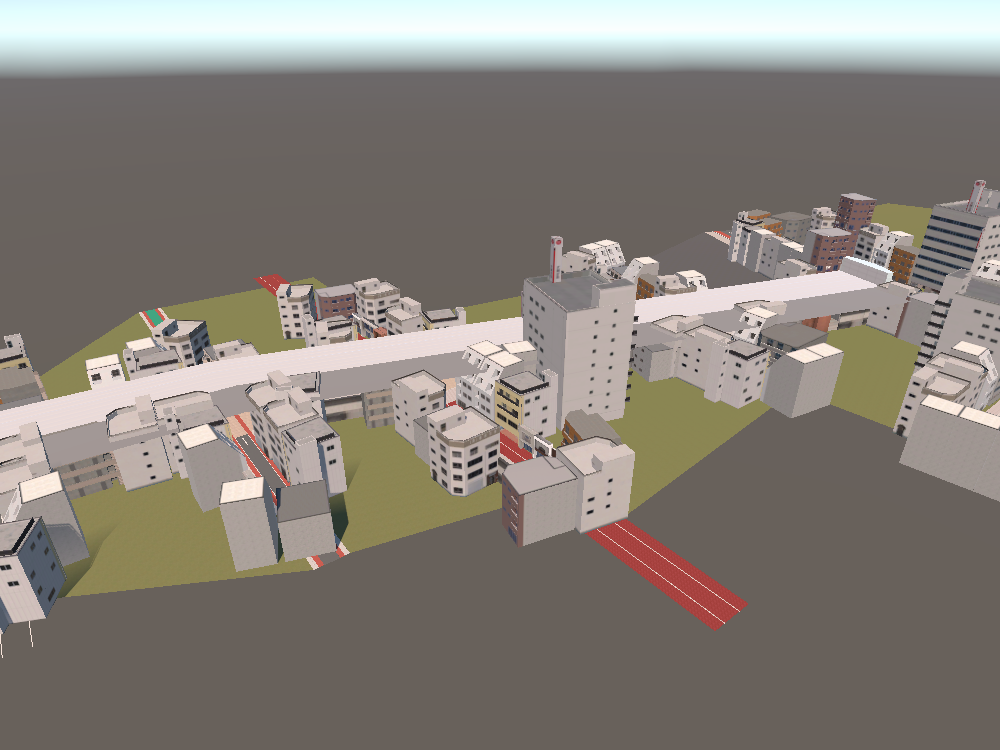
Kumamoto.unity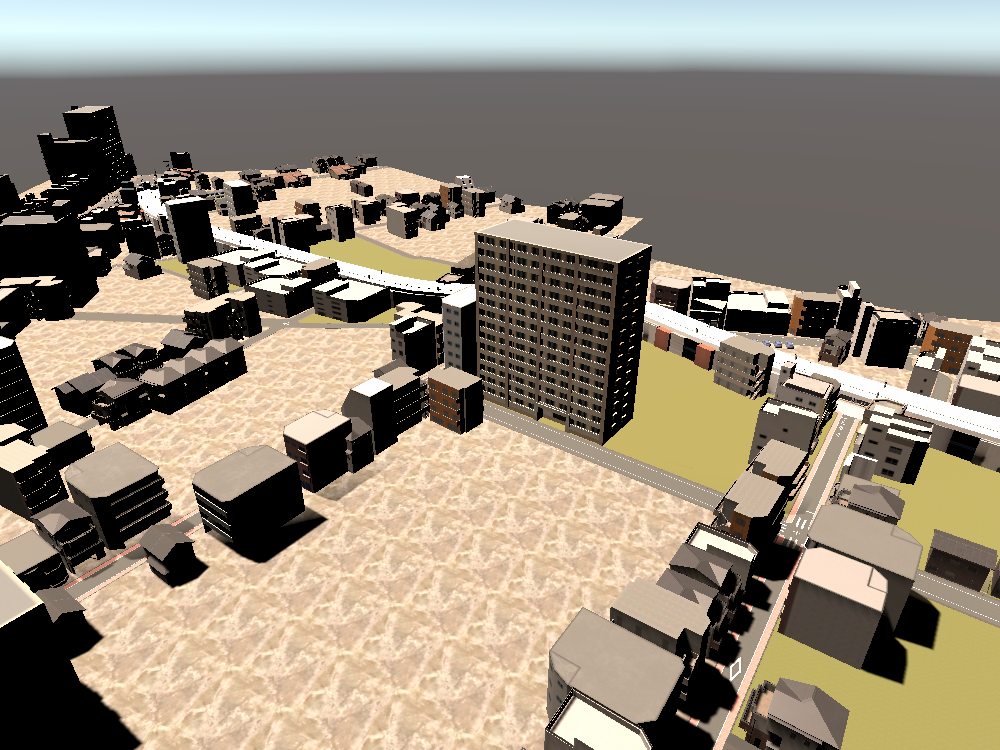
Oyama.unity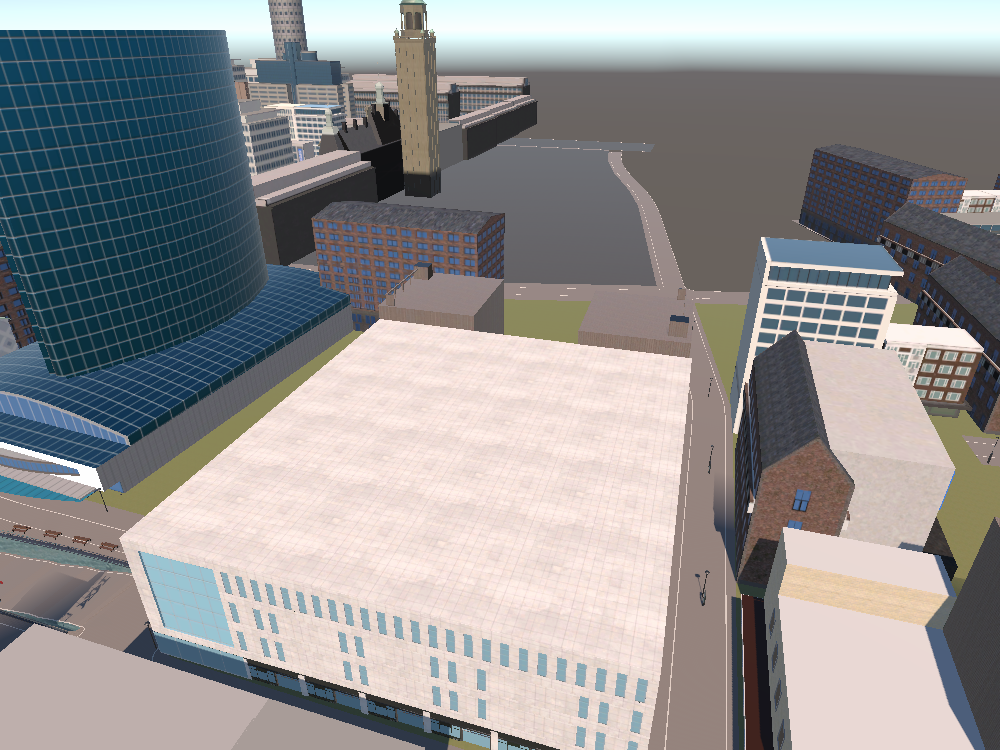
Rotterdam.unityAs the name suggests, these maps contain only environment assets. The player, road agents, events, assessments, and scene flow all live in your scenario, so opening a map and pressing Play won't give you a working scenario on its own.
Mountain View is the easiest place to start, because it's the only map with its own template, Mountain View Map. It's also the map used throughout the scenario tutorials. The environment is available on its own as the MountainViewCityEnvironment prefab, too.
Using Another Map
The other maps don't have templates, so the easiest approach is to take a scenario you already have and swap in the new environment.
Duplicate an existing scenario scene and give the copy a new name. A scene created from the Mountain View Map template works well, since it already has everything a scenario needs.
Replace the scene's environment with the map you want. Keep everything else as it is, including the game mode, player selection, data logging, and scene flow setup.
Check how the scene gets its environment first. Some setups load the map as a separate scene, while others have the geometry placed directly in the scene. Make sure you only end up with one copy of the map. If you'd like a reference for how a scene loads its map, take a look at the BaseMap and MapLoader prefabs in Assets/mobisim/Scenes/Prefabs.
Move the starting point so the player spawns just above the ground where you want the scenario to begin.
Routes, waypoints, event triggers, and camera targets stay where they were, so they won't follow the new map automatically. Move each one into place and check that it lines up with the roads and sidewalks.
Make sure the ground and roads have colliders and use the correct layers, and that stop lines are tagged. Road agents rely on these to move around correctly. See Layers and Tags for the ones the simulator uses.
Once the scene works the way you want, consider saving it as a template so your next scenario on this map takes one click.
Testing on a New Map
Opening a map on its own is handy for editing the environment, but to test your scenario properly, run it the way your participants will. That means starting through the simulator's bootstrap setup and following the scene graph, so that your scene loads the same way it does in a build. See Addressables for how Addressable scenes are included in a build.
Detailed city maps can be demanding, especially in WebGL builds and on VR headsets, and the Editor won't tell you the whole story. Test on the device and build type your study will actually use. If the frame rate is low, look for things you don't need, such as a duplicate camera or a map that's loaded twice, before you lower visual quality. See Scene Optimization and Debug Tools for more.
Additional Scenes
These scenes cover the parts of a study around your scenarios: welcoming participants, getting their consent, giving instructions, and thanking them at the end. They're in subfolders of Assets/mobisim/Scenes/Scenes, such as Menu Scenes and Assessment Scenes. Connect them with your scenarios in a scene graph to build the full flow of your study.
Start Menu
The Start Menu scene (Menu Scenes/StartMenuScene.unity) is the title page of your study. It shows the study title and a button that takes participants to the next scene.
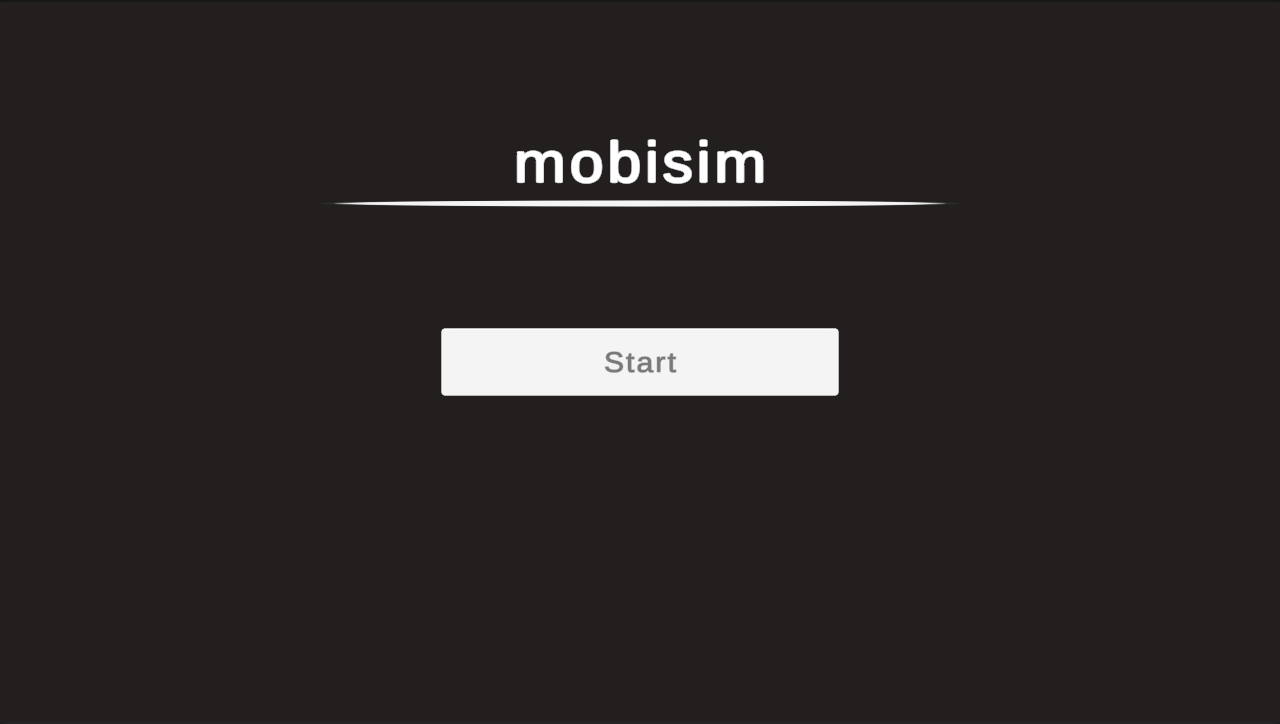
To change the title:
-
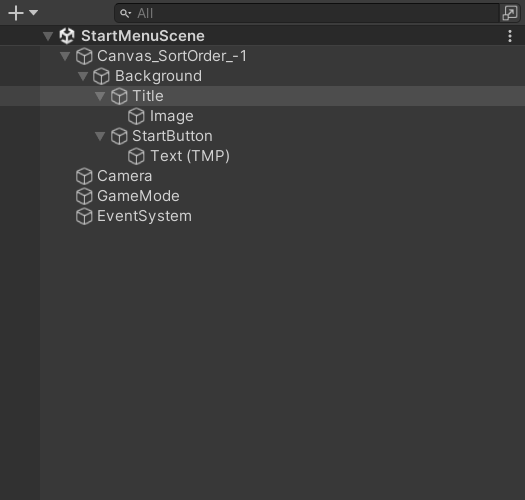
In the Hierarchy, expand Canvas_SortOrder_-1, then expand Background.
-
Select Title.
-
In the Inspector, find the TextMeshPro component and type your study title in the Text field.
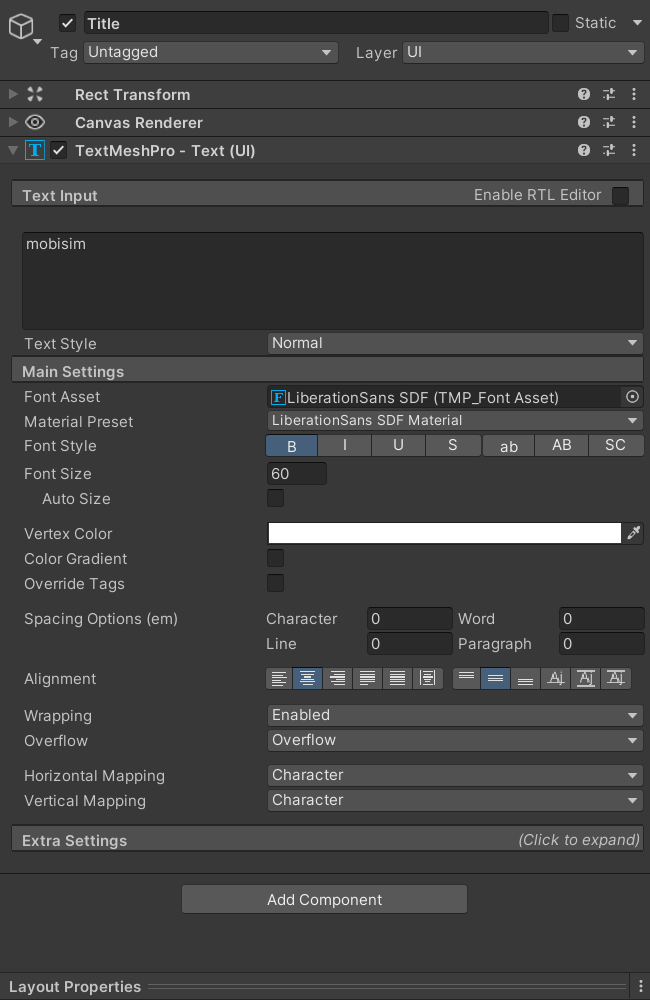
To change the button label, edit the Text (TMP) child of StartButton the same way. You'll find StartButton just below Title.
Thank You For Playing
The Thank You For Playing scene (Menu Scenes/ThankYouForPlaying.unity) shows a closing message once participants have finished. It has no button to move on, so place it at the very end of your study.
To change the message:
-
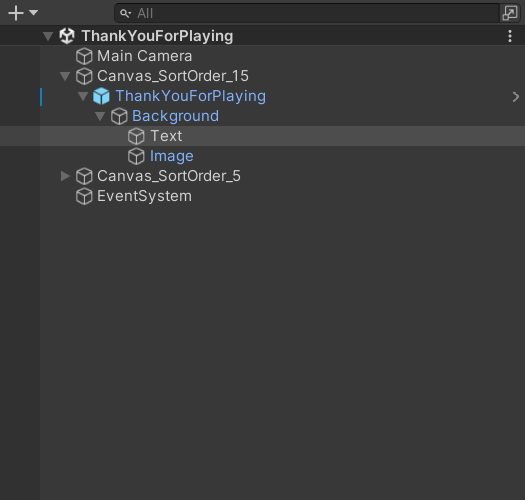
In the Hierarchy, expand Canvas_SortOrder_15.
-
Expand the ThankYouForPlaying prefab instance, then expand Background beneath it.
-
Select Text.
-
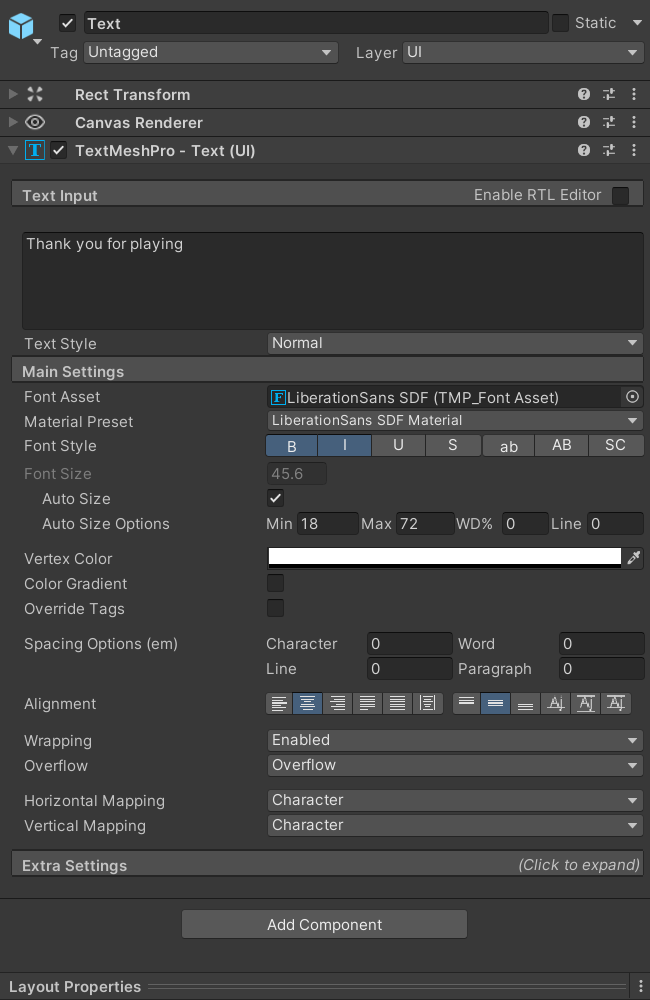
In the Inspector, find the TextMeshPro component and edit the message in the Text field.
Consent Form
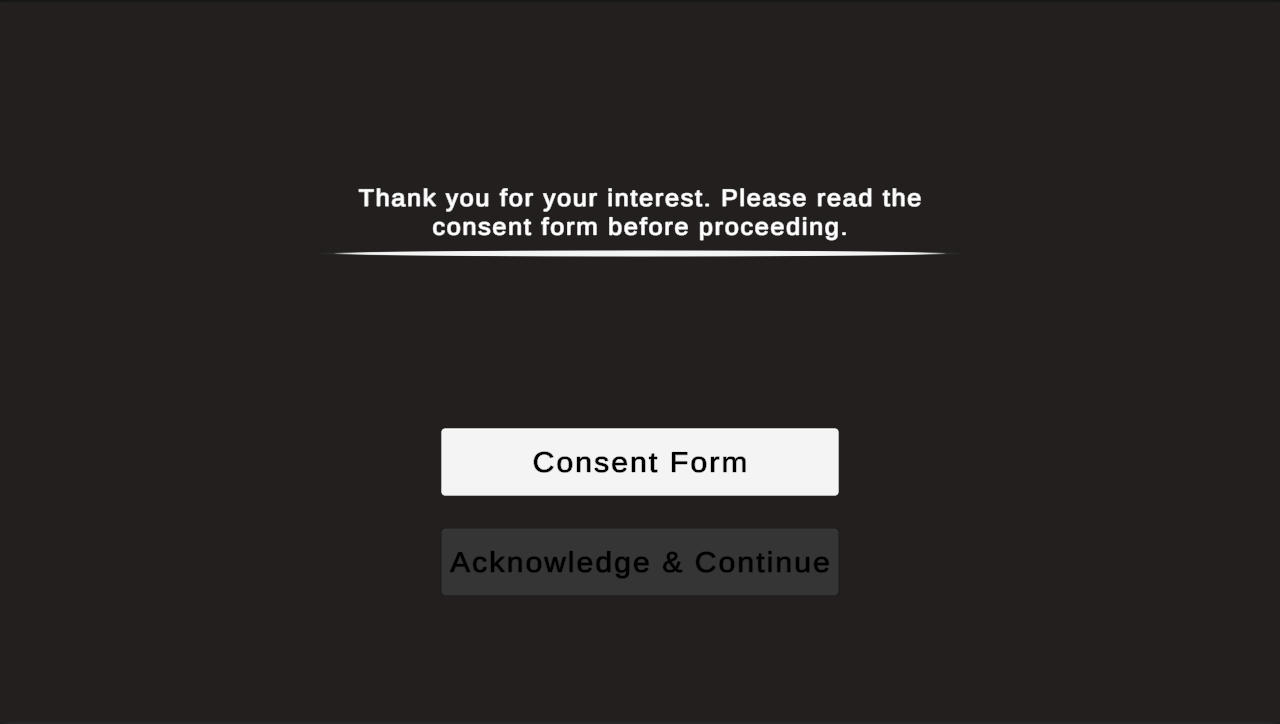
The Consent Form scene (Assessment Scenes/ConsentFormPage.unity) asks participants for their consent before they continue. Like the Start Menu, it has a title and a continue button, here labeled Acknowledge & Continue, and you edit them the same way.
What's different is the Consent Form button. The continue button only becomes active after participants click it and view the consent information, so nobody can skip past the form.
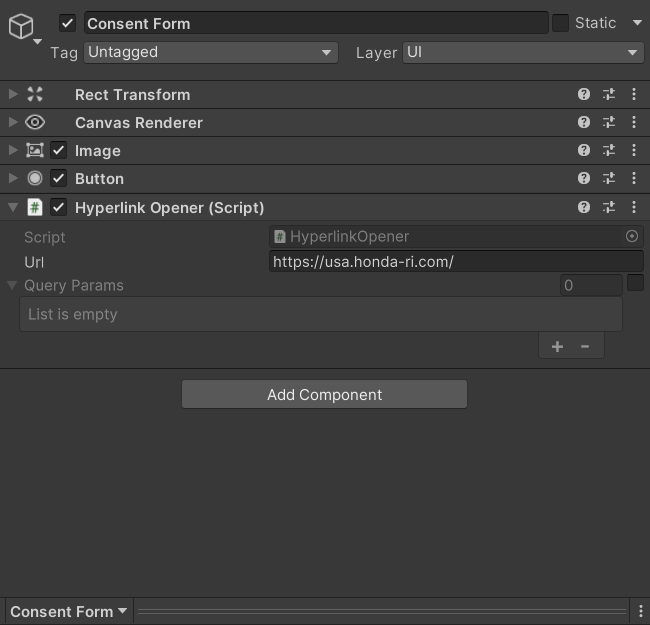
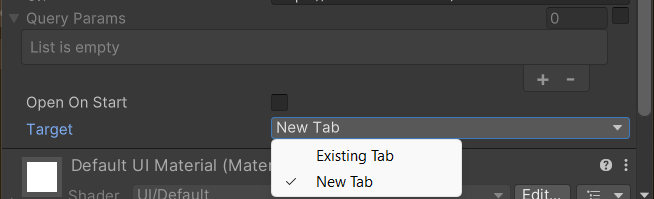
For online studies, the consent form is a web page that opens in a new browser tab. To set its address:
-
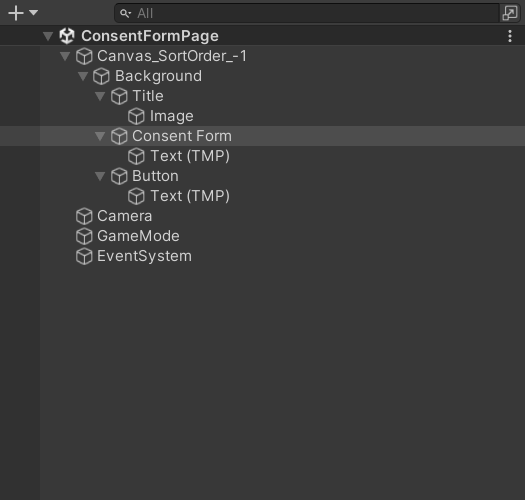
In the Hierarchy, expand Canvas_SortOrder_-1, then expand Background.
-
Select Consent Form.
-
In the Inspector, find the Hyperlink Opener component and enter the consent form's address in the Url field.
-
Set Target to New Tab.
Study Instructions

A Study Instructions scene shows participants anything they need to read before a trial, such as attestation text, a vignette, or task instructions. Create one scene for each set of instructions in your study.
You build these scenes from the Survey Page Base Scene (Assessment Scenes/SurveyPageBaseScene.unity), the same way you'd build a survey page. See Survey Quick Start to learn how.
UI Overlay
The UI Overlay scene (UIOverlayScene.unity) holds the HUD participants see during a scenario. Unlike the other scenes here, it isn't part of the scene graph. Instead, the Player Selector loads it on top of your scenario at runtime. See UI Overlay Scene to customize it.