Custom Runtime and Editor Settings
When developing custom tools or features in the simulator, you often need additional project-wide configuration options tailored to your requirements. In these cases, you need to create custom project settings. This page explains how to expose new settings for use both at runtime and in the Editor with minimal effort.
This page walks through the basic setup for:
- Storing settings using a ScriptableObject
- Registering a custom settings UI via a SettingsProvider
- Understanding the different types of settings you may need
- Creating platform-specific settings
Settings Usage
You typically encounter three general types of settings when working on a project:
- Editor User Settings: Per-user settings accessible in Preferences that only the Editor needs. They're stored locally, so they don’t affect other team members.
- Editor Project Settings: Project-wide settings accessible in Project Settings that only the Editor needs. These are version-controlled, which keeps them consistent across team members.
- Runtime Project Settings: Project-wide settings accessible in Project Settings that runtime scripts need read-only access to, but that you configure in the Editor. These are also version-controlled.
Settings File Locations
The settings you create are stored as ScriptableObjects. Ideally, Unity would allow ScriptableObjects to be stored in the ProjectSettings/ and UserSettings/ folders without using the InternalEditorUtility class. Because this isn't allowed, a folder under Assets/ must be used for now. The folder depends on the settings’ usage:
-
Editor User Settings:
Assets/Settings/Editor/User/<ProjectFolderName>/ImportantThis folder must be excluded from source control.
-
Editor Project Settings:
Assets/Settings/Editor -
Runtime Project Settings:
Assets/Settings/Runtime- Runtime settings need to be preloaded before they can be used in a standalone build. This is explained in Preload.
Settings Platform Support
Beyond the three general types of settings, this system supports two additional subtypes to handle platform variations more effectively:
-
Universal Settings: A single setting asset that applies universally across all supported platforms. This is useful when a setting’s value doesn’t need to change based on the target platform.
-
Platform-bound settings collections: A container or collection that holds individual setting assets for each supported platform. This lets you customize settings per platform while keeping them organized in one collection.
Creating Custom Universal Settings
Creating a universal setting (shared across all platforms) is straightforward. It requires two things:
- A custom class that inherits from
Settings<T>and is decorated with the appropriate[Settings]attribute - A SettingsProvider implementation that exposes it in the Editor
Settings
The example below demonstrates how to create custom settings with the Settings<T> class and its attribute:
using UnityEngine;
using mobisim.Settings;

[Settings( SettingsUsage.EditorProject, "My Settings" )]
public sealed class MyCustomSettings : Settings<MyCustomSettings>
{
    public int integerValue => _integerValue;
    [SerializeField, Range( 0, 10 )] int _integerValue = 5;

    public float floatValue => _floatValue;
    [SerializeField, Range( 0, 100 )] float _floatValue = 25.0f;

    public string stringValue => _stringValue;
    [SerializeField, Tooltip( "A string value." )] string _stringValue = "Hello";
}
The MyCustomSettings class derives from the Settings<T> base class. It uses the [Settings] attribute to configure its usage, displayed name in the settings dialog, and optional filename (the type’s name is used if one is not specified).
The SettingsUsage enum defines how a setting is used within the project. There are three possible values — SettingsUsage.EditorUser, SettingsUsage.EditorProject, and SettingsUsage.RuntimeProject — each corresponding to one of the setting usage types.
You can also nest a Settings instance under another in Unity’s settings dialog by specifying the name as a path with '/' as a separator, for example [Settings( SettingsUsage.EditorProject, "Services/My Service" )].
Give the derived settings class and its file the same name, as Unity requires when deriving from its ScriptableObject class.
Finally, to access settings from code, use the instance property:
var somevariable = MyCustomSettings.instance.floatValue;
Settings Provider
Defining a settings class alone isn't enough: you must also register it explicitly so that it appears in the Preferences or Project Settings window and users can configure it.
To have the custom settings appear in the Preferences or Project Settings dialog, Unity’s [SettingsProvider] attribute must be applied to a static method that creates and returns a SettingsProvider for your settings. For settings used at runtime, do this registration in a separate file inside an Editor assembly.
The example below demonstrates how to implement a custom SettingsProvider for your setting:
#if UNITY_EDITOR

using System.Collections.Generic;
using UnityEditor;
using UnityEditor.UIElements;
using UnityEngine.UIElements;
using mobisim.Settings.Editor;

// Create MyCustomSettingsProvider by deriving from SettingsProvider:
class MyCustomSettingsProvider : SettingsProvider
{
    // constructor
    public MyCustomSettingsProvider(string path, SettingsScope scopes, IEnumerable<string> keywords = null) : base(path, scopes, keywords){}

    // Setup UI Toolkit-based UI
    public override void OnActivate(string searchContext, VisualElement rootElement)
    {
        // draw default inspector
        var settingObject = new SerializedObject(MyCustomSettings.instance);
        InspectorElement.FillDefaultInspector(rootElement, settingObject, null);
        rootElement.Bind(settingObject);
    }

    // This function draws the IMGUI-based UI (but the UI Toolkit takes priority if it is present)
    public override void OnGUI(string searchContext)
    {
        // Usual EditorGUILayout code here...
    }

    // Register the SettingsProvider
    [SettingsProvider]
    public static SettingsProvider CreateMyCustomSettingsProvider()
    {
        var attribute = MyCustomSettings.attribute;
        return new MyCustomSettingsProvider(attribute.displayPath, attribute.usage.GetSettingsScope());
    }
}
#endif
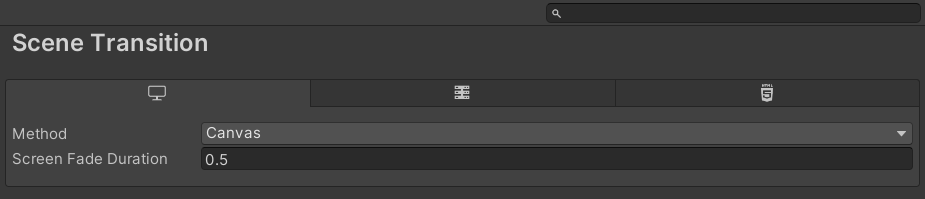
Your settings then get their own page in the Edit > Project Settings window, like HRI-MobiSim's own Scene Transition settings:
Preload
The settings are now usable in the Editor, but by default they aren't available in a built standalone player. This is acceptable for Editor-only settings, but not for runtime project settings that must be accessible during gameplay.
To make these settings available at runtime, include them in Unity’s Preloaded Assets list, which ensures the ScriptableObject is loaded automatically in builds. You have two options:
-
Manual approach: Add the settings asset to
Edit > Project Settings > Player > Preloaded Assets. -
Automated build-time approach: Implement
IPreprocessBuildWithReportandIPostprocessBuildWithReportto add the asset to, and remove it from, the preloaded list during the build process.
To streamline this, you can use a custom base class like SettingsBuildHelper<T>, which encapsulates this behavior and handles your settings automatically during builds. The example below shows how to implement a helper for your settings class:
#if UNITY_EDITOR
using mobisim.Settings.Editor;

public class MyCustomSettingsBuildHelper : SettingsBuildHelper<MyCustomSettings> { }
#endif
By deriving from SettingsBuildHelper<T>, your runtime settings are automatically injected into the build pipeline, added to the Preloaded Assets list, and available in the final player without any additional configuration.
Creating Custom Platform-bound Settings Collections
When a setting's value needs to vary across platforms (for example, different configurations for Standalone, WebGL, or Android), you can use a platform-bound setting collection. This structure lets you define one setting type and serialize a separate instance for each platform you support.
Creating a settings collection is very similar to creating universal settings, and most of the structure carries over. You need:
-
A setting class that inherits from
Settings<TSelf, TCollection>, which defines the serialized fields and logic for one setting instance. -
A collection class that inherits from
SettingsBuildTargetCollection<TSetting, TSelf>, which handles storing, mapping, and managing separateTSettinginstances for each supported platform. The collection class must be decorated with:[Settings], to register the collection's usage with the settings system.[SettingsBuildTargetSelection], to specify the supported BuildTargetGroups.
-
A custom
SettingsProvider(e.g., one that inherits fromScriptableObjectSettingsProvider<TSetting, TCollection>) to render the settings UI in the Editor with IMGUI.
Settings and Collection
The example below demonstrates how to create platform-bound settings using the Settings<TSelf,TCollection> class:
using UnityEngine;
using mobisim.Settings;

public class MyCustomSettings : Settings<MyCustomSettings, MyCustomSettingsCollection>
{
    public int integerValue => _integerValue;
    [SerializeField, Range( 0, 10 )] int _integerValue = 5;

    public float floatValue => _floatValue;
    [SerializeField, Range( 0, 100 )] float _floatValue = 25.0f;

    public string stringValue => _stringValue;
    [SerializeField, Tooltip( "A string value." )] string _stringValue = "Hello";
}
Instead of Settings<T>, the MyCustomSettings class derives from the Settings<TSelf,TCollection> base class.
To manage these per-platform instances, a custom collection class is required. MyCustomSettingsCollection derives from the SettingsBuildTargetCollection<TSetting, TSelf> base class, which provides the necessary infrastructure to store and retrieve settings by BuildTargetGroup:
using mobisim.Settings;
#if UNITY_EDITOR
using UnityEditor;
#endif

[Settings(SettingsUsage.RuntimeProject, "My Service/My Settings")]
#if UNITY_EDITOR
[SettingsBuildTargetSelection(new BuildTargetGroup[] { BuildTargetGroup.Standalone, BuildTargetGroup.WebGL })]
#endif
public class MyCustomSettingsCollection : SettingsBuildTargetCollection<MyCustomSettings, MyCustomSettingsCollection> { }
The MyCustomSettingsCollection class uses the [Settings] attribute to configure its purpose, specify whether it’s for runtime or Editor usage, and define its display path in the Project Settings window. If no filename is specified, the type’s name is used by default.
Additionally, the [SettingsBuildTargetSelection] attribute specifies which platforms this collection supports. It takes an array of BuildTargetGroup values to explicitly define the platforms (for example, Standalone and WebGL) that appear in the settings UI. Because BuildTargetGroup lives in the UnityEditor namespace, you must wrap this attribute in an #if UNITY_EDITOR block (as shown above) so that it isn't included in runtime builds.
Settings Provider
To have the custom settings appear in the Preferences or Project Settings dialog, Unity’s [SettingsProvider] attribute must be applied to a static method that creates and returns a SettingsProvider for your settings. For settings used at runtime, do this registration in a separate file inside an Editor assembly.
The example below demonstrates how to implement a settings collection's SettingsProvider by deriving from ScriptableObjectSettingsProvider<TSetting, TCollection>:
#if UNITY_EDITOR

using UnityEditor;
using UnityEngine;
using mobisim.Settings.Editor;
using System.Collections.Generic;

public class MyCustomCollectionSettingsProvider : ScriptableObjectSettingsProvider<MyCustomSettings, MyCustomSettingsCollection>
{
    //constructor
    public MyCustomCollectionSettingsProvider(MyCustomSettingsCollection collection, SettingsScope scope, string displayPath, IEnumerable<string> keywords = null)
        : base(collection, scope, displayPath, keywords) { }

    // Register the SettingsProvider
    [SettingsProvider]
    static SettingsProvider CreateMyCustomSettingsProvider()
    {
        var instance = MyCustomSettingsCollection.instance;
        var attribute = MyCustomSettingsCollection.attribute;
        return new MyCustomCollectionSettingsProvider(instance, attribute.usage.GetSettingsScope(), attribute.displayPath);
    }

    // Draw the IMGUI based editor for the selected build target group MyCustomSettings
    protected override void OnSelectedBuildTargetSettingsGUI(SerializedObject serializedSettings, BuildTargetGroup selectedBuildTarget)
    {
        serializedSettings.Update();

        // Some EditorGUILayout code here...

        serializedSettings.ApplyModifiedProperties();
    }
}
#endif
Your settings then get their own page in the Edit > Project Settings window, like HRI-MobiSim's own Survey Templates settings:
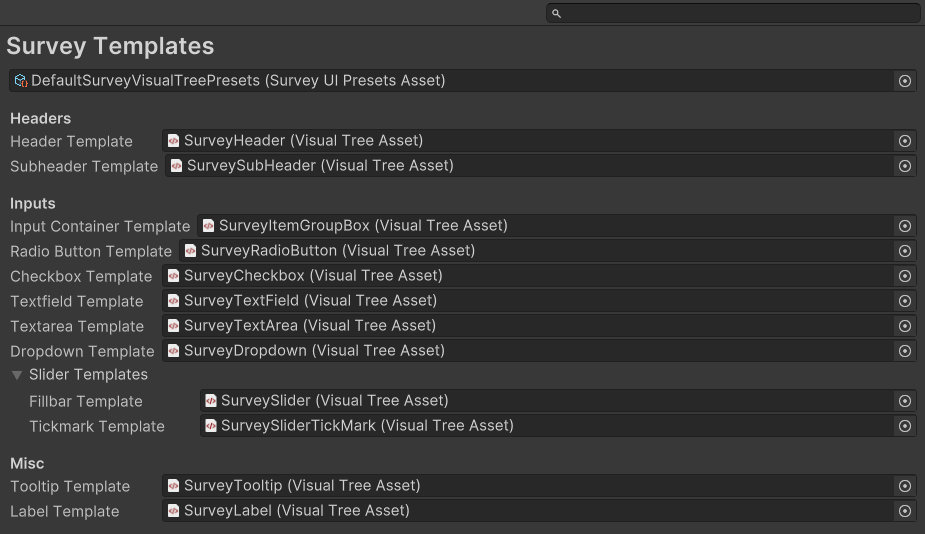
Implement the Inspector UI for each platform-specific settings instance in the OnSelectedBuildTargetSettingsGUI method. The base class calls this method automatically whenever the user selects a different build target group in the Project Settings or Preferences window.
ScriptableObjectSettingsProvider<TSetting, TCollection> does not support UI Toolkit. All custom settings providers deriving from it must be implemented in IMGUI (EditorGUILayout, GUILayout, etc.).
To display fields, use standard IMGUI controls such as:
EditorGUILayout.PropertyField(serializedSettings.FindProperty("_integerValue"));
This ensures that the correct instance of the setting is rendered based on the currently selected BuildTargetGroup, and that modifications are tracked and serialized properly.
Preload
As with universal settings, a settings collection intended for runtime use must be preloaded in standalone builds. Otherwise, the settings aren't available in the built player.
To automate this process, you can create a build helper class by inheriting from SettingsBuildHelper<TSetting, TCollection>. This helper ensures that the appropriate settings instance for the active build target is added to Unity’s Preloaded Assets list during the build process.
The example below shows how to implement a build helper:
#if UNITY_EDITOR
using mobisim.Settings.Editor;

public class MyCustomCollectionBuildHelper : SettingsBuildHelper<MyCustomSettings, MyCustomSettingsCollection> { }
#endif
In most cases, this class requires no additional implementation. By inheriting from SettingsBuildHelper<TSetting, TCollection>, it automatically includes the correct per-platform setting at build time, making it available at runtime without any manual configuration.
By default, the base class uses the following method to determine which setting to include in the build:
public override ScriptableObject SettingsForBuildTargetGroup(BuildTargetGroup buildTargetGroup)
{
    return Settings<TSetting, TCollection>.GetSettingsForBuildTargetGroup(buildTargetGroup);
}
If needed, you can override this method to implement custom logic, for example to return fallback settings, perform filtering, or apply conditional rules based on the target platform or configuration. This gives you full control over which specific setting instance is included in the final build.