Scriptable Variables
Overview
A Scriptable Variable is a project asset that holds one typed value, such as an int, a float, or a string. Because the value lives in an asset and not on a GameObject, any number of components in any scene can read or write the same variable without referencing each other.
The simulator uses Scriptable Variables to pass data between systems that should not depend on each other. For example:
- The GameInstance writes the participant's subject ID to the
SubjectIDVariableasset when the session starts (see Bootstrap). Any later scene can read it. - The feedback metric calculators write their results to
FloatVariableassets. The feedback UI reads the same assets to display scores, andFeedbackDataHandlersends them to the server. - Variable Reference nodes in a Scene Graph make a variable's value available to the scene flow, for example to choose which branch to follow.
Runtime values are stored in the simulator's SQLite database, not in the asset file. They survive scene loads, and on Windows builds they also survive restarting the application. See Persistence.
The simulator's own variable assets are in Assets/mobisim/Standard/Script/Scriptable/ScriptableVariable/ScriptableObject/ScriptableVariables/.
Creating a Scriptable Variable
In the Project window, right-click the folder where you want the asset, then select Create > ScriptableObject > Scriptable > Variable.
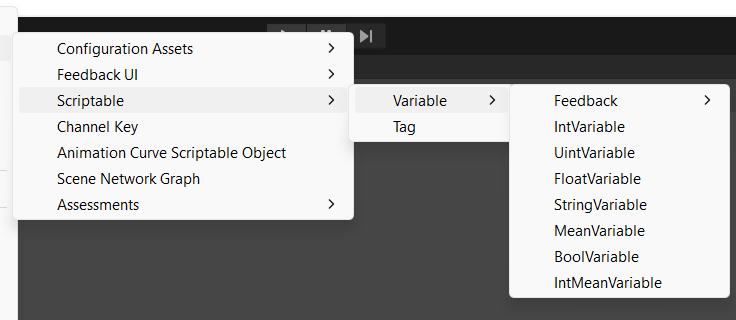
Select the type you need, for example FloatVariable. See Available Variable Types.
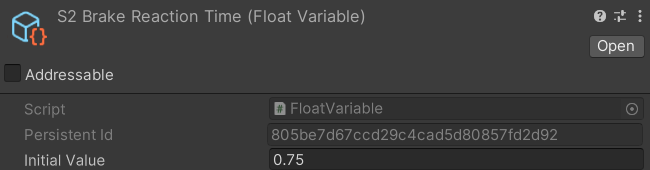
Give the asset a name that describes the value it holds, for example S2BrakeReactionTime. Other systems show this name: FeedbackDataHandler uses it as the key when it sends the value to the server.
Select the asset and set Initial Value in the Inspector.
Available Variable Types
These types are in Create > ScriptableObject > Scriptable > Variable:
Stored Values
- BoolVariable
- Stores
trueorfalse, such as whether a task is complete. - IntVariable
- Stores a whole number, such as the number of completed trials.
- UintVariable
- Stores a whole number that cannot be negative, such as a count.
- FloatVariable
- Stores a number with a fractional part, such as a reaction time of
1.25seconds. - StringVariable
- Stores text, such as a participant ID.
Calculated Values
- IntMeanVariable
- Calculates the average of several integer variables whenever it is read, discarding the fractional part of the result.
- MeanVariable
- Calculates the average of several float variables whenever it is read, such as scores from multiple tasks.
The Variable > Feedback submenu holds three types used by the Feedback System: ScoreVariable, AverageScoreVariable, and Help Type Variable. See Feedback System.
Using Variables in Components
A component uses a variable through a field in the Inspector. Drag the variable asset from the Project window into the field. Every component that uses the same asset reads and writes the same value.
Components use one of two kinds of field:
- A variable field accepts only a variable asset of the right type. The Subject ID Variable field on GameInstance is one example.
- A reference field accepts either a variable asset or a constant value. It is described in the next section.
Constant vs. Variable References
A reference field has a dropdown button to the left of its value. Click it to choose where the value comes from:
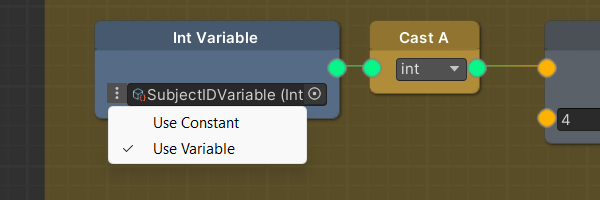
Use Use Constant when the value is fixed for that component. Use Use Variable when the value comes from another system or should be the same everywhere it is used.
If you select Use Variable but leave the slot empty, the field returns the type's default value (0, false, or null for a string) and no error is logged. Always assign an asset after you switch to Use Variable.
Reference fields exist for bool, int, float, and string (BoolReference, IntReference, FloatReference, StringReference). There is no reference type for uint.
Reading and Writing Variables from Scripts
To use a variable in your own component, add a serialized field of the variable type and read or write its RuntimeValue:
using mobisim.Scriptable.Variable;
using UnityEngine;

public class LapCounter : MonoBehaviour
{
    [SerializeField] private IntVariable lapCount;

    public void OnLapCompleted()
    {
        lapCount.Add(1);                       // same as lapCount.RuntimeValue += 1
        Debug.Log($"Lap {lapCount.RuntimeValue}");
    }
}
IntVariable, UintVariable, and FloatVariable also provide Add and Subtract methods to increase or decrease their runtime values.
To let the user choose between a constant and a variable, use a reference type and read its Value. A reference also converts to its value type automatically:
using mobisim.Scriptable.Reference;
using UnityEngine;

public class SpeedLimiter : MonoBehaviour
{
    [SerializeField] private FloatReference maxSpeed;   // shows the Use Constant / Use Variable dropdown

    private float Clamp(float speed) => Mathf.Min(speed, maxSpeed);   // same as maxSpeed.Value
}
A reference is read-only. To write a value, write to the variable asset.
UintVariable cannot go below 0. Subtracting more than the current value wraps around to a very large number (for example, 2 - 3 gives 4294967295).
Each read of RuntimeValue runs a database query. If you read a variable every frame, store the value in a local field and read the variable only when you need a new value.
Code that needs to handle variables of any type can use the non-generic base class BaseScriptableVariable. Its GetValue() method returns the runtime value as an object, and IsValid() reports whether the variable has a usable value. FeedbackDataHandler uses these methods to send a list of variables of mixed types to the server.
Mean Variables
A mean variable returns the average of other variables. It stores no value of its own: it recalculates the average every time something reads it. You can use it anywhere a FloatVariable is accepted.
To set one up:
- Create IntMeanVariable or MeanVariable from Create > ScriptableObject > Scriptable > Variable.
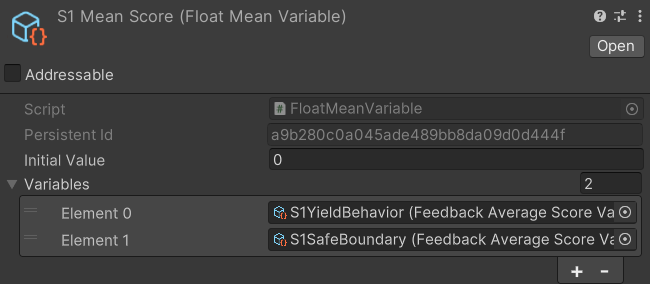
- In the Inspector, add the variables to average to the Variables list.
Notes:
- Initial Value has no effect on a mean variable.
- Writing to a mean variable's
RuntimeValuehas no visible effect, because reads always return the calculated average. - With an empty Variables list,
IsValid()returnsfalse, soFeedbackDataHandlerleaves the variable out of the data it sends.
Persistence
A Scriptable Variable retains its value when you move to another scene, and every component that uses the same variable asset shares that value.
When code writes a variable, the value goes into the simulator's SQLite database. Reads come from the database, or from Initial Value if nothing has been written yet. The database is opened once when the application starts and stays open while it runs, so values are kept across scene loads on every platform.
Whether values are kept after the application closes depends on where it runs:
The asset file on disk always keeps the Initial Value you set. Runtime changes are never written into the asset, so playing the scene does not change your project files.
If you change Initial Value in Play Mode after the variable has been written, the variable keeps returning the written value, not the new Initial Value.
Persistent IDs
The database finds each variable's value by the variable's Persistent Id, which is the GUID Unity assigns to the asset. This ID does not change when the asset is renamed or moved, or when Unity unloads and reloads it between scenes. The stored value therefore stays linked to the asset.
The Inspector fills in Persistent Id when it displays the asset. To make sure every variable has an ID:
- After you create or duplicate a variable, select it once so the Inspector shows it, then save the project (File > Save Project). A duplicated asset keeps the original's ID until you do this, and two variables with the same ID share one stored value.
- Commit each asset's
.metafile to version control. The GUID is stored in the.metafile. If the file is lost, Unity gives the asset a new GUID and the ID changes.
If a variable has no Persistent Id, the simulator uses a temporary ID instead. That ID can change when the asset is reloaded, and the variable then appears to reset to its Initial Value.
Viewing Variable Values at Runtime
The variable's Inspector always shows Initial Value, not the current runtime value, including in Play Mode. There is no built-in window that lists runtime values.
To see a value while the scene plays, log it from a script, or add a small debug component like this one to the scene:
using mobisim.Scriptable.Variable;
using UnityEngine;

public class VariableWatcher : MonoBehaviour
{
    [SerializeField] private BaseScriptableVariable[] variables;

    private void OnGUI()
    {
        for (int index = 0; index < variables.Length; index++)
        {
          var variable = variables[index];
          if (variable != null)
            GUI.Label(new Rect(10, 10 + index * 20, 400, 20), $"{variable.name}: {variable.GetValue()}");
        }
    }
}
Drag the variables you want to watch into the Variables list. Remove the component before you build for participants.
Animation Curve Assets
An Animation Curve Scriptable Object stores one AnimationCurve as an asset, so several systems can use the same curve. Create one with Create > ScriptableObject > Animation Curve Scriptable Object, then edit Curve in the Inspector.
The Feedback System uses these assets to convert a raw metric into a score. A feedback ScoreVariable reads a metric FloatVariable, looks up the metric on its curve, and returns the result as its value. The simulator's example curve is T1S1YieldBehaviorCurve in the same folder as the example variables. See Feedback System.
To build a curve from measured data, use the CSV Curve Mapper. It creates Animation Curve Scriptable Objects directly from the columns of a CSV file.
In code, call Evaluate(x) to get the curve's value at x.