Tags and Layers
The simulator uses three complementary identification systems to categorize and manage GameObjects in a Scene. This page introduces each system and explains its role in the simulator.
Unity Layers
Unity layers let you separate GameObjects in your Scenes. Common uses of layers include:
-
Layer-based rendering
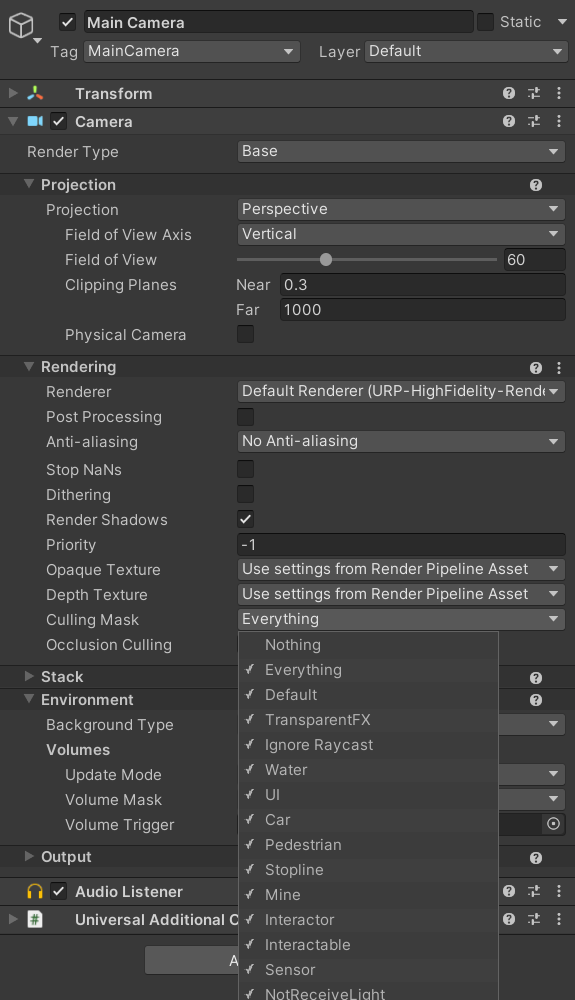
If you use layers with the Camera's culling mask, you can render only the objects in a particular layer or selection of layers.
To change the culling mask, select the camera you want to use, and open the Culling Mask dropdown in the Inspector window. If you clear the checkbox of a layer, the camera doesn't render any GameObjects that belong to that layer.
-
Layer-based collision
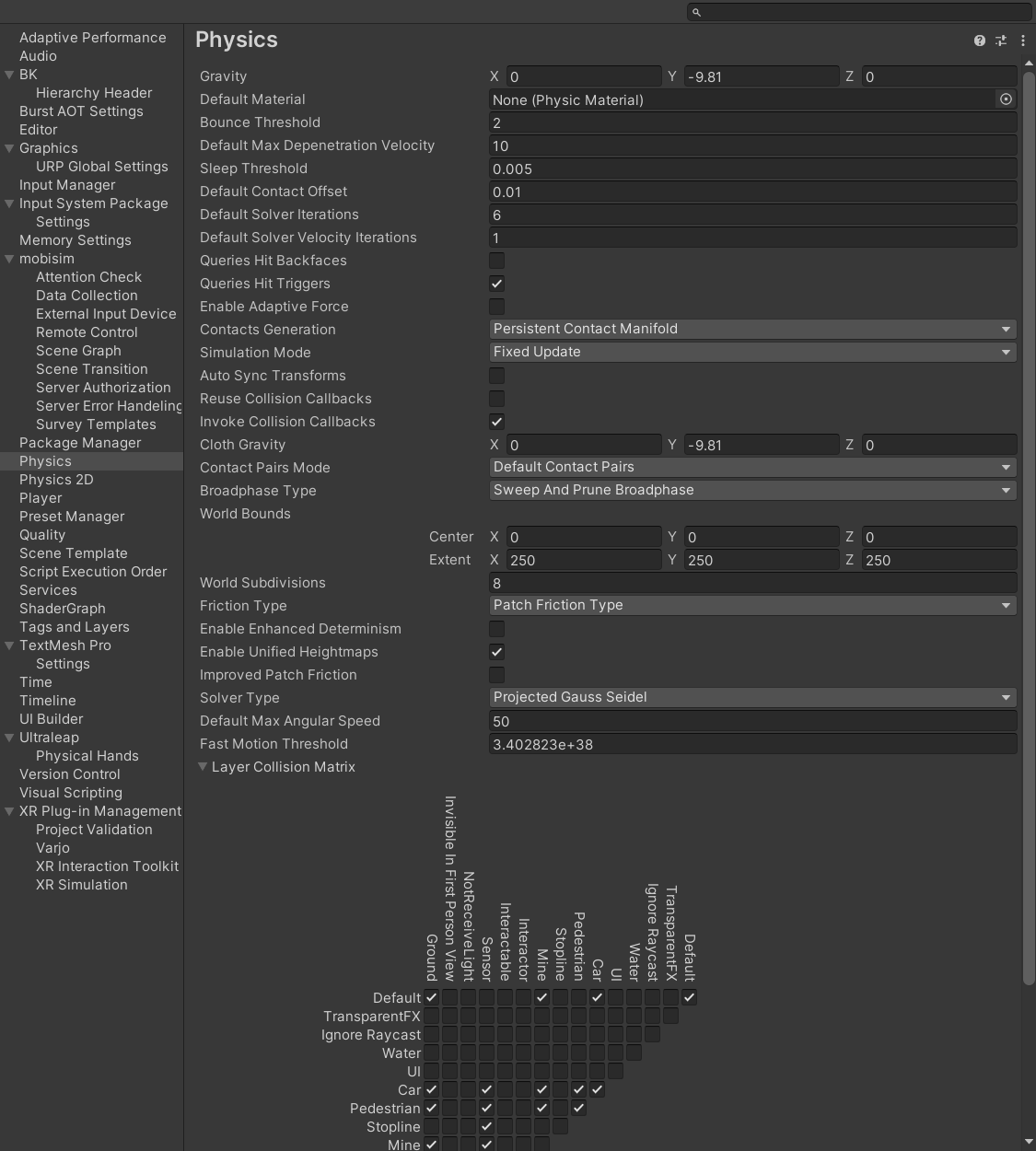
If you configure the Layer Collision Matrix, you can make a GameObject collide only with objects in particular layers, or prevent it from colliding with objects in other layers.
To configure the Layer Collision Matrix, open Edit > Project Settings > Physics. Clear a checkbox to stop a pair of layers from colliding or triggering; select it to allow contacts. The change applies immediately to every collider on those layers across the project.
Common use cases in this project include:
- Separating player-controlled pawns (e.g.,
Mine) from NPCs and props. - Restricting trigger colliders so only relevant actors can activate them.
- Hiding helper geometry or gizmos from gameplay cameras while leaving them visible in the Editor.
Unity provides 32 layer slots. The map below shows how this project uses them. Hover over a layer to see what it is for.
Car), traffic pedestrians (Pedestrian), the player-controlled pawn (Mine), and the AI sensors that road agents use to detect their surroundings (Sensor).Stopline), and the two sides of the interaction system: objects that start an interaction (Interactor) and objects that can be interacted with (Interactable).NotReceiveLight), objects hidden from the first-person camera (Invisible In First Person View), and map ground geometry (Ground).Creating and Managing Unity Layers
-
Open the Tags and Layers window. You can open it in two ways:
- Project Settings
- Inspector
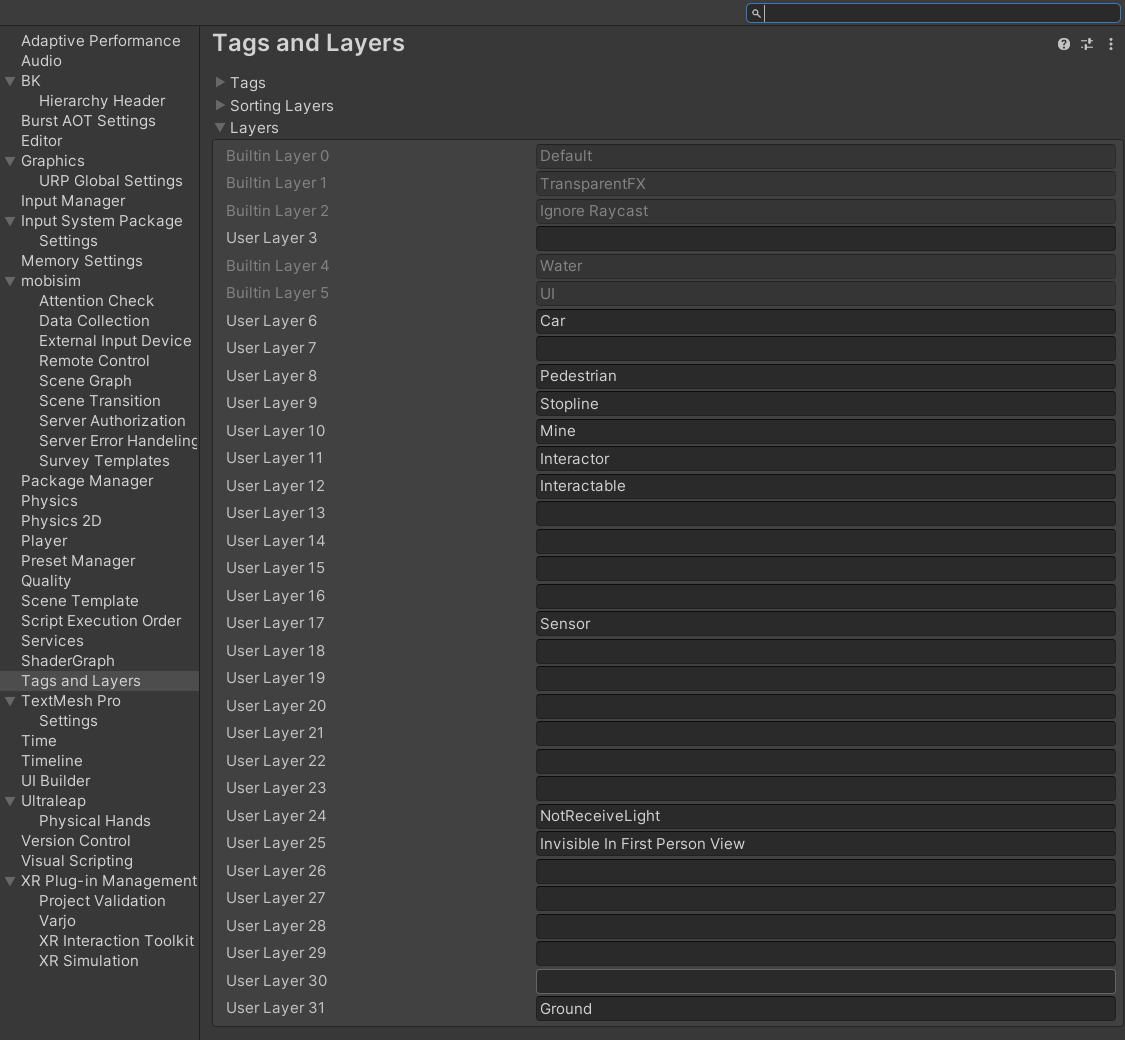
Navigate to Edit > Project Settings > Tags and Layers.
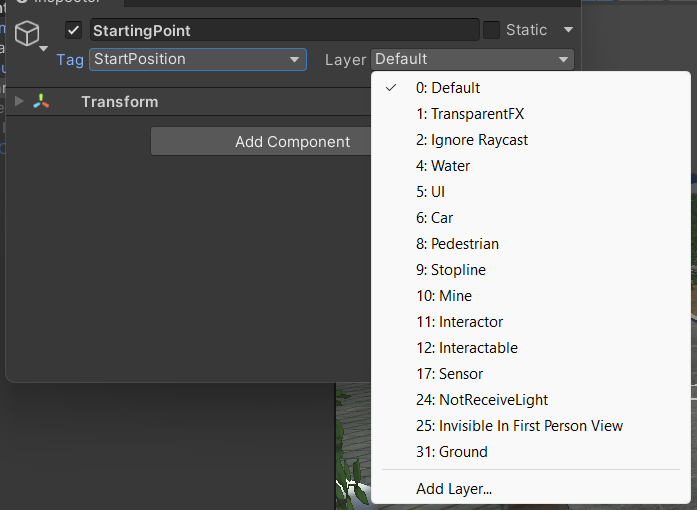
Select any GameObject in the Hierarchy. In the Inspector, open the Layer dropdown and select Add Layer....
-
In the Layers section, choose one of the empty layer slots.
-
Enter a descriptive name so you can remember the layer's intended function.
Unity provides 32 layer slots. Layers 0, 1, 2, 4, and 5 are reserved built-in layers and cannot be modified.
Assigning Layers to GameObjects
To assign a GameObject to a layer:
- Select the target GameObject in the Hierarchy.
- In the Inspector, open the Layer dropdown.
- Choose an existing layer.
- When prompted, click Yes, change children if you want the layer change to cascade through the object's hierarchy.
You can only assign each GameObject to one layer, but you can assign multiple GameObjects to the same layer.
Unity Tags
A tag is a reference word that you can assign to GameObjects. For example, the simulator already defines a Mine tag for player-controllable pawns and a StartPosition tag to mark spawn locations for player pawns.
Tags are useful in collider trigger scripts to determine what interacts with the trigger.
The project defines the following custom tags, shown the way they appear in the Tag dropdown. A / in a tag name places the tag in a submenu, so Other/Stopline/Car appears under Other > Stopline. Always use the full name when you compare tags in code.
Common use cases in this project include:
- Identifying the participant's agent (
Mine, or Unity's built-inPlayertag). - Controlling which objects can activate certain triggers during gameplay.
- Limiting detection systems so they only recognize specific types of objects, such as pedestrians or cars.
Unity only allows one tag per GameObject. For multi-category tagging or runtime extensibility, use Scriptable Tags.
Creating and Managing Unity Tags
-
Open the Tags and Layers window. You can open it in two ways:
- Project Settings
- Tag dropdown
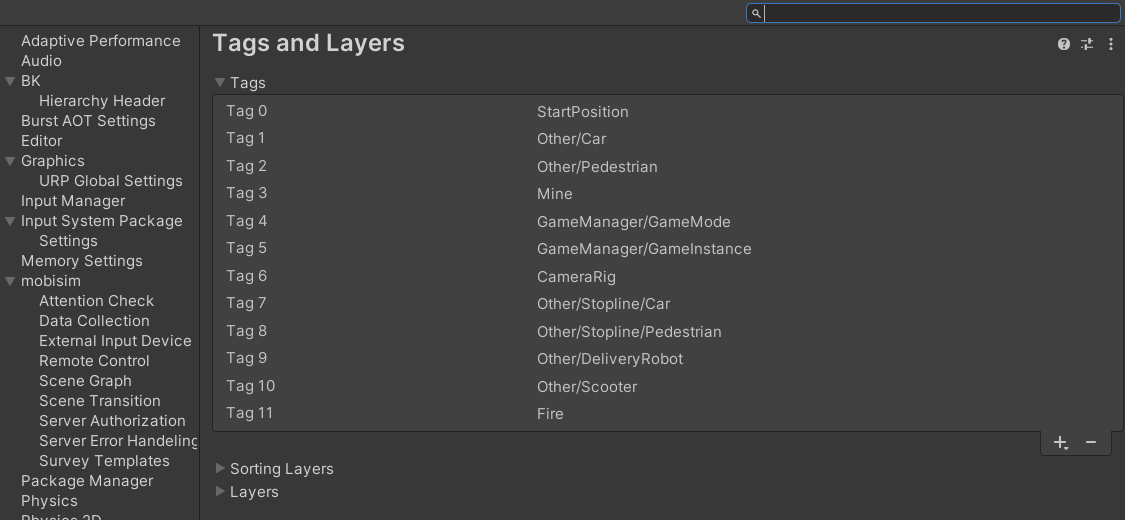
Navigate to Edit > Project Settings > Tags and Layers.
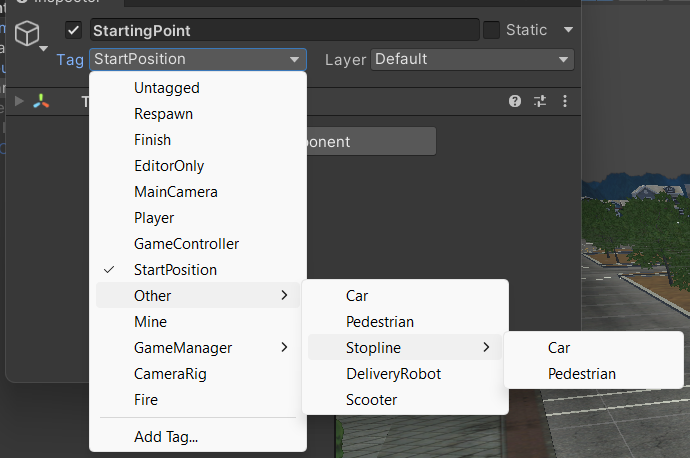
Select any GameObject in the Hierarchy. In the Inspector, open the Tag dropdown and select Add Tag....
-
In the Tags section, click the + button to add a new entry.
-
Enter a descriptive name so you can remember the tag's intended function.
Once you name a tag, you can't rename it later.
Assigning Tags to GameObjects
To assign a tag to a GameObject:
-
Select a GameObject in the Hierarchy.
tipYou can select multiple GameObjects to update their tags in bulk.
-
In the Inspector, open the Tag dropdown.
-
Choose an existing tag.
A GameObject can only have one tag assigned to it.
Scriptable Tags
Scriptable Tags extend Unity's tag concept using ScriptableObject assets (ScriptableTag). Unlike Unity tags, they are stored as assets and can be managed in the Project window.
Compared to Unity tags, Scriptable Tags offer two key advantages. First, a GameObject can hold multiple Scriptable Tags through components. Second, because Scriptable Tags are assets, you can reference them directly in the Inspector instead of relying on fragile string literals.
Common use cases in this project include:
- Filtering which actors can activate certain triggers.
- Limiting which actors AI systems consider valid targets.
- Logging tags with analytics data, making it easier to filter and analyze sessions later.
Creating Scriptable Tag Assets
-
In the Project window, right-click the folder where you keep tag assets.
tipThe project stores all pre-existing Scriptable Tags in
Assets > mobisim > Standard > Script > Scriptable > ScriptableTag > ScriptableObject. -
Choose Create > ScriptableObject > Scriptable > Tag.
-
Give the asset a descriptive name so you can remember its intended function.
-
Optionally, fill in the Logging_tag field to override the asset name in logs.
The Scriptable Tags assigned to an object are logged in the same data block as the other collectable data from that object. This provides a simple way to identify which actor the collected data belongs to during analysis.
-
Mark the Scriptable Tag as Addressable.
Reuse the existing Scriptable Tags rather than creating new ones with the same names. Anything that looks for a tag matches the asset, not its name, so a second Male_Tag asset doesn't count as the original.
Assigning Scriptable Tags to Objects
Objects expose Scriptable Tags through components that understand the asset-based tag system. In this simulator, the ActorIdentifier component is the common entry point: analytics, triggers, and UI helpers all look it up to learn what an actor represents, and the logging pipeline records its tags alongside the rest of the telemetry.
To tag an actor:
-
Select the GameObject.
-
Add or locate the
ActorIdentifiercomponent. -
In the Tags array, drag in one or more
ScriptableTagassets from the Project window (or pick them with the object picker).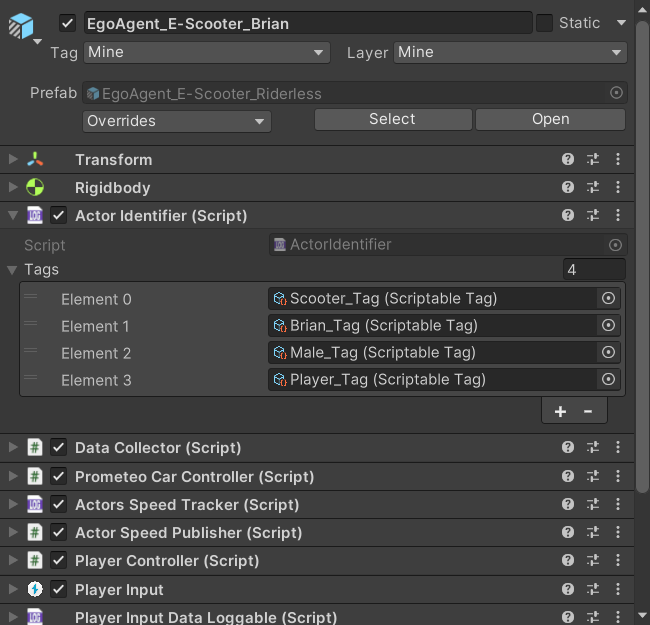
ActorIdentifier also gives the actor an ID each time the scene starts, and logs it together with the actor's name and tags. A new ID is made on every run, so it only identifies an actor within one run. It isn't the same across sessions, participants, or prefabs, so use the tags to tell actors apart when you analyze data from several runs.
On the participant's agent, the Unity tag matters too. ActorIdentifier only shares its Scriptable Tags as the participant's, for example with the help panel, when the GameObject's Unity tag is Mine or Player.
If you're creating a new system that needs to emit tags, add a ScriptableTag[] field and implement IScriptableTagged (which requires Tags, MatchAnyTags, and MatchAllTags) so it works with the existing tooling.