Installing the Simulator
Before you dive into the simulator, it's a good idea to get familiar with Unity, especially if you are new to it. Unity has a wide range of features, and understanding the basics will make development much smoother. There are plenty of tutorials available, both official and community-made.
System Requirements
Operating System: Windows 10 (64-bit versions), 11
Unity Version: Unity 2022.3 LTS
Other Requirements: Graphics card with DX10, DX11, or DX12 capabilities
Installing the Simulator
1. Download the Project
Go to the HRI-MobiSim project download page.
Select the download for the mobisim project and save the file to your computer.
The simulator contains some long file names. Windows limits file paths to 260 characters. To avoid issues, extract the project to a location near the root of the drive, such as C:\mobisim.
Extract the downloaded archive to that location.
2. Install Unity Hub
Before you can start creating in Unity, you need to download and install Unity Hub. To install Unity Hub, do the following:
Download Unity Hub from the Unity website.
You need a Unity account before you continue to the next step.
3. Install the Right Version of the Unity Editor
When the installation is complete, open Unity Hub and sign in or create a Unity account.
Find and install the latest 2022.3 LTS version of Unity.
The simulator currently uses Unity version 2022.3.62f2 LTS. If you prefer not to upgrade to the latest LTS version, or if the latest version does not work correctly, you can install an older version:
- Go to the download archive.
- Find the specific version.
- Select Install.
This opens a pop-up window where you can select modules to install with the Editor.
Select the WebGL Build Support module (required only if you want to build for online studies).
You can still install modules through Unity Hub after you install the Editor.
4. Add the Project
Go to Projects in the Unity Hub left sidebar.
Select Add > Add project from disk at the upper right.
Browse to the mobisim project folder you extracted.
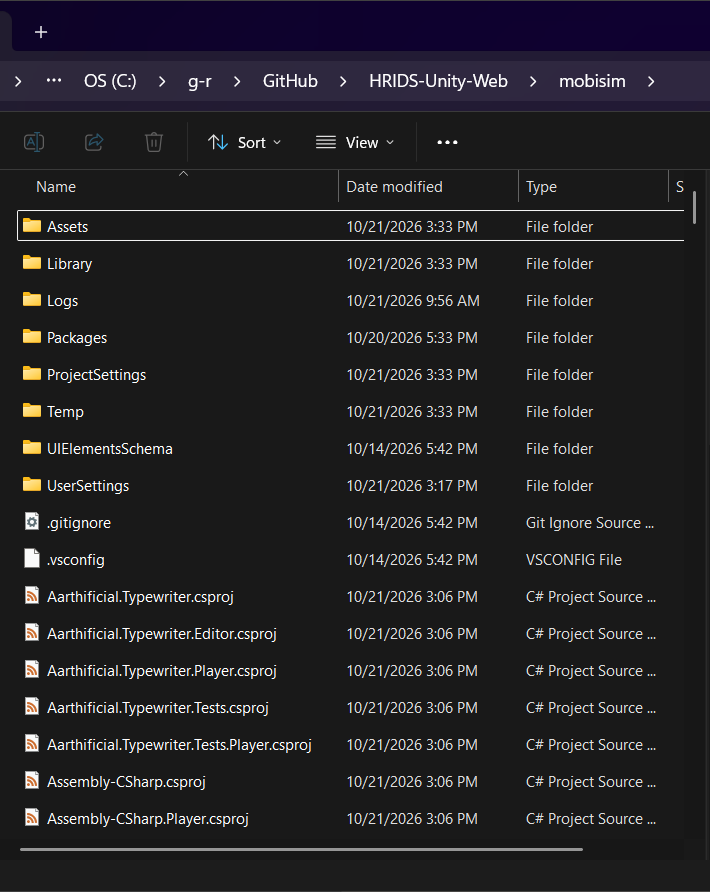
Inside this folder, you will find another mobisim folder. Select this inner folder.
Opening the Project for the First Time
Be patient the first time you open the project. It takes a while to import all the assets.
Running the Simulator
The simulator consists of many Scenes. Individual Scenes do not control Scene transitions; a Scene graph manages them centrally and defines the flow and branching logic. For the simulator to follow the defined Scene flow, either turn on Bootstrap > Load Initialization Scene On Play or open the dedicated Initialization Scene before you enter Play mode in the Editor.
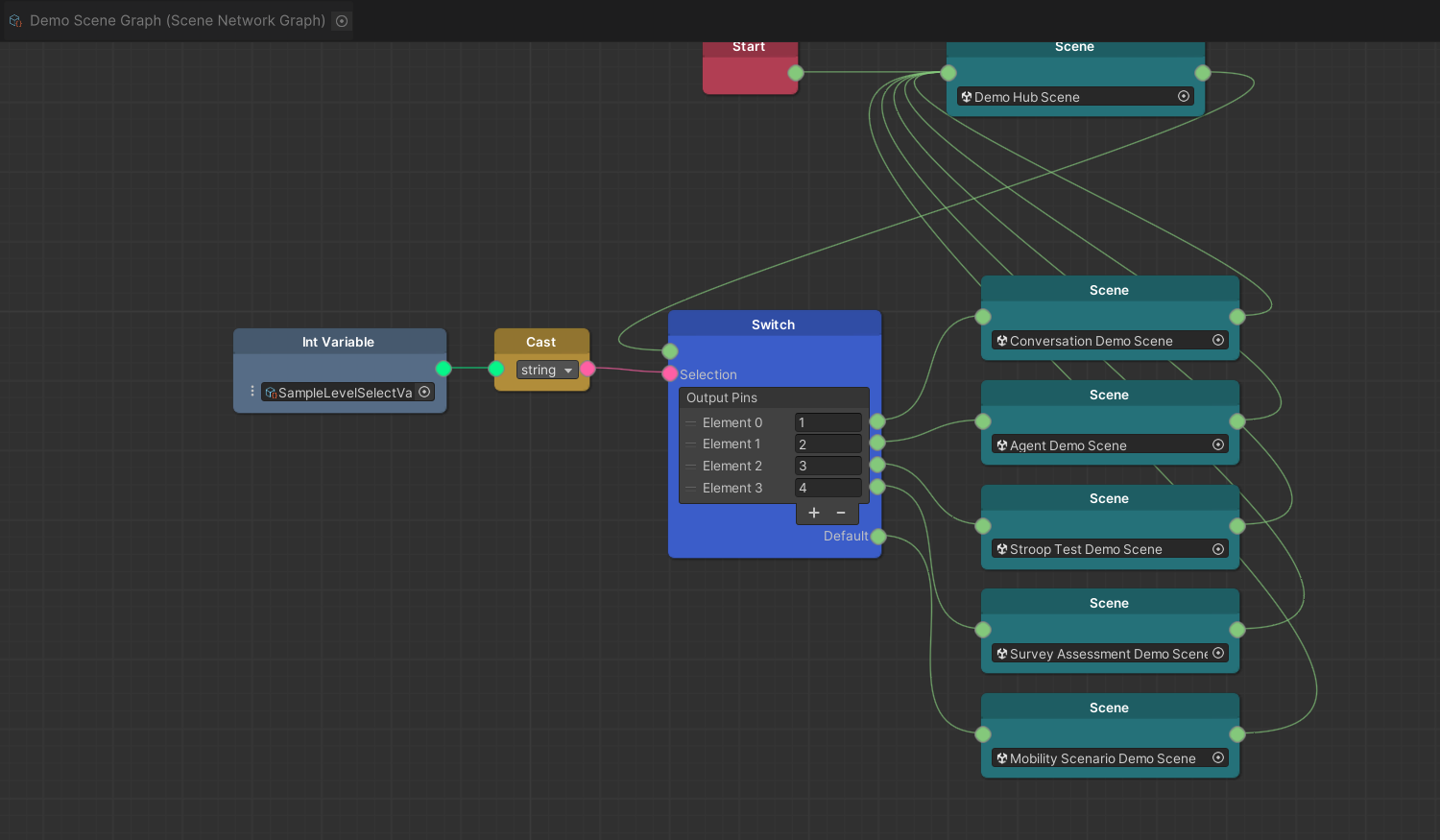
You can change the active Scene Graph in Edit > Project Settings > mobisim > Scene Graph.
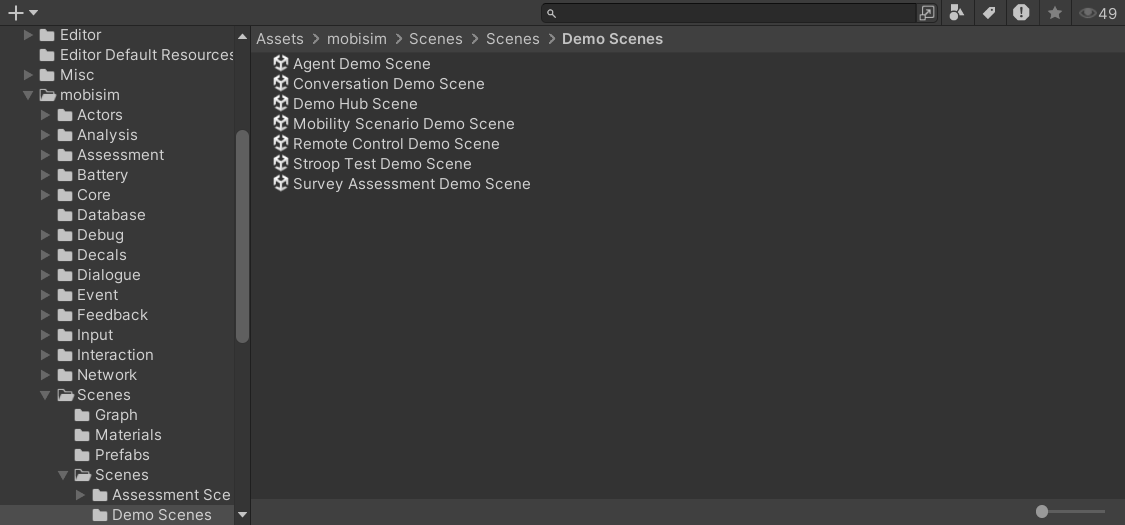
To edit an individual Scene, double-click the Scene Asset in the Project window to open it. You must open a Scene in Unity to work on it. You can also have multiple Scenes open for editing at the same time. For more information, see the Unity documentation on Multi-Scene editing.
Basic Controls
For more information about player inputs and how to configure them, see the input guide.
Building and Testing
To turn the project into a standalone application, see Building the Application. To check performance and test your scenarios while they run, see Debug Tools.