Editor Interface
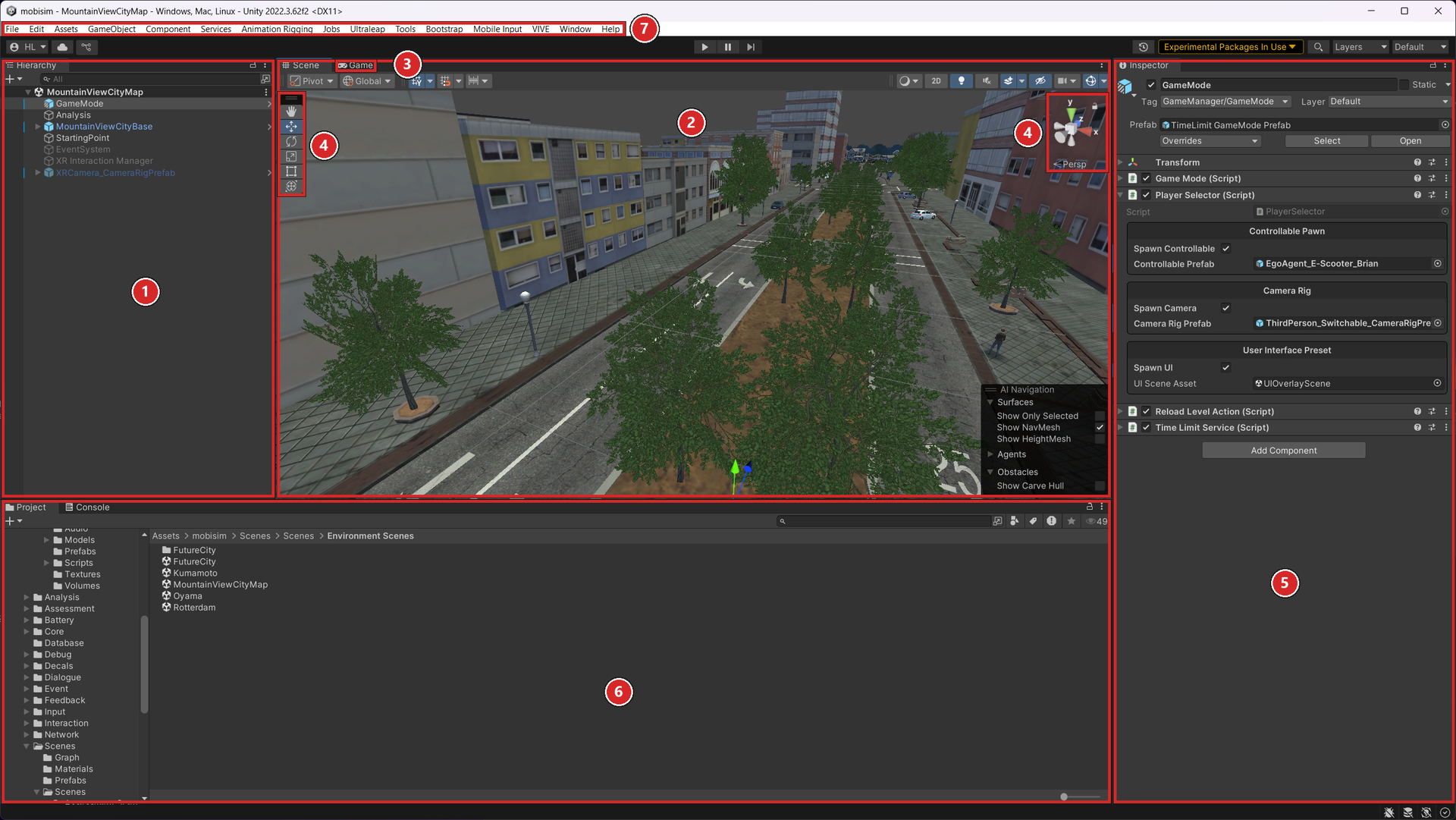
- Hierarchy Window: Lists all the GameObjects in the Scene. Each item in the Scene has an entry in the Hierarchy, which shows how GameObjects are structured and attached to each other.
- Scene View: Lets you navigate and edit your Scene.
- Game View: Shows the simulated gameplay as it appears through the Scene cameras. To simulate the gameplay, click the Play button.
- Overlays: Let you manipulate the Scene view and the GameObjects in it. They include the orientation navigation tool, which is the primary tool for changing the viewing angle of your Scene.
- Inspector Window: Lets you view and edit all the properties of the currently selected GameObject. Because each GameObject has a different set of properties, the layout and contents of the Inspector window change each time you select a different GameObject.
- Project Window: Displays the library of Assets available in the Project, including the maps, ScriptableObjects, Prefabs, surveys, and other assets needed to create the simulation.
- Menu Bar: Contains the main set of menus for the Unity Editor. It provides access to core Unity functions such as creating and organizing assets, adding components, managing scenes, and opening different editor windows. Custom menu items created through scripts also appear here.
Play Mode
Play mode lets you run and test your scenario directly inside the Editor. To enter Play mode, click the Play button in the Toolbar.

The simulator uses a Bootloader to start scenarios from a consistent and predictable state. When you press Play, the Bootloader launches the bootstrap Scene and initializes all required dependencies before loading the simulation, regardless of which Scene is currently open in the Editor.
The Bootloader initializes the dependencies that control Scene sequencing, transitions, and data collection. Without these dependencies, individual Scenes cannot transition to the next Scene in the sequence or record session data.
To toggle the Bootloader, go to Bootstrap in the Menu Bar and select either Load Initialization Scene On Play or Don't Load Initialization Scene On Play. The Bootloader is enabled by default.

With the Bootloader enabled, entering Play mode always loads the first Scene in the sequence as configured in your active Scene graph.
To playtest the currently open Scene without running the full sequence, disable the Bootloader. Note that disabling the Bootloader also disables Scene transitions and data collection for that session. In standalone builds, the Bootloader is always enabled. These options only affect Play mode in the Editor.
You might notice that the lighting looks wrong when you transition to another Scene. This is normal: the lighting has not been built for that Scene yet.
When you open a Scene, Unity automatically builds temporary light data for it. However, when you transition from one Scene to another in the Editor, Unity does not bake the lights, which can make the Scene appear dark.
This only happens in the Editor. If you build the project or bake the lighting in the Editor, the lighting appears correctly.
Scene View and Navigation
Scene Gizmo (Scene View Navigation Tool)

The Scene Gizmo is located in the top-right corner of the Scene view. It displays the current viewing orientation using three conical arms labeled X, Y, and Z. Click an arm to snap the view to that axis: Y gives a top view, X a side view, and Z a front view.
Right-click the cube at the center of the Gizmo to see a full list of available viewing angles.
The Gizmo also includes a toggle for switching the Scene view between Perspective and Isometric (Orthographic) projection modes.
If the Scene view is at an unworkable angle, Shift-click the center cube to reset to a perspective view from a standard side and slightly elevated angle.
Scene Tools
The Scene tools in the Scene view let you transform the shape or location of GameObjects. The four main tools you'll use during development are the View Tool, Move Tool, Rotate Tool, and Scale Tool. Each tool is described below.

View Tool
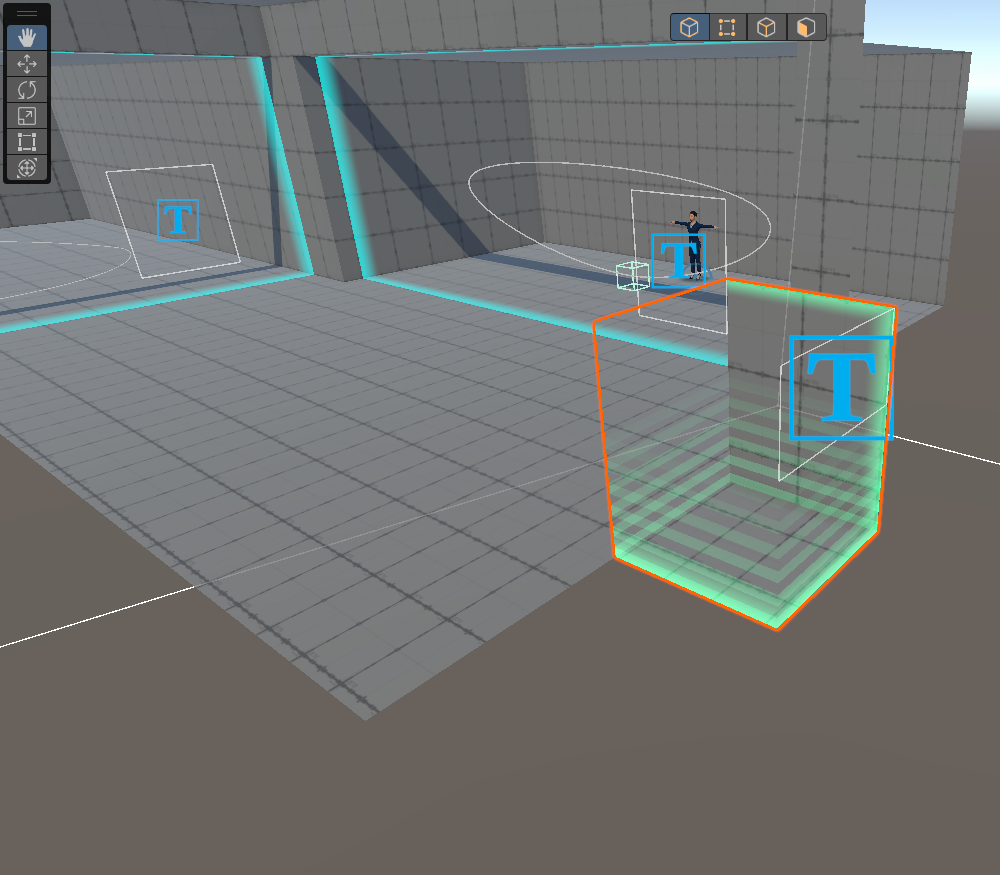
The View tool changes the perspective of the Scene view without affecting any GameObjects. With the View tool selected, use the following controls:
While you hold the right mouse button in Flythrough mode, move the camera with the following keys:
Move Tool
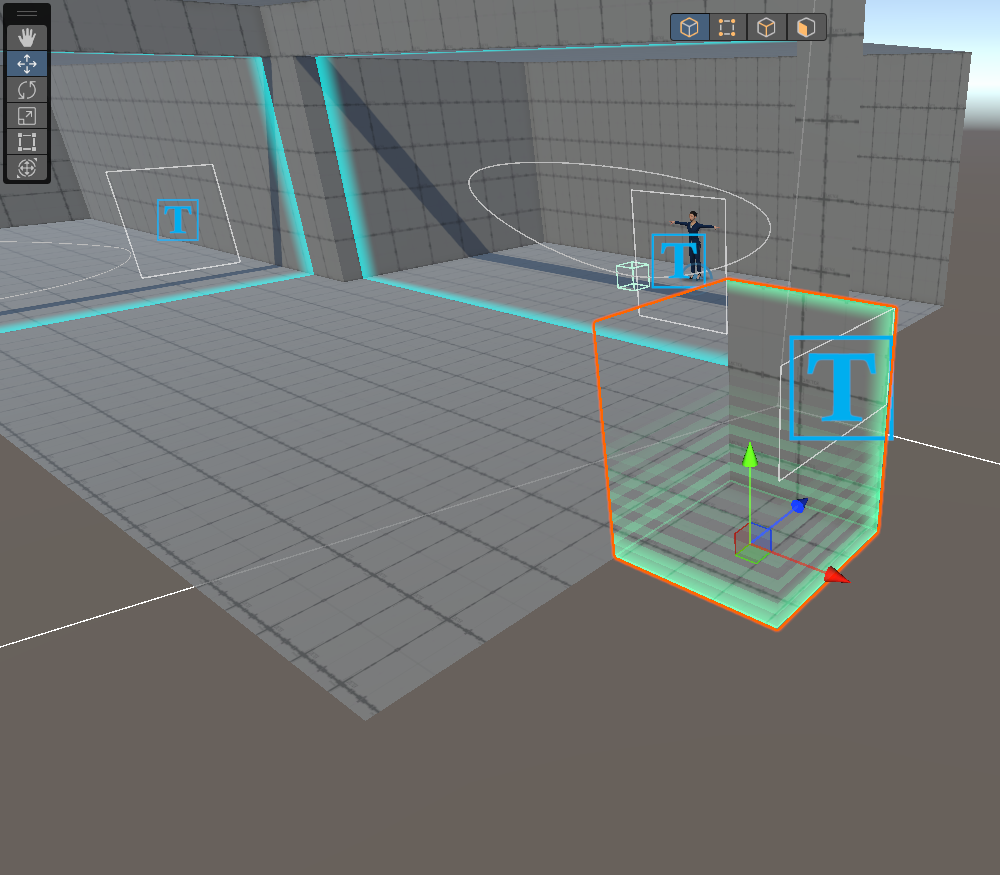
The Move tool repositions a GameObject in the Scene. It corresponds to the Position values in the Transform component in the Inspector window.
Drag the red, green, or blue arrows to move the GameObject along the X, Y, or Z axis respectively.
Rotate Tool
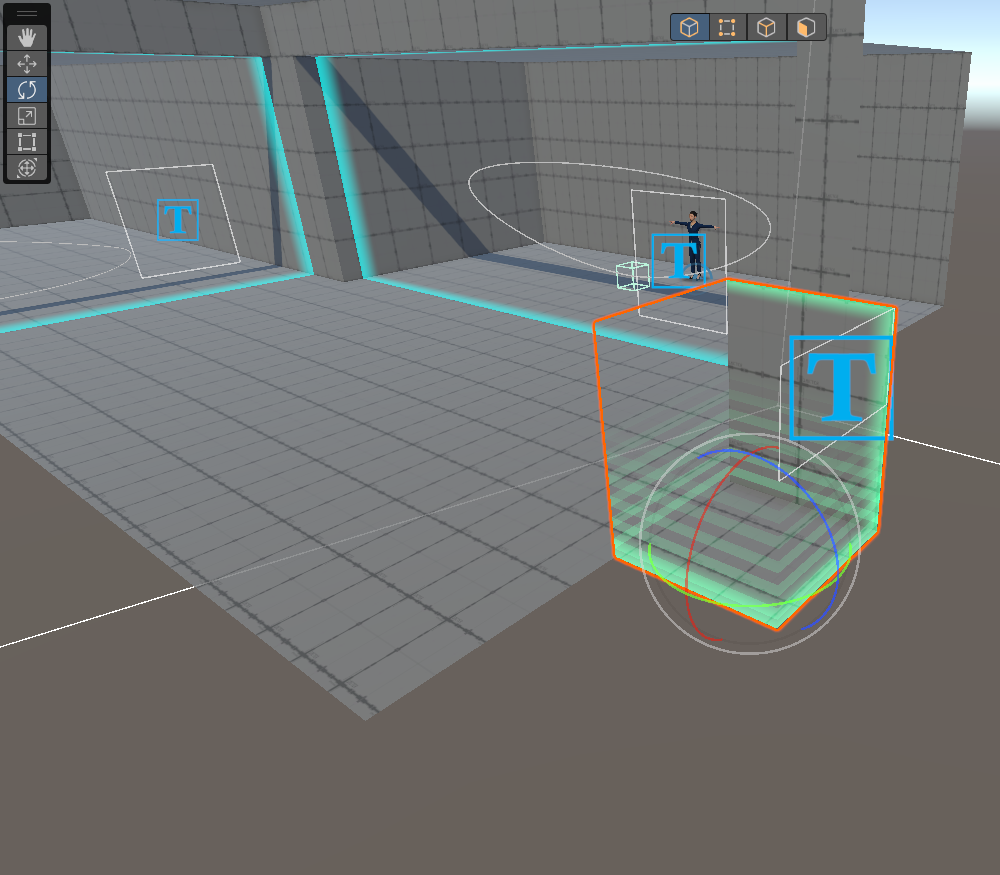
The Rotate tool changes the rotation of a GameObject when you click and drag the axis handles of the wireframe. The red, green, and blue handles correspond to the X, Y, and Z axes respectively.
Scale Tool
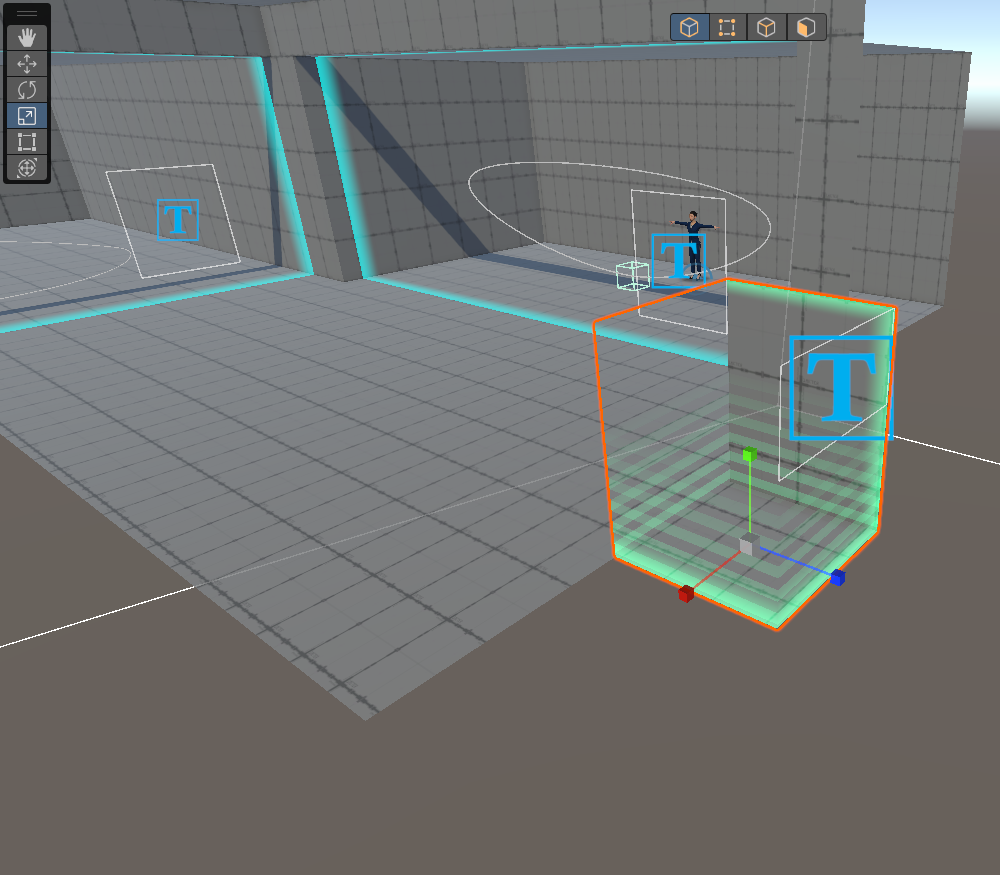
The Scale tool resizes a GameObject. Drag an individual axis handle to scale along that axis only. To scale uniformly across all axes, drag the small cube at the center of the handles. The cube turns yellow when uniform scale mode is active.
Asset Folder
The primary assets for building simulations are located in the mobisim folder in the Project window.