Playable Demo
The playable demo is a small set of scenes that shows what you can build with HRI-MobiSim. You start in a hub, walk through a gate into a room, try an example, and come back to the hub to pick the next one. Each room covers one part of the simulator: AI road agents, dialogue, a complete mobility scenario, and two assessments.
All of these scenes are included with HRI-MobiSim. You can open them in Unity, press Play, and see exactly how each example works. The objects, components, and events you inspect in the Editor are the same ones running in your browser.
What You'll Learn
This page takes you through those scenes one at a time. It doesn't cover every feature in depth, because each section links to the manual page that does. Instead, it shows how the pieces fit together in a working project. By the end, you should be able to:
- Follow how the hub, the rooms, and the Scene Graph connect into a single flow.
- Find the objects behind an interaction and trace its events in the Inspector.
- Recognize patterns you can reuse in your own scenario, such as trigger areas that start road agents, dialogue started by an interaction or a Timeline, and assessments that end the scene when they're finished.
Duplicate a scene before you change anything in it. The original then stays available as a reference you can compare against. If your project uses version control such as Git, commit your work before you experiment, so you can always roll back to a working state.
Getting Started
The demo scenes are in Assets/mobisim/Scenes/Scenes/Demo Scenes. The order they load in is defined by a single scene graph asset, Assets/mobisim/Scenes/Graph/Demo Scene Graph.asset.
After installing the simulator, open Demo Hub Scene from the demo scenes folder. Then double-click Demo Scene Graph in the graph folder to open it in the SceneGraph window. Keep this window open while you explore the Hierarchy and Inspector, because you'll return to it whenever you follow how one scene leads to the next.
To play the demo in the Editor the same way it runs in the browser, the simulator needs to know which scene graph to follow. Open Edit > Project Settings > mobisim > Scene Graph and select Demo Scene Graph for the platform you're testing. See Scene Graph settings to learn more about choosing the active graph.
Start through the simulator's Initialization and bootstrap setup, then enter Play mode and click the Game view to give it keyboard and mouse focus.
You start in the hub. Walk through a gate to enter a room, and finish the room to return to the hub. The room names and exhibit signs you see while playing match the section names on this page, so you can easily find the setup behind each one.
The bootstrap step creates the GameInstance, the object that moves through the graph from one scene to the next. You can also open a room scene directly to inspect its objects, but without the bootstrap you won't get the navigation between the hub and the rooms.
Demo Hub Map
The map below follows the hub's floor plan. Each room sits in the direction of its gate and uses the same color. Click a room to show its walkthrough below the map, or click Demo Hub in the center to see how the hub and scene graph work. If this is your first time, start with the hub: the room walkthroughs build on it.
Two examples, Remote Control and VR Example, aren't part of the browser demo. They're separate sample scenes included in the project, and you'll find them in the Standalone examples group.
Demo Hub
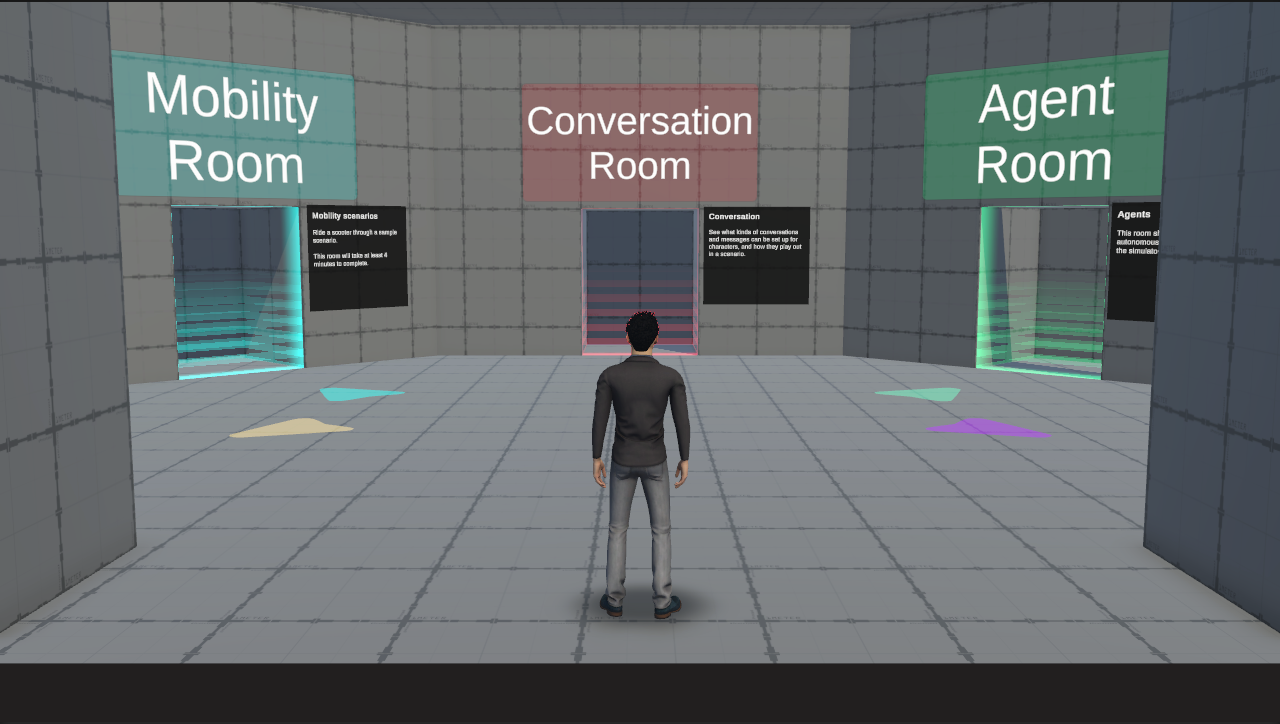
Open Demo Hub Scene. The hub is the first scene in Demo Scene Graph, and it works like a menu you can walk around in. Each of its five gates leads to an example room. When you finish a room, you come back here to choose another.
How the Scenes Connect
Going from the hub to a room happens in two separate steps:
- Choosing a room. Walking through a gate stores your choice as a number in a shared integer variable.
- Leaving the scene. When the hub finishes, the scene graph reads that number and loads the matching room.
Because these steps are separate, a gate never needs to know which scene it leads to. The graph makes that decision.
The map above shows the hub's layout, not the scene graph itself. To see the actual flow, look at Demo Scene Graph in the SceneGraph window:
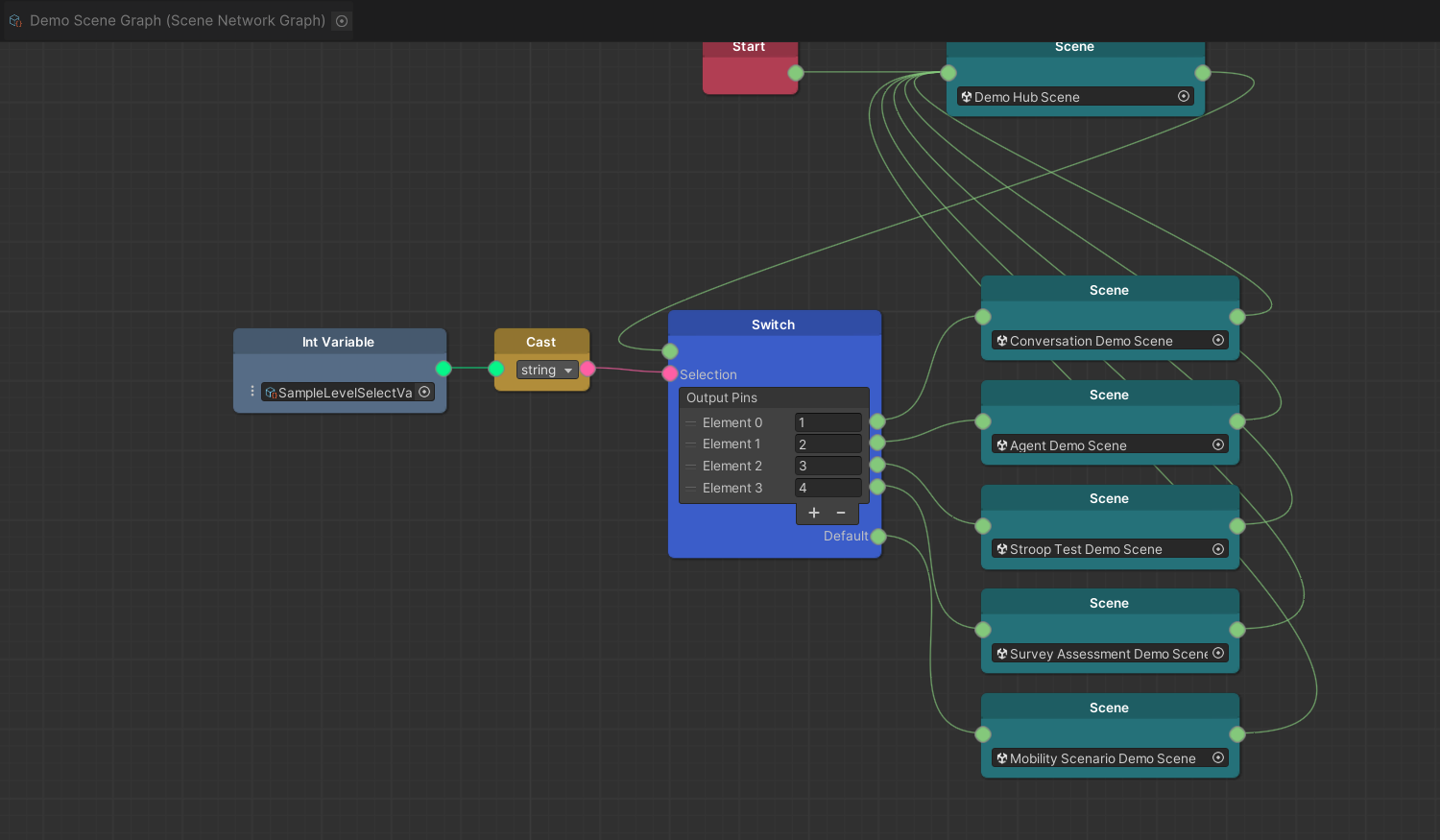
- Start leads to the hub.
- The hub's Out port leads to a Switch node, which picks one of the five rooms.
- Every room's Out port leads back to the hub's In port.
A Scene node waits until its scene finishes before it follows its outgoing connection.
The Switch gets its selection from two helper nodes. Select the Int Variable node and you'll see that it references SampleLevelSelectVariable, the variable the gates write to. The Cast node converts that integer to a string, because Switch.Selection expects a string. Compare the Switch's output labels with the gates in the hub:
| Gate in the Hub Hierarchy | Selection | Destination |
|---|---|---|
Conversation Room Gate | 1 | Conversation Demo Scene |
Agent Room Gate | 2 | Agent Demo Scene |
Stroop Test Room Gate | 3 | Stroop Test Demo Scene |
Survey Room Gate | 4 | Survey Assessment Demo Scene |
Mobililty Room Gate | Default route | Mobility Scenario Demo Scene |
Mobility doesn't have a numbered output of its own. It uses the Switch's Default route, which is taken whenever the selection isn't 1 through 4.
Mobililty is spelled the way it is in the project, so search for it as written.
Follow a Gate's Interaction
Now look at how a gate records your choice. Select Conversation Room Gate in the hub's Hierarchy. It's an instance of Interactable Components Prefab. In its Interactable component, expand Options and find the Enter option. It lasts one second and completes on its own when that time is up.
When the option completes, its Interact Event Complete runs two listeners, in this order:
- Set SampleLevelSelectVariable.RuntimeValue to
1. - Call GameMode.EndSession on the scene's GameMode Prefab.
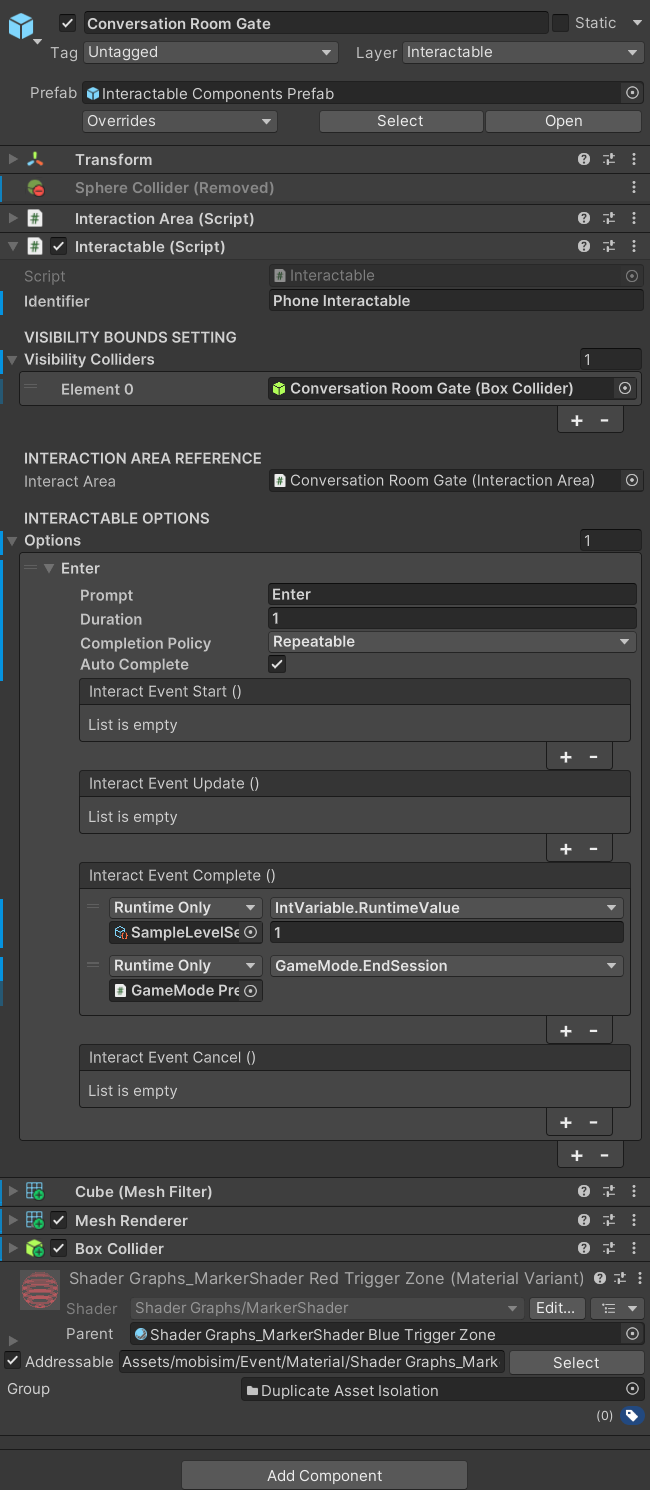
The first listener records the choice, and the second tells the simulator that the hub is done. GameMode passes that request to GameInstance, which continues Demo Scene Graph past the hub node. The Switch reads 1, follows its 1 output, and loads Conversation Demo Scene.
Now select Agent Room Gate. It works the same way, except that its first listener writes 2. The order of the two listeners matters: the variable has to be set before EndSession runs, so that the graph reads the new choice. Keep that order when you build gates of your own.
To learn more, see Interaction System for interaction areas and options, and Scene Graph Node Types for the Switch and Cast nodes.
Follow the Return Path
Rooms send you back to the hub in a similar way, with one step fewer. Open Agent Demo Scene and select Exit Zone. Its Exit interaction only calls GameMode.EndSession. It doesn't need to choose a destination, because the Agent scene node's Out port already leads back to the hub. The task scenes, Stroop Test and Survey, make the same call when their task is finished.
Despite its name, EndSession only ends the current scene, not the whole application. The graph decides what loads next. You also don't need to reset the selection variable when you return to the hub, because the next gate you walk through overwrites it.
Agent Demo
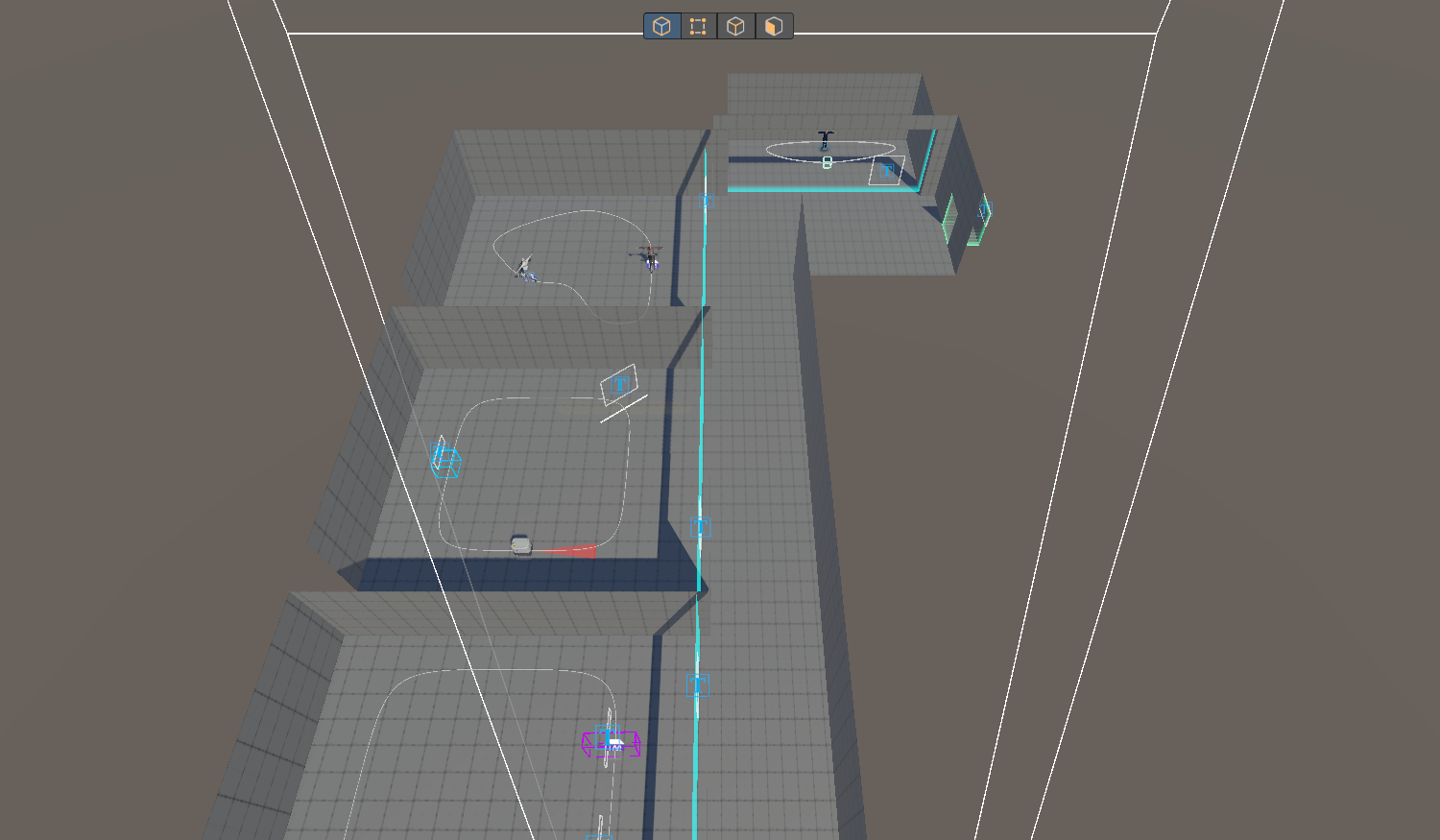
Enter Agent Room from the hub, then open Agent Demo Scene in Unity. The room has four numbered exhibits, and each one focuses on a single aspect of road agents: changing how an agent moves, avoiding obstacles, sharing a route, and posing a character.
01 / Pedestrian: Walking and Running
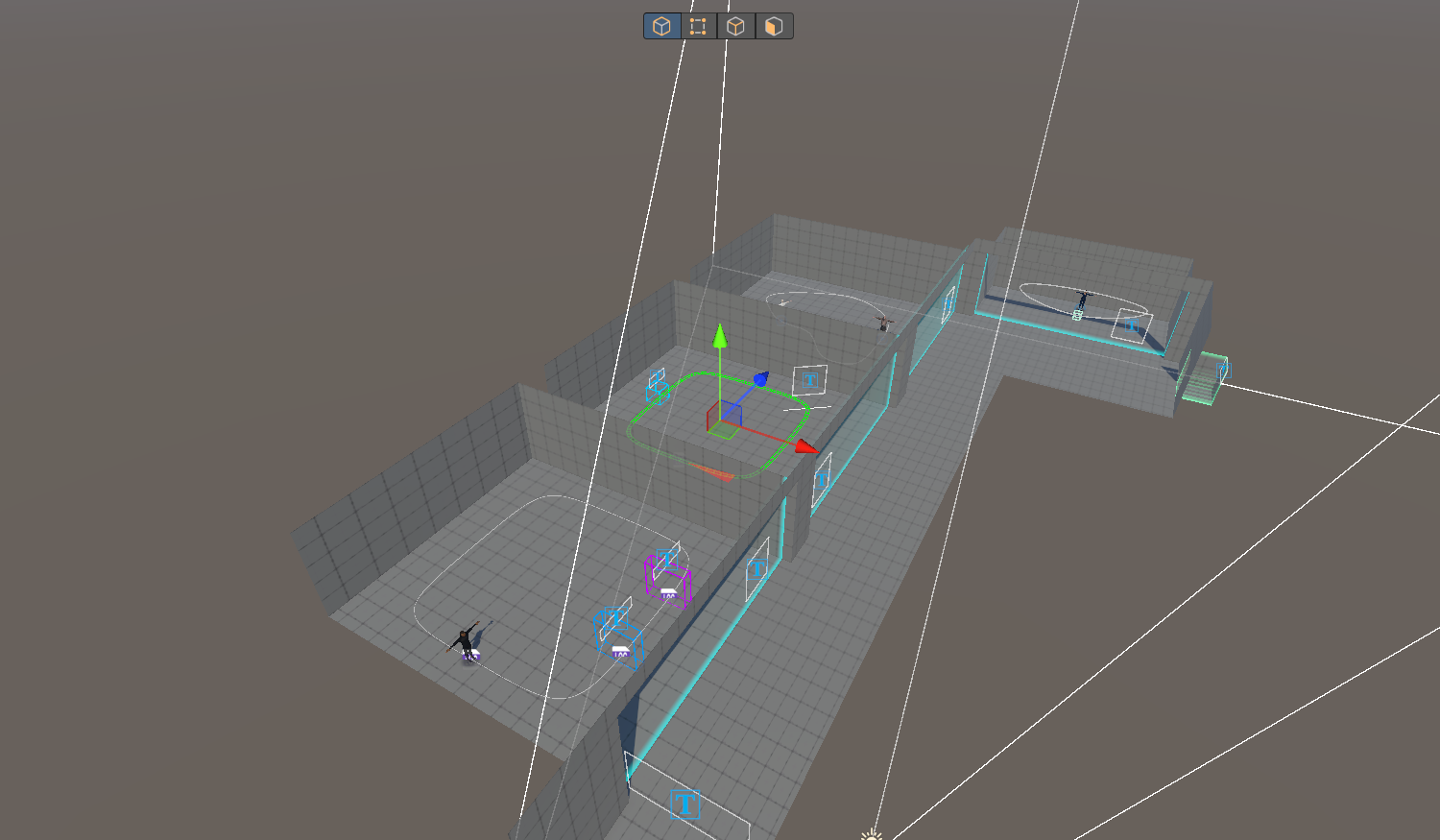
Watch RoadAgent_Pedestrian_David walk his loop. He slows to a walk at the TOGGLE WALK sign and speeds up again at TOGGLE RUN.
These changes come from two trigger areas on his route. Select Toggle Walk Event, then Toggle Run Event, and look at their EventTrigger components:
- An Object filter set to David means only he can activate them. If you walk through as the player, nothing happens.
- On entry, each one calls SetWalkOnly on David's PhysicsBasedCharacterController. The walk trigger passes
trueand the run trigger passesfalse. - Only Trigger Once is disabled, so the triggers fire again on every lap.
Next, look at David's route and movement components. The route decides where he goes; the triggers only change how he moves along it. To learn more, see Event Triggers for filters and Making Road Agents Move for route following.
02 / Delivery Robot: Stops and Obstacles
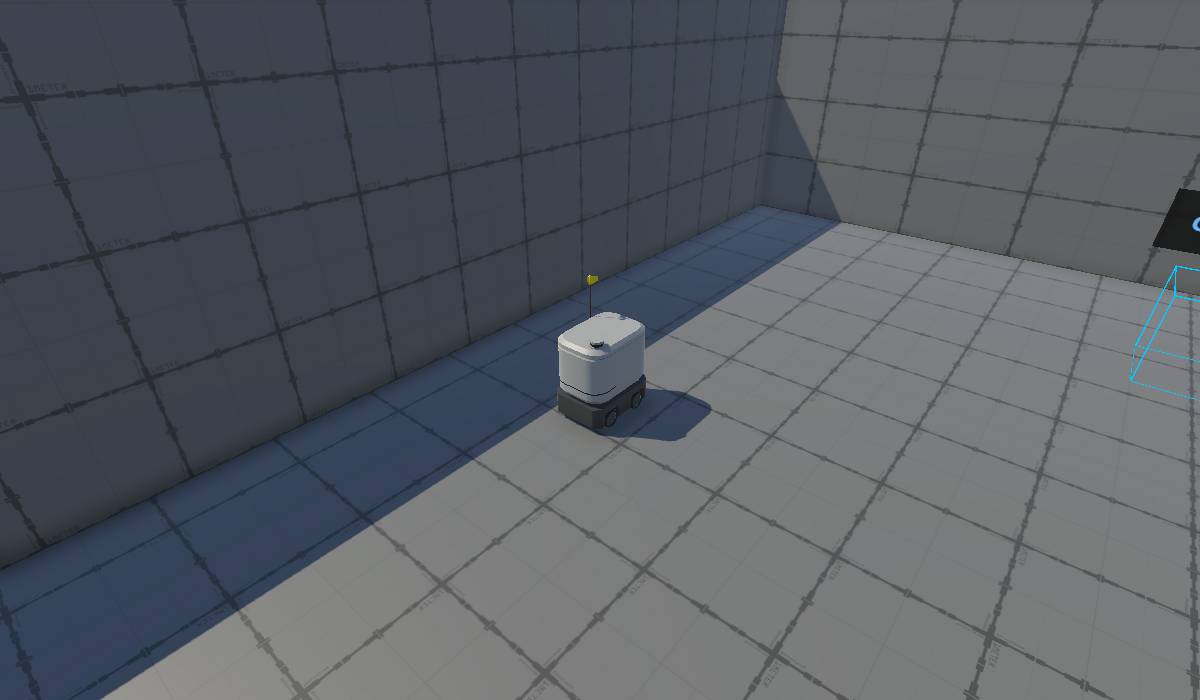
Watch Road Agent (Delivery Robot) follow its route past the STOP and OBSTACLE signs. Notice that it reacts differently to each one. They show two different ways of controlling movement, not just two objects placed on the path.
Select the robot and look at its route setup, then select steer solver under Context Steer. The SteeringSolver references the robot's Rigidbody and includes an ObstacleAvoidanceBehavior. That behavior's look-ahead distance, radius, and obstacle layers decide what the robot notices in front of it. The route, by contrast, only tells the robot where to go overall.
03 / Scooters: Two Agents on a Route
Find RoadAgent_E-Scooter_Business_m03 and RoadAgent_E-Scooter_Brian. Both scooters ride the same looping route, each with a different rider. Select each agent and compare its route reference and rider hierarchy. You'll see that several agents can reuse one route, while each agent keeps its own movement and visual setup.
04 / Louise: Pointing and Gaze
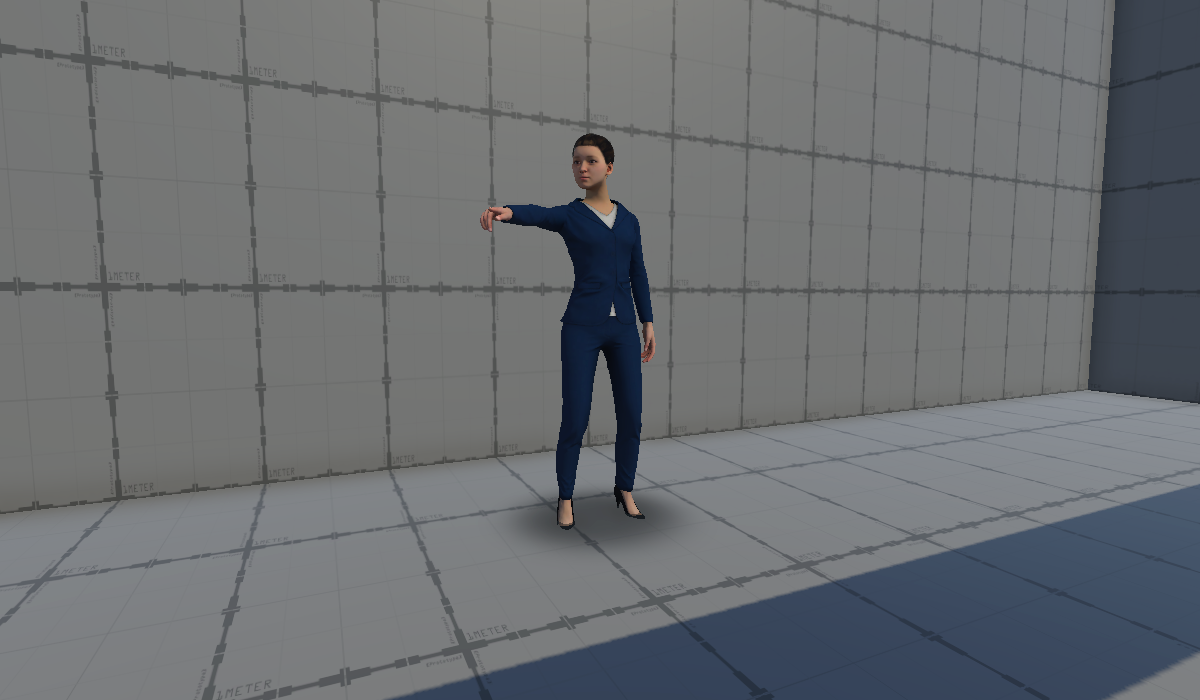
Find Idle_Pedestrian_Louise. She stays in one place while her head and right arm follow a moving target. Inspect her PointingHandler, its targets, and the animation rig constraints. Then follow the target object to see what moves it. Louise herself never walks anywhere: only the target moves, and her pose follows it.
See Gaze and Pointing to set up the target and rig yourself. When you're done, use Exit Zone to return to the hub, as described in the Demo Hub walkthrough.
Conversation Demo
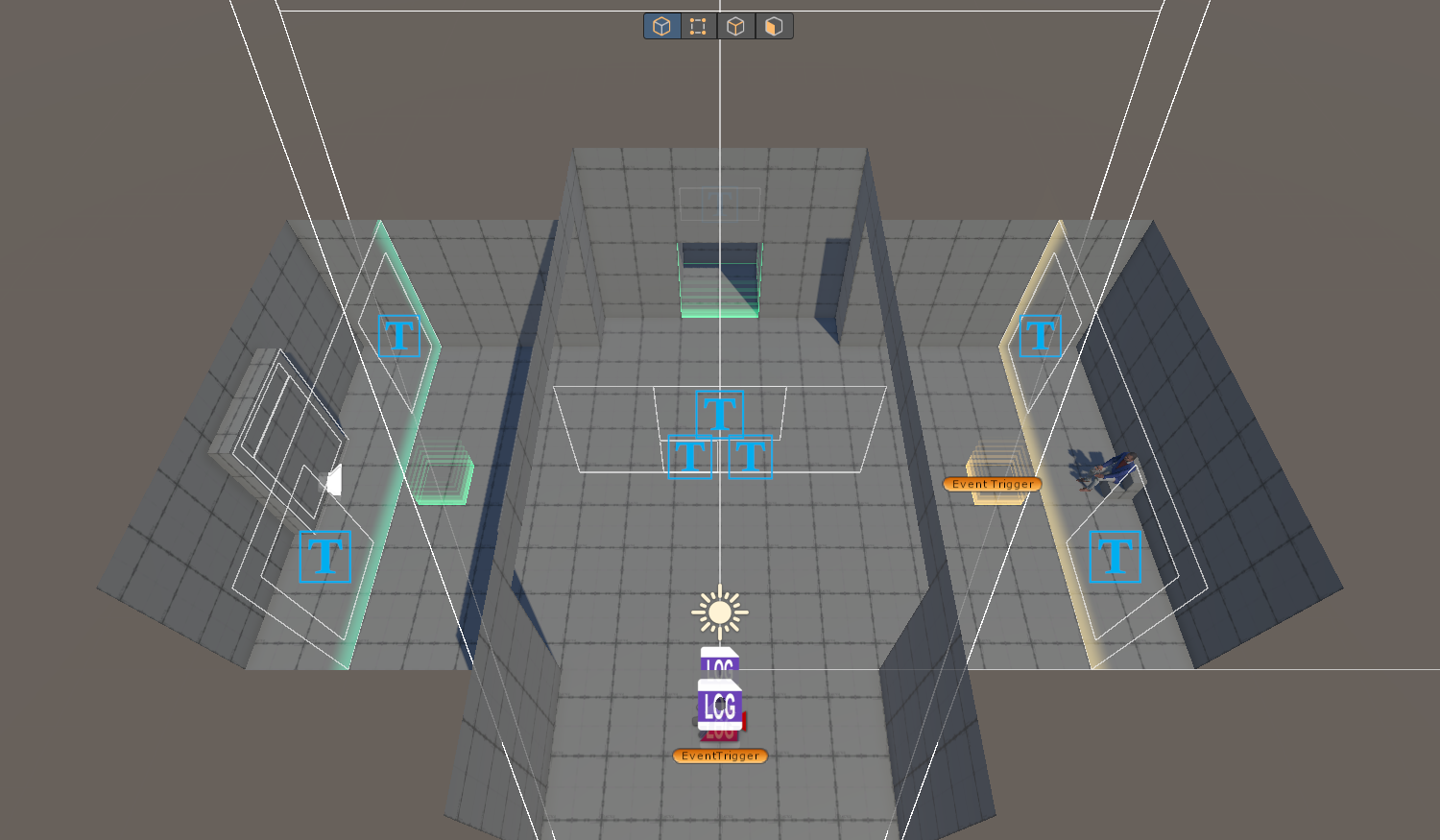
Enter Conversation Room, then open Conversation Demo Scene. The room shows two ways to set up dialogues. On the left, you choose an option from an interaction menu. On the right, walking into an area starts a scripted sequence.
Selectable Dialogue
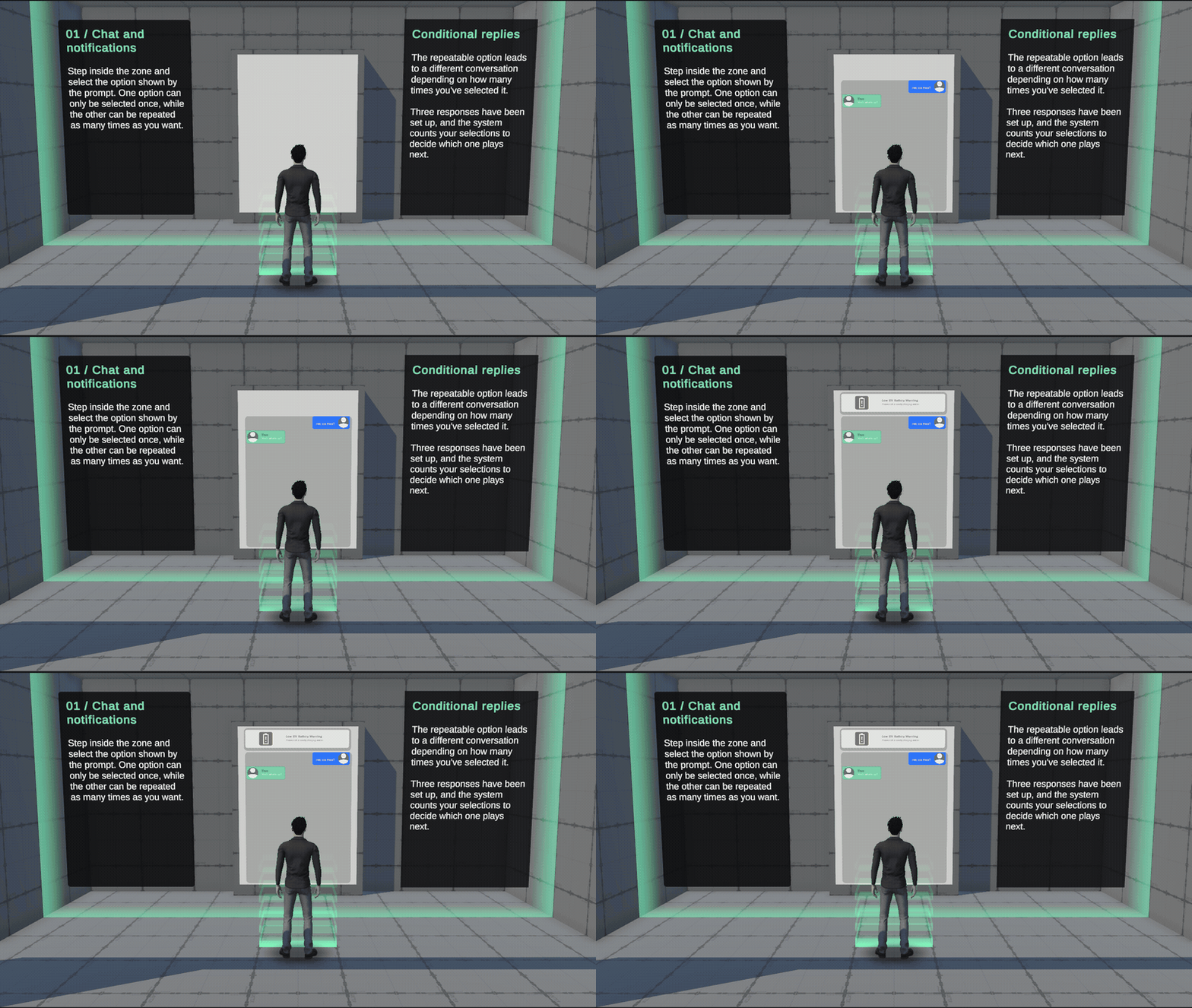
Step into the interaction area on the left and choose Send Message (Repeatable) a few times. Notice that the reply changes as you repeat it. Then try Toggle Notification, which only works once.
To see how this works, select Interactable Components Prefab in the Hierarchy and expand its two Options. Each option's completion listener calls TriggerEvent on a matching Typewriter event object:
- Send Message (Repeatable) triggers Typewriter Event (Send Message).
- Toggle Notification triggers Typewriter Event (Toggle Notification).
Select those event objects and look at the Typewriter entry assigned to each TypewriterEventHandle. Then open the repeatable entry in the dialogue editor. Its conditional replies use the selection count to pick one of three responses. In other words, the interaction only starts the dialogue; the dialogue data decides what is said.
Finally, select Typewriter Actor (Player). Its response components send dialogue events to the chat, notification, dialogue, and instruction presenters on Screen Canvas. This is why copying just a text panel into another scene won't give you a working conversation. You need the event entry, the actor's responses, and the UI presenters together.
Scripted Sequence
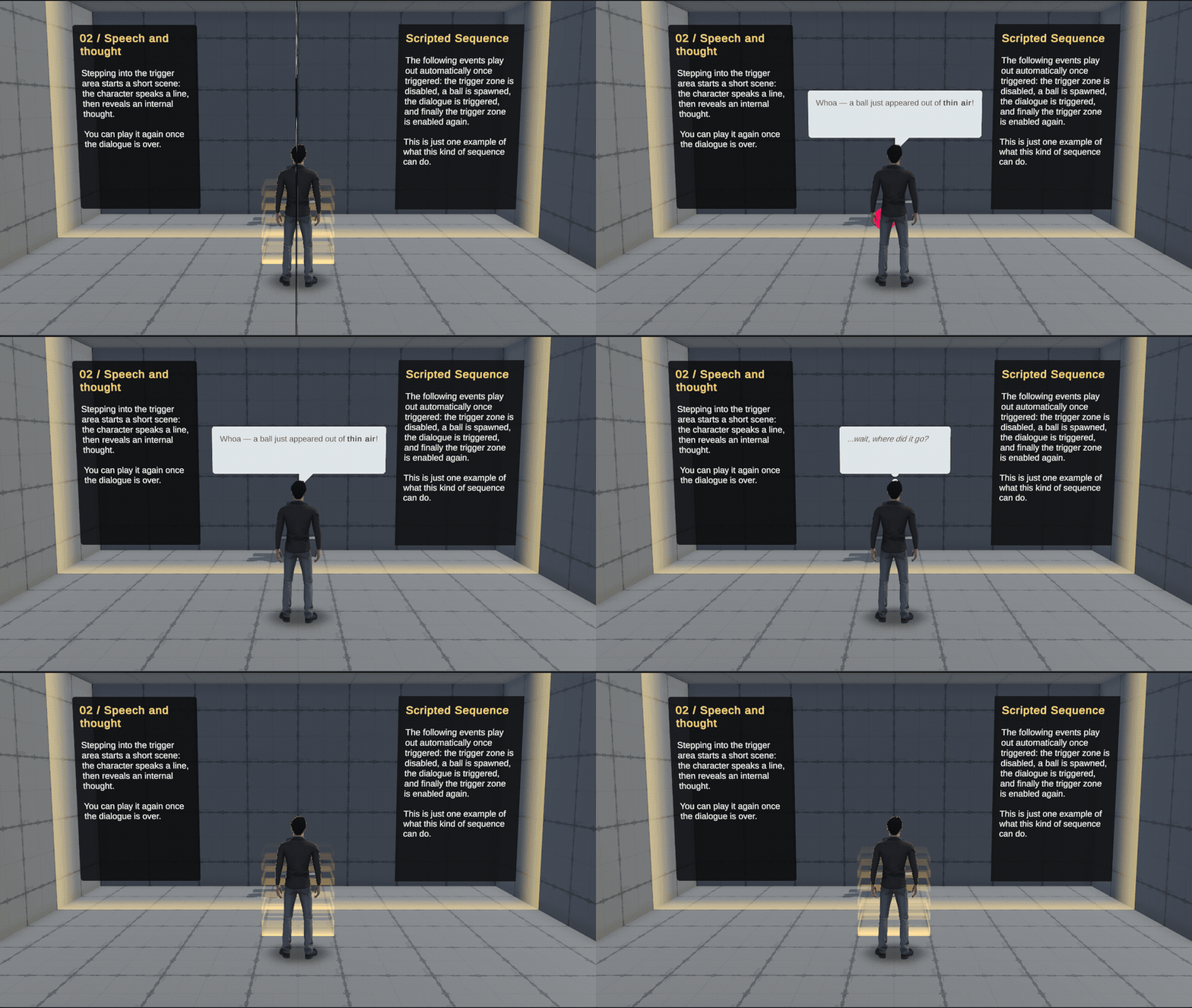
Now cross to the other side of the room and step into the trigger area. A short sequence plays: the trigger turns off, a ball appears, the dialogue plays, and the trigger turns back on. The character's lines use two presentation styles, spoken dialogue and internal thought.
Select Event Trigger. Its entry listener calls PlayableDirector.Play on Timeline, which starts the sequence. Select Timeline to see its Example Dialogue Timeline asset and track bindings. The asset is stored with the VR scene examples, but this demo uses it too.
Then find Typewriter Event (Dialogue). Instead of the TypewriterEventHandle used on the left side of the room, it has a TypewriterEventMarkerReceiver. Here, a marker on the Timeline decides when the dialogue starts, rather than a choice made by the player.
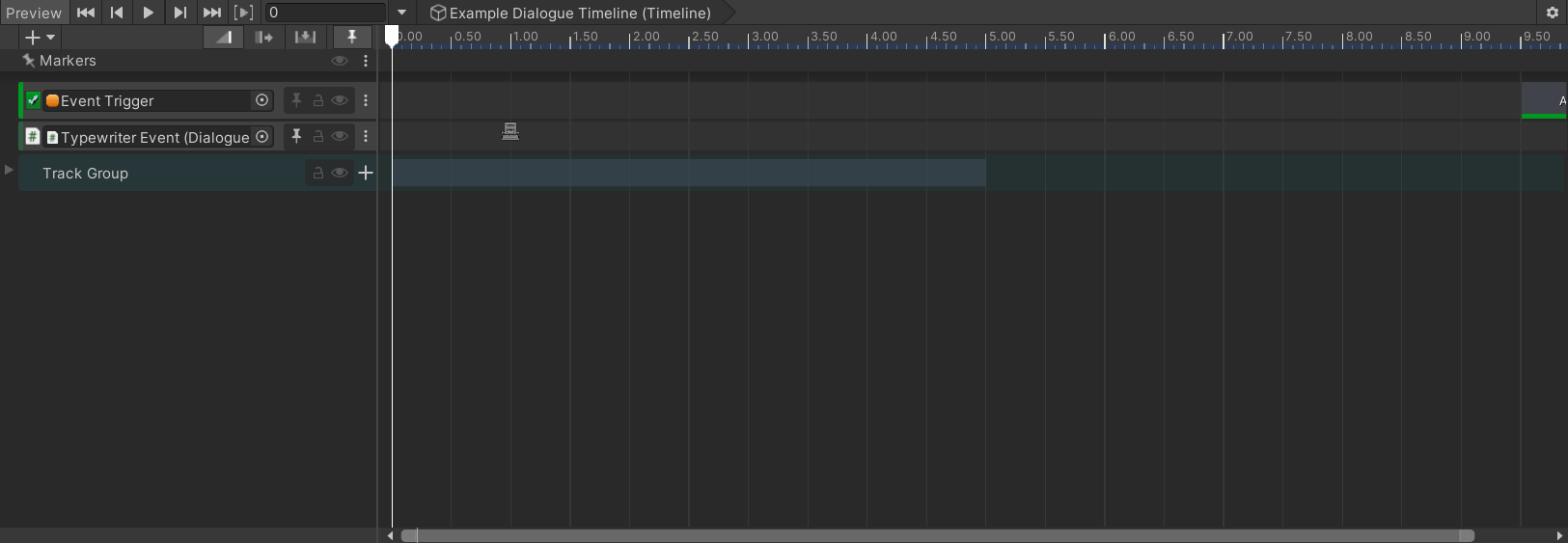
Lastly, inspect Typewriter Actor (Other) and its DialogueBubbleResponse, and follow its presenter reference to Dialogue Bubble (leave it disabled on start). One dialogue setup can show text in two places: a speech bubble above the character, and messages on the player's screen.
Use Exit Zone to return to the hub. To build a conversation like this step by step, see Dialogue in a Scenario, Creating Dialogue Entries, and Triggering Dialogue from Timeline.
Mobility Scenario Demo
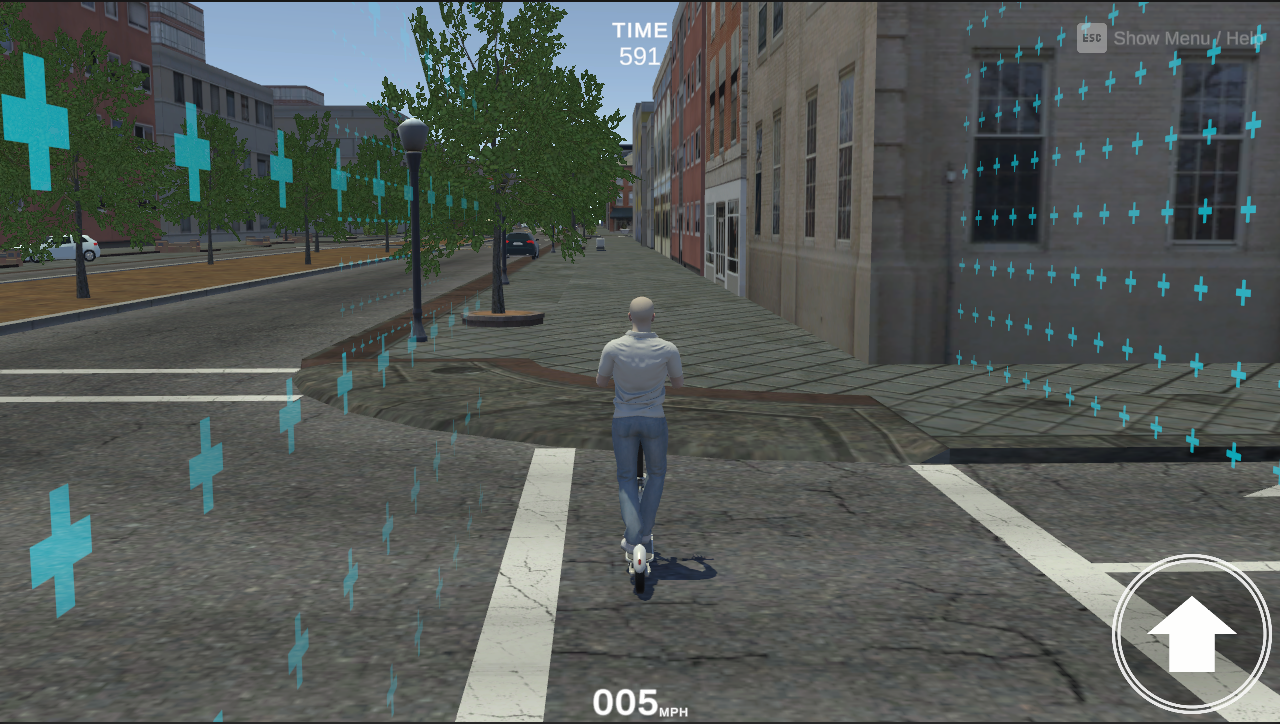
Enter Mobility Room and ride the scooter along the route to the exit, following the navigation display. The welcome panel introduces the route and tells you to press Esc to see the controls.
This room brings several systems together into one complete scenario: a spawned player, route guidance, and scripted encounters with road agents along the way. Open Mobility Scenario Demo Scene to see how they fit together.
Player and Route Guidance
Select GameMode Prefab. It's an instance of TimeLimit GameMode Prefab, which builds on the regular game-mode setup. Its PlayerSelector supplies the scooter player (EgoAgent_E-Scooter_Brian), a switchable third-person camera rig, and the UI overlay. These are spawned when the scene starts, so you won't find a player model placed by hand in the scene. See Spawning the Player to set this up in your own scene.
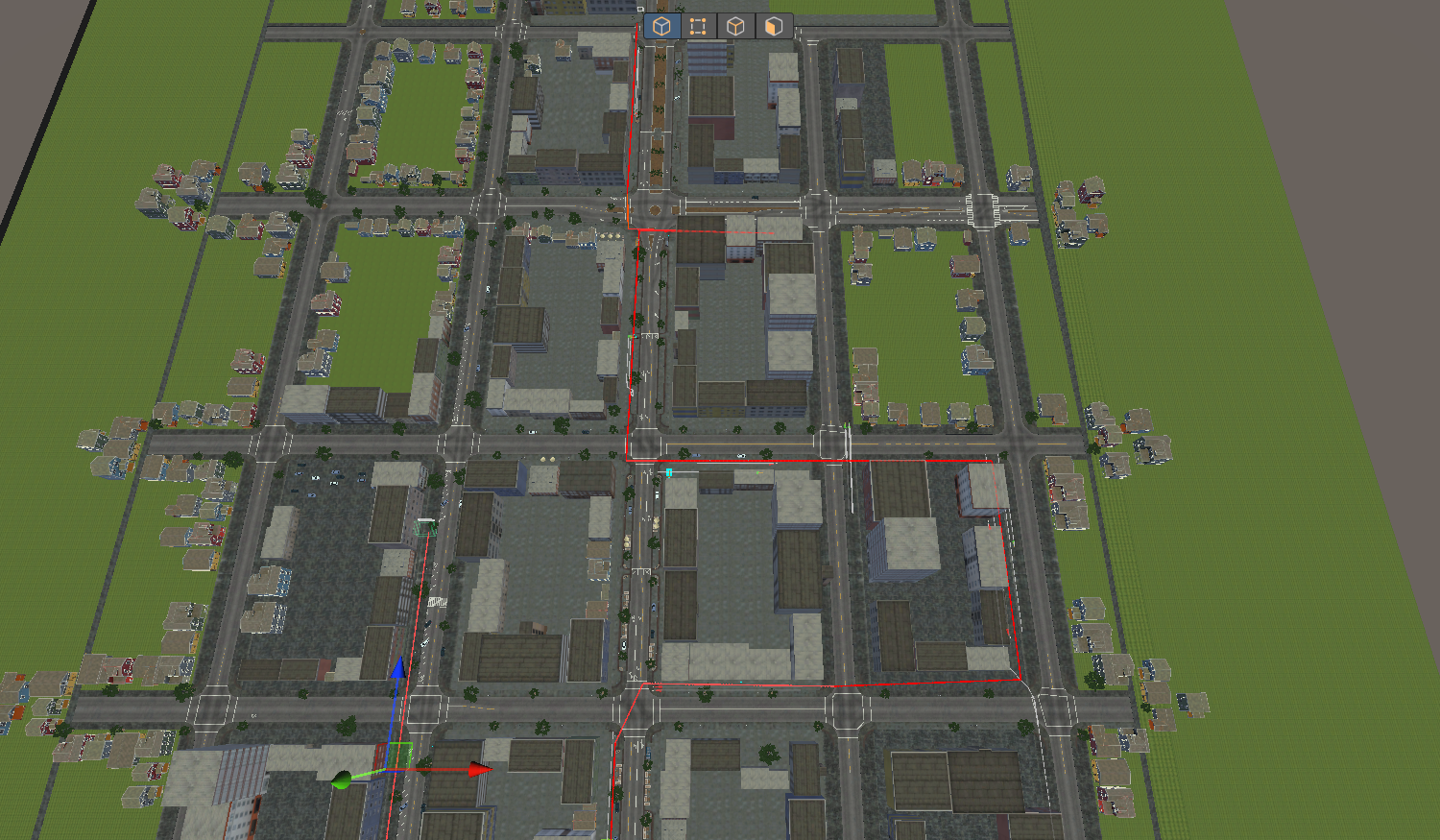
On the same object, look at NavigationWaypointManager and follow its initial waypoint reference. The route is made of EventTrigger Waypoint objects, and each one's NavigationWaypoint component links to its Next Waypoints. When you reach a waypoint, the next part of the route is shown to the player.
Turn on Gizmos, trace a few of these links in the Scene view, and compare them with the guidance you saw while playing. These waypoints only guide the player. Autonomous agents follow their own paths, which are covered in the next section. See Navigation System for details.
Scenario Triggers and Road Agents
Along the route you meet three encounters. In the Hierarchy, each one is grouped under a header: YIELD PEDESTRIAN SCENARIO, YIELD ROBOT SCENARIO, and DIRECTION SCENARIO. They all follow the same pattern: an event trigger decides when the encounter starts, and each agent follows its own waypoint path.
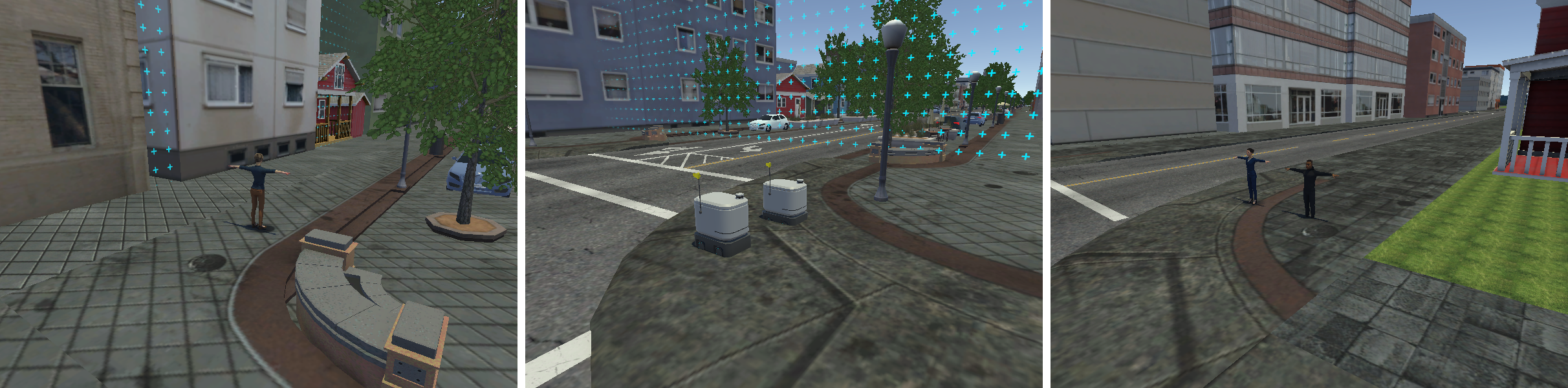
- Yielding to a pedestrian. Find EventTrigger AIActivationEvent_PedYield, then inspect Other_PhysicsBasedPedestrian_Kate and Waypoints_PedestrianPath_kate. Follow the actor's activation event and route references. The trigger decides when the encounter begins; the path decides where Kate walks.
- Yielding to robots. Find EventTrigger_DeliveryRobots, DeliveryRobotPawn_Other1, and DeliveryRobotPawn_Other2, and compare their Waypoints_DeliveryRobot1 and Waypoints_DeliveryRobot2 paths. A single activation event starts both robots, even though each one follows its own route.
- Directions. Find EventTrigger_Directions, Pedestrian_David, and Pedestrian_Louise, and inspect their linked events alongside Waypoints_David and WaypointsLouise. Then look at the Ambient_ actors and Ambient_EventTrigger objects elsewhere in the scene. The same pattern also drives the background activity.
What links a trigger to its agents is an AIActivationEvent. When its StartEvent is invoked, it notifies every agent linked to it. Follow the trigger's event to that activation component, then follow the actors' references back to it. This connection is what makes an encounter work, so keep it intact when you copy one. A character model placed by the road won't do anything on its own. See Making Road Agents Move to learn more.
Returning to the Hub
Select Exit Event Trigger near the end of the route. It uses EventTrigger EndEvent: when it's triggered, EndEvent.StartEvent calls GameMode.EndSession, and the scene graph loads the hub again.
Compare this with the Agent room's Exit Zone. One ends through a trigger area and the other through an interaction option, but both use the same EndSession call to move through the scene graph.
Stroop Test Demo
Enter Stroop Test Room. The scene presents a task straight away. Answer each stimulus using the response prompts. When you've answered them all, you return to the hub.
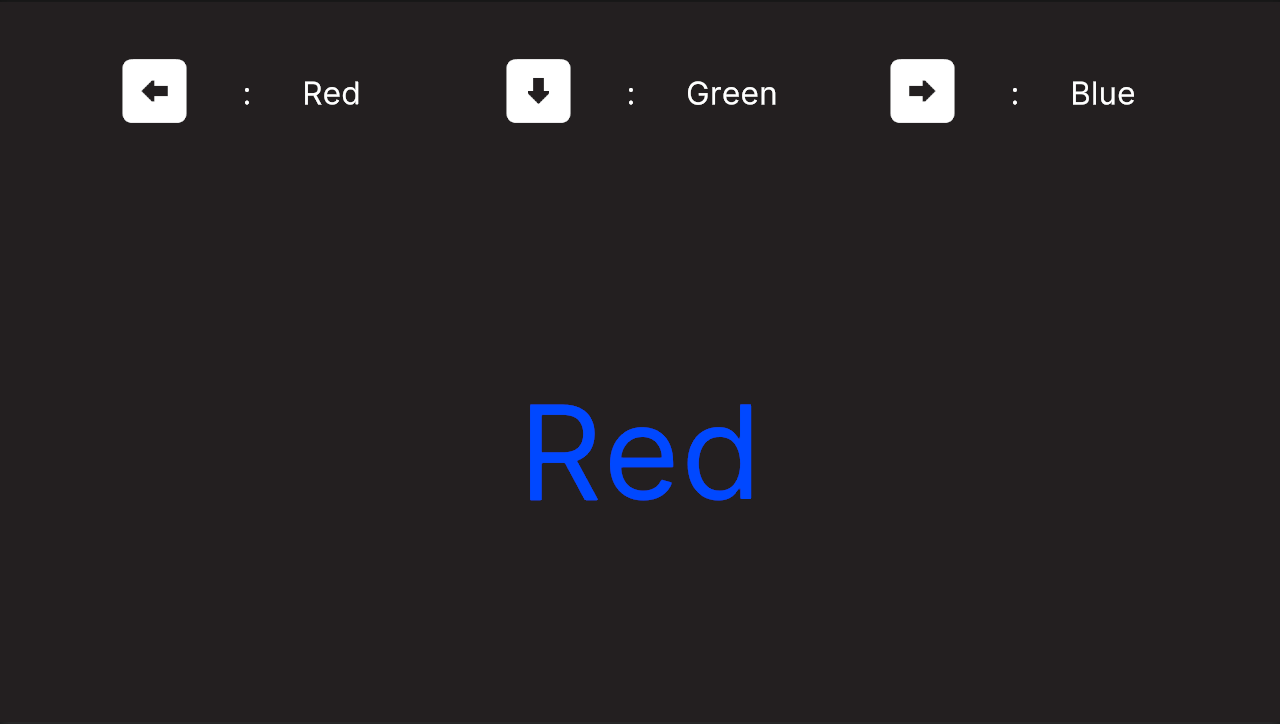
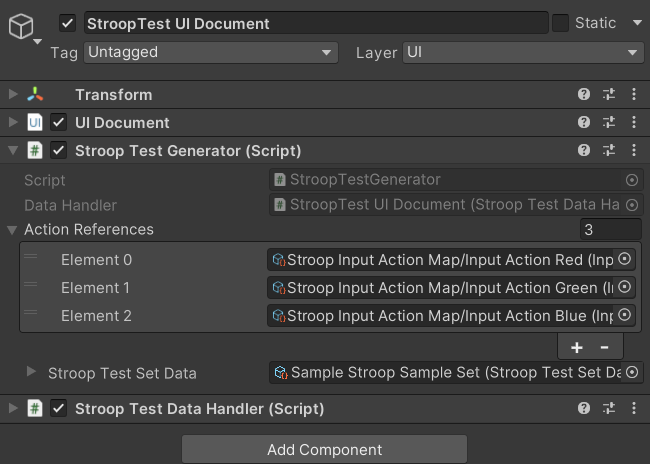
Open Stroop Test Demo Scene and select StroopTest UI Document. Three parts work together here:
- UIDocument provides the layout that displays the stimulus and the response prompts.
- StroopTestGenerator references Sample Stroop Sample Set and three actions from StroopTestInputAction. Open the set asset in
Assets/mobisim/Assessment/StroopTest/Scriptable Object. It contains the Red, Green, and Blue prompts and six stimulus references. Open a stimulus and compare its word and display color with what you saw in the demo. - StroopTestDataHandler is assigned to the generator and references the scene's GameMode. For every response, the generator passes the answer, its stimulus, a timestamp, and the reaction time to this handler, then moves on to the next stimulus.
After the last response, StroopTestGenerator disables further input and calls GameMode.EndSession. In Demo Scene Graph, the Stroop scene's outgoing connection leads back to the hub. You'll also find a Sample STROOP Test Scene Graph in the project, but that's a separate example flow and you don't need it here.
To create your own test, see Stroop Test Quick Start. For details on the stimulus, input, and data fields, see Stroop Test Reference.
Survey Assessment Demo
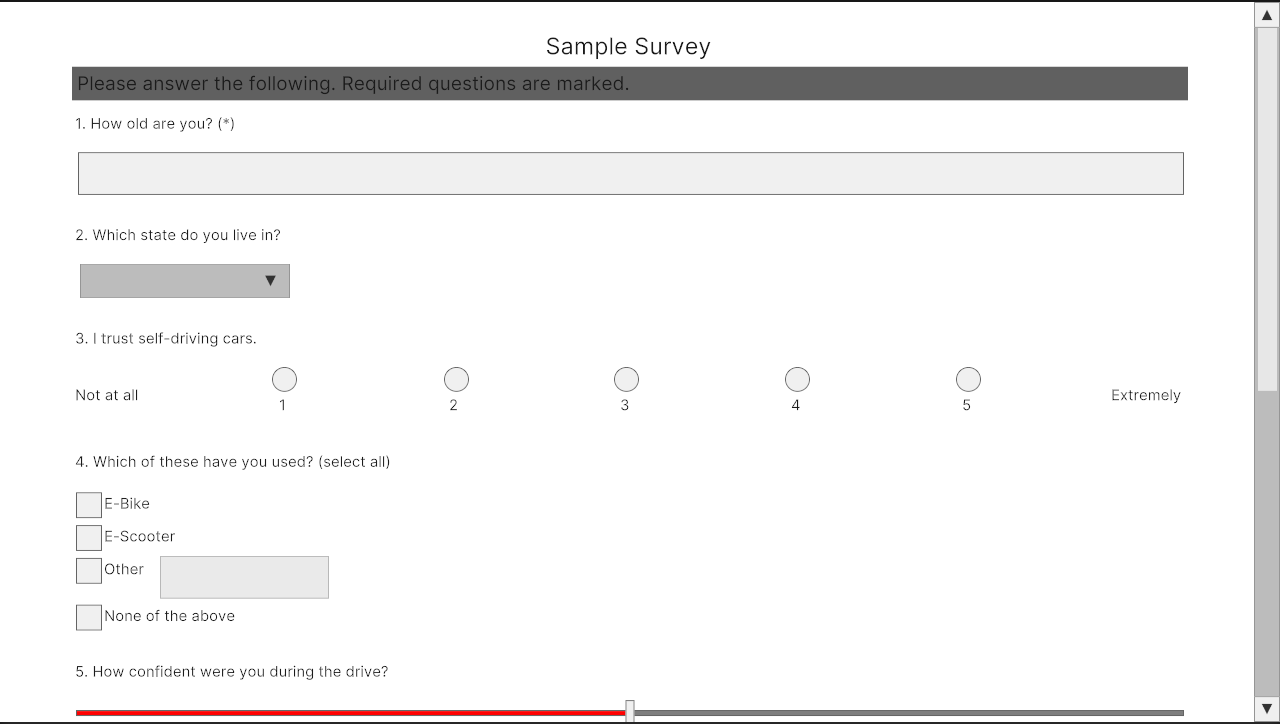
Enter Survey Room and fill in the sample questionnaire. Then open Survey Assessment Demo Scene in Unity.
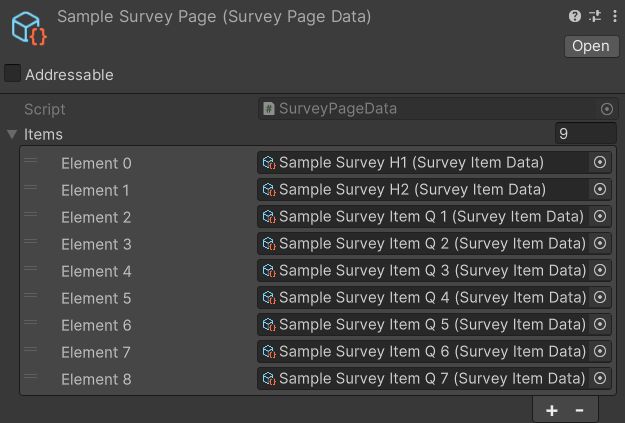
Select SurveyUIDocument, an instance of the survey UI prefab. Its UIDocument uses SurveySampleWelcome for the page layout, and its SurveyPageGenerator references Sample Survey Page, which you'll find in Assets/mobisim/Assessment/Survey/ScriptableObject.
The questions aren't GameObjects in the scene. They're defined in assets, and the generator builds their UI when the scene starts. Open Sample Survey Page and look through its Items list: each entry defines a heading or a question. Pick an item and compare its question type, wording, and answer settings with the matching control in the running survey.
The survey's appearance comes from somewhere else. The generator's Custom Survey Preset override is disabled, so it uses the project's shared survey visual presets. This keeps the questionnaire's content separate from how it looks. See Survey Templates settings to inspect those shared templates.
When you submit the survey and its checks pass, SurveyPageGenerator calls GameMode.EndSession and the graph returns you to the hub. You can see this connection in the generator's Game Mode reference.
The SurveyPageDataHandler component on this scene's SurveyUIDocument is disabled. This lets the demo show the questionnaire and how it finishes without collecting or sending any survey records. If you adapt the scene for real data collection, configure and enable the handler as described in Survey Page.
To build your own questionnaire from these assets, see Survey Quick Start.
Remote Control Demo
This scene shows how an external program, the operator, can change a running scene by sending it signals. It's a Windows TCP example and isn't one of the rooms in the browser demo.
Open Remote Control Demo Scene and select Remote Control Demo. This object holds the TCPServer, RemoteControl, and GameMode components.
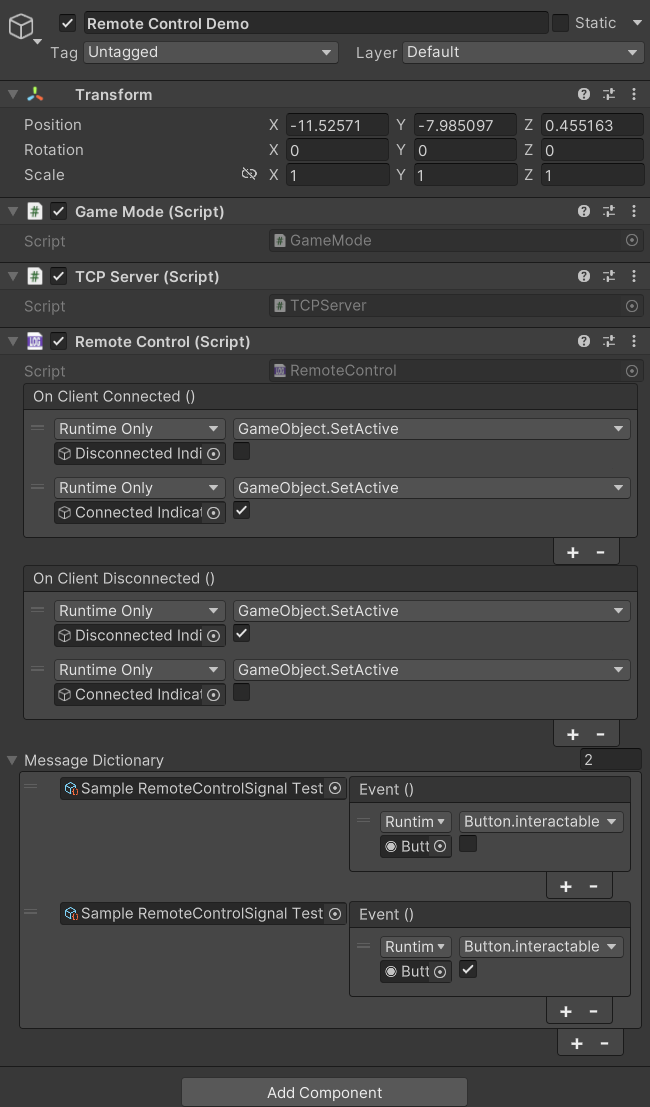
Expand the RemoteControl signal dictionary. Sample RemoteControlSignal Test 1 sets the UI Button's Interactable property to false, and Sample RemoteControlSignal Test 2 sets it back to true. The connection events also switch Connected Indicator and Disconnected Indicator on and off. Follow these UnityEvent targets to see how an incoming signal becomes a visible change in the scene.
To run the example, use the separate TCP Test Graph and connect an operator client. See Remote Control for the signal manifest, GUID messages, and netstring protocol, and Remote Control settings to set the listening port.
VR Example Scenario
This scene is a starting point for VR projects. You'll find VR_ExampleScenario_Map in Assets/mobisim/Scenes/Scenes/VR Scenes. Run it with the XR configuration and player rig it was built for.
Always test it in the headset rather than the desktop Game view. That's the only way to check the camera origin, physical scale, interaction positions, and performance properly.