CSV Curve Mapper
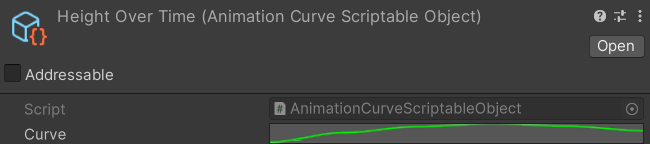
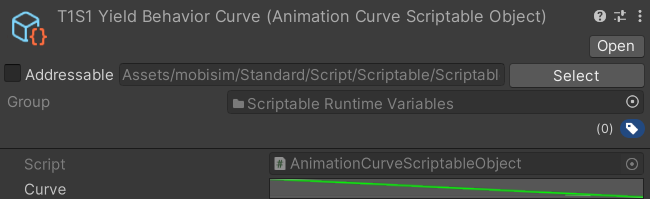
The CSV Curve Mapper is a custom Unity Editor tool that converts a CSV file into one or more ScriptableObject assets (AnimationCurveScriptableObject) containing AnimationCurve data. This is useful for importing time-series or numeric data directly into reusable Unity curves without manually entering keyframes.
To be converted by the tool, a CSV file must follow these rules:
- The first row must contain headers.
- The column you choose as the x-axis must be single-valued (its values must be unique).
- All values below the header row must be numeric, since every value is parsed as a number.
Below is an example of a valid CSV file:
Time,Height,Speed
0.0 ,  0   ,  0
0.5 ,  1   ,  2
1.0 ,  2   ,  3.5
1.5 ,  3   ,  5
2.0 ,  4   ,  6.2
2.5 ,  5   ,  7.1
3.0 ,  6   ,  8.0
Using the Mapper
To bring up the CSV Curve Mapper editor, navigate to Tools > CSV Curve Mapper in the top menu.

Alternatively, you can right-click an imported CSV file in the Project window, then select Convert to Animation Curve in the context menu.
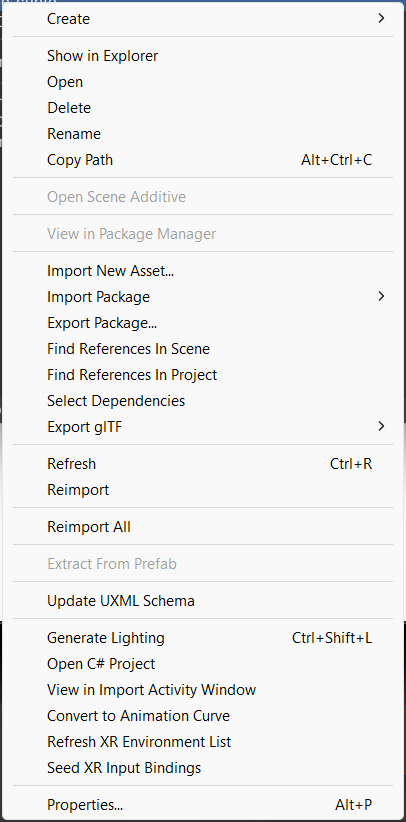
The CSV Curve Mapper editor appears as a separate window, which you can also dock into Unity's main UI.
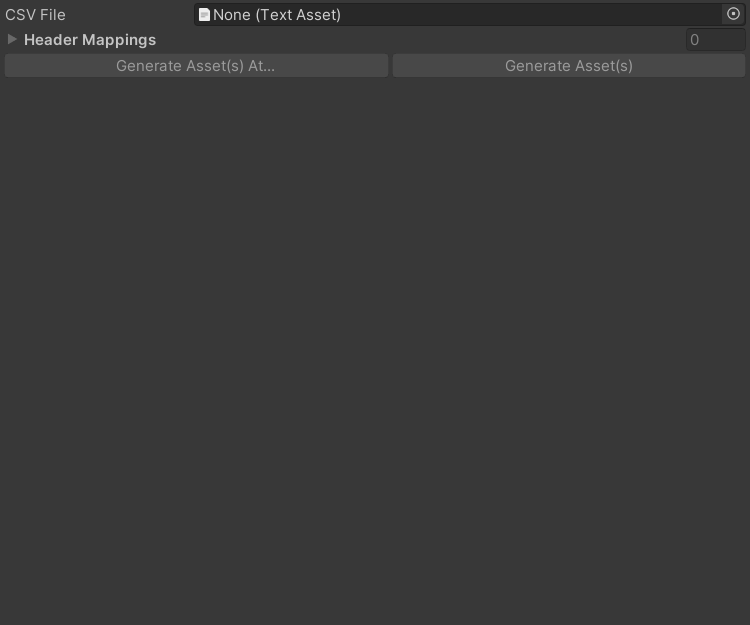
When the CSV Curve Mapper window is open, assign the CSV file you want to convert in the CSV File field. You must set this field before you can configure mappings or generate curves. (If you opened the tool from the context menu, this field is already set.)
Editing Header Mappings
The Header Mappings list defines how the CSV columns are used to generate curves. For each mapping, the tool takes the column assigned as the X Axis and the column assigned as the Y Axis and builds an AnimationCurve from those values. Because the list supports multiple mappings, the tool can generate several curves from the same CSV file in one go.
The list behaves the same as any other list in Unity. Use + and - to add or remove mappings.
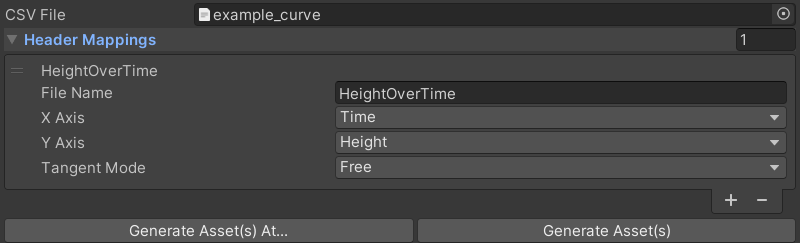
Each element in the list has the following properties:
Generating Curves
The Generate buttons stay disabled until a CSV file is assigned and every mapping has a non-empty, unique File Name. Once you have configured your mappings, click Generate Asset(s) to create your curves in the same folder as the CSV file, or click Generate Asset(s) At... to create them in a location of your choice. If an asset with the same name already exists, you are asked whether to overwrite it.