Virtual Reality
This guide explains how to set up Varjo VR headsets for the simulator.
This setup is intended for the PC Standalone build target only.
Varjo Headset Setup
This section guides you through the initial setup required to get your Varjo VR headset working with your Unity project. Follow each step carefully to ensure proper integration and tracking.
SteamVR is essential for many VR headsets, including Varjo.
- Open the Steam client on your PC.
- If you don't have a Steam account already, create a free one.
- Go to the SteamVR store page and click Install.
- After installation, launch SteamVR once to make sure it is installed properly.
Varjo Base is the official software suite for Varjo headsets.
- Download Varjo Base from the Varjo website.
- Run the installer and follow the on-screen prompts.
- Launch Varjo Base and create a Varjo account (if needed).
Connect your Varjo headset to your PC and follow the instructions in Varjo Base to complete initial calibration and firmware updates. Make sure the headset works properly and is recognized by your system.
- Follow the step-by-step process shown in Varjo Base.
- Confirm that Varjo Base and SteamVR show the headset as connected and ready.
The Varjo headset uses a tracking system to know its exact position in the play area, but the tracking must be initialized before it works.
- Prepare your physical environment:
- Clear enough space for safe VR use.
- Make sure your SteamVR base stations are mounted, powered on, and positioned correctly.
- (Optional) In Varjo Base, navigate to Settings > System > Pair SteamVR Device to pair SteamVR-compatible controllers. Follow the on-screen instructions to complete pairing.
- In Varjo Base, navigate to Settings > System > SteamVR Room Setup and follow the prompts to define your play area and initialize tracking.
Enable XR Initialization
Unity uses the XR Plug-in Management system to configure and manage XR settings for your project. One of the key options is whether XR is initialized automatically when the application starts.
In Unity, navigate to Edit > Project Settings > XR Plug-in Management.
In the XR Plug-in Management panel, locate the checkbox labeled Initialize XR on Startup. Enable this checkbox if you want the application to start directly in XR mode. In the project as shipped, Varjo is the only plug-in provider selected for the PC Standalone target, and Initialize XR on Startup is disabled.
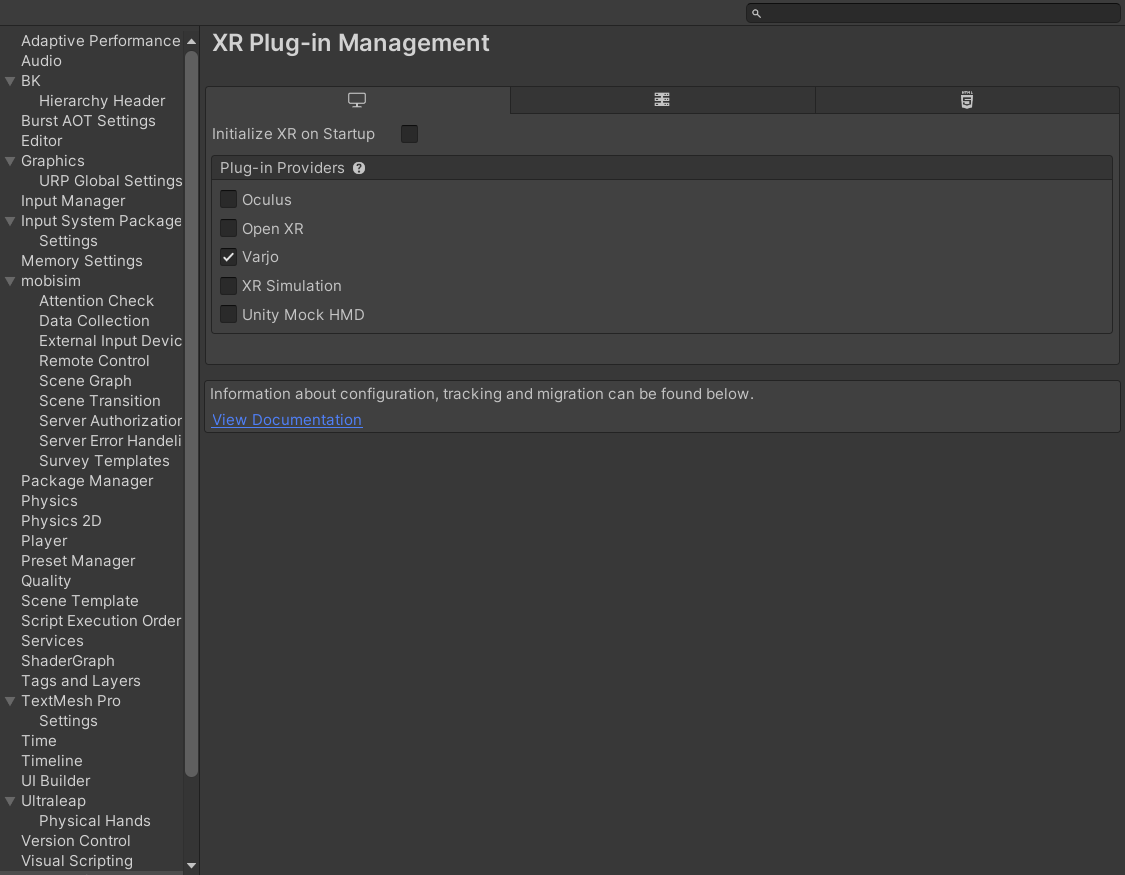
Enabling Initialize XR on Startup ensures that XR subsystems, such as the Varjo XR runtime, are initialized automatically as soon as the application launches. If you leave this option disabled, XR doesn't start by default, and you need to initialize it manually in code.
For more information about the available XR Plug-in Management settings, see Load XR plug-ins.
Setting up VR in Scenarios
To enable VR in specific scenarios (scenes), you need to make a few adjustments.
The current scene transition effect obstructs the VR headset's view, so you need to disable it.
-
Navigate to Project Settings > mobisim > Scene Transition.
-
Set the Method to None.
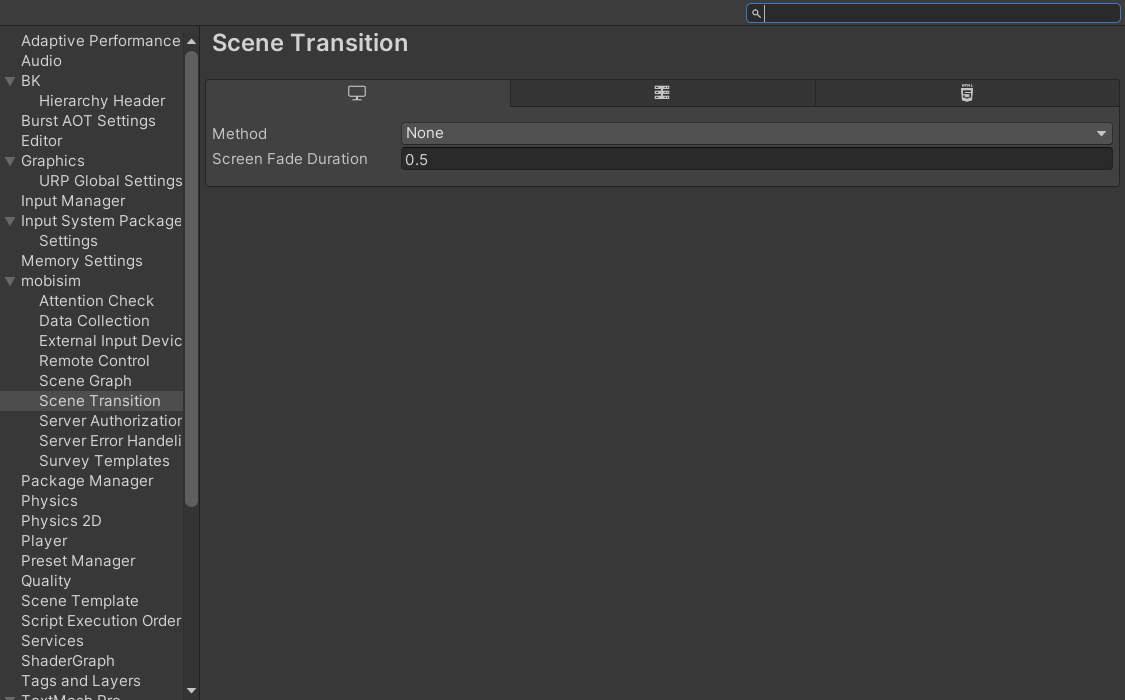
In each VR scene, you need to prevent the system from spawning cameras or screen-space UIs that are designed for desktop display. These elements are incompatible with VR and can obstruct or interfere with the XR camera view.
- If the scene includes a Player Selector component, disable both Spawn Camera and Spawn UI in its Inspector.
- Disable or remove any cameras that are not part of the XR Origin, as well as any screen-space UI present in the scene.
Each VR scene must include an XR Origin to define the tracking space for the headset and controllers. To add one, right-click in the Hierarchy and select XR > XR Origin (VR).
After placing the XR Origin, add an ActorIdentifier component to the main camera inside it. Configure this component with the tags Camera_Tag and XRCamera_Tag so that other systems can recognize the XR camera.
To simplify the setup, use the provided Varjo XR Origin (XR Rig) prefab. It's already configured with the necessary components for Varjo headsets, so you don't need to set them up manually.
- Drag the Varjo XR Origin (XR Rig) prefab into the scene from Assets > mobisim > VR > Prefab.
tip
You can use the search bar in the Project window to quickly find the prefab by name.
- Right-click the prefab in the Hierarchy and select Prefab > Unpack.
XR camera output shown on the monitor is typically just one eye's view. To provide a dedicated monitor camera with its own centered view, attach a secondary camera to the main XR camera. The Varjo XR Origin (XR Rig) prefab already includes one (Monitor Camera, a child of VR Main Camera, with priority 10).
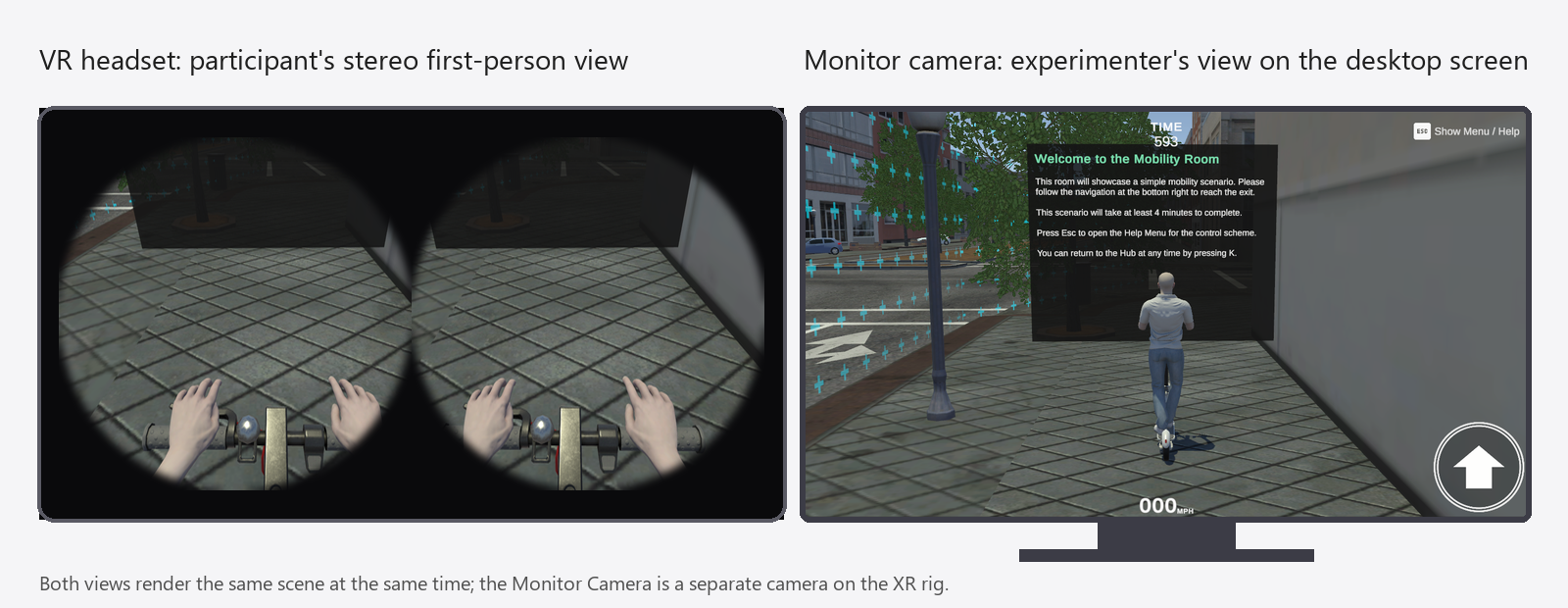
- Create a new Camera as a child of the main camera.
- Set the priority of the secondary (monitor) camera to a higher value than that of the main camera (for example, if the main camera is 0, set the monitor camera to 1 or higher).
Culling Mask
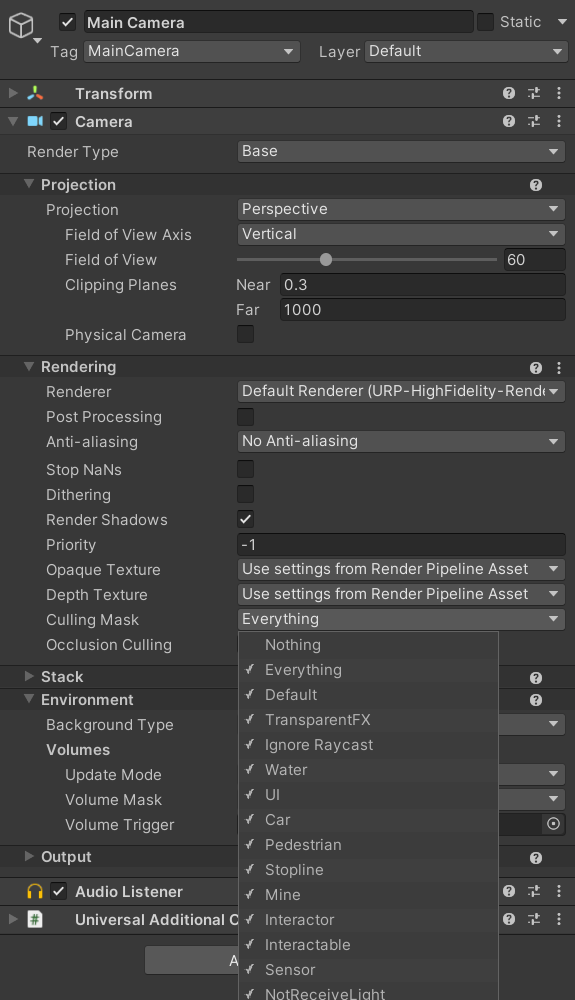
In Unity, a Culling Mask defines which layers a camera renders. By assigning different layers to objects and configuring each camera's culling mask accordingly, you can control what each camera sees. This is useful when you want each camera to render different elements, for example to show certain objects on the monitor view but not in the headset.
To configure a Culling Mask on a camera in Unity:
-
Select the Camera in the Hierarchy.
-
In the Inspector, find the Culling Mask dropdown under the Camera component.
-
Include or exclude the specific Layers that the camera should render.
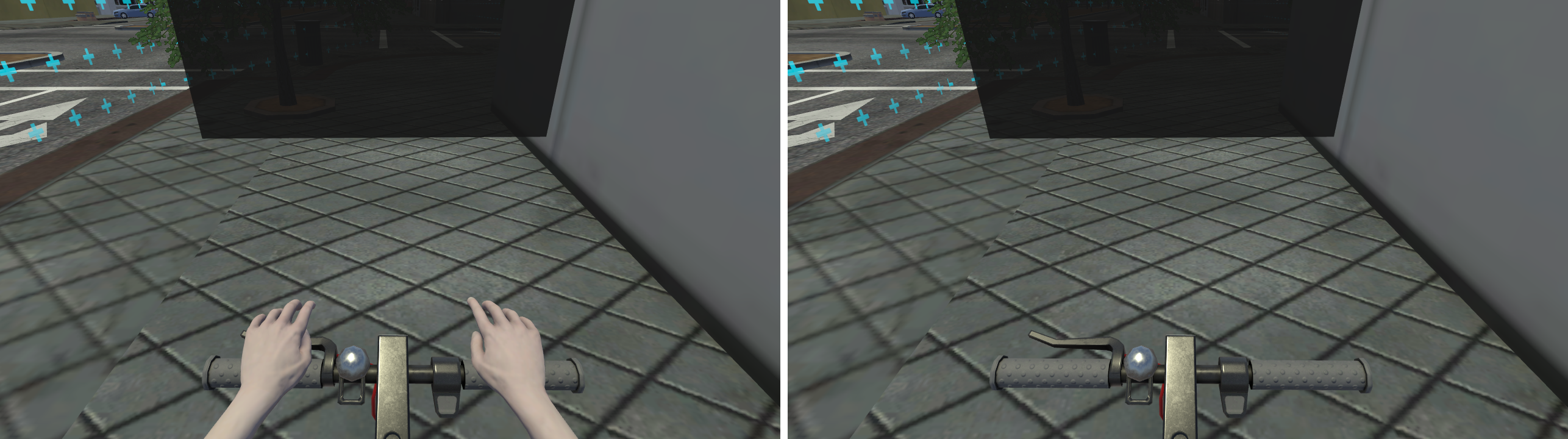
Eye tracking allows your application to track the user's gaze direction and focus point in real time. To enable eye tracking for Varjo, the XR Origin must include the Varjo Eye Tracking Handler prefab, attached to the Camera Offset (the parent of the main XR camera).
- If you're using the Varjo XR Origin prefab, this handler is already included and set up.
- If not, manually add the Varjo Eye Tracking Handler prefab from Assets > mobisim > VR > Prefab.
- In the handler's Inspector, set the Xr Camera field to reference the main VR camera.
Visualization Configuration
To visualize where the user is looking during a session, two objects are rendered in the scene: the Fixation Point and the Gaze Target. These are implemented as separate GameObjects, and any visual element you attach to them will appear in the scene. You choose which GameObjects to use in the corresponding fields of the Varjo Eye Tracking Handler Inspector.
-
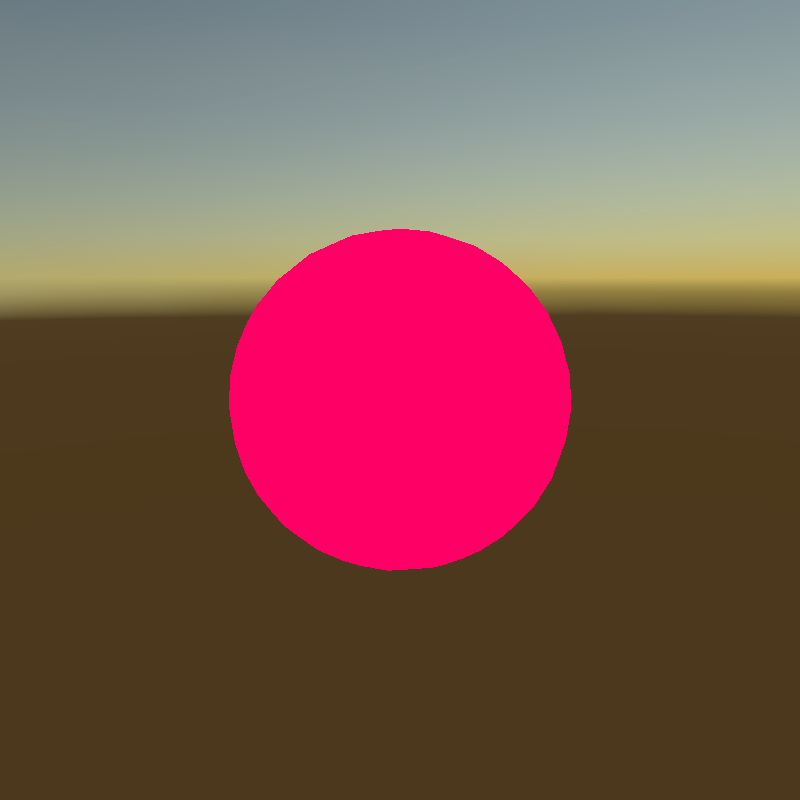
The Fixation Point represents the stabilized focus of the user's gaze: where their eyes are fixated after natural saccades (eye movements) settle. By default, it is visualized as a pink sphere. To toggle its visibility, use the Show Fixation Point option on the eye tracking handler, or disable the pink sphere GameObject in the scene.
-
The Gaze Target represents the raw gaze direction, based on where the eyes are pointing in real time. It's often more jittery than the fixation point. By default, it's visualized as a 2D circular sprite. To hide it, disable the sprite renderer or remove the visual from the Gaze Target GameObject.

These visualizations can be distracting during VR sessions or experiments. To keep them visible only on the monitor view, assign them to a dedicated layer (for example, EyeTracking) and configure the Culling Mask so that:
- The monitor camera includes this layer.
- The XR camera excludes it.
This way, observers can still see the eye tracking visuals while the VR user gets an unobstructed view.
Data Collection
Eye tracking data is collected independently from the standard data logging system. The Varjo Eye Tracking Handler component handles it.
To change where gaze data is stored, edit the Custom Log Path field in the Varjo Eye Tracking Handler Inspector. By default, the path is:
%userprofile%/AppData/LocalLow/HRI/mobisim/Gaze/
Logging starts automatically when the scene starts. Each session creates a new file named after the local start time (yyyy-MM-dd-HH-mm.csv).
The handler also provides runtime keyboard shortcuts. The keys below are the defaults; you can change each one in the handler's Inspector.
Eye tracking data is saved in CSV format for easy analysis and compatibility with spreadsheet tools or data processing scripts. Each row in the CSV file represents a single gaze sample collected at runtime. The file contains the following columns, in order:
In-World Interface
Screen-space UI doesn't work in a headset, so VR scenes put their interface into the 3D world instead. The simulator provides two pieces for this: a button participants press and hold, and a curved screen that shows UI around them.
Hold-to-Confirm Button
A button in the 3D world that participants press and hold to confirm a choice. A bar fills while they hold it, so an accidental tap doesn't count.
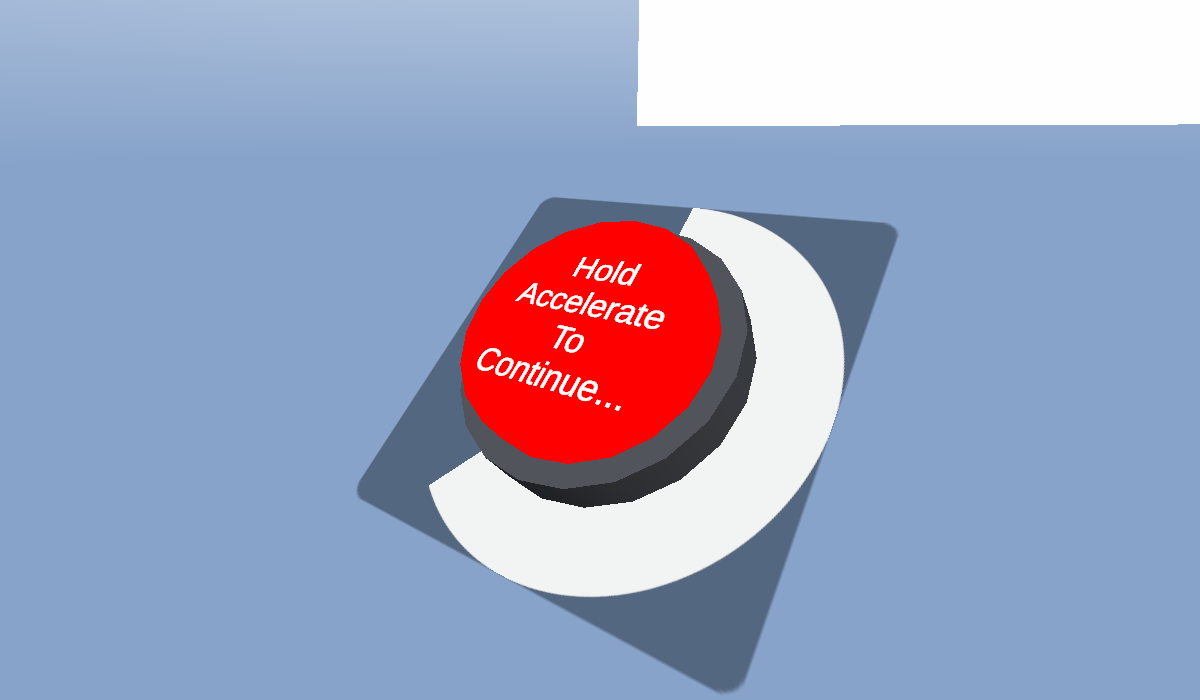
Drag the VR Room Button prefab from Assets > mobisim > VR > Prefab into your scene. Its look and movement are already set up, so you only need to connect the input and choose what happens.
Select the object with the participant's Player Input, and make sure its Behavior is Invoke Unity Events. Under the action that should press the button, such as the trigger, add an entry with +, drag in the button, then choose HoldablePhysicalButton > OnButtonPressInput.
Set Hold Duration to how many seconds participants must hold, and set up On Hold Completed with what should happen when they do.
On Hold Completed keeps firing every frame while the button is held at full. Use actions that are safe to repeat, or have the event switch the button off.
Letting go early drains the bar at the same rate it filled. With an analog trigger, squeezing halfway fills the bar at half speed.
Only the input action fills the bar. SetPressed, which you'll also see in the event list, plays the press animation but doesn't fill the bar.
To change how the button looks and moves, adjust these settings on its Holdable Physical Button component:
Curved Screen
A curved display in the 3D world that wraps UI around the participant, such as menus or feedback.
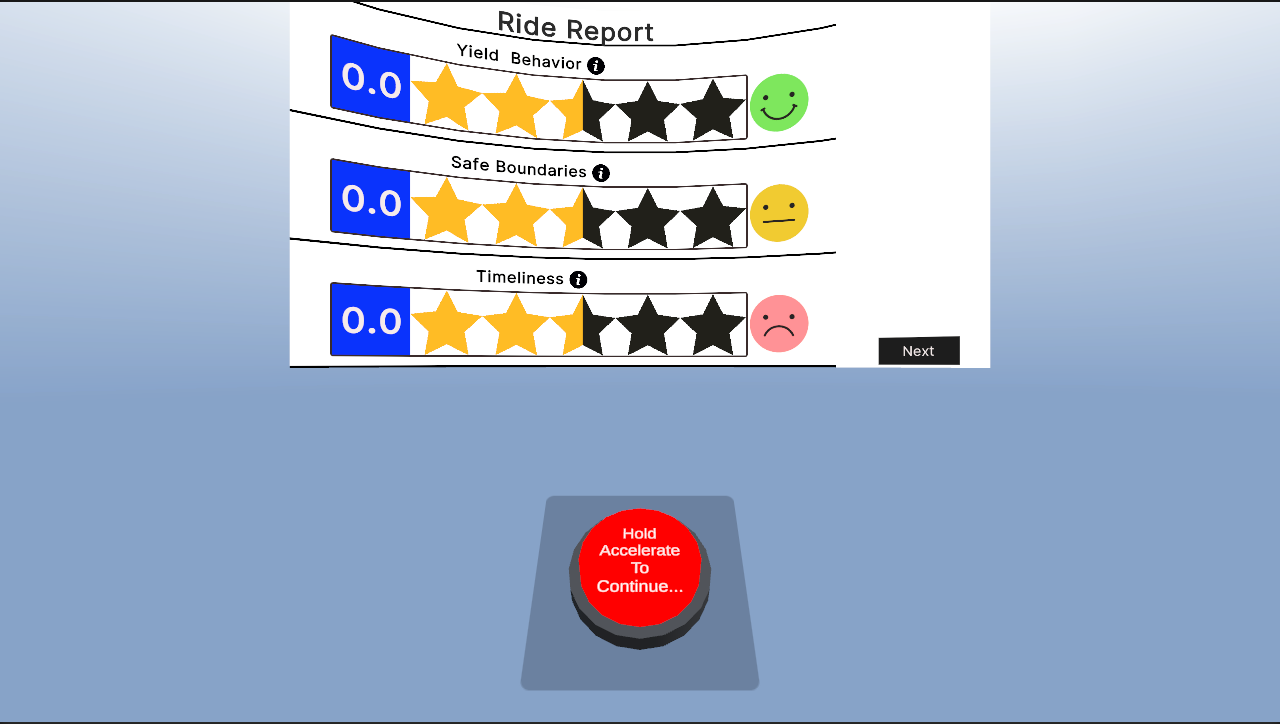
Participants can't click or point at anything on the screen. Use it for information, and use a Hold-to-Confirm Button or controller input for choices.
Create an empty GameObject and add Curved UI. A Mesh Filter and a Mesh Renderer are added for you.
The screen is shaped like part of a cylinder. Changes show in the Scene view as you make them.
The Mesh Renderer's material is what appears on the screen. An unlit material, such as Universal Render Pipeline/Unlit, keeps the screen readable whatever the lighting in the scene.
Add Curved UI Runtime Texture Assigner and fill in its settings. When the scene starts, it draws the document into an image, switches the UI Document on, and places the image on each screen.
Give the document its own Panel Settings asset. The component changes the Panel Settings it's given, which would affect any other document sharing them.