Specialized Input Hardware
This page covers the specialized input devices the simulator supports, and how to set them up:
- Gryoor input setup: the setup that combines a serial throttle/brake device with a Fanatec steering wheel.
- Serial throttle/brake device: how the simulator connects to it, the serial protocol it must follow, and an example Arduino sketch you can use to build your own.
- Fanatec wheel: the custom layout that maps the wheel's controls, and the matchers that tell Unity to use it.
- Force feedback: how to enable the spring effect on the wheel with the
UnitySpringFFBcomponent.
- Force feedback: how to enable the spring effect on the wheel with the
- Input Debugger: how to check that your devices are connected and sending input.
- Create a custom input device: where to start if you need a new type of device.
The custom input devices on this page are only compiled for Windows Standalone targets (and the Editor while Windows is the active build target).
Gryoor input setup
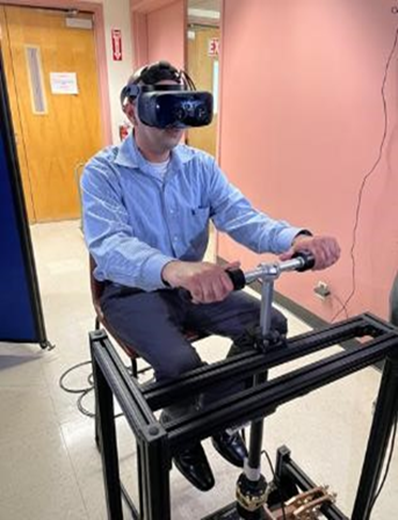
The Gryoor setup combines two separate input devices:
The serial throttle/brake device reads the pedals and sends their values over a serial (COM) port. In the code and in the settings, Gryoor refers to this serial device. The Fanatec wheel provides steering over USB.
The Gryoor devices have a dedicated settings page in Project Settings. See External Input Device Settings for details on the available settings.
Serial throttle/brake device
The simulator does not include throttle/brake hardware or firmware for it. To use this input, you build your own device and program it to follow the serial protocol below. The example Arduino sketch is a starting point. Any microcontroller or program that speaks the same serial protocol works; it does not have to be an Arduino.
How the simulator connects
When the simulator adds the GryoorSerialInputDevice, it does the following:
- It finds the COM port. If Enable COM Port Detection is on, it probes the available COM ports with a handshake. Otherwise, it uses the COM Port setting.
- It adds a
GryoorSerialInputDeviceto the Input System and opens the COM port at the configured Baud Rate. - If no port is found or the port cannot be opened, it logs a warning or error and removes the device again.
When this happens depends on Initialize On Startup:
Only one program can open a COM port at a time. If several instances of the simulator are running (for example, the Editor and a standalone build), only the first one connects. The others cannot access the device. Also close tools such as the Arduino IDE Serial Monitor before starting the simulator.
Serial protocol
This section describes exactly what the simulator expects from the serial device.
Serial settings
Handshake (COM port detection)
When Enable COM Port Detection is on, the simulator looks for the device as follows:
- The simulator probes every COM port that Windows reports, in order, and uses the first one that matches. Ports that are already in use by another program are skipped.
- On each port, it always makes 20 attempts. Each attempt sends the ASCII text
HELLOARDUINOfollowed by a line feed, waits 10 ms, and reads whatever has arrived (with a 50 ms timeout). Probing one port takes roughly 0.2 to 1.5 seconds. - After the 20 attempts, the simulator combines everything it received from the port. The port matches if the combined text contains
ARDUINO(uppercase; the check is case-sensitive). If the port sent nothing, or sent text that does not containARDUINO, it is skipped. - Your device must therefore answer each
HELLOARDUINOline withARDUINO, promptly, within about a second of the port being opened. It is fine if data lines are mixed in with the reply. - If no port matches, the simulator logs
Serial Finder: All Ping Failedfollowed by a warning that the COM port is not available, and removes the device.
Because detection sends HELLOARDUINO to every available COM port, other serial devices connected to the PC also receive it. If this is a problem for another device, turn off detection and set the COM Port manually.
Data lines
After the connection is open, the device sends its current values continuously, one line per reading. The simulator never requests data, so the device must send without being asked.
(0.50,0.00)
The simulator reads the serial port on every Input System update (normally once per frame). It processes every complete line it has received since the last update, in order. Each valid line becomes one Input System state event.
- Malformed lines are ignored. A line that does not start with
(and end with), does not contain exactly two comma-separated values, or contains a value that is not a number is silently discarded. There is no error message. The controls keep their previous values. - Incomplete lines wait. Bytes after the last line feed are kept until the rest of the line arrives, so the device must end every line with a line feed.
- The last value is held. If the device stops sending (for example, because the cable is unplugged), the controls keep the last value received. The simulator does not reconnect automatically; restart the simulator (or add the device again in the Editor) after reconnecting the hardware.
The simulator reads the numbers using the PC's regional number format. If Windows is set to a format that uses a comma as the decimal separator (for example, German), a line such as (0.50,0.00) may be misread or rejected. Run the simulator on a PC with a regional format that uses a period as the decimal separator (such as English (United States)).
Controls and bindings
Each valid data line updates the controls of the GryoorSerialInputDevice device:
In the project's PlayerInputAction input actions asset, the Vehicle action map's Move action already uses these controls in the FANATEC control scheme. It is a 2D Vector composite in Analog mode:
- Up:
<GryoorSerialInputDevice>/throttleAxis - Down:
<GryoorSerialInputDevice>/brakeAxis - Left and Right:
<FanatecPodiumWheelDD2InputDevice>/Steer
So the vertical value of Move is throttle minus brake. The FANATEC control scheme lists the serial device as required and the Fanatec wheel as optional.
To bind the controls in your own input actions, open the binding's Path field and pick the control from the device list. If the device is not connected at that moment, it may not appear in the list; in that case, switch the field to text mode and type the binding path.
Example Arduino sketch
The following sketch implements the protocol with two potentiometers (or analog pedal sensors): one for the throttle on pin A0 and one for the brake on pin A1. It works on common boards with a USB-to-serial chip, such as the Arduino Uno, Nano, and Mega. It is an example, not a supported product; adapt the pins, calibration, and filtering to your hardware.
// Example throttle/brake controller for the simulator's Gryoor serial input device.
//
// Protocol (see the Custom Input Device page):
//   - 9600 baud, 8N1, ASCII, lines end with '\n'.
//   - Handshake: when the simulator sends "HELLOARDUINO", reply "ARDUINO".
//   - Data: continuously send "(throttle,brake)\n" with values from 0.00 to 1.00.

const long BAUD_RATE = 9600;              // Must match the Baud Rate setting (detection always uses 9600)
const int THROTTLE_PIN = A0;
const int BRAKE_PIN = A1;
const unsigned long SEND_INTERVAL_MS = 20; // 20 ms = 50 lines per second

// Calibration: raw analogRead() values (0-1023) when released and when fully pressed.
// Print the raw values while pressing the pedals to find these numbers.
// If a sensor reads higher when released, swap its two values.
const int THROTTLE_RELEASED = 0;
const int THROTTLE_PRESSED = 1023;
const int BRAKE_RELEASED = 0;
const int BRAKE_PRESSED = 1023;

char commandBuffer[32];       // Holds the incoming command line
size_t commandLength = 0;
unsigned long lastSendTime = 0;

void setup() {
  Serial.begin(BAUD_RATE);
}

// Convert a raw reading to 0.0 (released) ... 1.0 (fully pressed).
float normalize(int raw, int released, int pressed) {
  float value = (float)(raw - released) / (float)(pressed - released);
  return constrain(value, 0.0, 1.0);
}

// Respond to a complete command line from the simulator.
void handleCommand(const char *command) {
  if (strcmp(command, "HELLOARDUINO") == 0) {
    Serial.print("ARDUINO\n");  // Handshake reply used for COM port detection
  }
}

// Read incoming characters without blocking, and handle each complete line.
void readCommands() {
  while (Serial.available() > 0) {
    char c = (char)Serial.read();
    if (c == '\n') {
      if (commandLength > 0 && commandBuffer[commandLength - 1] == '\r') {
        commandLength--;               // Ignore a trailing carriage return
      }
      commandBuffer[commandLength] = '\0';
      handleCommand(commandBuffer);
      commandLength = 0;
    } else if (commandLength < sizeof(commandBuffer) - 1) {
      commandBuffer[commandLength++] = c;
    } else {
      commandLength = 0;               // Line too long: discard it
    }
  }
}

// Send one data line, for example "(0.50,0.00)\n".
void sendInputs() {
  float throttle = normalize(analogRead(THROTTLE_PIN), THROTTLE_RELEASED, THROTTLE_PRESSED);
  float brake = normalize(analogRead(BRAKE_PIN), BRAKE_RELEASED, BRAKE_PRESSED);

  Serial.print('(');
  Serial.print(throttle, 2);   // Two decimal places, period as decimal separator
  Serial.print(',');
  Serial.print(brake, 2);
  Serial.print(")\n");
}

void loop() {
  readCommands();              // Answer the handshake at any time

  unsigned long now = millis();
  if (now - lastSendTime >= SEND_INTERVAL_MS) {
    lastSendTime = now;
    sendInputs();
  }
}
Upload the sketch with the Arduino IDE. Open the Serial Monitor at 9600 baud with the line ending set to Newline. You should see lines such as (0.00,0.00), and the values should change as you move the pedals. Send HELLOARDUINO; the board should reply ARDUINO. Then close the Serial Monitor, so that the simulator can open the port.
In Project Settings > mobisim > External Input Device, turn on Initialize On Startup and Enable COM Port Detection, or turn off detection and set the COM Port shown in the Arduino IDE or in Windows Device Manager.
Add the device (it is added automatically after scripts reload, or use Tools > Add Gyroor Serial Input Device), then check that GryoorSerialInputDevice appears in the Input Debugger and that Throttle Input and Brake Input follow the pedals.
The simulator does not assert the serial DTR line. Some boards with native USB serial (such as the Arduino Leonardo and Micro) may not send any data unless the host asserts DTR. If the board works in the Serial Monitor but not in the simulator, try a board with a separate USB-to-serial chip. Also avoid waiting for the serial connection in setup() (for example, while (!Serial)).
Fanatec wheel
The Fanatec wheel handles the steering input of the Gryoor setup. Unity recognizes Fanatec wheels as standard input devices, but its auto-generated layout for this hardware does not map the controls correctly. To make sure the wheel works as expected, the simulator uses a custom device layout (FanatecPodiumWheelDD2InputDevice) made for Fanatec wheel bases.
For Unity to use this custom layout, it needs to recognize the Fanatec device. You set this up with the Matchers list in the settings.
What is a matcher?
A matcher is a set of information that helps Unity identify your steering wheel. You can think of it as a label that tells Unity, "this is the Fanatec wheel."
Each matcher can include the following information about your device:
- Product: The product name of the device (for example, "FANATEC Podium Wheel Base DD2").
- Manufacturer: The company that made the device (for example, "Fanatec").
- Interface: The type of connection the device uses (for example, "HID").
- Product ID: The ID number of the device hardware, entered in hexadecimal as shown in Device Manager.
- Vendor ID: The ID number of the manufacturer, entered in hexadecimal.
When Unity detects a device that matches the information in a matcher, it uses the custom Fanatec layout. If no matcher fits, Unity uses its default layout, which does not work correctly with this project. The project comes with matchers for FANATEC Wheel and FANATEC Podium Wheel Base DD2 (manufacturer Fanatec, interface HID).
You can find most of this information in Windows Device Manager. Locate your Fanatec wheel in the list of connected devices, open its Properties, and check the Details tab for information such as the product name, manufacturer, and hardware IDs (the VID_ and PID_ values).
The wheel layout only covers steering input. To turn on force feedback for the wheel, see Force feedback.
Force feedback
To enable force feedback on the wheel, add the UnitySpringFFB component to your scenario scene and follow these steps.
Confirm that the wheel works in the manufacturer's control panel, and that the participant's steering action is bound to it correctly.
Add UnitySpringFFB to one active object in the scene. Only use one instance, because several instances would compete for the same native device.
Set up the spring settings before force feedback starts. For controlled testing, clear Enable On Awake and call EnableForceFeedback() yourself when you're ready.
Leave Auto Select First Device enabled only if the first device found is the wheel you want. Otherwise, clear it, initialize force feedback, look up the GUID of the right device in the list of found devices, and call SelectDevice(string) with that GUID.
SelectDevice creates and starts the spring effect, as long as force feedback has already been initialized.
Turn the wheel a little to each side of center before you increase the force. When you're finished, stop the effect with StopFFBEffects() and release the native system with DisableForceFeedback(). To start the effects again after stopping them, call StartFFBEffects().
Spring settings
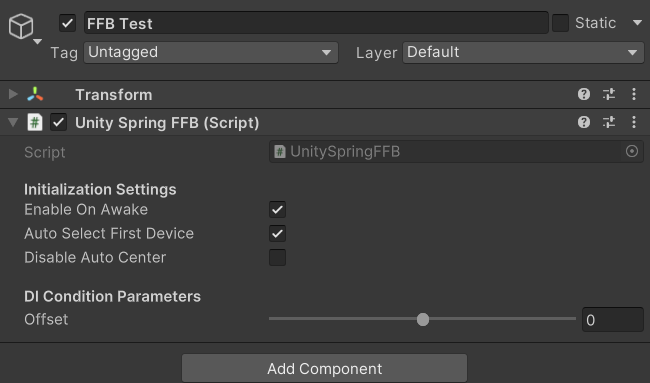
Initialization settings
These settings control how force feedback starts up.
Enable Disable Auto Center if the driver's own centering would otherwise add to the simulator's spring. Whether this works, and how it feels, depends on the device driver.
Spring coefficients and deadband
These settings shape the spring itself. In the Inspector they're grouped under DI Condition Parameters. Each value is multiplied by 10,000 before it's sent to DirectInput.
The same settings apply to every force feedback axis the device reports, and they're updated in FixedUpdate. Some devices ignore the separate negative-side values. Keep in mind that these are normalized requests, not torque in newton-metres.
Input Debugger
Unity's Input Debugger is the main tool for verifying that custom input devices work as expected. It lets you inspect connected devices in real time, observe input values, and confirm that inputs are registered correctly.
To open the Input Debugger, go to Window > Analysis > Input Debugger from Unity's main menu.
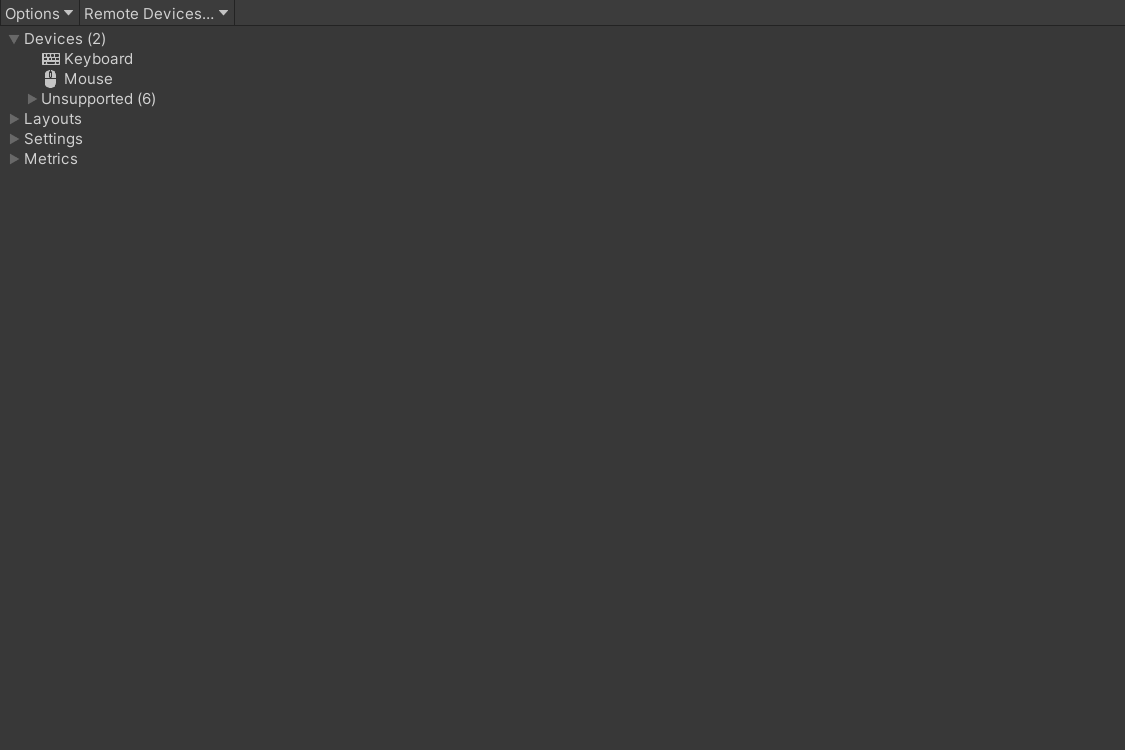
In the Input Debugger window, open the Devices list and check that both the Fanatec wheel (FanatecPodiumWheelDD2InputDevice) and the serial throttle/brake device (GryoorSerialInputDevice) appear. If the serial device's COM port cannot be found or opened, the device is removed from the list again, and the Console shows a warning or error.
Double-click a device to open a window with information about it, including the real-time state of its controls.
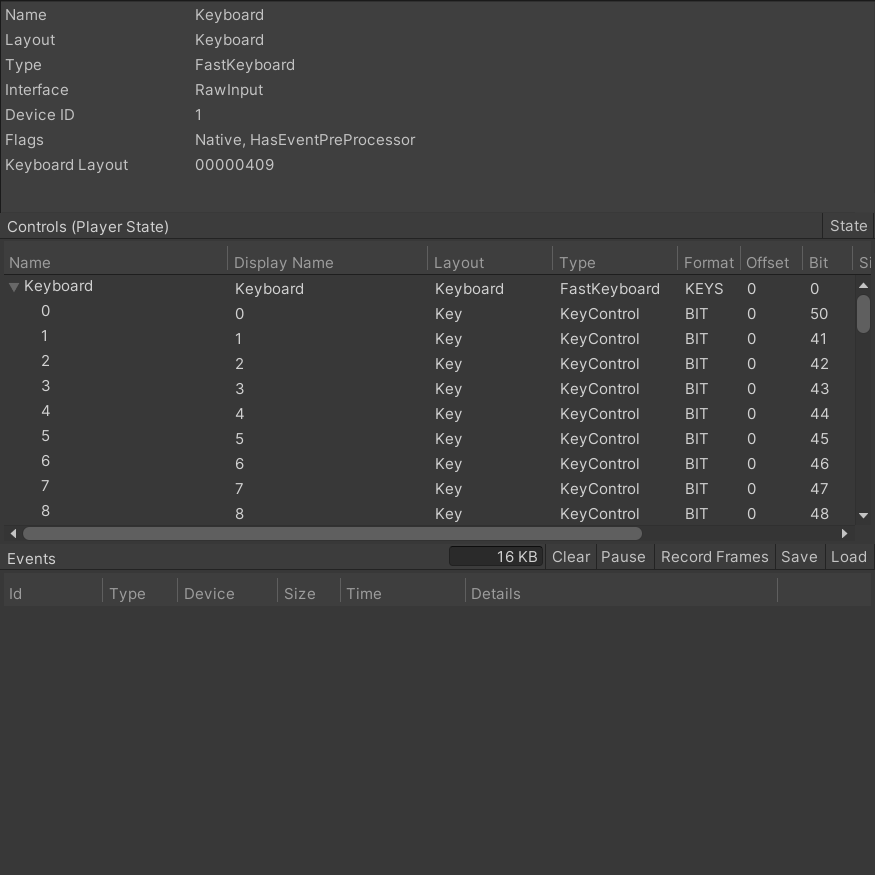
To verify the Gryoor setup, focus on two sections: Controls and Events.
- The Controls section lists all of the device's controls (such as throttle, brake, and steering) with their current values.
- The Events section lists the input events the device has generated over time. This shows you how the device is sending input to Unity. For the serial device, each valid data line produces one event.
For more information about the Input Debugger, see the official Unity Input System debugging documentation.
Create a custom input device
If you need to create your own custom device, Unity provides official guidance. You need to:
- Define a state struct that describes the device's memory layout.
- Create a class that inherits from
InputDevice(or another device type such asGamepadorJoystick). - Register the layout with Unity's Input System using
InputSystem.RegisterLayout<T>, and give it anInputDeviceMatcher.
This process requires C# programming experience and a solid understanding of how Unity's Input System works internally.
For detailed step-by-step instructions, see the official Unity Input System documentation.
If your hardware only needs to send one or two analog values, it is usually easier to make it speak the serial protocol above than to create a new device class.