Player Inputs
Unity supports input through two separate systems: an older one and a newer one. The simulator uses the newer Input System.
When a player presses a key on the keyboard, Unity detects that input. The input triggers the Action it's bound to. An Action defines what the input means (for example, Jump or Move), while a Binding specifies which device control performs that Action (for example, the Spacebar or a gamepad's A button). Unity keeps these definitions inside an Input Action Asset.
Input Actions Asset
An Input Action Asset is a file that defines a collection of Actions and their Bindings. To create a new asset, right-click in the Project window and select Create > Input Actions.
The simulator already includes the following preconfigured Input Action Assets:
-
Player Input Asset
Project path:Assets/mobisim/Input/InputActionAssets/PlayerInputAction.inputactions
Action Maps:Vehicle,Pedestiran,UI,Interaction System,Reload Level, andCamera. Control Schemes:KeyboardandFANATEC. -
Stroop Test Input Asset
Project path:Assets/mobisim/Assessment/StroopTest/StroopTestInputAction.inputactions -
VR Feedback Input Asset
Project path:Assets/mobisim/Input/InputActionAssets/VRFeedbackInputAction.inputactions -
Gaze Interaction Input Asset (VR)
Project path:Assets/mobisim/VR/GazeInteraction.inputactions
To change existing input bindings, edit these assets.
You edit Input Action Assets in the Action editor. Double-click any Input Action Asset to open it in the Action editor.
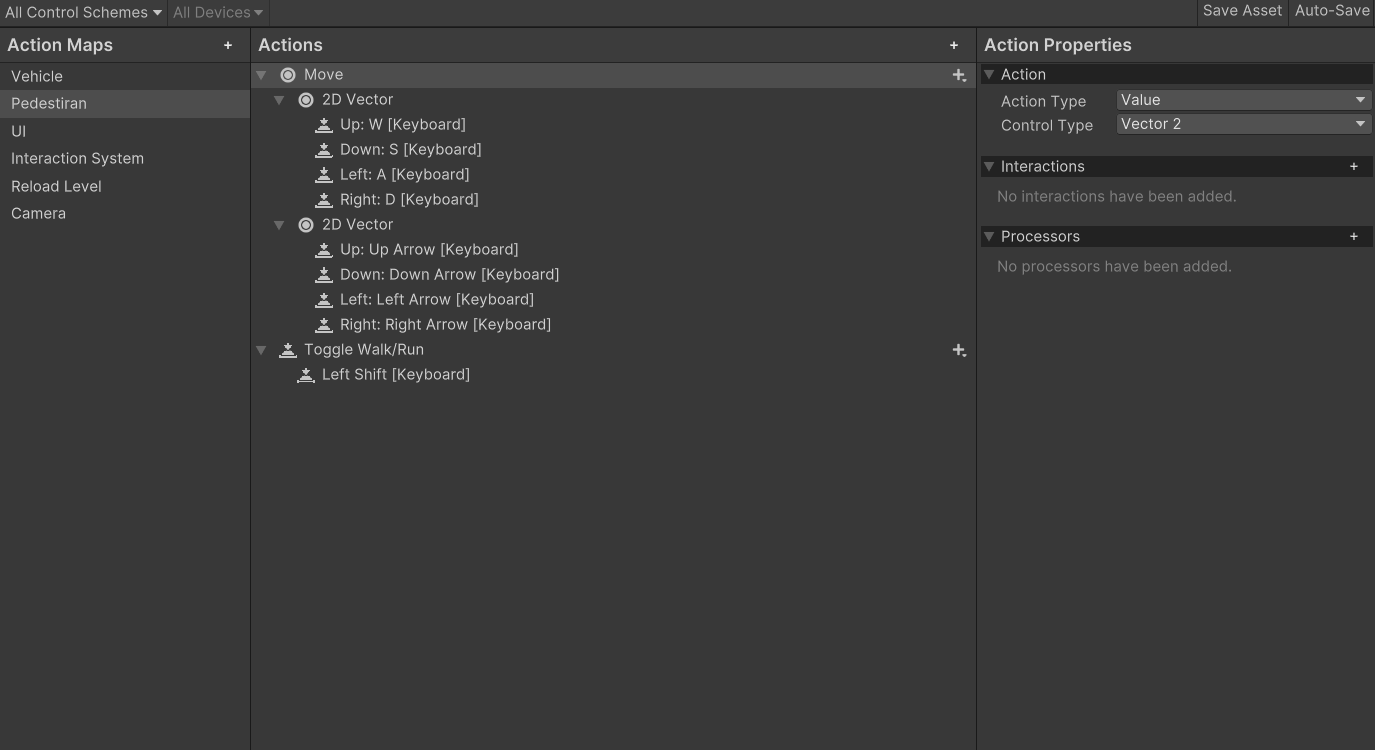
By default, Unity doesn't save edits you make in the Action Asset window when you save the Project. Select Save Asset in the window's toolbar to save your changes.

Alternatively, turn on auto-saving by enabling the Auto-Save checkbox in the toolbar.
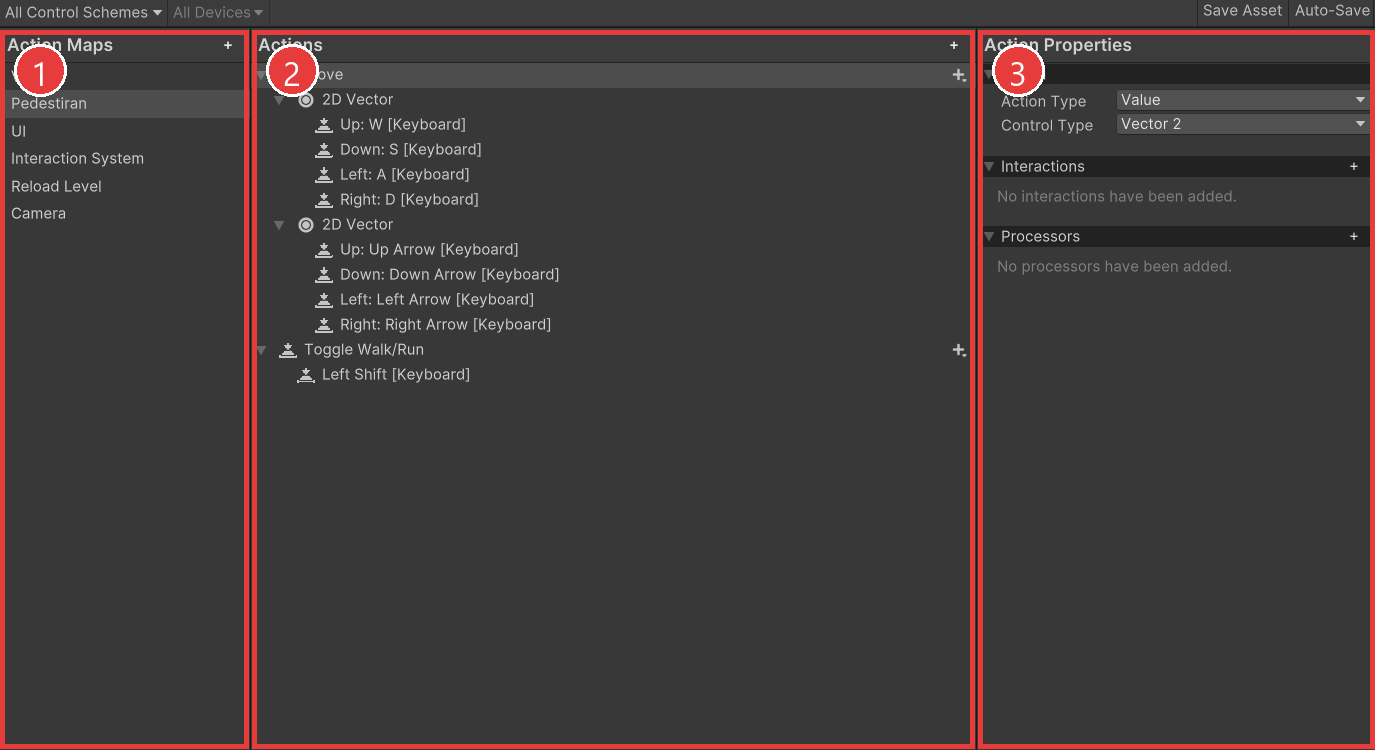
The Action editor window is divided into three panes:
- The left pane displays the Action Maps included in the Asset.
- The middle pane shows the Actions within the currently selected Action Map, along with the Bindings assigned to each Action.
- The right pane shows the properties for the currently selected Action or Binding.
Editing Action Maps

An Action Map is a collection of Actions that you can enable or disable in bulk. In the left pane, you can manage Action Maps in several ways:
-
Add a New Action Map – Click the Add (+) icon in the header of the Action Maps column.
-
Rename an Action Map – Long-click the Action Map name or right-click and select Rename. Names cannot contain slashes
/. -
Delete an Action Map – Right-click the Action Map and select Delete, or press the Delete key.
-
Duplicate an Action Map – Right-click the Action Map and select Duplicate, or press Ctrl+D.
Editing Actions
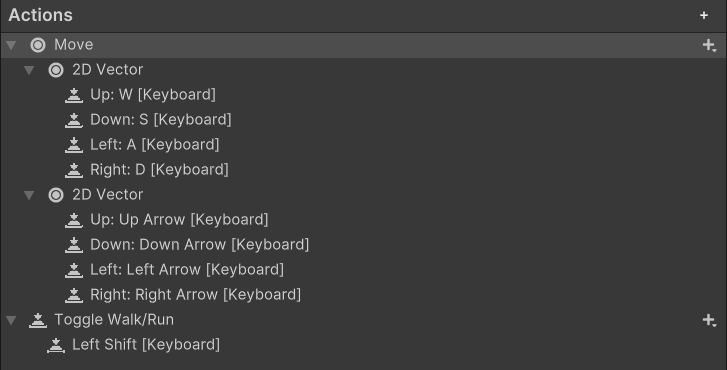
In the Actions pane, you can manage individual Actions in several ways:
-
Add a New Action – Click the Add (+) icon in the header of the Action column.
-
Rename an Action – Long-click the Action name or right-click and select Rename from the context menu.
-
Delete an Action – Right-click the Action and select Delete, or press the Delete key.
-
Duplicate an Action – Right-click the Action and select Duplicate, or press Ctrl+D.
If you select an Action, you can edit its properties in the right-hand pane of the window:
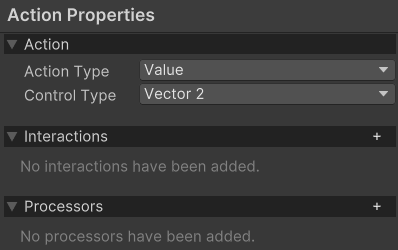
Action Type
The Action Type defines how the Action interprets input from controls. The available types are:
Control Type
The Control Type determines what kind of control the Action expects. It filters which controls are available when you create bindings, showing only those that match the selected control layout. This setting is only configurable for Actions with an Action Type of Value or PassThrough.
You can check the available layouts using the Input Debugger.
Editing Bindings
In the middle pane, you can manage bindings for each Action in several ways:
-
Add a New Binding – Click the Add (+) icon on the Action you want to add a binding to, then select the binding type from the menu.
-
Delete a Binding – Right-click the binding and select Delete, or press the Delete key.
-
Duplicate a Binding – Right-click the binding and select Duplicate, or press Ctrl+D.
If you select a Binding, you can edit its properties in the right-hand pane of the window:
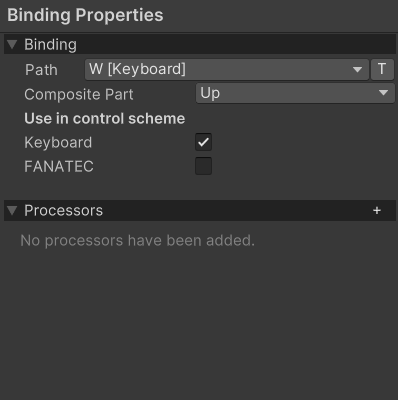
Binding Controls
The most important property of any Binding is the control path it's bound to. To edit it, open the Path drop-down list. This opens the Control picker window.
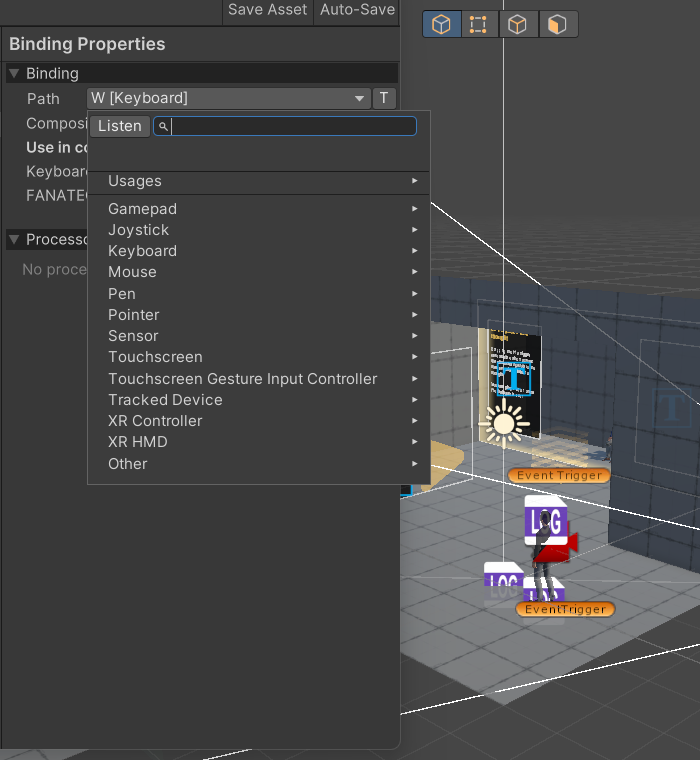
In the Control picker, you can browse all the input devices and controls that Unity recognizes. The list is automatically filtered based on the Action's Control Type.
The device tree goes from general to specific. For example:
<Gamepad>/buttonSouthmatches the bottom action button on any gamepad.<DualShockGamepad>/buttonSouthonly matches the Cross button on a PlayStation gamepad.
Instead of browsing the tree, you can let Unity detect input automatically:
- Click the Listen button.
- Press the buttons or move the controls on the device you want to bind.
- The picker shows matching controls. Select the one you want to use.
Editing Composite Bindings
Composite Bindings are made of multiple parts that work together to act as a single control. For example, a 2D Vector Composite uses four buttons (Left, Right, Up, Down) to simulate a joystick or stick input.
To create a Composite Binding, in the Action editor window, select the Add (+) icon on the Action you want to add it to, and choose Composite Binding from the popup menu.
The Composites shown in the menu are filtered based on the Action's Control Type.

A Composite Binding consists of multiple Binding entries: one for the Composite as a whole, and one for each Composite part. The Composite itself does not have a Binding path, but each part does. You can edit these paths like any other Binding.
Multiple Bindings can be assigned to the same part. You can also duplicate individual part Bindings by right-clicking the Binding and selecting Duplicate, creating new part Bindings for the Composite.
For example, you can use this to create a single Composite that works with both WASD-style controls and the arrow keys.
Editing Control Schemes
A Control Scheme groups Bindings for different types of input devices. For example, you might have separate Control Schemes for Keyboard & Mouse and for Gamepad. Each Control Scheme determines which Bindings are active depending on the device the player is using. Input Action Assets can have multiple Control Schemes.
To see the Control Schemes in the Action editor window, open the Control Scheme drop-down list in the top left of the window.
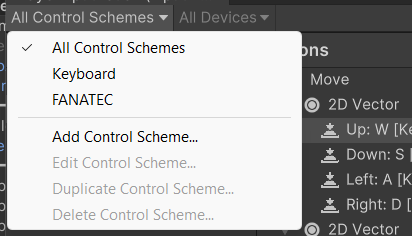
This menu lets you add Control Schemes to your Asset or remove them. If the Asset contains any Control Schemes, you can select one, and the window then shows only the bindings that belong to that Scheme.
If you select a binding, you can pick the Control Schemes in which it should be active in the Properties view on the right of the window.
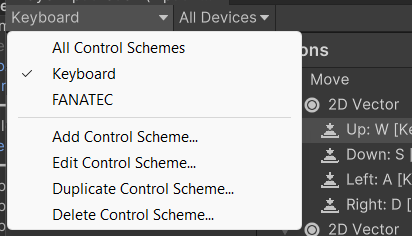
When a Control Scheme is selected in the menu, you can edit, delete, or duplicate it using the corresponding menu options.
Using Input Action Assets with the PlayerInput Component
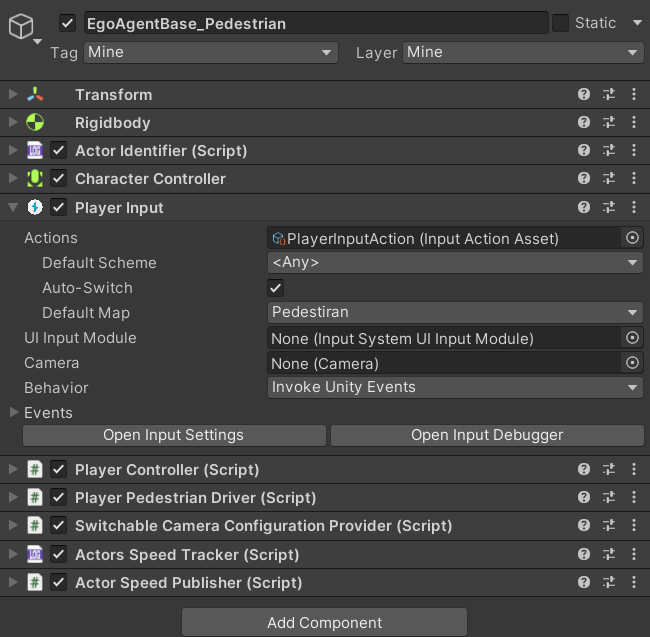
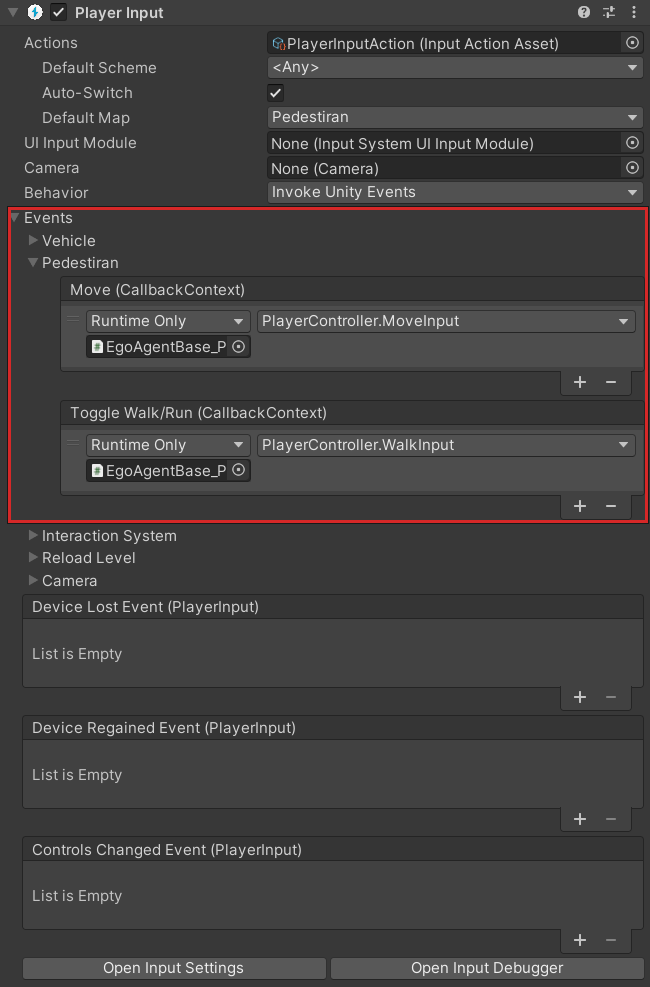
The Player Input component is the bridge between your Input Actions Asset and the GameObject in your scene or prefab. It listens for input defined in the Asset and triggers the Actions you set up, so your GameObject can respond, for example by moving a character, jumping, or interacting with the environment.
To get started with the Player Input component:
-
If the GameObject that should receive input does not already have a Player Input component, add one to the GameObject in the scene or to the prefab that will be spawned.
-
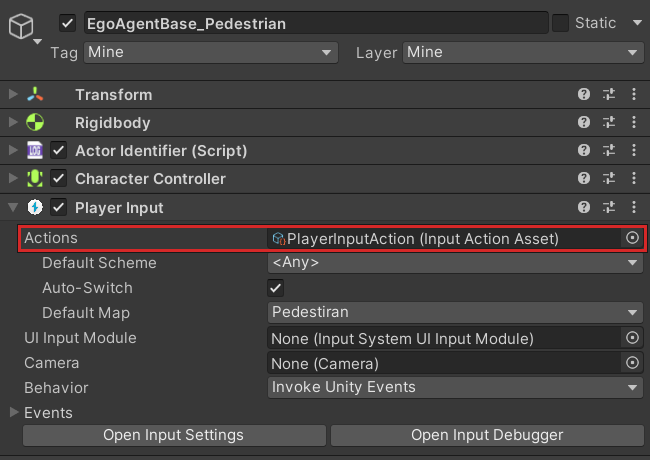
Assign your Input Actions Asset to the Actions field of the Player Input component.
-
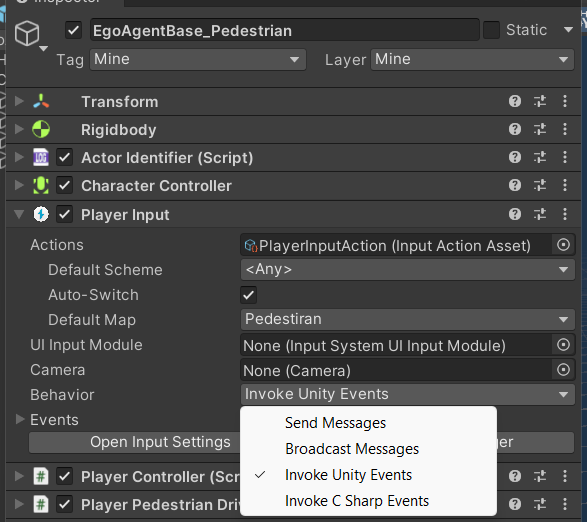
Set up Action responses by selecting Invoke Unity Events from the Behavior drop-down in the Player Input component.
-
Open the Events foldout in the Player Input component. You'll see a list of the Actions from your Input Actions Asset. Assign Unity Events to these Actions the same way you would with any other Unity Event.