UI Overlay Scene
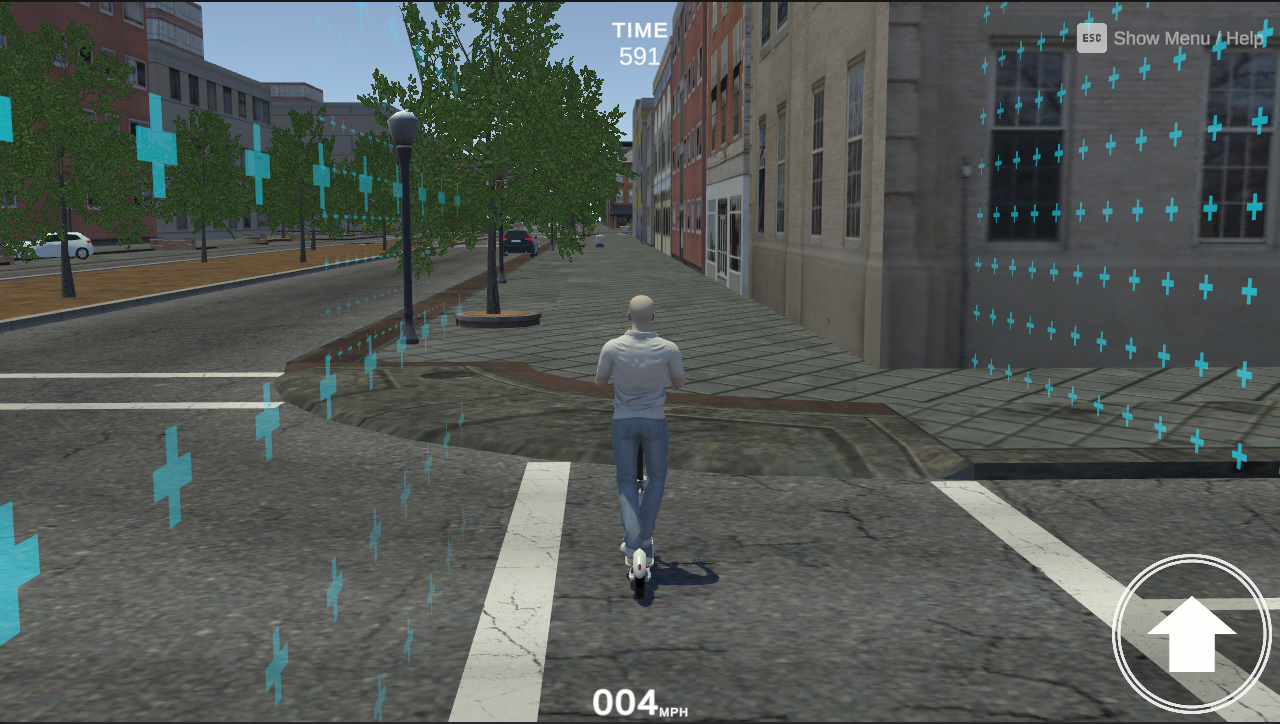
The UI Overlay Scene holds the HUD participants see during a scenario, such as the speedometer, the timer, navigation arrows, and progress bars. It's a separate scene that contains only UI. When a scenario starts, the Player Selector loads the overlay on top of it, so all your scenarios can share one HUD instead of each building its own.
You choose which overlay a scenario uses in the Player Selector's UI Scene Asset field. See Choosing a UI Preset to learn how.
What's in the Overlay
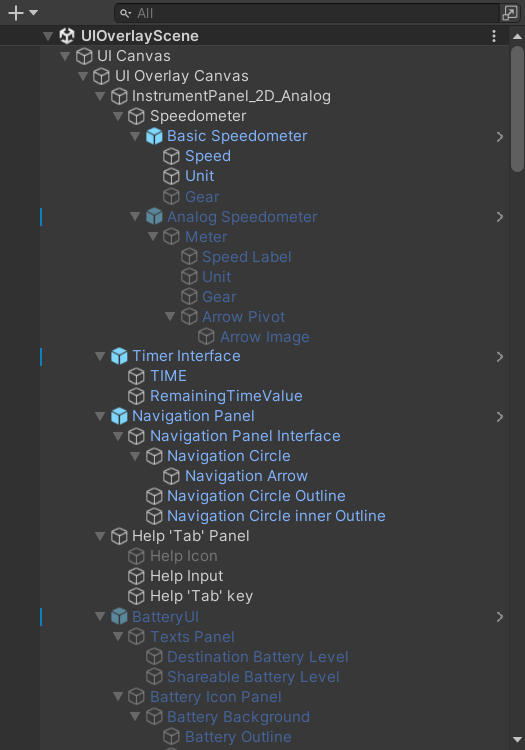
The default overlay is UIOverlayScene, in Assets/mobisim/Scenes/Scenes. It's made of separate modules, one for each HUD element. Here's where to find each one in the Hierarchy:
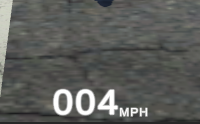
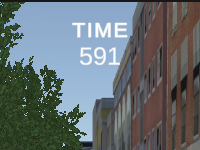
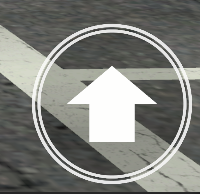
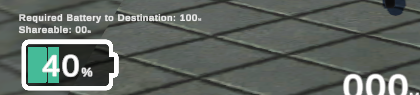
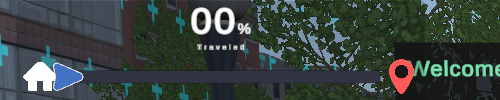
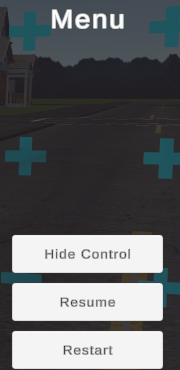
Some modules have their own page that explains how they work: Speedometer and Help Panel and Menu.
In your own overlay, you can:
- Turn modules on or off.
- Move and resize panels on the Canvas.
- Swap sprites, fonts, colors, and materials to match your study.
- Add your own UI prefabs that respond to scenario events.
Making Your Own Overlay
The default overlay works for most scenarios, but your study might need something different, such as a minimal HUD with only a timer, or an extra panel for a particular task. Instead of editing the default, make a copy and change that.
In the Project window, select UIOverlayScene in Assets/mobisim/Scenes/Scenes and press Ctrl+D (Windows) or Cmd+D (macOS). Give the copy a name that says what it's for.
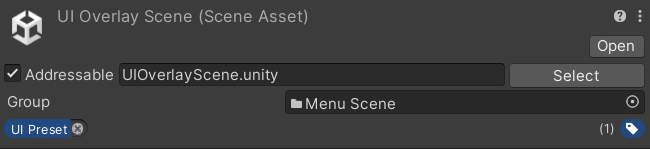
With the copy selected, enable Addressable in the Inspector. Then open the Addressable Labels drop-down and select UI Preset. The Player Selector only lists scenes with this label.
Open the copy and change it however you need. Then select it in the Player Selector's UI Scene Asset field in each scenario that should use it.
How the Overlay Is Rendered
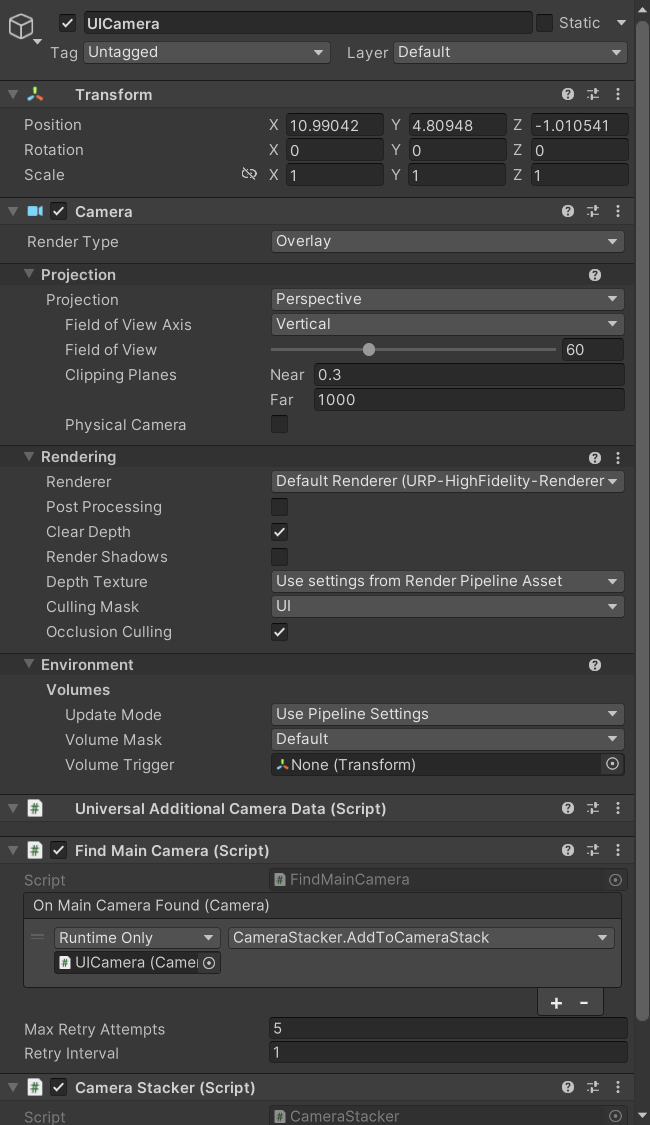
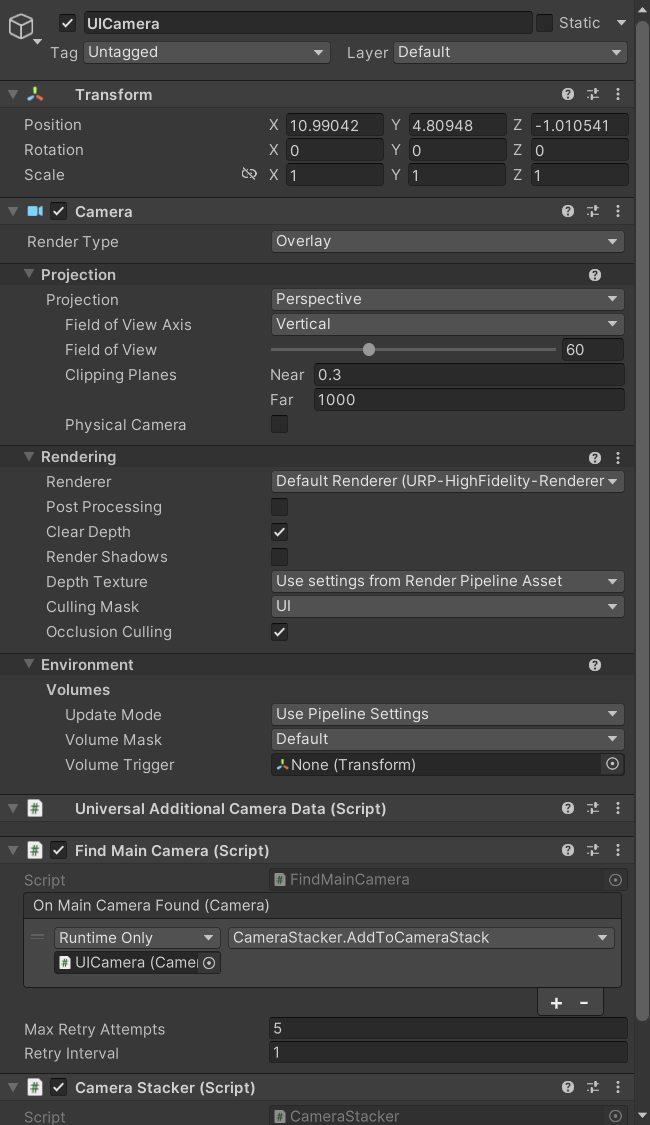
The overlay has its own UI Camera, which draws all the HUD elements. When the overlay loads, it finds the main camera in your scenario and adds the UI Camera to that camera's stack, using Unity's camera stacking. The FindMainCamera and CameraStacker components in the overlay handle this for you.
The UI Camera only draws objects on the UI layer, which has two consequences:
- Everything in the overlay must be on the UI layer, or it won't appear.
- In-world UI in your scenario, such as a screen or a sign, must not be on the UI layer. Otherwise both cameras draw it, and it appears twice.