Speedometer
A speedometer shows participants how fast they're going. The default UI overlay already has one, so you may only need this page when you want a different style of speedometer, or when the reading doesn't look right.
How Speed Reaches the Speedometer
The speed passes through a few components on its way from the vehicle to the screen. The overlay is a separate scene from your scenario, so the speed is broadcast from the vehicle and picked up again in the overlay.
- 1Speed TrackerMeasures how fast the vehicle is moving.
- 2Speed PublisherSends the speed out from the vehicle.
- 3Speed RelayPicks up the speed in the overlay.
- 4SpeedometerShows the speed on screen.
If the speedometer is in the same scene as the vehicle, you can skip the relay and connect the publisher straight to the speedometer.
Speedometer Prefabs
Start from one of the ready-made prefabs in Assets/mobisim/User Interface/Prefabs/Speedometer. Their visuals are already wired up, so you only need to connect the speed.
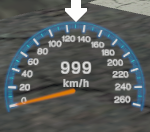
Analog Speedometer.prefab
Basic Speedometer.prefab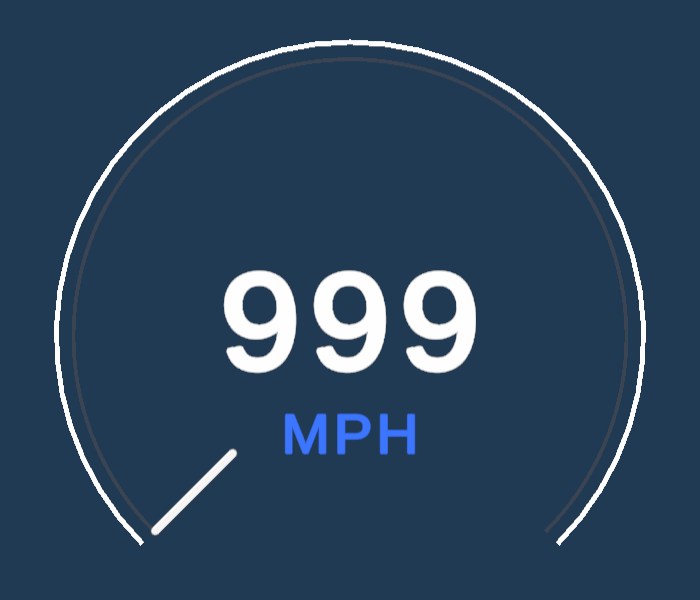
Vector Speedometer.prefabSpeed Tracker
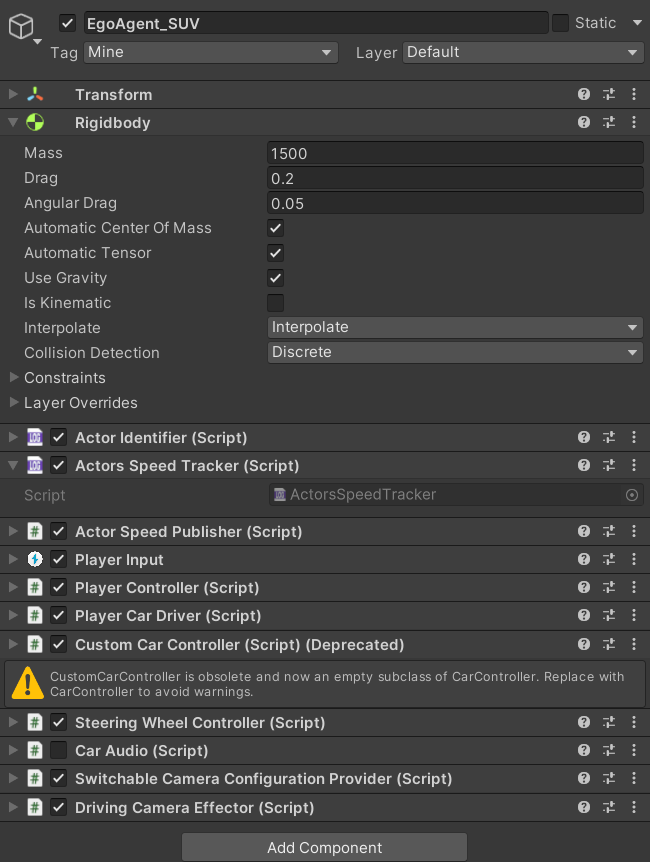
Add ActorsSpeedTracker to the vehicle or character whose speed you want to show. It works out the speed from what it finds on the same GameObject: a Rigidbody if there is one, otherwise a CharacterController, and if there's neither, from how the object's position changes.
The tracker measures speed along the object's forward axis. Moving forward gives a positive speed and reversing gives a negative one, while sideways movement only partly counts. So check that the object's forward axis points the way it normally travels.
Units
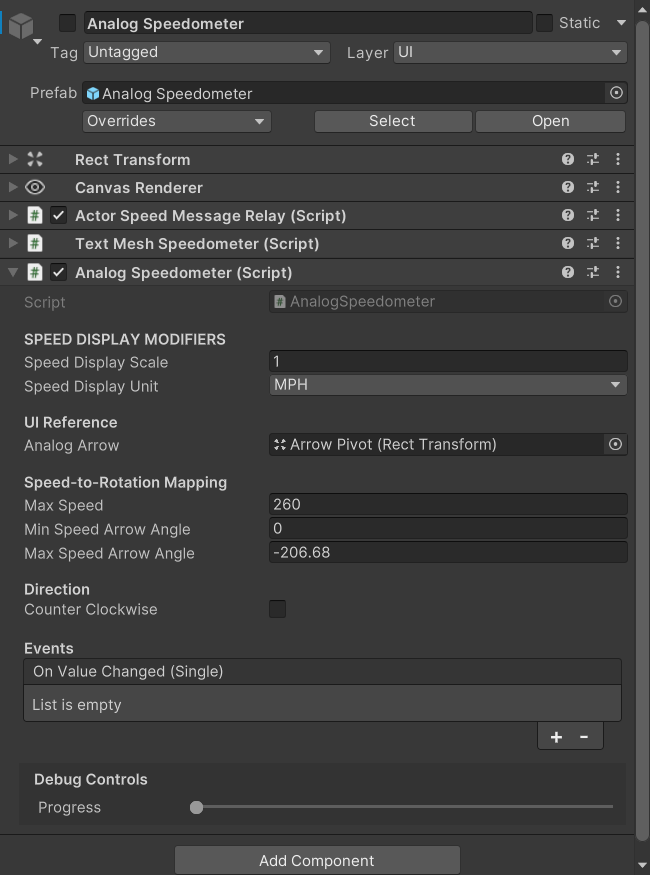
Speed is always passed between components in metres per second. Each speedometer converts it for display, so you set the unit on the speedometer, not on the tracker:
- Choose the unit in Speed Display Unit.
- Leave Speed Display Scale at
1unless you want to scale the reading.
The speedometer always shows a positive number, even when the vehicle is reversing.
The tracker also offers the speed in other units through SpeedMPH and SpeedKPH. Some Inspector fields use a SpeedDataType, which pairs a number with a unit. Its value is already converted to metres per second, so pass it to a speedometer as it is.
Speed Publisher
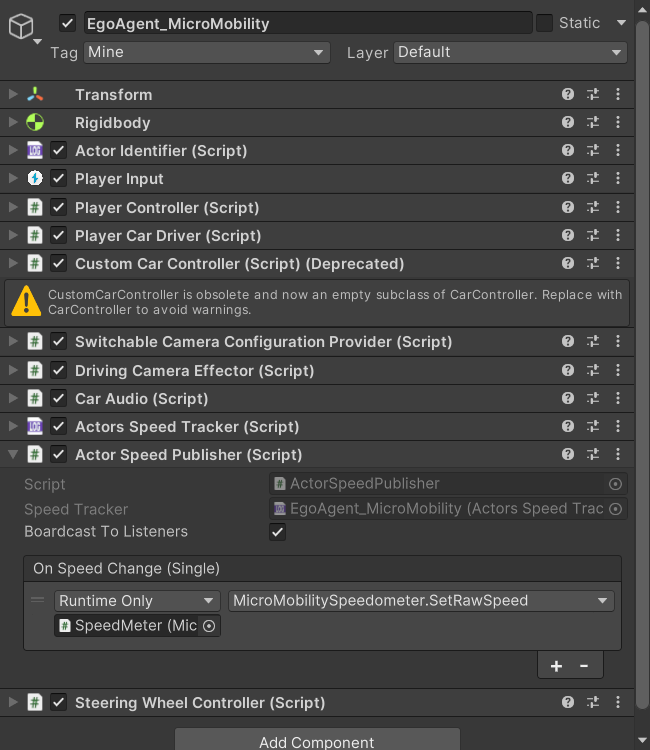
Add ActorSpeedPublisher to the same object as the tracker, and check that its Speed Tracker field points to it. The publisher sends out the speed every frame, in one or both of these ways:
- On Speed Change: an event for a speedometer in the same scene. Add a listener, assign the speedometer, and choose
SetRawSpeedfrom the dynamic float methods. - Broadcast: for a speedometer in another scene, such as the overlay. Broadcast is off by default. Turn it on with the broadcast checkbox (named
_BoardcastToListenersin the script).
Broadcast speed doesn't say which vehicle it came from, and every relay picks it up. Turn on broadcast only for the participant's vehicle. To show another actor's speed, use On Speed Change instead.
Speed Relay
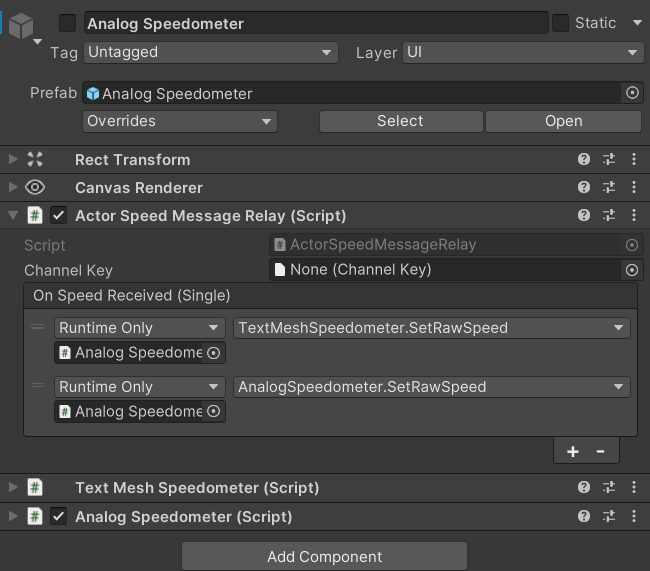
In the overlay, ActorSpeedMessageRelay receives the broadcast speed and passes it on. Connect its On Speed Received event to the speedometer's SetRawSpeed method.
Broadcasting relies on the simulator's services, which your scenario's normal setup starts. If you've removed that setup, the relay won't receive anything.
Speedometer Types
Every speedometer receives the speed through SetRawSpeed and uses the unit settings above. They differ in how they draw it.
Analog
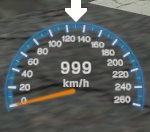
AnalogSpeedometer turns a needle between two angles.
To check the needle without driving, drag the Debug Controls > Progress slider in the Inspector.
Text
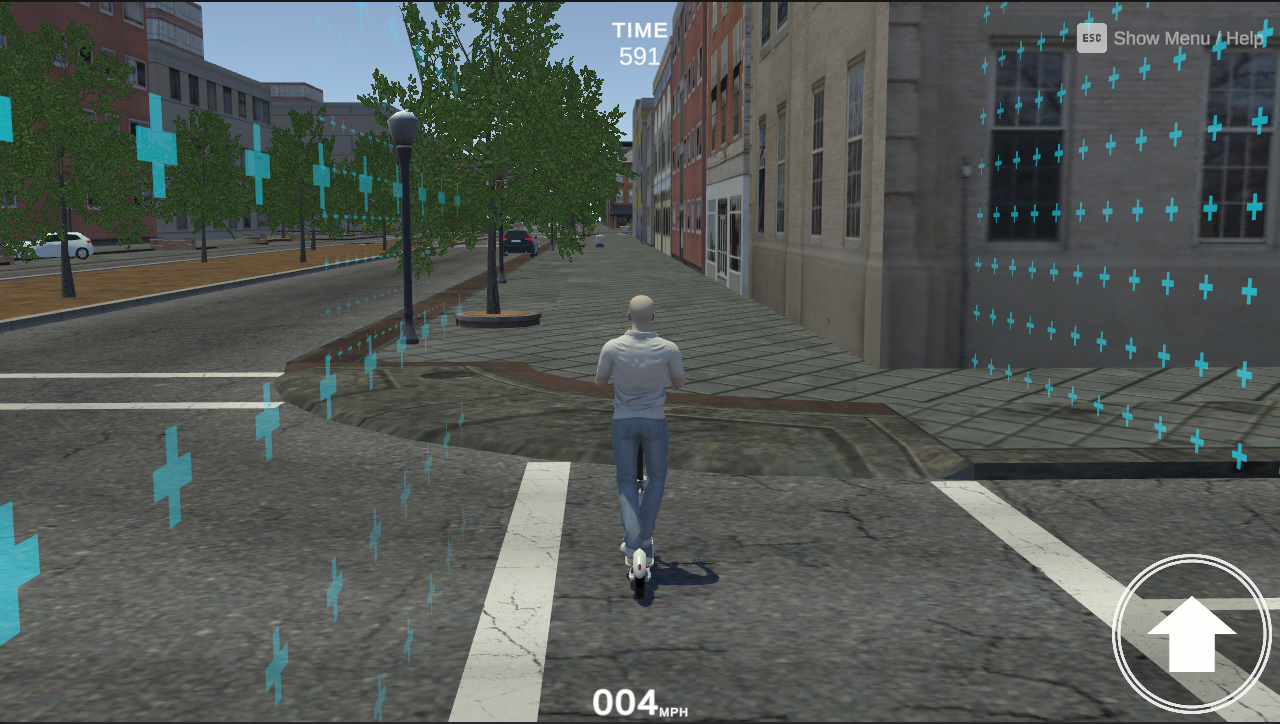
TextMeshSpeedometer writes the speed into a text label. Assign the label to Speed Label, and optionally assign another label to Unit Label to show the unit.
To control how the number looks, enable Format and enter a number format, such as F0 for whole numbers or F1 for one decimal place.
Format starts out as D3, which only works with whole numbers, so the speedometer can't use it. When you add this component, change it to F0, F1, or 000.
Shader
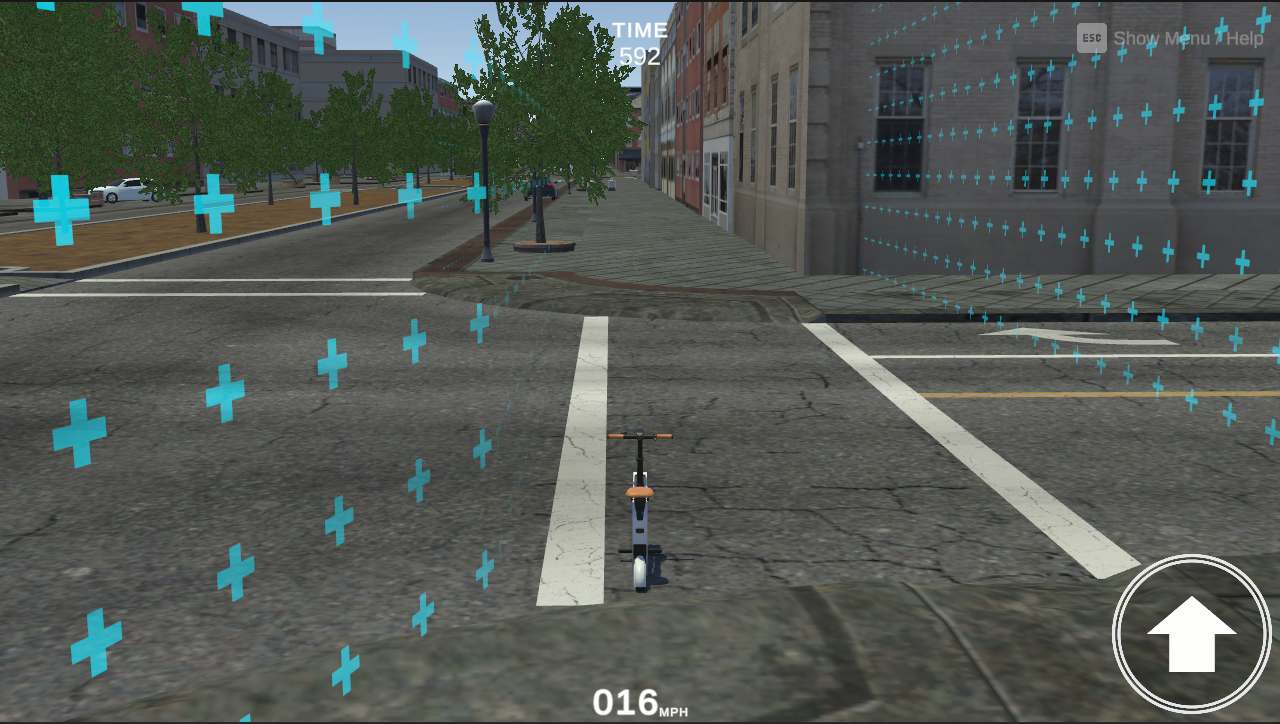
ShaderSpeedometer passes the speed to a material, and the material's shader draws the display. The shader needs a _Speed property.
Micro-Mobility Digits
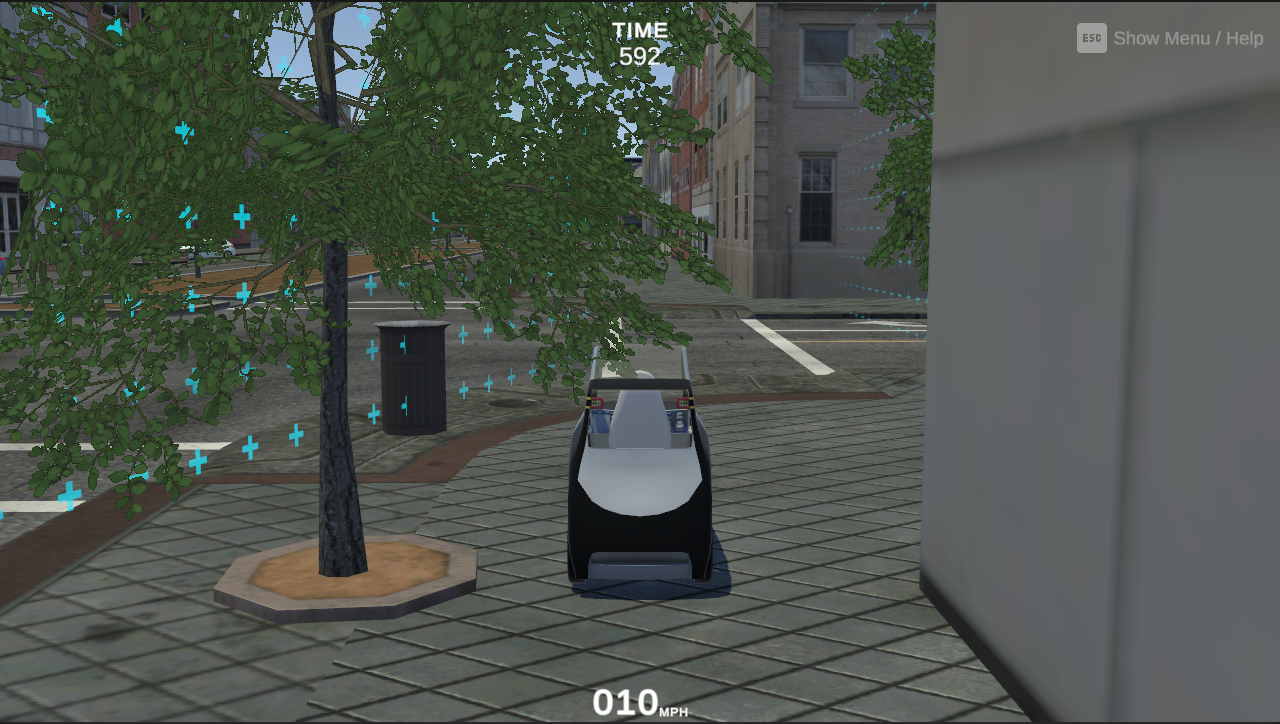
MicroMobilitySpeedometer shows the speed as three 3D digits, like the dashboard on a micro-mobility vehicle. Assign a RendererTextureDivider to Speed Meter One, Speed Meter Ten, and Speed Meter Hundred. The existing dashboard setup is a good reference for the digit textures.
It shows whole numbers up to three digits, and updates every Update Interval (0.2 seconds by default).
Adding a Speedometer to Your Overlay
Add a speedometer prefab under the overlay's Canvas, and set its anchors and size.
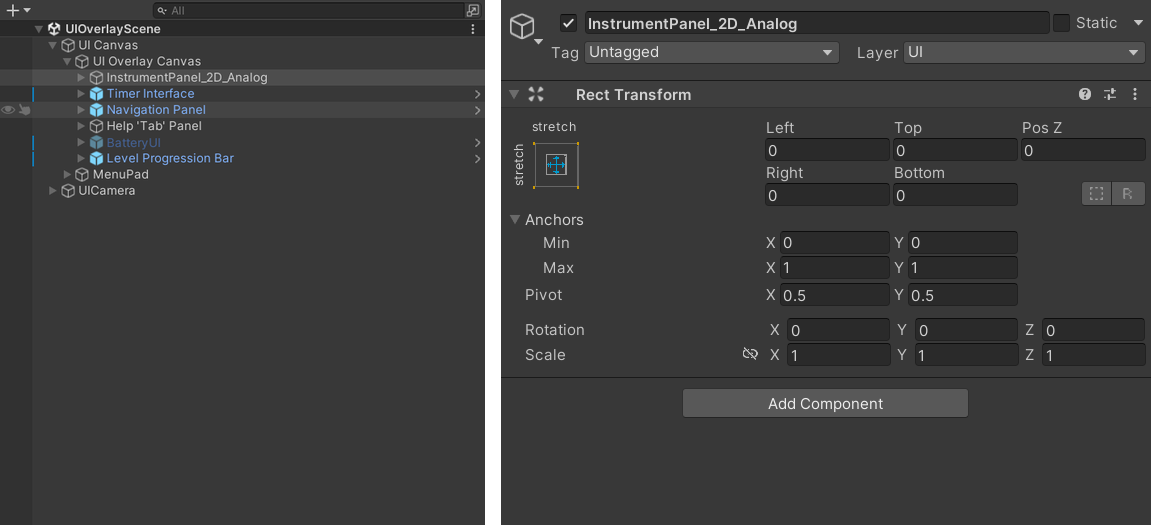
Set Speed Display Unit to the unit your participants expect.
Add an ActorSpeedMessageRelay to the overlay, or use one that's already there. Connect its On Speed Received event to the speedometer's SetRawSpeed.
On the participant's vehicle, turn on broadcast in ActorSpeedPublisher. Leave it off on every other actor.
Run a scenario that uses the overlay. Check the reading while standing still, driving forward, and reversing.
Follow the speed along its path. Check the tracker on the vehicle first, then the publisher's tracker field and broadcast setting, and then the relay's event connection. For a text speedometer, also look in the Console for a number format error.