Help Panel and Menu
The help panel shows participants the controls for whatever they're controlling, so someone on a scooter and someone on foot each see their own. The menu opens when participants press Escape, and you can fill it with the help panel or any other options your study needs.
Both are already in the default UI overlay. To build your own, start from the prefabs in Assets/mobisim/User Interface/Prefabs/Help UI Prefab, and use UIOverlayScene as a reference for how they're connected.
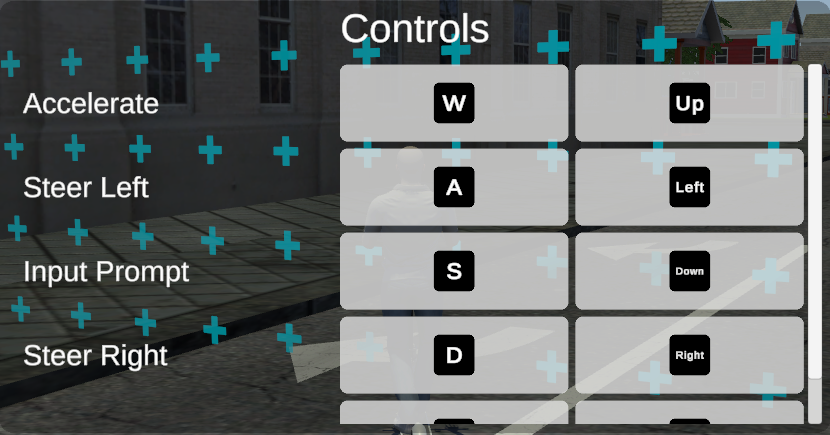
Help Panel
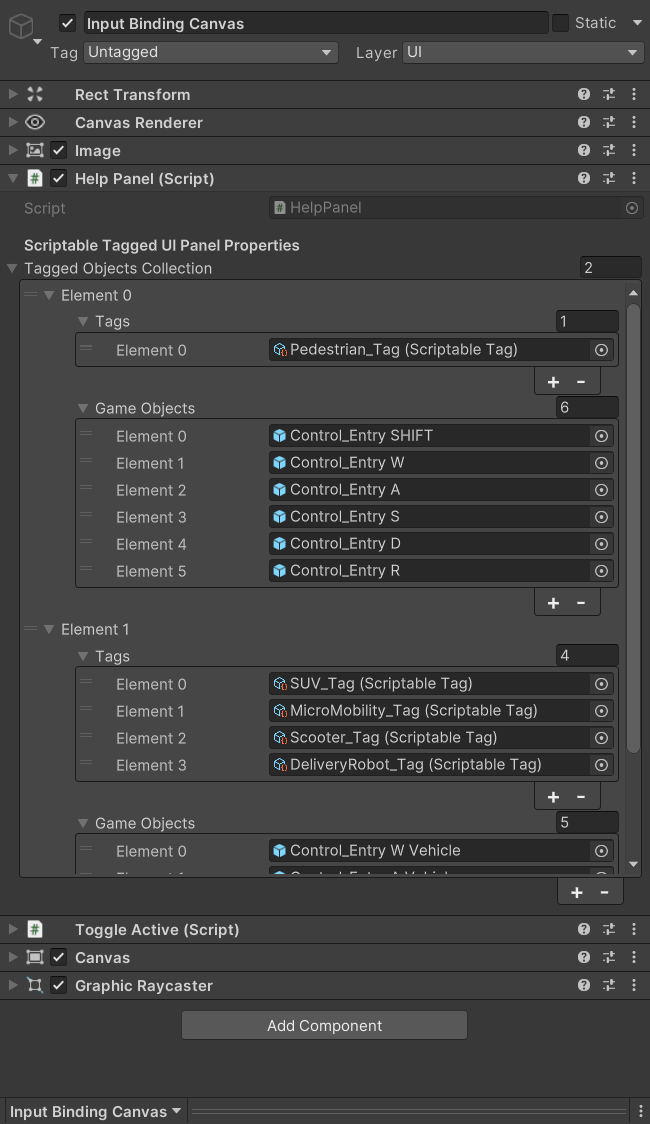
The help panel holds a set of control explanations, and the HelpPanel component decides which of them to show. In its Tagged Objects Collection, add one entry for each set of controls, such as one for the scooter and one for walking.
When the panel opens, it hides all the explanations, asks which tags the participant's actor has, and then shows every entry with a matching tag.
A few things to keep in mind:
- Use the same tag assets as the actor. A different tag asset doesn't match, even if it has the same name.
- The panel checks only when it opens. If the participant switches actors, close and reopen the panel to update it.
- The panel depends on the scenario's standard setup to answer its question about tags. If that setup is missing, the panel stays empty.
Help That Belongs to One Overlay
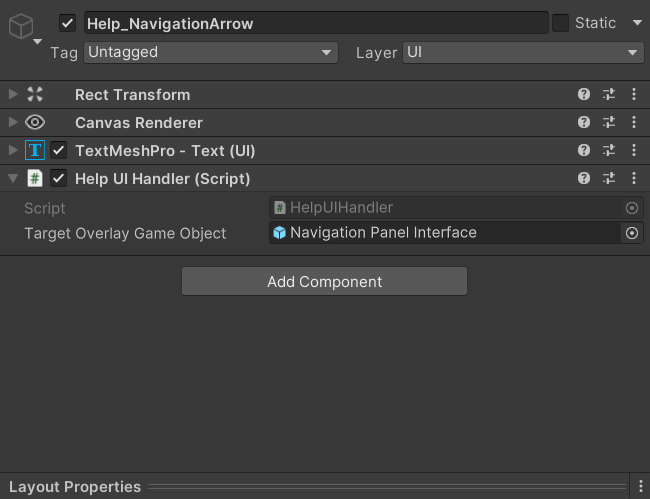
Some help only makes sense while a particular panel is on screen, for example instructions for a navigation display. Add HelpUIHandler to that help and assign the panel to Target Overlay GameObject. The help then only shows while that panel is active.
Like the help panel, it only checks when it opens. To make it check again, reopen it, or call OnMenuOpen() from a button or event.
Key Press Indicators

A key press indicator is a key icon that lights up while the participant holds that key down. To make one:
- Add
KeyButtonUIHandlerto the key icon, and set Key to the key it represents. - Give the icon an Animator whose controller has a Boolean parameter named exactly
Pressed.
While the key is held, Pressed is true, and your animation shows the key as pressed.
Key is a fixed keyboard key. If you change the control in the Input System, update Key to match.
Showing a Control's Current Key
To show which key or button is assigned to an action, for example in a list of controls, use InputActionBindingUI. The Input Binding Field prefab in the help prefab folder is a good place to start.
If the label stays empty, check that the action is assigned and that Binding Id is one of its bindings.
This component shows the current key, but participants can't use it to change their controls. If your study needs rebinding, you'll have to add that separately. If something else changes a binding while the scenario runs, call UpdateBindingDisplay() to refresh the label.
Menu
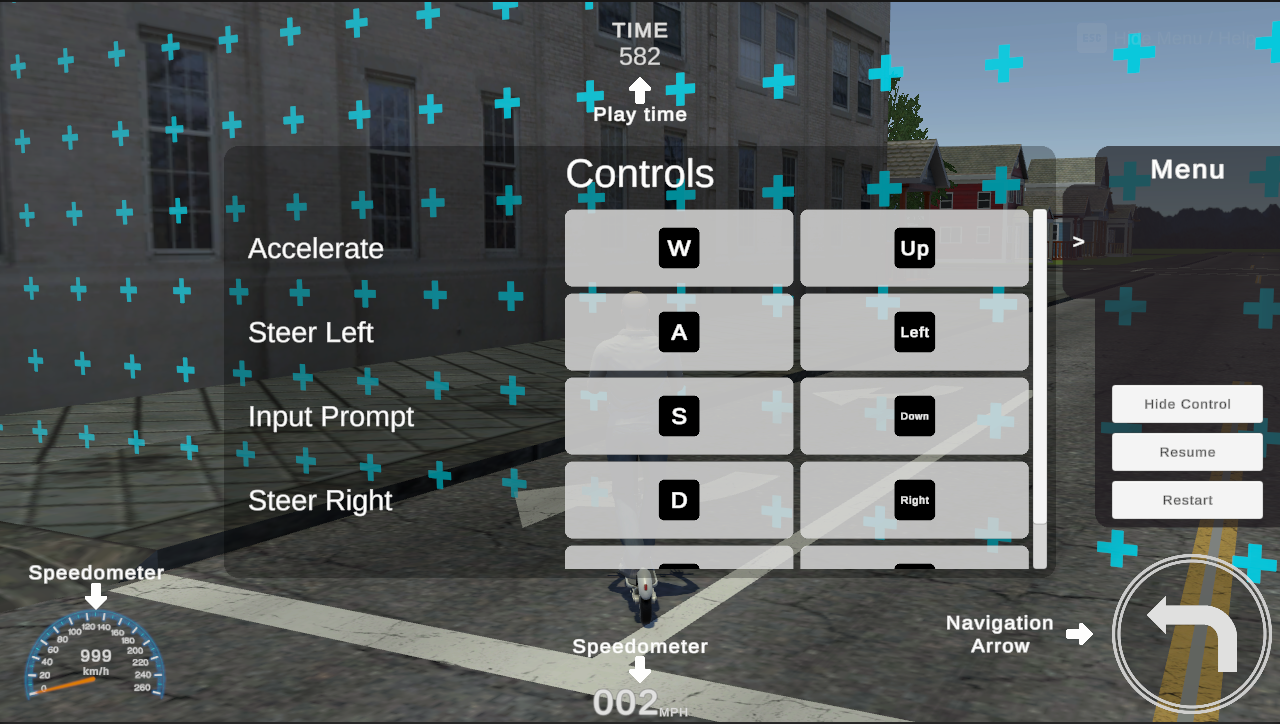
The menu opens and closes when the participant presses Escape. It's handled by the MenuPad component.
Add MenuPad to a GameObject that stays active while the menu is closed, not to the menu itself. Otherwise it stops listening for Escape as soon as the menu closes.
Assign the menu's root GameObject to Toggleable Menu. This is what gets shown and hidden.
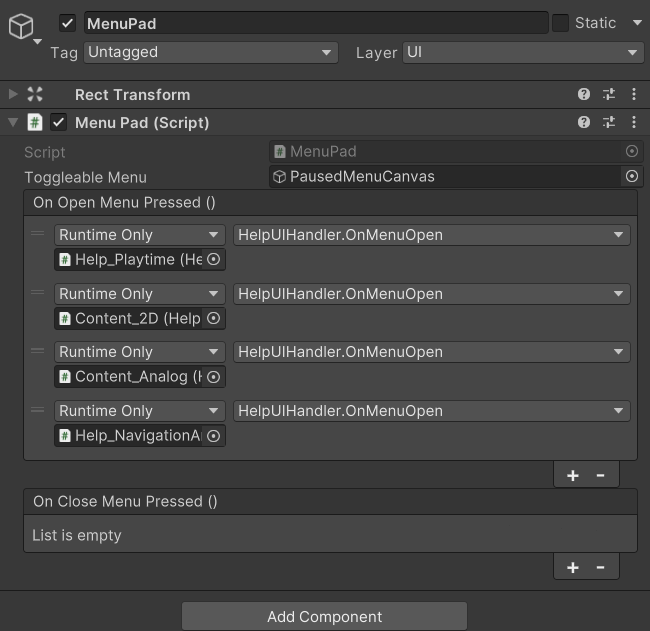
Use On Open Menu Pressed and On Close Menu Pressed for anything else that should happen when the menu opens or closes. Buttons in your menu can also call OpenMenu() and CloseMenu().
Enter Play mode, press Escape to open the menu, and press it again to close it.
Opening the menu only shows it. The scenario keeps running, the participant's controls stay active, and the cursor doesn't change. If the menu should pause the scenario, do that in On Open Menu Pressed, and undo it in On Close Menu Pressed.
Sliding Panels
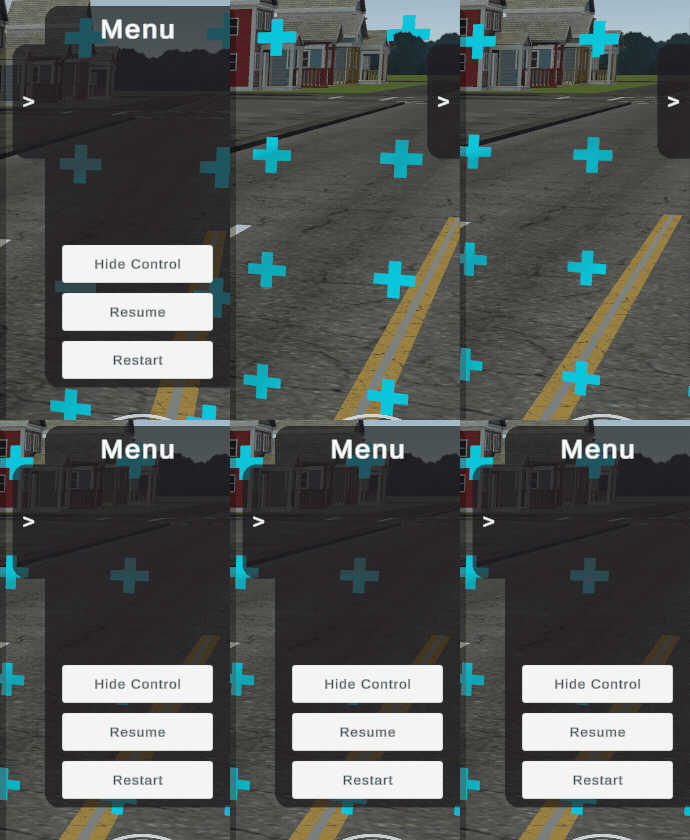
ToggleMenu makes a panel slide in and out, for example a side panel inside the menu. Connect a button to its TweenMenu() method. The first click slides the panel out by its own width or height, and the next click slides it back.
The slide runs on game time, so it stops if you pause the scenario by setting the time scale to zero. If your menu pauses the scenario that way, test the slide with the pause.