Available Tracks
In addition to Unity's standard tracks, this project ships five specialized Timeline tracks built for scenario authoring. Select a track to see what it does:
GameObjectTrafficSignalControllerTextMeshProUGUITypewriterEventMarkerReceiverAI Command Track
The AI Command track scripts movement for actors. Each clip issues a single movement command when it becomes active. The Command Type of a clip is one of Go To Location (move to the clip's Target Position), Go To Transform (move to the clip's Target Unit), or Stop. Clips are automatically renamed after their command type. Each command is issued once per runtime session; looping or scrubbing the timeline back over a clip does not re-issue the command.
When previewing the timeline in the Editor, actors slide directly toward their target positions as a rough visual guide. The speed, path, and travel time shown in preview are approximations and do not match what happens when the scenario actually runs.
Because the timeline does not wait for an actor to finish moving, the next event in the sequence may trigger before the actor arrives. To fix this, add a Time Machine Track and place two clips on it after the movement command: a Marker clip to mark the start of the wait, then a Jump to Marker clip pointing back to it with condition Object at Location and Invert Condition enabled. The timeline keeps looping back over that section until the actor is close enough to the destination, then continues automatically.
For full actor setup and command types, see Making Road Agents Move.
Time Machine Track

The Time Machine track controls playback of the timeline itself.
Actions
Each clip on a Time Machine Track has an action that determines what it does when its condition is met.
Conditions
Every action except Marker fires only when its condition is satisfied. Use this to make the timeline respond to what is happening in the scene.
The Invert Condition toggle reverses the result. For example, Object at Location with invert enabled becomes "object has not yet reached the location." The toggle applies only to the two position-based conditions.
Distance is measured on the flat plane only, so height differences between objects are ignored.
Common Patterns
- Wait for actor: Place a Marker clip at the start of the wait, then a Jump to Marker clip pointing back to it with Object at Location and Invert Condition enabled. The timeline loops until the actor arrives.
- Conditional branch: Use a Pause clip with Always to hold the timeline at a decision point, then resume it externally based on a player action or UI event.
Traffic Signal Track
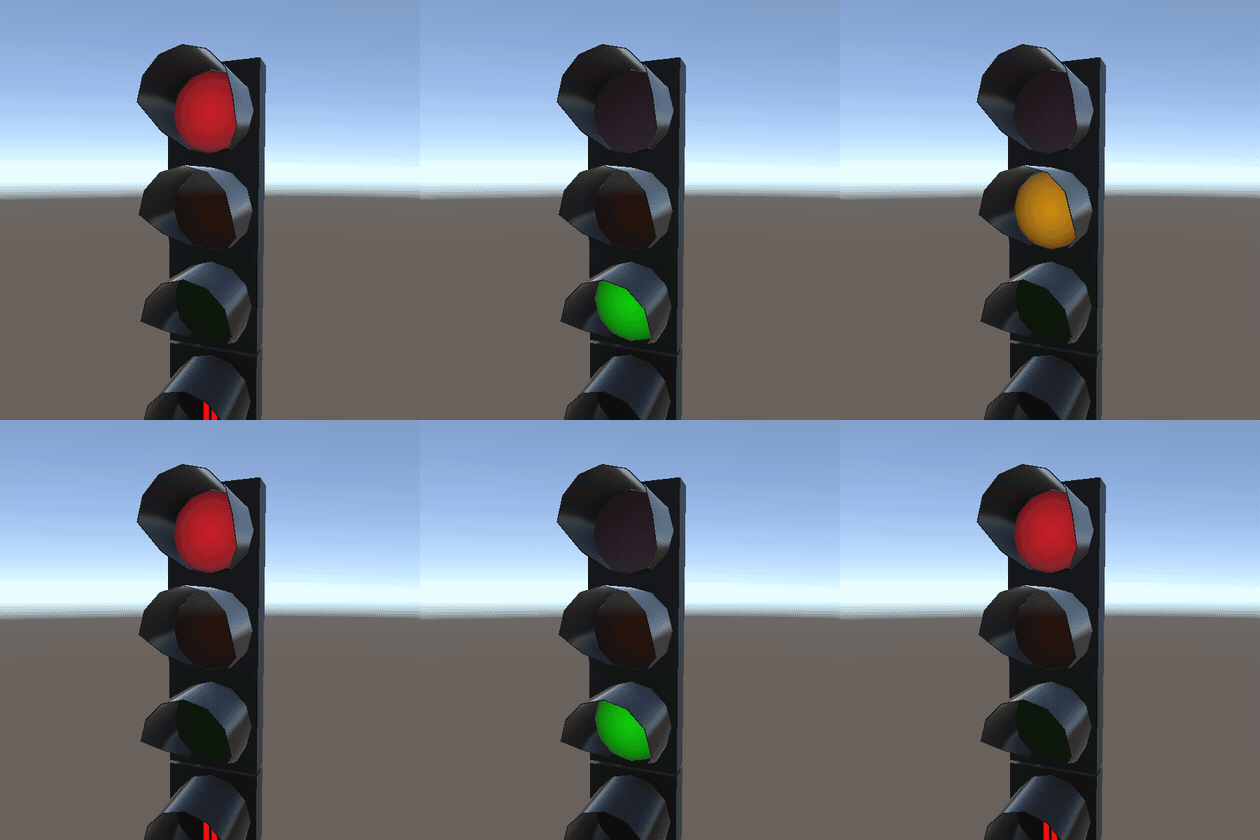
The Traffic Signal track controls the color and state of a traffic light over time. Each clip sets the light to a specific color for as long as the clip lasts. You can add multiple Traffic Signal tracks to the same timeline to control several lights at once.
A traffic light can show only one color at a time, so clips on this track should not overlap. If two clips do overlap, only one color takes effect.
Each clip has a Signal (Off, Red, Green, or Yellow) and an Is Flashing toggle. When Indicate Time is enabled on a clip, a countdown number on the traffic light in the scene shows participants how many seconds are left before the light changes. The countdown requires a NumericValueDisplay component on the same GameObject as the bound TrafficSignalController, as set up in the TrafficObj_TrafficLight prefab.
For full traffic light setup and configuration, see Traffic Objects.
TMP Text Switcher Track
The TMP Text Switcher track changes a bound TextMeshProUGUI element while each clip is active. Each clip sets a Text, Color, and Font Size. Clips support blending: color and font size are blended across overlapping clips, and the text is taken from the clip with the greatest weight. When no clip is active, the element returns to its original values.
Typewriter Event Marker
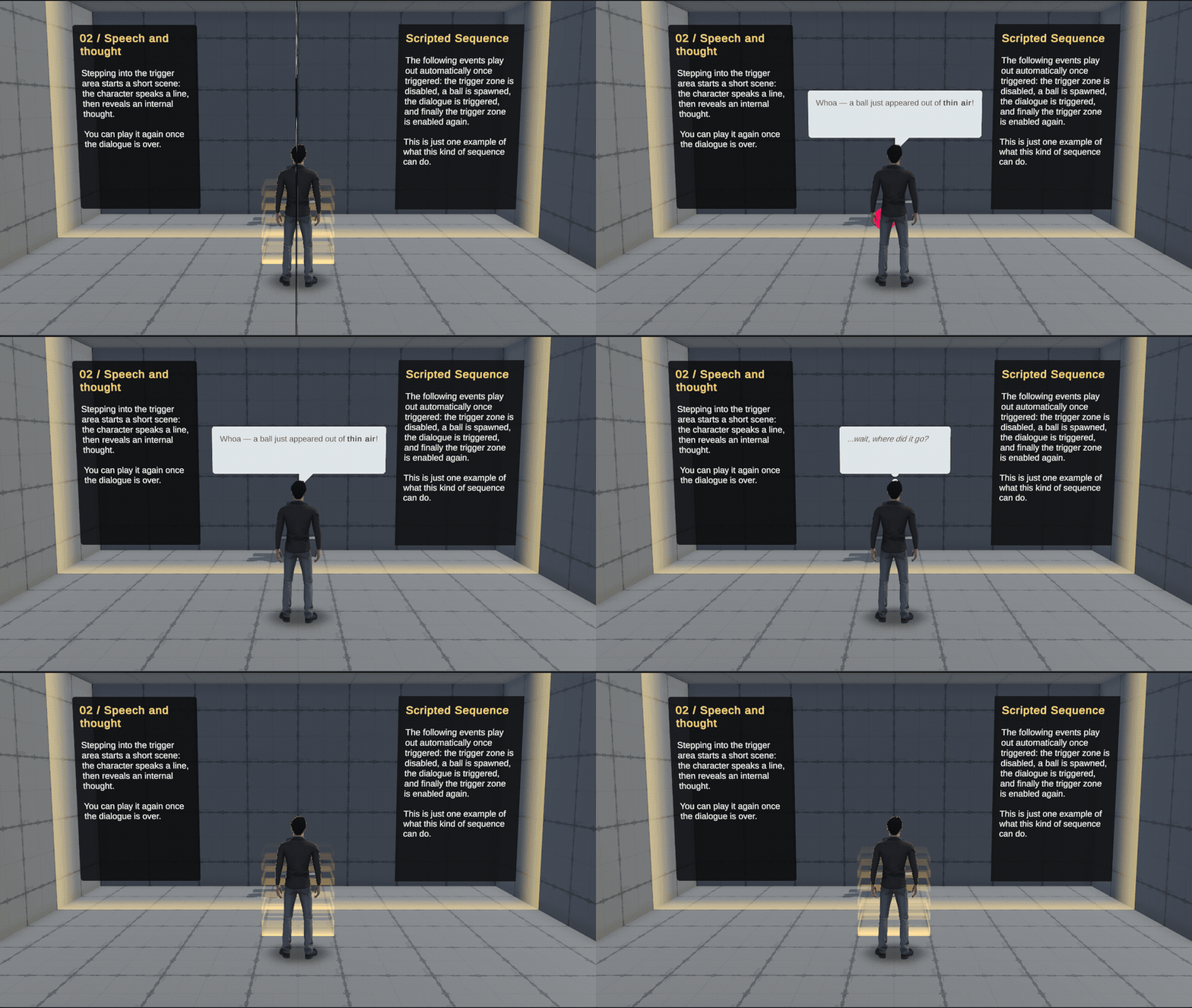
The Typewriter Event Marker triggers a dialogue event at a specific point in the timeline. Unlike a clip, it has no duration. It fires once at the exact moment it is placed, then the timeline continues.
To use it, add a Typewriter Event Marker Track, bind it to a TypewriterEventMarkerReceiver component, place a marker on it at the moment you want dialogue to appear, and select which dialogue event to trigger in the Inspector.
For full setup instructions, see Triggering Dialogue from Timeline.