Traffic Objects
Traffic objects are everything on the street besides the agents. Some shape how a scenario plays out, such as stop lines that make agents wait and walls that keep the participant in bounds. Others, such as props, parked vehicles, and background characters, make the scene look and feel like a real street.
You can browse the traffic objects provided by HRI-MobiSim below to learn more.
Traffic Light
A signal you can switch between red, yellow, and green, or set flashing, during a scenario.
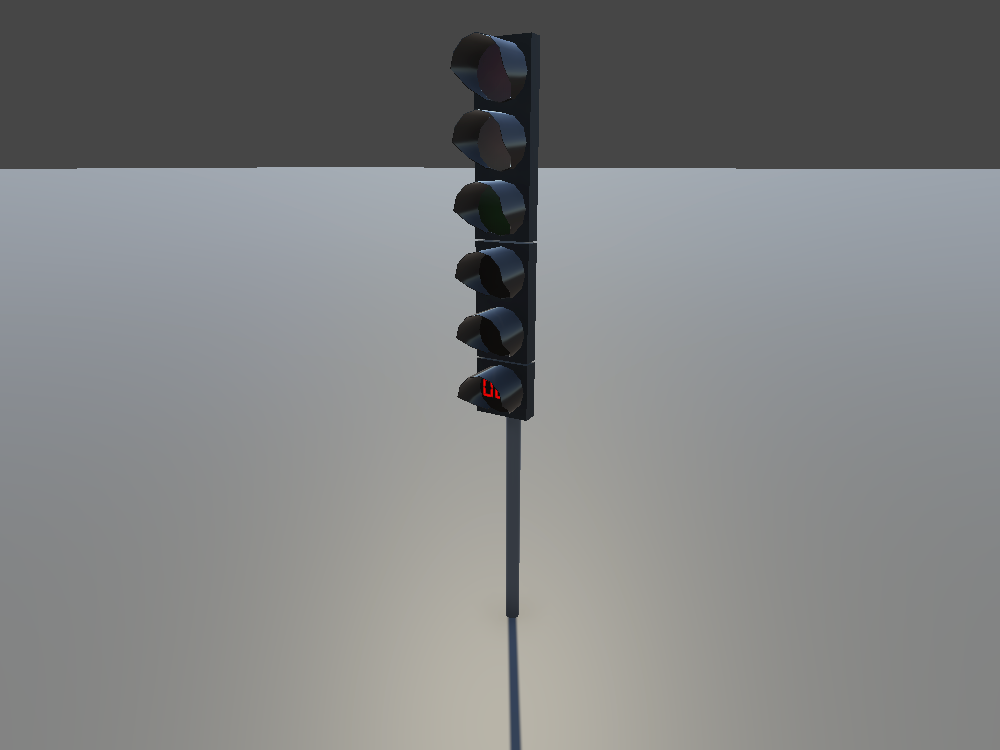
Keep in mind: Traffic lights are only visual. Agents don't react to the signal, so if they should stop at the light, place a stop line there too.
Using the Ready-Made Light
The quickest way to start is the TrafficObj_TrafficLight prefab in Assets > mobisim > Traffic > Prefab. It changes its signals by itself with a ready-made Timeline, Sample_TrafficLight_Timeline, and shows a countdown timer. Make a prefab variant of it to fit your scenario.
The sample Timeline, and ready-made Signal assets for each traffic signal, are in Assets > mobisim > Traffic > Timeline Signals.
Changing the Signal
Each signal stack needs a TrafficSignalController on the same GameObject as its Mesh Renderer. The controller switches which light in the stack is lit. You can drive it in two ways:
- From an Event Trigger, by calling one of its functions:
TrafficSignalController.SetRedSignal()TrafficSignalController.SetAmberSignal(), which shows yellowTrafficSignalController.SetGreenSignal()TrafficSignalController.SetSignalOff()TrafficSignalController.SetFlashing(bool)
- From a Timeline, with a Traffic Signal Track bound to the controller.
To show a countdown on the light, add a NumericValueDisplay component to the same GameObject as the TrafficSignalController, and enable Indicate Time on the Traffic Signal clips.
Signal changes are recorded by data collection. The TrafficSignalController logs a timestamped message each time its signal or flashing state changes.
Building Your Own Layout
The traffic light is made of four signal stacks and a pole:
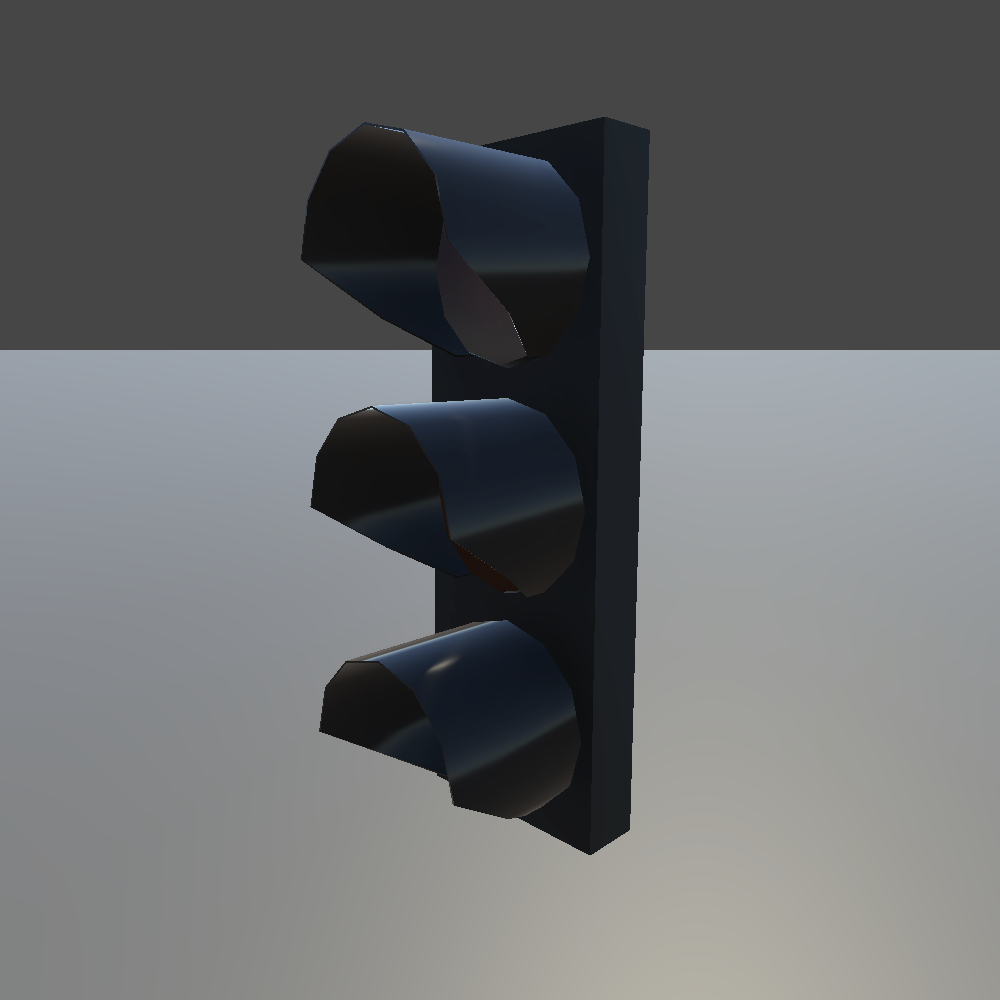
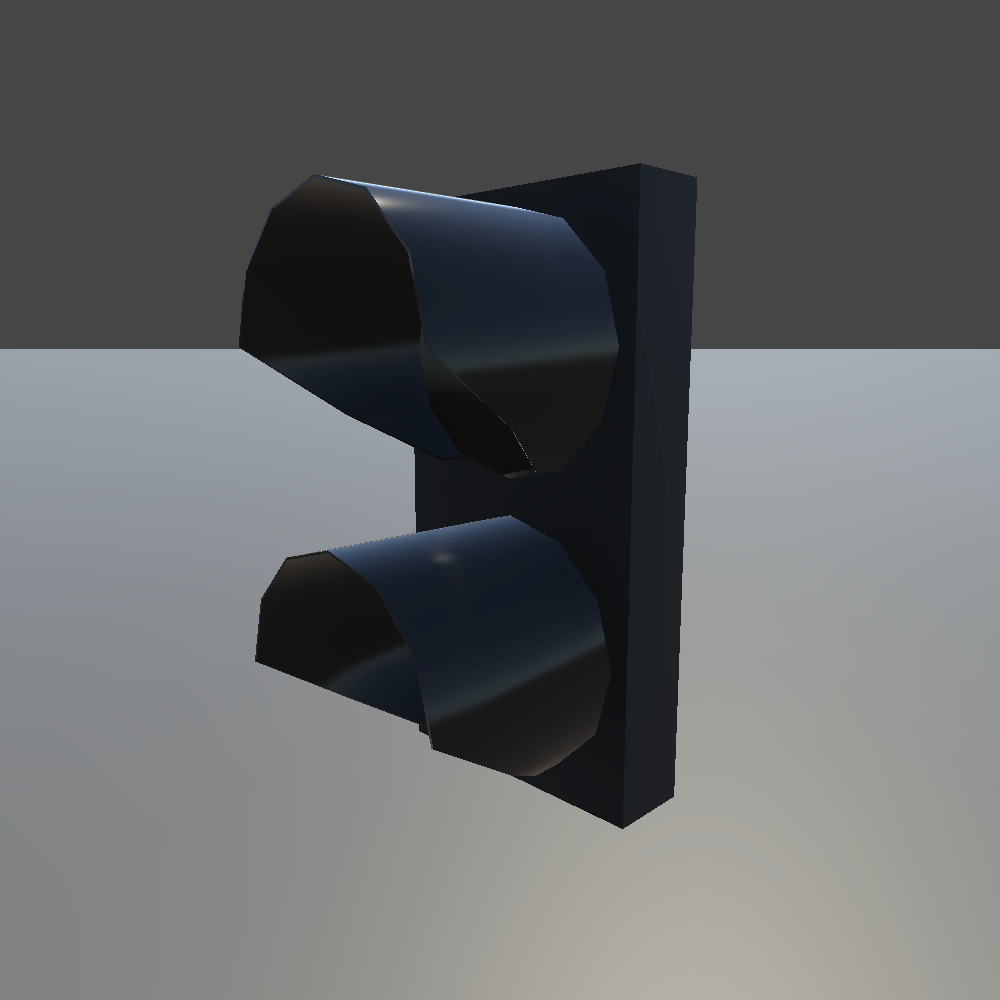
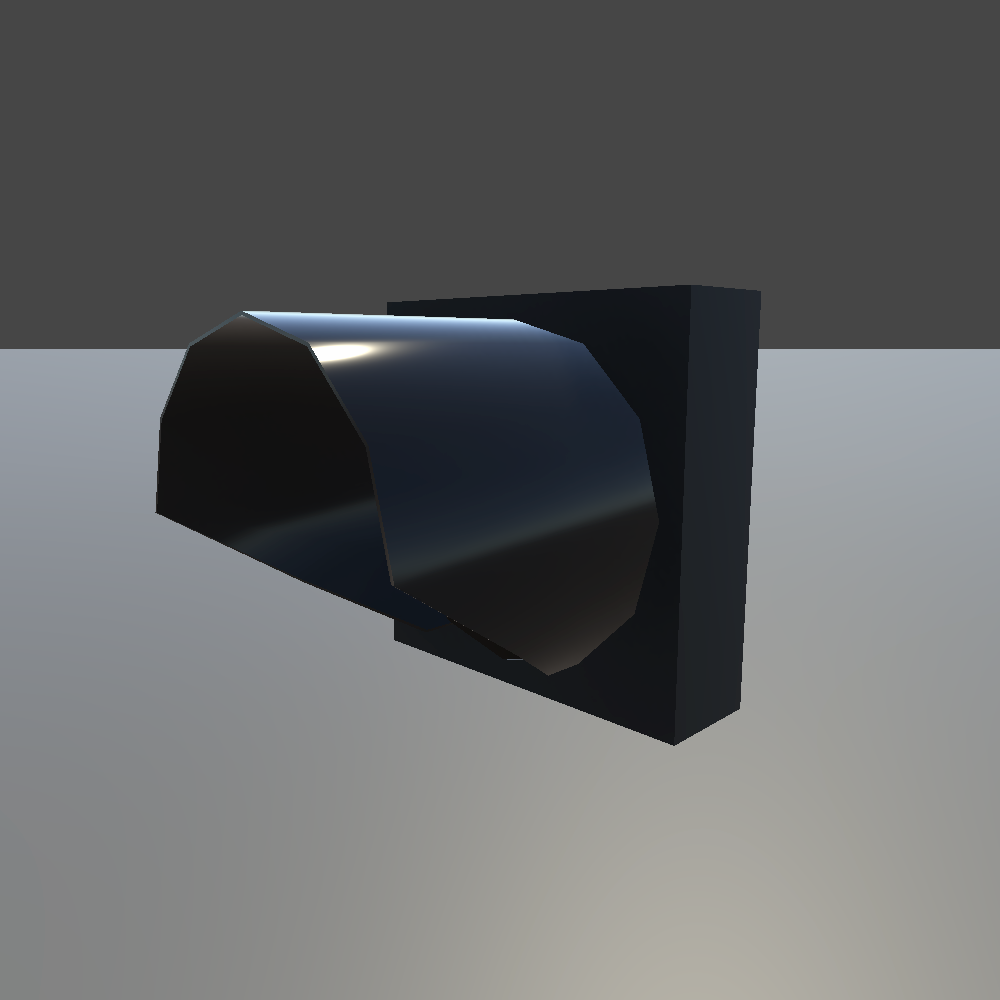
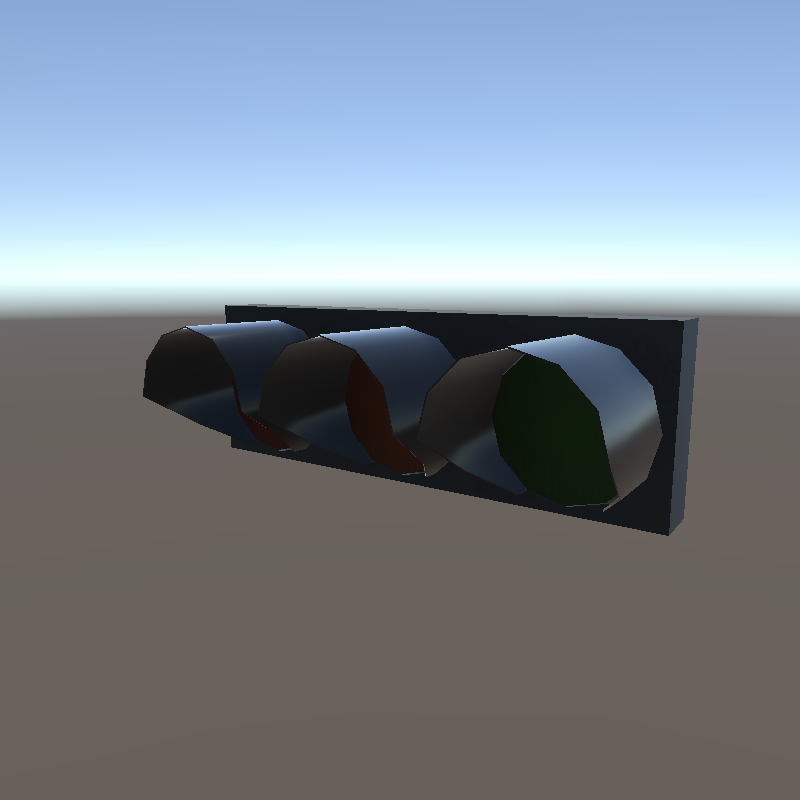
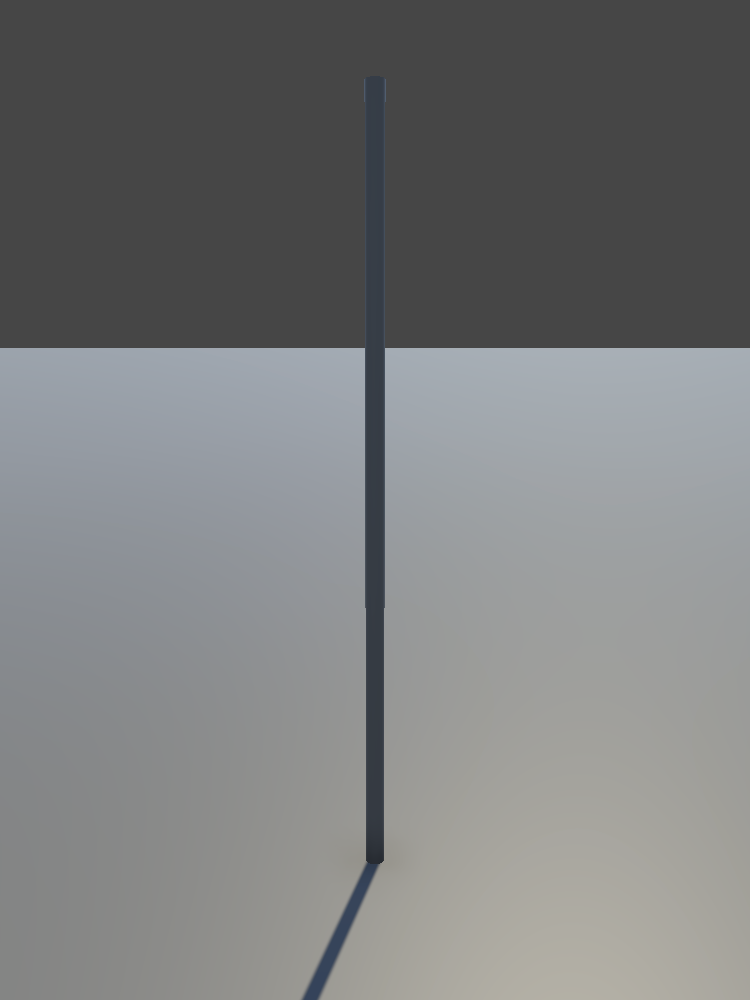
You can freely kitbash them into the layout your intersection needs:
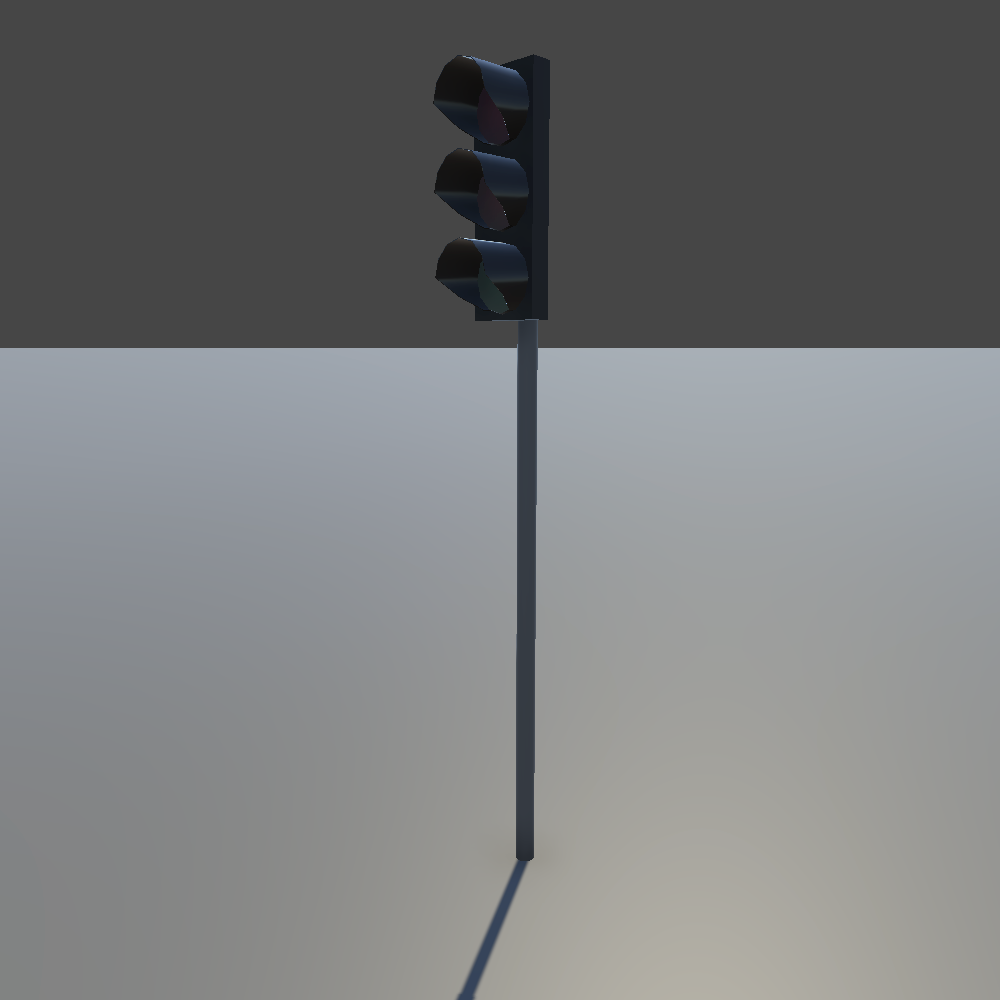
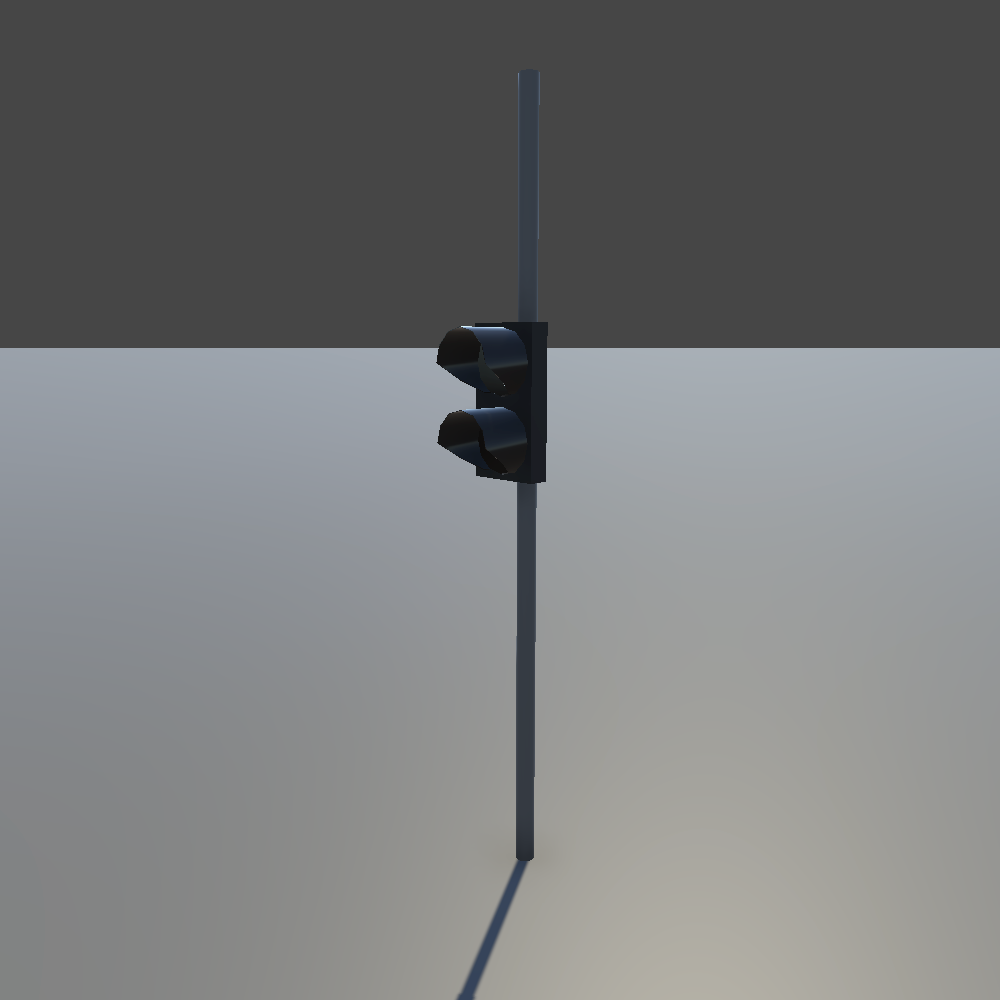
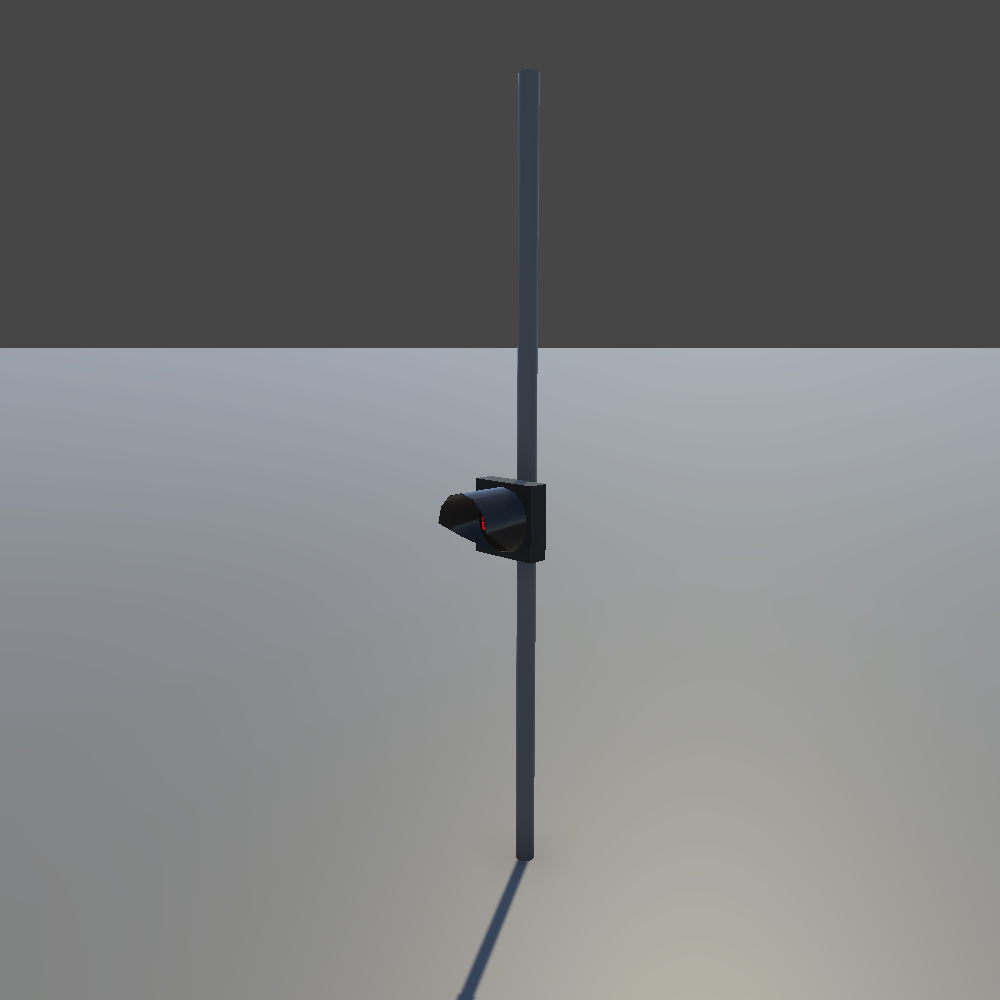
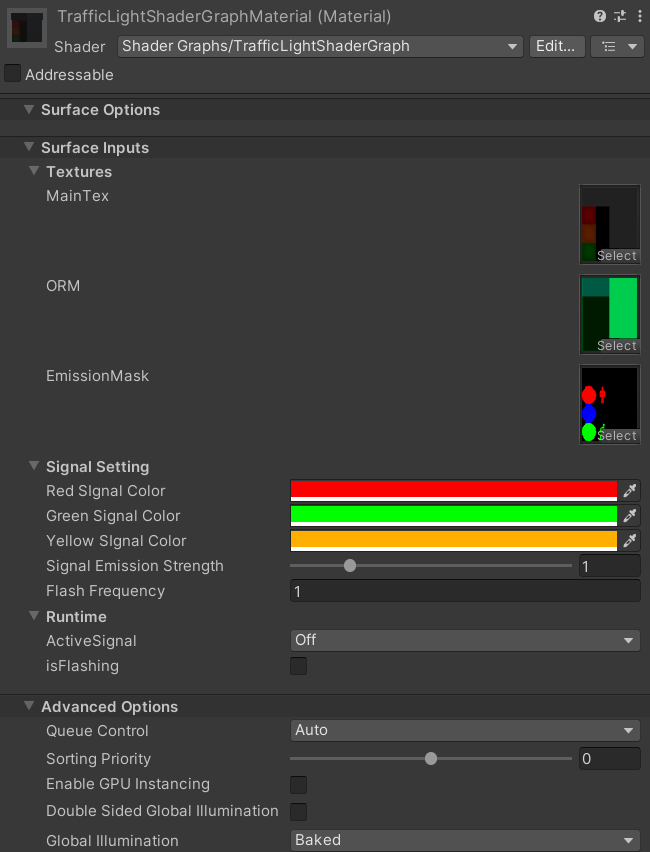
Which light a stack shows, red, yellow, or green, and whether it flashes, is set by its material. To change it, make a Material Variant of the base traffic light material, and adjust its color and flashing settings.
Stop Line
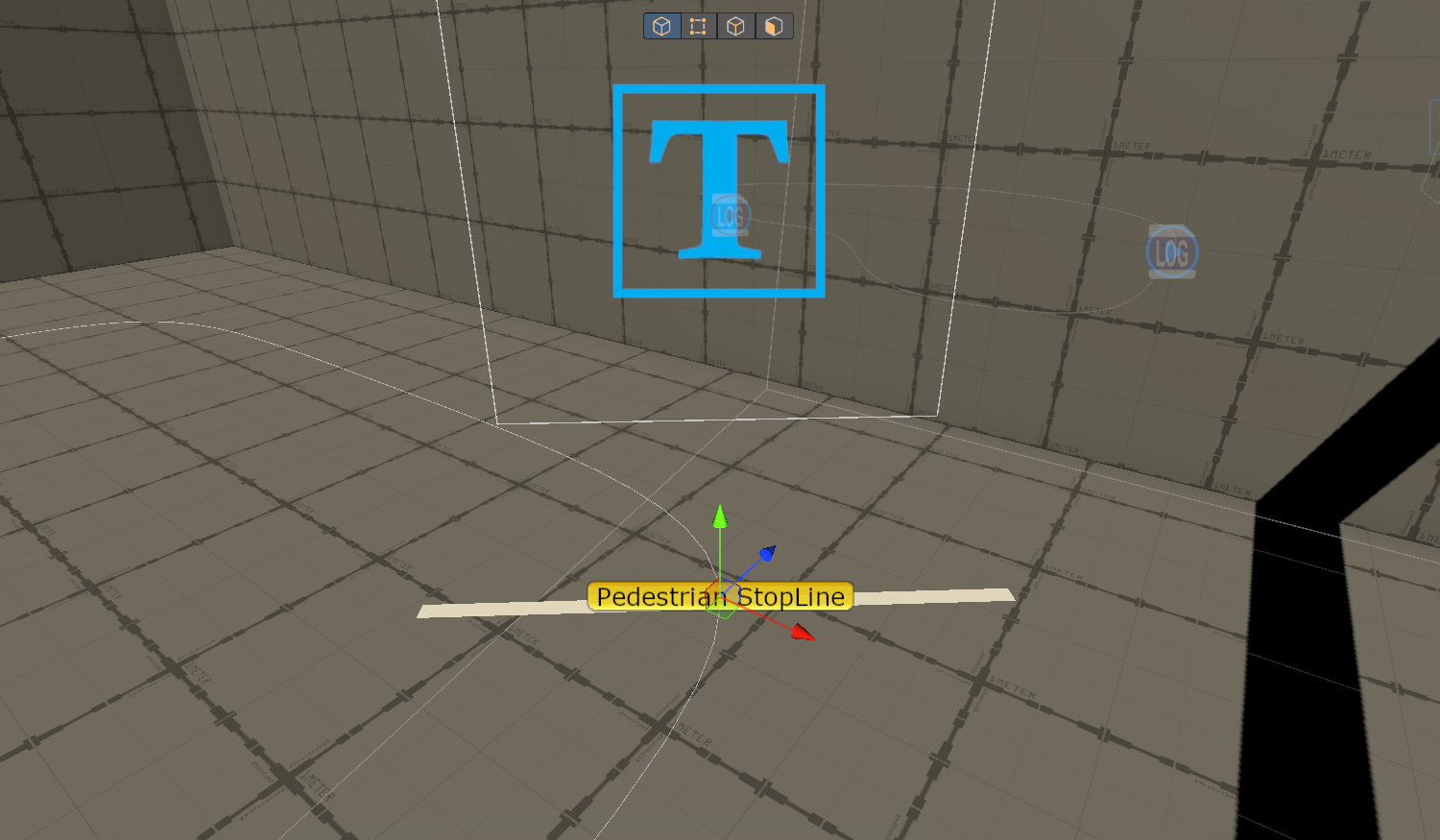
An invisible line that makes road agents stop for a moment when they reach it.
Keep in mind: Scooters and delivery robots share the sidewalk with people, so they stop at pedestrian stop lines, not vehicle ones. The road SUV doesn't stop at either.
A stop line is a trigger collider. Place it across a road agent's path, and the agent notices it with its sensor and stops when it gets there. How long it waits is set on each agent, with Stop Time under Stopline Contact Parameter on its traffic behavior component.
There are two versions, both in Assets > mobisim > Traffic > Prefab:

TrafficObj_StopLine_Vehicle
TrafficObj_StopLine_PedestrianGrid Wall
A wall that keeps the participant inside the area of your scenario.
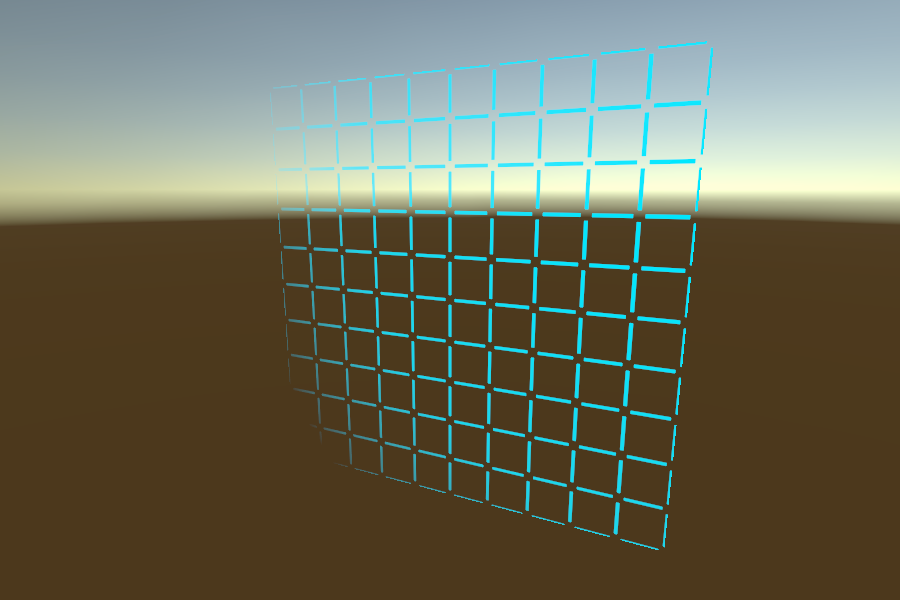
The TrafficObj_GridWall prefab, in Assets > mobisim > Traffic > Prefab, is a plane with a grid texture and a collider.
- To change its look, change its material.
- To make it invisible, untick its Mesh Renderer, and keep its collider on.
- To choose what it blocks, put the wall and other objects on layers, and set which layers collide in the physics collision matrix.
Decals
Potholes and tarmac cracks that you project onto the road surface.
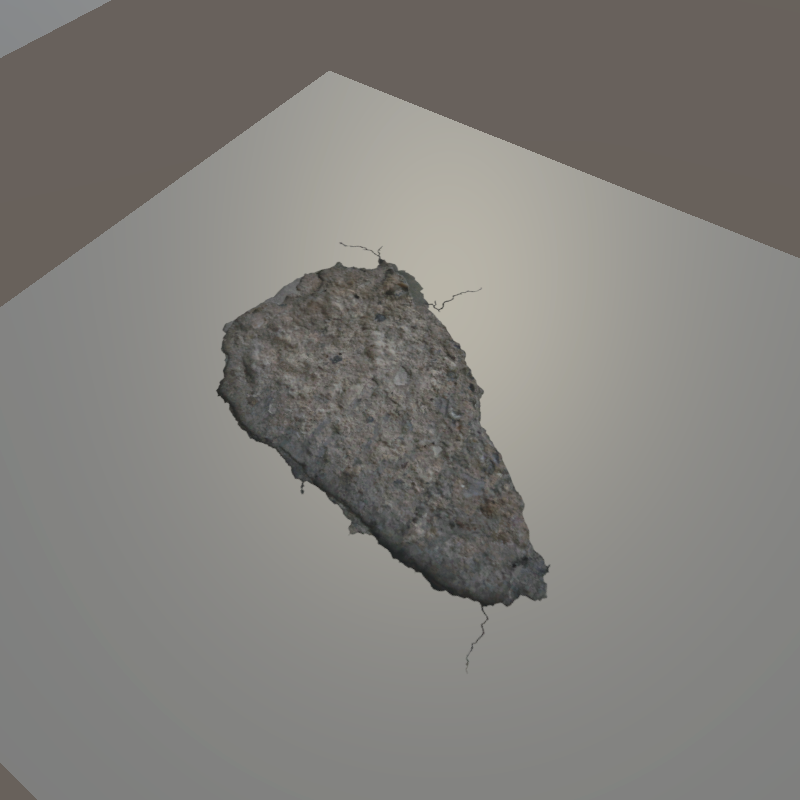
A decal is a material projected onto the surface of another object. There are two pothole variants and four tarmac crack variants:
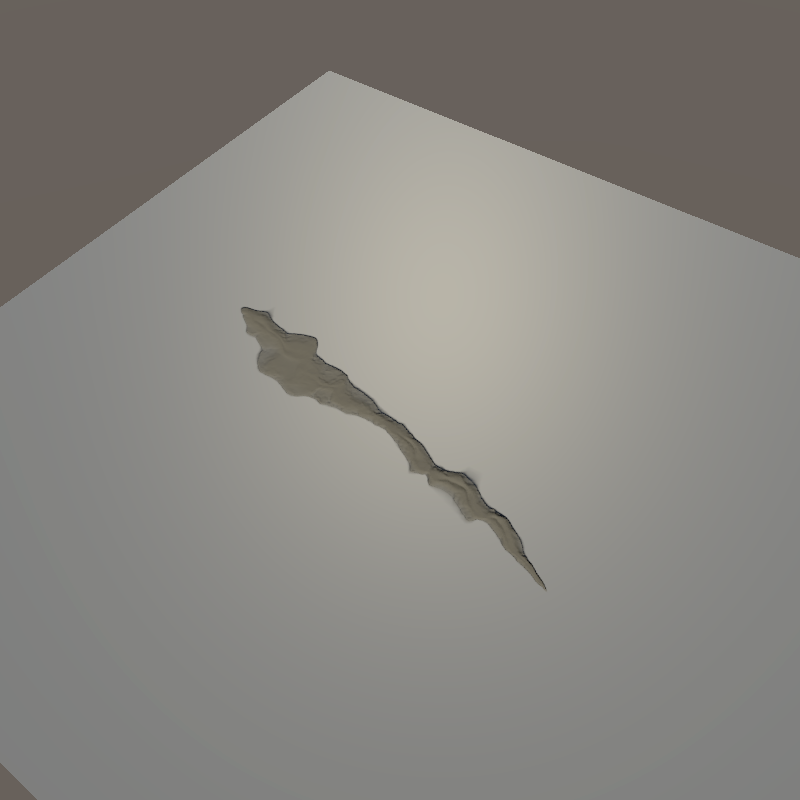
To use one:
- Add a Decal Projector component to an object in your scene, and assign one of the decal materials to it.
- Adjust the projector's size, depth, and blend settings to control how the decal looks on the surface.
- Rotate or scale the projector to match the direction and coverage you need.
To learn more about decals, see Unity's documentation on decals.
Trash Kit
Bin bags, bottles, cans, and other litter to scatter along the street.
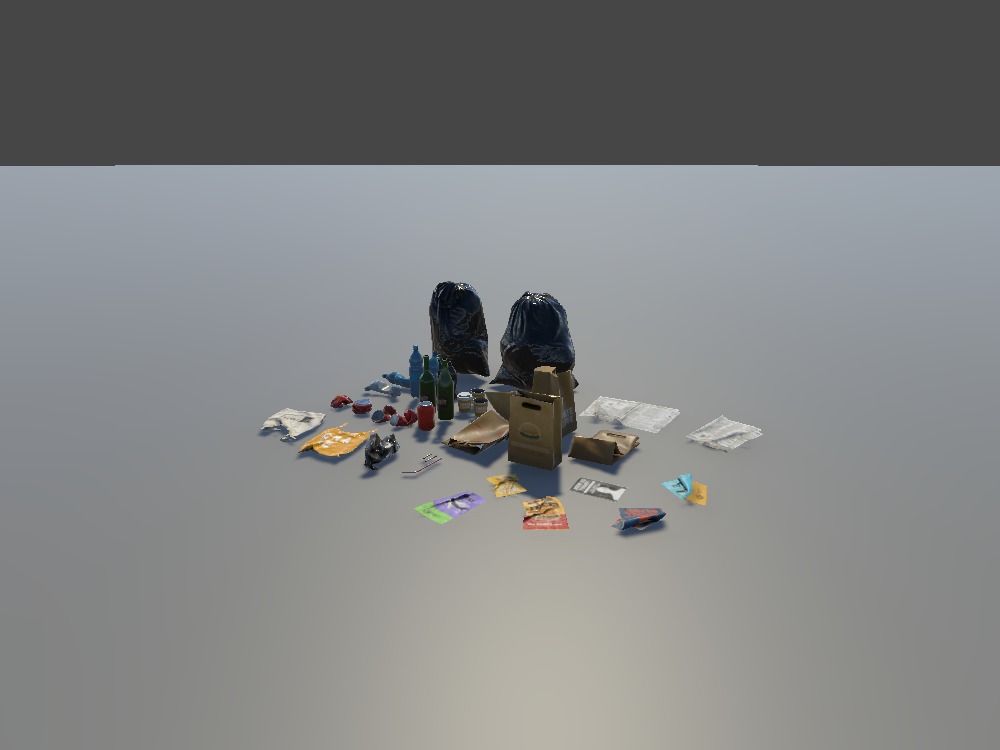
Keep in mind: Props have no colliders, so agents and the participant pass straight through them. If one should block anyone, add a collider to it.
Drag it into the scene, then move, rotate, and scale it to fit your layout. Props are only for decoration and have no logic of their own. Mark it Static, unless it moves during the scenario.
Garbage Can
A street garbage can.
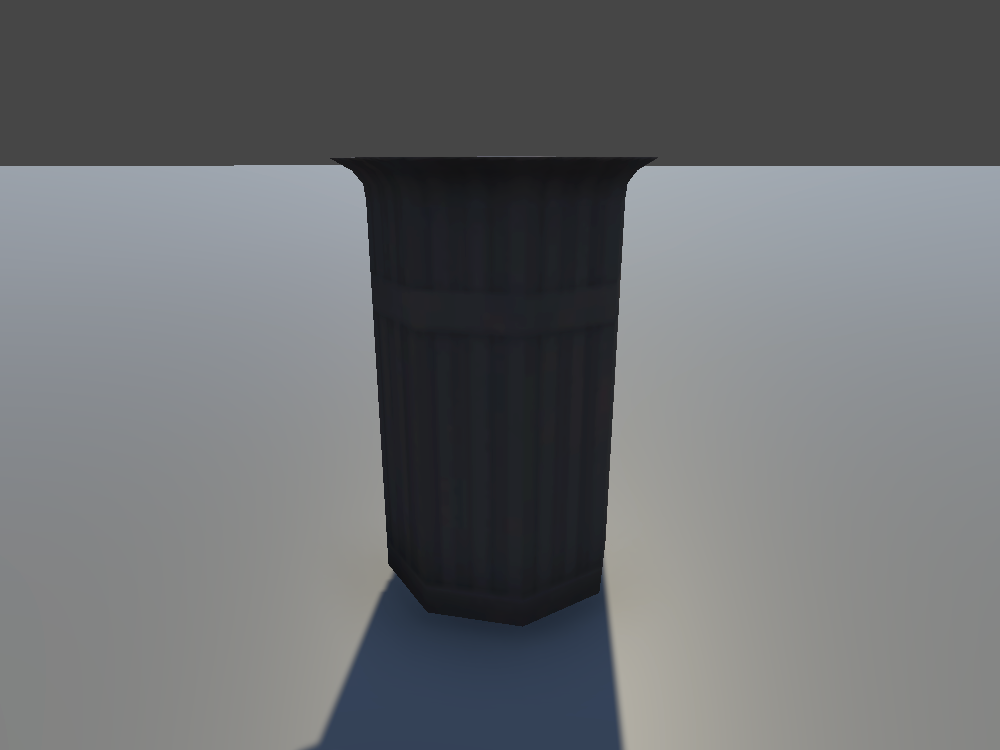
Keep in mind: Props have no colliders, so agents and the participant pass straight through them. If one should block anyone, add a collider to it.
Drag it into the scene, then move, rotate, and scale it to fit your layout. Props are only for decoration and have no logic of their own. Mark it Static, unless it moves during the scenario.
Fire Hydrant
A fire hydrant for the sidewalk.
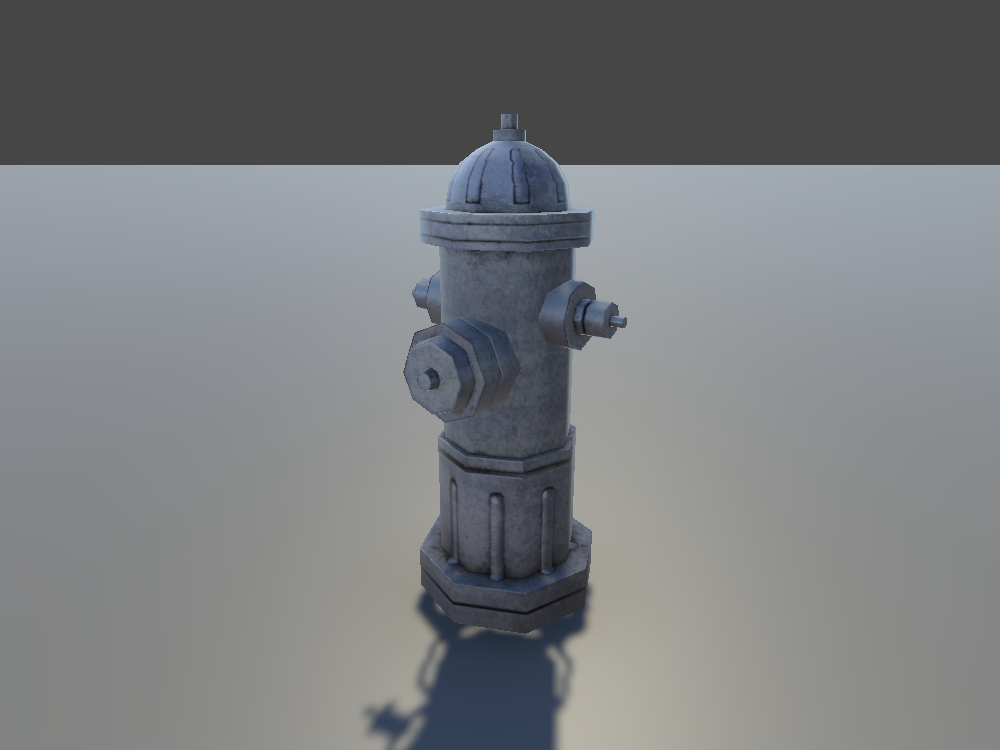
Keep in mind: Props have no colliders, so agents and the participant pass straight through them. If one should block anyone, add a collider to it.
Drag it into the scene, then move, rotate, and scale it to fit your layout. Props are only for decoration and have no logic of their own. Mark it Static, unless it moves during the scenario.
Plant
A plant for sidewalks and storefronts.
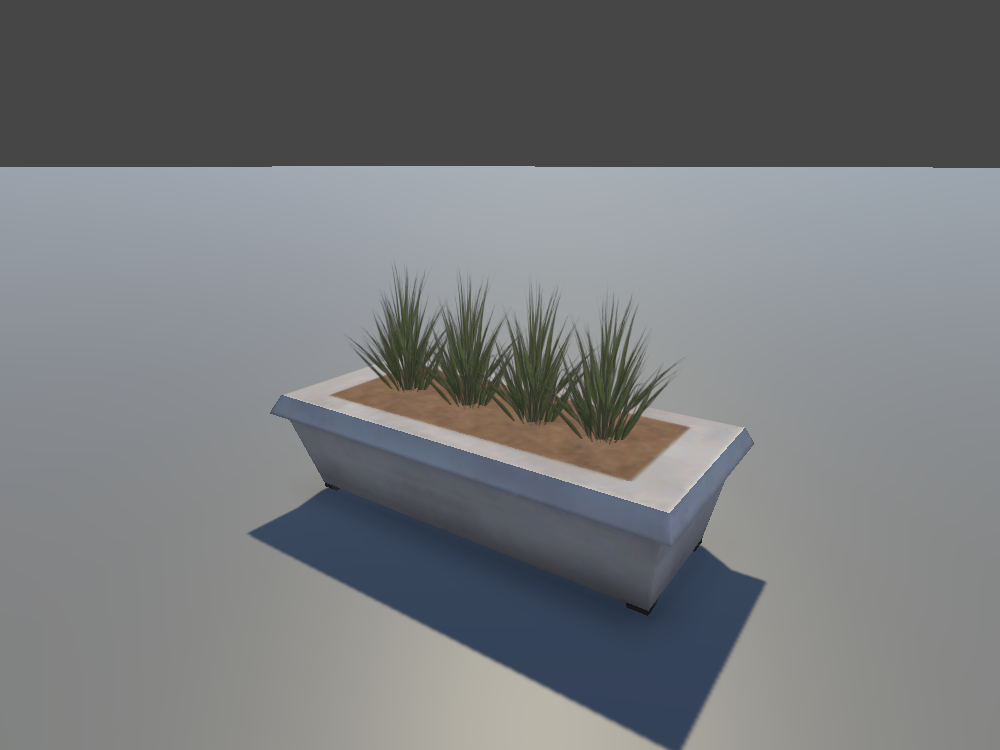
Keep in mind: Props have no colliders, so agents and the participant pass straight through them. If one should block anyone, add a collider to it.
Drag it into the scene, then move, rotate, and scale it to fit your layout. Props are only for decoration and have no logic of their own. Mark it Static, unless it moves during the scenario.
Street Lamps and Signs
Street lamps, a road sign, and a manhole cover.
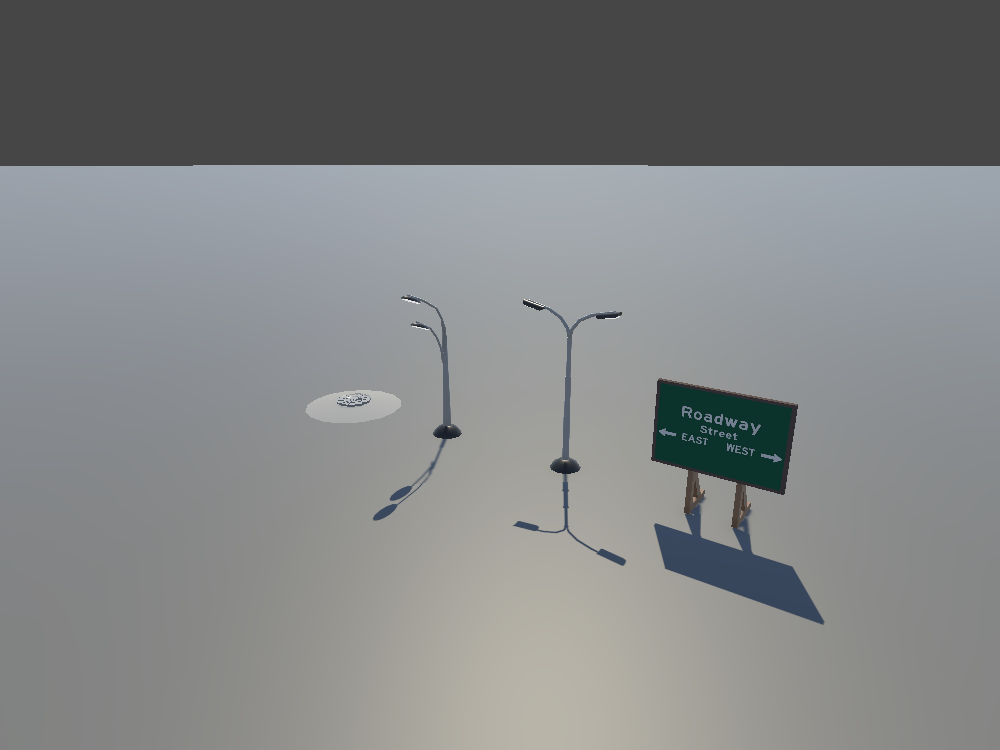
Keep in mind: Props have no colliders, so agents and the participant pass straight through them. If one should block anyone, add a collider to it.
Drag it into the scene, then move, rotate, and scale it to fit your layout. Props are only for decoration and have no logic of their own. Mark it Static, unless it moves during the scenario.
Barricades
Metal crowd barriers to fence off an area.
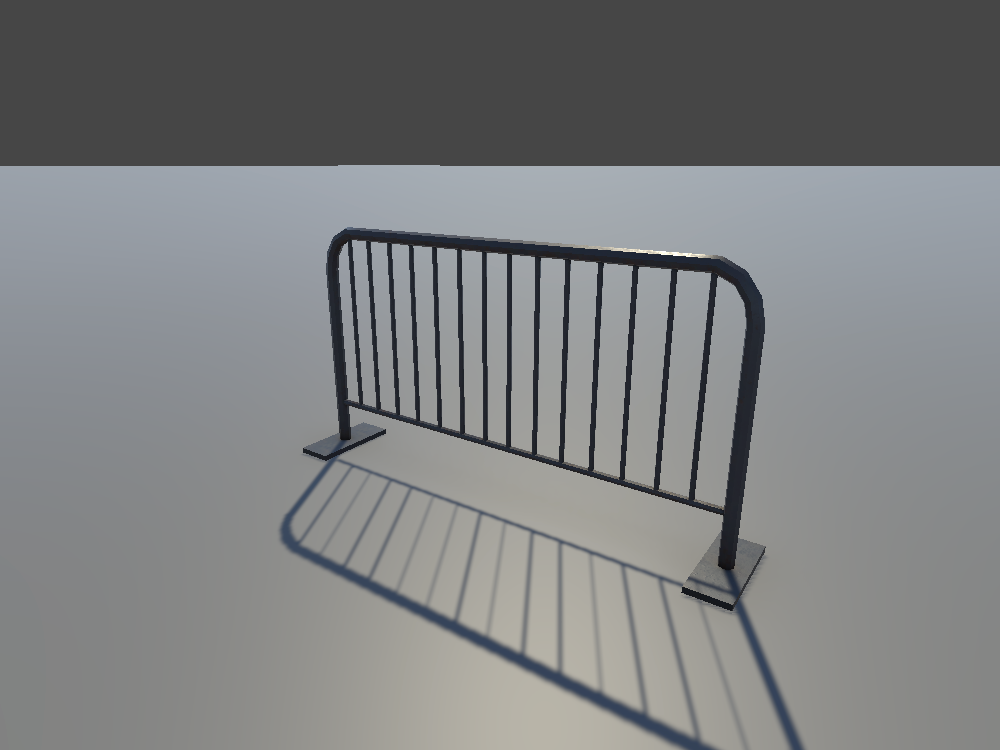
Keep in mind: Props have no colliders, so agents and the participant pass straight through them. If one should block anyone, add a collider to it.
Drag it into the scene, then move, rotate, and scale it to fit your layout. Props are only for decoration and have no logic of their own. Mark it Static, unless it moves during the scenario.
Benches
Street benches.
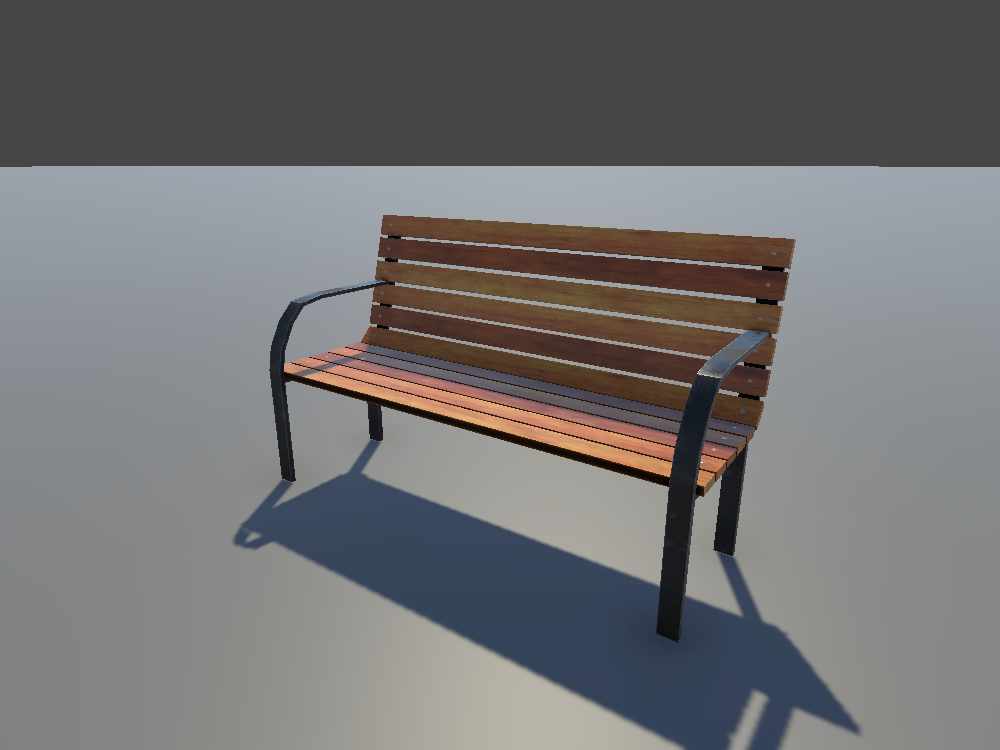
Keep in mind: Props have no colliders, so agents and the participant pass straight through them. If one should block anyone, add a collider to it.
Drag it into the scene, then move, rotate, and scale it to fit your layout. Props are only for decoration and have no logic of their own. Mark it Static, unless it moves during the scenario.
Bus Stops
Bus stop shelters.
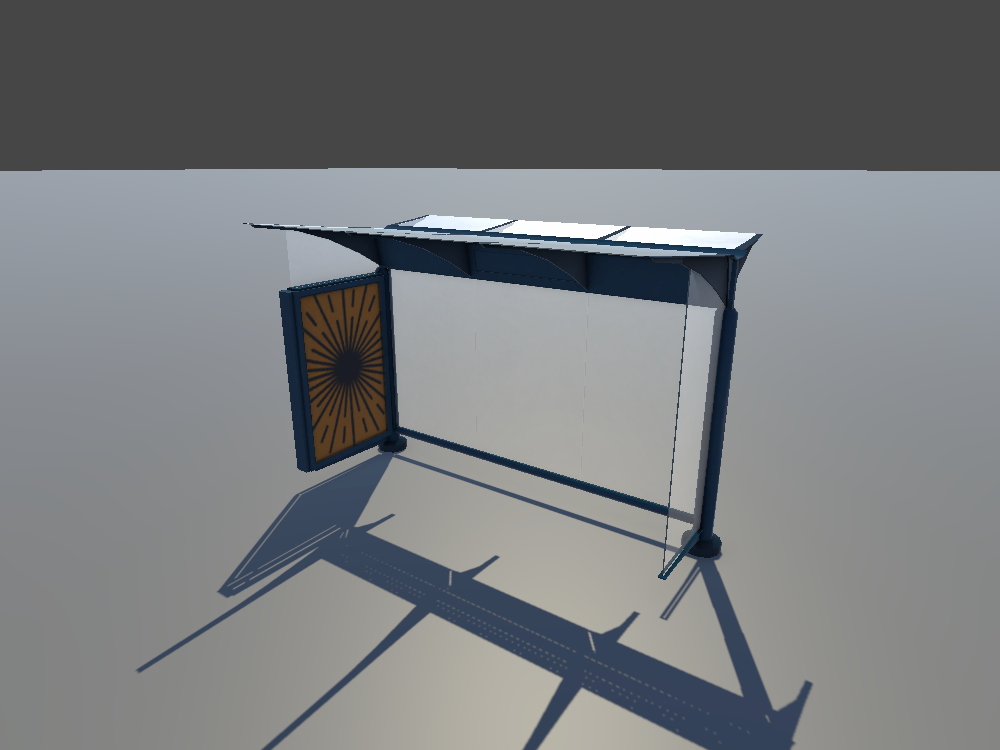
Keep in mind: Props have no colliders, so agents and the participant pass straight through them. If one should block anyone, add a collider to it.
Drag it into the scene, then move, rotate, and scale it to fit your layout. Props are only for decoration and have no logic of their own. Mark it Static, unless it moves during the scenario.
Parking Pay Stations
Parking pay stations for the curb.
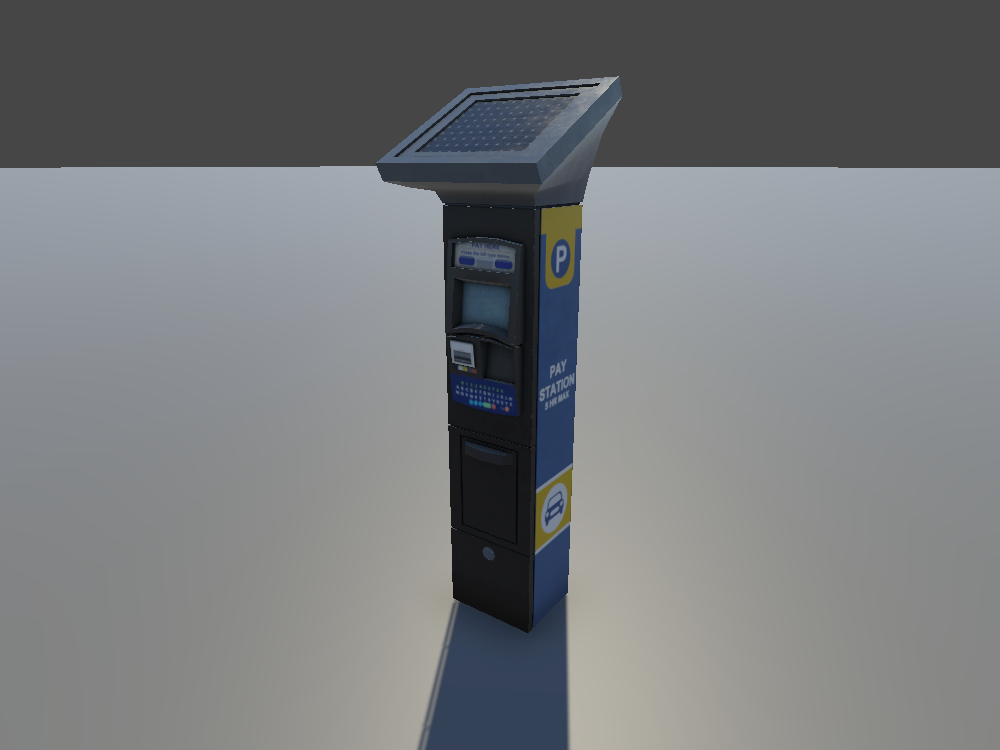
Keep in mind: Props have no colliders, so agents and the participant pass straight through them. If one should block anyone, add a collider to it.
Drag it into the scene, then move, rotate, and scale it to fit your layout. Props are only for decoration and have no logic of their own. Mark it Static, unless it moves during the scenario.
Suburb Houses
Stylized suburban houses to line a street.
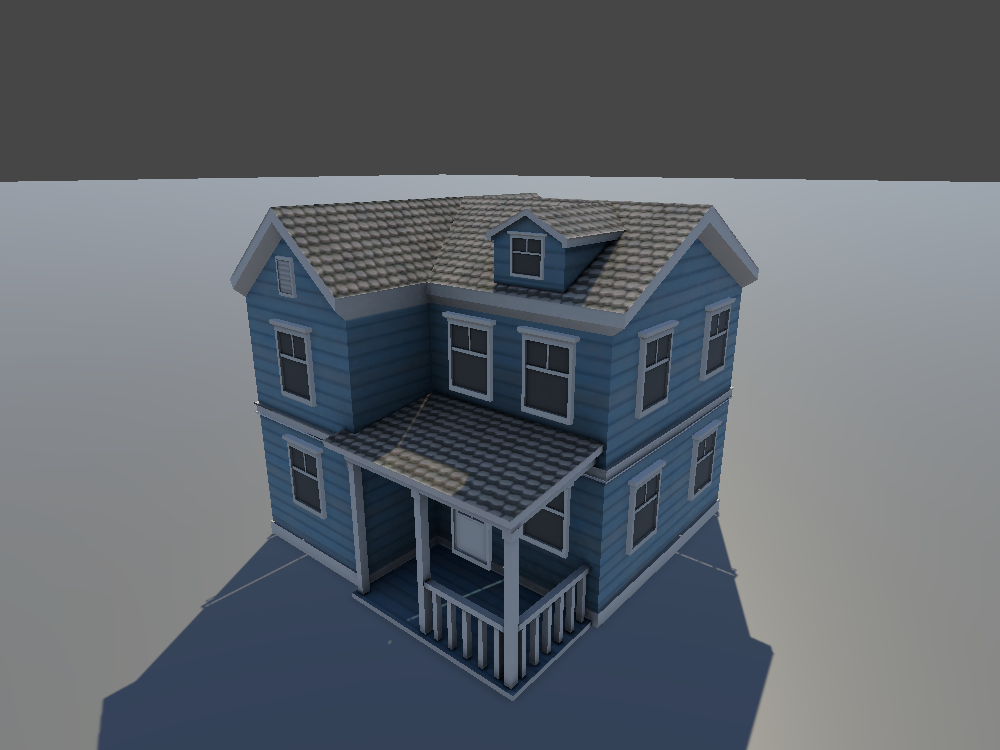
Keep in mind: Props have no colliders, so agents and the participant pass straight through them. If one should block anyone, add a collider to it.
Drag it into the scene, then move, rotate, and scale it to fit your layout. Props are only for decoration and have no logic of their own. Mark it Static, unless it moves during the scenario.
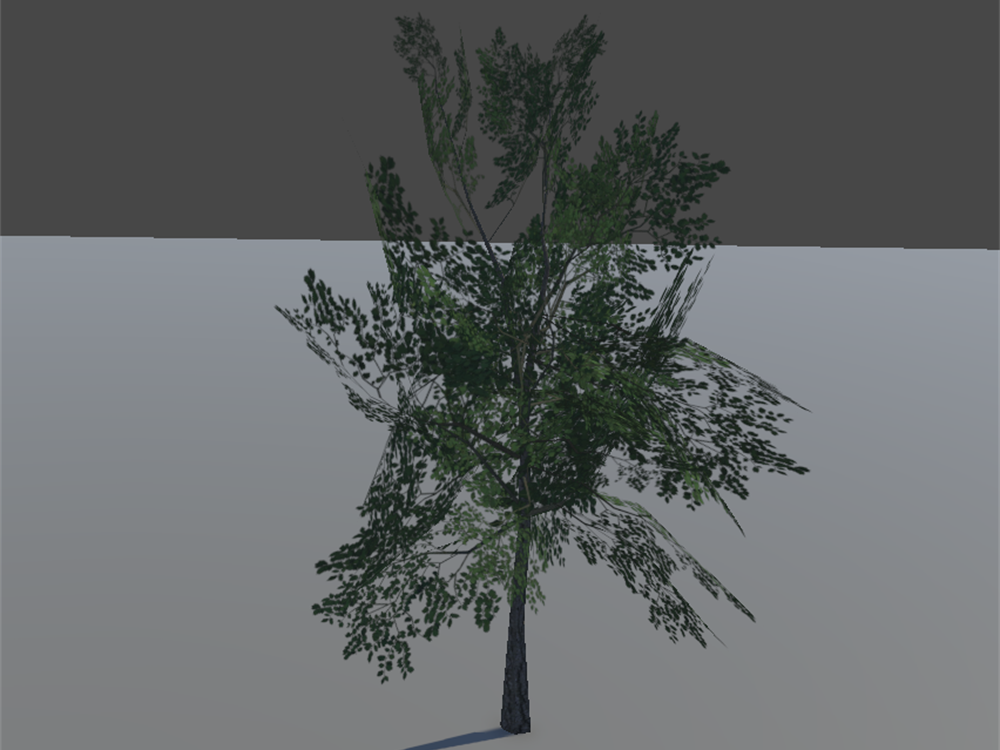
Trees
Trees for streets and parks.
Keep in mind: Props have no colliders, so agents and the participant pass straight through them. If one should block anyone, add a collider to it.
Drag it into the scene, then move, rotate, and scale it to fit your layout. Props are only for decoration and have no logic of their own. Mark it Static, unless it moves during the scenario.
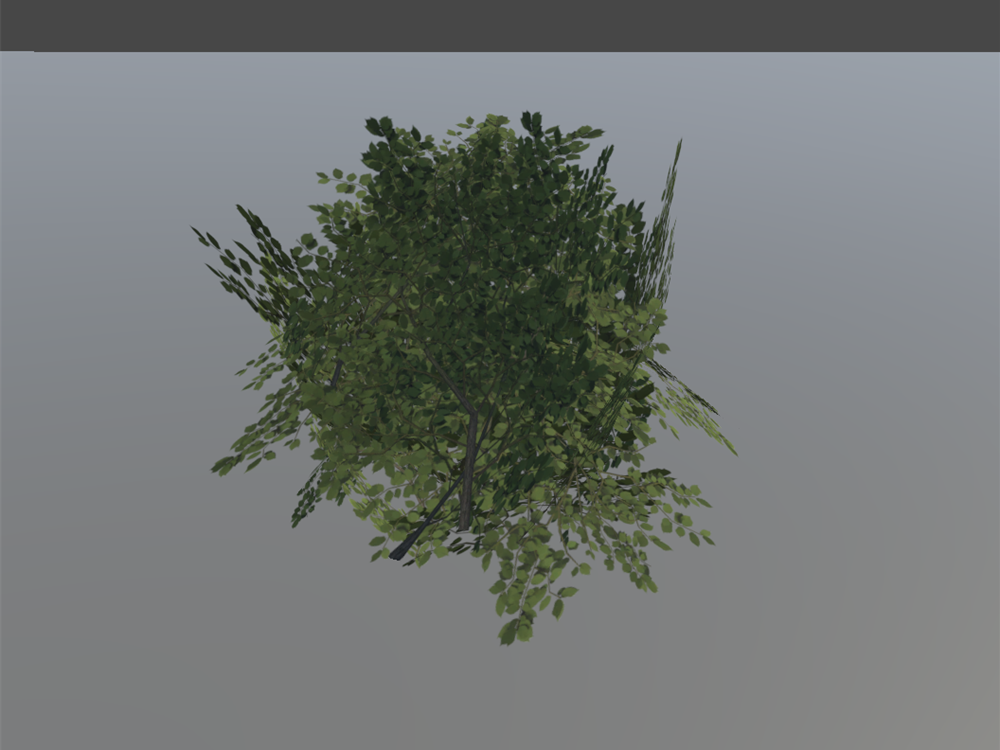
Branch
Leafy branches to fill out bushes and greenery.
Keep in mind: Props have no colliders, so agents and the participant pass straight through them. If one should block anyone, add a collider to it.
Drag it into the scene, then move, rotate, and scale it to fit your layout. Props are only for decoration and have no logic of their own. Mark it Static, unless it moves during the scenario.
Grass
Grass for verges and lawns.

Keep in mind: Props have no colliders, so agents and the participant pass straight through them. If one should block anyone, add a collider to it.
Drag it into the scene, then move, rotate, and scale it to fit your layout. Props are only for decoration and have no logic of their own. Mark it Static, unless it moves during the scenario.
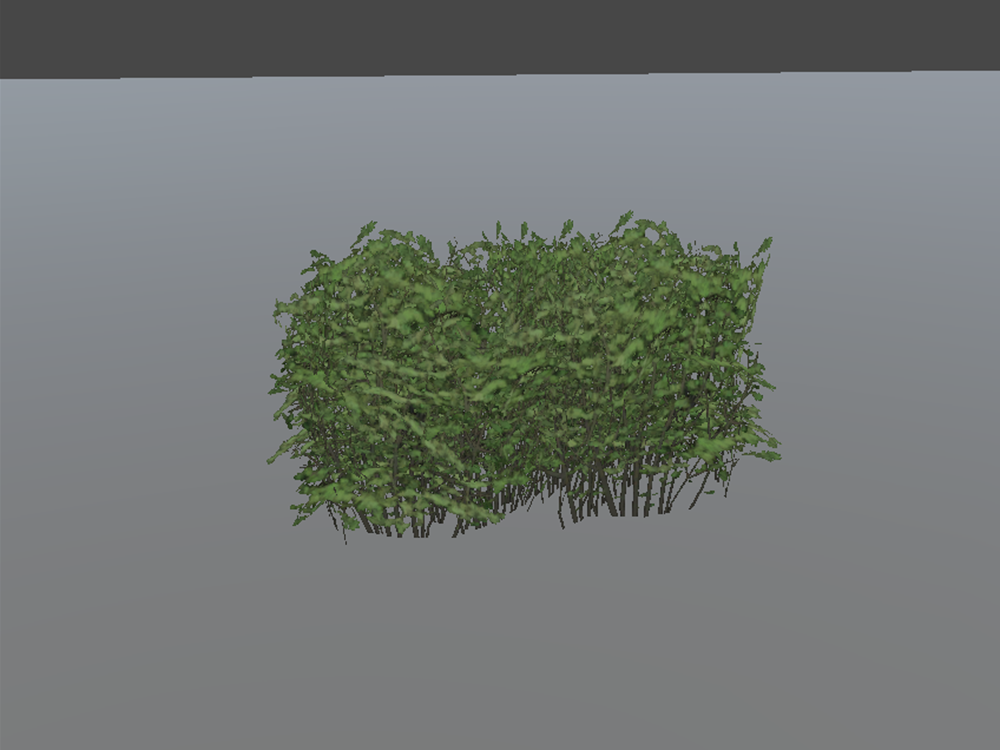
Hedge
Hedges to line gardens and paths.
Keep in mind: Props have no colliders, so agents and the participant pass straight through them. If one should block anyone, add a collider to it.
Drag it into the scene, then move, rotate, and scale it to fit your layout. Props are only for decoration and have no logic of their own. Mark it Static, unless it moves during the scenario.
Delivery Robot
The four-wheeled delivery robot, to park in the scene.
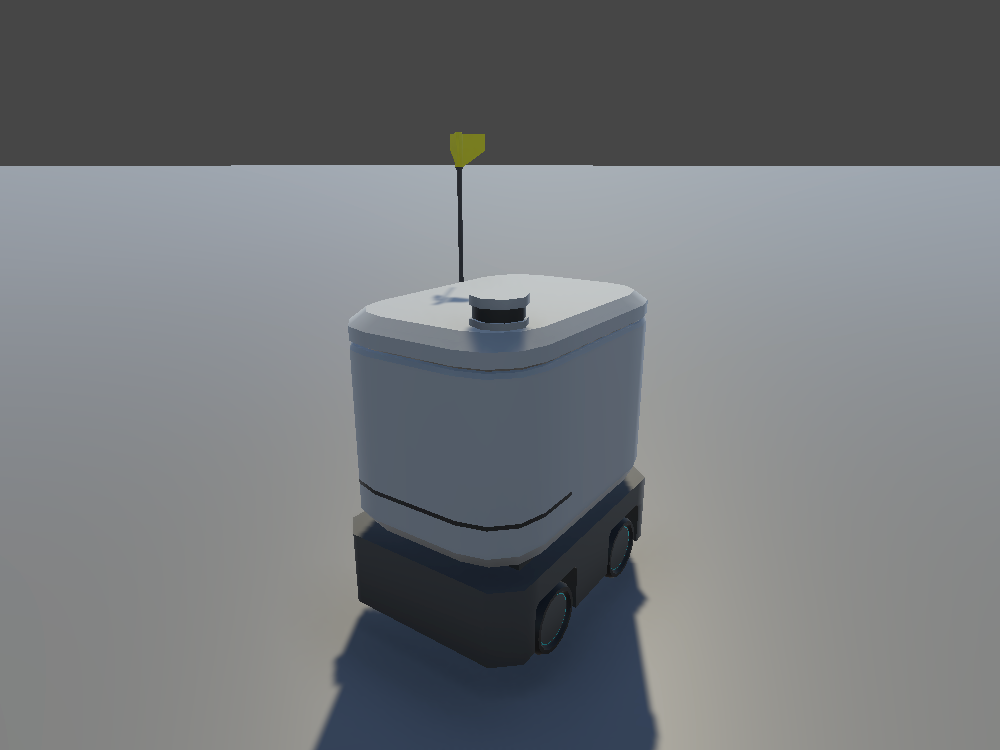
Keep in mind: This is only the vehicle's model. Don't park the agent prefab instead, because its scripts, sensors, and physics slow the scenario down for nothing.
Drag it into the scene, then move, rotate, and scale it to fit your layout. Props are only for decoration and have no logic of their own. Mark it Static, unless it moves during the scenario.
To have it drive, see Delivery Robot in the Agent Catalog.
Smart Delivery Robot
The six-wheeled delivery robot, to park in the scene.
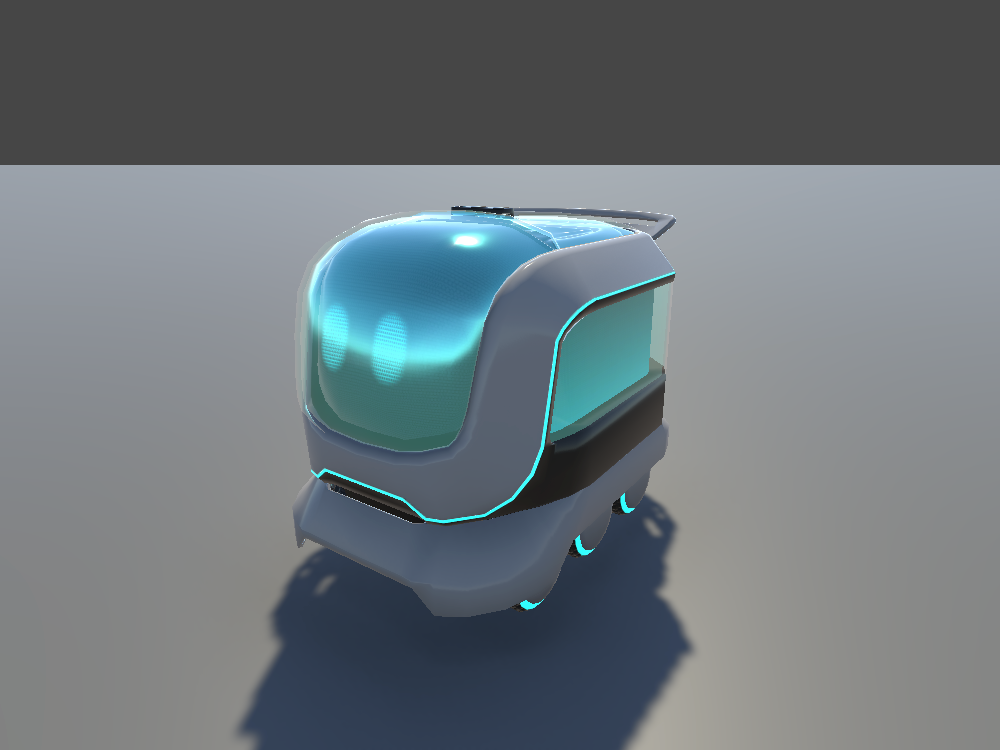
Keep in mind: This is only the vehicle's model. Don't park the agent prefab instead, because its scripts, sensors, and physics slow the scenario down for nothing.
Drag it into the scene, then move, rotate, and scale it to fit your layout. Props are only for decoration and have no logic of their own. Mark it Static, unless it moves during the scenario.
To have it drive, see Smart Delivery Robot in the Agent Catalog.
E-Scooter
An electric scooter, to park in the scene.
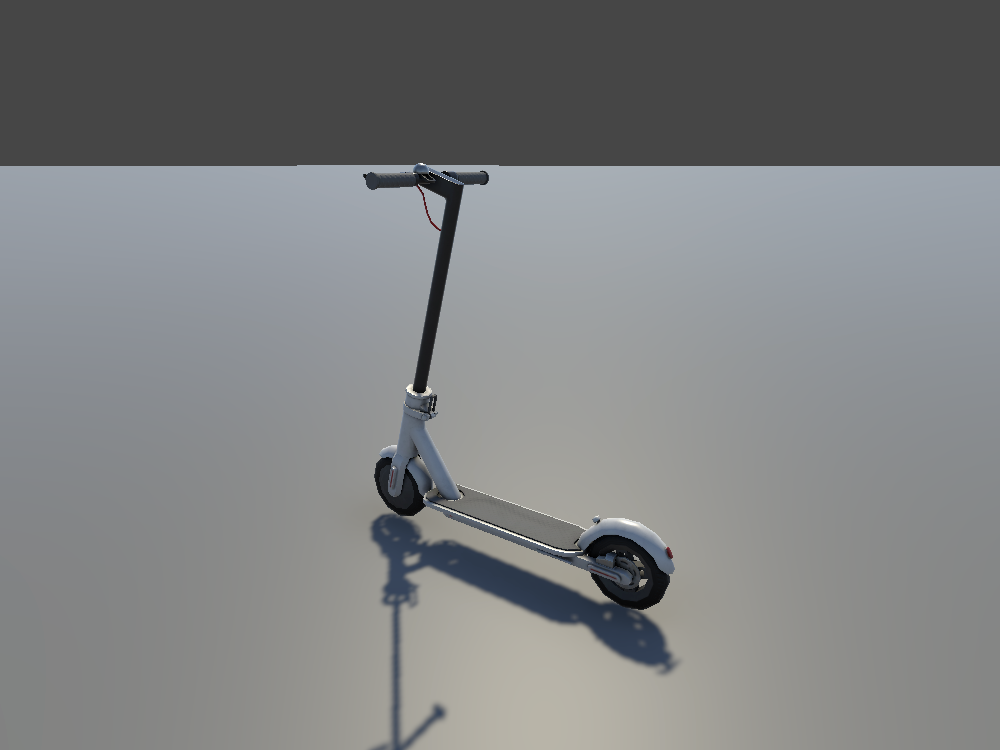
Keep in mind: This is only the vehicle's model. Don't park the agent prefab instead, because its scripts, sensors, and physics slow the scenario down for nothing.
Drag it into the scene, then move, rotate, and scale it to fit your layout. Props are only for decoration and have no logic of their own. Mark it Static, unless it moves during the scenario.
To have it ridden, see E-Scooter in the Agent Catalog.
SUV
A full-size car, to park along the street.
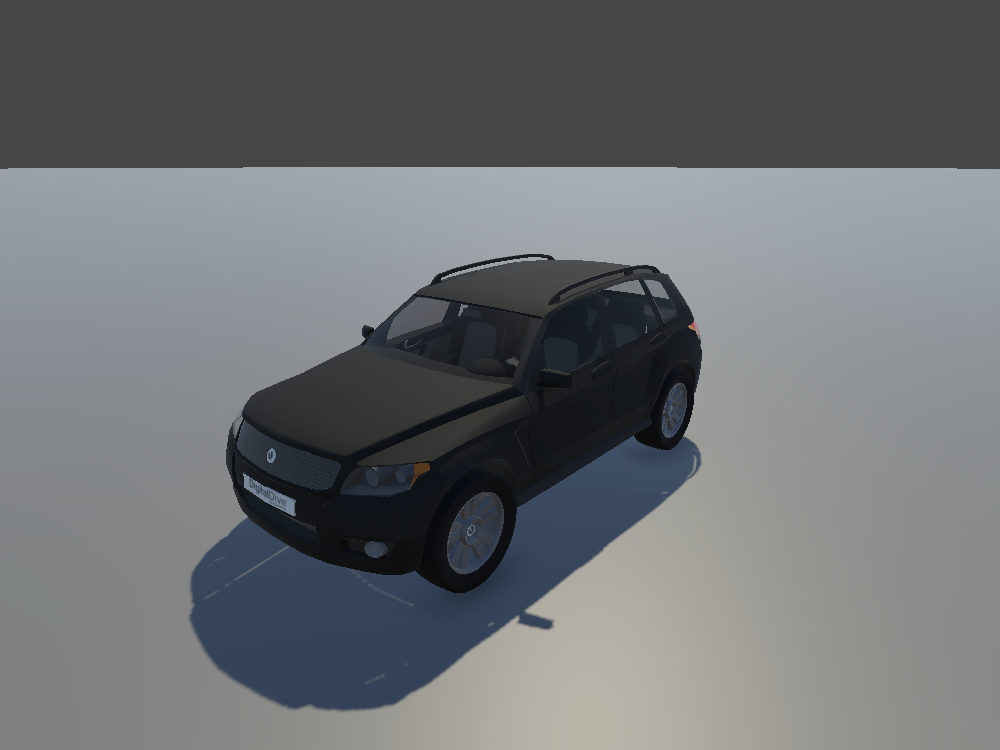
Keep in mind: This is only the vehicle's model. Don't park the agent prefab instead, because its scripts, sensors, and physics slow the scenario down for nothing.
Drag it into the scene, then move, rotate, and scale it to fit your layout. Props are only for decoration and have no logic of their own. Mark it Static, unless it moves during the scenario.
To have it driven, see SUV in the Agent Catalog.
Motocompacto
The compact, folding Motocompacto, to park in the scene.
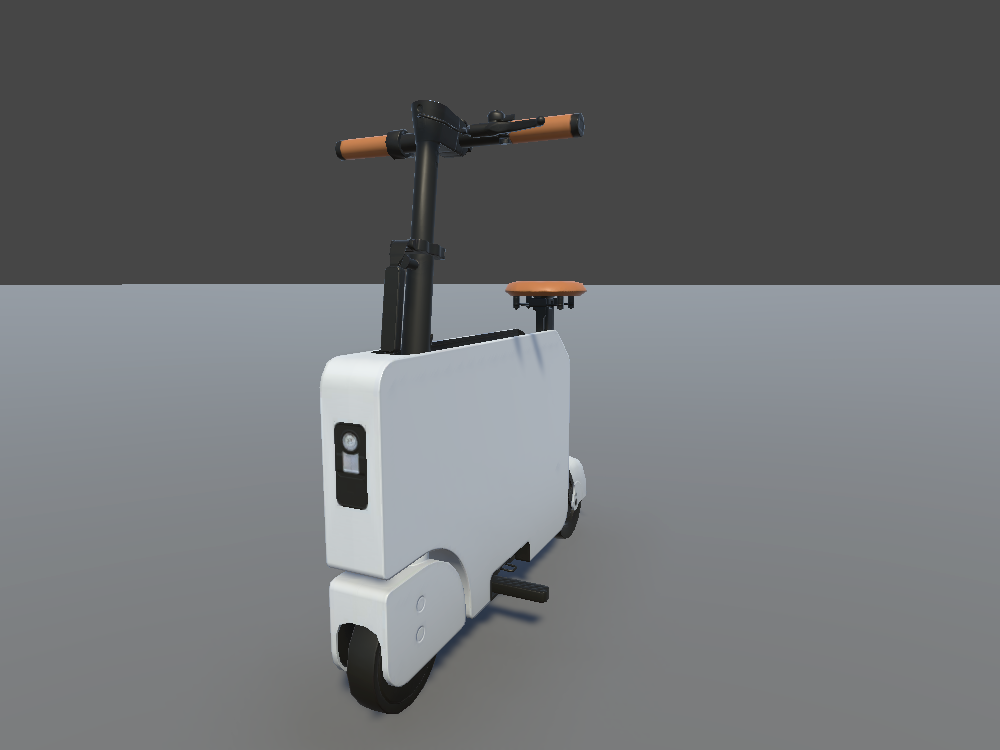
Keep in mind: This is only the vehicle's model. Don't park the agent prefab instead, because its scripts, sensors, and physics slow the scenario down for nothing.
Drag it into the scene, then move, rotate, and scale it to fit your layout. Props are only for decoration and have no logic of their own. Mark it Static, unless it moves during the scenario.
To have it ridden, see Motocompacto in the Agent Catalog.
iTango
The three-wheeled iTango, to park in the scene.
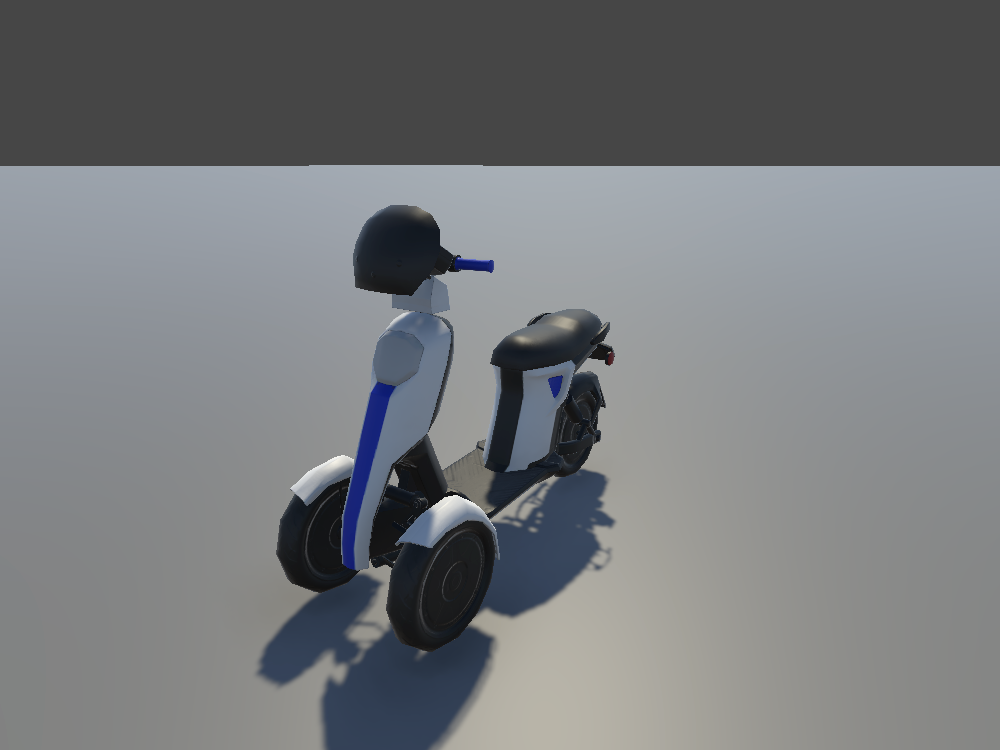
Keep in mind: This is only the vehicle's model. Don't park the agent prefab instead, because its scripts, sensors, and physics slow the scenario down for nothing.
Drag it into the scene, then move, rotate, and scale it to fit your layout. Props are only for decoration and have no logic of their own. Mark it Static, unless it moves during the scenario.
To have it ridden, see iTango in the Agent Catalog.
MicroMobility Car
The compact MicroMobility car, to park along the street.
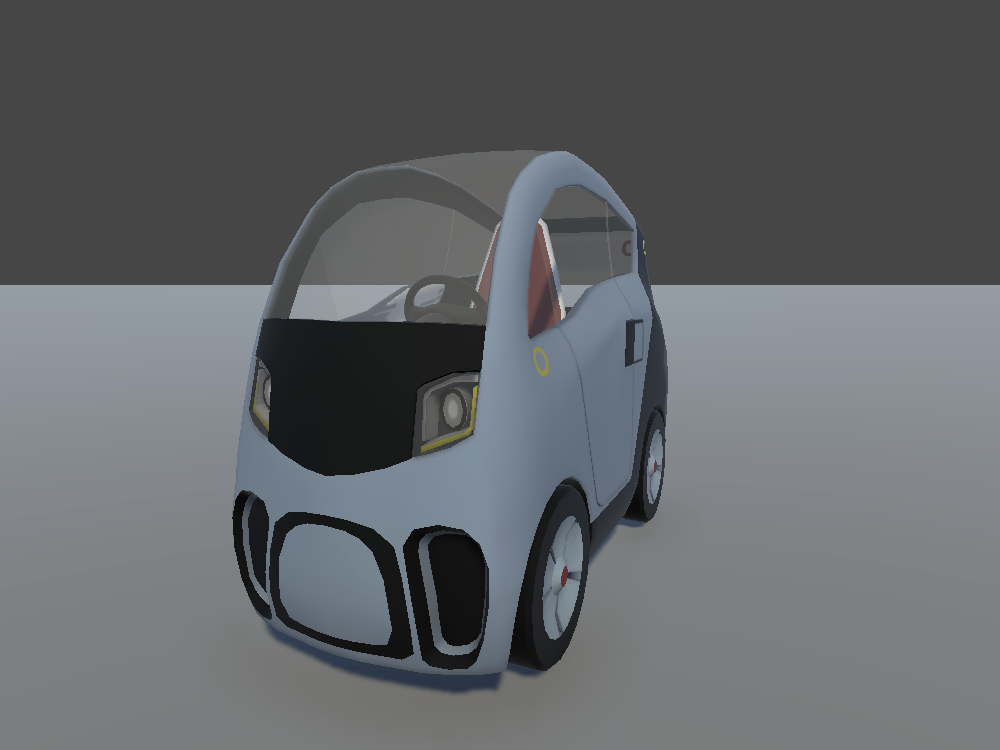
Keep in mind: This is only the vehicle's model. Don't park the agent prefab instead, because its scripts, sensors, and physics slow the scenario down for nothing.
Drag it into the scene, then move, rotate, and scale it to fit your layout. Props are only for decoration and have no logic of their own. Mark it Static, unless it moves during the scenario.
To have it driven, see MicroMobility Car in the Agent Catalog.
News Truck
A stylized news truck, to park along the street.
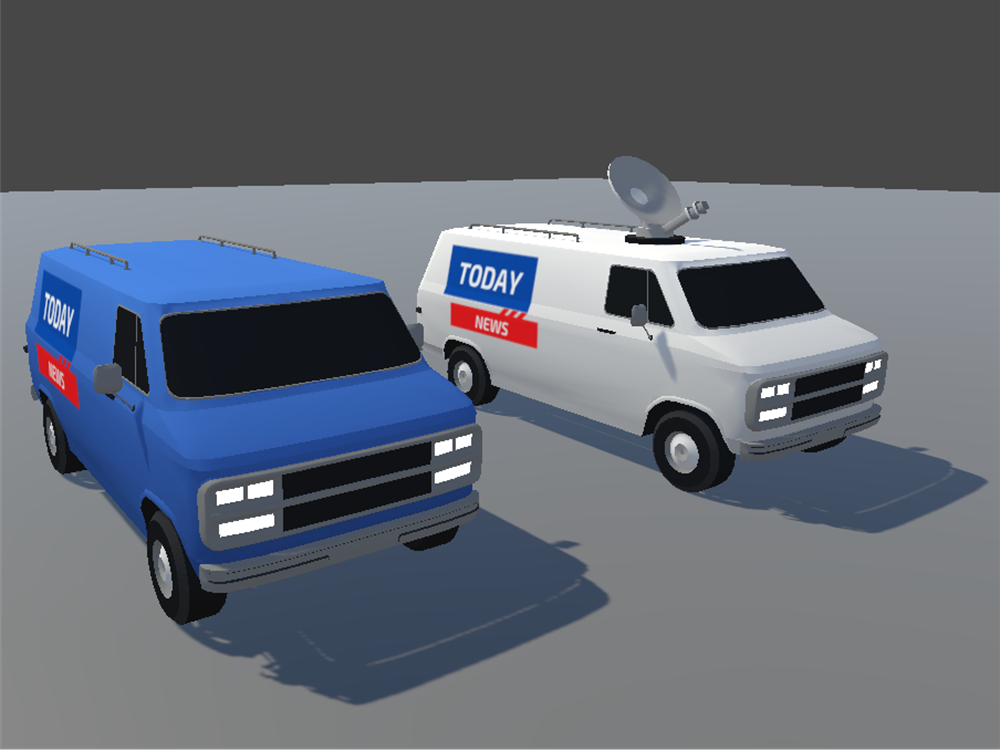
Keep in mind: Props have no colliders, so agents and the participant pass straight through them. If one should block anyone, add a collider to it.
Drag it into the scene, then move, rotate, and scale it to fit your layout. Props are only for decoration and have no logic of their own. Mark it Static, unless it moves during the scenario.
It only comes as a model. There's no agent version.
Smart Wheelchair
A powered smart wheelchair, to place in the scene.
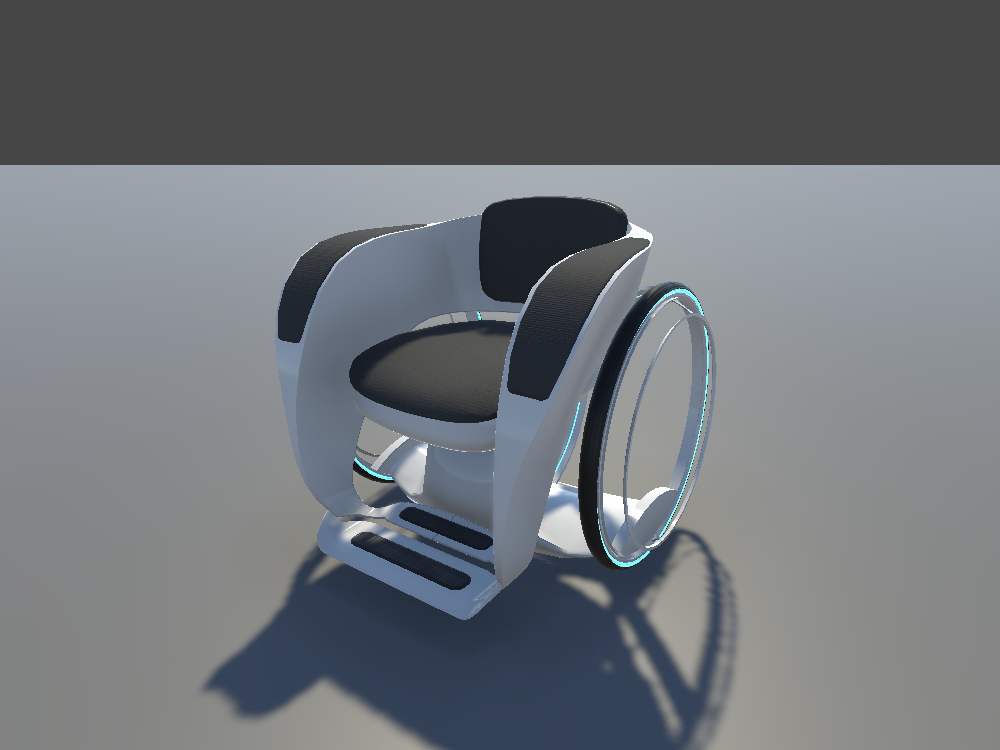
Keep in mind: Props have no colliders, so agents and the participant pass straight through them. If one should block anyone, add a collider to it.
Drag it into the scene, then move, rotate, and scale it to fit your layout. Props are only for decoration and have no logic of their own. Mark it Static, unless it moves during the scenario.
It only comes as a model. There's no agent version.
Mixamo Characters
Eight people, the same characters that the pedestrian agents use.
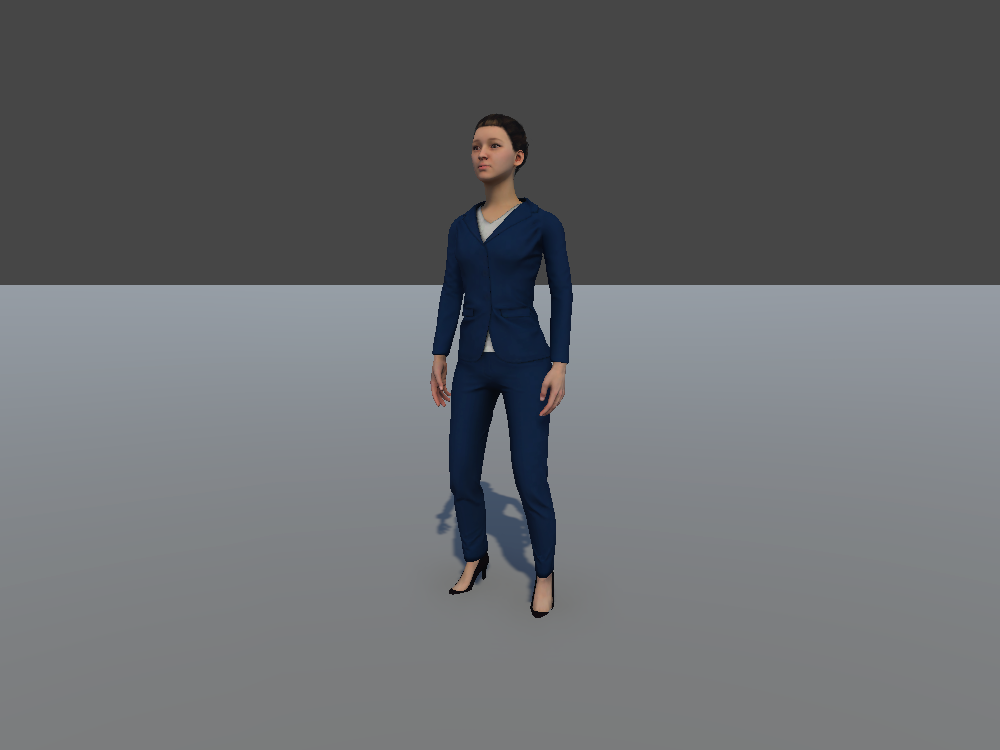
Keep in mind: Don't use ego or road pedestrian prefabs as background characters. Their scripts, sensors, and physics slow the scenario down for nothing.
Each character is a skinned mesh, with its prefab in its own folder under Assets > 3rd Party Packages > Pedestrians.
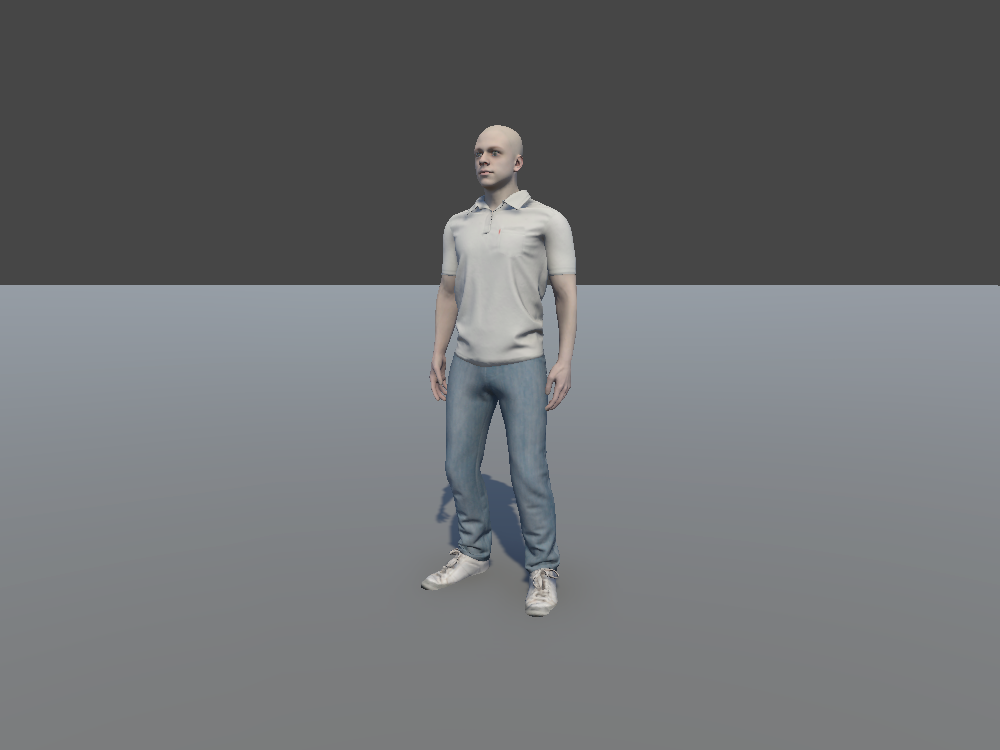
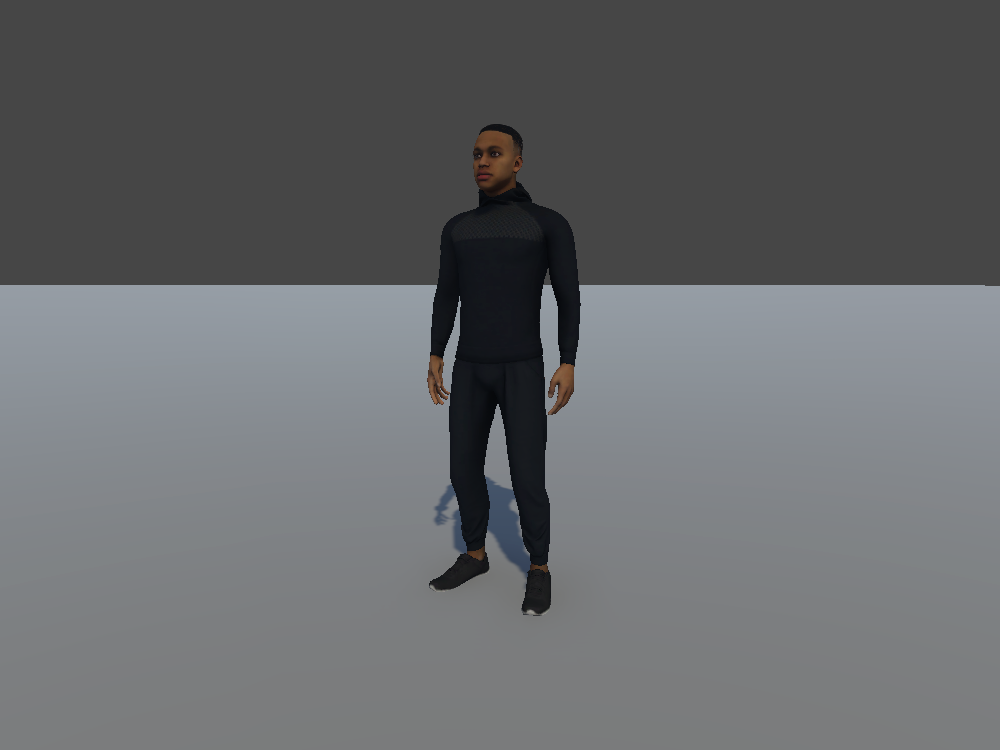
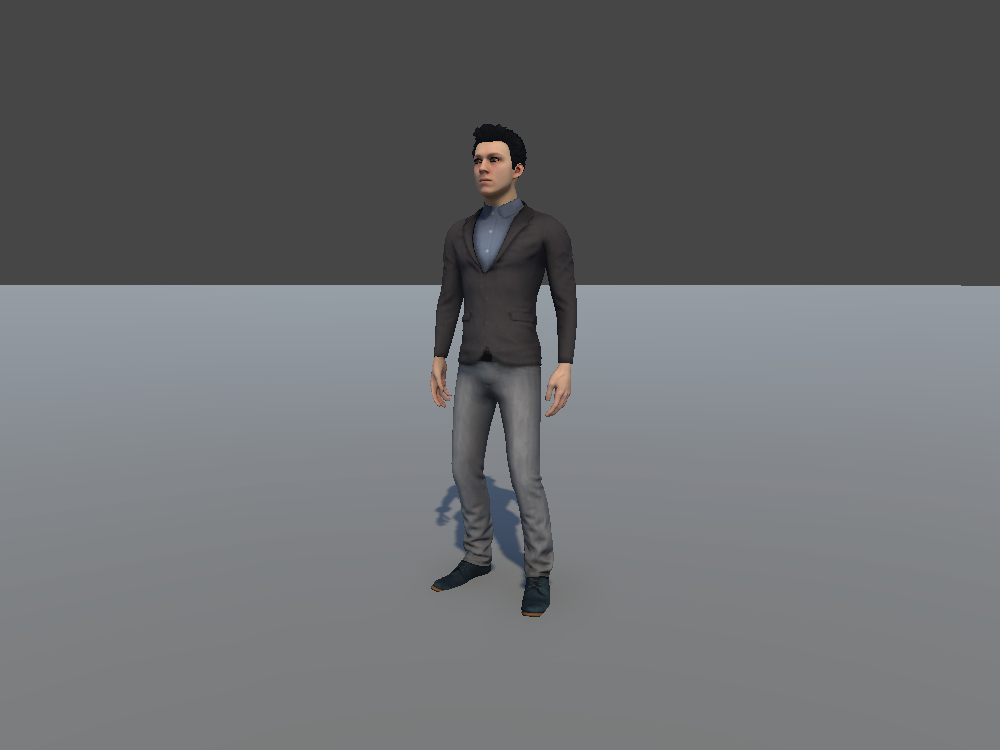
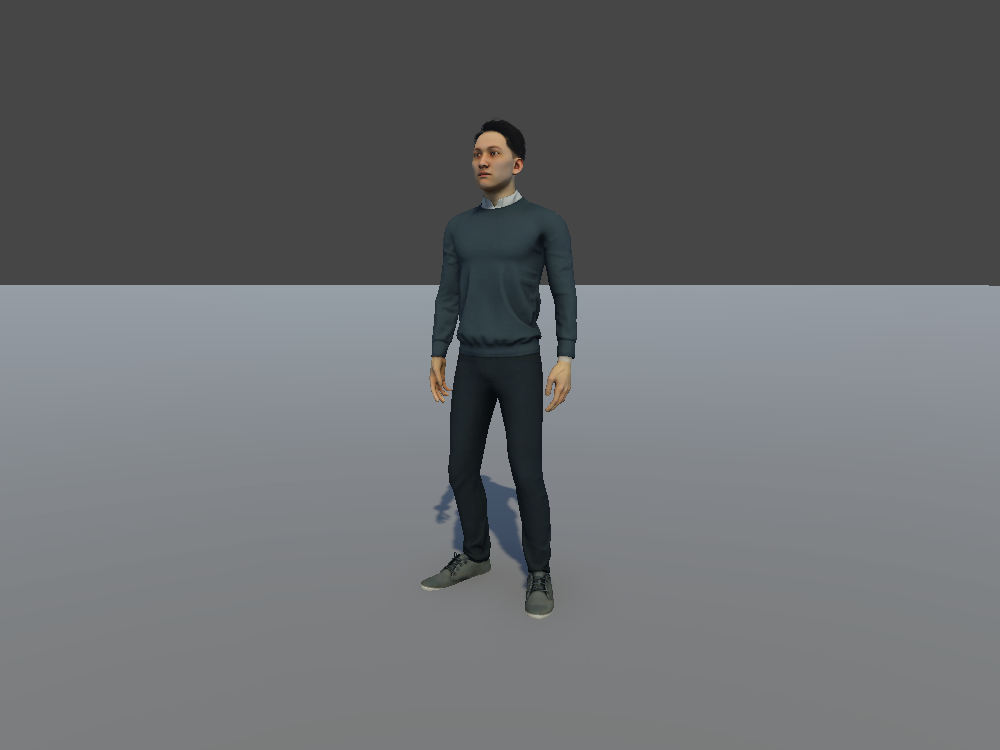
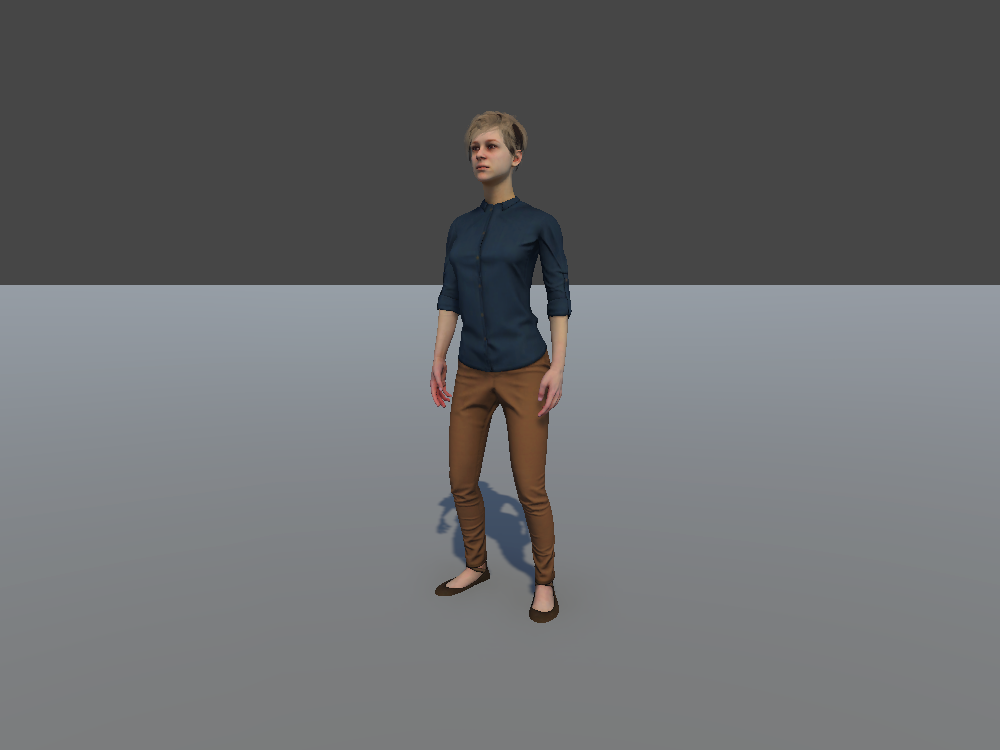
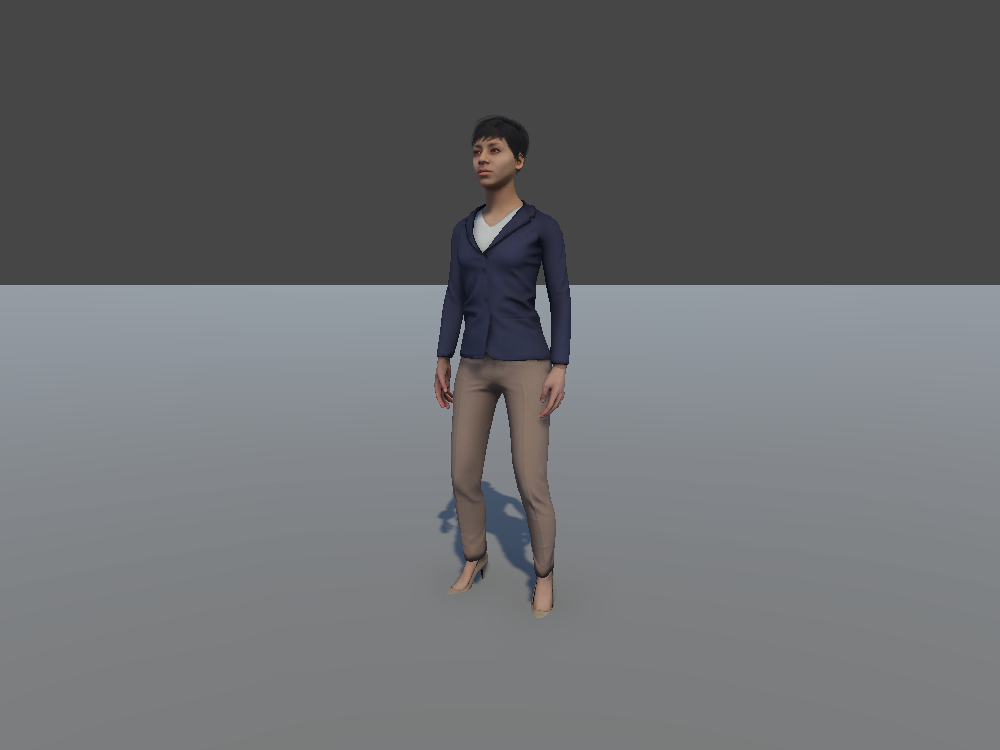
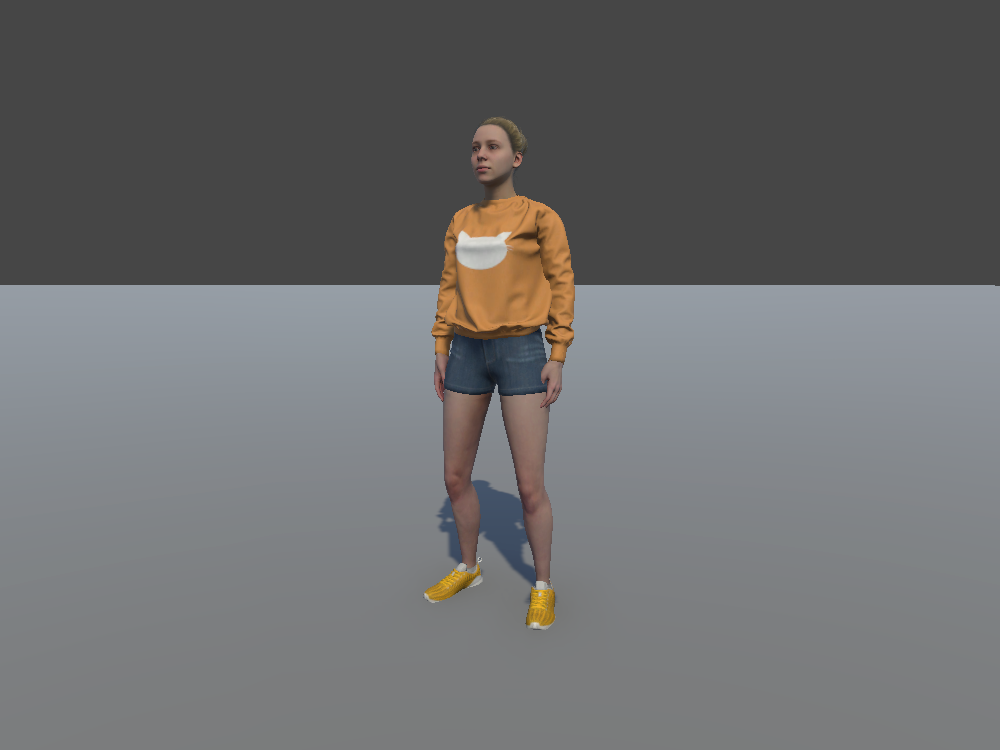
If the character should gaze, point, or be found by your scenario's triggers, use an idle pedestrian from the Agent Catalog instead. Six of these characters come as ready-made idle pedestrians, such as Idle_Pedestrian_Louise, and they're still light enough to place plenty of.
Playing an Idle Animation
To add some subtle motion, give the character a looping idle animation:
- Select the character in the Hierarchy.
- Add an Animator component, if it doesn't have one yet.
- Create or assign an Animator Controller.
- Add an idle animation clip, and set it as the default state, so it plays when the scene starts.
- In the clip's Import Settings, tick Loop Time, so it keeps playing.
You can also pose the character by rotating its bones instead.
Actor Core Characters
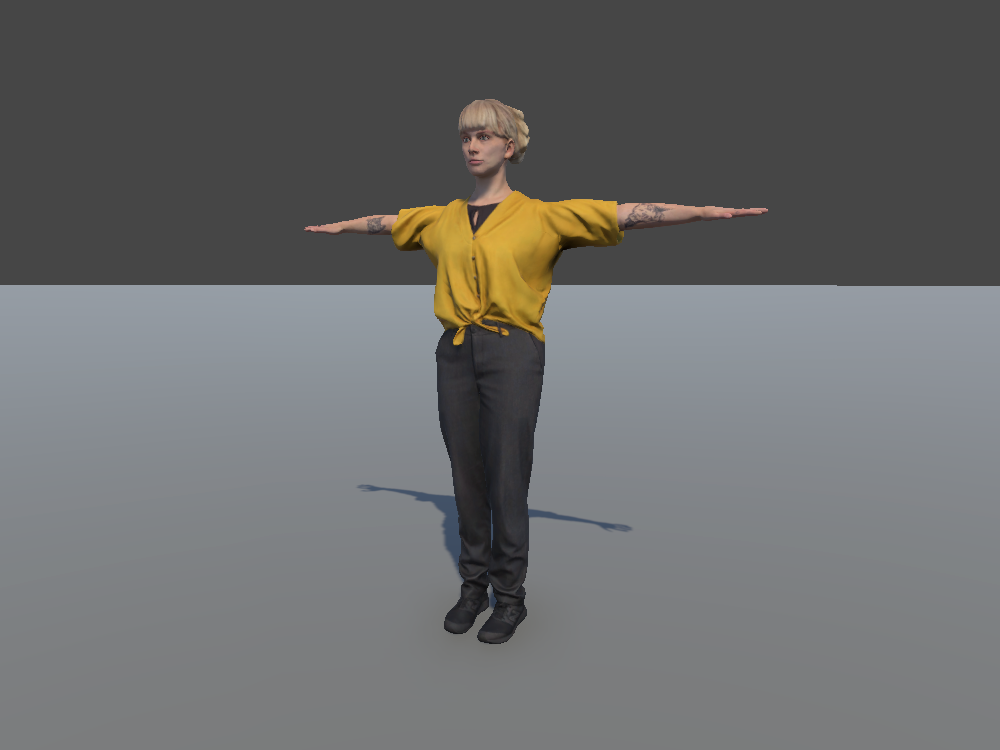
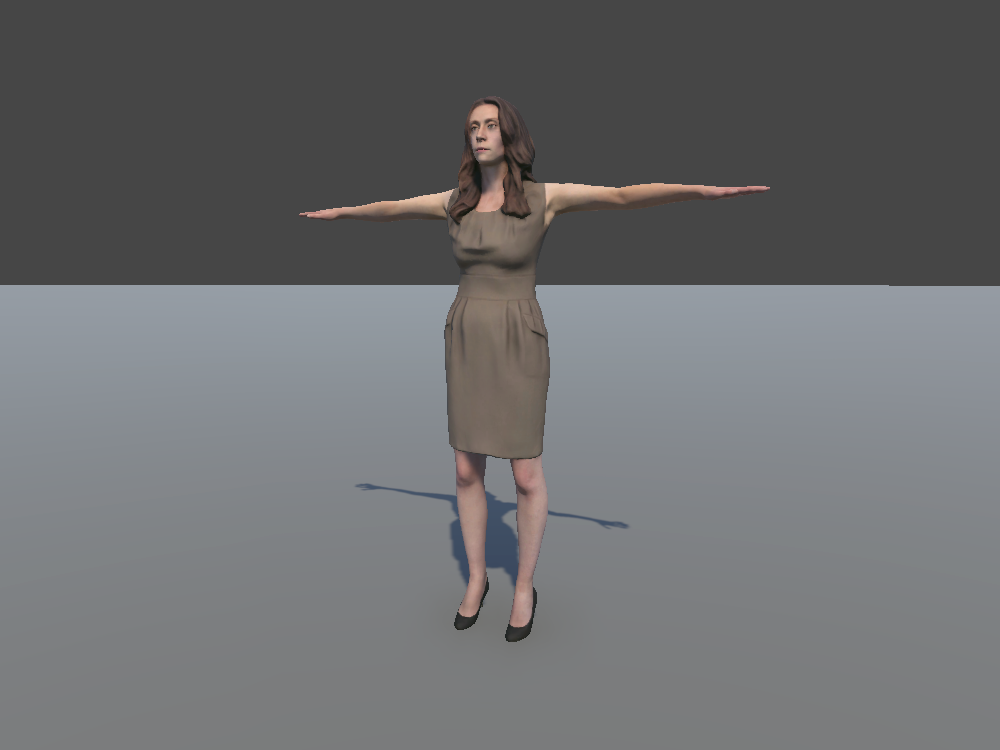
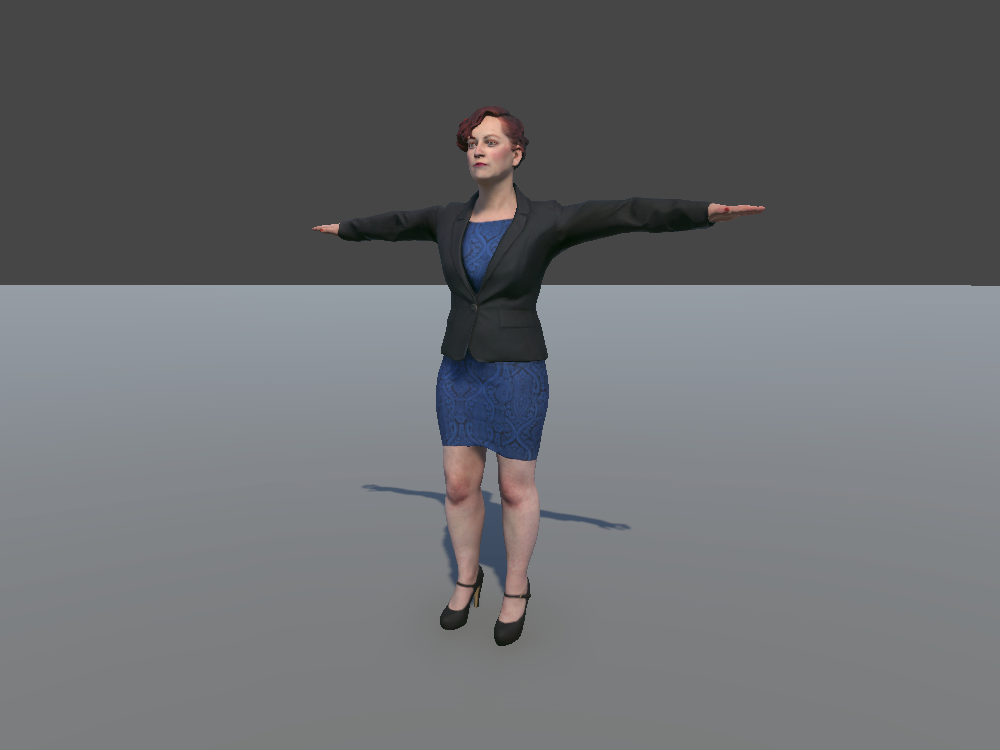
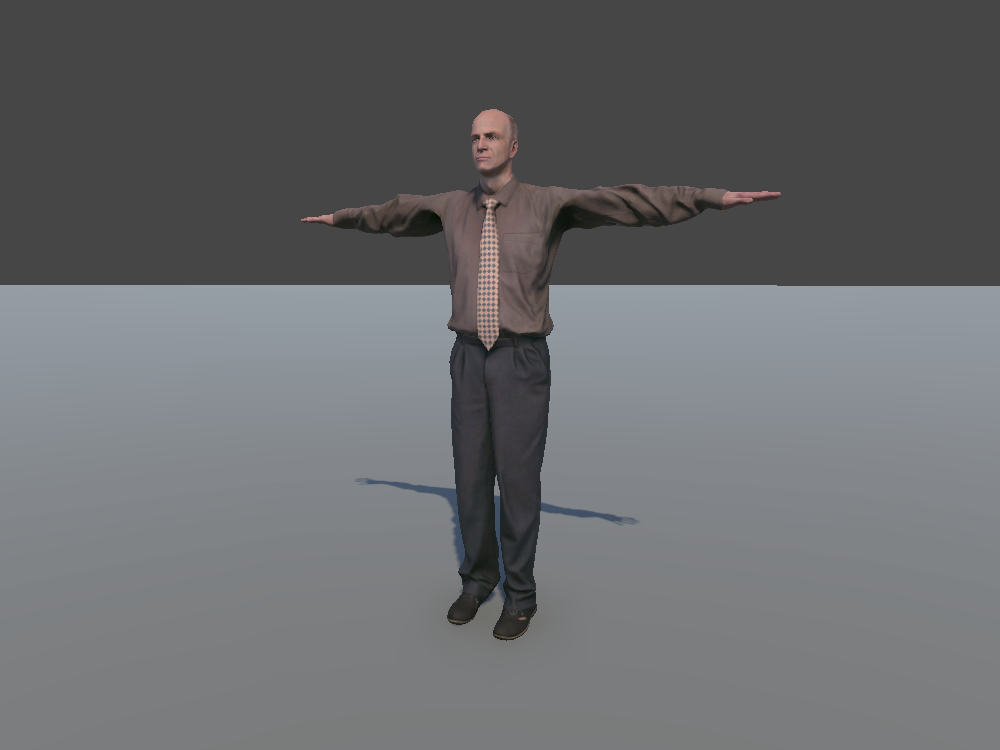
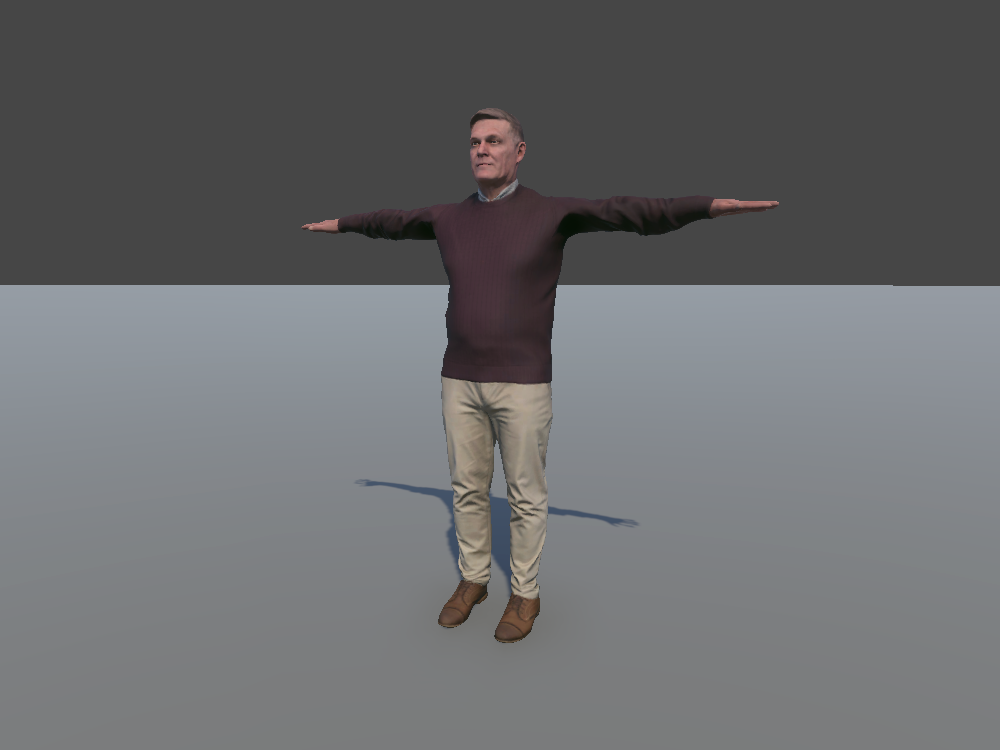
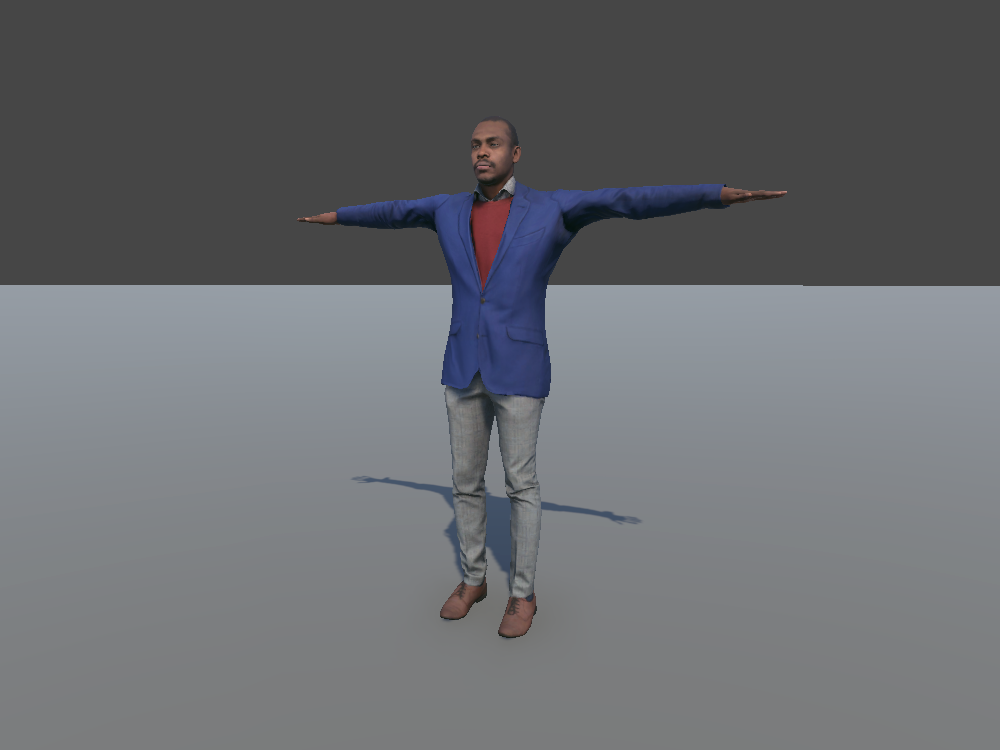
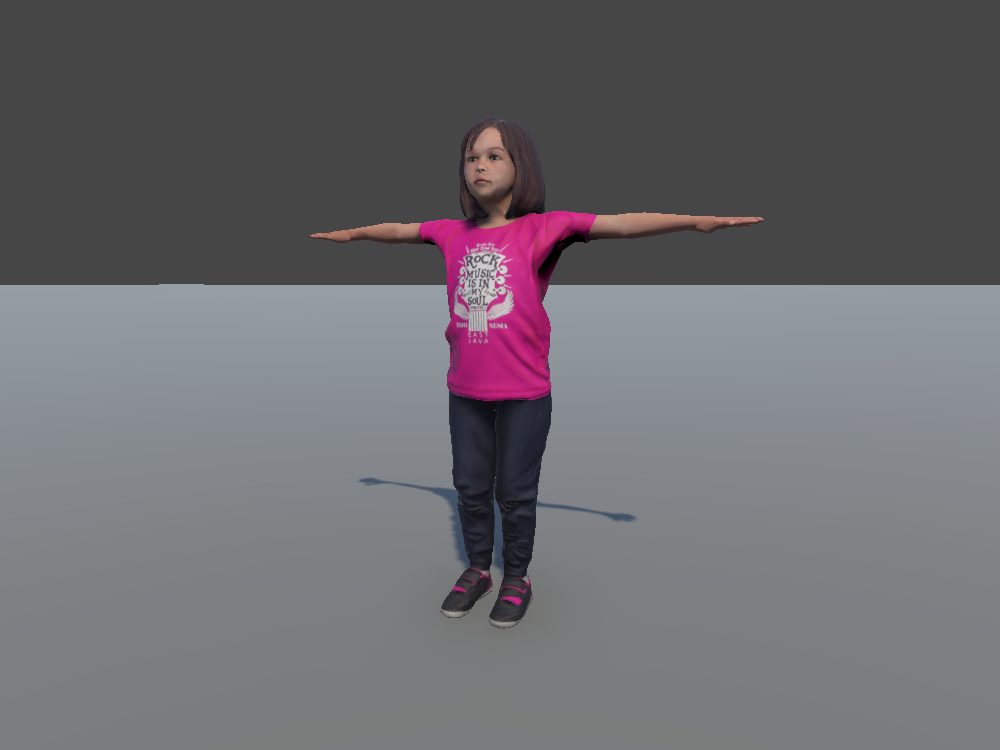
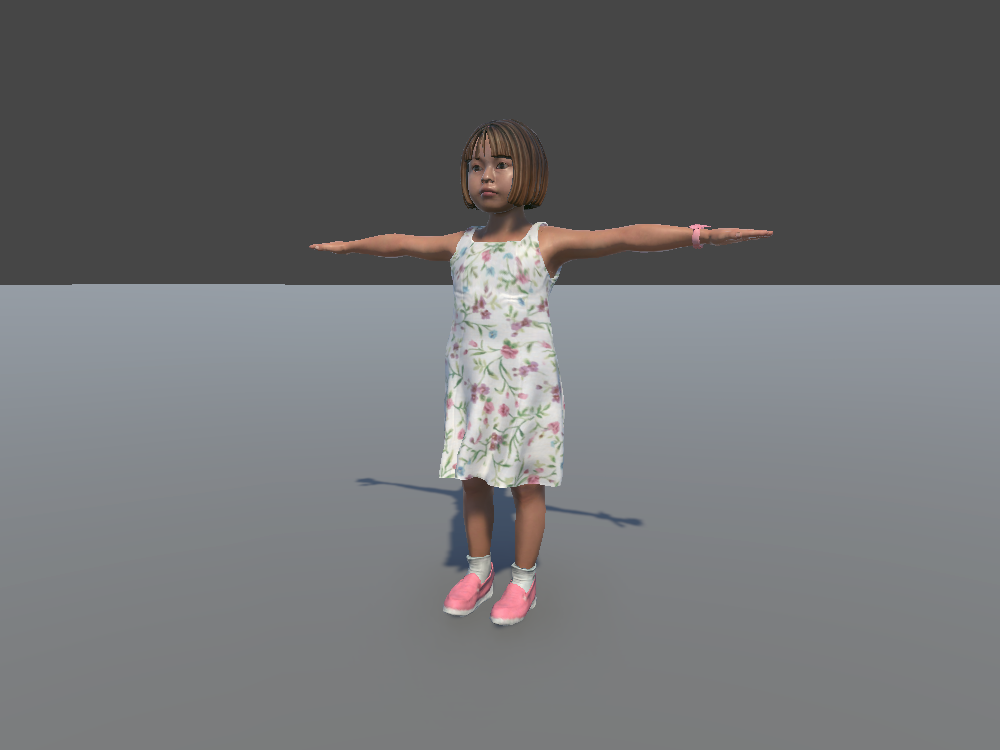
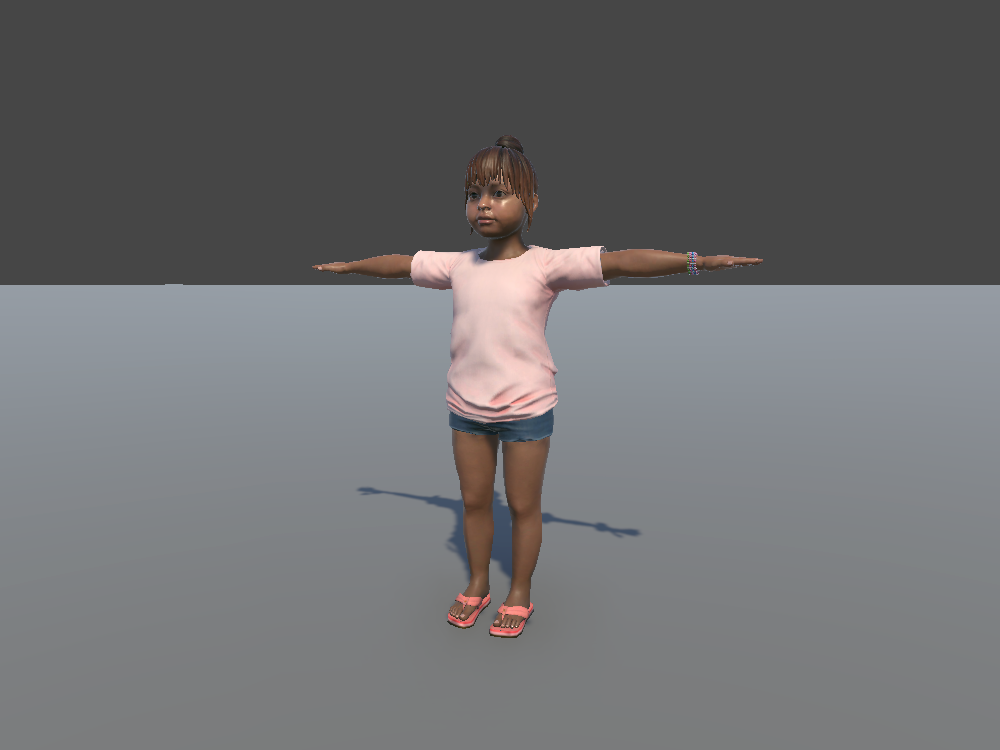
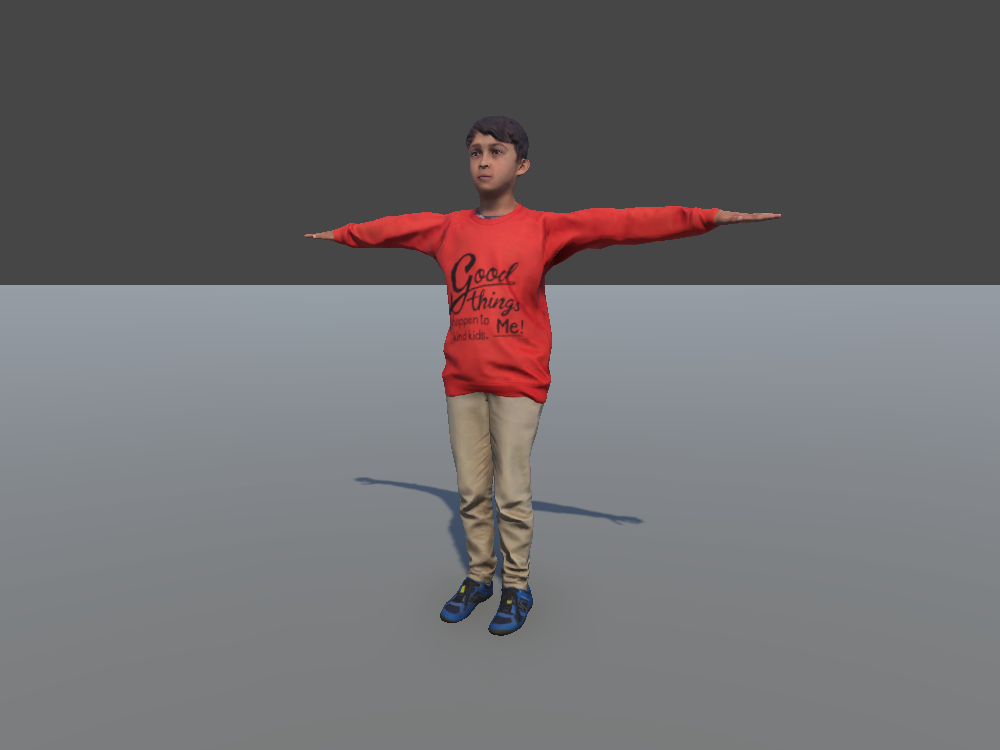
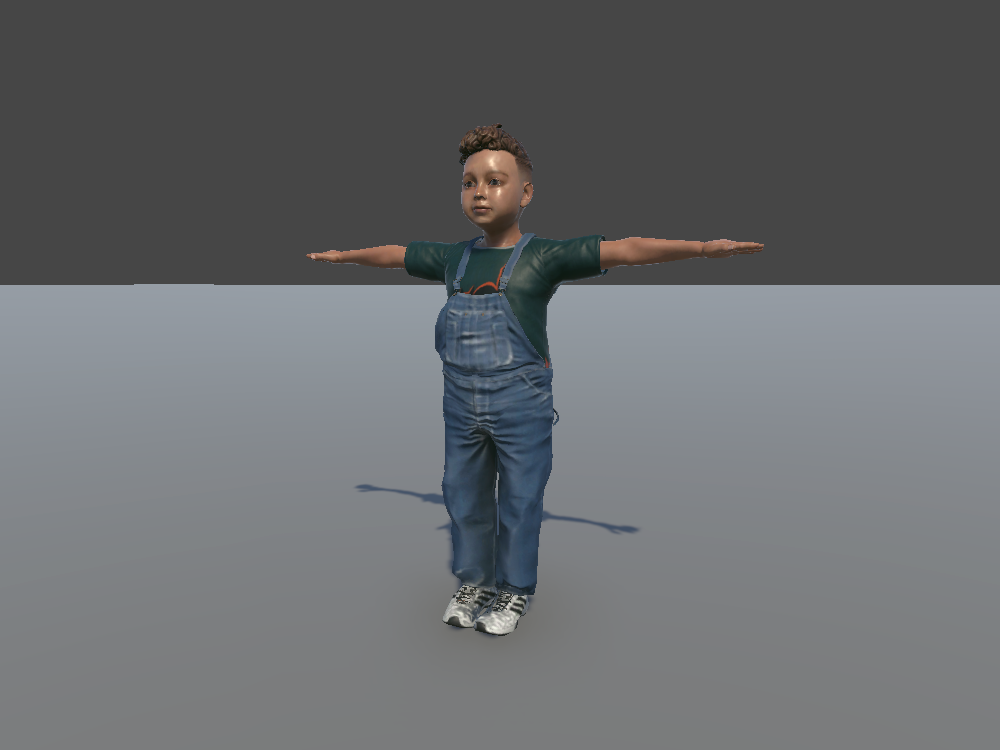
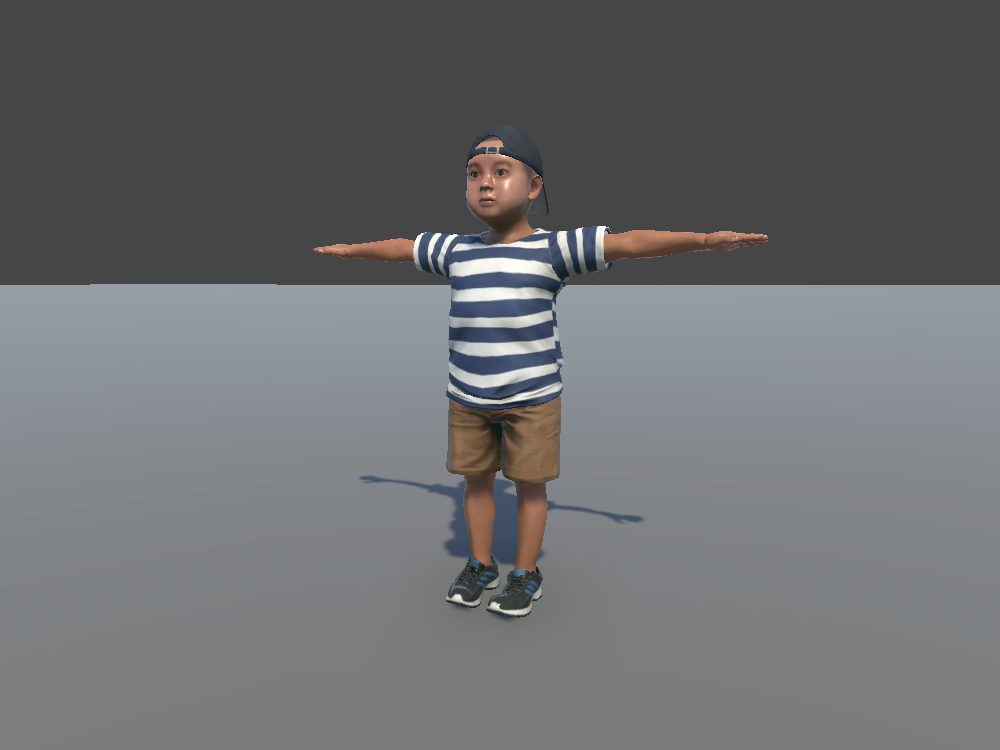
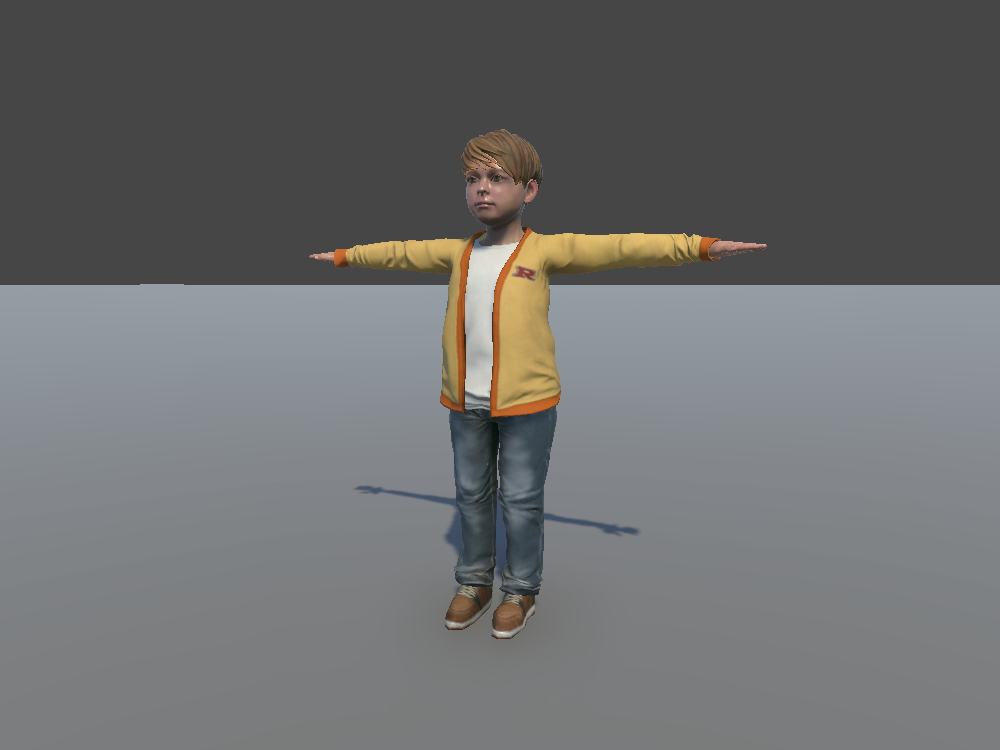
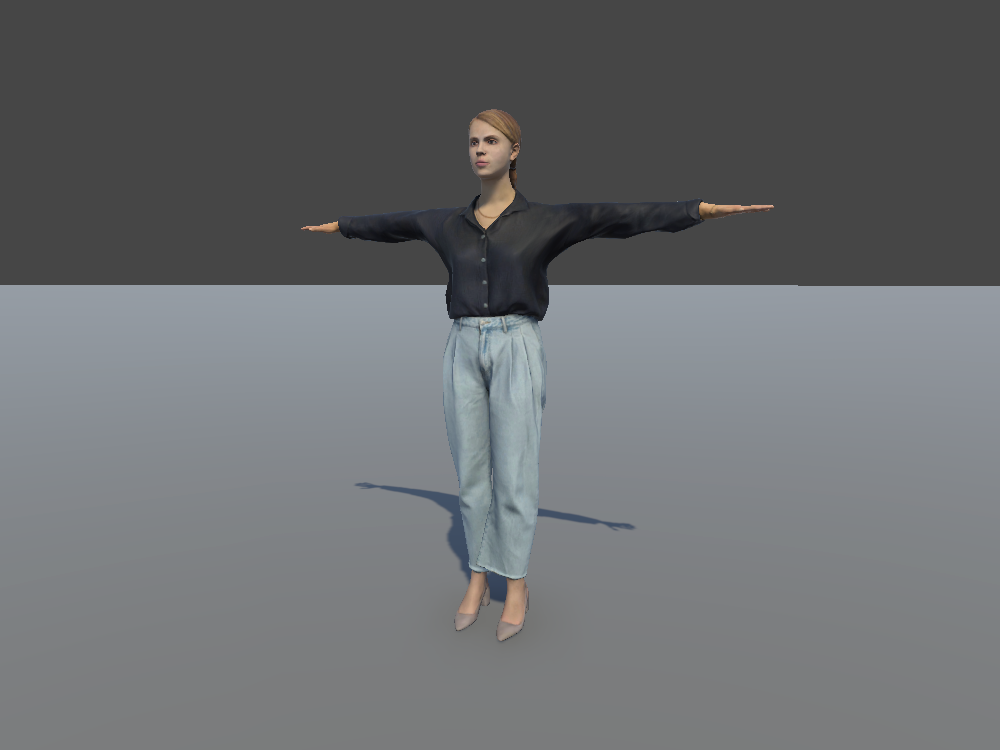
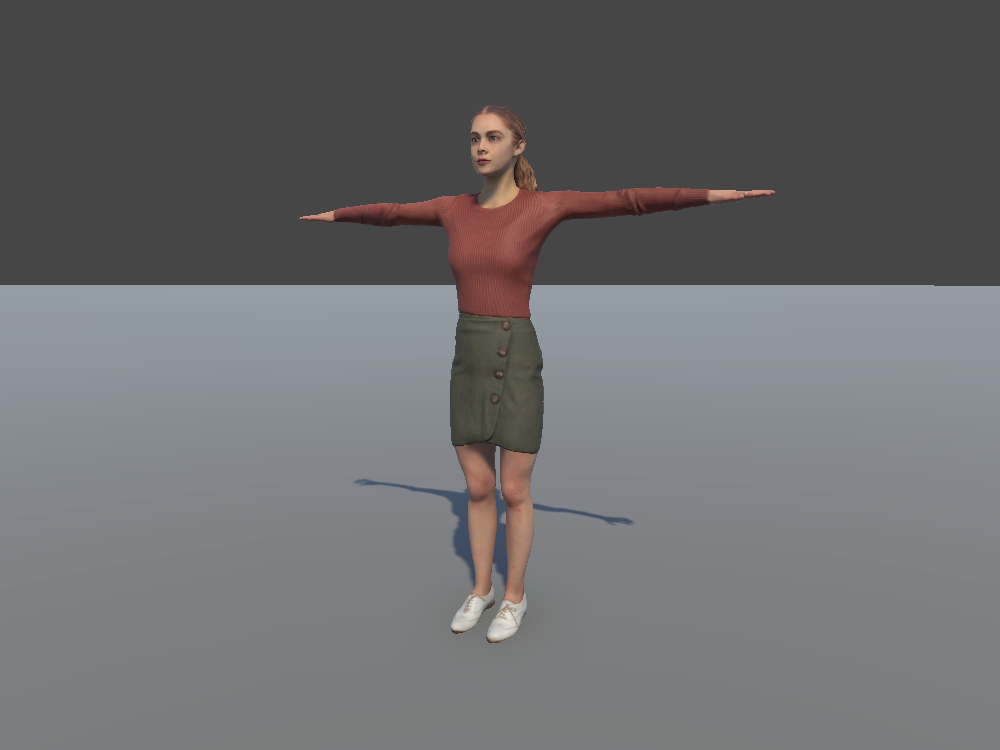
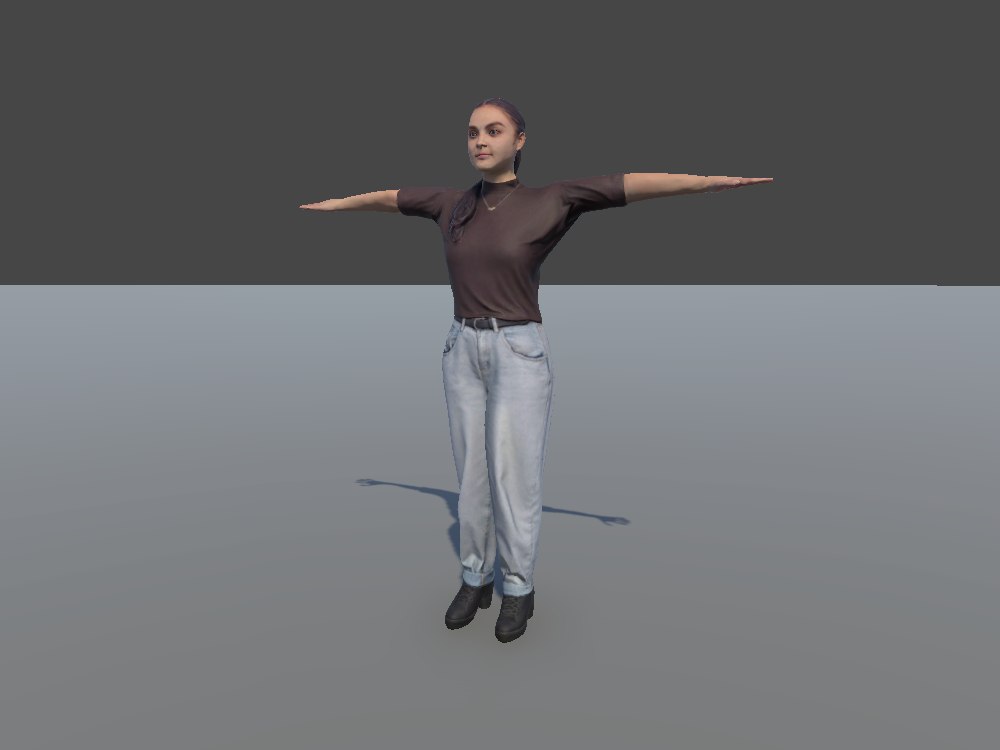
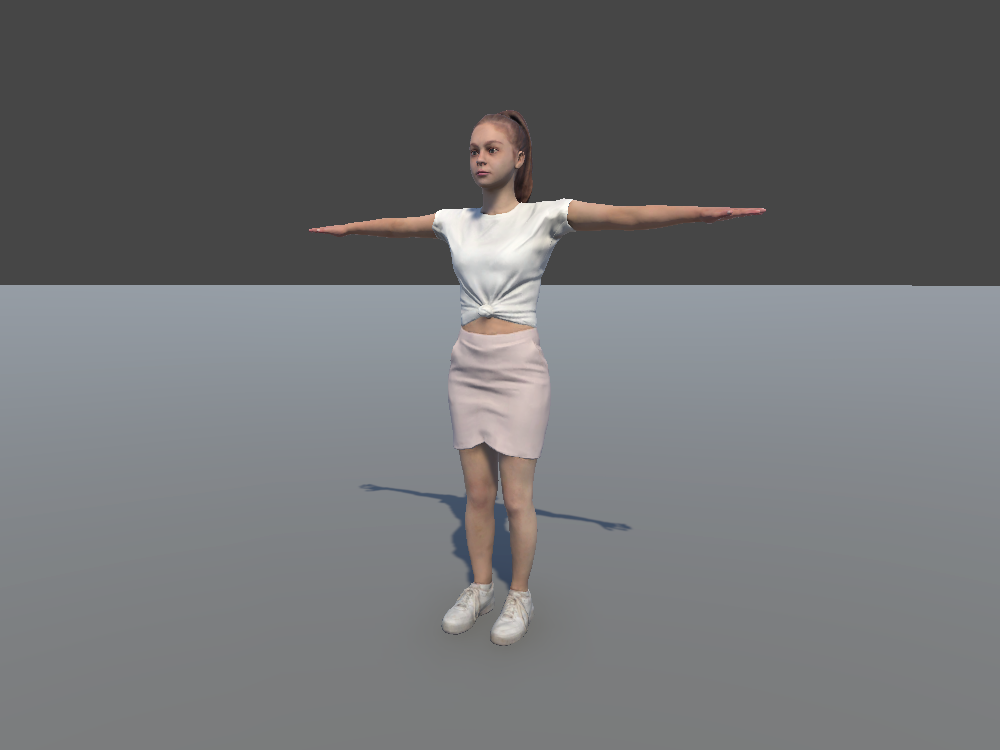
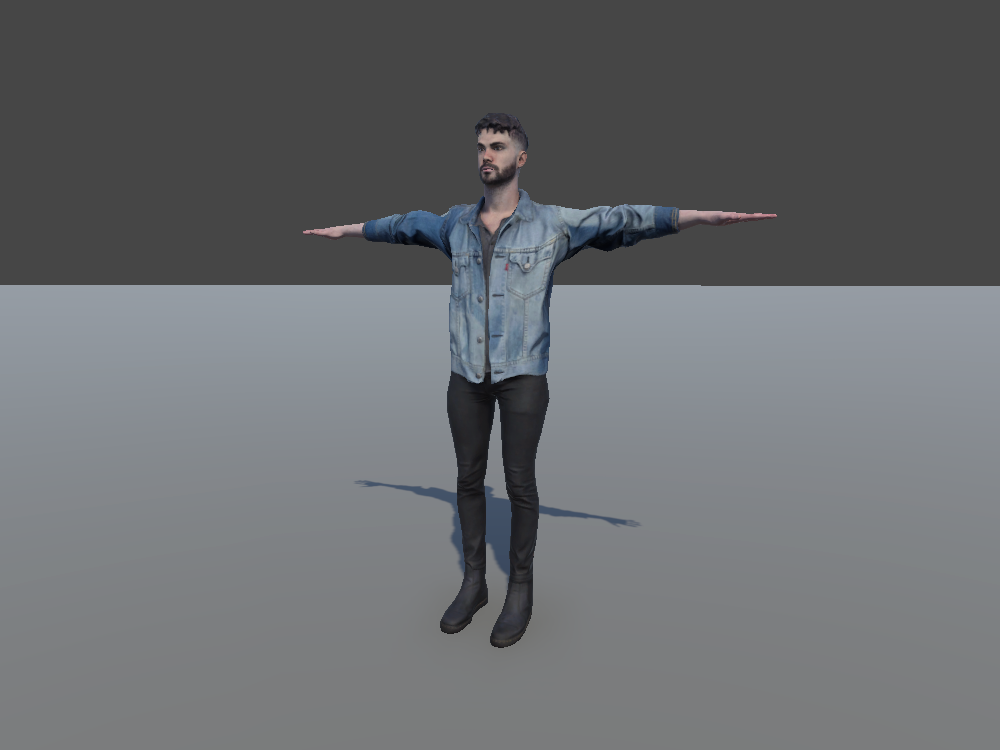
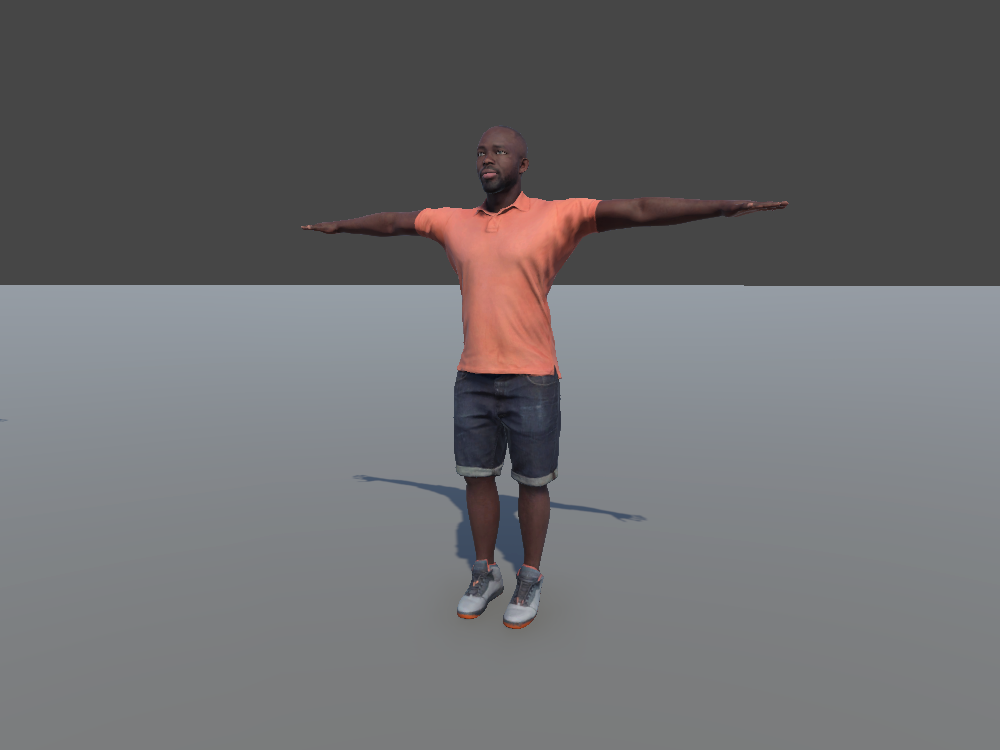
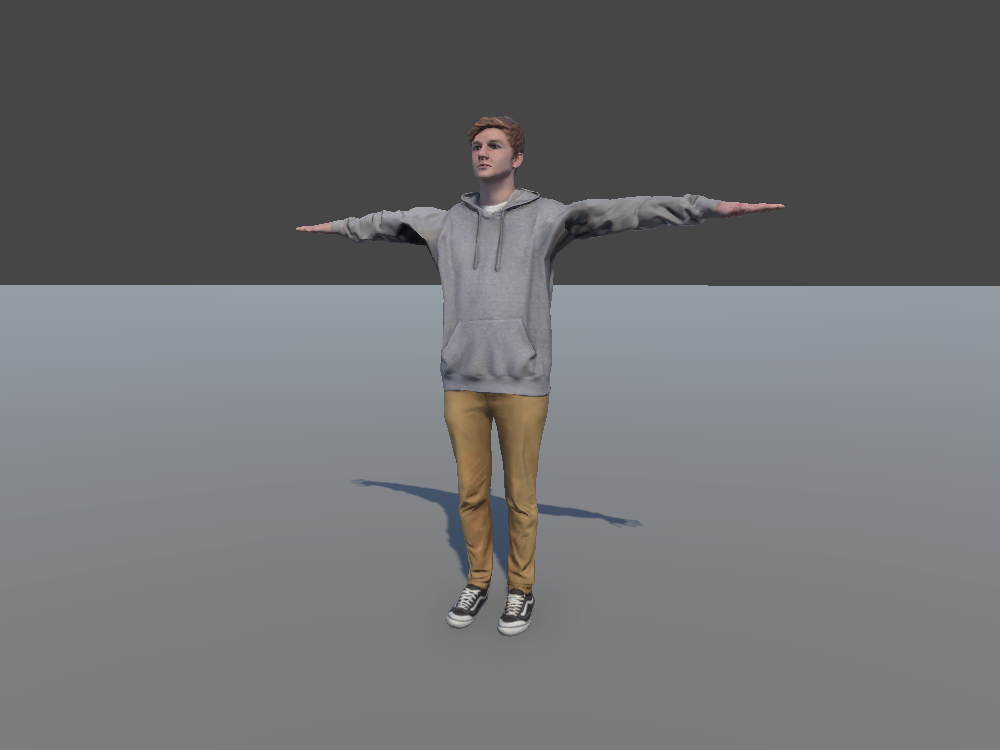
Twenty more people, in business and casual clothes, including children.
Keep in mind: Don't use ego or road pedestrian prefabs as background characters. Their scripts, sensors, and physics slow the scenario down for nothing.
Each character is a skinned mesh, in one of the Actor Core volume folders.
Playing an Idle Animation
To add some subtle motion, give the character a looping idle animation:
- Select the character in the Hierarchy.
- Add an Animator component, if it doesn't have one yet.
- Create or assign an Animator Controller.
- Add an idle animation clip, and set it as the default state, so it plays when the scene starts.
- In the clip's Import Settings, tick Loop Time, so it keeps playing.
You can also pose the character by rotating its bones instead.
Dalmatian
BlackA Dalmatian, with a black or a brown coat.
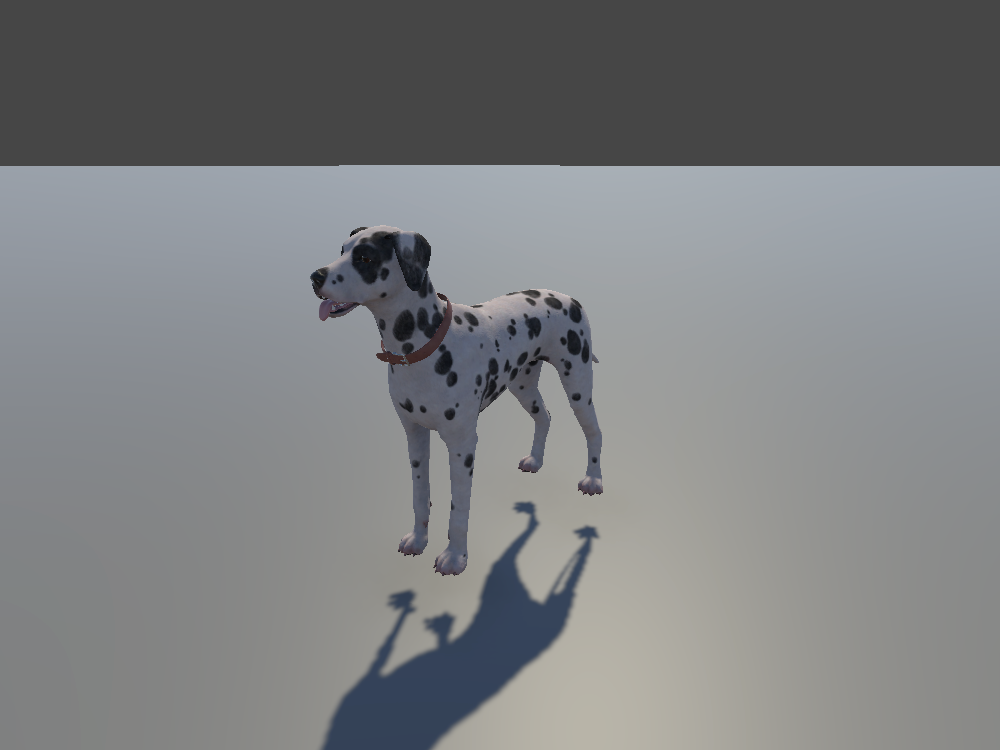
Keep in mind: Don't use the dog's road agent prefab as a background dog. Its scripts, sensors, and physics slow the scenario down for nothing.
A skinned mesh of the dog, in Assets > 3rd Party Packages > Dalmatian > Prefabs. To have it trot along a route, see Dog in the Agent Catalog.
Playing an Idle Animation
To add some subtle motion, give the character a looping idle animation:
- Select the character in the Hierarchy.
- Add an Animator component, if it doesn't have one yet.
- Create or assign an Animator Controller.
- Add an idle animation clip, and set it as the default state, so it plays when the scene starts.
- In the clip's Import Settings, tick Loop Time, so it keeps playing.
You can also pose the character by rotating its bones instead.