Spawning the Player
When building a scenario, you need to define which avatar the participant controls, which camera system is used, and which user interface appears on screen.
The most direct method is to place each element manually. Locate the controllable pawn, camera rig, and UI prefabs in the Project window, drag them into the scene, position them at the intended start point, and configure each as needed. This gives full control over the setup but is time-consuming when building multiple scenarios.
The Player Selector component simplifies this process by spawning all three elements automatically based on its configuration.
Player Selector
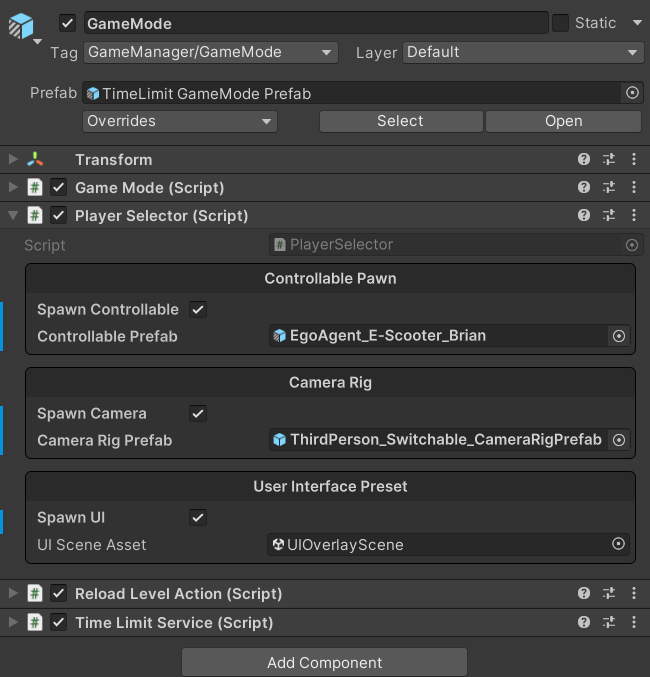
The Player Selector component spawns the participant's controllable pawn, camera rig, and UI overlay at the start of a session based on its configuration.
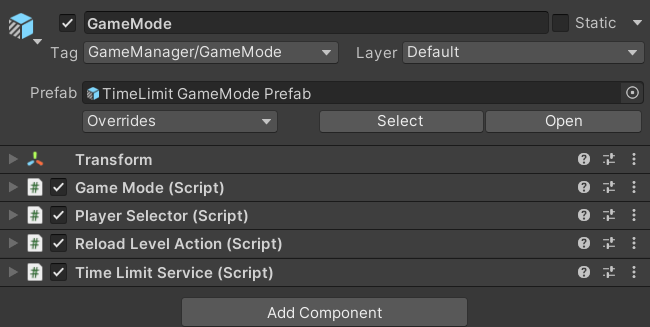
In the Mountain View Scene Template, the Player Selector is attached to the same GameObject as the Game Mode (the GameMode GameObject). It has no dependency on Game Mode and can be placed on any GameObject in the scene.
A scene should contain only one Player Selector.
Setting the Start Point
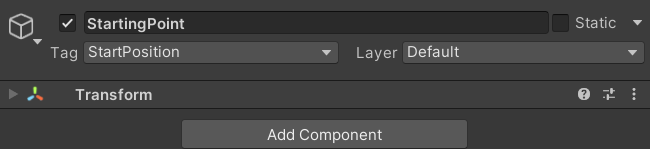
At the start of a session, the Player Selector locates the first
GameObject in the scene tagged with StartPosition and uses it
as the spawn point. The participant spawns at that GameObject's
position and orientation.
Any GameObject in the scene can carry the StartPosition tag.
If multiple GameObjects share this tag, the selector uses the
first one it finds, which may differ between runs. To ensure
consistent results, assign the tag to only one GameObject per scene.
If no GameObject is tagged, the selector defaults to the world
origin (0, 0, 0).
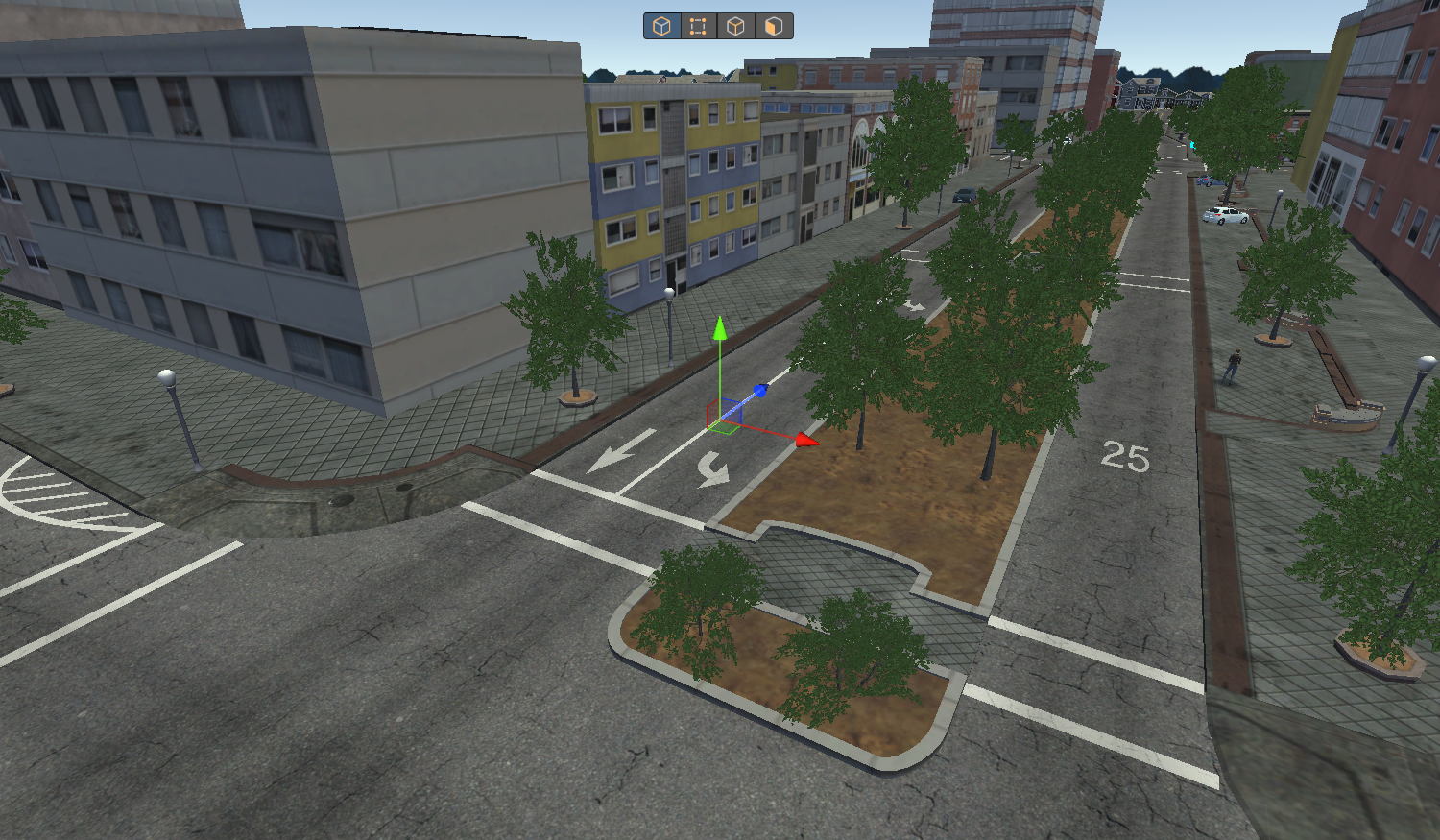
The blue Z arrow on the Starting Point GameObject marks the direction the participant will face at spawn. Rotate the GameObject to set the intended facing direction.
Spawn Configuration
The Player Selector spawns three categories of elements: a Controllable Pawn, a Camera Rig, and a User Interface Preset. Each category has:
- A toggle (Spawn Controllable, Spawn Camera, or Spawn UI) that controls whether that category is spawned automatically at session start. The field is hidden while the toggle is off.
- A field where you assign the prefab or scene to use when the toggle is enabled.
Disabling a toggle for a category means the Player Selector will not spawn that element. You can then place it manually in the scene.
The following tabs describe each category in detail.
- Controllable Pawn
- Camera Rig
- User Interface Preset
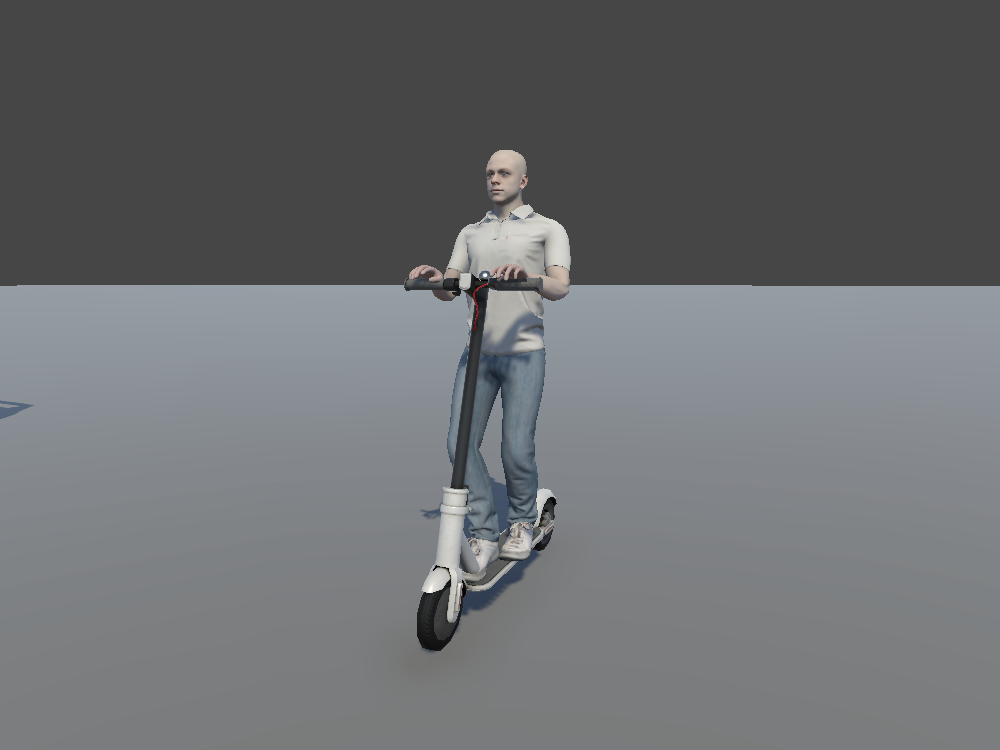
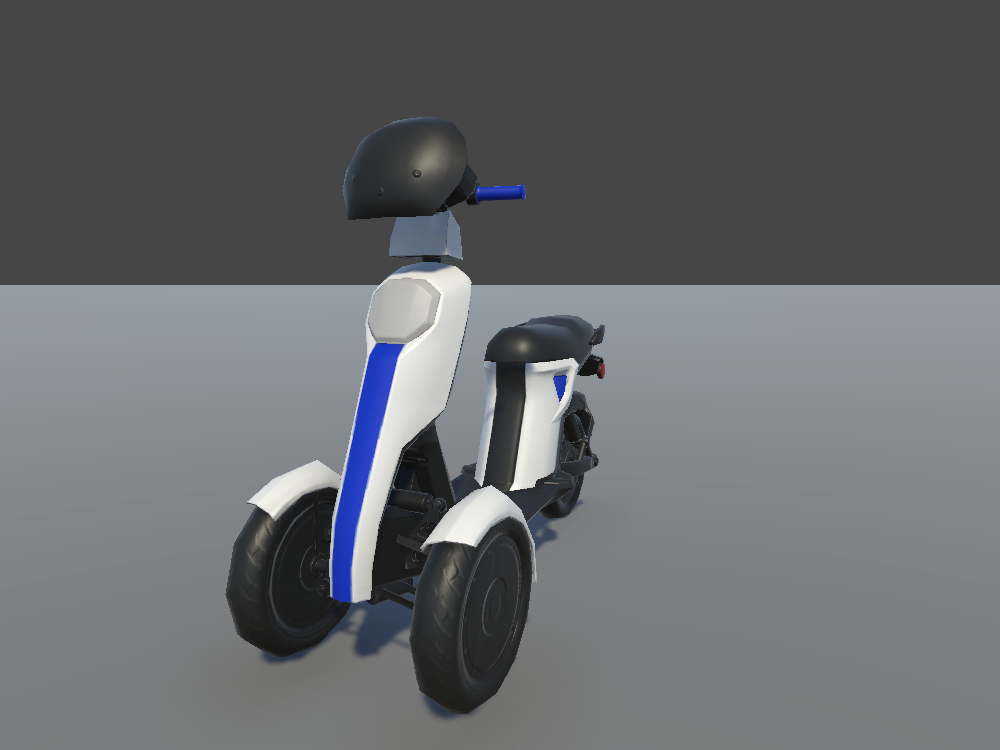
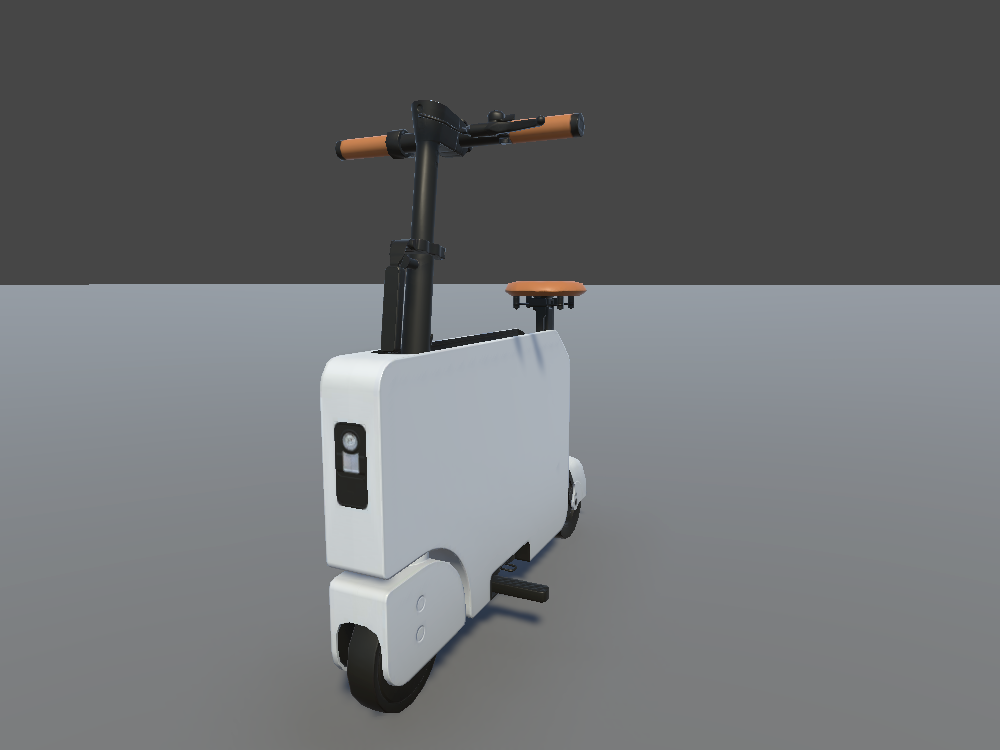
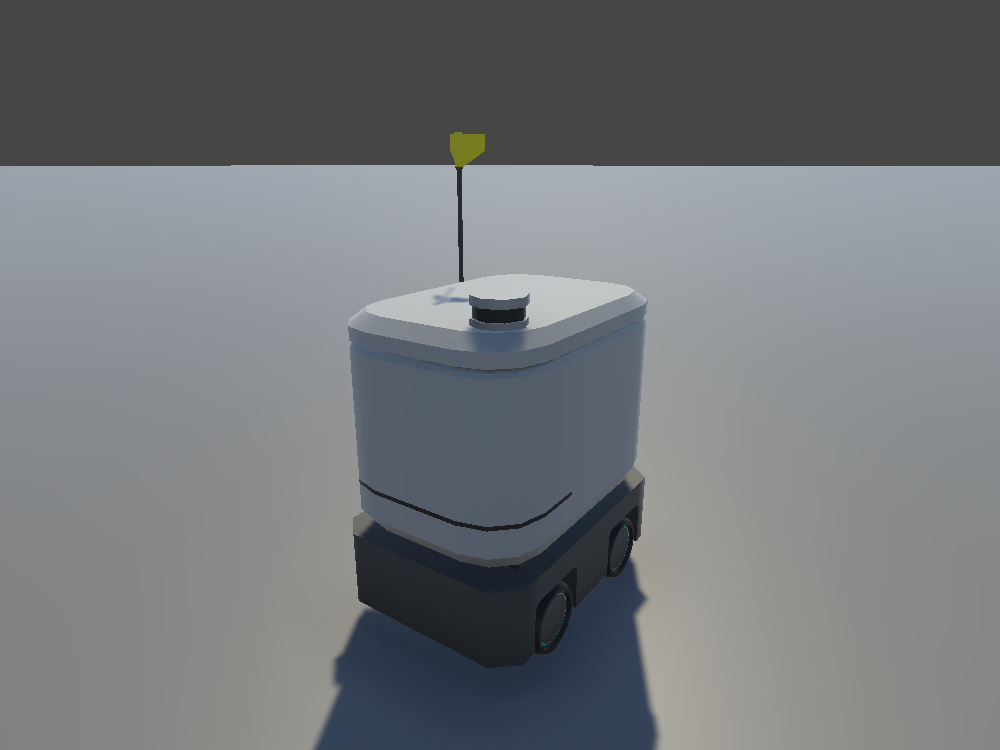
A Controllable Pawn is the avatar the participant operates during a scenario. Each pawn includes its own model, input handling, physics, and configuration.
The project already includes several controllables, shown below. You can use them directly or extend them with your own.
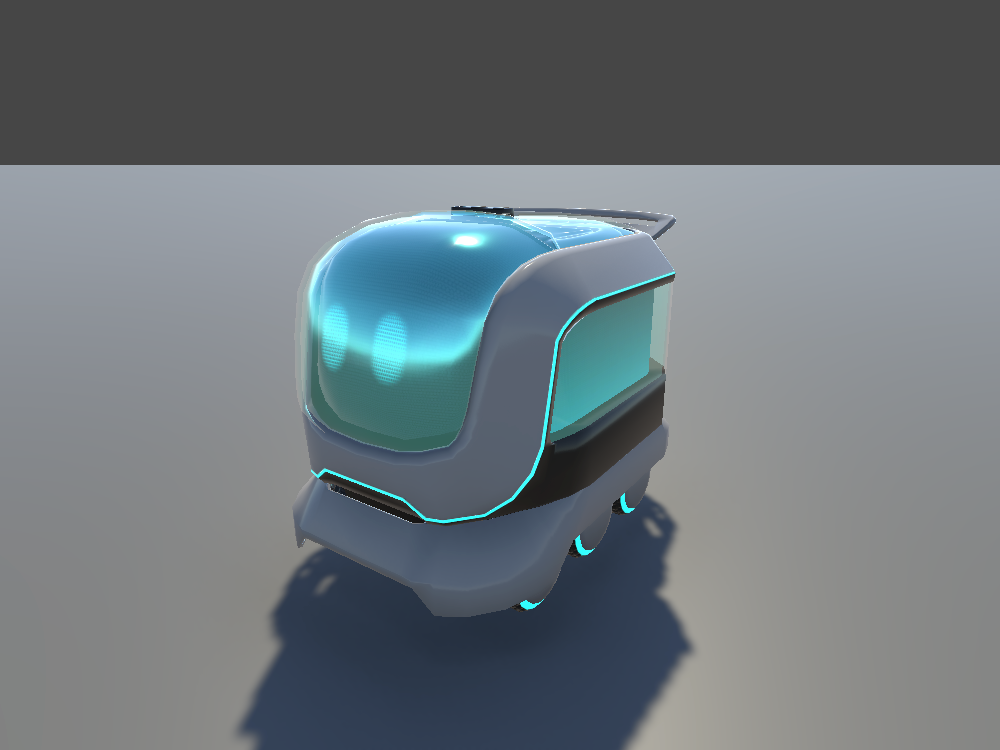
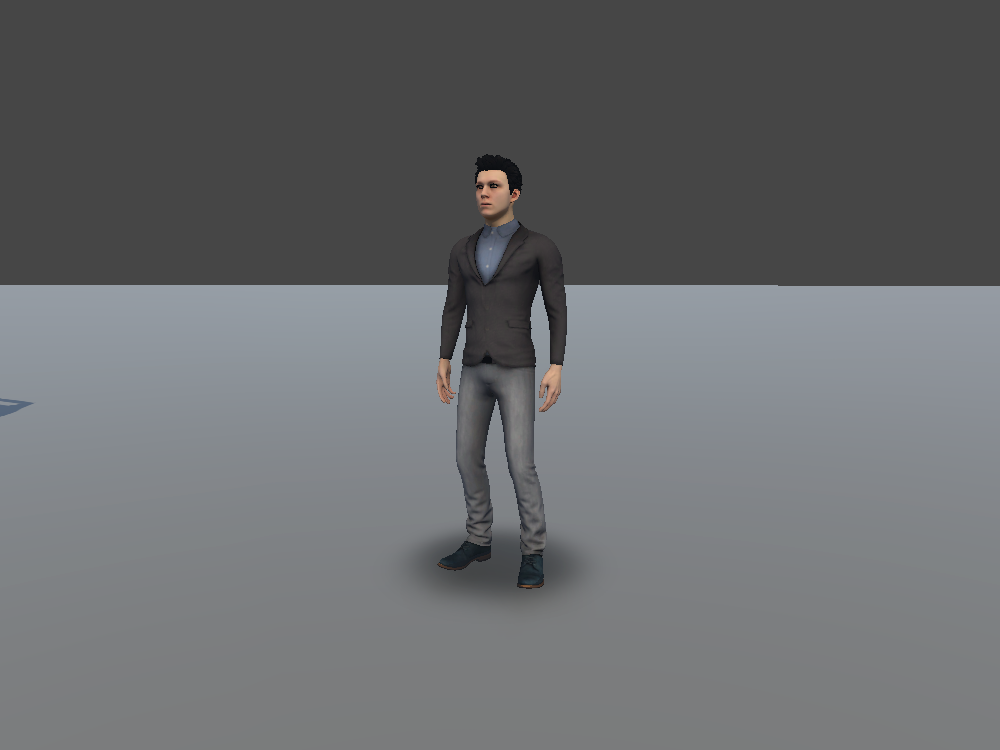
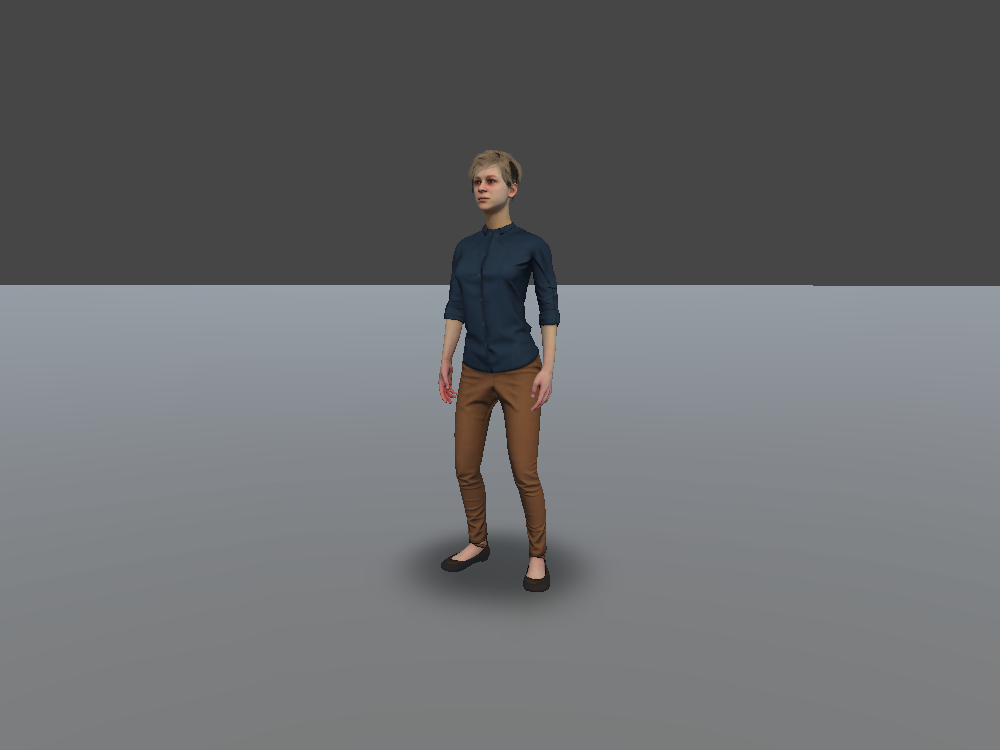
Choosing a Controllable
The Controllable Prefab field defines which pawn the Player
Selector spawns. Click the object picker icon in the field to open
the picker, a pop-up window filtered to show only prefabs with the
Asset Label Controllable. The built-in controllables are the
EgoAgent_* prefabs in Assets/mobisim/Actors/Vehicle/Prefabs
and Assets/mobisim/Actors/Pedestrian/Prefabs.
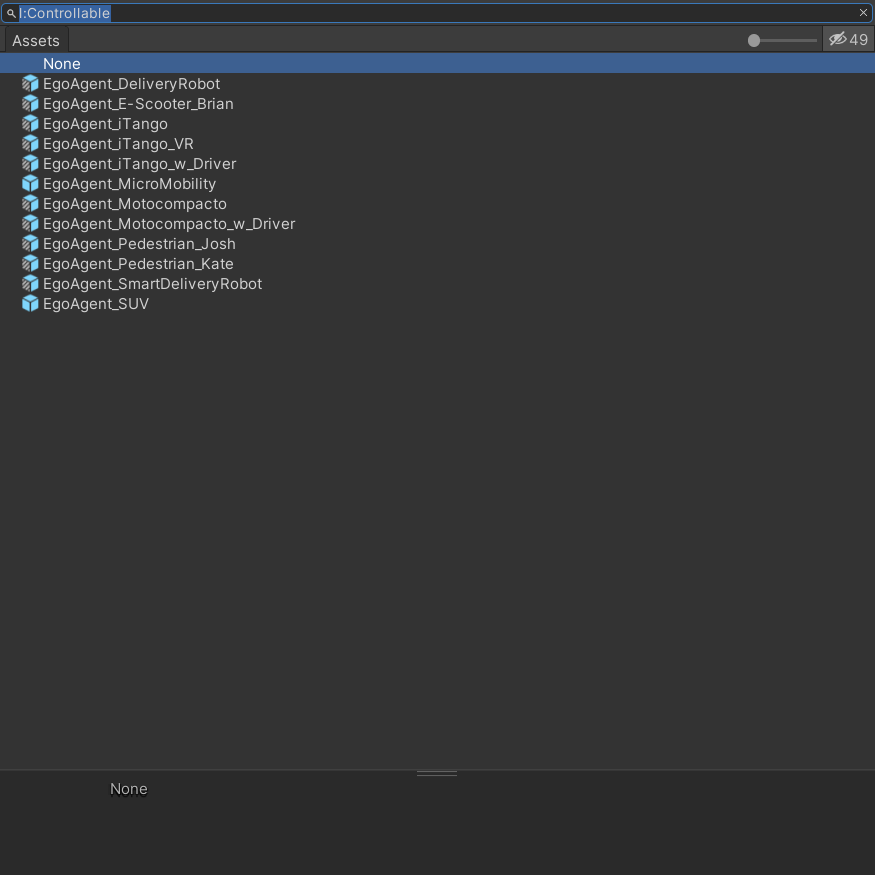
The first time you open the object picker in a session, it may take a moment to load as Unity prepares the search results and previews. Subsequent opens are faster.
Making a Prefab Controllable
To make a custom pawn prefab appear in the picker:
In the Project window, select the pawn prefab.
In the Inspector window, click the Label tag icon at the bottom right.
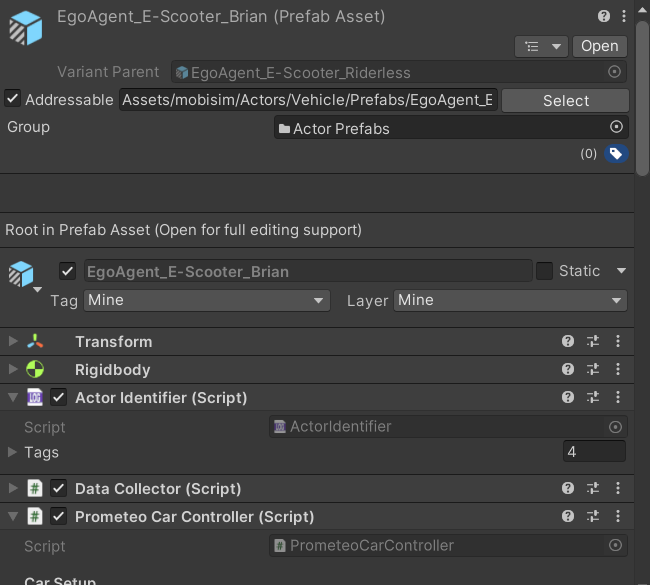
Select the label Controllable.

The prefab now appears as an option in the Controllable Pawn picker.
Create multiple controllable prefab variants (for example, the same vehicle with different parameters) and switch between them in the Controllable Prefab field when testing scenarios.
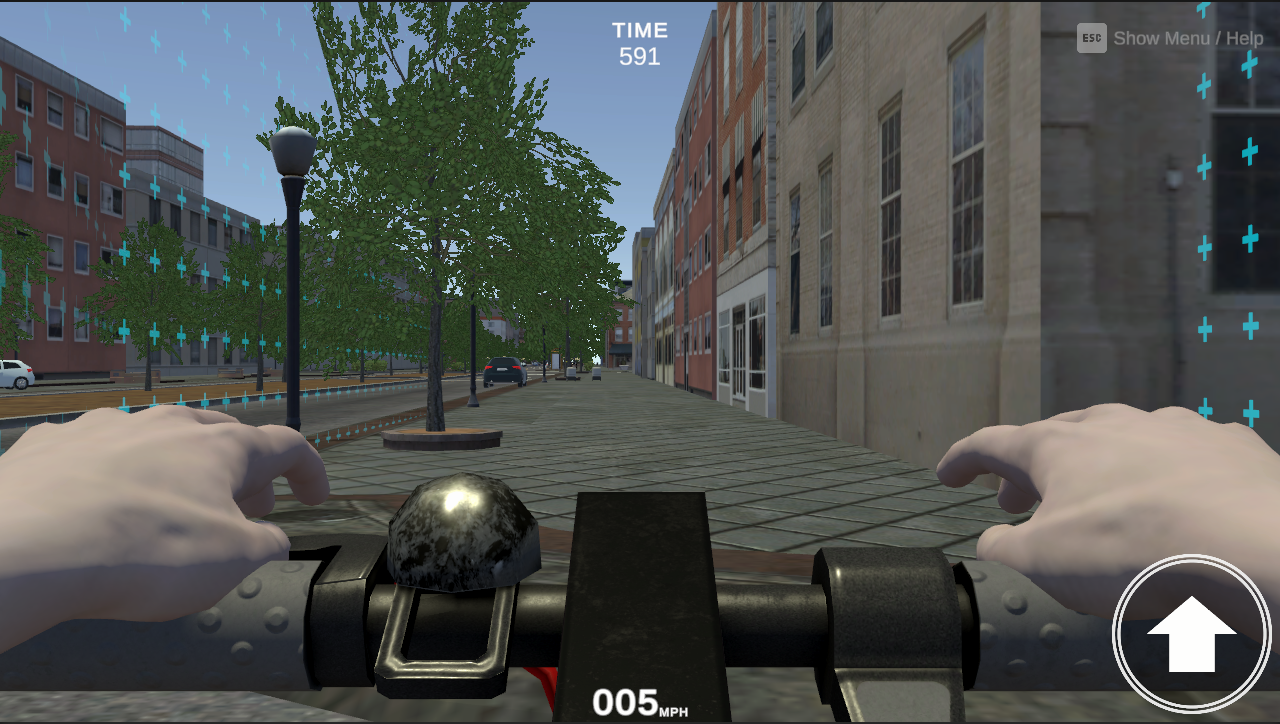
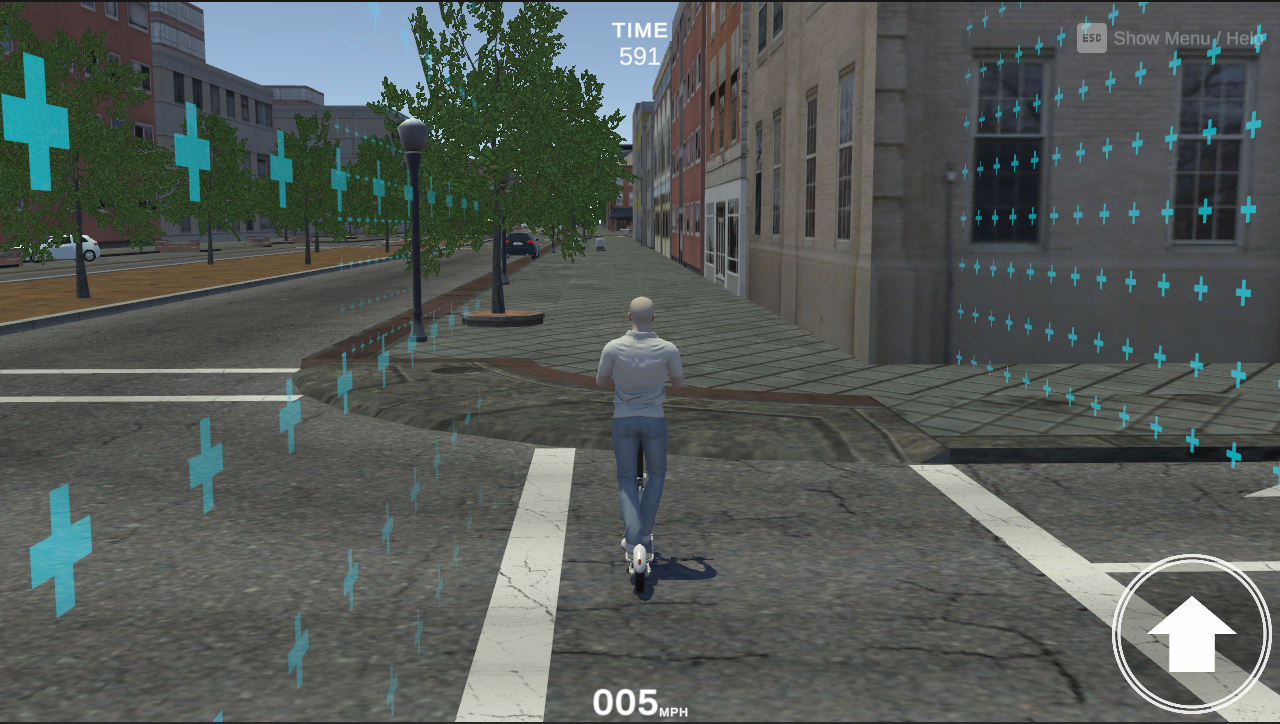
Camera Rigs are preconfigured camera prefabs that define how the participant views the scenario. Each rig can have its own behaviors, controls, and perspective.
The project already includes a few camera rigs, shown below. You can use them directly or extend them with your own. They are located in Assets/mobisim/Actors/UserCamera/Prefab (FirstPerson_Switchable_CameraRigPrefab, ThirdPerson_Switchable_CameraRigPrefab, and the VR rig XRCamera_CameraRigPrefab).
Choosing a Camera Rig
The Camera Rig Prefab field defines which camera system the Player Selector spawns. Click the  in the field to open the object picker, a pop-up window that lists camera rig prefabs and lets you search for one quickly. The picker is pre-filtered to show only prefabs that have the Asset Label
 Camera.
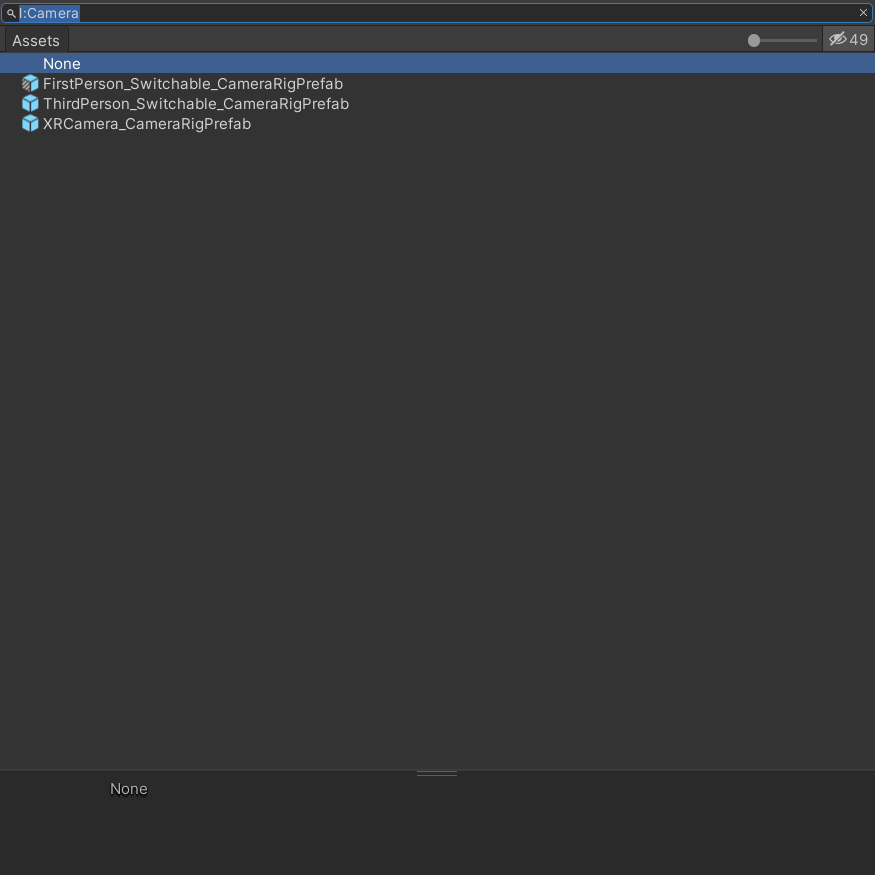
The first time you open the object picker in a session, it may take a moment to load as Unity prepares the search results and previews. Subsequent opens are much faster.
Making a Prefab a Camera Rig
To make your own camera prefab appear in the picker:
In the Project window, select your camera prefab.
In the Inspector window, click the small Label tag icon at the bottom right.
Select the label Camera.
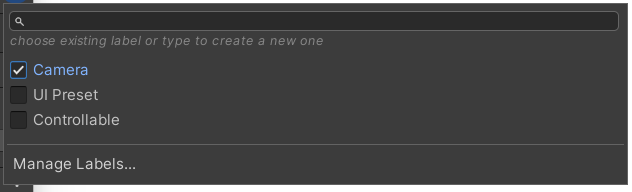
The prefab now appears as an option in the Camera Rig picker.
You can create multiple camera rig variants (for example, one that starts in first-person view and one that starts in third-person view) and switch between them in the Camera Rig Prefab field when testing different scenarios.
UI Presets are preconfigured interface setups made from modular HUD and menu elements. The preset determines what information is shown on screen during the scenario.
A preset can be an Addressable scene for automatic spawning, or a prefab that you place manually in the scene. If you want to customize a preset (by enabling, disabling, or rearranging its modules), duplicate it first. This keeps the original available for reuse in other scenarios.
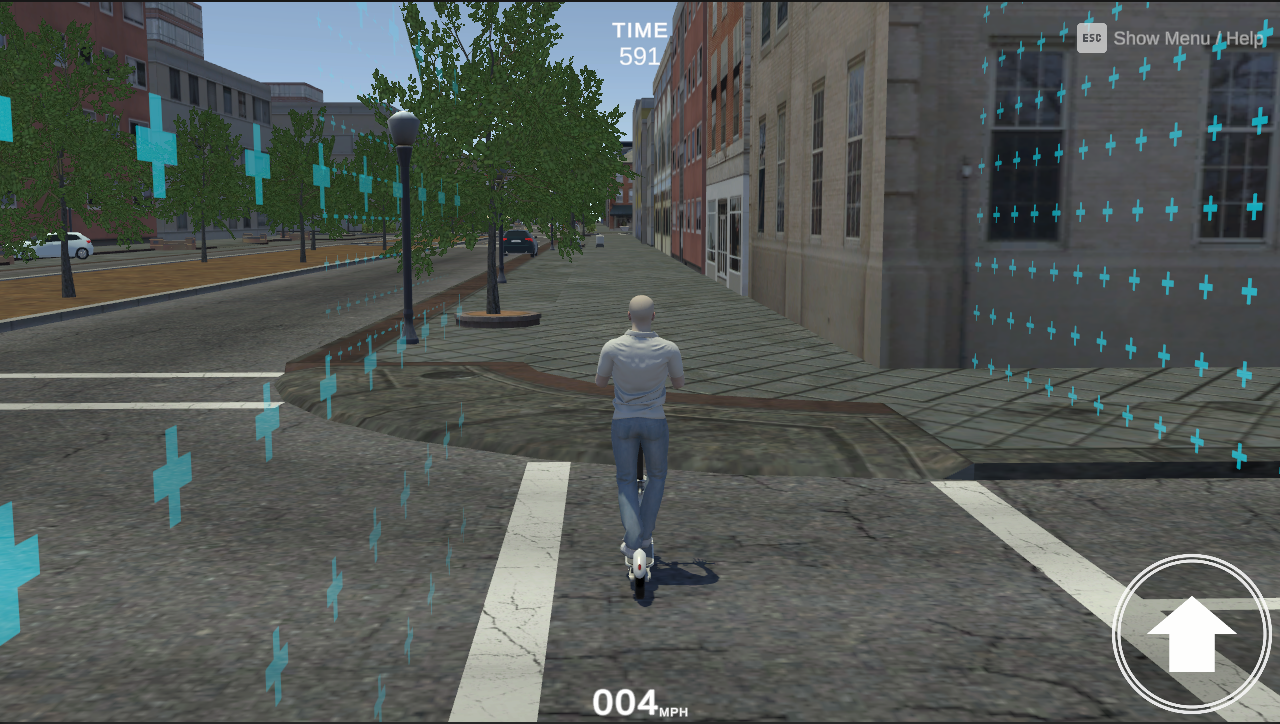
Choosing a UI Preset
The UI Scene Asset field defines which user interface the Player Selector loads. This field only accepts Addressable Scenes that are labeled UI Preset. Click the to open the Addressables picker, and select one of the labeled scenes.

If your UI is set up as a prefab, it must be placed manually in the scene.
Making an Addressable Scene a UI Preset
To make a scene appear in the UI Scene Asset field:
In the Project window, select your UI scene asset.
In the Inspector window, select the Addressable checkbox to mark it as Addressable.
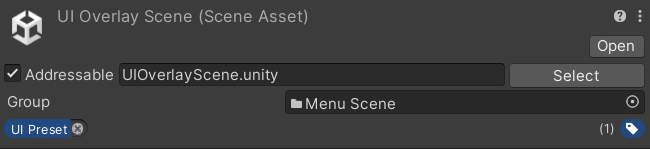
At the top right of the Inspector, open the Addressable Labels drop-down.
Select the label UI Preset.
The scene is now available to select in the picker.
You can create multiple UI Preset scenes (for example, one with a simple HUD and another with additional debug panels) and switch between them in the UI Scene Asset field when testing scenarios.