Scene Reload
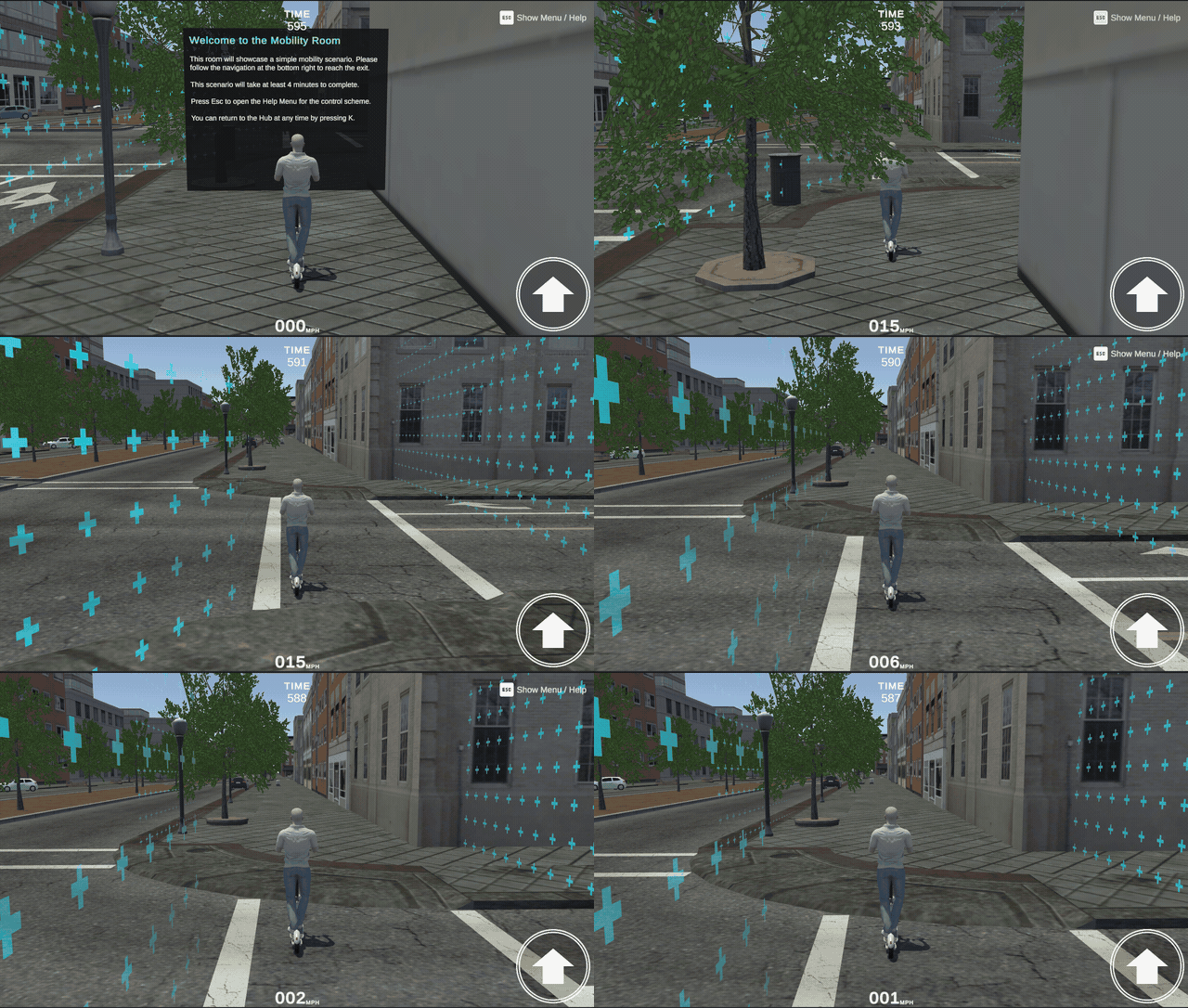
Scene Reload restarts the current scenario and returns it to its initial state. The player spawns again at the scene's configured start position, and any runtime state in the scenario is reset.
The ReloadLevelAction component provides this feature. When triggered, it asks the active GameMode to restart the current level.
Scene reload requires the Bootloader to be active in Play mode. If the Bootloader is disabled, the current scene does not reload.
Setting Up ReloadLevelAction
ReloadLevelAction in your scene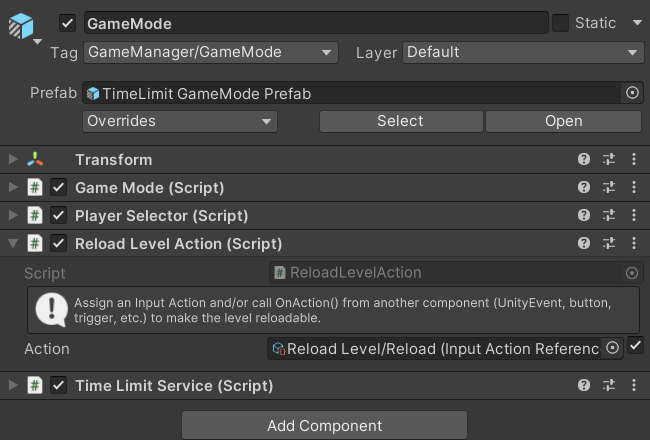
In the Mountain View Scene Template, it's already on the GameMode GameObject.
You can set up reload to respond to an input action or to a UnityEvent call from another component. Use whichever method best suits your scene:
- Input Action
- UnityEvent
Enable the checkbox next to the component's Action field, then assign an Input Action Reference to it.
For example, in the Mountain View Scene Template, this field is already set to the Reload action (in the Reload Level action map) from the PlayerInputAction asset, which is bound to the R key. Performing that input reloads the current scene.
Assign a UnityEvent in the Inspector that invokes the OnAction() function.
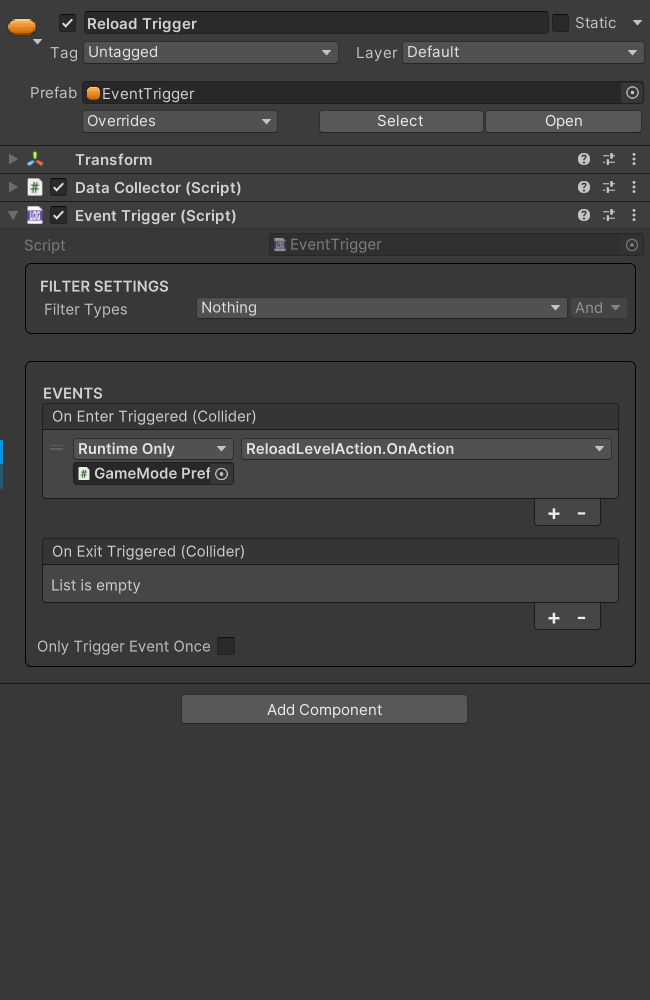
To learn more about configuring UnityEvents, see Unity Events (Unity Manual).
You can disable the ReloadLevelAction component in a scene to prevent reload from being triggered there.
However, if your UI preset includes its own ReloadLevelAction, reload is still possible through that UI unless you disable it as well.
Start the Play session with the Bootloader active, then perform the bound input in the scene or invoke OnAction() through your UnityEvent. The scenario should restart.
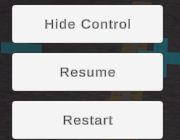
The UI Overlay preset also includes a reload button in its menu. This works because the preset brings along its own ReloadLevelAction component.