Remote Control
Remote Control lets you trigger predefined actions in a running scene from another program, for example from a laptop at the experimenter's desk while a participant sits in the simulator. The simulator hosts a small TCP server. A client connects, receives the list of available commands, and sends a command's ID to fire the matching UnityEvent in the scene.
The simulator includes only the server side of Remote Control. There is no ready-made Remote Control app. To use Remote Control, you build your own client. This page documents the protocol and includes a minimal example client that you can start from. Any language or tool that can open a TCP connection works.
The Remote Control server is only compiled for Windows Standalone targets. It does not run in WebGL builds. In the Editor, it only runs while the active build target is Windows. Other build targets are not supported.
Overview
To use Remote Control, you need:
- One Windows PC running the simulator (a Windows Standalone build, or the Editor with Windows as the active build target), with Remote Control enabled and configured in the scene.
- One device running your client. This can be the same PC (for testing) or another device on the same local network.
The typical workflow is:
- Enable Remote Control in the project settings (Enable the server).
- Add the Remote Control components to the scene and define your commands (Configure a scene).
- Write a client that speaks the protocol, or start from the example client.
Enable the server
Configure the server in Edit > Project Settings > mobisim > Remote Control:

See Remote Control settings for details. Your client needs the simulator PC's IP address and this port to connect.
Configure a scene
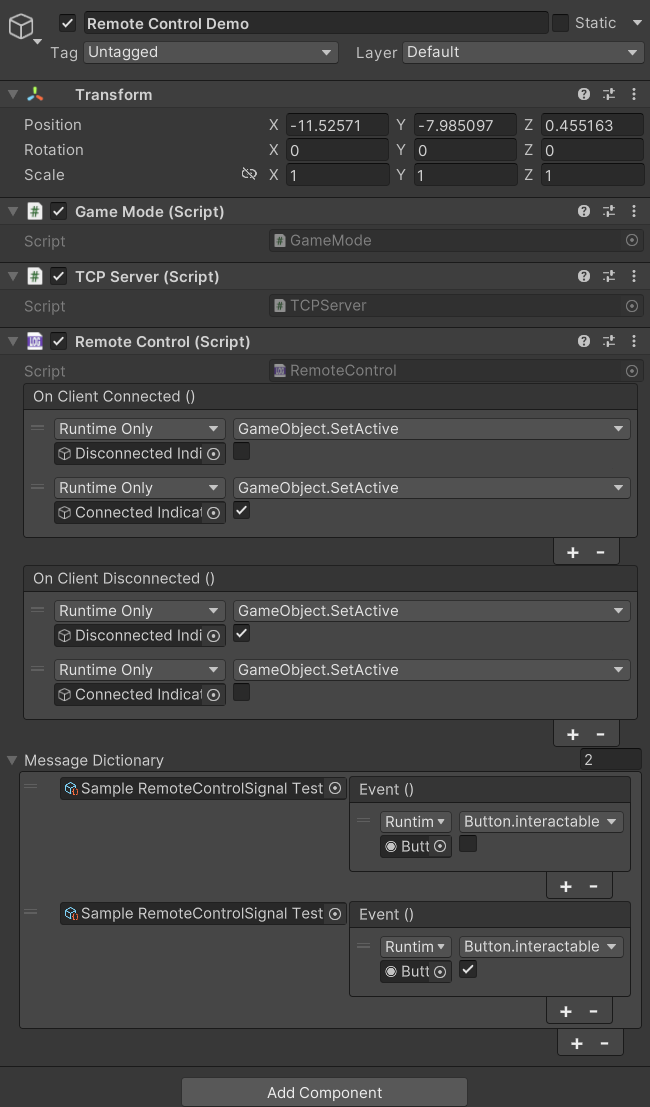
Add both the TCP Server and Remote Control components to one GameObject in the scene. Each scene should contain only one of each.
TCP Server is a required dependency of Remote Control. When you add Remote Control to a GameObject, Unity adds TCP Server automatically.
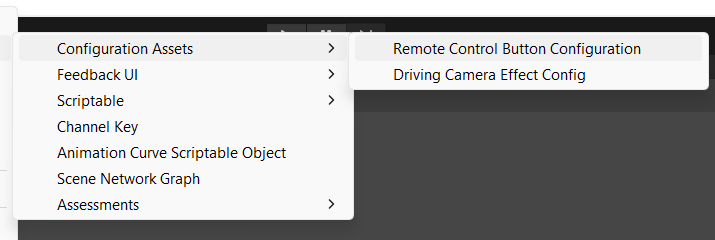
Each command is a Remote Control Button Configuration asset. In the Project window, right-click and choose:
Create > ScriptableObject > Configuration Assets > Remote Control Button Configuration
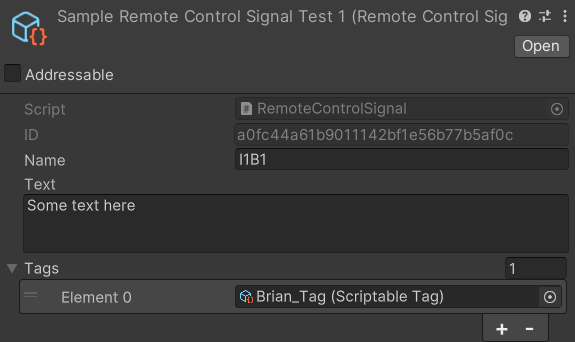
Select each new asset once in the Inspector so that its ID is filled in. This also applies to assets you duplicate: a duplicate keeps the original ID until you inspect it. Two commands with the same (or an empty) ID in one scene cause an error when the scene starts.
On the Remote Control component, add an entry to the Message Dictionary for each command asset, and assign the UnityEvent that should run when a client sends that command.
Add each command asset only once. Only the commands in the Message Dictionary are sent to clients and accepted from them.
The Remote Control component also has two events:
- On Client Connected: invoked each time a client connects (once per client), right after the command list is sent to it.
- On Client Disconnected: invoked each time a client disconnects or its connection is closed.
In the current version, On Client Disconnected is invoked from a background thread, not from Unity's main thread. Handlers that call Unity APIs (for example, changing GameObjects or UI) may fail with a "can only be called from the main thread" error. Keep handlers on this event minimal.
How a session works
- Server lifetime. The server is tied to the scene. It starts when the
TCP Servercomponent starts (at scene start) and stops when the component is destroyed (when the scene is unloaded). Stopping the server closes every open connection. - Multiple clients. There is no limit on the number of clients. Every client receives the command list when it connects, and commands from any client are executed.
- Reconnecting. The server never connects to clients; the client always initiates the connection. When a scene ends, your client sees the connection close. If the next scene also has Remote Control, its server starts listening on the same address and port, and your client must connect again. A simple approach is to retry the connection every second or so until it succeeds.
- Threading. Network I/O runs on background threads. Received commands are queued and executed on Unity's main thread during the next frame, so UnityEvents behave the same as if they were triggered from the scene. The project's Run In Background player setting is enabled; keep it enabled, otherwise commands wait until the simulator window has focus again.
Protocol reference
Transport
Message framing (netstrings)
Every message in both directions is a netstring:
<length>:<payload>,
<length>is the number of characters in the payload, written as decimal ASCII digits.:separates the length from the payload.,ends the message.
For example, the payload hello is sent as 5:hello,. Use plain ASCII for payloads, so that the character count equals the byte count. Command IDs are always ASCII.
The server has these specific requirements for data your client sends:
- Send exactly one netstring at a time, with nothing before or after it. Do not add a newline, a carriage return, or any other separator. The server collects incoming bytes and only accepts them once the collected data forms exactly one complete netstring.
- Do not send the next command until the previous one has been received. If two netstrings arrive in the same read (for example, because you sent them back to back), or if any extra byte is received, the collected data never forms a valid netstring again. The server then ignores all further commands on that connection, without any error, until you disconnect and reconnect. To avoid this, disable Nagle's algorithm (
TCP_NODELAY) and wait briefly (for example, 50 to 100 ms) between commands. - The payload must not contain line breaks.
A command that is split across several TCP packets is fine: the server waits until the netstring is complete.
Command list (simulator to client)
Immediately after your client connects (during the next frame), the server sends one netstring whose payload is a JSON object. The obj array contains one entry per command in the scene's Message Dictionary:
{"obj":[{"ID":"5f3c0b9e2d8a4c1b9e7f6a5d4c3b2a19","Name":"StartScenario","Tags":["scenario"],"Text":"Begin the main driving scenario."},{"ID":"0c8e4a7d1f2b4e6a8c9d0e1f2a3b4c5d","Name":"AbortScenario","Tags":[],"Text":"Abort the current scenario."}]}
The command list is sent as ASCII: any non-ASCII character in a name, description, or tag arrives as ?. The command list is the only message the server ever sends.
Commands (client to simulator)
To trigger a command, send its ID as the netstring payload, with no JSON wrapper and no other text:
32:5f3c0b9e2d8a4c1b9e7f6a5d4c3b2a19,
- The ID must match exactly (the comparison is case-sensitive). You cannot trigger a command by its Name.
- If the ID matches an entry in the Message Dictionary, the linked UnityEvent is invoked on the main thread during the next frame.
- If the ID does not match any entry, the message is ignored silently.
- The server sends no reply: no acknowledgment, no error, and no timestamp. Your client cannot tell from the connection whether a command ran. Check the simulator itself or the collected data.
The ID of a command asset does not change, so a client can also store IDs instead of reading them from the command list each time. Reading the command list on every connection is more robust, because it always reflects the current scene.
Logging and collected data
Remote Control activity is timestamped (Unix time in milliseconds) and included in the scene's collected data as a RemoteControlSystemDataLog entry with an RC_logs array. Each record contains a unixTimestamp and a message. A session in which a client connects, runs one command, and disconnects produces records like these:
"RC_logs": [
  { "unixTimestamp": 1727301600000, "message": "Remote Control client connected" },
  { "unixTimestamp": 1727301642315, "message": "Invoking Remote Control Action: Start Traffic" },
  { "unixTimestamp": 1727301790870, "message": "Remote Control client disconnected" }
]
In this example, Start Traffic is the Name of the command asset that ran. A connection is logged when a client connects, and a disconnection when the client disconnects or its connection is closed. Received IDs that do not match a command are not logged.
In the Editor, the Console also logs each received payload (Client message received: ...) and connection events. Builds do not write these messages to the log.
Example client
The following examples connect to the simulator, print the command list, and send a command. Replace the IP address with the simulator PC's address and adjust the port if you changed it.
- Python
- PowerShell
- Netcat
This script requires Python 3.8 or later and no extra packages. Run it with python rc_client.py. It lists the commands, then sends the command whose name (or number) you type.
import json
import socket
import time

HOST = "192.168.1.50"  # IP address of the simulator PC
PORT = 8052            # Port from Project Settings > mobisim > Remote Control


def encode_netstring(text: str) -> bytes:
    """Wrap text as a netstring: <length>:<payload>,"""
    payload = text.encode("ascii")
    return str(len(payload)).encode("ascii") + b":" + payload + b","


def read_netstring(sock: socket.socket) -> str:
    """Read exactly one netstring from the socket and return its payload."""
    header = b""
    while not header.endswith(b":"):
        chunk = sock.recv(1)
        if not chunk:
            raise ConnectionError("The simulator closed the connection.")
        header += chunk
    length = int(header[:-1])

    data = b""
    while len(data) < length + 1:  # payload plus the trailing comma
        chunk = sock.recv(length + 1 - len(data))
        if not chunk:
            raise ConnectionError("The simulator closed the connection.")
        data += chunk
    if not data.endswith(b","):
        raise ValueError("Malformed netstring from the simulator.")
    return data[:-1].decode("ascii")


with socket.create_connection((HOST, PORT), timeout=5) as sock:
    # Send each command immediately instead of buffering it.
    sock.setsockopt(socket.IPPROTO_TCP, socket.TCP_NODELAY, 1)

    # 1. The simulator sends the command list right after the connection opens.
    commands = json.loads(read_netstring(sock))["obj"]
    for i, cmd in enumerate(commands):
        print(f"[{i}] {cmd['Name']}: {cmd['Text']}  (tags: {', '.join(cmd['Tags'])})")

    # 2. Send commands by name or number. The simulator does not reply.
    while True:
        choice = input("Command (name or number, empty line to quit): ").strip()
        if not choice:
            break
        match = [c for i, c in enumerate(commands) if choice in (c["Name"], str(i))]
        if not match:
            print("Unknown command.")
            continue
        sock.sendall(encode_netstring(match[0]["ID"]))
        print(f"Sent {match[0]['Name']}")
        time.sleep(0.1)  # keep commands apart so they are not merged into one read
This example uses only built-in .NET classes, so it runs on any Windows PC. It sends a single command by ID, which you can copy from the command asset's ID field in the Inspector.
$hostName = "192.168.1.50"                       # IP address of the simulator PC
$port     = 8052                                 # Remote Control port
$id       = "5f3c0b9e2d8a4c1b9e7f6a5d4c3b2a19"   # command ID to send

$client = New-Object System.Net.Sockets.TcpClient($hostName, $port)
$client.NoDelay = $true
$stream = $client.GetStream()

# Read and print the command list (a single netstring).
Start-Sleep -Milliseconds 500
$buffer = New-Object byte[] 65536
$count  = $stream.Read($buffer, 0, $buffer.Length)
[System.Text.Encoding]::ASCII.GetString($buffer, 0, $count)

# Send the command ID as a netstring: <length>:<payload>,
$bytes = [System.Text.Encoding]::ASCII.GetBytes("$($id.Length):$id,")
$stream.Write($bytes, 0, $bytes.Length)

Start-Sleep -Milliseconds 200
$client.Close()
For simplicity, this example assumes the whole command list arrives in one read. A real client should read until the netstring is complete, as the Python example does.
For a quick test, you can send a single command with a generic TCP tool such as ncat (included with Nmap). Use printf, not echo, so that no newline is appended:
printf '32:5f3c0b9e2d8a4c1b9e7f6a5d4c3b2a19,' | ncat 192.168.1.50 8052
The tool prints the command list it receives, sends the command, and disconnects when its input ends. The simulator logs a connection, the command, and a disconnection.
Testing and troubleshooting
To test on a single PC, run the simulator with IP Address set to 0.0.0.0 or 127.0.0.1 and connect your client to 127.0.0.1. When that works, move the client to another device.
To check that the server is listening, run this in a command prompt on the simulator PC while the scene is running:
netstat -ano | findstr :8052
A line with LISTENING means the server is up. From the client device, you can check that the port is reachable (in PowerShell) with Test-NetConnection 192.168.1.50 -Port 8052.
Common problems
The connection is refused or times out
Check that Initialize on Startup is enabled, that the running scene contains the TCP Server and Remote Control components, and that the simulator is a Windows build (or the Editor with Windows as the build target). Check that both devices are on the same network and can ping each other. If one device can ping the other but not the reverse, a firewall is blocking the traffic.
Windows Firewall blocks the connection
The first time the simulator (or the Unity Editor) opens the port, Windows may ask whether to allow access. Allow it for the network type you use. If the PC is connected to a network marked as Public, either change it to Private or add an inbound rule for the TCP port in Windows Defender Firewall. Also check any third-party firewall or antivirus software.
Only clients on the same PC can connect
The server is bound to 127.0.0.1. Set IP Address to 0.0.0.0 or to the PC's network address.
The server does not start and the log shows a socket error
Another program is already using the port, or the IP Address is not assigned to this PC (for example, after moving to a different network or when the address was assigned by DHCP and has changed). Choose a free port, or use 0.0.0.0. An invalid IP address text also prevents the server from starting. In a build, the error appears in the Player log.
The client connects but commands do nothing
Check that you send the ID (not the name), framed as a netstring, with no trailing newline, and that the command asset is in the scene Message Dictionary. If earlier commands worked and later ones stopped, two messages were probably merged or an extra byte was sent; reconnect and add a short delay between commands (see Message framing).
Commands run only when the simulator window has focus
Enable Run In Background in Project Settings > Player > Resolution and Presentation.
The connection closes when the scene changes
This is expected. Each scene has its own server. Reconnect after the next scene starts.
An ArgumentNullException from TCPServer.Update appears every frame
In the current version, this happens when a scene contains a TCP Server component while Initialize on Startup is disabled. Enable the setting, or remove the components from scenes that do not use Remote Control.