Event Trigger
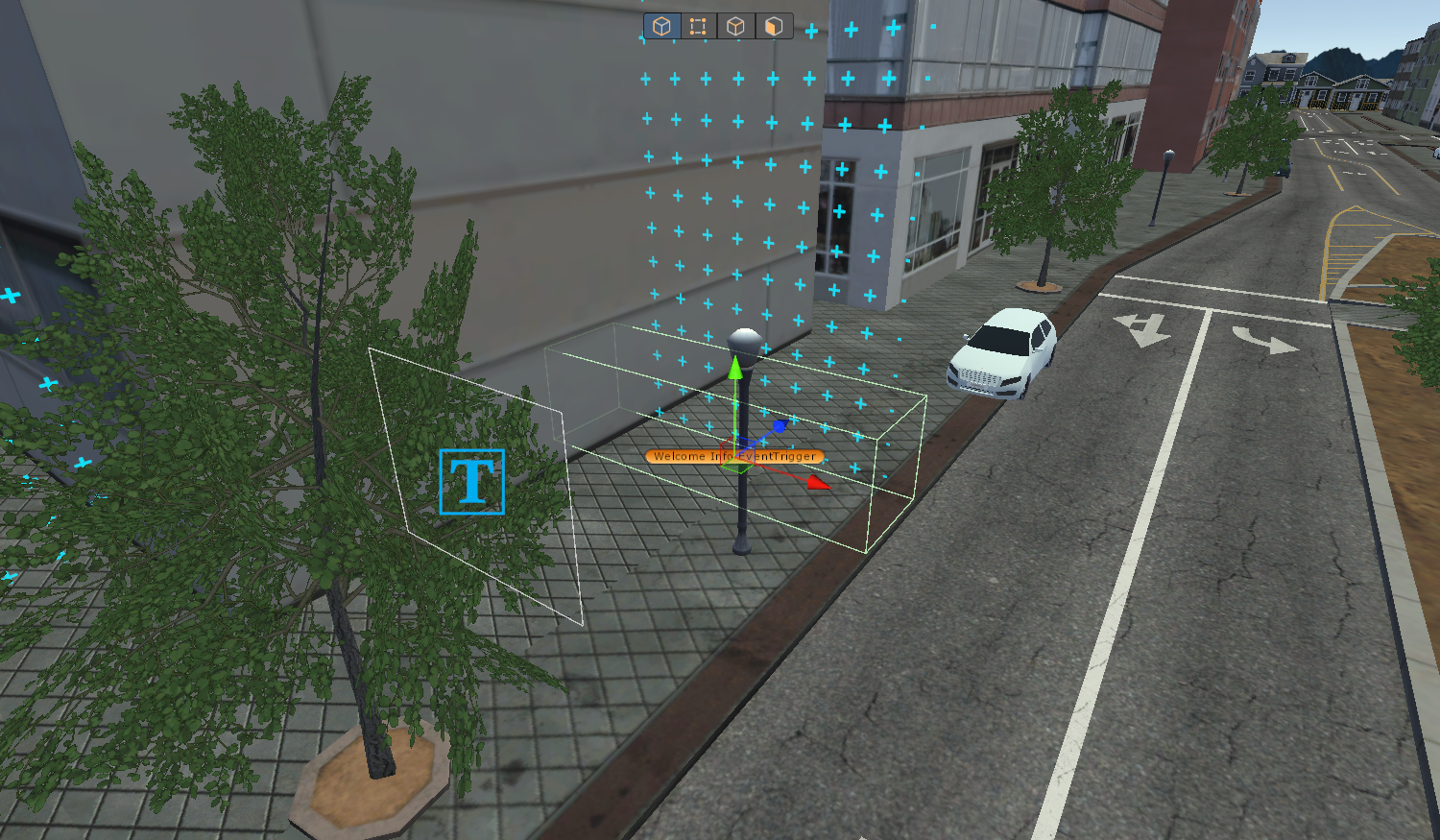
An Event Trigger is a trigger zone in a scenario that executes an action when another object enters or exits it. Event Triggers control how the environment responds to the participant or other actors in the scene.
For example, you can use an Event Trigger to:
- Reveal a roadblock when the player enters a specific zone.
- Play text dialogue when the player approaches an intersection.
- Switch a traffic light's signal when the player enters a junction.
- Advance to the next scene when the player reaches the end zone.
Event Trigger Component
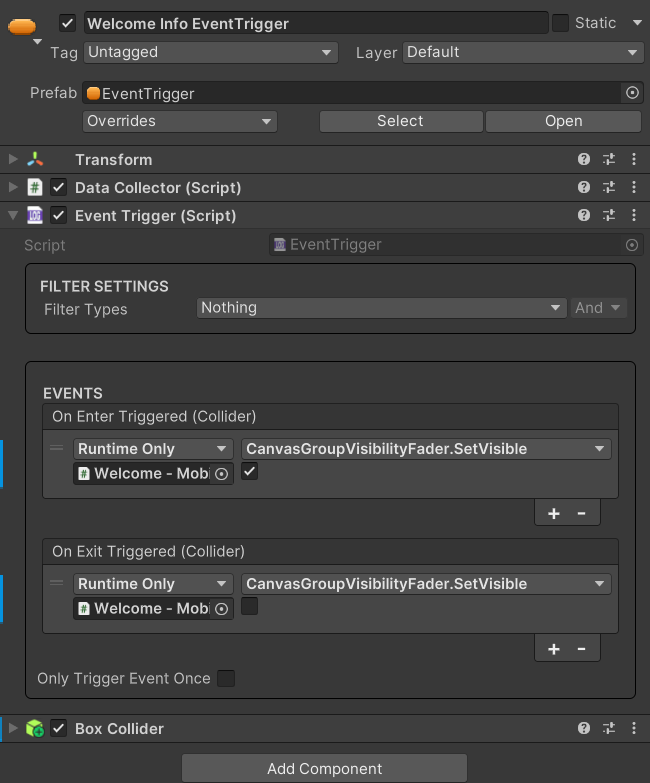
The EventTrigger component makes a trigger zone functional. While a collider defines the physical area, the component links that collider to the actions that occur when the zone is entered or exited.
Each EventTrigger instance requires a trigger collider to function. Without one, the component cannot detect interactions.
If a single collider shape is not enough, you can build a compound collider by combining multiple colliders on child objects. In this case, the Event Trigger GameObject must also include a Rigidbody.
For an EventTrigger to interact with another object, two conditions must be met:
- Collision layer — The
EventTrigger's collider must be on a layer that is set to collide with the other object's layer in the collision matrix. - Rigidbody — At least one of the two objects (either the
EventTriggeror the interacting object) must have a Rigidbody.
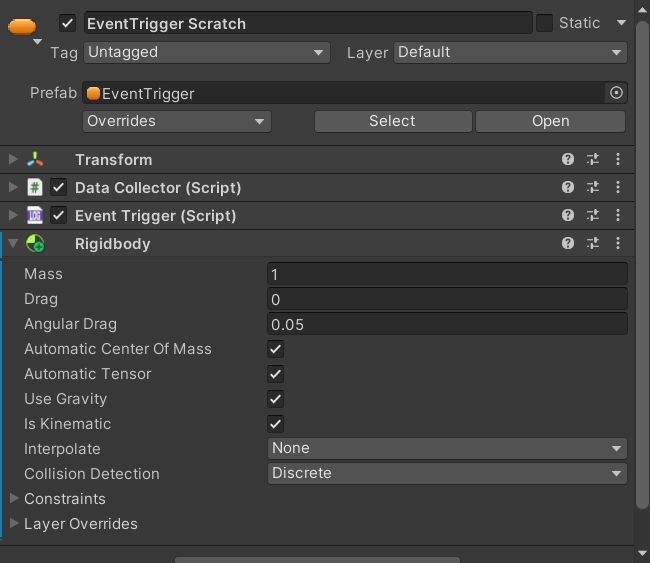
If you attach a Rigidbody directly to the Event Trigger, enable Is Kinematic so that it is not affected by gravity or external forces.
Quick Start
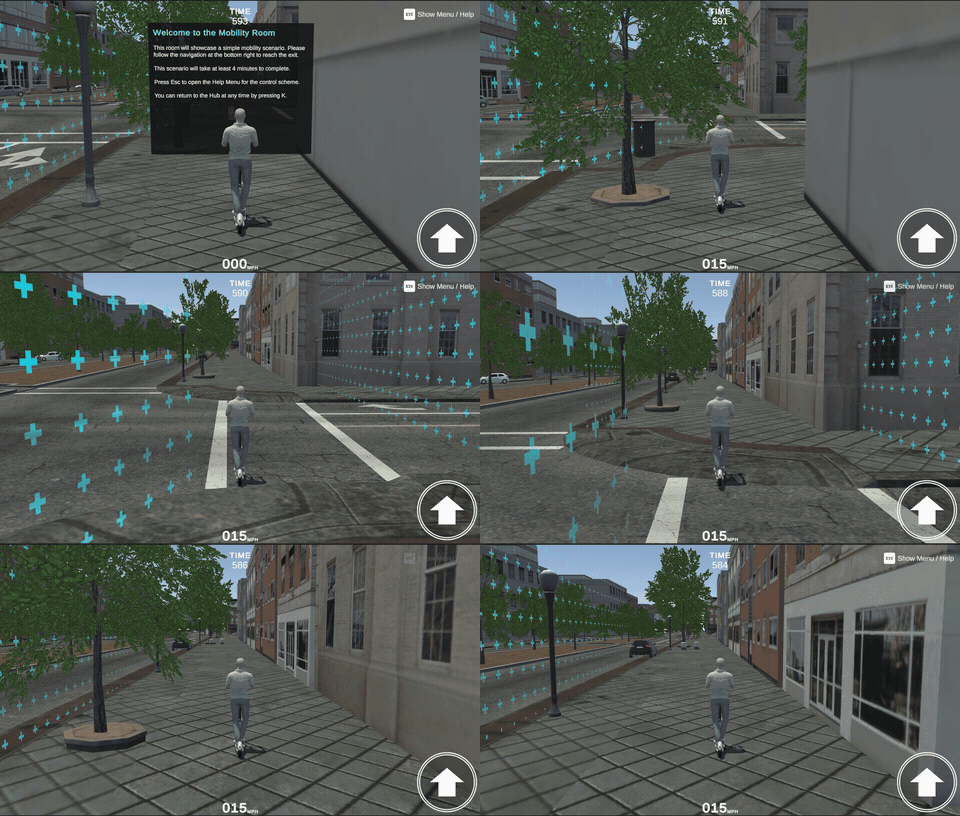
The following steps set up a simple Event Trigger that activates when the player's scooter enters the trigger zone and enables (unhides) a roadblock GameObject in the scene:
EventTrigger componentAdd an EventTrigger component to an empty GameObject. Alternatively, drag the Event Trigger prefab (located at Assets/mobisim/Event/Prefab) into the scene.
Attach a collider of your choice to the GameObject. In the Inspector window, enable Is Trigger on the collider.
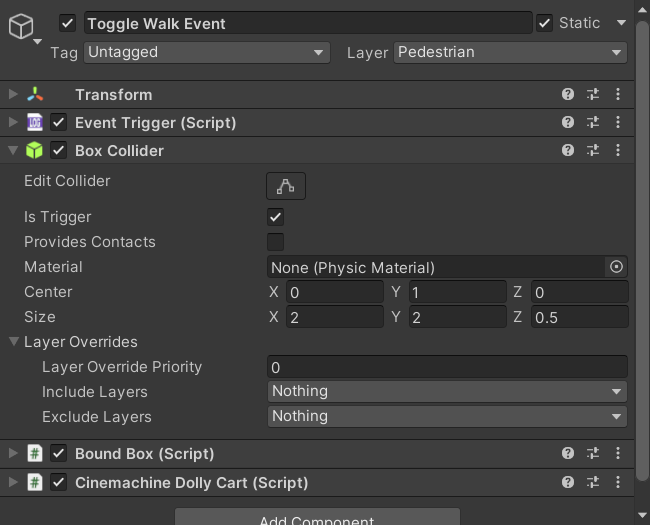
This collider defines the trigger zone. When the participant enters this collider, the Event Trigger activates.
Configure the layer so that the Event Trigger's collider can interact with the player GameObject.
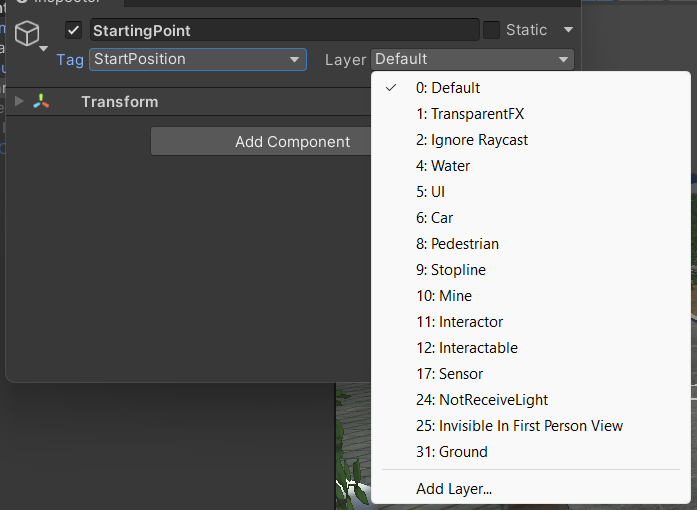
Set the trigger's layer to one configured to interact with the player's layer. You can verify or change which layers interact in the Physics Layer Collision Matrix under Project Settings.
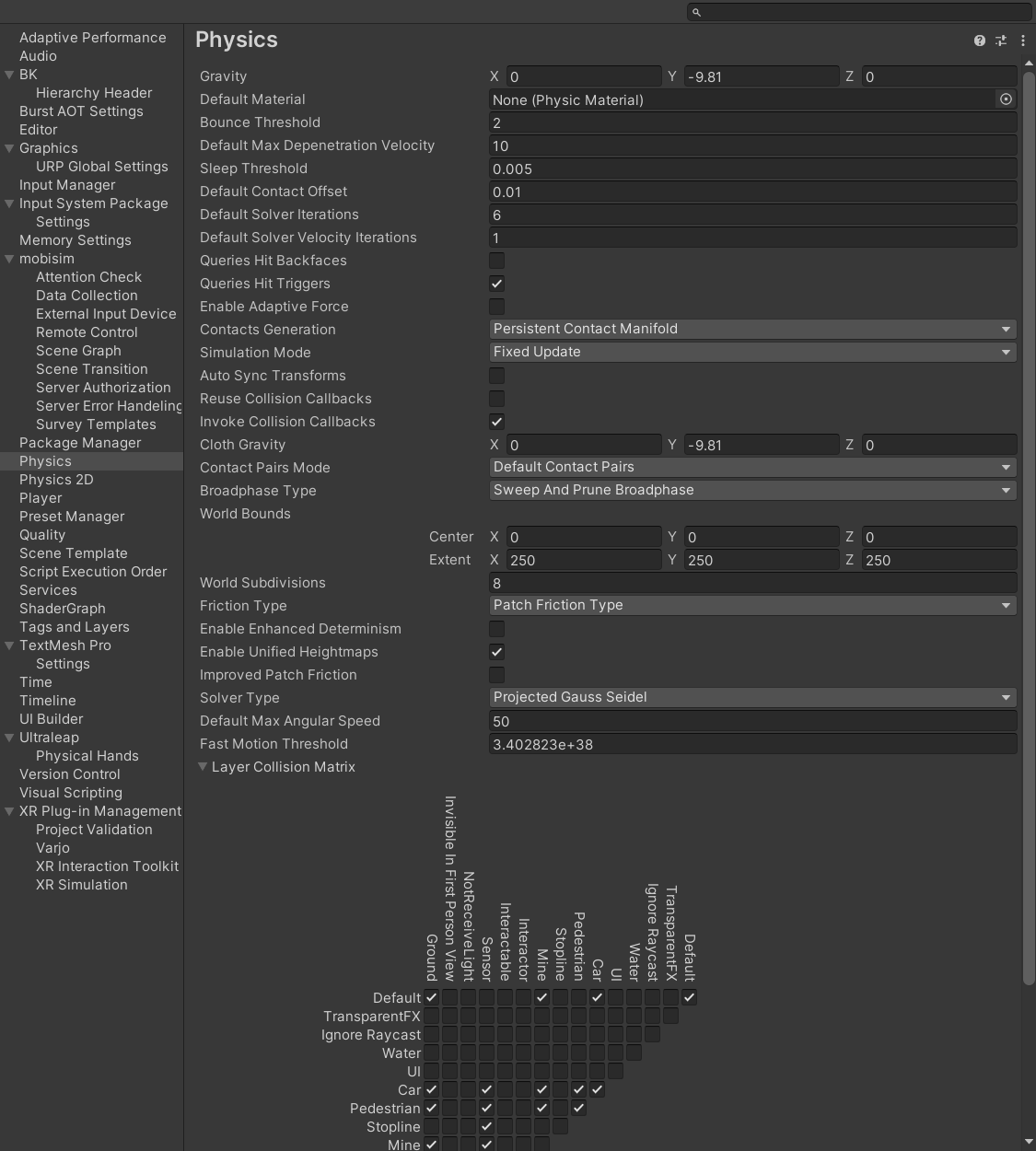
In the example above, the Default layer is configured to interact with the Mine layer (the player's layer), so the trigger can remain on Default. You can also create and assign a custom layer if needed.
EventTrigger's filterConfigure the EventTrigger's filter so that only the scooter
pawn can activate it.
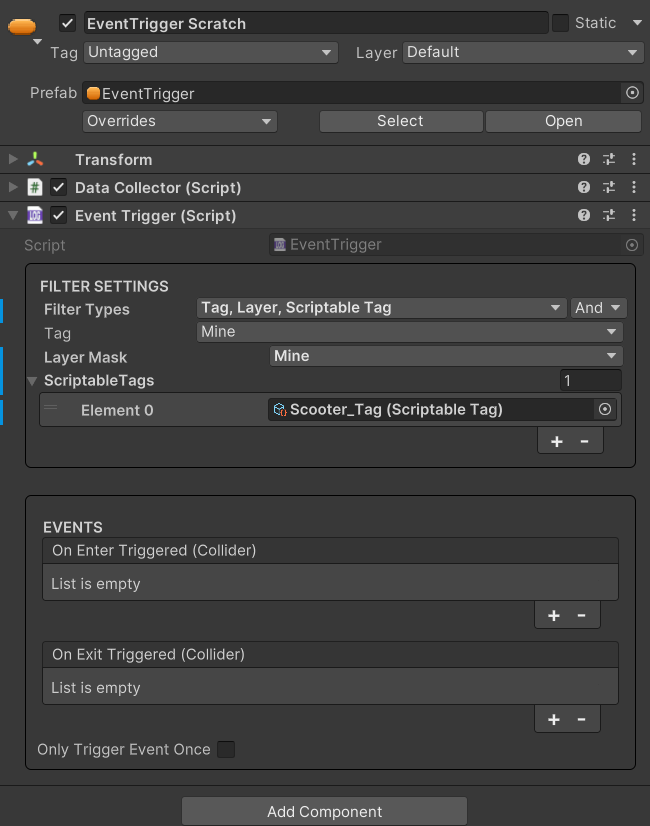
In the Inspector window, set Filter Types to include
Tag, Layer, and ScriptableTag. Set the
condition operator (the small dropdown to the right of Filter Types) to And so that all conditions must be
met, then configure the values as follows:
- Tag →
Mine - Layer →
Mine - ScriptableTag →
Scooter_Tag
With these settings, the trigger activates only when an object
that has the Mine tag, is on the Mine layer, and carries the
Scooter_Tag scriptable tag enters the collider.
Configure the On Enter Triggered UnityEvent to enable the roadblock when the trigger fires. Click the + button in the On Enter Triggered field, drag the roadblock GameObject into the event field, and select GameObject > SetActive(bool) from the dropdown. Enable the checkbox to make the roadblock appear when the trigger activates.
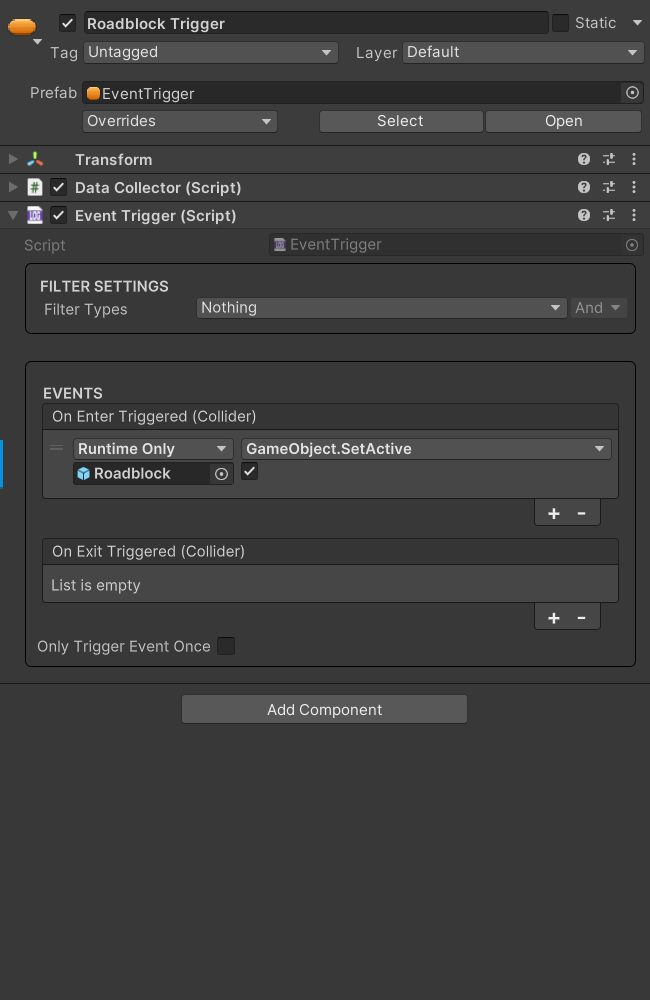
If the scene has no roadblock GameObject, add one: any solid object with a collider that blocks the road. Disable the roadblock in the Hierarchy window so it starts hidden.
In the Inspector, enable the Only Trigger Event Once field. When this is enabled, the trigger fires only once.
This option is enabled by default when you add a new EventTrigger component, but it is disabled on the Event Trigger prefab.
DataCollector componentAttach a DataCollector component to the same GameObject and enable it. This flags the Event Trigger for data collection.
You now have a simple, working Event Trigger that fires when the player's scooter enters the trigger collider and enables a roadblock in the scene.
Configuring the Event Trigger Component
You can use the following properties to configure the EventTrigger component and its filter:
Filters
The EventTrigger component relies on layers to control which objects can interact with its trigger zone. However, because different objects can share the same layer, layers alone may not
be specific enough. Filters let you further restrict which objects can activate a trigger.
When a collision is registered, the EventTrigger checks the interacting object against its configured filters and invokes the corresponding event only when all requirements are met.
Use the Filter Types property in the Inspector window to define which criteria the trigger evaluates. One or more filter types can be enabled simultaneously.
The following options are available:
- Nothing — No checks are run; any object that collides is accepted.
- Everything — Enables all available filter types (whether the object passes depends on the condition operator).
- Tag — Checks that the object has the specified Unity Tag.
- Layer — Checks that the object is on one of the specified Layers.
- Object — Checks that the object matches the specified GameObject reference.
- ScriptableTag — Checks that the object carries one of the specified Scriptable Tags.
The property fields for Tag, Layer, Object, and ScriptableTag are only shown when their corresponding filter type is enabled.
If the entering collider belongs to a Rigidbody, the filters are checked against the Rigidbody's GameObject rather than the collider's own GameObject.
The condition operator dropdown next to Filter Types decides how the requirements are evaluated when multiple filter types are selected:
- And — All enabled filter types must pass for the trigger to activate.
- Or — The trigger activates if at least one enabled filter type passes.
Using Events
The EventTrigger component provides two UnityEvents
that you can configure in the Inspector window:
- On Enter Triggered — invoked when another object enters the trigger zone.
- On Exit Triggered — invoked when that object exits the trigger zone.
When Only Trigger Event Once is disabled, both events can be invoked multiple times. Enabling the Only Trigger Event Once checkbox causes the UnityEvents to remove themselves after firing once, making them one-off actions. The checkbox is enabled by default on a newly added component and on the variant prefabs, and disabled on the base Event Trigger prefab.
With Only Trigger Event Once enabled, On Exit Triggered does not fire after On Enter Triggered has fired, because the exit event is only invoked while the enter event is still registered.
Once a trigger has served its purpose, disable the trigger's
collider or its entire GameObject to prevent unnecessary collision
checks during the session. You can configure this directly in the
On Enter Triggered or On Exit Triggered fields.
For example, configure On Enter Triggered to enable the
roadblock and then disable the trigger in the same event.
Note that disabling the GameObject also disables any attached
DataCollector, stopping data collection for that Event Trigger.
The On Enter Triggered or On Exit Triggered event can also call another EventTrigger's methods (the dynamic TriggerEnterEvent and TriggerExitEvent, which receive the entering Collider). Use this to chain triggers together, so that one activation leads directly to another, or to remotely activate a different trigger elsewhere in the scene.
Event Trigger Variants
The simulator provides variant prefabs for common scenario tasks. Each variant is preconfigured for a specific behavior, reducing setup time for frequently used interaction patterns.
All variant prefabs can be found under Assets > mobisim > Event > Prefab.
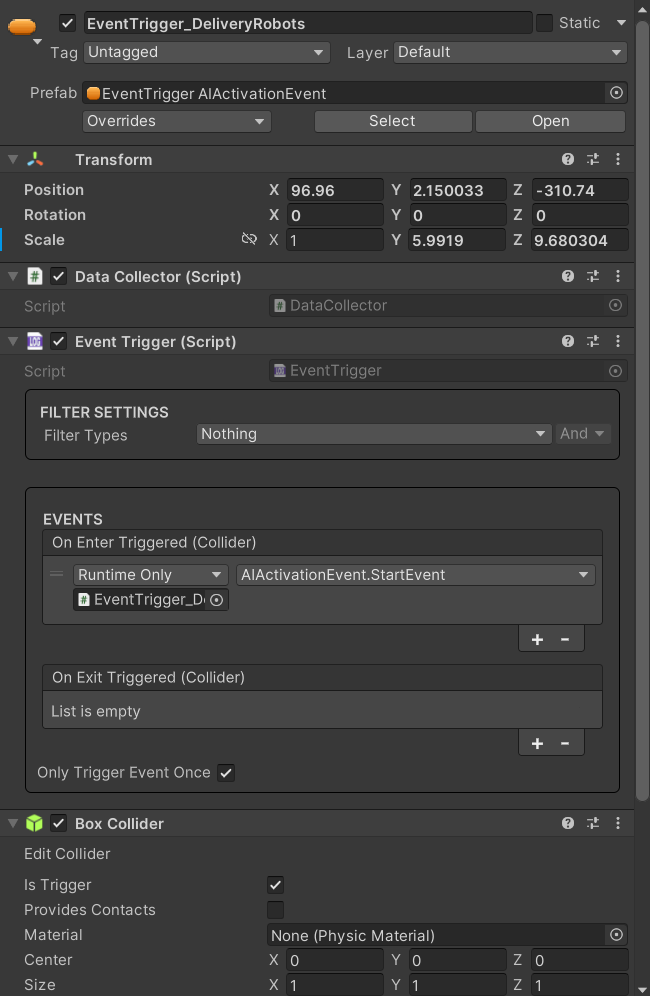
Activates an AI agent or vehicle when the player enters the trigger (for example, it wakes from idle and starts moving or following a route).
For information about AI activation and how to use it, see AI activation.
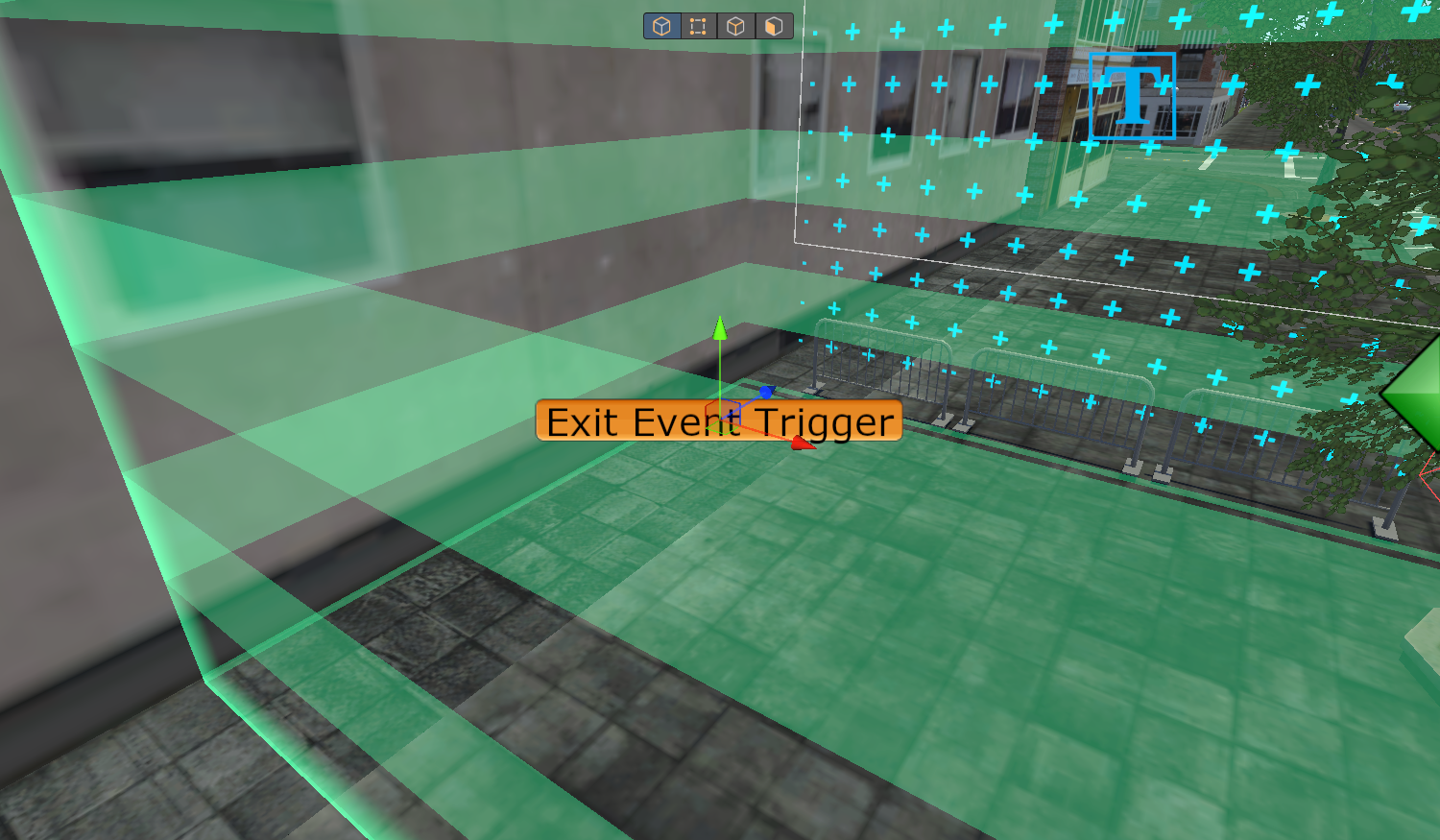
Marks the end of a scenario and, when entered, triggers the transition to the next scene.
No additional setup is required. The trigger is already configured to call the attached EndEvent component, which communicates with the Game Mode to handle the transition when the trigger fires.
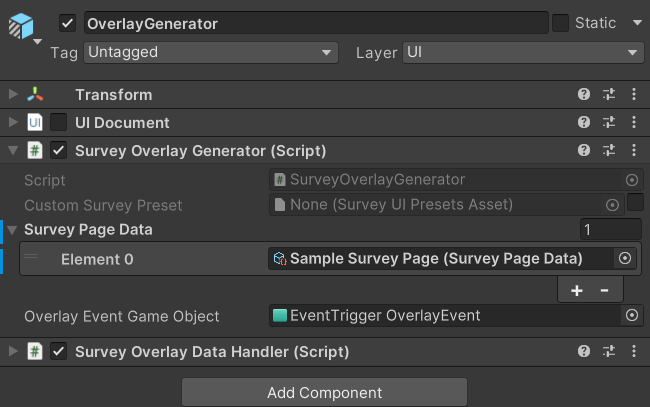
Activates and displays the overlay survey assessment when the trigger is activated.
For information on how to use the overlay event, see Survey Overlay.
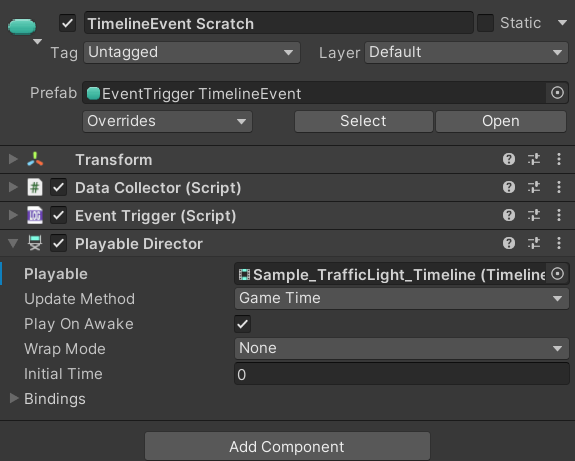
Plays the Timeline sequence in the attached PlayableDirector when the trigger is entered.
To set which Timeline the trigger controls, assign your Timeline asset to the attached PlayableDirector.
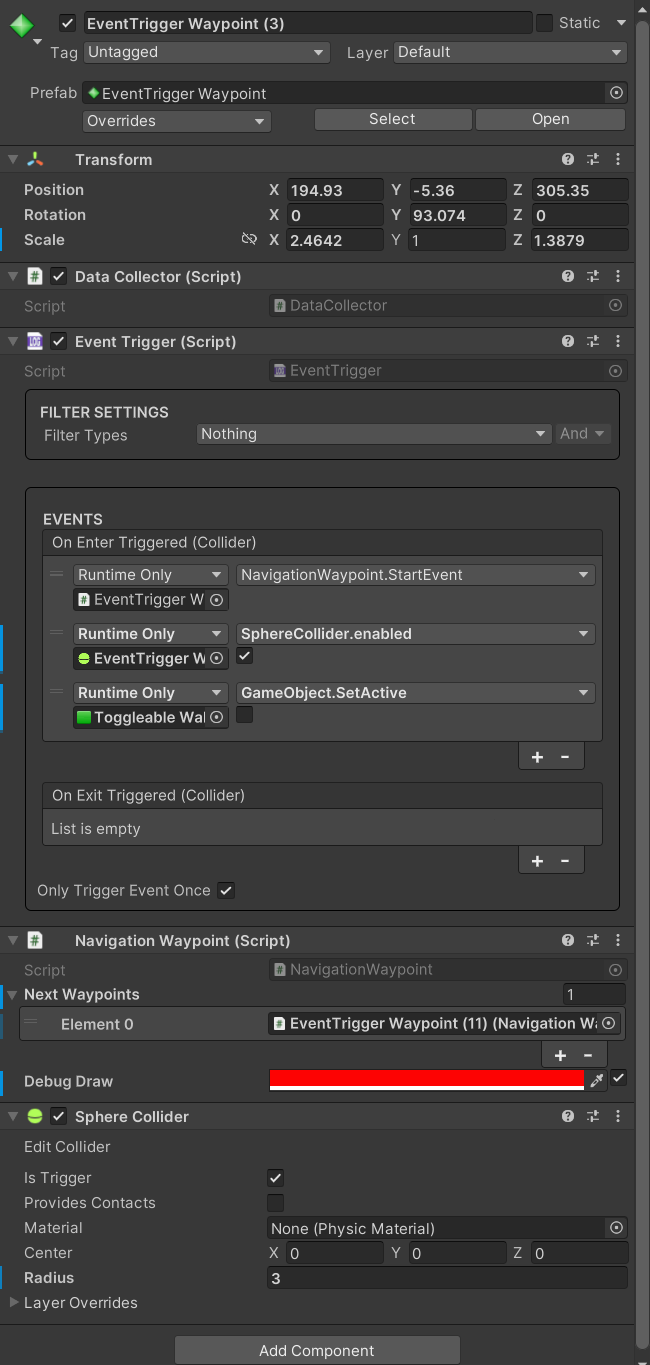
Represents a navigation waypoint in a route. Waypoints are linked in sequence to define the path the player should follow. The EventTrigger advances the navigation to the next waypoint when the player enters the trigger.
For information about navigation waypoints and how to use them, see Navigation System.