Driving Scenario Data Collection
Driving scenarios use continuous data collection: the system samples all tracked actors at a fixed time interval throughout the entire session, producing a time-series record of everything that happened. You configure the sampling interval and output destination in Data Collection Settings.
How It Works
The driving scenario data collection pipeline has three layers:
Log Analysis is the coordinator. Add one LogAnalysis component to the scene, and it automatically triggers a collection pass every N seconds (default 0.1 s). It holds data in memory as the scenario runs, spills to a temporary disk cache if that memory fills up, and sends everything to the export destination when the scene ends.
Data Collectors represent individual actors. Place a DataCollector component at the root of each actor GameObject (vehicle, pedestrian, AI agent, and so on) that you want to track. When Log Analysis runs its collection pass, it asks each Data Collector for a snapshot, which the collector assembles from its own hierarchy.
Data Loggers define what is recorded per actor. Add one or more data logger components to an actor's hierarchy. The Data Collector discovers them automatically on startup, so no manual wiring is needed.
Setup
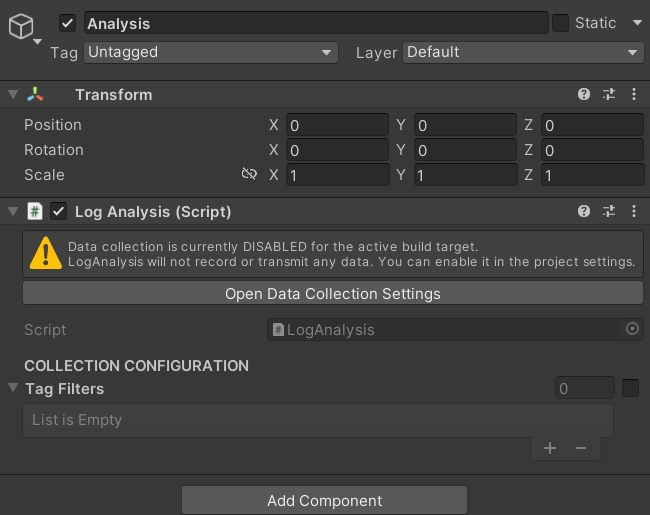
Add a LogAnalysis component to a persistent GameObject in your driving scenario scene. There should be exactly one LogAnalysis per scene. Scenes created from the Mountain View Scene Template already contain one on the Analysis GameObject.
LogAnalysis depends on the save and data-send services provided by the DataManager prefab, which is loaded only when the simulator starts from the Initialization (bootloader) scene. If those services are missing, or if data collection is disabled for the current build target in Data Collection Settings, LogAnalysis disables itself and nothing is recorded. The LogAnalysis Inspector shows the current collection status.
Optional — Tag Filters: If you only want to record specific actor types (for example, only the player vehicle and not AI cars), enable Tag Filters on the LogAnalysis component and assign the relevant Scriptable Tags. An actor passes the filter when an ActorIdentifier component on the same GameObject as its DataCollector has at least one matching tag; actors without an ActorIdentifier are skipped. When Tag Filters are disabled, every actor with a DataCollector in the scene is recorded.
For each actor you want to track, add a DataCollector component to the root GameObject of that actor's hierarchy. At startup, the collector automatically walks its own subtree and claims every IDataLoggable component it finds, so no manual wiring is needed.
Nested collectors: If a child object inside an actor has its own DataCollector, that child is treated as a separate, independent actor. Its IDataLoggable components belong to it, not to the parent's collector. This prevents duplicate entries when an actor contains a sub-actor with its own tracking needs.
Disabling a DataCollector component stops data collection for that actor. Destroying the actor mid-session automatically unregisters its collector so no errors occur.
A data logger is any component that implements the IDataLoggable interface. The DataCollector discovers them automatically: it scans its own hierarchy at startup and polls every IDataLoggable it owns on each collection pass.
The project ships the following built-in data loggers:
Add whichever of these you need to an actor's hierarchy (they do not have to be on the root GameObject).
Most prefabs in the project already have a few loggers attached (for example, ActorsSpeedTracker and ActorIdentifier on the vehicle base prefabs).
Several other systems also implement IDataLoggable and record their own events when they are inside a DataCollector's hierarchy: TrafficSignalController (signal and flashing changes), BatterySystem (battery level and remaining life), BaseEventTrigger (event trigger activations), InteractionModel (interaction system events), TypewriterSequencer (dialogue lines), ProsocialMetricCalculator, and RemoteControl (not recorded on WebGL).
In addition, two values are recorded automatically in every snapshot, without any component:
Event-based data (interaction events, dialogue lines, event trigger activations) is recorded by attaching a DataCollector to the relevant event trigger or interaction object. See Event Trigger for details.
This section requires C# programming knowledge.
To record data not covered by the built-in loggers, create two classes:
- A
DataLogsubclass — a plain serializable data container holding the fields you want to capture. Mark it[Serializable]so Unity's JSON serializer can write its fields to the output file. - An
IDataLoggableMonoBehaviour — a component that reads the actor's state each collection pass and returns a populated instance of yourDataLogsubclass. Returnnullwhen the component is disabled or has nothing to contribute; the collector silently skips it.
Place both files anywhere in your project. Then add your IDataLoggable component to the actor's hierarchy. The DataCollector discovers it automatically on startup, alongside the built-in loggers.
using System;
using UnityEngine;
using mobisim.Analysis.DataCollections;

// 1. Define the data container.
//    Fields on this class become keys in the "data" array of the JSON output.
[Serializable]
public class HealthDataLog : DataLog
{
    public float currentHealth;
    public float maxHealth;
}

// 2. Implement IDataLoggable on a MonoBehaviour.
//    The DataCollector in the actor's hierarchy calls Collect() automatically.
public class HealthDataLoggable : MonoBehaviour, IDataLoggable
{
    [SerializeField] private HealthComponent _health;

    public DataLog Collect()
    {
        if (!enabled || _health == null) return null;

        return new HealthDataLog
        {
            currentHealth = _health.Current,
            maxHealth     = _health.Max
        };
    }
}
On each collection pass, this produces an entry in the actor's data array:
{
  "currentHealth": 85.0,
  "maxHealth": 100.0
}
Data Collection
Participant data is saved as a JSON file at the end of each scenario session. The file contains a time-series record of all tracked actors sampled throughout the run.
Here is an example snippet of the saved data:
{
  "sessionInfo": {
    "SessionData": { "ParticipantID": "W1234", "subjectID": 3 }
  },
  "list": [
    {
      "unix_timestamp": 1748000005000,
      "game_play_time": 5.0,
      "fps": 60,
      "logs": [
        {
          "name": "PlayerScooter",
          "unixTimestamp": 1748000005000,
          "data": [
            {
              "position": { "x": 12.45, "y": 0.0, "z": -8.32 },
              "rotation": { "x": 0.0, "y": 87.5, "z": 0.0 }
            },
            {
              "rawSpeed": 5.5,
              "SpeedMPH": 12.3,
              "SpeedKPH": 19.8
            },
            {
              "ActionMaps": [
                {
                  "ActionMap_name": "Vehicle",
                  "ActionMap_inputs": [
                    { "Input_name": "Move.x", "Input_value": 0.35 },
                    { "Input_name": "Move.y", "Input_value": 1.0 }
                  ]
                }
              ]
            }
          ]
        },
        {
          "name": "AICar_01",
          "unixTimestamp": 1748000005001,
          "data": [
            {
              "position": { "x": 30.12, "y": 0.0, "z": -8.50 },
              "rotation": { "x": 0.0, "y": 90.0, "z": 0.0 }
            },
            {
              "rawSpeed": 8.3,
              "SpeedMPH": 18.6,
              "SpeedKPH": 29.9
            }
          ]
        }
      ]
    }
  ]
}
The JSON file uses the following naming convention:
[SceneName]_Analysis_[yyyyMMddHHmmss]
On WebGL builds (online studies), the participant and subject IDs are prepended automatically:
mTkID[WorkerID]_subID[SubjectID]_[SceneName]_Analysis_[yyyyMMddHHmmss]
For example, if the WorkerID is A1B2C3D4E5F6G7H8I9J0, the SubjectID is 101, the scene is IntersectionScenario, and the session ends at 3:30:45 PM on August 22, 2025:
mTkIDA1B2C3D4E5F6G7H8I9J0_subID101_IntersectionScenario_Analysis_20250822153045