Creating Your First Scenario
This tutorial covers building a yielding scenario — a conflict-sharing event between a participant-controlled scooter and two road users: a delivery robot and a pedestrian. By the end, you will have a functional scenario with placed agents, configured waypoints, and event triggers ready for playtesting.
Prerequisites
Before starting this tutorial, familiarize yourself with the following:
1. Setting Up the Scene
Open an existing MountainViewCityMap scene
(Assets/mobisim/Scenes/Scenes/Environment Scenes), or
duplicate one by selecting it in the Project window and pressing
Ctrl+D (Windows) or Cmd+D (macOS). Rename the duplicate before
continuing. Alternatively, create a new scene through
File > New Scene using the Mountain View Map template.
2. Placing the Ego Agent
The ego agent is the participant-controlled scooter. Its start position
and orientation are defined by the StartingPoint GameObject
(tagged StartPosition) already present in the scene.
In the Hierarchy window, select StartingPoint. The GameObject becomes visible in the Scene view.
Use the Move tool to move it to the intended spawn location on the map.
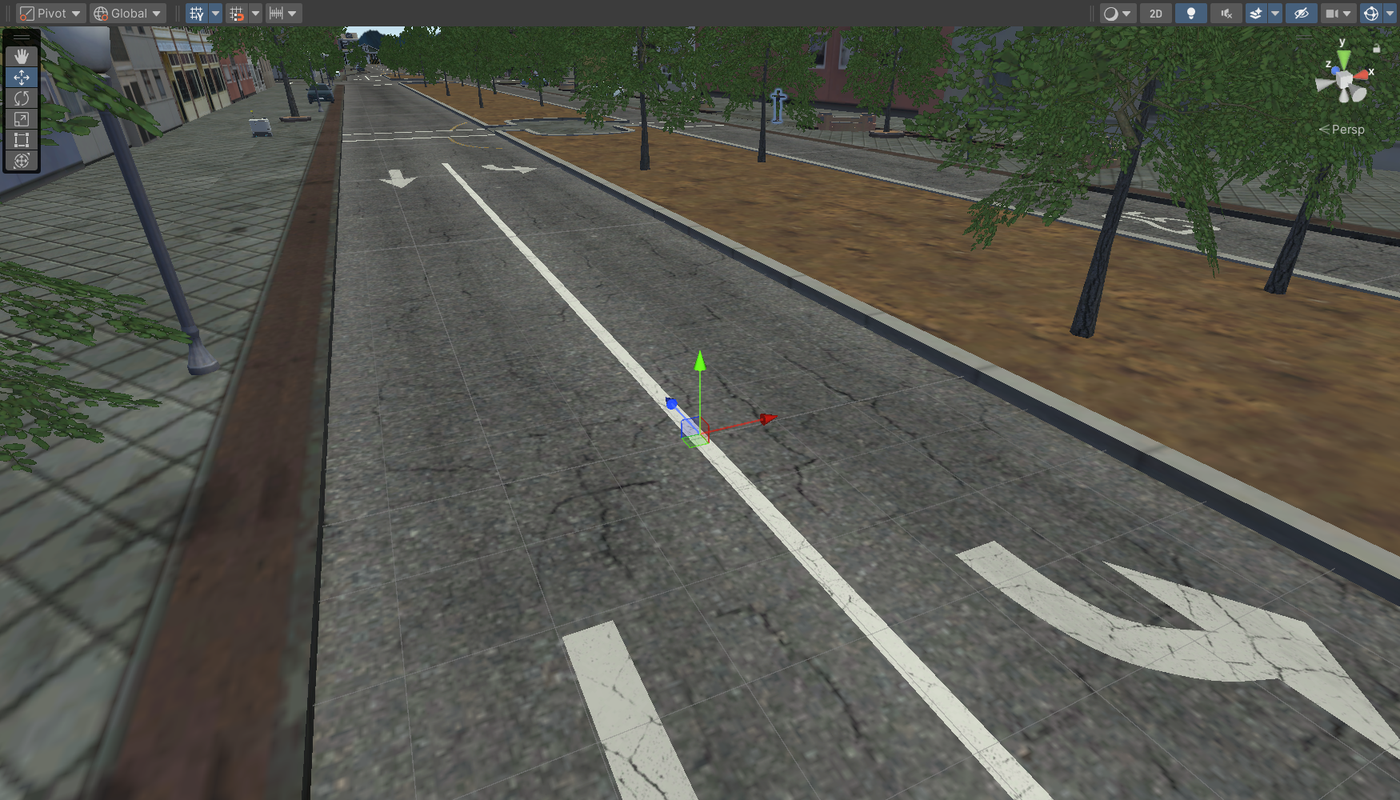
In the Inspector window, confirm the Y position in the
Transform component is between 0.05 and 0.1.
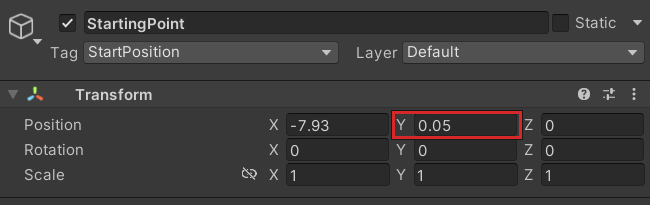
A Y value below 0 places the ego below the road surface.
A Y value above 0.1 causes it to spawn in midair and fall
due to physics.
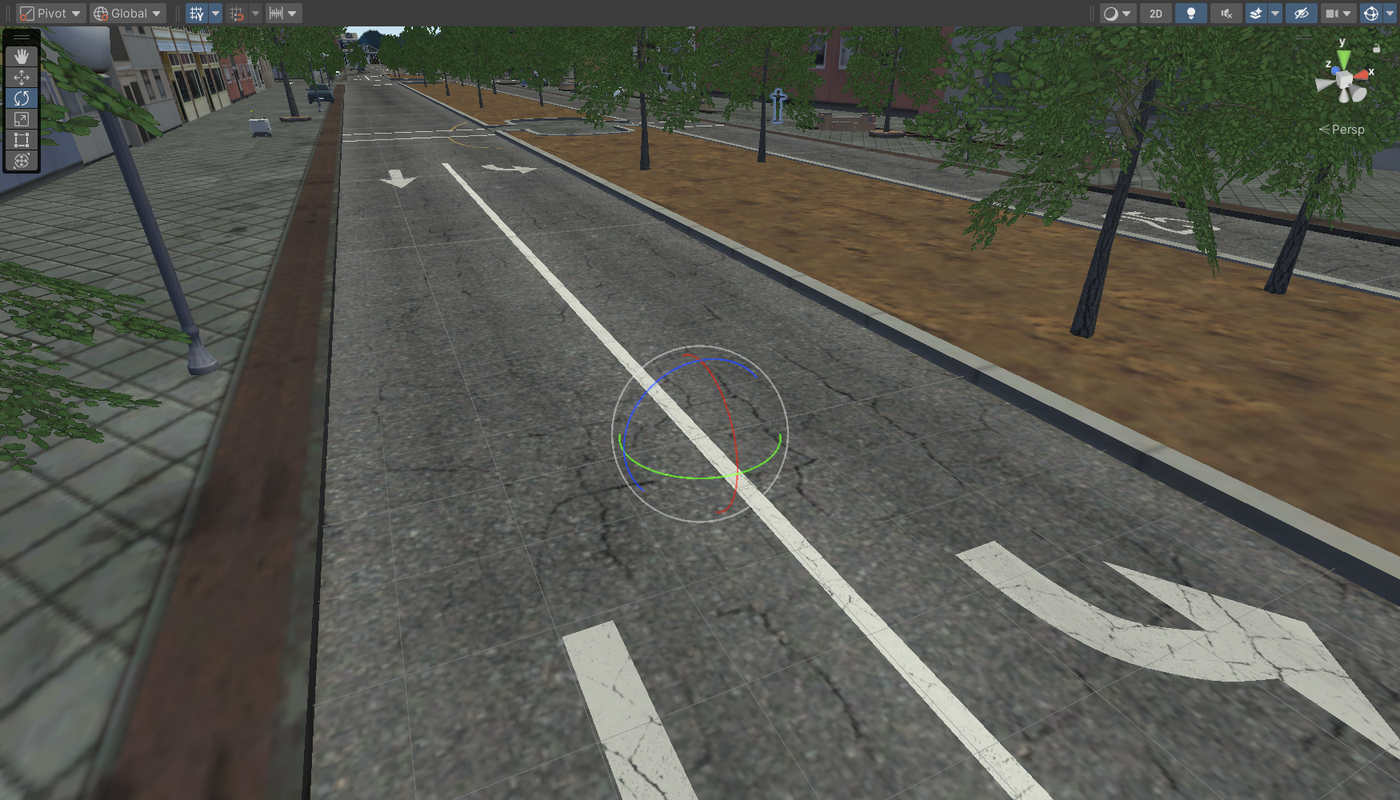
Use the Rotate tool to orient the Starting Point so the blue Z arrow points in the intended direction of travel. The Y Rotation value in the Transform component updates as you rotate.
3. Placing the Delivery Robot
Place the delivery robot adjacent to the intended conflict area — for example, one block from the ego's starting position — oriented toward the interaction point.
In the Project window, navigate to
Assets/mobisim/Actors/Vehicle/Prefabs/.
Drag RoadAgent_DeliveryRobot into the Scene view at the intended start position.
In the Inspector window, confirm the Y position is
between 0 and 0.1.
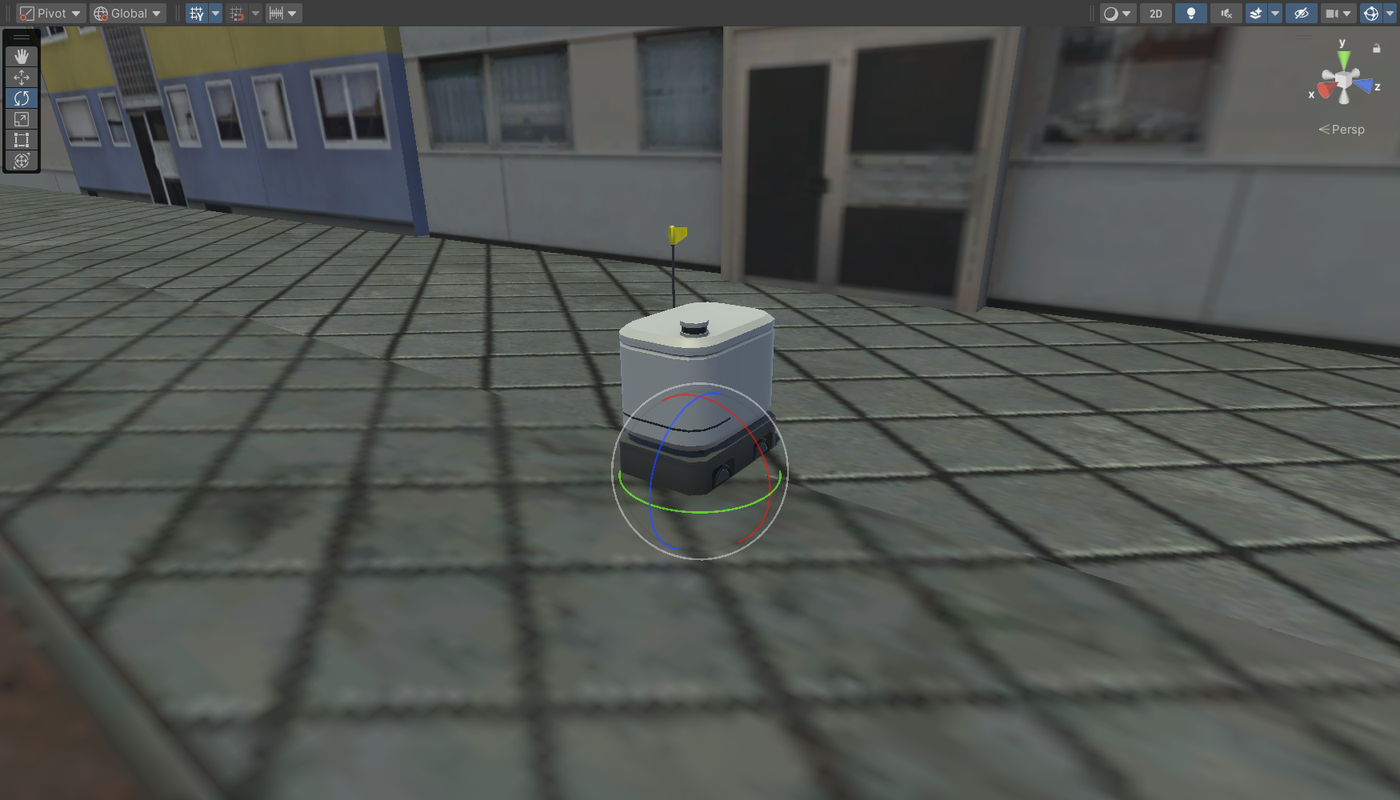
Use the Rotate tool to orient the robot toward its direction of travel. The red sensors on the front of the model mark the forward-facing direction.
4. Defining the Delivery Robot's Path
The delivery robot follows a path defined by a waypoint asset. For a simple straight path, two points are sufficient.
Adding Waypoints
In the Project window, navigate to
Assets/mobisim/Traffic/Prefab/.
Drag RoadAgent_Path into the Scene view in front of the delivery robot. Two points are generated automatically: Point 0 (start) and Point 1 (end).
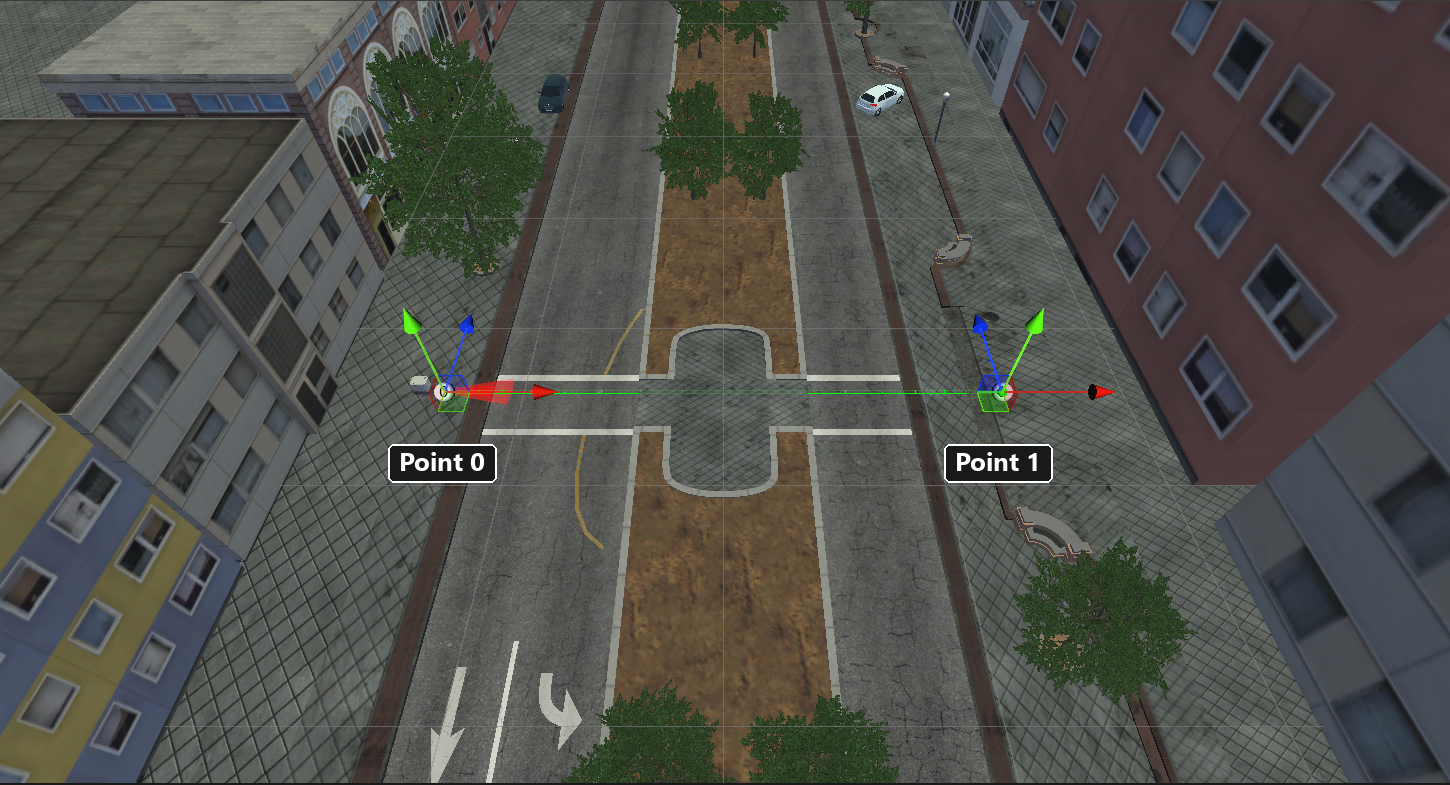
In the Inspector window, under Path Details, adjust the coordinates of each point to define the path. Click a point index to jump to it in the Scene view.
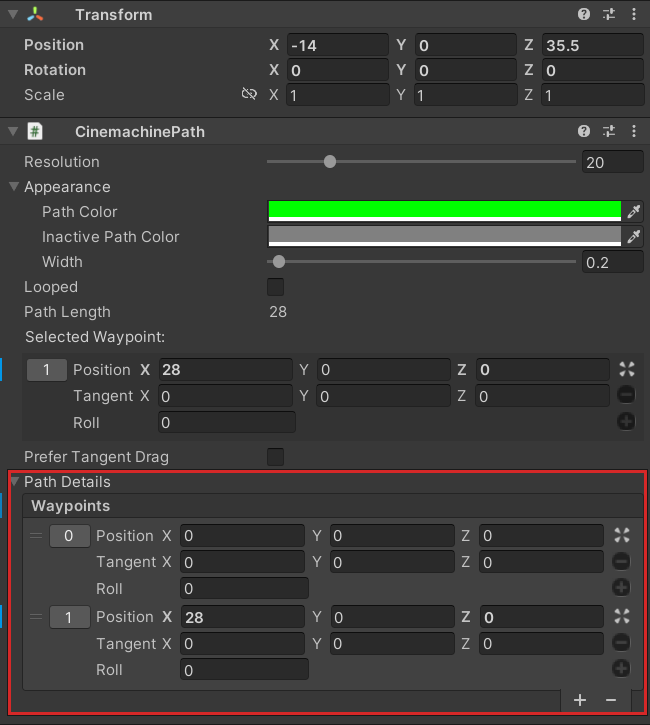
For longer or more complex paths, add waypoints using the + button under Path Details. Additional points reduce navigation errors and produce smoother movement.
Extend the final waypoint beyond the conflict area so the agent continues moving naturally after the interaction.
Adjusting Path Curvature
To simulate a turn, adjust the Tangent X value of a waypoint under Path Details. This curves the path at that point, producing more natural turning behavior. Tangents are only available when three or more waypoints are connected.
Connecting the Waypoint to the Delivery Robot
In the Hierarchy window, select the delivery robot.
In the Inspector window, locate the Vehicle Path Follow Component script.
Under Path Follows > Path, click the object picker and select the waypoint you created.
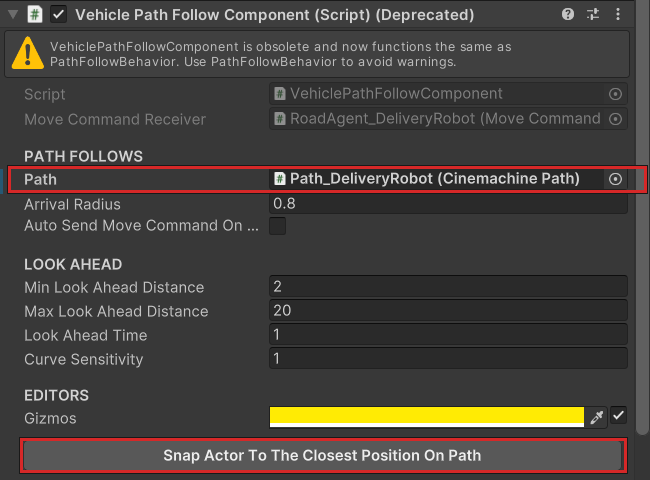
Use the Snap Actor To The Closest Position On Path button at the bottom of the component to move the robot onto the start of its path.
Rename each waypoint with a unique identifier as you add more road users. This prevents assigning the wrong path to an agent.
5. Activating the Delivery Robot
An Event Trigger initiates the delivery robot's movement when the ego enters a defined zone. For a full overview of Event Triggers, see Event Trigger.
In the Project window, navigate to
Assets/mobisim/Event/Prefab/.
Drag EventTrigger AIActivationEvent into the Scene view on the ego's intended path.
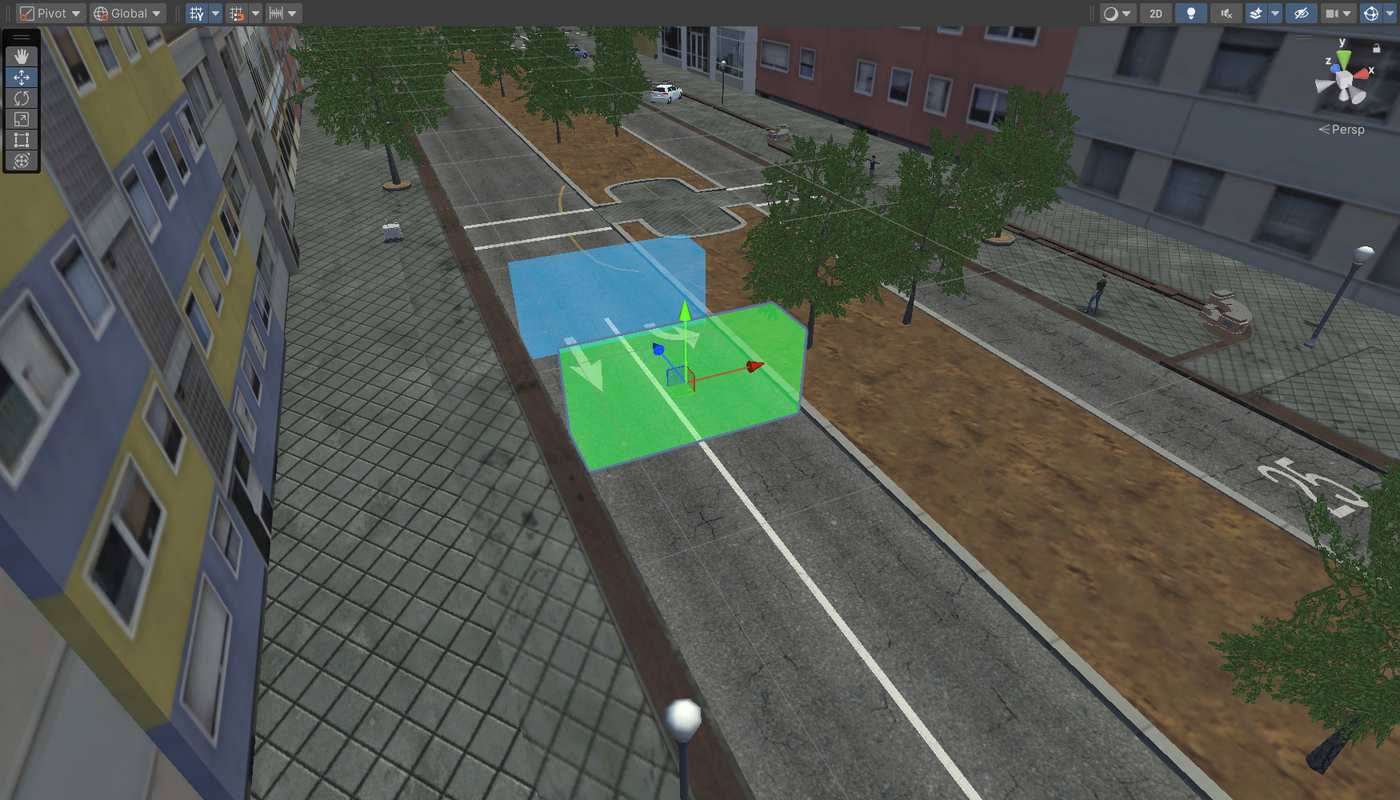
In the Hierarchy window, select the delivery robot.
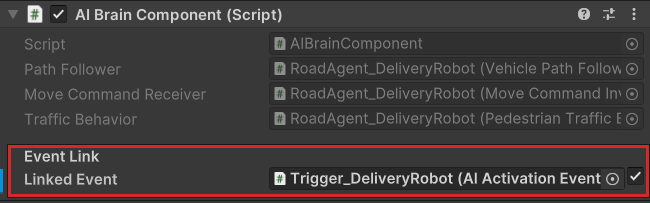
In the Inspector window, locate the AI Brain Component script.
Under Event Link, enable the checkbox to activate the field.
Click the object picker next to Linked Event and select the Event Trigger you placed.
Sizing and Positioning the Trigger
Two factors determine whether the Event Trigger activates at the correct moment:
- Size — Adjust the Scale of the Event Trigger GameObject so the ego can reliably enter the collider volume. A volume that is too small may not register a collision.
- Position — For a yielding scenario, the ego and the delivery robot should arrive at the conflict area at roughly the same time. Adjust the trigger's position through playtesting until this timing is achieved.
Rename each Event Trigger with a unique identifier as you add more interaction events.
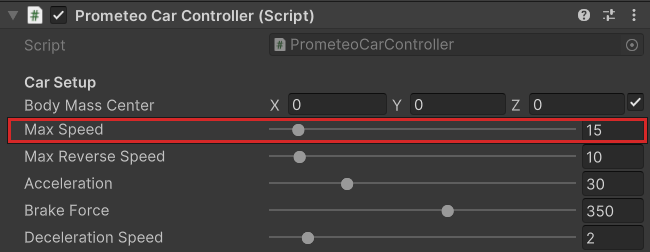
To change the delivery robot's speed, select it in the Hierarchy window, then in the Inspector window locate Prometeo Car Controller > Car Setup and adjust the Max Speed slider (in mph).
6. Placing Pedestrian Road Users
Pedestrian road users follow the same setup process as the delivery robot.
In the Project window, navigate to
Assets/mobisim/Actors/Pedestrian/Prefabs/.
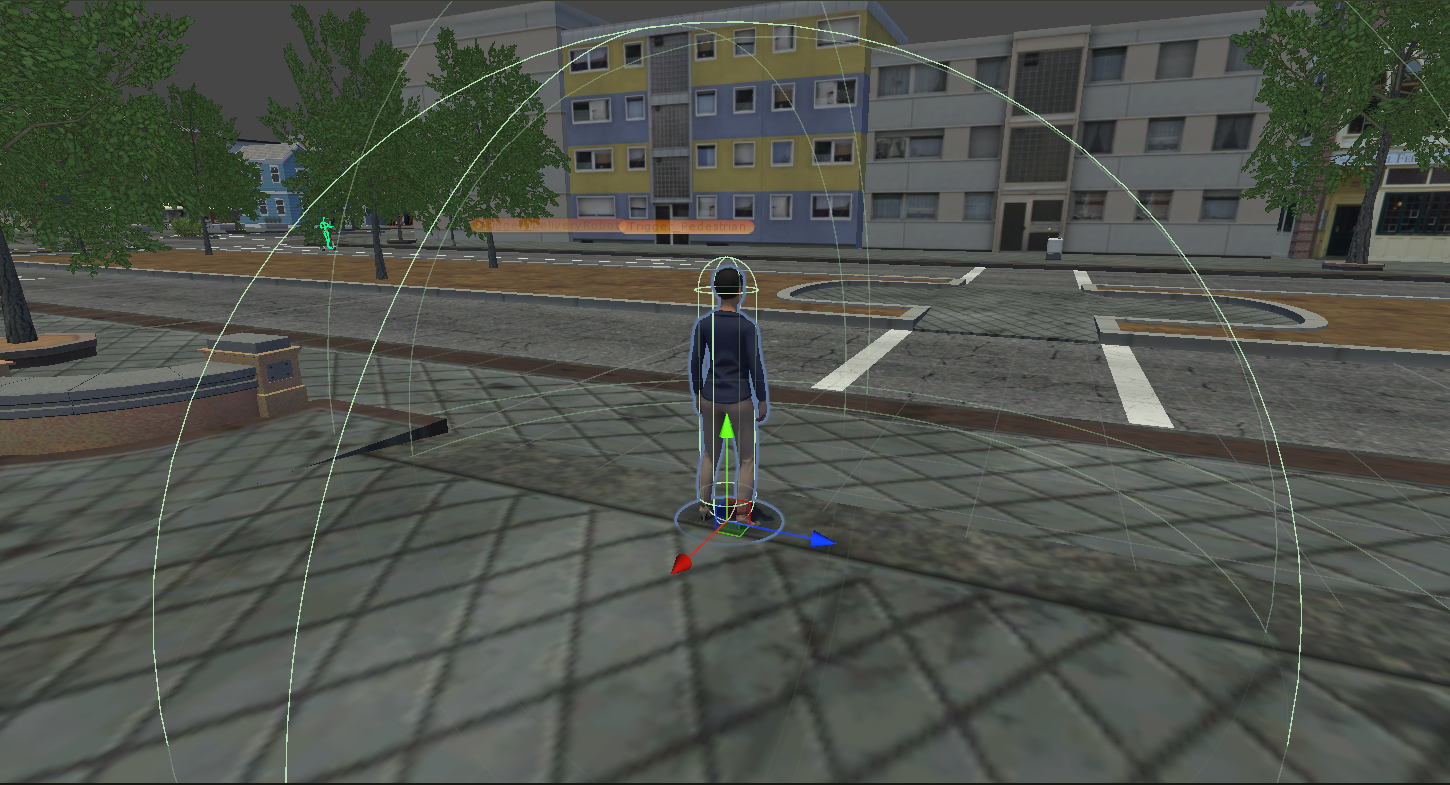
Drag a pedestrian prefab — for example, RoadAgent_Pedestrian_Martha — into the Scene view at the intended start position.
Confirm the Y position is between 0 and 0.1 and orient
the model in the intended direction of travel.
Add a RoadAgent_Path asset and connect it to the pedestrian:
- In the Hierarchy window, select the pedestrian.
- In the Inspector window, locate the Character Path Follow Component script.
- Under Path Follows > Path, select the waypoint.
Add an EventTrigger AIActivationEvent and connect it to the pedestrian:
- In the Inspector window, locate the AI Brain Component script.
- Under Event Link, enable the checkbox, then click the object picker next to Linked Event and select the Event Trigger.
To adjust walking speed, locate the Physics Based Character Controller script and modify the Max Walk Speed value (m/s) under Movement Settings. The walk speed is used when Limit To Walking Only is enabled; otherwise the pedestrian moves at up to Max Run Speed.
For additional pedestrian model types, see the Agent Catalog.
7. Configuring Agent Yielding
Each road user prefab (including the delivery robot) includes automated yielding behavior through the Pedestrian Traffic Behavior script. When an agent detects the ego within a set distance, it slows and stops until the ego moves out of range.
To configure yielding distances:
In the Hierarchy window, select the road user.
In the Inspector window, locate **Pedestrian Traffic Behavior
Traffic Object Contact Parameter**.
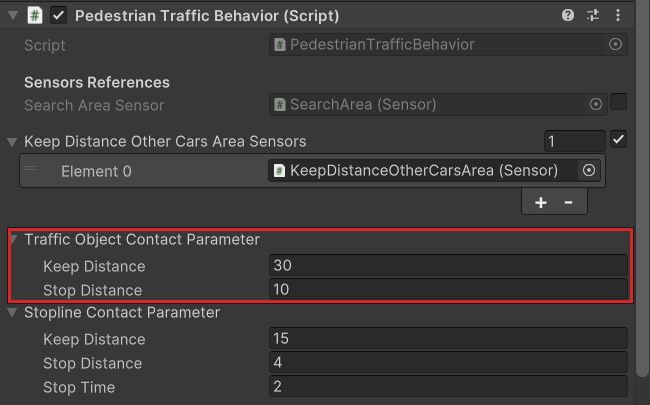
The Stopline Contact Parameter section below it uses the same fields plus Stop Time, the number of seconds the agent waits at a stop line (defaults: Keep Distance 15, Stop Distance 4, Stop Time 2).
8. Playtesting the Scenario
Make sure the Bootloader is enabled. See Play Mode.
Press Play to enter Play mode. The Game view opens in third-person perspective behind the scooter.
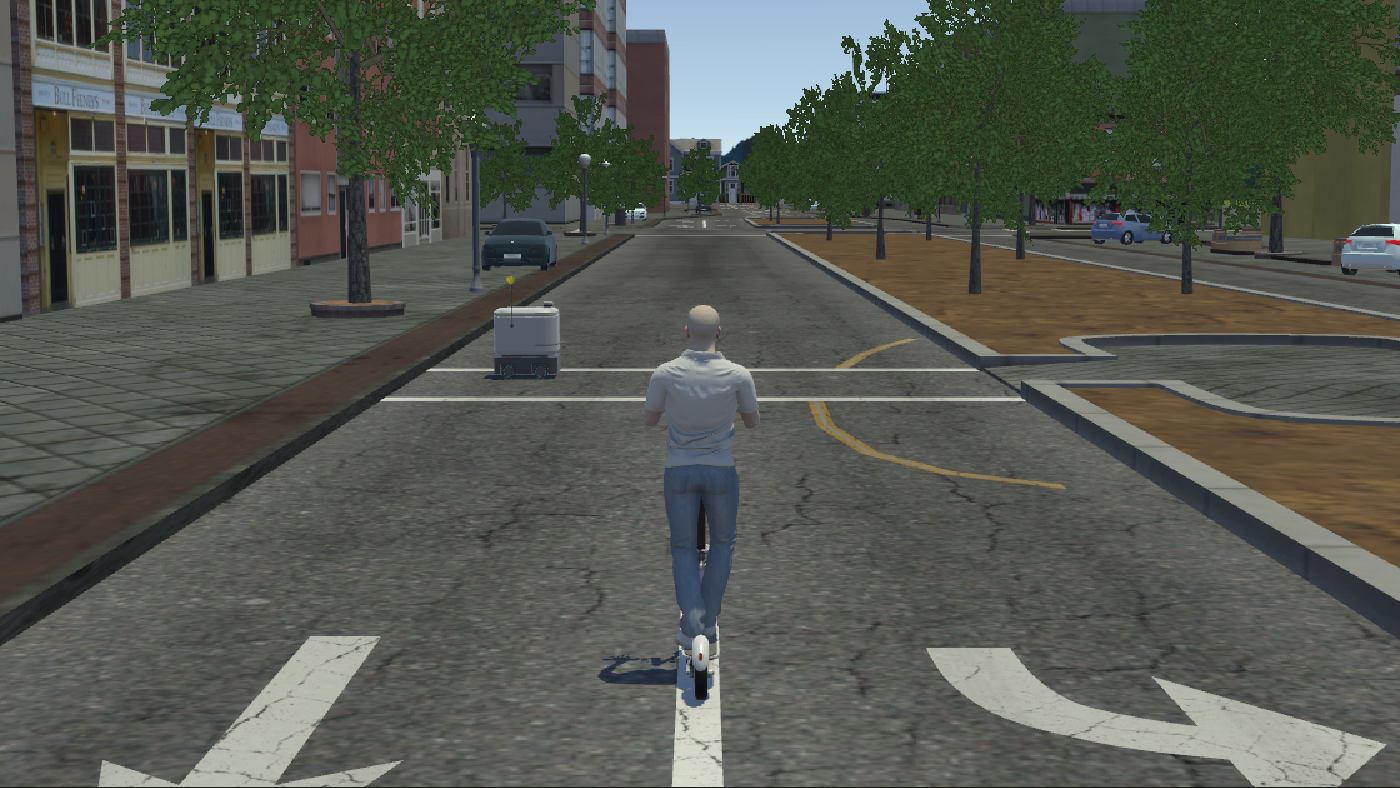
Use the arrow keys to ride through the scenario.
Observe whether each Event Trigger activates at the correct time relative to the road users' movement.
Exit Play mode, reposition the Event Triggers as needed, and repeat until the interaction timing is accurate.
Scene transitions and data collection require the Bootloader to be active. If the Bootloader is disabled, the scene will not advance and no data will be recorded.
Next Steps
With a working scenario, you can extend it by:
- Adding more road users using the same procedure
- Exploring the Agent Catalog for additional pedestrian and vehicle model types
- Configuring a Time Limit to end the scenario after a set duration
- Reviewing Event Trigger variants for other interaction types