Navigation System
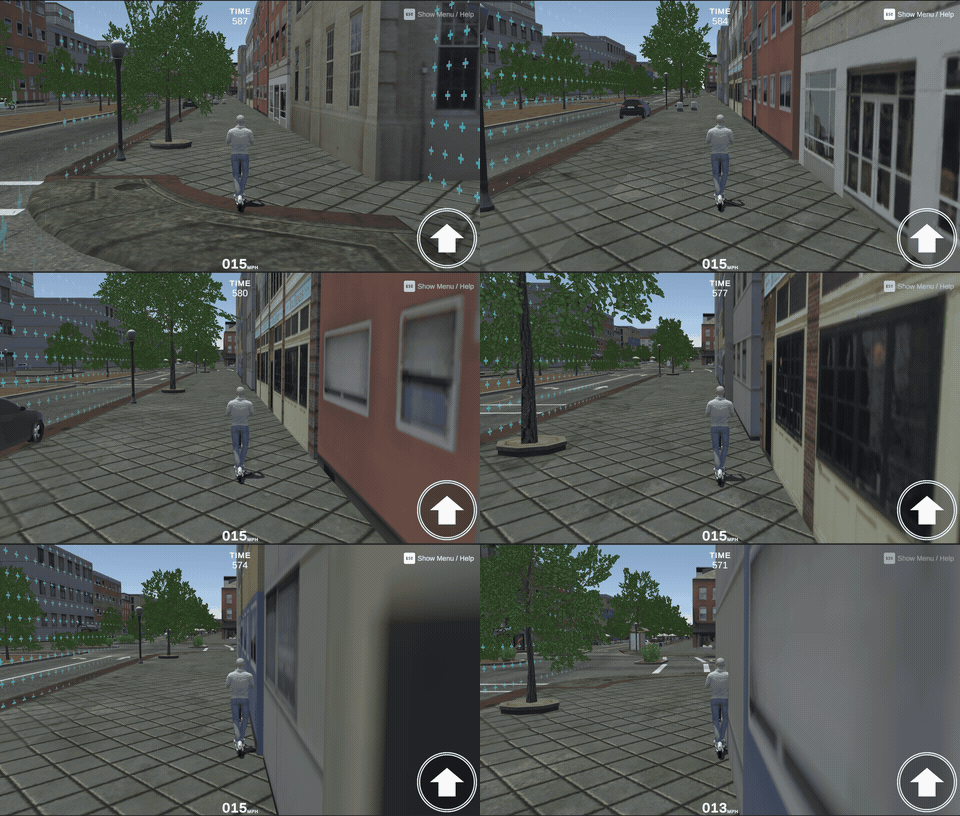
The Navigation System helps you guide players through your scenarios. It consists of two systems that work independently:
- Waypoint Navigation — shows the player where to go next and guides them through scripted routes.
- Progression Checkpoints — shows the player how far along they are in the scenario.
You can use just one of them, or both together.
Navigation Waypoints
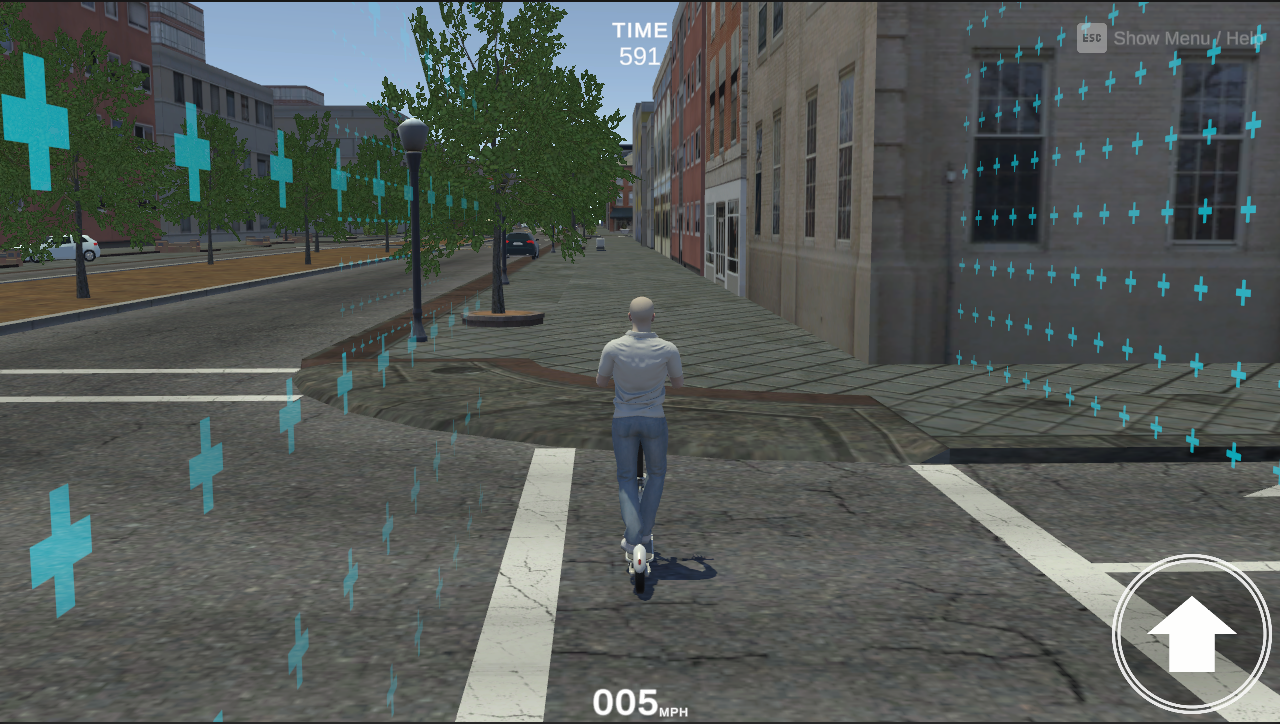
The Navigation Waypoint system guides the participant along a defined route by visually indicating the direction they should travel. During an online simulation, the Navigation Waypoint is shown in the right-hand corner of the screen.
The system requires four correctly configured components to function:
Waypoint Instances
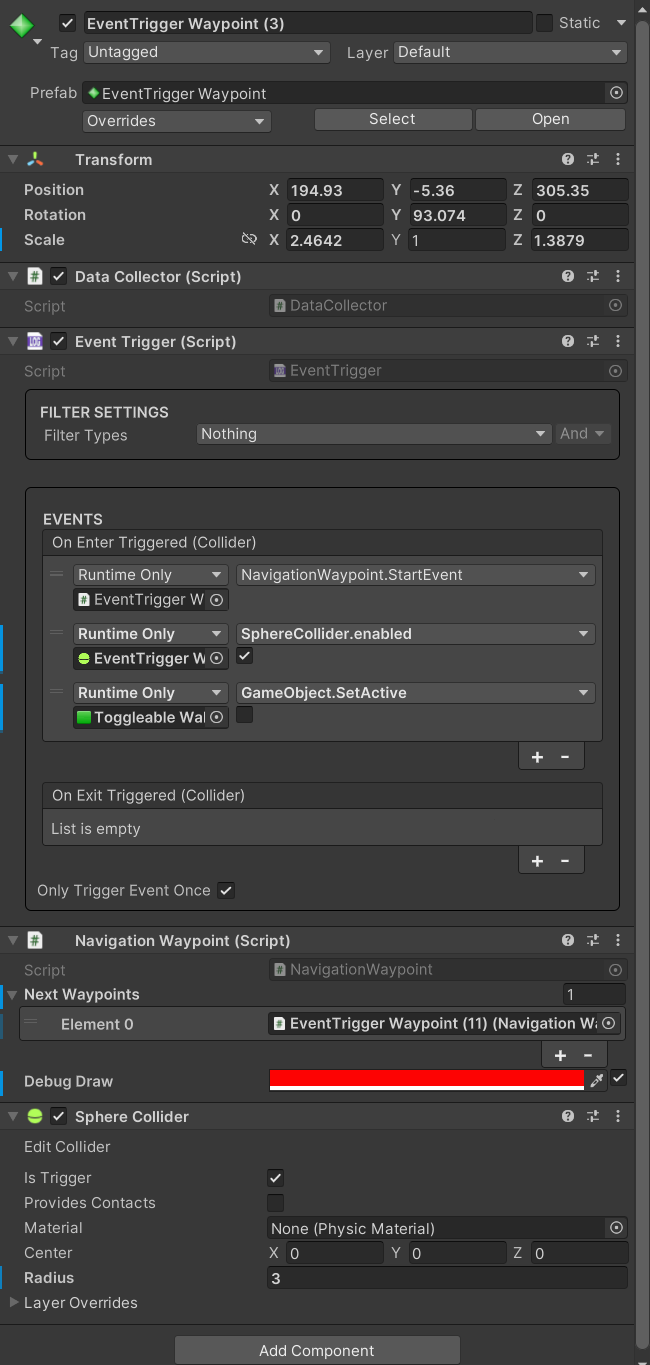
A waypoint instance is a scene object that marks a point the player needs to pass through on their journey. To create a waypoint instance, drag the EventTrigger Waypoint
prefab into the scene at the position the participant should pass through.
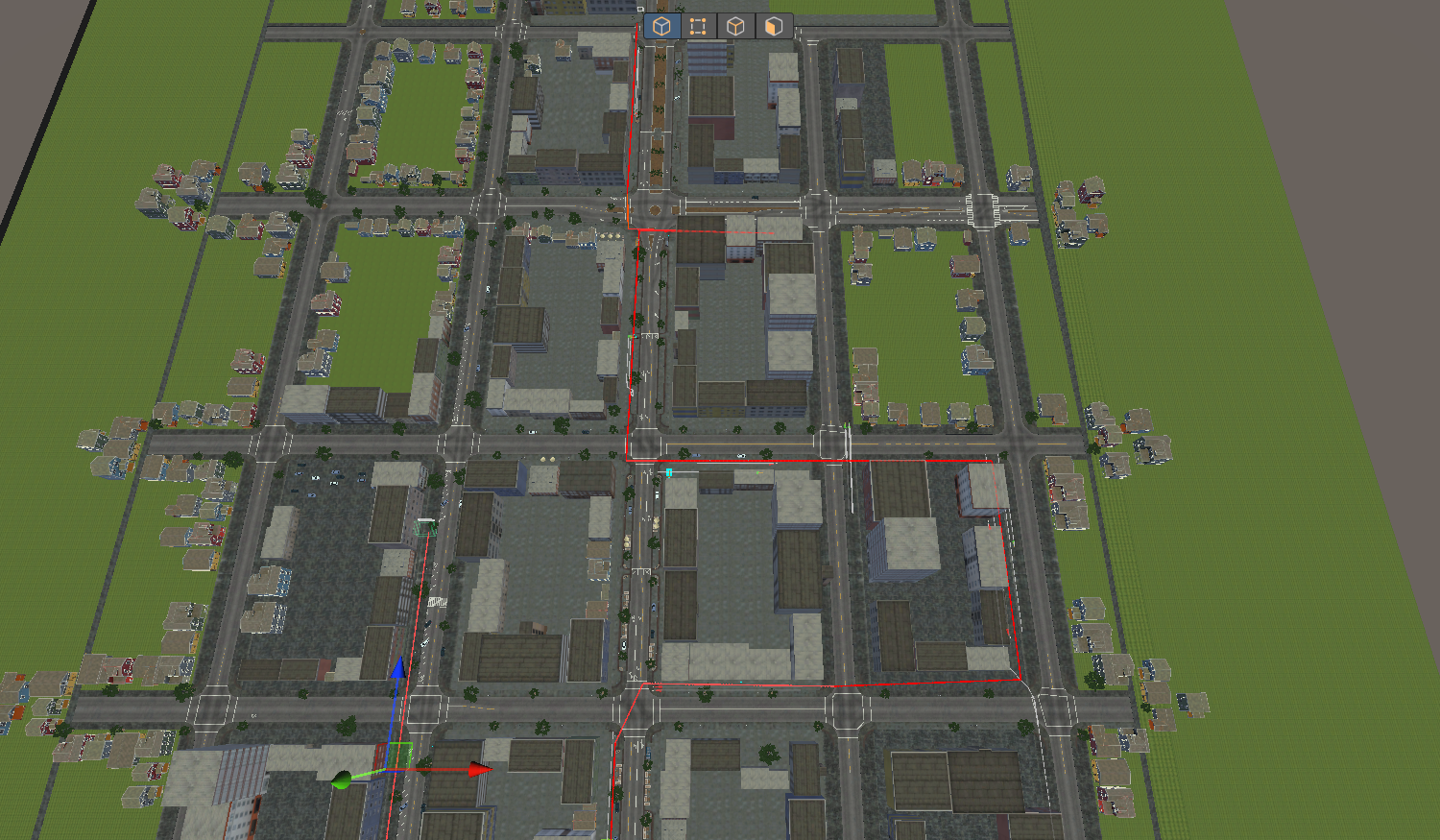
Linking one waypoint to the next forms the navigation route. A waypoint can connect to multiple successors to create branching paths — for example, left or right at a junction.
A navigation route requires at least two linked waypoints.
Waypoints the player is currently assigned to travel toward are active waypoints. Among them, the one the player is visually guided toward is the priority active waypoint.
When the player reaches an active waypoint, the system advances to its linked successors, marking them as the new active waypoints and selecting one of them as the priority active waypoint. Regardless of priority, any active waypoint can be triggered by the player.
Interactions with non-active waypoints are ignored, ensuring the participant follows the waypoints in the order defined by the route.
Configuring the Waypoint - Event Trigger
The waypoint's entry detection is handled by an EventTrigger component. For general Event Trigger configuration instructions, refer to the Event Trigger guide.
On each EventTrigger Waypoint instance, you can adjust the collider component as needed. The prefab comes with a SphereCollider by default, but you can swap it for a box, capsule, or custom collider to suit your layout. You can also resize either the collider or the waypoint object itself to fine-tune the trigger zone.
If you swap the collider, make sure Is Trigger is checked. Otherwise, the waypoint does not detect overlaps and may block the player's movement.
Configuring the Navigation Waypoint Component
The NavigationWaypoint component defines the route flow for each instance. Each instance specifies its outgoing connections to the next waypoint or waypoints. Together, these connections form the complete navigation route.
You can use the following properties to configure NavigationWaypoint:
Navigation Waypoint Manager
The NavigationWaypointManager component controls the navigation route. It keeps track of all active waypoints during play and decides which one is the current priority active waypoint. Without a manager present in the scene, NavigationWaypoint components will not function.
The manager maintains its own working copy of the waypoint list. Whenever an active waypoint is reached, the manager automatically replaces its list with that waypoint's Next Waypoints.
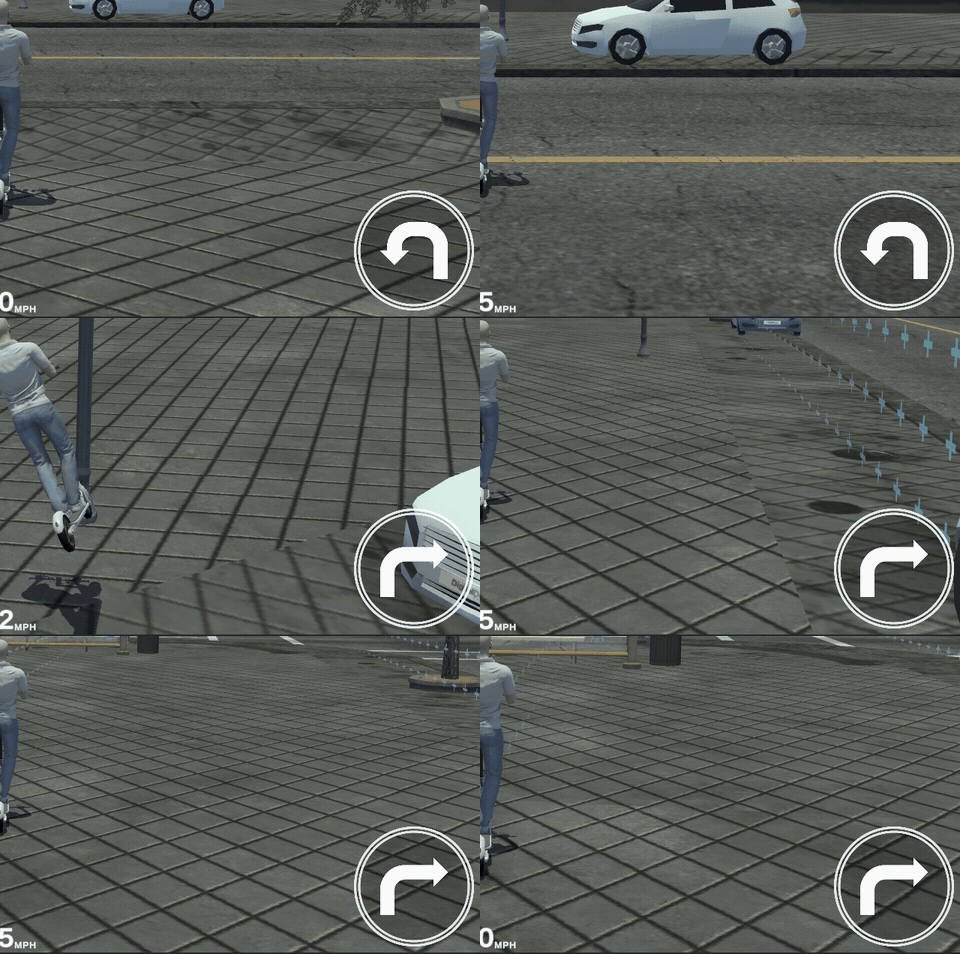
Whenever the list updates, its first entry is selected as the priority active waypoint. At any point during play, you can switch the priority active waypoint by calling the manager's methods, either from a UnityEvent or through player input.
To get started, add a NavigationWaypointManager component to a GameObject in your scene. This is typically the GameObject that holds other manager components, such as the GameMode.
Only one NavigationWaypointManager should exist in a scene.
Configuring the Navigation Waypoint Manager Component
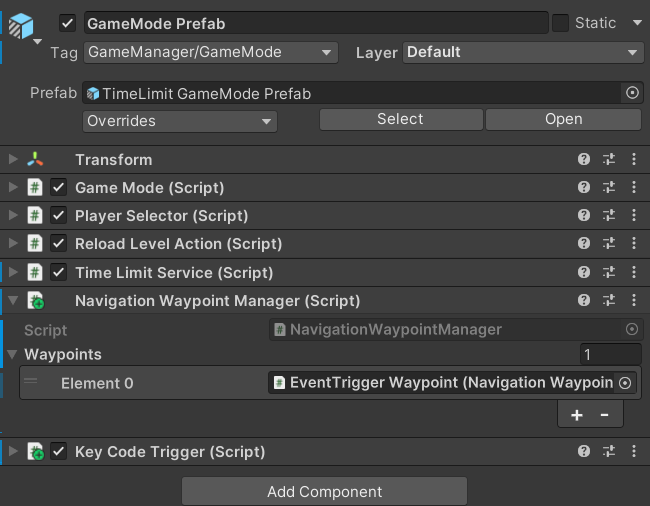
The NavigationWaypointManager is simple to set up. The only property you need to configure is the Waypoints list, which defines the first set of waypoints the player follows when the scene begins.
In the Inspector window, drag your starting NavigationWaypoint objects into the list. All entries become active at the start of play, and the first entry is automatically selected as the initial priority active waypoint.
Waypoint Navigator
The WaypointNavigator component guides the participant along the navigation route. It monitors the current priority active waypoint, calculates the direction from the player to that waypoint, and broadcasts this data so other systems can react to it.
Attach the WaypointNavigator component to the GameObject that represents the participant. In most cases you do not need to add it manually, since the controllable prefabs included in the project already have this component configured.
Configuring the Waypoint Navigator Component
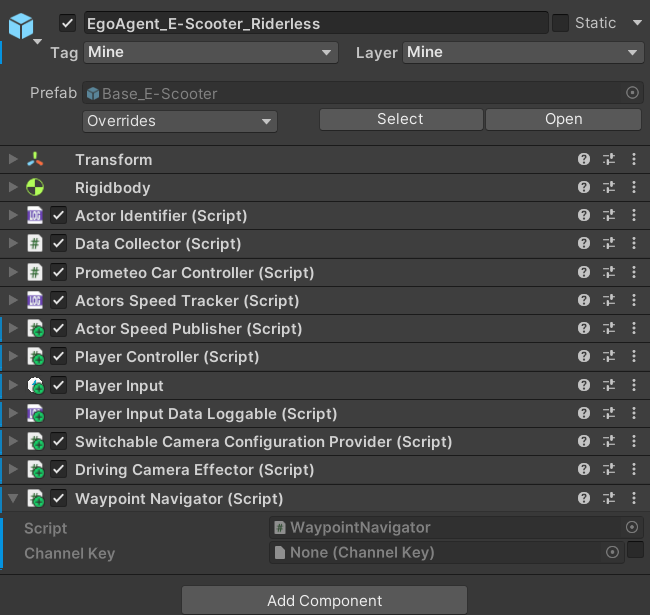
The Waypoint Navigator component has only one configurable property. The Channel Key property defines the message channel used to broadcast the navigation data. If you leave the field empty or disabled, the navigator uses the default channel.
You only need to assign a channel key if you have multiple navigators in the scene and want each one to broadcast its navigation data separately.
In that case, assign a unique channel key to each navigator in the scene and make sure its corresponding UI listens on the same key. Otherwise, leaving it empty is sufficient.
Navigation Arrow
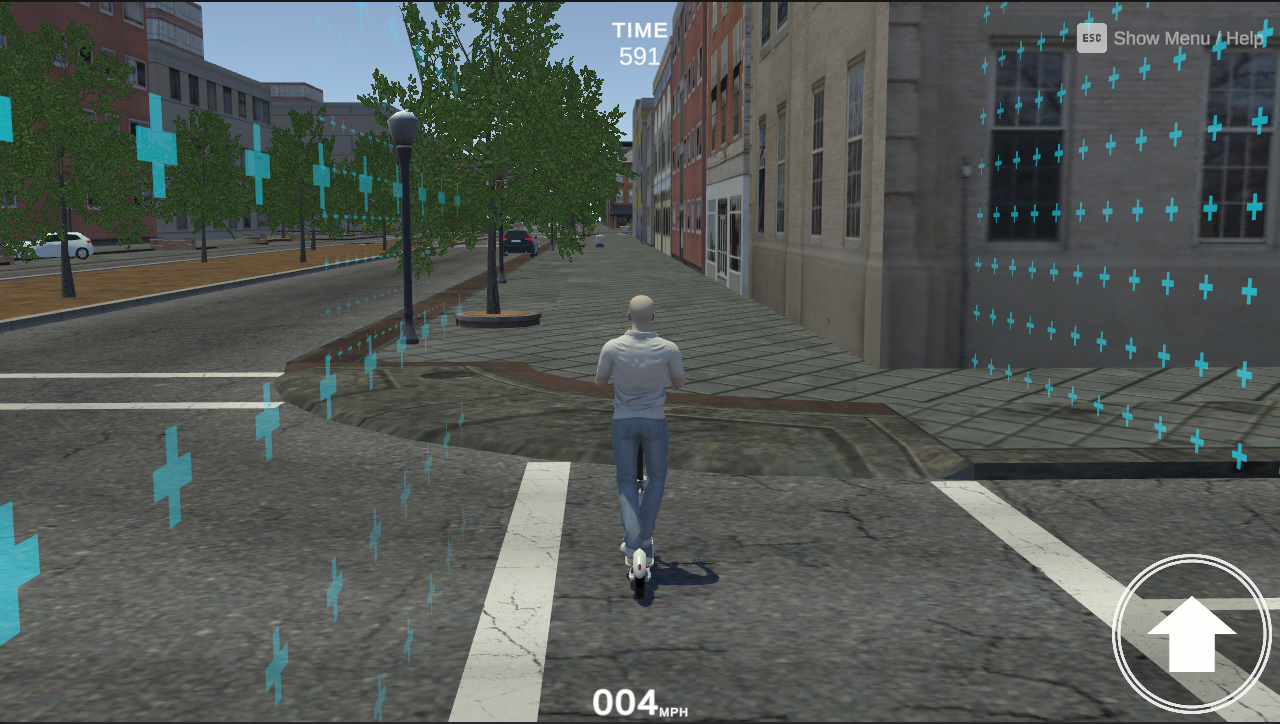
The WaypointNavigator produces navigation data but does not display anything on its own. The NavigationArrowUIPanel component receives that data and presents it to the participant as an on-screen directional arrow.
The component listens for navigation data from the WaypointNavigator, determines which arrow sprite corresponds to the current direction, and displays it on screen. As the participant moves or rotates, the direction to the waypoint updates and the arrow adjusts automatically.
Prefabs
The NavigationArrowUIPanel component must be present in the scene for navigation data to appear on screen. Two prefabs are provided:
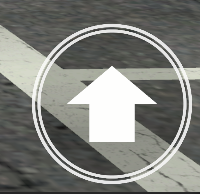
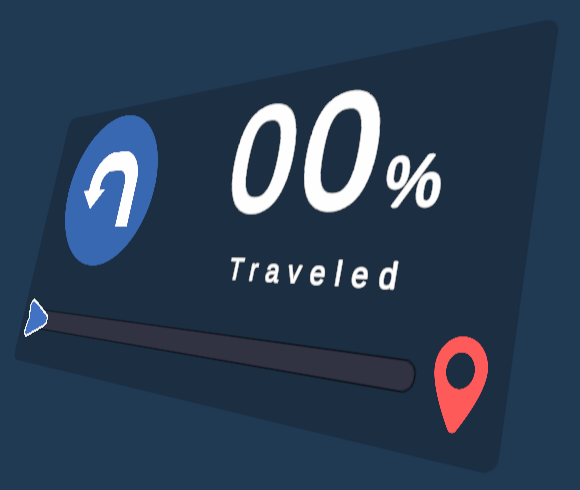
Each prefab includes the arrow graphics, UI layout, and a configured NavigationArrowUIPanel component ready to receive direction updates. Both provide the same functionality with different visual styles.
Drag either prefab into the scene, and it connects to the navigation system automatically at runtime. Navigator UI v1 is already included in the UI Overlay Scene and does not need to be added manually in most cases.
By default, the Navigator UI assumes that only one actor per scene broadcasts NavigationDirectionMessage events. If multiple actors need guidance simultaneously, assign each one its own event channel.
Configuring the Navigation UI
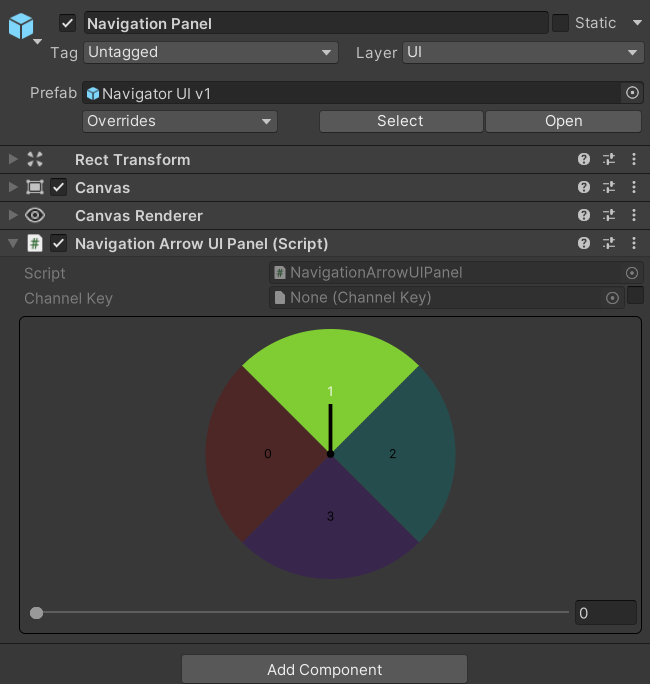
You can use the following properties to configure the NavigationArrowUIPanel component's communication channel and main visual references:
The lower part of the component contains the tools that control how the navigation arrow behaves and let you preview its behavior directly in the Editor.
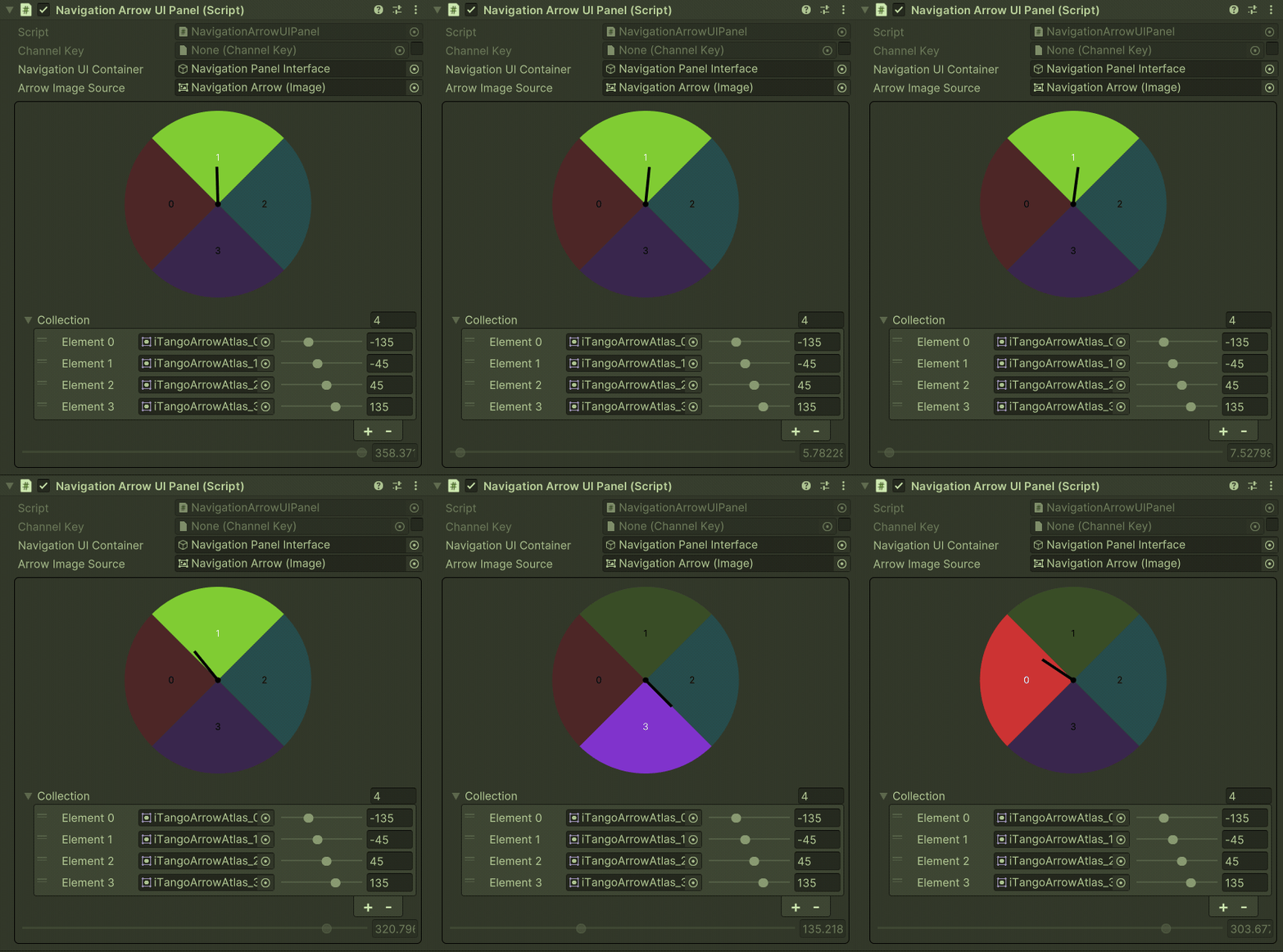
The circular graphic provides a visual preview of how the arrow system interprets directions. Each colored segment represents a different directional range, and the pointer line in the center shows the current direction being evaluated. The preview updates automatically when you modify the Collection field or move the slider.
Think of the circular preview (radial display) as a compass:
- The center point represents the player.
- Each colored slice corresponds to one directional mapping.
- The small pointer line indicates the current navigation direction being evaluated at runtime.
In Play Mode, the pointer moves in real time based on the target's direction, so you can see which section of the circle is currently active.
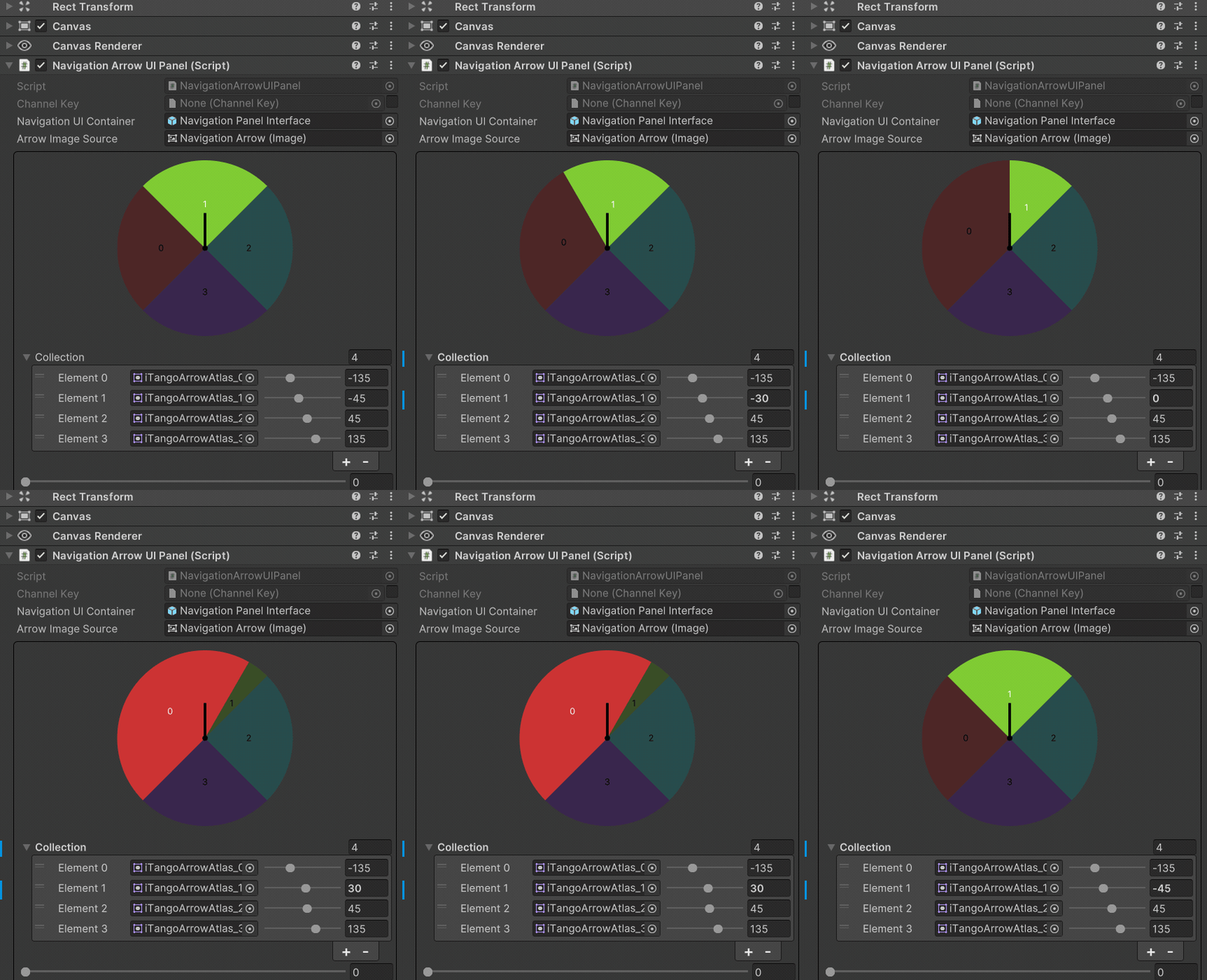
Below the preview is the Collection field, which lists all direction mappings. Each entry defines two properties:
- Sprite — the arrow image to display.
- Start Angle (degrees) — the point where that arrow begins to apply, measured clockwise from the top. The system normalizes the angles, so angles below
0°or at or above360°are automatically wrapped into the range[0°, 360°).
0° represents the forward direction of the player — straight ahead from the player's perspective.
Angles increase clockwise around the circle, so 90° is to the right, 180° is behind, and 270° is to the left of the player.
The component sorts all start angles, then treats each sector as [angleᵢ, angleᵢ₊₁) clockwise, with the last sector wrapping back to the first. The collection effectively maps the full 360° around the player to specific arrow graphics. The component finds the section of the circle that the target direction falls within and displays the sprite assigned to that section.
If your collection contains three entries with start angles at 10°, 120°, and -60°, the component creates three directional ranges:
10°→120°uses the first sprite.120°→240°uses the second sprite.-60°(normalized to240°) →10°uses the third sprite.
If multiple entries share the same starting angle, the one defined last in the list takes priority.
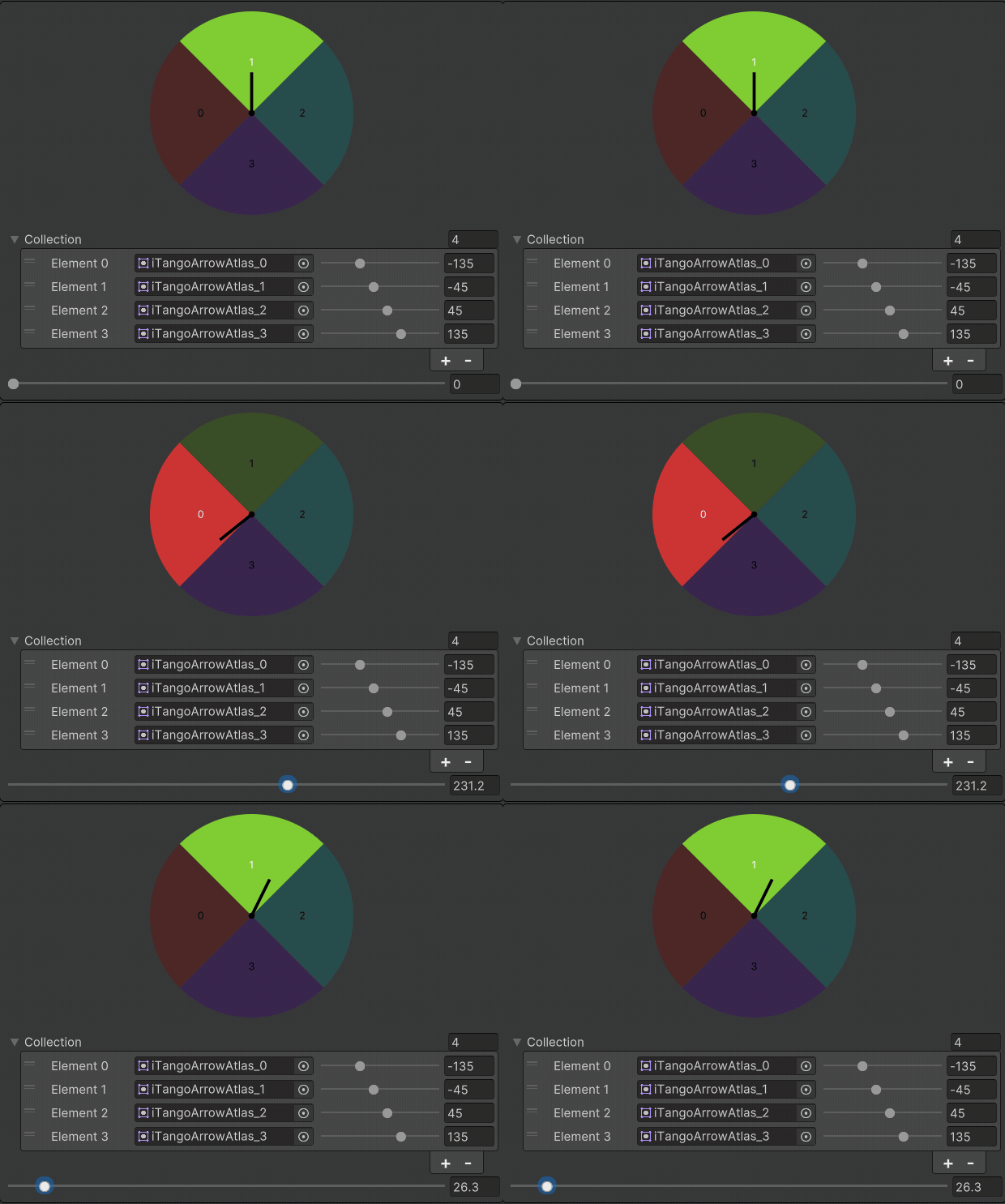
The slider controls the circular graphic's pointer outside Play Mode. Move the slider manually to preview which sprite index is selected for a given angle.
Navigation Checkpoints
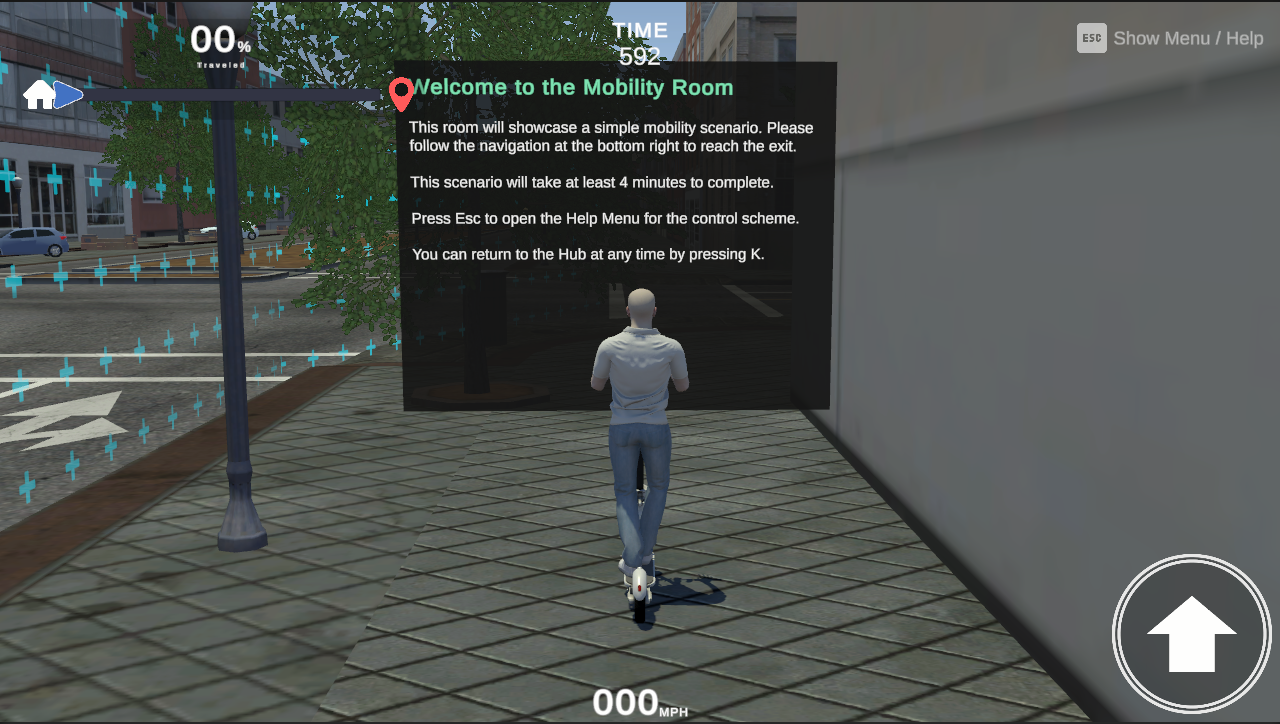
The Progression Checkpoint system tracks how far the participant has advanced through a scenario. It complements the Navigation Waypoint system by measuring progress rather than providing directional guidance. The system requires three correctly configured components to function.
Progression Checkpoints
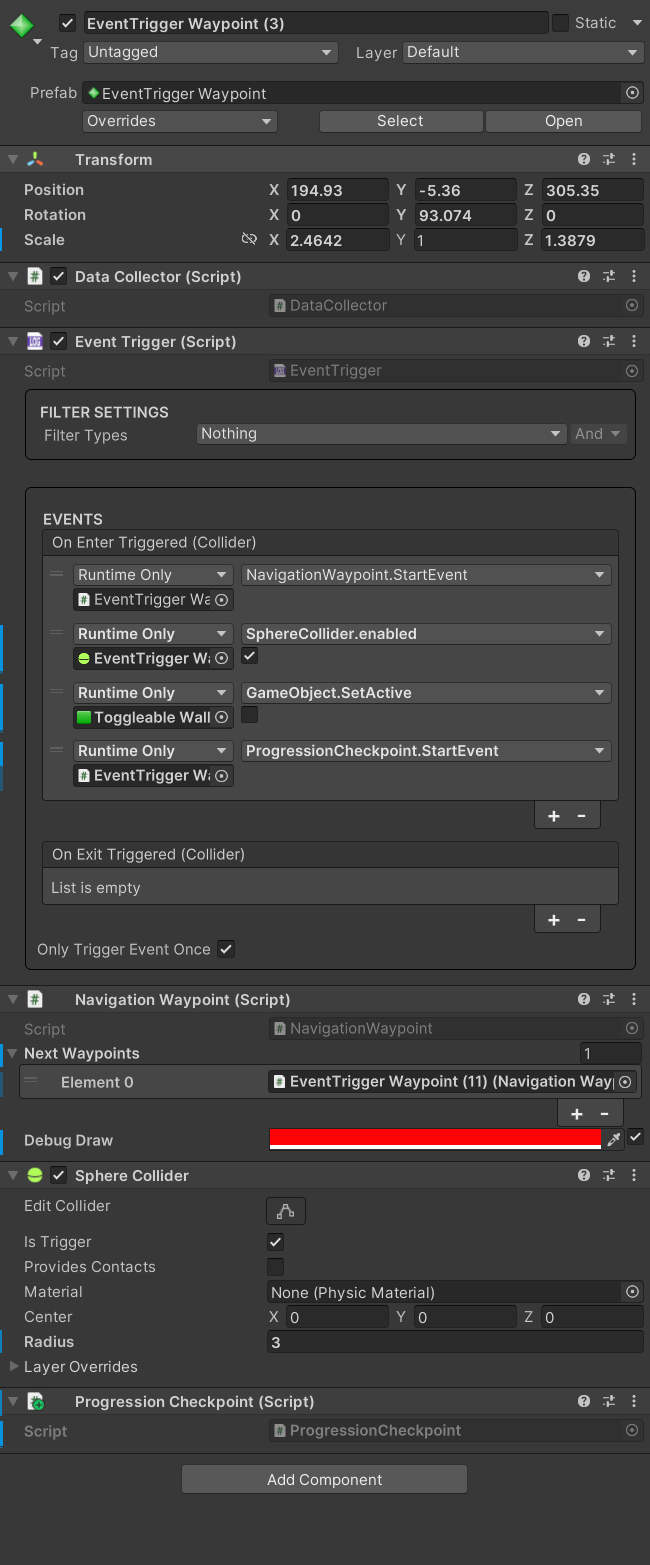
A Progression Checkpoint marks a key milestone along the player's path. Each time the player reaches a checkpoint, the system records it and updates the overall completion percentage.
To add a checkpoint, add a ProgressionCheckpoint component to a GameObject in your scene that has an Event Trigger. Then connect the Event Trigger's On Enter Triggered event to the ProgressionCheckpoint component's StartEvent(). The trigger detects when the player passes through and calls the checkpoint's StartEvent() method, notifying the system that the player has reached it.
A ProgressionCheckpoint can be added to the same GameObject as a NavigationWaypoint, sharing the same Event Trigger. This allows one trigger to update both systems at once.
Configuring the Progression Checkpoint
Each checkpoint uses an EventTrigger component to detect entry, similar to a navigation waypoint. Adjust the collider shape and size as needed for your level layout. For general Event Trigger configuration instructions, refer to the Event Trigger guide.
Progression Checkpoint Manager
The ProgressionCheckpointManager component controls checkpoint tracking for the entire scene. It collects all ProgressionCheckpoint instances at runtime, monitors when each one is triggered, and continuously calculates the player's overall progress through the level.
This progress value is broadcast every frame through the system's messaging layer. UI can then listen to these updates and display the progress visually.
To get started, add a ProgressionCheckpointManager component to a GameObject in your scene. This is typically the GameObject that holds other manager components, such as the GameMode.
Only one ProgressionCheckpointManager should exist per scene. Having multiple managers present may cause conflicting progress data.
Level Progression Bar
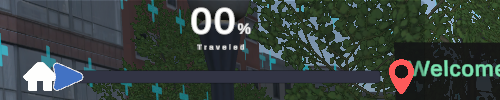
The Level Progression Bar displays the participant's progress through the scenario. It is powered by the ETAProgressBar component, which listens for updates from the ProgressionCheckpointManager. Each time a checkpoint is reached, the bar animates smoothly to the new value. The bar remains hidden until it receives a valid progression update.
A prefab named Level Progression Bar is provided and includes all required UI components with a configured ETAProgressBar component. Drag it into the scene, and it connects to the checkpoint manager automatically at runtime. The prefab is already included in the UI Overlay Scene and does not need to be added manually in most cases.
Configuring the ETA Progress Bar Component
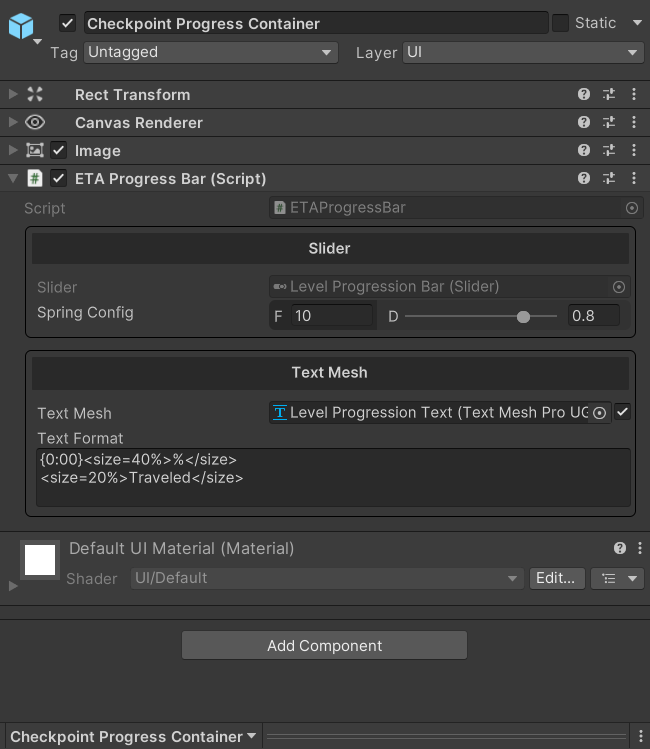
You can adjust the following properties on the ETAProgressBar component: