Interaction System
The interaction system lets participants interact with objects in the scene. When a participant walks close to an interactable object and it is visible on screen, a prompt panel appears showing one or more choices. The participant clicks or holds a button to trigger an action, such as opening a door, starting a dialogue, or activating a device.
The system has three parts that work together:
- Interactor — a component on the participant's character that detects nearby interactable objects and controls when the prompt panel appears.
- Interactable — a component on a world object that marks it as something participants can interact with and defines the choices they can select when they approach it.
- Interaction UI — the on-screen panel that displays the available choices.
Here is how the system works:
- Each interactable has an Interaction Area, an invisible trigger zone around it. When the participant's character enters this zone, the interactable becomes a candidate for interaction.
- The system selects the closest visible candidate as the active interactable.
- The active interactable's options (up to 4) are shown on the UI panel.
- When the participant presses or holds the corresponding button, the configured events fire (such as triggering a dialogue or playing an animation).
- Once an interaction completes, what happens to the options depends on the option's Completion Policy. By default, all options on the interactable are cleared, so the same interaction cannot be triggered again in that scenario. If the participant releases the button early or walks away before completing an interaction, it is cancelled and the options are preserved.
Setting Up the Interactor
The Interactor component goes on the participant's character GameObject. It acts as the sensor that detects nearby interactables and drives the UI. It needs an InteractionModel component on the same GameObject and a reference to the InteractionView (the UI panel, covered in the UI setup section).
Some participant prefabs already have the Interactor, InteractionModel, and InteractionView set up. Check the prefab before adding these components manually.
In the Hierarchy, select the participant character's GameObject, or open its prefab.
Interactor componentAdd the Interactor component via Add Component (search for Interactor, or browse Scripts > mobisim.Interaction > Interactor).
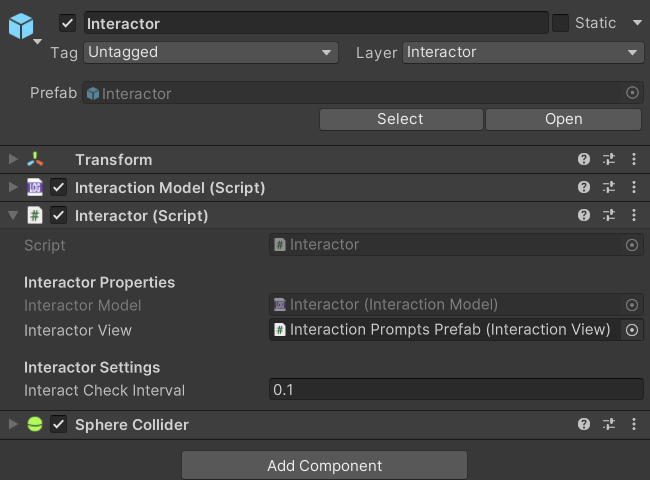
InteractionModel componentAdd the InteractionModel component to the same GameObject if it is not already present.
In the Interactor's Inspector, drag the InteractionView UI object into the Interactor View field.
The Interactor detects interaction areas through physics triggers, so its GameObject also needs a collider, and either it or the Interaction Area must have a Rigidbody. The provided Interactor prefab uses a Sphere Collider on the Interactor layer.
Optionally adjust the Interact Check Interval field (default: 0.1 seconds). This controls how often the system checks for the nearest visible interactable. Lower values are more responsive; higher values are slightly more efficient. The default is suitable for most scenarios.
Setting Up the Interactable
An Interactable component is placed on any world object the participant should be able to interact with.
Interactable componentSelect the world object in the Hierarchy, then add the Interactable component via Add Component (search for Interactable).
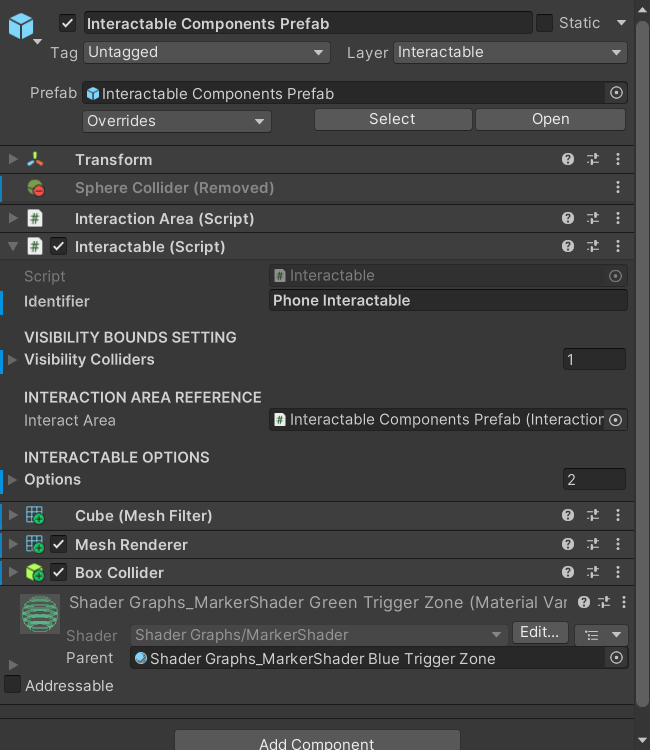
Fill in the Identifier field with a short, descriptive name for this object (for example, door_entrance or button_panel). This name appears in the session data logs to identify which object was interacted with. It does not appear to participants.
Right-click the interactable object in the Hierarchy, select Create Empty, and rename the child (for example, InteractionArea).
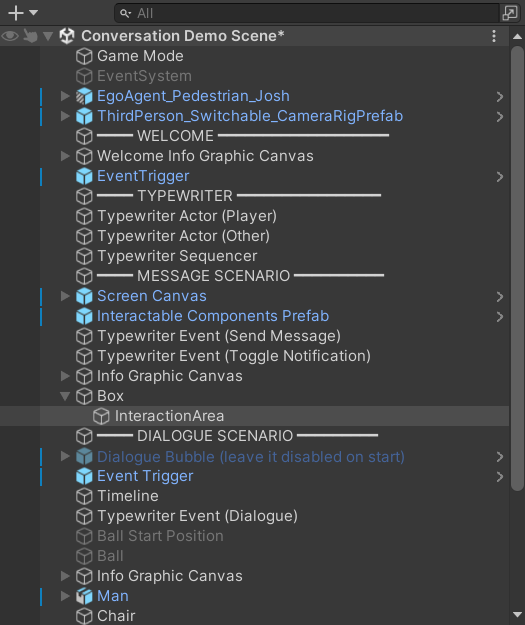
InteractionArea component and a trigger colliderOn the child, add the InteractionArea component via Add Component (search for InteractionArea). Then add a collider (such as a Sphere Collider or Box Collider) and check the Is Trigger box.
Set the child's Layer to Interactable (at the top of the Inspector, next to the Tag field). This is required for the physics collision between the participant and the trigger zone to work correctly.
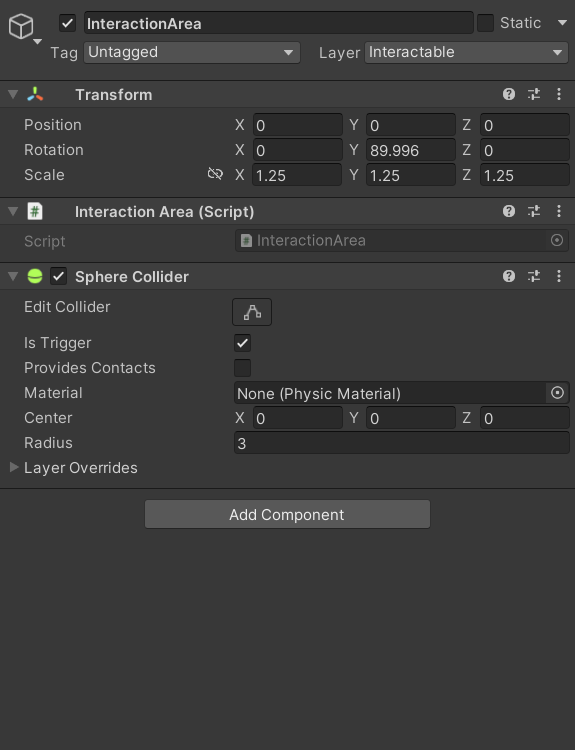
Resize the collider to set how close the participant must be before the UI appears. Back on the Interactable component, the Interact Area field should populate automatically. If it does not, drag the child GameObject into that field.
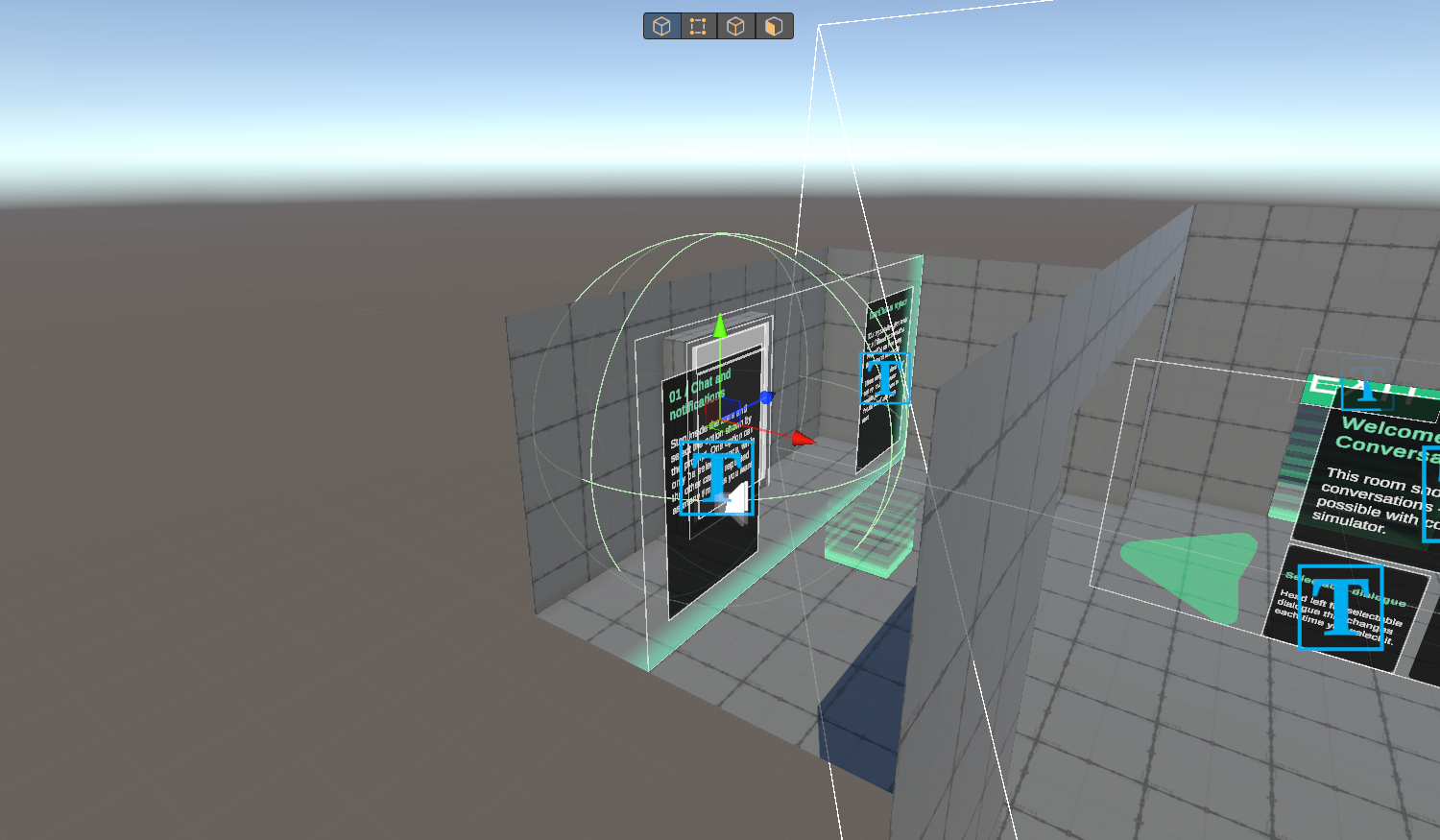
The Visibility Colliders list lets you specify which part of the object needs to be on screen for the prompt to appear. This prevents the UI from showing when the object is behind the participant or off-camera.
Assign one or more colliders from the object to this list. The interactable is only selected when the combined bounds of these colliders are inside the camera view.
This list must not be empty. An interactable with no Visibility Colliders is never selected, and its prompt never appears.
Each interactable can have up to 4 options. Each option appears as a separate button prompt in the UI panel.
In the Interactable's Inspector, find the Options list and set the array size to the number of options you need (maximum 4). Configure each option using the fields below.
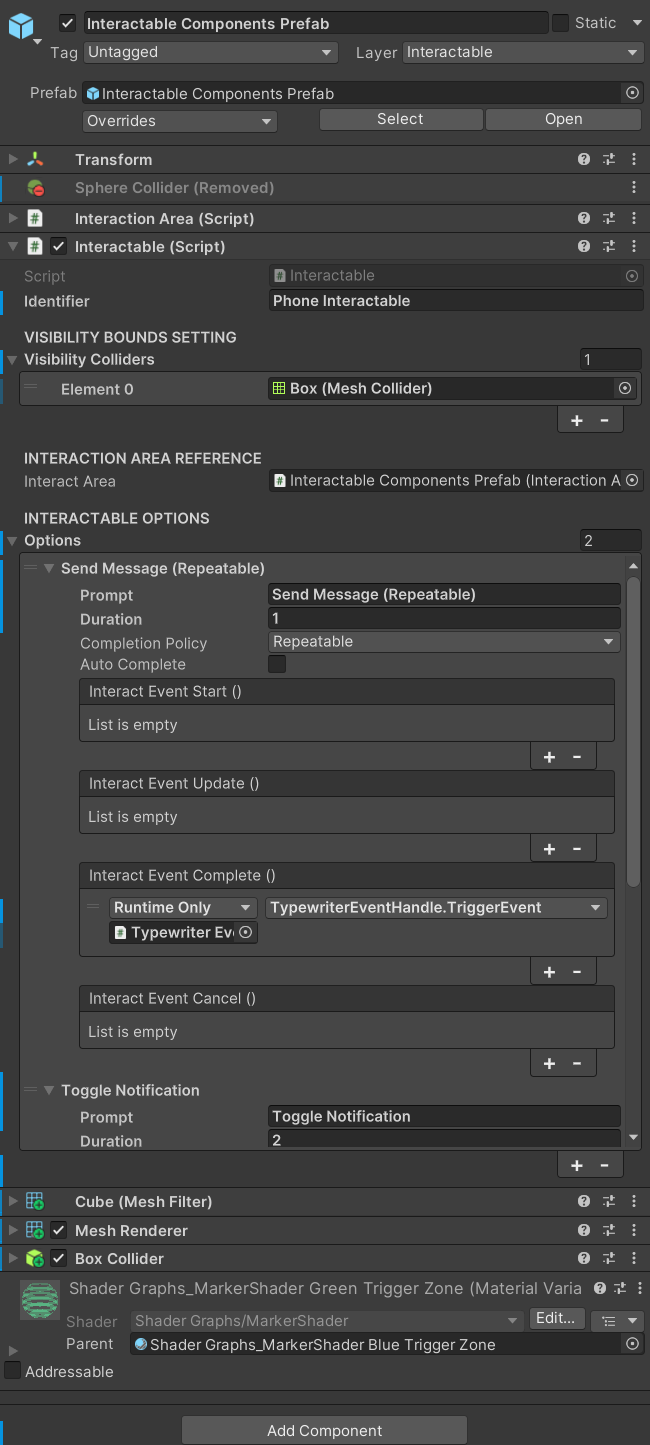
With the default Consume All policy, all options on the interactable are cleared after any option's Complete events fire. The interactable cannot be interacted with again in the same scene. Use Consume Self or Repeatable if the participant should be able to interact again.
Setting Up the Interaction UI
The Interaction UI is the panel that appears on screen when a participant is near an interactable object. It shows up to 4 Input Prompt cards — one per option. Each card displays:
- The key or button the participant must press (set via an Input Action Reference)
- The option label (set on the Interactable's Prompt field)
- A fill bar that grows while the participant holds the button
The panel is managed by the InteractionView component, and each individual card is an Input Prompt Entry (a GameObject with all the needed UI elements already wired together).
A ready-to-use Interaction Prompts Prefab is available at Assets/mobisim/Interaction/Prefab/. This is the recommended starting point — it has the InteractionView and 4 Input Prompt Entry slots already set up. Use the manual path only if you need a fully custom layout.
The same folder also has Interaction System Prefab (Interactor), which bundles an Interactor (with InteractionModel and collider) and a World Space Canvas containing the Interaction Prompts Prefab, already wired together. It also has Interactable Components Prefab, an Interactable with a trigger InteractionArea on the Interactable layer.
- Using the prefab (recommended)
- Manual setup
Drag Interaction Prompts Prefab from Assets/mobisim/Interaction/Prefab/ into the Hierarchy under a World Space Canvas that is a child of the participant character. The prefab has no Canvas of its own. This positions the UI panel above the character's head in world space.
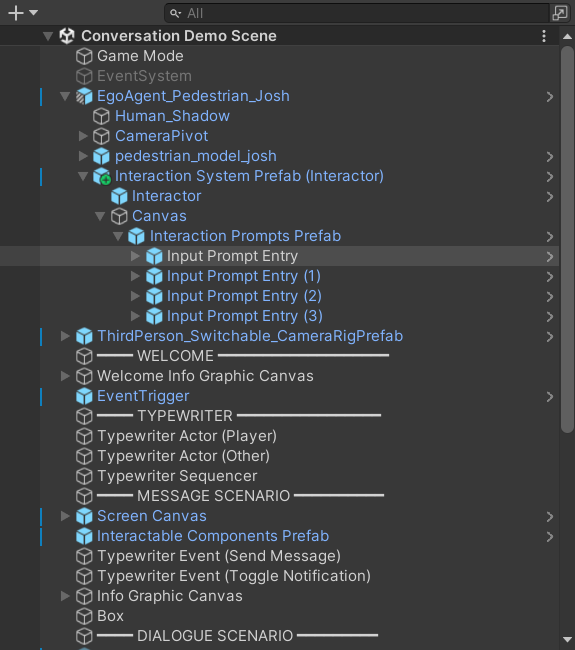
InteractorOn the Interactor component, drag the Interaction Prompts Prefab instance from the Hierarchy into the Interactor View field.
The prefab contains up to 4 Input Prompt Entry children in the Hierarchy. Each one corresponds to one option slot (Entry 0 = option 0, Entry 1 = option 1, and so on).
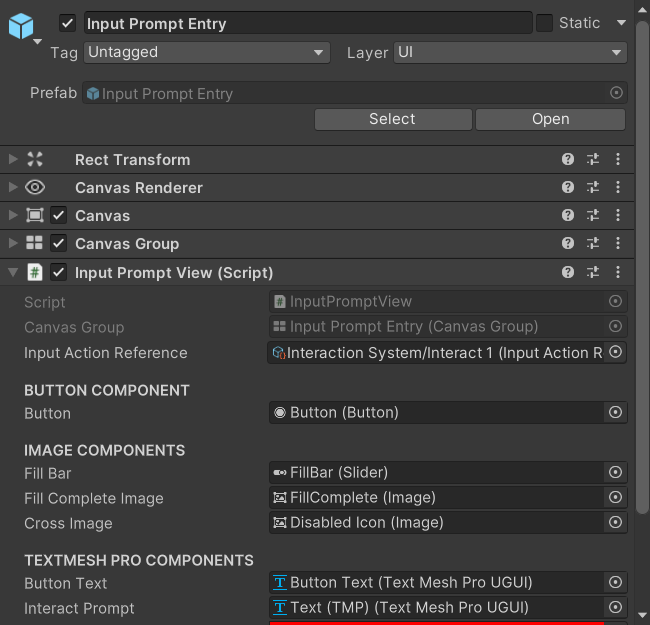
On each Input Prompt Entry, find the Input Action Reference field and drag in the appropriate action from the Player Input Asset (Assets/mobisim/Input/InputActionAssets/PlayerInputAction.inputactions).
The card displays the key label automatically, based on the assigned action.
For details on the available actions and how to add new bindings, see Player Inputs.
You can leave the Interaction Prompts Prefab instance inactive in the Hierarchy. The Interactor hides it when the scene starts, then shows and hides it automatically at runtime.
Use this path if you need a custom UI layout that differs from the prefab.
Right-click in the Hierarchy and select UI > Canvas. On the Canvas component, set Render Mode to World Space. Then add the InteractionView component to this Canvas GameObject.
For each option slot you need (up to 4), drag one Input Prompt Entry prefab from Assets/mobisim/Interaction/Prefab/ into the Canvas as a child. Position and resize them to fit your layout.
Each Input Prompt Entry is a self-contained card with a button, fill bar, key label, and prompt text. Using the prefab is recommended, but you can create your own GameObject with an InputPromptView component if you need a fully custom appearance.
On each Input Prompt Entry child, find the Input Action Reference field and assign the appropriate action from the Player Input Asset (Assets/mobisim/Input/InputActionAssets/PlayerInputAction.inputactions).
See Player Inputs for details on the available actions and bindings.
On the InteractionView component, find the Options Container list. Assign each Input Prompt Entry child to the list in order — the first entry maps to option 0, the second to option 1, and so on.
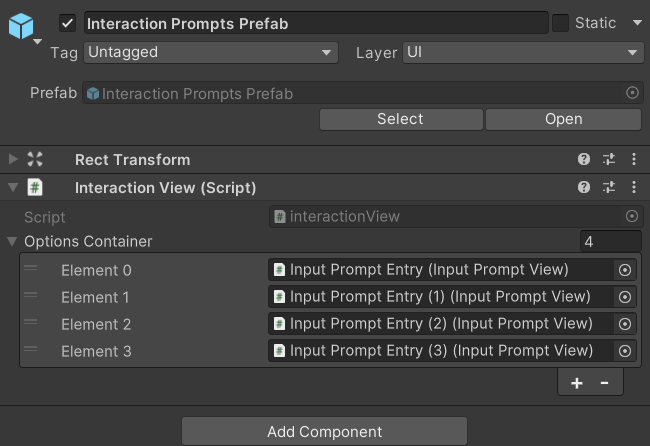
InteractorOn the Interactor component, drag the Canvas GameObject into the Interactor View field.
Deactivate the Canvas in the Hierarchy. The Interactor activates and deactivates it at runtime.