Feedback System
The feedback system measures how well a participant performs during an interaction, such as passing a pedestrian or yielding to a robot. Once the scenario is over, it shows them how they did, with the aim of encouraging them to do better next time. You'd use it when your study gives participants performance feedback, score cards, or highlights after a run.
This system was built for one particular study, so its metrics, scoring, and feedback screens reflect what that study needed. It's included in case it's useful to you, but it may not suit your study as is. Expect to spend some time adapting it, and check that its measures actually match the behavior you want to give feedback on.
How It Fits Together
Feedback works in four stages, one after the other. Each stage reads from and writes to ScriptableVariable assets, so the same variable assets connect the whole chain. Click a stage to jump to its section.
- 1MeasureA feedback trigger and its calculators record a raw value during the interaction.
- 2ScoreA score variable turns the raw value into the score participants see.
- 3PresentA feedback scene shows the scores as stars and faces, behavior cards, or highlights.
- 4SendA data handler sends the values to the server with the session details.
You'll find the prefabs to start from in Assets/mobisim/Feedback: Feedback Trigger, Feedback Behavior Card, and HighLight Panel Item. Set up and test the measurement first, and only add the participant-facing feedback once you trust the numbers.
1. Measure
Setting Up a Feedback Trigger
A feedback trigger is an area placed around the interaction you want to measure. Its FeedbackMetricCoordinator component keeps track of who is inside the area and tells the metric calculators when to take a sample.
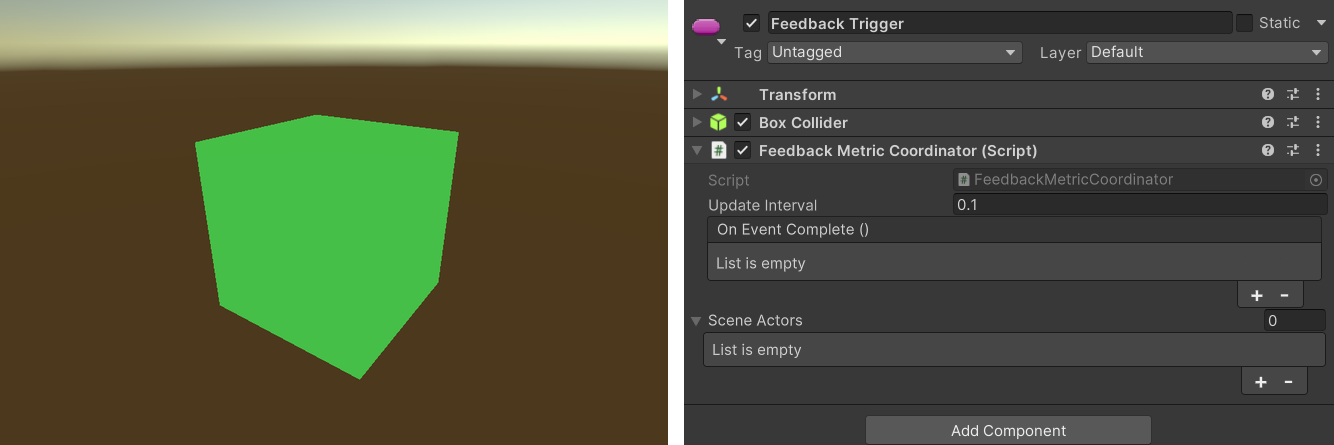
Drag the Feedback Trigger prefab into your scene and resize it to cover the interaction area. Check that its Collider has Is Trigger enabled.
In the FeedbackMetricCoordinator component, add the actors you expect to pass through the area to Scene Actors. You don't need to add the player. If the player-selector service is available, the current player is added automatically when the scene starts.
The coordinator identifies an actor by the GameObject that holds the entering collider's Rigidbody. If the collider has no attached Rigidbody, it uses the collider's own GameObject. Make sure the objects in Scene Actors match these, and check that the physics layers allow the actors to interact with the trigger.
Update Interval controls how often, in seconds, the calculators take a sample. It must be a positive value. The default is 0.1.
Add the metric calculators you need to the same GameObject as the coordinator (see Metric Calculators), and assign their output variables. Then use On Event Complete to connect anything that should happen once the final calculation is done.
When the Measurement Completes
While at least one monitored actor is inside the area, the coordinator samples at every update interval. It finishes only when every expected actor has entered and then left the area. At that point it runs the calculators' final calculation, invokes On Event Complete, and disables itself.
A feedback trigger measures a single pass. It isn't a lap counter you can reuse.
- If an expected actor never reaches the area, the measurement never completes.
- Tracking is per GameObject, not per overlapping collider, so actors that re-enter the area or have several colliders need extra care.
Test with the actual actor prefabs moving all the way through the area.
Metric Calculators
Each calculator measures one kind of behavior and writes its raw result to a FloatVariable. Add the ones you need to the feedback trigger, on the same GameObject as its coordinator.
Prosocial Metric
ProsocialMetricCalculator combines the geometry of the interaction, safety, and effort into one measure of prosocial behavior.
Treat the threshold, interaction distance, and personal-space radius as settings for your study, not universal scoring defaults. Configure them to match the interaction you're measuring.
To calculate effort, the calculator reads Rigidbody velocities and an IMaxSpeedProvider. If movement data is missing, or there aren't enough samples, the result can be invalid. Check the configured actors and the recorded values before you interpret the score.
Safe Boundary Metric
SafeBoundaryMetricCalculator finds the moment when the player came closest to any of the listed scene actors. It records that shortest sampled distance together with the player's speed at that instant.
The raw metric is the speed at the closest sample divided by that distance. It isn't the highest speed-to-distance ratio across the whole interaction.
To set it up, assign its coordinator and an output FloatVariable, and make sure the player has an ISpeedTracker. The calculator uses the tracker's signed speed. Missing measurements or a distance of zero can produce an invalid value, so don't treat the result as a validated collision-risk score until you've checked the data and how you map it to a score.
Yield Behavior Metric
YieldBehaviorMetricCalculator adds up how long each monitored actor spends inside the trigger, based on the samples. Its output is the longest time any single actor stayed inside, in seconds, or zero when there's no data.
Assign its coordinator and an output FloatVariable. The output is a raw duration, so convert it into your study's score with a score variable.
2. Score
Score Variable
A score variable converts a raw metric into a score using a curve. To create one, choose ScriptableObject > Scriptable > Variable > Feedback > ScoreVariable. Then assign:
- Metric: the FloatVariable that holds the raw value.
- Curve: the AnimationCurveScriptableObject that maps metric values to scores.
FeedbackScoreVariable evaluates the curve every time its runtime value is read, so the score always reflects the current metric. If the metric or curve is missing, it returns zero.
Choose the curve's direction and range carefully. A longer duration or a higher proximity ratio doesn't necessarily mean better performance.
Average Score Variable
To combine several scores into one, create an AverageScoreVariable (ScriptableObject > Scriptable > Variable > Feedback > AverageScoreVariable) and add the score variables you want to its variable collection. Check the inputs before you display the average, and keep their units and score ranges consistent.
Help Tags and the Help Type Variable
Help tags describe which kind of help a participant received, and highlights use them to pick an image. A FeedbackHelpTypeVariable (ScriptableObject > Scriptable > Variable > Feedback > Help Type Variable) stores a reference to one FeedbackHelpScriptableTag asset (ScriptableObject > Scriptable > Variable > Feedback > Help Tag).
Use the same tag assets when you set the current help condition and when you configure highlight dictionaries. Two different assets aren't treated as equal just because they have the same name.
3. Present
Performance Feedback UI (Stars and Faces)
PerformanceFeedbackUIGenerator shows up to three scores as rows with a progress bar and a face. It uses a UIDocument with three rows named Row_01, Row_02, and Row_03 inside FeedbackUI_Window. Reuse the existing document, because the generator looks for each row's YBScore, face, infobutton, Info_Panel, and ProgressBar by name.
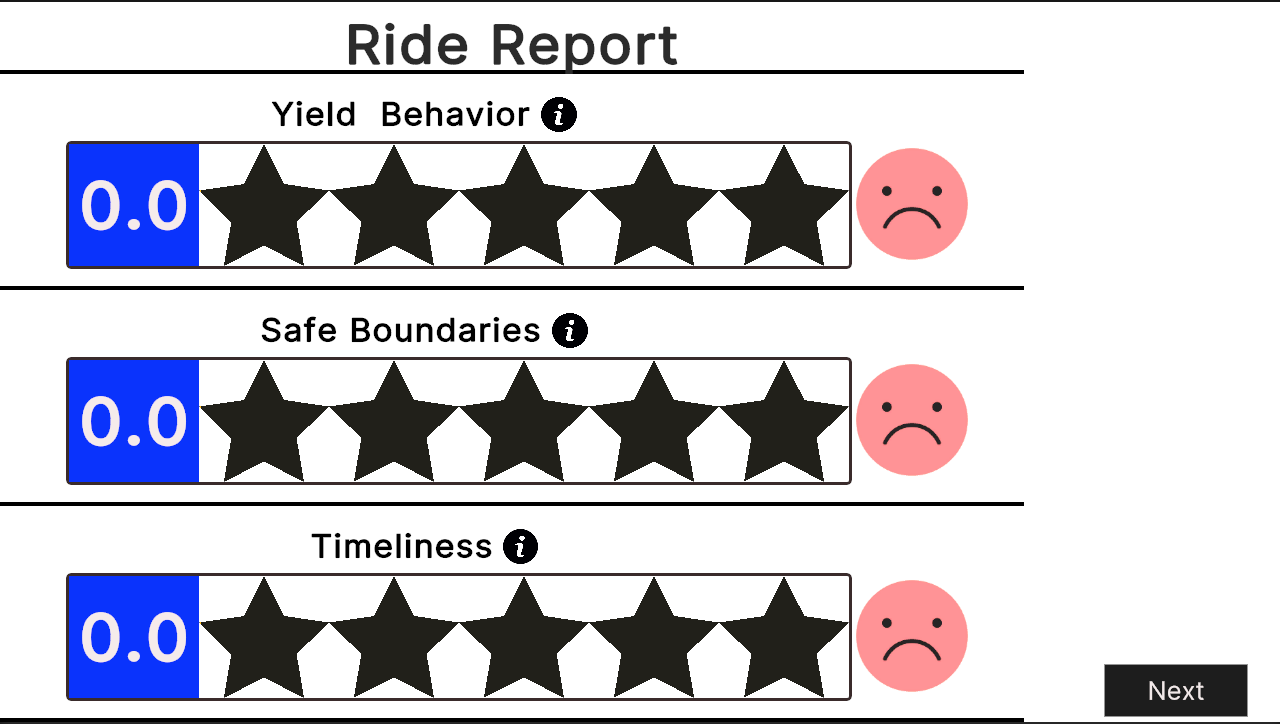
This view is designed for scores from 0 to 5. If your metric or score uses a different scale, map it into that range first. The generator reads the scores when the scene starts and animates toward them over three seconds. It doesn't keep updating afterwards, so it's not a live metric dashboard.
Behavior Cards
A behavior card shows a single metric with a title, a description, and a slider. Each Feedback Behavior Card prefab has a FeedbackBehaviorCardPresenter that reads its content from a FeedbackBehaviorCardSO data asset. To create one, choose ScriptableObject > Feedback UI > Behavior Card, and assign it to the presenter. Keep the prefab's title, description, metric label, and Slider references as they are.
The presenter clamps the value to the range you set and animates it over one second. Its Slider receives a normalized value from 0 to 1.
Highlights
A highlight shows an image chosen by the help condition the participant was in. To set one up:
- Create a highlight asset with ScriptableObject > Feedback UI > Highlight.
- Assign its Help Type Variable.
- In Highlight Dictionary, map each help tag you support to a Sprite.
- Assign the asset and a UI Image to a
FeedbackHighlightPresenter, such as the one on the HighLight Panel Item prefab.
The presenter picks the image in Awake. If there's no image for the current help tag, it hides its GameObject.
Highlights are sprites you configure in advance. The presenter doesn't capture screenshots of the participant's run.
Desktop Feedback Scenes
The scenes in Assets/mobisim/Scenes/Scenes/Assessment Scenes/Feedback Scenes are ready-made starting points. Keep their UI references intact, and point them at the variables your scenario writes to.
Load the feedback scene through your study flow after the trigger has completed. If it opens while the metrics are still being collected, the scores won't be final.
VR Feedback Scenes
The VR versions, VR_FeedbackScene and VR_FeedbackScene_Metrics, are in Assets/mobisim/Scenes/Scenes/VR Scenes. Pick the one that suits your rig and study. Keep the world-space UI and interaction wiring, including any physical button participants press to continue.
Test in the target headset. A desktop preview can't tell you whether the text is readable, the UI is within reach, or the continue button works.
4. Send
To export the feedback values, add or keep a FeedbackDataHandler and fill Feed Back Variable with the variables you want to send. The handler subscribes to the GameMode's data-send event. When it fires, the handler takes a snapshot of the valid variables, adds the session metadata, and creates a JSON record tagged FeedbackDataInfo. It then queues the record through DataSendDispatcher.
For this to work, the normal scenario services and session setup must be initialized. Also make sure the metric calculation has finished before the send phase starts.
A score showing on screen doesn't prove the server received it. During an end-to-end test, check the resulting feedback record and confirm its participant, subject, and scene identity.