Triggering Dialogue from Timeline
A Typewriter Event Marker lets you fire a dialogue event at a precise point in a Timeline sequence. This is useful for scripted scenarios where dialogue must appear at an exact moment rather than in response to a trigger zone or player action.
Before setting this up, make sure your scene already has a working dialogue setup. If you have not done that yet, see Setting Up Dialogue in a Scenario.
- Open the Timeline asset in the Timeline window.
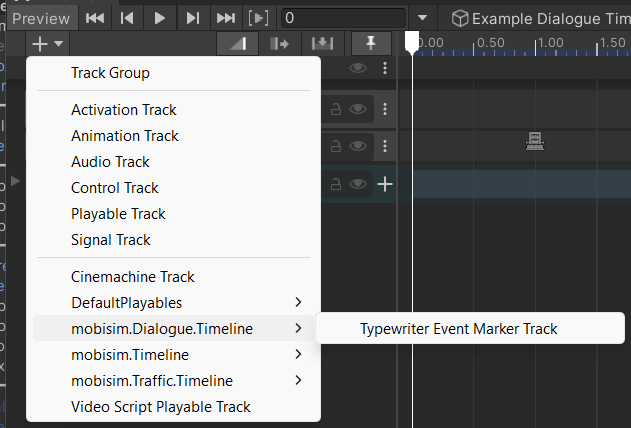
- Click Add and select Typewriter Event Marker Track. Custom tracks may be grouped under a submenu named after their namespace (
mobisim.Dialogue.Timeline).
The track needs a TypewriterEventMarkerReceiver component in the scene to receive and handle the events.
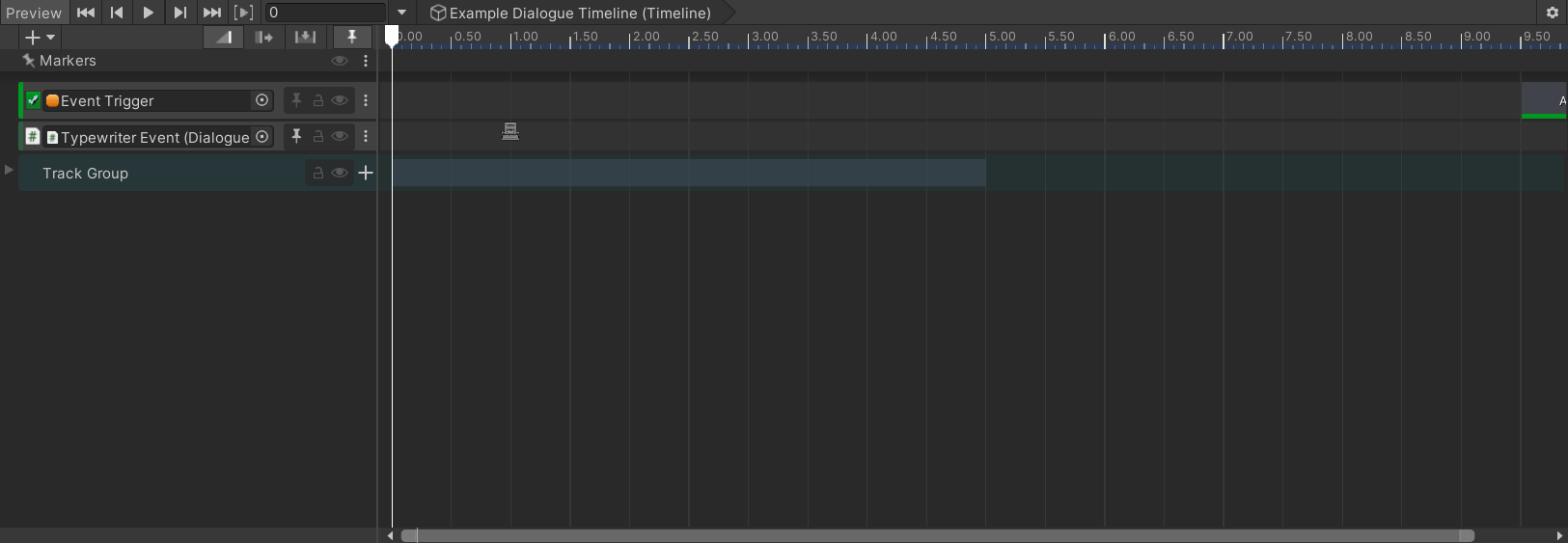
- Select the track's binding slot in the Timeline window.
- Assign the GameObject that has the TypewriterEventMarkerReceiver component. If none exists yet, add the component to any scene-manager GameObject first.
All markers on the same track share one receiver and one dialogue context. State set by one marker, such as a fact being marked true, carries over to the next marker on the same track. Facts in a Global or Scene scope are shared with every other event source as well; only facts in a plain Scope are private to the receiver.
- Right-click the track at the point in the timeline where you want the dialogue to trigger.
- Select Add Typewriter Event Marker.
- Select the marker in the Timeline window to open it in the Inspector.
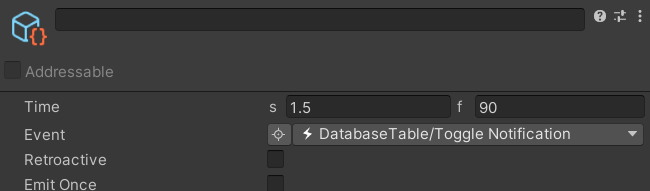
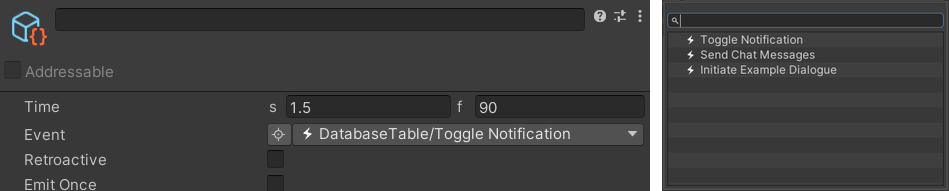
- Click the Event field on the marker.
- Select the Event entry you want to trigger from the picker.
The dialogue now fires when the timeline reaches the marker in Play mode.
Test by entering Play mode and scrubbing the timeline to just before the marker. The dialogue should appear when the playhead crosses it. If nothing appears, check that the TypewriterSequencer is in the scene and that the selected event has at least one matching rule.