Setting Up Dialogue in a Scenario
Typewriter requires setup in two places: the Unity Editor and the scene. This guide covers the scene side: adding the components that let the Sequencer play back your dialogue at runtime. For authoring the dialogue content itself, see Creating Dialogue Entries.
Before any dialogue can play, your scene must have all four of these:
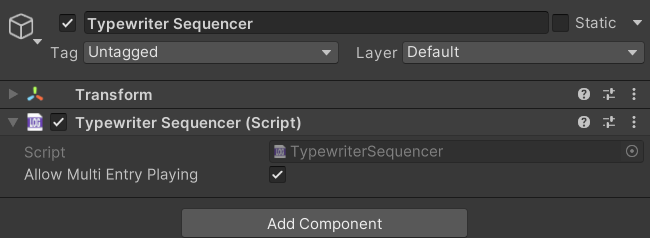
- TypewriterSequencer — one instance on a scene-manager GameObject. This is the dialogue engine; without it, nothing routes or plays.
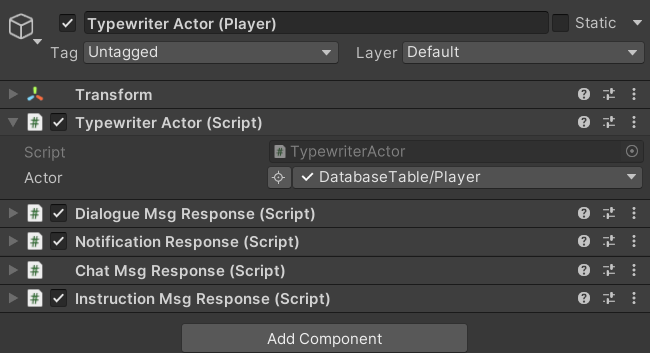
- TypewriterActor (one per character) — add to every character or ego agent that speaks or receives messages.
- Response component(s) — one per message type on each Actor. Tells the Actor how to display each message type in the UI.
- Event source — something that fires events at the right moment: a trigger zone, a Timeline marker, or a component callback.
The Sequencer
- Create (or select) a scene-manager GameObject.
- Add the
TypewriterSequencercomponent.
The Actor
- Select the character's root GameObject.
- Add the
TypewriterActorcomponent. - Click the Actor field picker and select the matching Actor entry from the database.
Disabling the character's GameObject automatically silences the character. It does not send or receive any dialogue while disabled.
Response Components
A Response component is a component that tells an Actor how to display a specific message type in the UI. Add one for each message type that the Actor should handle. Response components must be on the same GameObject as the TypewriterActor. Adding a Response component also adds a TypewriterActor automatically if one is missing.
- Dialogue (phone panel)
- Dialogue (speech bubble)
- Chat
- Notification
- Instruction
Component: DialogueMsgResponse
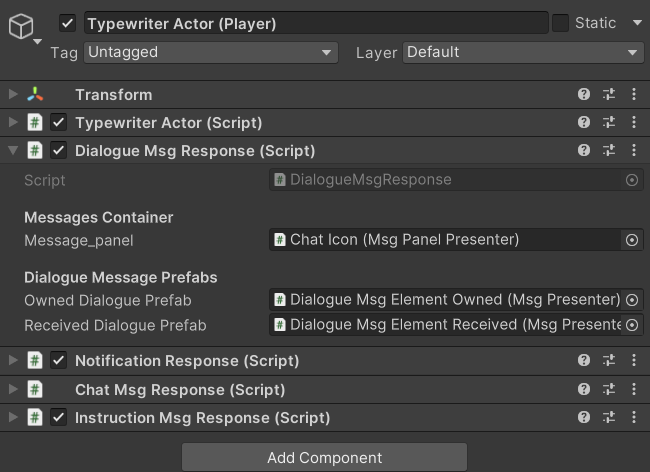
All four prefabs are in Assets/mobisim/Dialogue/Prefab/.
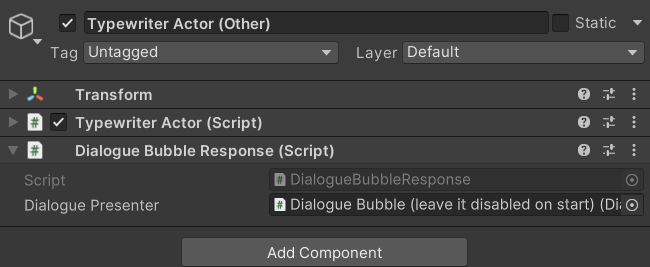
Component: DialogueBubbleResponse
Use this for a floating speech bubble above a road agent's head.
Component: ChatMsgResponse
Component: NotificationResponse
Component: InstructionMsgResponse
Firing Events
An event source fires a dialogue event at the right moment. There are three ways to fire events. Choose the one that suits your scenario:
- TypewriterEventHandle
- Timeline Marker
- Event Trigger Zone
Best for: testing and simple triggers.
A component whose TriggerEvent() method fires an Event entry. You can call it from the Inspector or from another component.
- Add the
TypewriterEventHandlecomponent to any GameObject. - In the Event field, select the Event entry to trigger.
- Use the Trigger Event button in the Inspector during Play mode to test, or connect its
TriggerEvent()method to another component's Unity Event field.
Best for: precisely timed sequences.
A Typewriter Event Marker on a Timeline track fires a dialogue event at a set point in a scripted sequence.
See Triggering Dialogue from Timeline for full setup instructions.
Best for: most scenarios, which trigger dialogue when a character enters an area.
An EventTrigger in the scene fires a dialogue event when a character enters an area. Add a TypewriterEventHandle to the trigger's GameObject, then connect the trigger's On Enter Triggered event to TypewriterEventHandle.TriggerEvent().
See Event Trigger for full setup instructions.