The Typewriter Editor
The Typewriter Editor is the dedicated Unity window for authoring all dialogue content in your project. You can create and organize tables, define actors, write dialogue entries, set up conditional rules, and manage facts. The Sequencer reads this content and plays it back at runtime.
You can open the editor from Tools > Typewriter > Editor in the Unity menu bar.
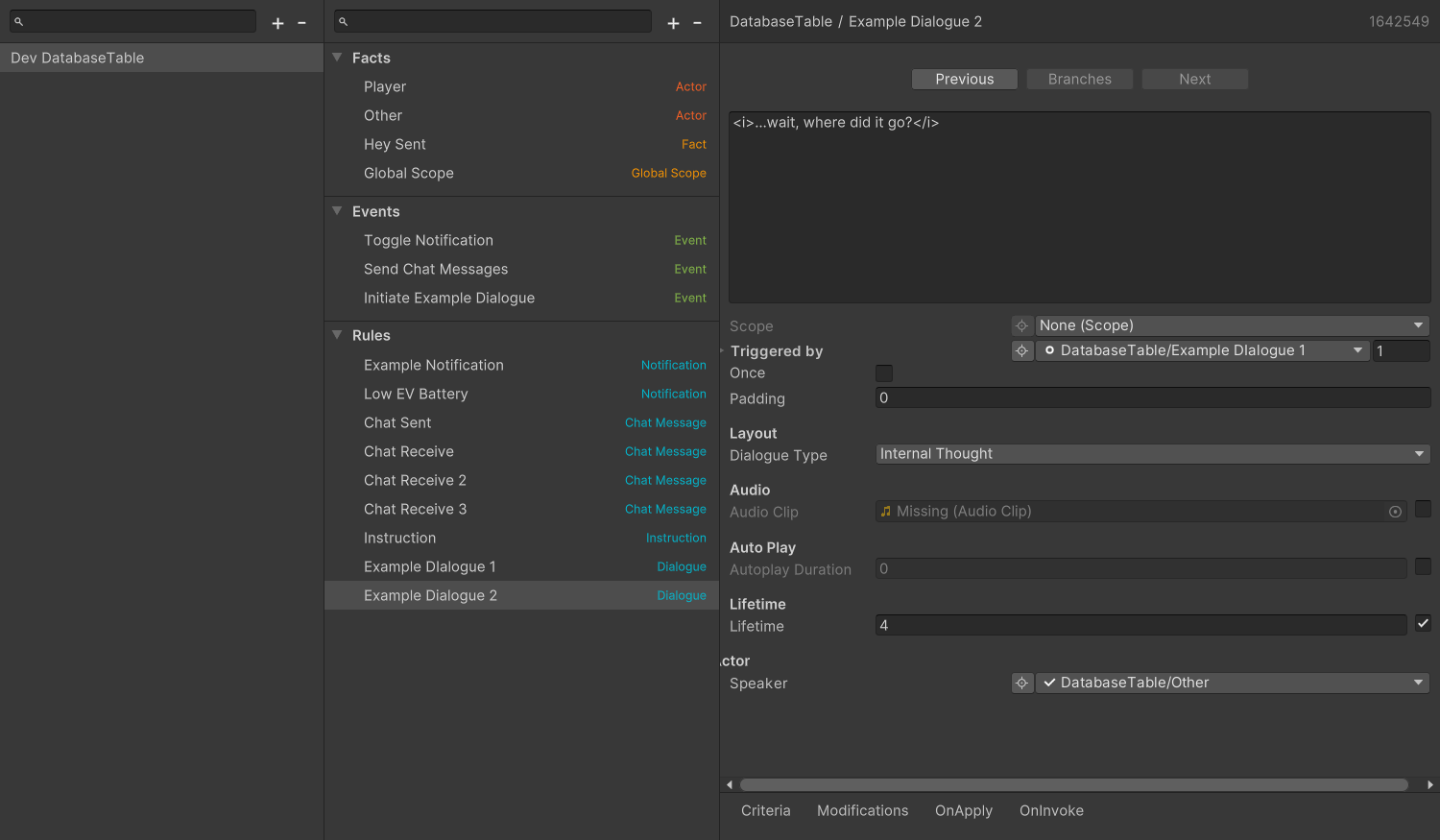
The editor has three panels:
- Table Panel — lists all tables within the database.
- Entry Panel — lists all entries in the selected table.
- Inspector — shows the fields for the selected entry.
To create a new table, click the + button at the top of the Table Panel.

The + button at the top of the Entry Panel creates new entries in the selected table. The menu is grouped by entry kind:
- Facts — Fact, Actor, and the scopes under Scopes (Scope, Global, Scene Scope).
- Events — Event.
- Rules — Dialogue, Chat Message, Notification, and Instruction (plus a generic Rule).
The Entry Panel lists the entries of the selected table in three collapsible groups: Facts, Events, and Rules. Right-click an entry for more options, such as Move To another table or Remove.
Select any Event or Rule entry to see a navigator at the top of the Inspector with Previous, Branches, and Next buttons. For an Event, Next lists every Rule that listens to it. This lets you trace dialogue chains without hunting through the sidebar.
Utilities
Tools > Typewriter > Recreate lookup forces Typewriter to rescan the database and re-register all of its entries and their relationships. Run this if the Sequencer stops recognizing entries you have already created, which can happen if the database is modified outside the Editor.