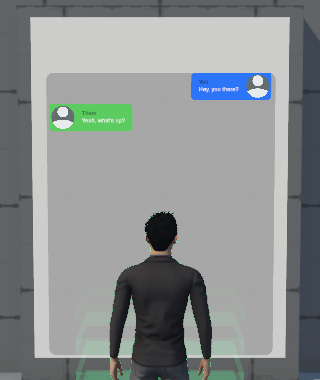
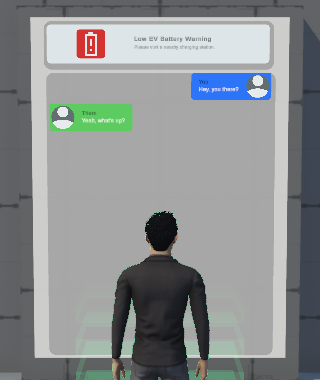
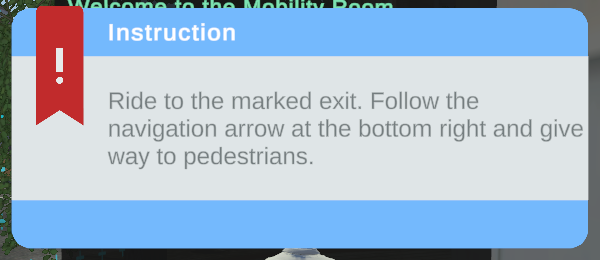
Creating Dialogue Entries
Typewriter requires setup in two places: the Typewriter Editor and the scene. This guide covers the Editor side: creating the actors, facts, events, and rules that make up your dialogue content. For the scene setup, see Setting Up Dialogue in a Scenario.
Every character who speaks or receives messages must have an Actor entry.
- Open the editor from Tools > Typewriter > Editor.
- Select your table in the Table Panel.
- Click the + button in the Entry Panel and select Actor.
- Fill in the fields in the Inspector:
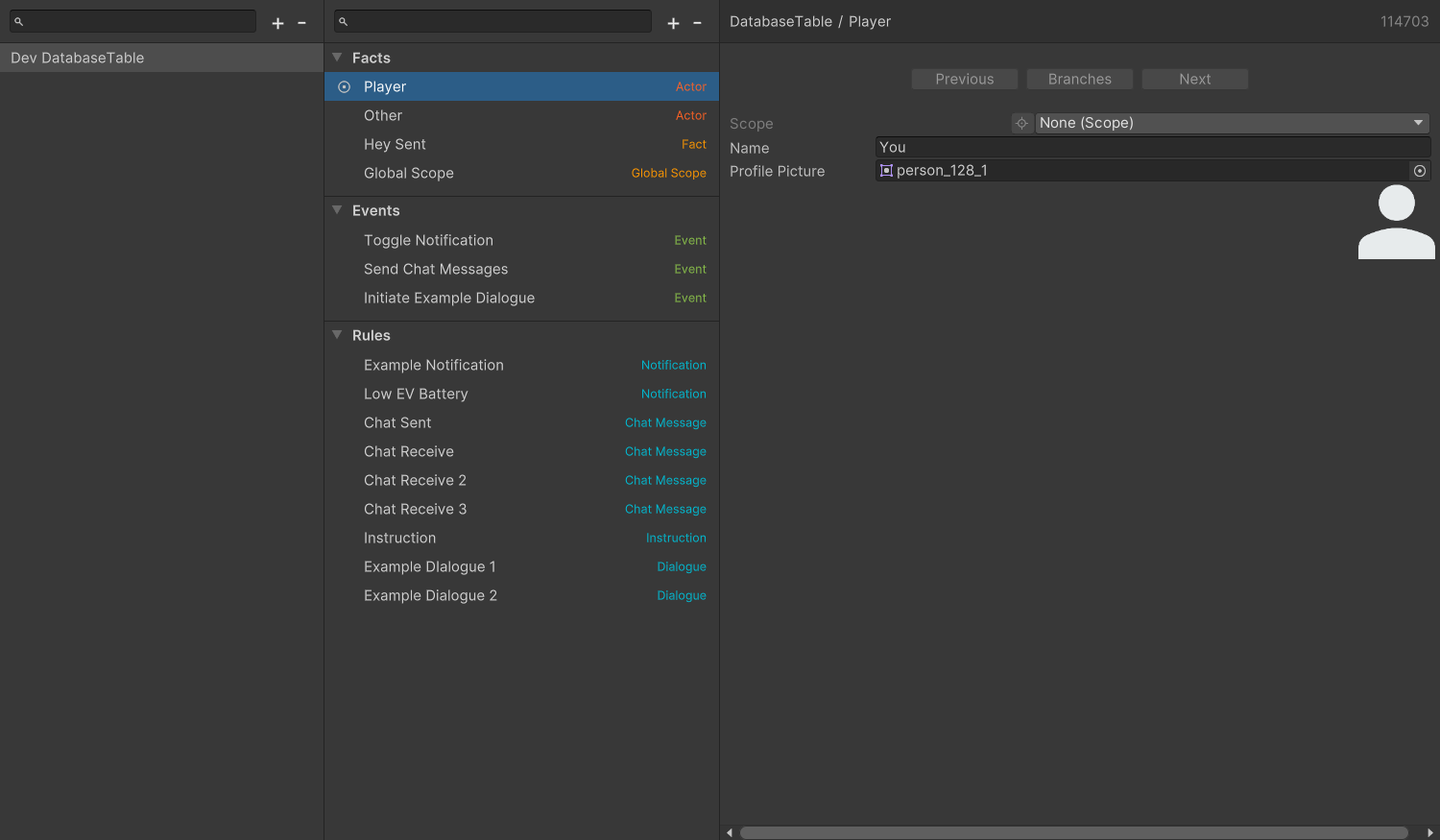
Create one Actor entry per character. The same entry is reused across all of their lines.
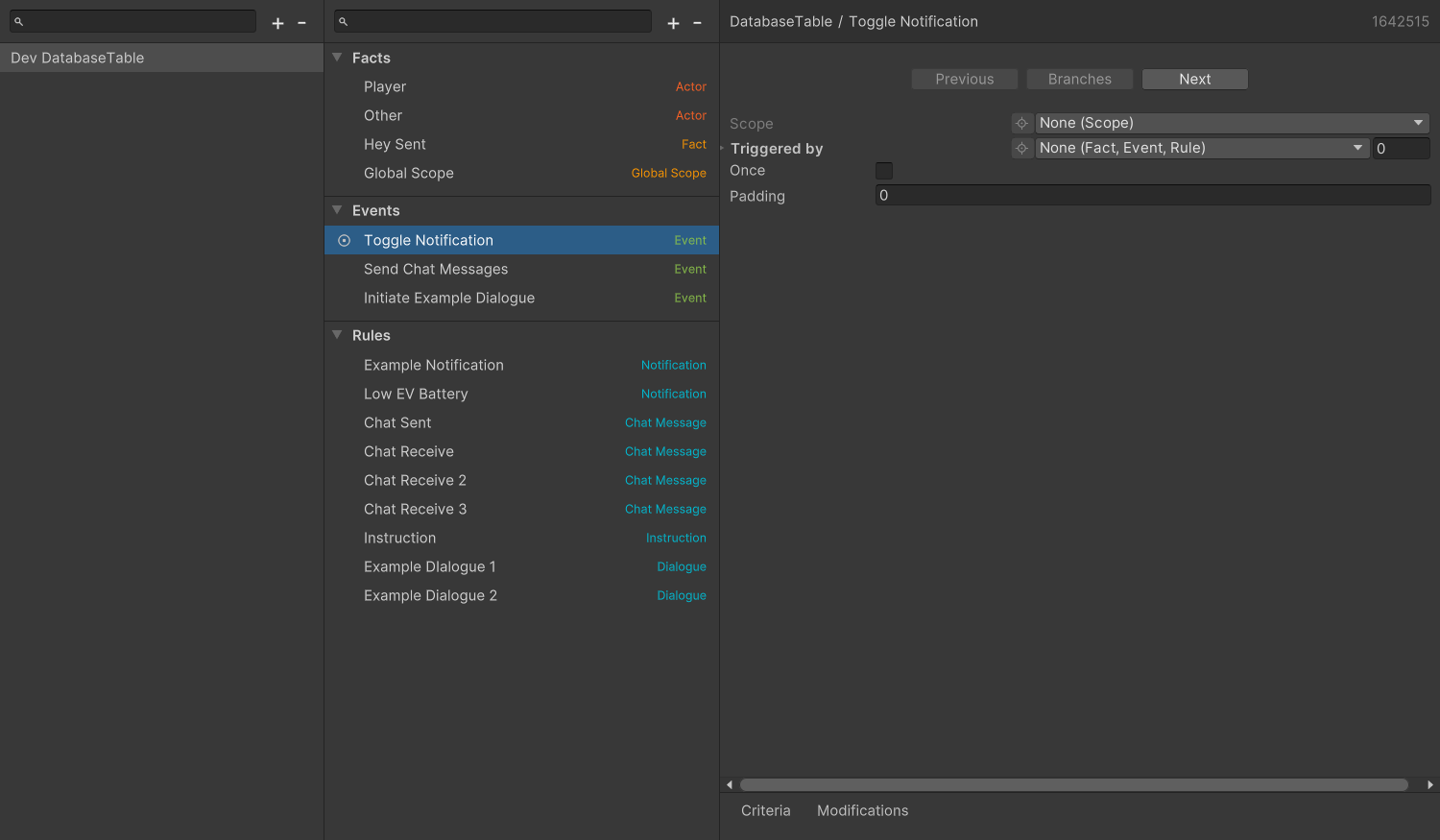
Events are the triggers that start dialogue. Create one for each moment in your scenario that should launch a message.
- Click the + button in the Entry Panel and select Event.
- Give it a descriptive name (for example,
Event_EgoEntersCrosswalk).
No other configuration is needed. Events are named signals with no content of their own.
Skip this step if your message should always play when the event fires. Create a Fact only if you need a condition, for example, to prevent a greeting from playing more than once.
- If your table has no scope yet, click the + button and select Scopes > Global or Scopes > Scene Scope to create one.
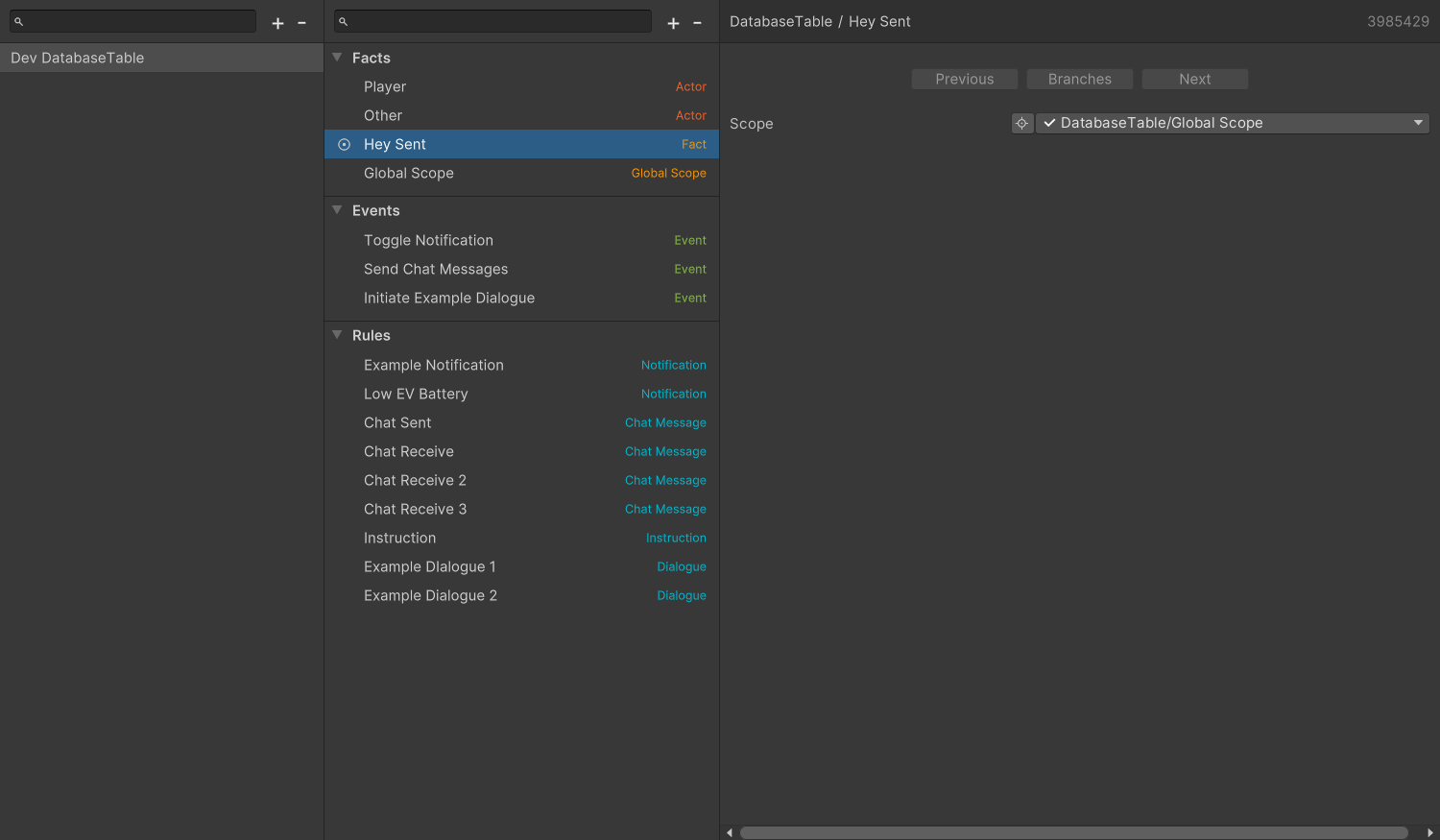
- Click the + button in the Entry Panel and select Fact.
- Name it (for example,
Fact_HasGreetedPlayer). - In the Inspector, set its Scope to a
GlobalScopeEntryorSceneScopeEntryfrom the database.
Facts have no default value field. Every fact starts at 0 (off) and changes only when a rule's Modifications update it.
A Rule wraps a message and defines when it fires.
- Click the + button in the Entry Panel and choose the message type: Dialogue, Chat Message, Notification, or Instruction.
- Set Triggered by to the Event entry that should activate this rule. You can also pick another rule; this rule then plays right after that rule finishes.
- On the Criteria tab, add the Facts that must match (using
=,≥,≤, or a[...]range). Leave it empty if the rule should always fire. - On the Modifications tab, add the Facts to update after the rule fires. A modification can set a fact (
=) or change it with+,-,*,/, or%. - (Optional) Use the OnApply and OnInvoke tabs to fire other Event entries after the rule is processed or when it is invoked.
- Enable Once if this rule should fire only a single time (for example, a one-shot greeting). Under the hood, every rule stores the number of times it has fired as a fact; Once is shorthand for "only if that count is zero."
A rule only records how many times it has fired when its own Scope field is set. If you leave the rule's Scope empty, Once has no effect.
A new rule is automatically Triggered by the rule above it in the list. Remove that reference if you don't want the new rule chained to the previous one.
When an event fires, only the first matching rule is selected. Rules with more Criteria (plus Padding) are tested first. To play lines in order across separate triggers, stack multiple rules under the same event and enable Once on each. The first trigger picks rule 1 and marks it as used, the next trigger skips rule 1 and picks rule 2, and so on. Rules with the same number of criteria are not guaranteed to be tested in list order, so give earlier lines a higher Padding value to control the order.
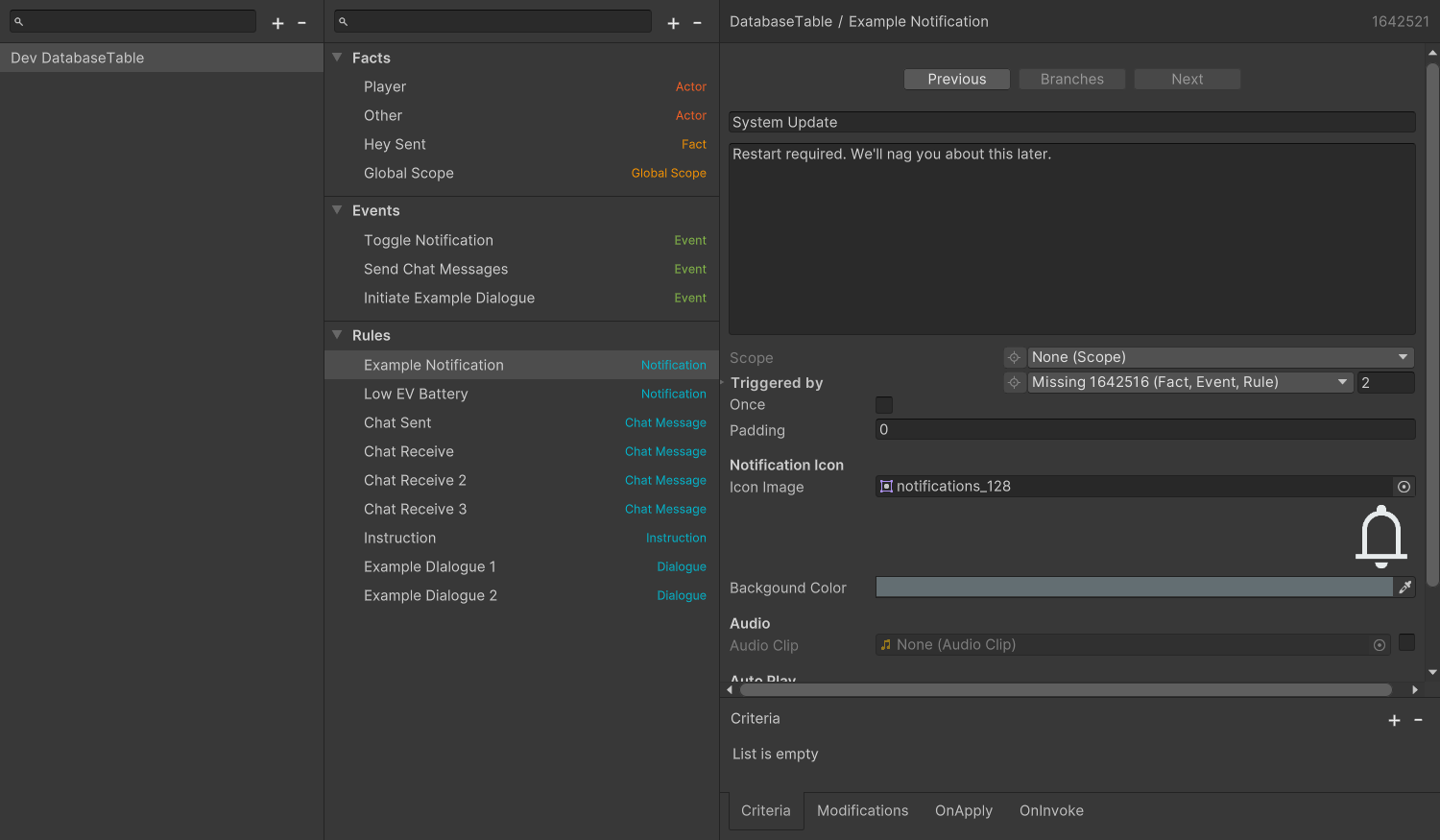
Then fill in the message content. Most message types have a Speaker field (the Actor delivering the line) and a Listeners field (the Actors who receive it).
Select the tab matching your message type:
- Dialogue
- Chat
- Notification
- Instruction
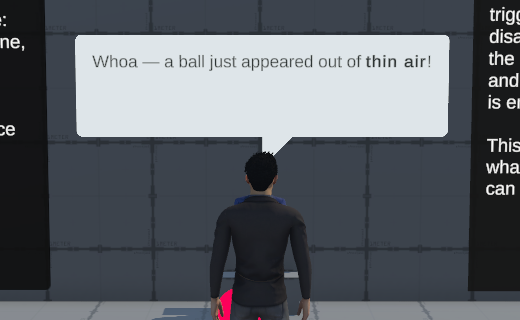
If neither Auto Play nor Lifetime is enabled, the sequencer moves on to the next rule in the chain right away. If only Lifetime is enabled, it moves on when the lifetime ends.