Camera Rig
A camera rig is a ready-made prefab holding the camera the participant sees the scenario through. The Player Selector can spawn it at the scene's starting point together with the participant's agent, so your scene doesn't need a camera of its own. See Spawning the Player.
Once the scene starts, the rig follows whichever ego agent the participant controls. It can show the scenario in first or third person and switch between the two, hiding the agent's own body in first person so it doesn't block the view. On vehicles, the view also widens as the vehicle speeds up and shifts sideways into turns.
The rigs are built on Unity's Camera, using Cinemachine, and an XR Origin for VR. See their documentation to learn more about them.
You'll find the rigs in Assets/mobisim/Actors/UserCamera/Prefab:
The rig doesn't need to know which agent it follows. Each ego agent carries a camera configuration provider that finds the main camera when the scene starts and tells it what to follow. Any ego agent works with any rig of the matching kind: the first- and third-person rigs need a Switchable Camera Configuration Provider on the agent, and the VR rig needs an XR Camera Configuration Provider.
Keep a single camera tagged MainCamera in the scene while it starts. The agent's provider takes the first main camera it finds, and if that's the wrong kind, it waits for a match that never comes. If your scene has another camera, such as Unity's default Main Camera, remove it or untag it.
First- and Third-Person Camera Rig
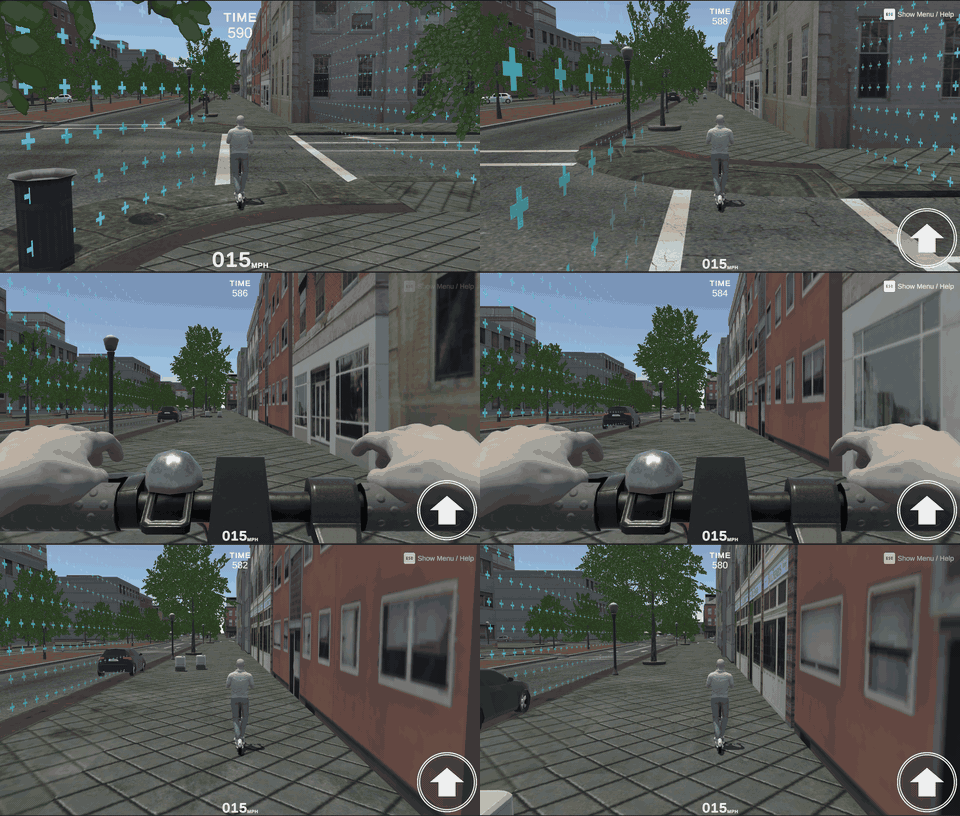
This rig shows the scenario on a screen, either from the ego agent's own eyes in first person, or from behind it in third person. It holds one Cinemachine virtual camera for each view, and the main camera follows whichever one is active.
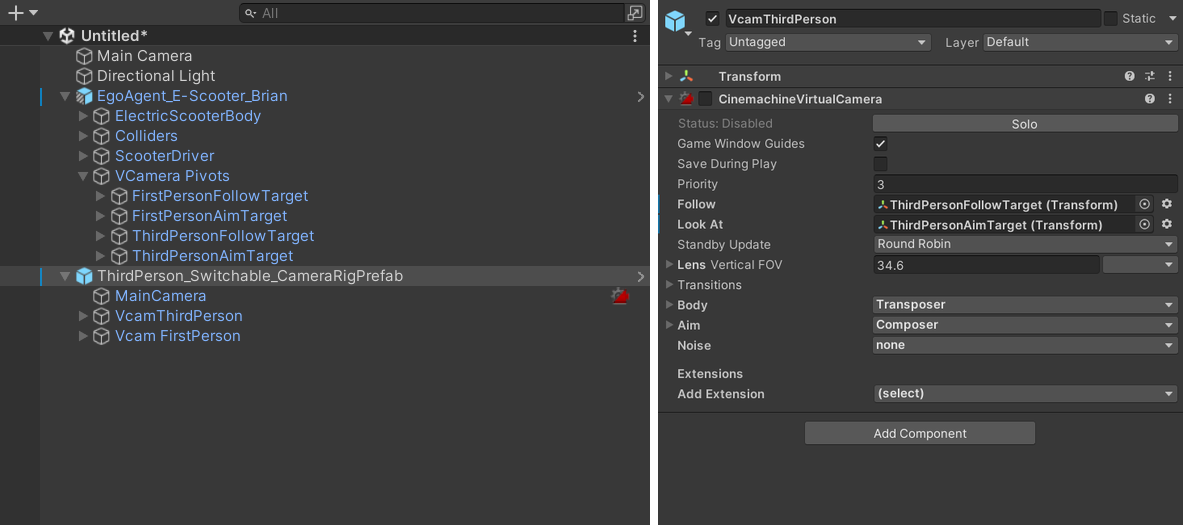
Where each view sits depends on the ego agent. For each view, the agent has a Follow object, which the virtual camera sits on, and a Look At object, which it aims at. Move those objects to change the view. The first-person camera is fixed to its Follow object, while the third-person camera trails slightly behind as the agent moves and turns.
When the view switches, the camera doesn't cut. It glides from one position to the other over half a second, easing in and out. To make the switch faster or slower, change the times in the Camera View Type Blends asset, next to the rigs.
The two versions of the rig, FirstPerson_Switchable_CameraRigPrefab and ThirdPerson_Switchable_CameraRigPrefab, are the same apart from the view they start in.
Setting It Up
On the scene's Player Selector, set Camera Rig Prefab to the first- or third-person rig, depending on the view participants should start in. To place it by hand instead, drag the rig into the scene and untick Spawn Camera on the Player Selector.
Open the ego agent's prefab, and drag VCamera Pivots from Assets/mobisim/Actors/UserCamera/Prefab onto its root. It holds four empty objects, a Follow and a Look At for each view. Move each one into place, using the scooter's as a guide:
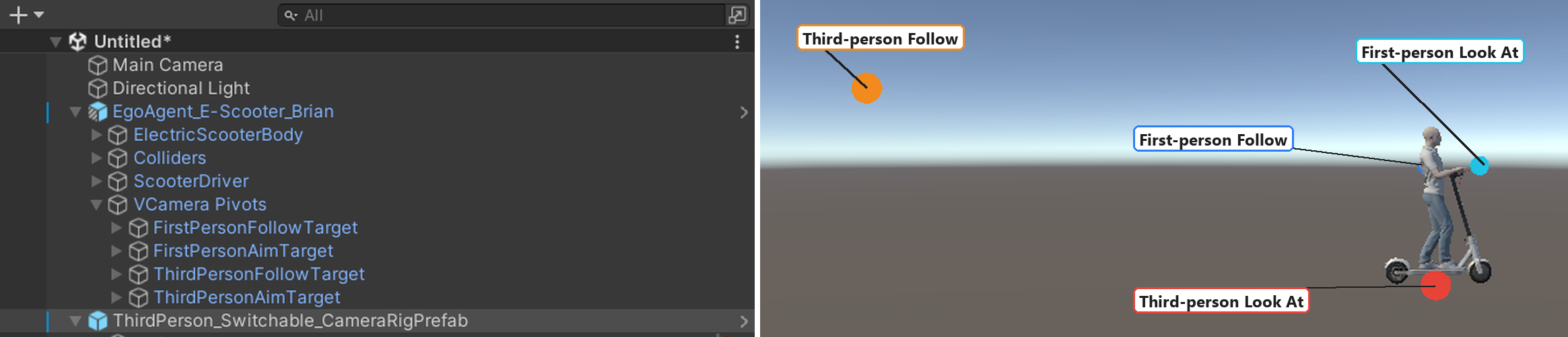
- First-person Follow
- At the participant's eye height, just behind where the eyes would be. On the scooter, it's
1.36m up. - First-person Look At
- At the same height, about half a meter in front of the Follow object.
- Third-person Follow
- Behind and above the agent. On the scooter, it's about
2.2m up and6.5m behind. - Third-person Look At
- At the base of the agent, centred, so the camera looks down at it.
Select the ego agent's root, and add a Switchable Camera Configuration Provider if it doesn't have one. It has a profile for each view, First Person Camera Profile and Third Person Camera Profile. In each, drag the matching objects from step 2 into Follow and Look At.
Each profile also has an optional Configuration, which sets how a vehicle's view reacts to speed and steering. See Driving Camera Effects.
In first person, the camera sits inside the agent, so the agent's own body or helmet can block the view. Select the character or the parts that get in the way, set their Layer to Invisible In First Person View, and choose to change their children too. The rig hides that layer in first person and shows it again in third person.
Only put what blocks the view on that layer, because anything else on it disappears in first person too.
Enter Play mode and press C to switch between the views. In first person, check that nothing blocks the view and that the eye height feels right. In third person, check that the camera stays clear of the ground and the agent, including while turning.
Switching Between Views
The Switchable Camera Controller, on the rig's main camera, decides which view is showing:
In a build, the view only switches if your scenario does it. Any event in the scene can, by calling SwitchableCameraController > ToggleCameraViewType, which swaps between first and third person each time. For example:
- An on-screen button the participant clicks. Add a Unity Button, and in its On Click list, click +, drag in the camera rig, and choose the function.
- An event trigger, to switch the view when the participant reaches a certain spot.
Either way, place the rig in the scene by hand (see step 1 of Setting It Up). A rig spawned by the Player Selector only appears once the scenario runs, so there's nothing to drag in.
Custom code can also pick a specific view with SetCameraView(...). After every change of view, the controller sends a CameraViewTypeMessage so other systems can react. Sending that message yourself doesn't switch the camera.
Driving Camera Effects
The Driving Camera Effector makes the camera respond to driving. It widens the field of view (FOV) as speed increases, and shifts the view sideways when the vehicle turns.
It goes on the ego agent's root, next to the Switchable Camera Configuration Provider. It also needs an Actors Speed Tracker for the speed, and a vehicle controller, the Prometeo Car Controller or Player Car Driver, for the steering. If either is missing when the scene starts, the effector turns itself off and logs an error.
The effect settings live in a config asset. To make your own:
- Duplicate a suitable asset from
Assets/mobisim/Actors/UserCamera/DrivingCameraEffectConfigs. - Assign it to the Configuration field of the matching camera profile on the ego agent.
- Adjust its settings:
When the vehicle turns, the effector moves the Look At object sideways by the steering amount multiplied by Max Turn Distance. It replaces the object's sideways position rather than adding to it, so keep the Look At object centred on the agent, and don't use it for anything else.
The current FOV code clamps the speed difference to the range 0 to 1 before dividing it by the gap between the two speed thresholds. That isn't the usual straight-line mapping between the two speeds. As a result, setting Max Fov At Speed doesn't guarantee the camera reaches Max Fov at that speed. Check the actual FOV across the speed range you care about.
The first- and third-person profiles can each use a different config asset, and several vehicles may share the same one, so duplicate it before you tune it for a study. After tuning, test low speed, full speed, steering both ways, reversing, and switching views.
XR Camera Rig
The XR camera rig is a specialised version of Unity's XR Origin, the standard setup for VR, which stands for the participant's play area: the headset's tracking moves the camera around inside it as the participant moves their head.
What makes the rig specialised for HRI-MobiSim:
- It rides along with the agent. When the scene starts, the ego agent's XR Camera Configuration Provider finds the rig and moves it onto the agent, at an object called the XR Pivot, so the participant moves with the agent.
- HRI-MobiSim recognises its camera. The camera is tagged MainCamera, which the provider looks for, and carries the
Camera_TagandXRCamera_TagScriptable Tags, so other systems can tell it's the participant's VR view. - It includes both hand controllers. Each has a ray the participant can point and select with, for example on the in-world interface.
VR is always first person, and the driving effects don't apply to it.
Setting It Up
Set up the headset, XR, and the scene as described in Virtual Reality, including turning off the Player Selector's Spawn UI.
Drag XRCamera_CameraRigPrefab into the scene, and untick Spawn Camera on the Player Selector. Or leave Spawn Camera ticked, and set Camera Rig Prefab to the VR rig. Either way, make sure no other camera in the scene is tagged MainCamera.
Open the ego agent's prefab, and create an empty object named XR Pivot where the participant's play area should sit, such as the seat of a vehicle. On the iTango, it sits at the base of the agent, 0.3 m behind its centre.
You only place the play area. The participant's eye height comes from where their head actually is, as tracked by the headset.
Select the ego agent's root, add an XR Camera Configuration Provider, and drag the XR Pivot into its XR Pivot field.
Enter Play mode with the headset on. Check that you start in the right place on the agent, seated or standing, and that you move with it.
The rig snaps exactly onto the pivot, without keeping the position it had in the scene, so to move the participant, move the XR Pivot rather than the rig.