Gaze and Pointing
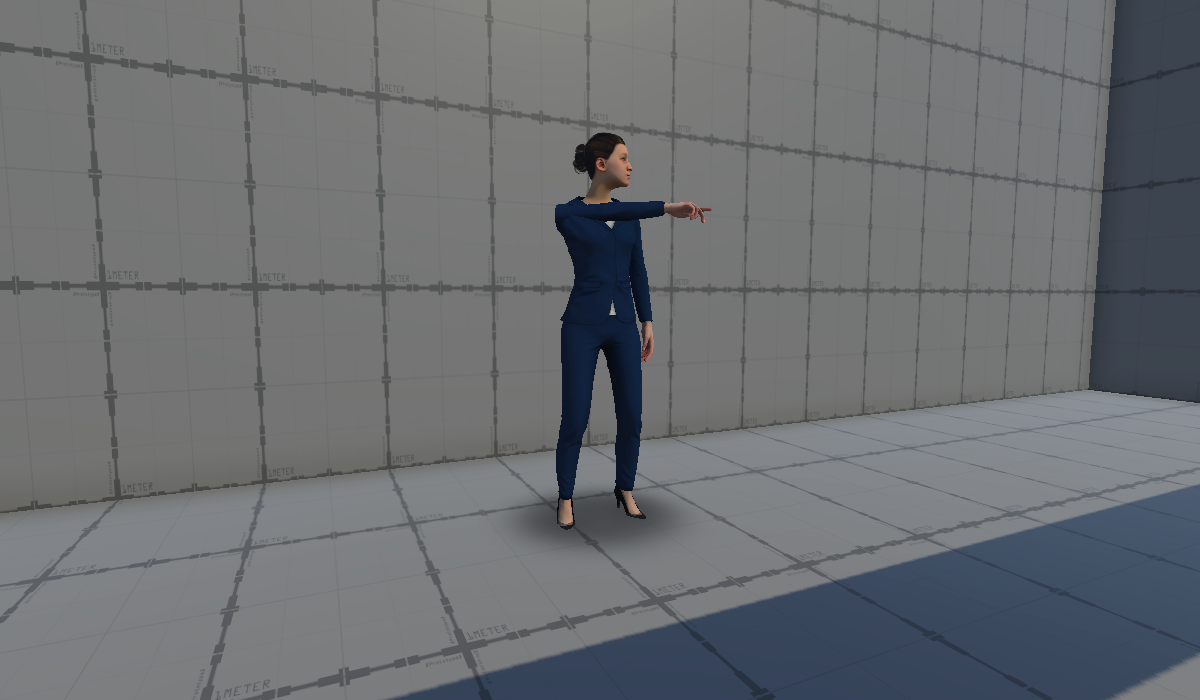
A pedestrian agent has the ability to turn its head to gaze at a point of interest, as well as raise its arm to point at it. Both features work regardless of whether the character is walking on a path or standing still, and they play on top of the character's normal animation, so a walking pedestrian keeps walking normally while it gazes at its target.
Both are built with Unity's Animation Rigging. To see both working, open the Agent Demo Scene and select Idle_Pedestrian_Louise (see Playable Demo).
Before You Start
The agent needs three things:
-
A character model with Humanoid Avatar.
-
An Animator Controller that can switch into an aiming animation.
For pointing to function, the animator needs a Bool parameter named exactly
isAiming. The Pointing Handler sets it to true when pointing starts, so the controller should then move into an aiming animation, and back out when it's set to false. Put that animation on a layer masked to the upper body, so the legs keep walking while the arm points.pedestrian_animation_controlleralready works this way, so you can use it directly, as every pedestrian in HRI-MobiSim does, or use it as a reference when setting up your own. Its UpperBodyLayer switches from Idle State to Aiming whileisAimingis true, on top of the walking and running on its Base Layer. -
A Rig Builder.
Gaze and pointing each need a rig of their own, so add two rigs to the agent.
1Rig SetupSelect the character, the child of the pedestrian that has the Animator. From the main menu, choose Animation Rigging > Rig Setup. This adds a Rig Builder to the character and an empty child named Rig 1, with a Rig component. Rename it to Gaze Rig or Point Rig, depending on what you're setting up first.
2Add a second rigDuplicate the Rig GameObject and name it appropriately.
3Adding rigs to Rig BuilderOn the Rig Builder, click + under Rig Layers and drag the new rigs into the empty slot.
For how the Animator, Rig Builder, rigs, and constraints work together, see Unity's Rigging Workflow.
In the steps below, bone names are those of the ready-made characters, which start with mixamorig:. Characters from other sources, such as Actor Core, name their bones differently, so pick the matching bone in your character.
Gaze
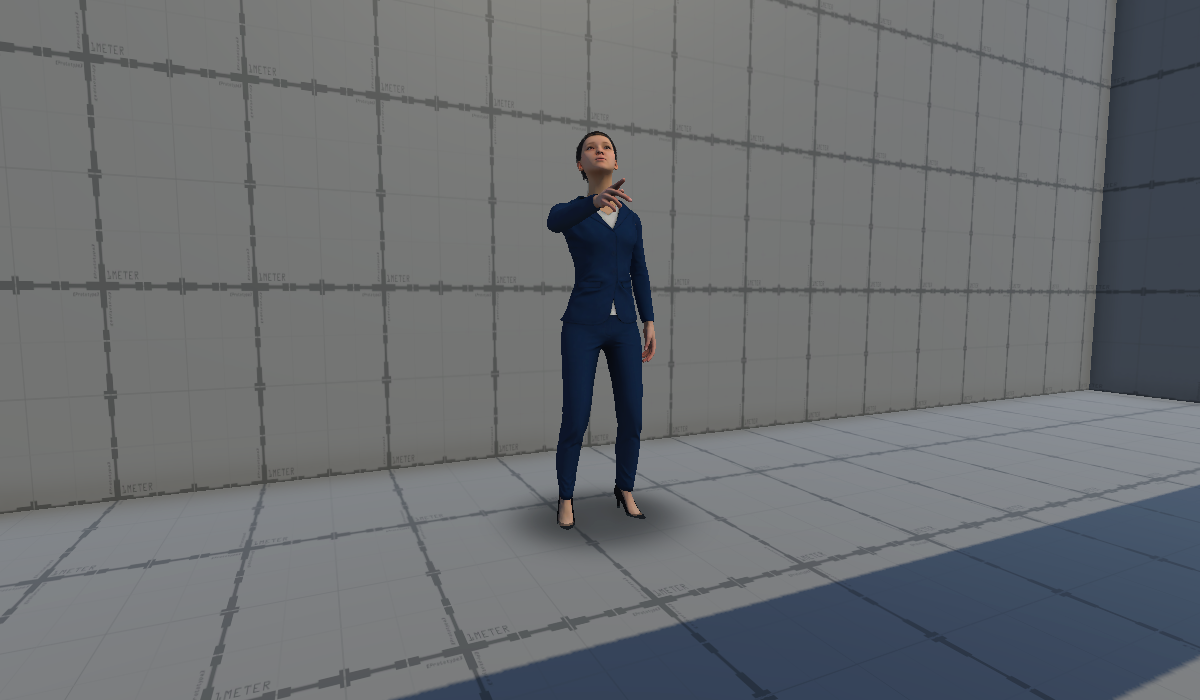
With the Gaze Rig from Before You Start in place, gaze needs two more objects:
- Multi-Aim Constraint
- GameObject serving as the target of the gaze
Setting Up Gaze
These steps make the head gaze at the Gaze Target.
The Gaze Target can be any object in the scene. Use the object itself, such as a sign or a vehicle, and the head gazes at its position, so it follows the object as it moves.
If you want the head to gaze at a particular spot instead, such as a vehicle's windscreen rather than its centre, create an empty object named Gaze Target and move it to that spot. Make it a child of the object if the object moves, so the spot moves with it.
Under Gaze Rig, create an empty child named Head Aim, and add a Multi-Aim Constraint to it. Then configure the constraint as follows:
The Gaze Rig's Weight decides how much the gaze takes over the head: at 0 the head follows its normal animation, at 1 it fully faces the Gaze Target, and values in between blend the two.
With only the head turning, a wide gaze can look stiff, because a person turns their neck and shoulders slightly as well. A Multi-Rotation Constraint spreads the turn: it turns a bone part of the way toward another object's rotation, by its Weight.
The neck and spine need an object that turns to face the Gaze Target, to copy their rotation from:
- Under the pedestrian's root, create an empty object named Gaze Direction, at neck height, facing the same way as the character.
- Under Gaze Rig, create an empty child named Direction Aim, and add a Multi-Aim Constraint with Constrained Object set to Gaze Direction, Aim Axis to Z, Up Axis to Y, and the Gaze Target as its source.
- Under Gaze Rig, create an empty child named Neck Follow, and add a Multi-Rotation Constraint: set Constrained Object to
mixamorig:Neck, add Gaze Direction to Source Objects, tick Maintain Rotation Offset so the neck only follows changes in direction, and set its Weight to about0.3. - Repeat for the upper spine,
mixamorig:Spine2, in a child named Spine Follow with a Weight of about0.15.
Order matters, because the rig works through its children from top to bottom and the head sits on the neck. In the Hierarchy, arrange the children of Gaze Rig as Direction Aim, Spine Follow, Neck Follow, then Head Aim last, so the head aims after the neck and spine have turned. See Unity's Rigging Workflow for how the order works.
Enter Play mode and move Gaze Target around the pedestrian. The head will follow it. Drag Gaze Rig's Weight between 0 and 1 to see the gaze blend in and out.
This is all you need when the pedestrian always gazes at the same thing. To change it during the scenario, you'd move the Gaze Target or change the rig's Weight yourself, for example with an Animation Track in Timeline.
Look Command Invoker
Animation rigging on its own has limits. The head snaps to the source with no sense of turning, it gazes the whole time the rig is on, and the source has to be set up in the editor, so it can't gaze at something that only appears when the scenario runs, such as a participant who is spawned in rather than placed in the scene.
This is where the Look Command Invoker comes in. It handles the parts a rig can't do on its own, so the pedestrian gazes to appear less artificial. It gives you:
- Gazing on demand: It's told "gaze at this object" or "gaze at this point" while the scenario runs, including at objects that only appear once the scenario runs, such as a spawned participant. A new gaze replaces the current one, and the constraint never needs rewiring.
- Natural turning: The head smoothly turns toward the target instead of instantly snapping to it.
- Automatic fading: The Gaze Rig's Weight already blends the gaze in and out, but on its own you'd have to change it yourself. The invoker fades it in when a gaze starts and out when it ends, so the head returns smoothly to its normal animation.
- Timed gazes: A gaze can last a set number of seconds and end by itself, or carry on until it's cancelled.
- Rotation Axis Constraint: The Multi-Aim Constraint's Min Limit and Max Limit apply one range in every direction. The invoker can set a separate range for each axis, for example letting the head turn far to the sides but only a little up and down.
It does this by turning a Gaze Pivot: an object at head height that carries the Gaze Target a little in front of it. The invoker turns the pivot toward the target, and the head, which faces the Gaze Target, turns with it.
Setting Up the Look Command Invoker
Start from the setup above, then:
Under the pedestrian's root, create an empty object named Gaze Pivot. Move it to the character's head, between the eyes, facing the same way as the character. Then drag Gaze Target onto it, so it becomes a child, and move the Gaze Target about a meter straight ahead of the pivot, at the same height.
Select the pedestrian's root, add a Look Command Invoker, and configure its properties:
You don't need to set the Gaze Rig's Weight: the invoker keeps it at 0 until a gaze starts. If Rig or Multi Aim Source Parent is empty, the invoker switches itself off when the scene starts.
Tick X Axis Limit, Y Axis Limit, or Z Axis Limit, and set a Min and Max angle in degrees, measured from the way the pedestrian faces. For example, a Y limit of -70 to 70 stops it gazing over its shoulder. Test with targets in front of, beside, above, and behind the character.
The pedestrian is now ready to gaze, but nothing tells it what to gaze at yet. That comes from a Proximity Gazer, or from your scenario.
Proximity Gaze
We can make an agent gaze at things, such as the participant, that come into its proximity by adding a Proximity Gazer to the root, next to the Look Command Invoker:
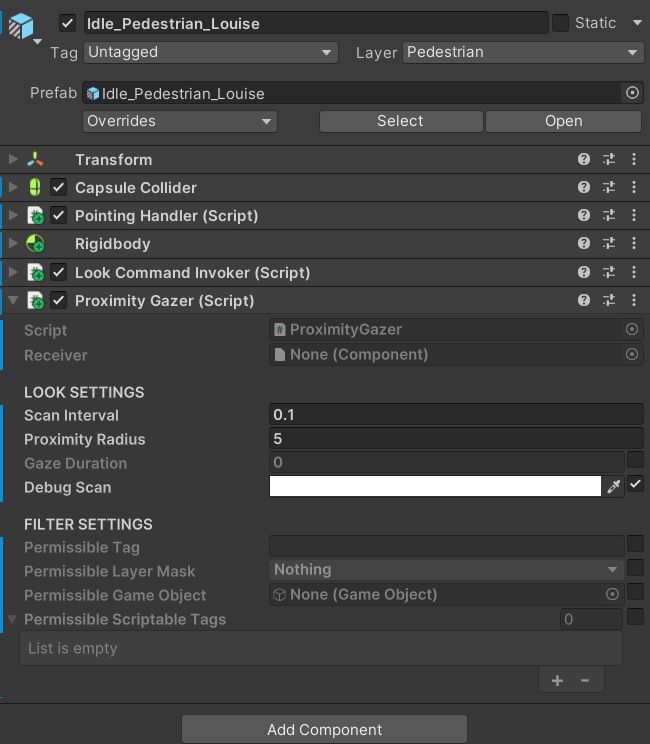
To control what it gazes at, tick one or more filters. A target must pass every filter you tick:
- Permissible Tag: only objects with this Unity tag.
- Permissible Layer Mask: only objects on these layers. Without it, it uses the layers the pedestrian's own layer can collide with.
- Permissible Game Object: only this one object.
- Permissible Scriptable Tags: only agents with at least one of these Scriptable Tags. Use this to gaze at the participant.
It gazes at the nearest object that passes the filter, and stops gazing when nothing is left in range. Beware that it checks distance only, so it can gaze at something behind a wall.
Gazing on Cue
To start and stop a gaze at a particular moment in your scenario:
- Starting a gaze needs custom code:
LookAtTransformto gaze at an object, orLookAtPositionto gaze at a point, each with an optional number of seconds. Its inputs can't be set from the Inspector. - Stopping a gaze works from any event, such as an event trigger. Choose LookCommandInvoker > CancelLookAtCommand. From Timeline, use a Signal Track with a Signal Receiver to call the same thing at a set time.
A new gaze replaces the current one. If a Proximity Gazer and custom code both send gazes to the same pedestrian, they will keep overriding each other, so use one or the other.
Pointing
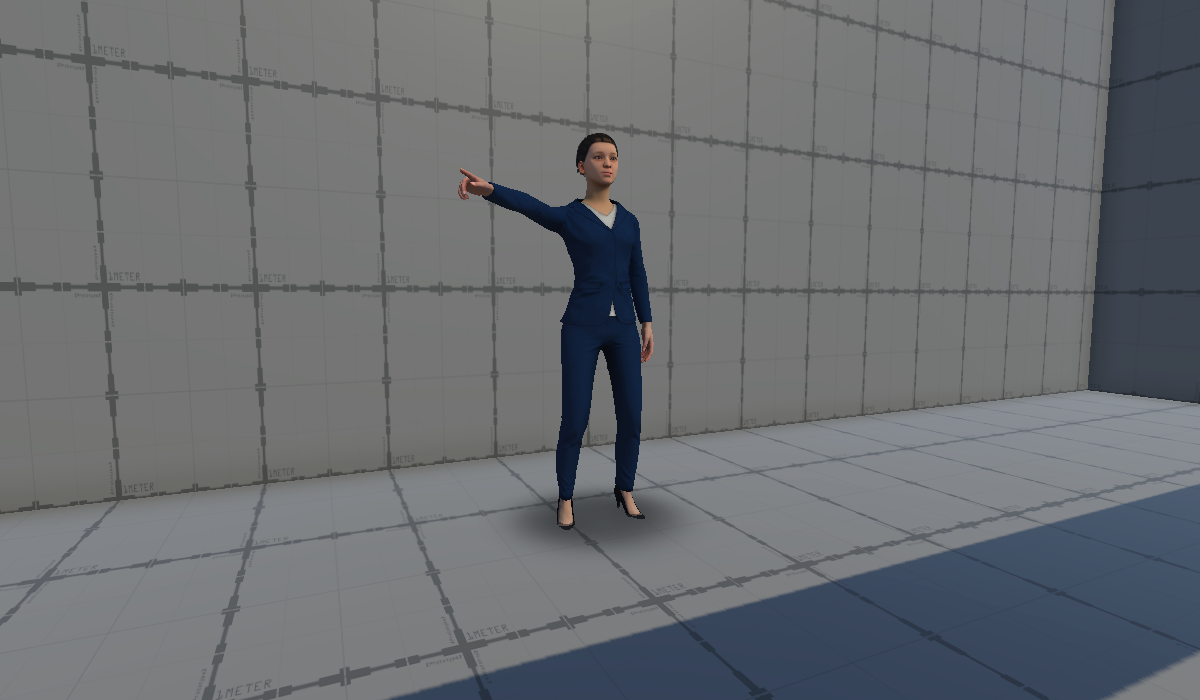
With the Point Rig from Before You Start in place, pointing needs two more things:
- Multi-Aim Constraint and a Two Bone IK Constraint on the arm
- GameObject serving as the target of the pointing
Setting Up Pointing
These steps make the right arm point at the Point Target.
The Point Target can be any object in the scene. Use the object itself, such as a sign or a vehicle, and the arm points at its position, so it follows the object as it moves.
If you want the arm to point at a particular spot instead, create an empty object named Point Target and move it to that spot. Make it a child of the object if the object moves, so the spot moves with it.
Under Point Rig, create an empty child named Right Arm Aim, and add two components to it. The Two Bone IK Constraint raises the arm toward the target, and the Multi-Aim Constraint turns the hand so the fingers point at it.
Configure the two components as follows:
The Point Rig's Weight decides how much the pointing takes over the arm: at 0 the arm follows its normal animation, at 1 it fully points at the Point Target, and values in between blend the two.
Enter Play mode and move the Point Target around the pedestrian. The arm will follow it. Drag Point Rig's Weight between 0 and 1 to see the pointing blend in and out.
This is all you need when the character's animation already has the hand in a pointing pose, such as a model whose only animation is pointing. To change it during the scenario, you'd move the Point Target or change the rig's Weight yourself, for example with an Animation Track in Timeline.
Pointing Handler
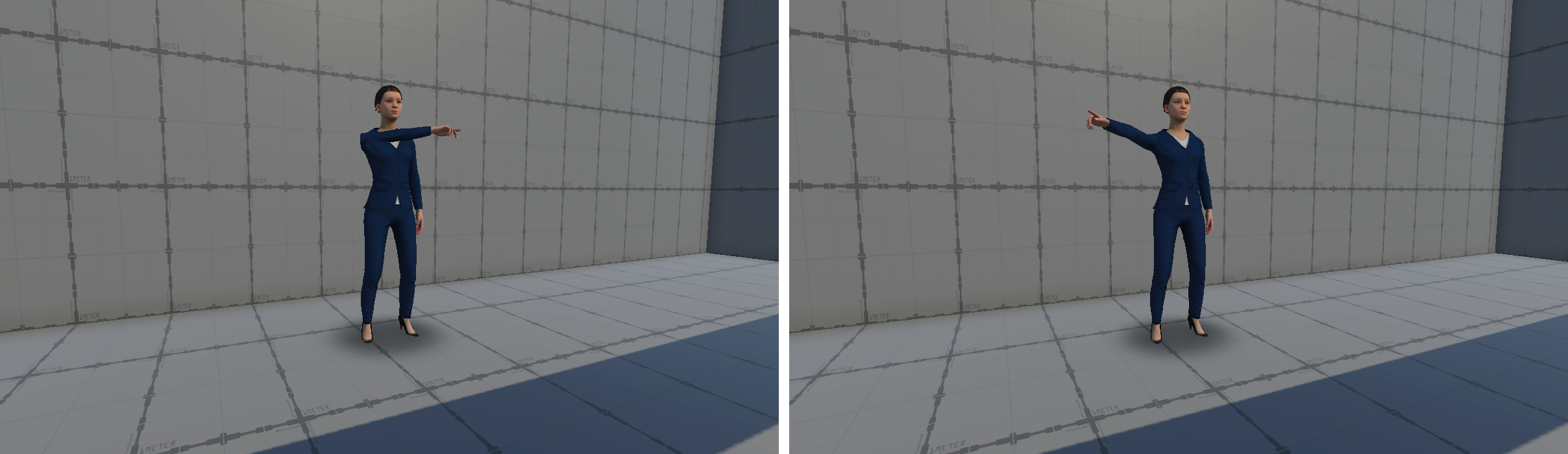
Animation rigging on its own only moves the bones it constrains. It aims the arm and turns the hand, but the shape of the hand comes from the animation underneath. That's fine if the character only ever plays a pointing animation, but most pedestrians also need walking or idle animation. In a walking or idle animation, the fingers stay relaxed, so the pedestrian looks like it's reaching toward the target rather than pointing at it. The pointing pose comes from the Animator Controller's aiming animation, which a rig can't switch on.
This is where the Pointing Handler comes in. It switches the animation and the rig together, so the pedestrian points with its finger extended. It gives you:
- Pointing pose and arm together: When pointing starts, it sets the Animator's
isAimingto true, so the controller plays its aiming animation, and fades in the Point Rig. When pointing stops, it does the reverse. This is why the Animator Controller needsisAiming(see Before You Start). - Automatic fading: The Point Rig's Weight fades in and out over a set time, so the arm rises and lowers smoothly.
- Pointing on cue: Pointing can be started and stopped from any event, such as an event trigger.
- Turning to face the target: It can turn the whole body toward the target while pointing, for a pedestrian standing with the target behind or beside it.
Setting Up the Pointing Handler
Start from the setup above, then:
Select Point Rig and set its Weight to 0. The Pointing Handler fades it up to 1 when pointing starts.
Select the pedestrian's root, add a Pointing Handler, and configure its properties:
The Pointing Handler needs a Rigidbody, and adds one if the pedestrian doesn't have one. A walking pedestrian already does. On a standing pedestrian, tick Is Kinematic on the new Rigidbody, so it can turn but doesn't fall over or get pushed around, as on the demo's Louise.
Pointing on Cue
To start and stop pointing at a particular moment in your scenario, choose PointingHandler > EnablePointing from any event, such as an event trigger. Tick the box to start pointing, or leave it unticked to stop. From Timeline, use a Signal Track with a Signal Receiver to call the same thing at a set time.
To point somewhere else, the simplest way is to move the Point Target, for example with an Animation Track in Timeline. PointingHandler > SetPointTargetAndConstraintSource can also swap the target from an event, but it only changes the source of the first Multi-Aim Constraint under Point Rig, which should be the hand's on Right Arm Aim. The Two Bone IK Constraint and Head Aim keep the old target.
You can also try it without an event: in Play mode, select the pedestrian, and use the buttons under Debug Controls in the Pointing Handler.