Changing a Vehicle's Rider
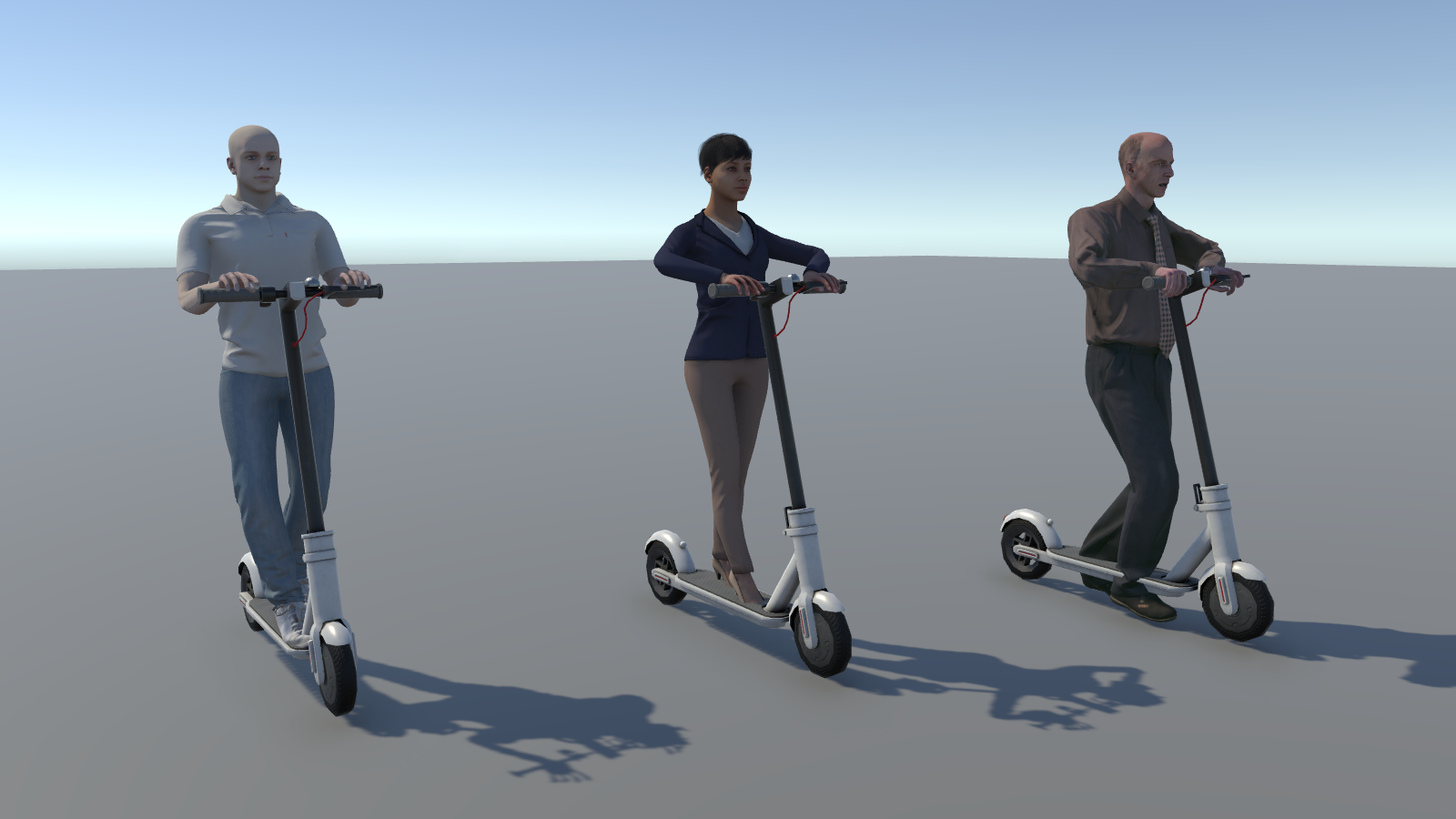
The E-Scooter, iTango, and Motocompacto each come with a rider, but you can swap that rider for someone else, for example to match your participant group. You can also put a rider on a vehicle that doesn't have one.
This works on the participant's own vehicles (the ego agents) and, for the E-Scooter, on the road agent versions that ride around the scene too.
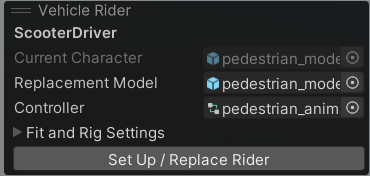
Everything happens in the Vehicle Rider panel in the Scene view. When you choose a new character, the panel seats it on the vehicle, puts its hands on the handlebar and its feet on the footrests, and sets up its riding animation for you.
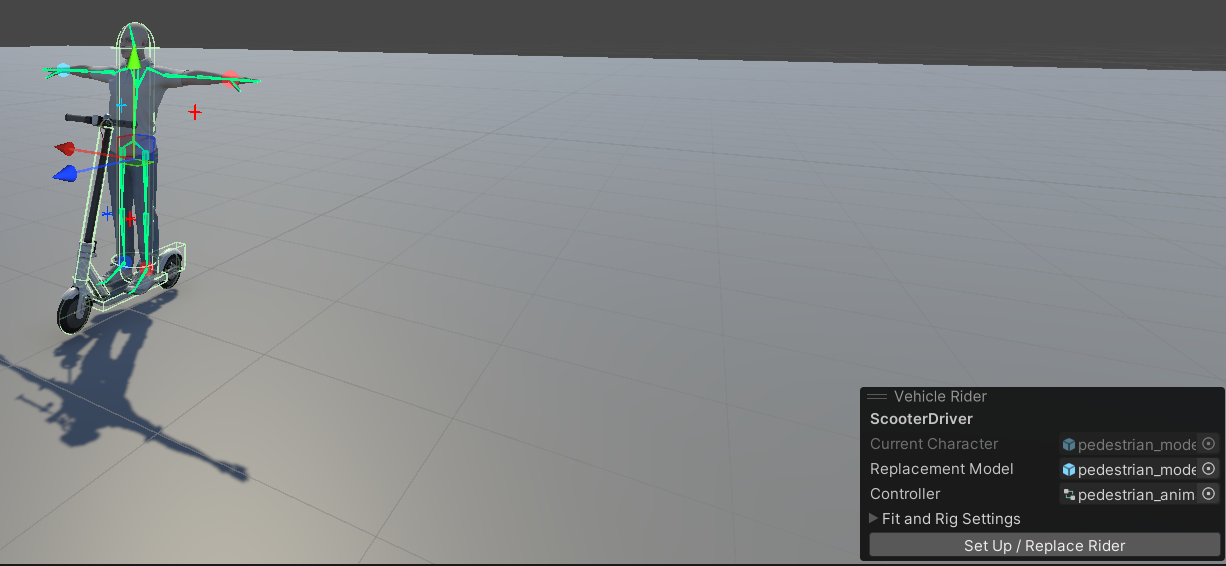
Select an E-Scooter, iTango, or Motocompacto in the Hierarchy. Selecting its rider, or anything inside the rider, works too. The Vehicle Rider panel appears in the Scene view. If it doesn't, open the Scene view's Overlays menu and turn on Vehicle Rider.
Work on a copy instead. In the Project window, right-click the vehicle prefab, choose Create > Prefab Variant, and open the new variant in Prefab Mode.
A few things worth knowing:
- The panel works both in a scene and in Prefab Mode.
- In Play mode its controls are greyed out, so exit Play mode to make changes.
- If you select a vehicle prefab in the Project window, the panel shows an Open Prefab button instead. Click it to open the prefab and edit it there.
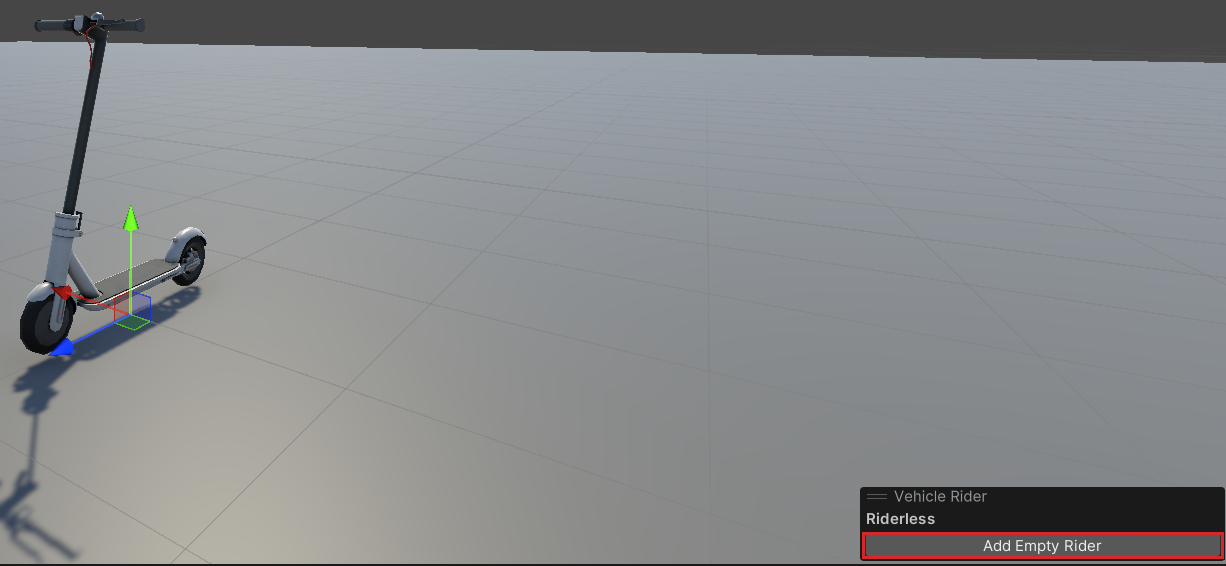
If your vehicle already has a rider, skip this step.
Some vehicles, such as EgoAgent_E-Scooter_Riderless, have nobody on them. Before you can choose a character, the vehicle needs an empty rider to hold it, so click Add Empty Rider in the panel.
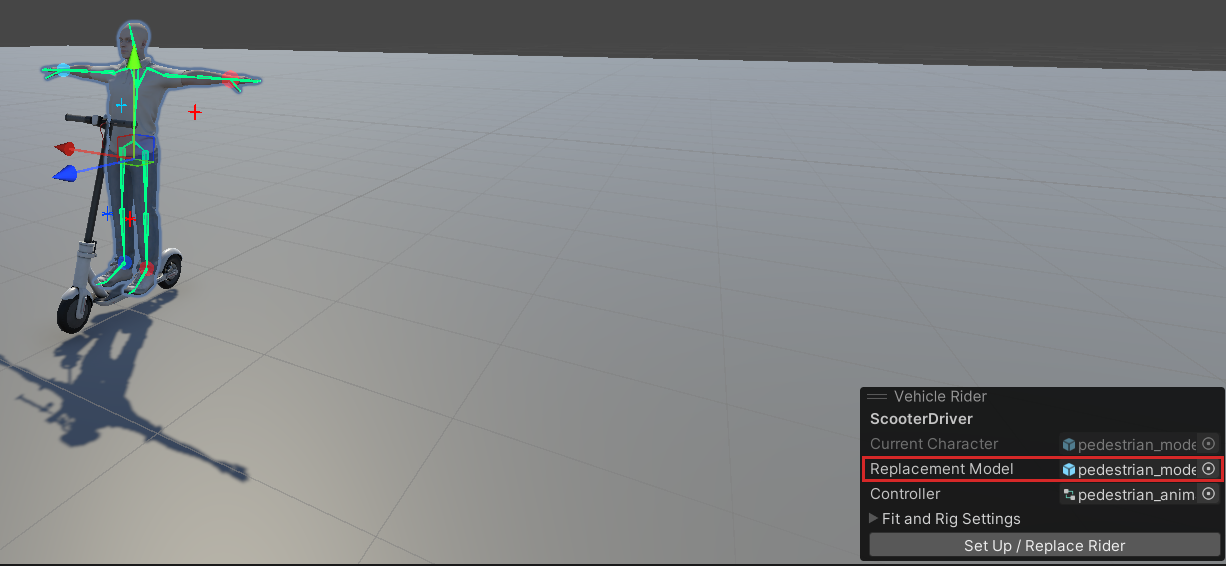
Drag a character from the Project window into Replacement Model. It can be a character prefab, a prefab variant, or an imported model such as an FBX file.
The panel can only work with a character that:
- Comes from the Project window. A character that's placed in a scene or open in Prefab Mode won't work.
- Has exactly one Animator with a Humanoid avatar. You set this in the model's Rig import settings.
- Doesn't already have a rig, meaning it has no Rig Builder component.
- Has its finger bones mapped in its avatar. The panel uses them to curl the hands around the handlebar.
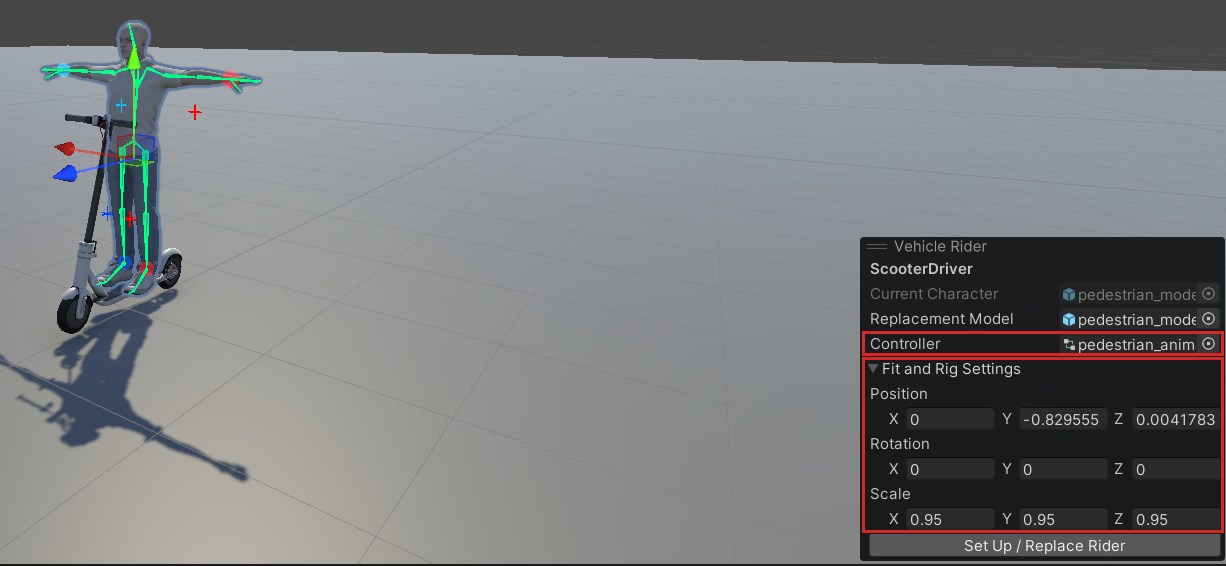
Make sure Controller is set to the riding animation you want. Then expand Fit and Rig Settings, and check the character's Position, Rotation, and Scale on the vehicle.
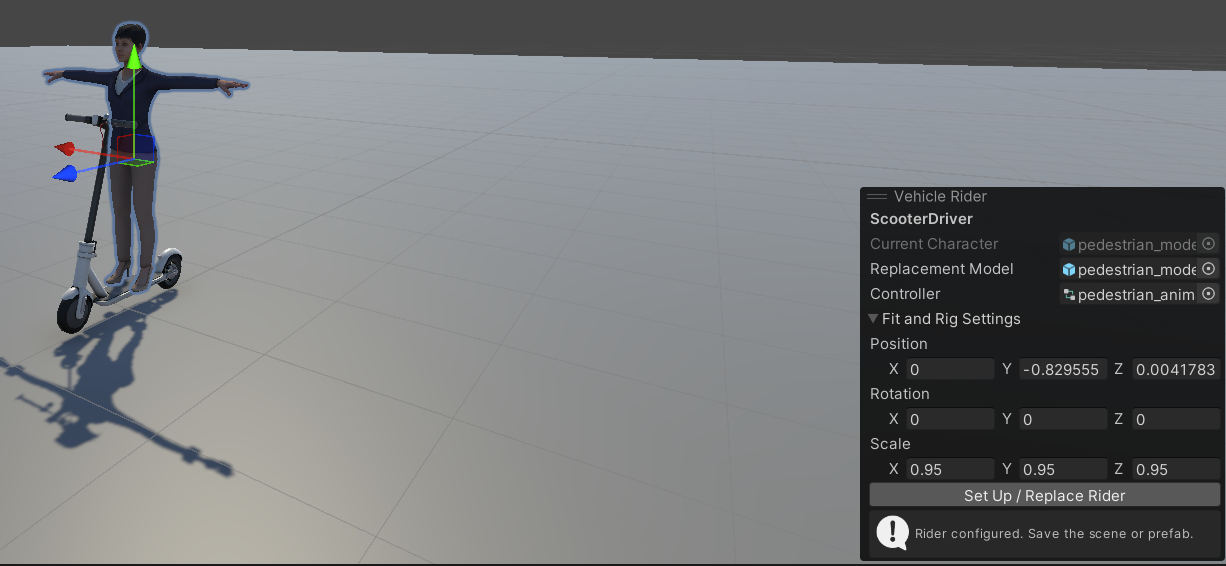
Click Set Up / Replace Rider, then save the scene or prefab as usual.
The old rider is removed and the new one takes its place. Your original character in the Project window stays as it was. If something goes wrong during setup, the panel stops and puts the old rider back, and you can always use Undo to bring the old rider back yourself.
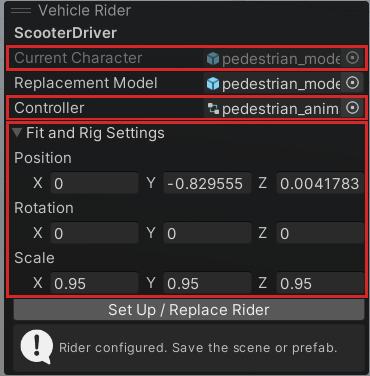
Enter Play mode and take a look at the rider. If the hands don't reach the handlebar, or the feet don't reach the footrests, exit Play mode and select the rider again. The panel now shows:
- Current Character: the character that's on the vehicle now.
- Controller: its riding animation.
- Fit and Rig Settings: its position, rotation, and scale.
Edit these values, and click Set Up / Replace Rider again. Repeat until the rider looks right.
Keep in mind:
- Setting up again rebuilds the rider, so any changes you made by hand inside the character or its rig are lost.
- The panel doesn't resize the character for you. Adjust the fit settings yourself until the hands and feet reach.
- Vehicles already placed in other scenes aren't updated. To change those as well, change the prefab instead.
- The rest of the vehicle stays the same. Its physics, camera, and sensors aren't touched.