Assembling Custom Agents
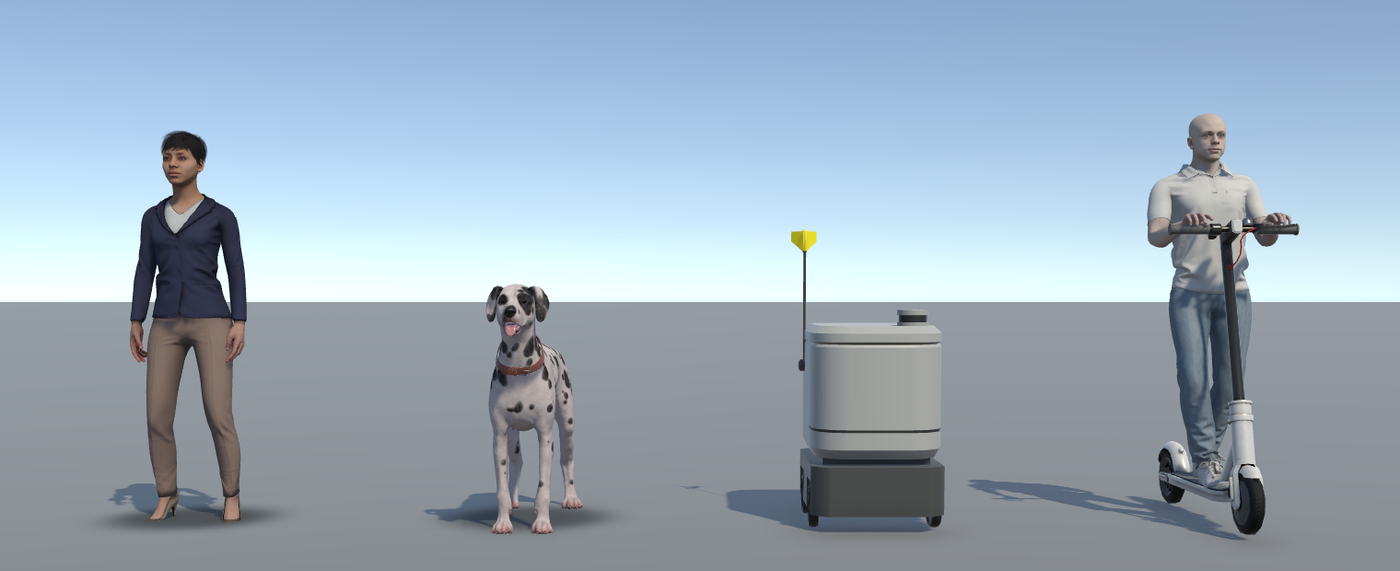
If none of the agents in the Agent Catalog suit your scenario, you can make your own: a different pedestrian, an animal, or a vehicle with a new look. You can start from scratch or begin as a copy of one that already works, and you swap your own model into it.
This page changes to match the agent you're making. Answer the questions below, and it shows only the steps that apply to you.
Before You Start
Every agent starts from a prefab: either a base prefab that has everything but the model, or a copy of an agent that already works. Here's which prefab to start from, what's already inside it, and what you'll need to have ready.
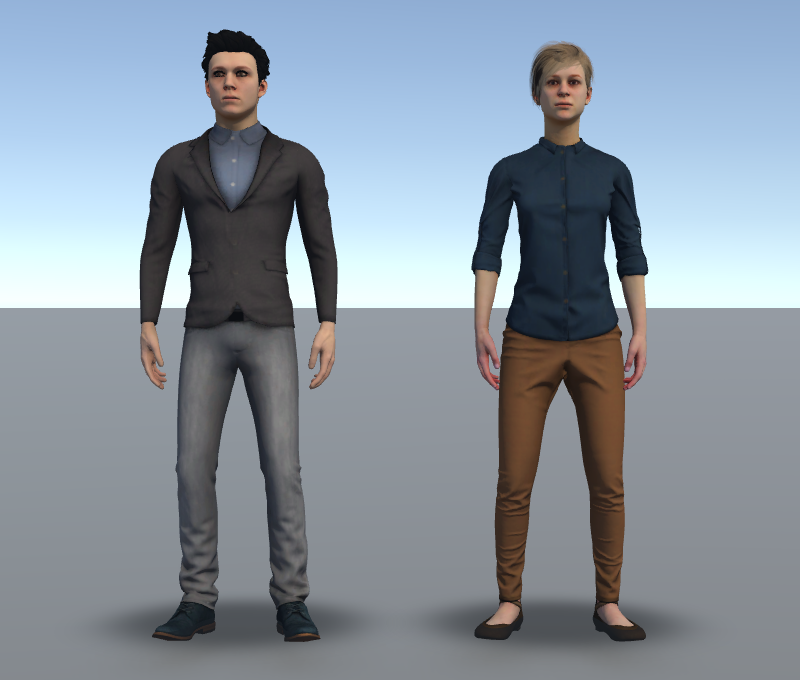
Start from EgoAgentBase_Pedestiran. Here's what's already inside it:
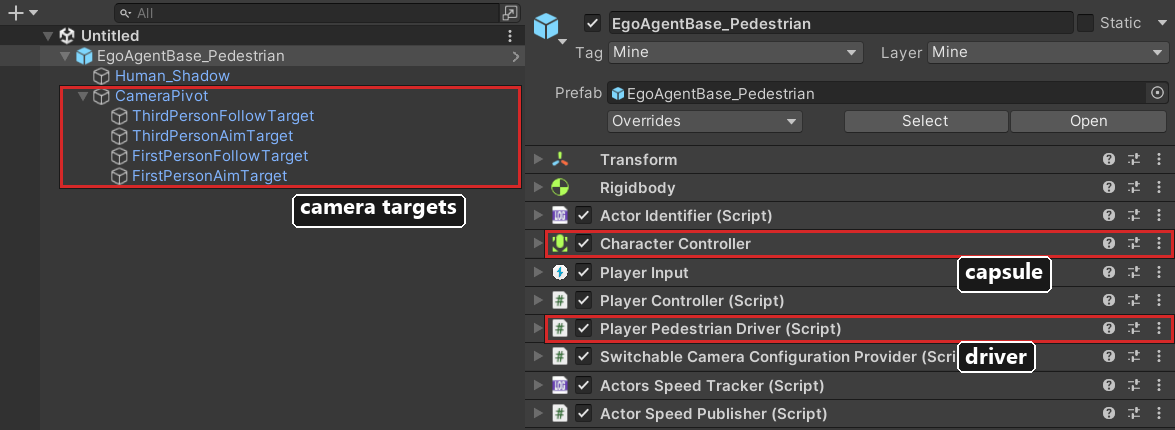
Everything except the character is already there:
- A Character Controller, the invisible capsule that the character moves inside.
- The Player Pedestrian Driver, which turns the participant's controls into movement. As the character speeds up, it also blends the animation from walking to running.
- The camera targets, which decide where the participant's camera sits.
Your job is to add the character, fit the capsule around it, and connect the two.
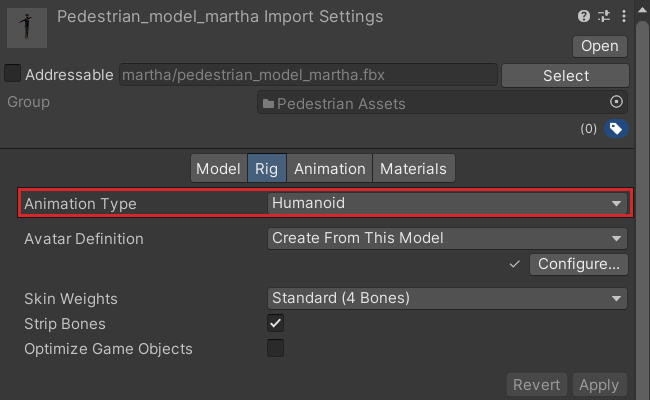
You'll need your character, imported into the project with a Humanoid rig. To check the rig:
- Select the model file in the Project window.
- Open the Rig tab in the Inspector.
- Make sure Animation Type is set to Humanoid.
The project already has plenty of characters you can use, including the Actor Core library. You'll find them under Pedestrian in the Agent Catalog.
Build It
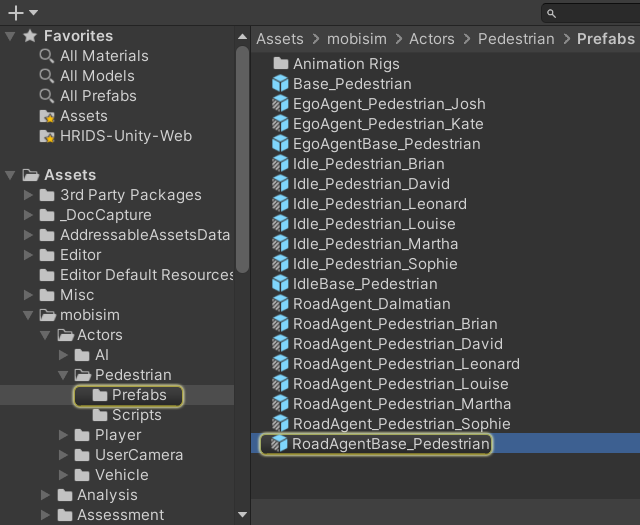
- In the Project window, go to
Assets/mobisim/Actors/Pedestrian/Prefabs, and find EgoAgentBase_Pedestiran. - Right-click it, and choose Create > Prefab Variant.
- Name the variant after your agent.
- Double-click the variant to open it in Prefab Mode.
A variant is a copy that stays linked to the original, so when the original gets a fix, your agent gets it too. Meanwhile the original stays unchanged, and other scenarios that use it aren't affected.
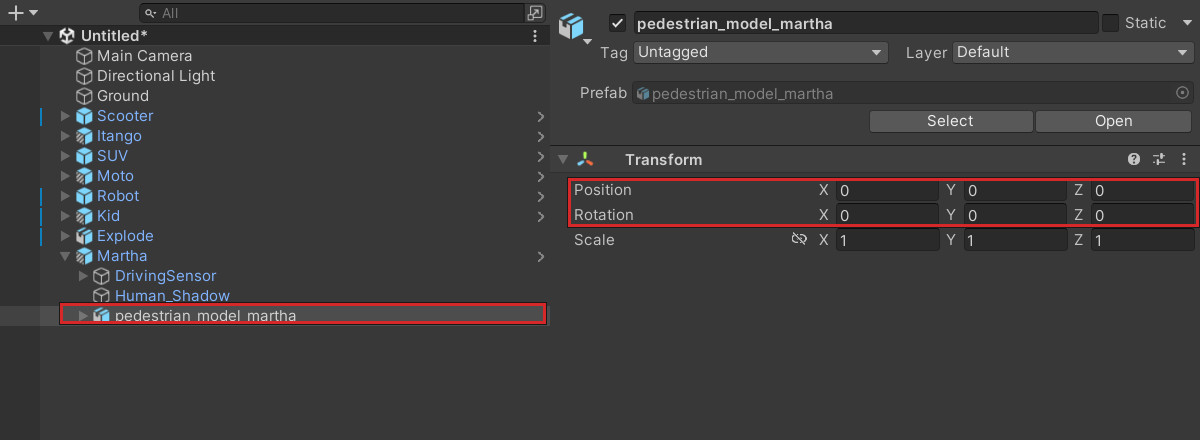
- Drag your character's prefab or model from the Project window onto the root of the variant in the Hierarchy, so it becomes a child of the root.
- In the Inspector, set the character's Position and Rotation to
0, 0, 0.
The root sits at the agent's feet, so the character now stands on the ground, facing the same way as the root's blue arrow in the Scene view.
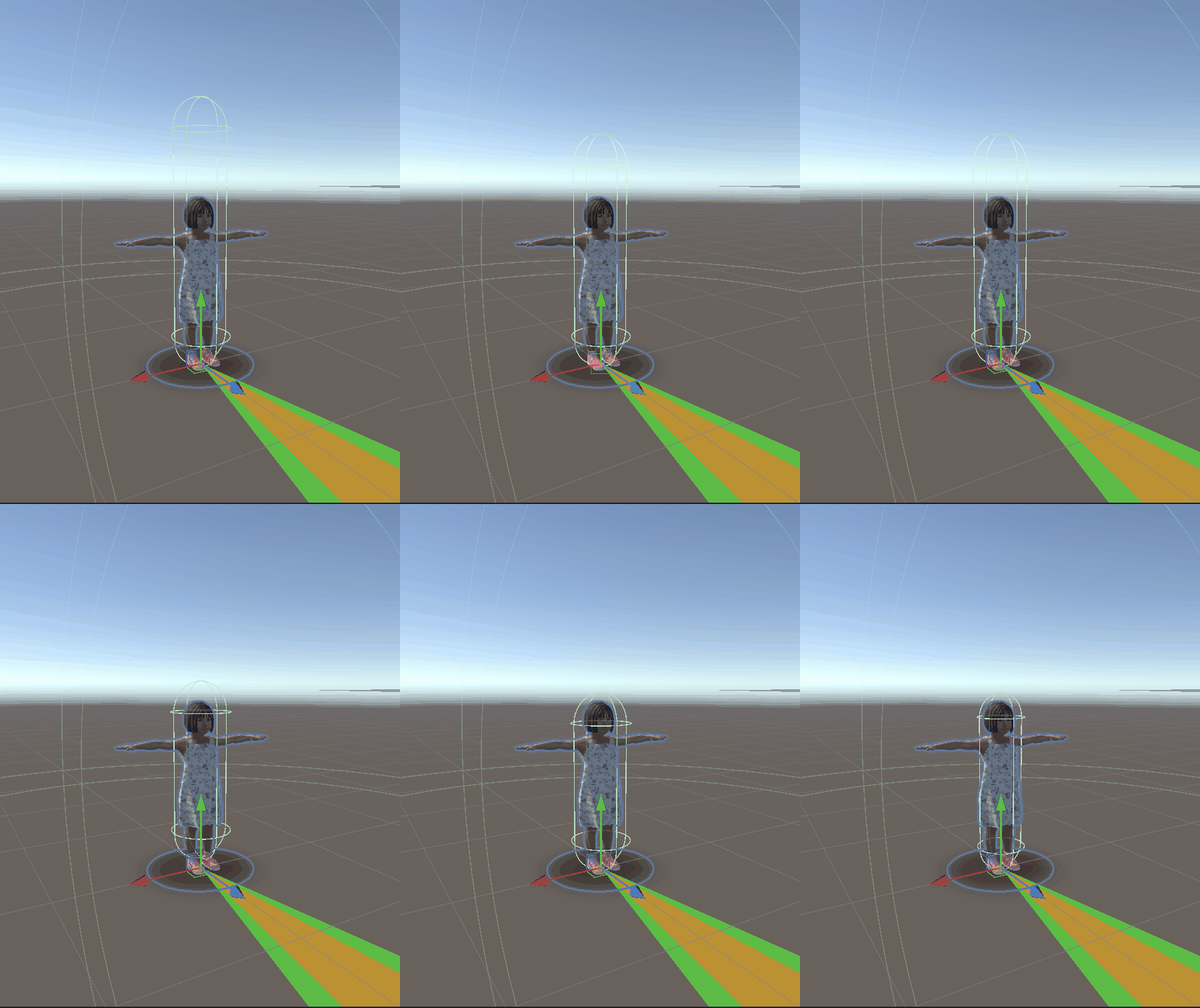
The capsule is the invisible shape that the character moves inside and that others bump into. It's sized for an adult, so a smaller character needs a smaller capsule.
Select the root of the variant in the Hierarchy.
On the Character Controller in the Inspector, set:
- Height to your character's height, in meters.
- Center Y to half of that.
- Radius to about half the width of its shoulders.
It starts with a height of 1.7, a center Y of 0.85, and a radius of 0.3.
The green outline in the Scene view shows the capsule. It should wrap the character from the ground to the top of its head, which for a child or an animal usually means making it a lot shorter.
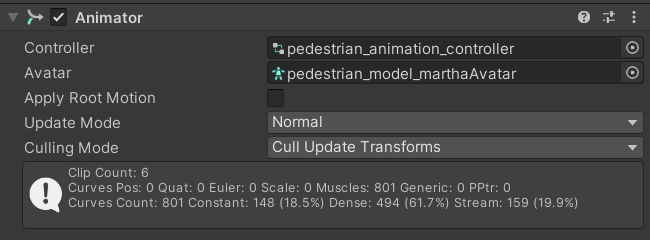
Select the character in the Hierarchy, and find its Animator in the Inspector:
- Set Controller to
pedestrian_animation_controller. - Check that Avatar is the character's own avatar, and that it's a Humanoid avatar.
- Untick Apply Root Motion, because the controller on the root does the moving rather than the animation.
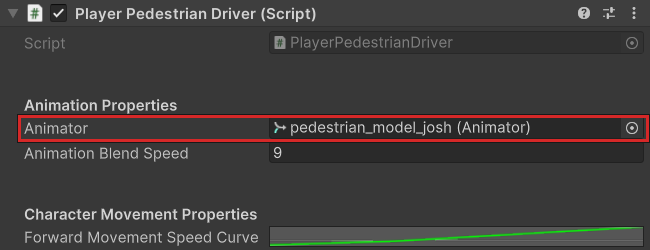
Select the root of the variant. On its Player Pedestrian Driver, drag the character from the Hierarchy into Animator. The driver uses it to keep the walking animation in step with the speed.

In first person, the camera sits inside the character's head, so the character needs to be hidden from that camera:
- Select the character in the Hierarchy.
- At the top of the Inspector, set Layer to Invisible In First Person View.
- When Unity asks whether to change the children too, choose Yes, change children.
The first-person camera skips this layer, so the participant never sees the inside of their own head.
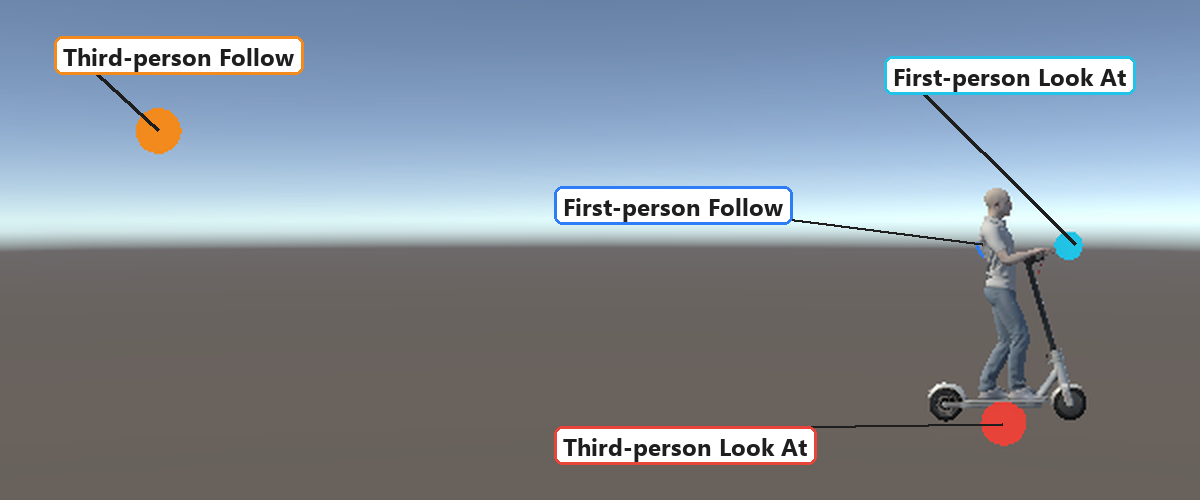
The participant's camera follows one target and aims at another, and first person and third person each have their own pair. You'll find them under CameraPivot in the Hierarchy. Move them in the Scene view:
- FirstPersonFollowTarget goes at the participant's eye position.
- FirstPersonAimTarget goes a little ahead of it, at the same height.
- ThirdPersonFollowTarget goes behind and above the agent, where the third-person camera should sit.
- ThirdPersonAimTarget goes on the point the third-person camera should aim at, such as the agent's shoulders.
Then, in your scenario's Player Selector, choose the view participants start in: FirstPerson_Switchable_CameraRigPrefab or ThirdPerson_Switchable_CameraRigPrefab. See Choosing a Camera Rig. To switch views during the scenario or add driving camera effects, see Participant Camera.
Then there's nothing to set up here.

In the Project window, select the variant, and give it the Controllable label at the bottom of the Inspector. It then shows up in the Player Selector's Controllable Prefab list, ready to be chosen as the participant's agent.
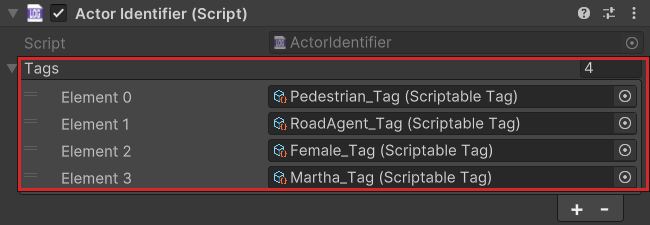
Tags tell the rest of your scenario what your agent is, such as which agents an event trigger reacts to. To learn how they work, see Scriptable Tags.
Select the root of the variant, and find Tags on its Actor Identifier in the Inspector. Make sure the list has the tags below. To add one, click +, and drag the tag asset into the new slot.
- What it is: Pedestrian_Tag.
- Whose it is: Player_Tag, which marks it as the participant's agent.
- Who it is: Male_Tag or Female_Tag, and the character's own tag, such as Brian_Tag, if it's one of the project's characters.
Remove any other tags left over from the agent you started from that don't fit yours.
Use the tags that already exist, rather than new ones with the same names. If you need a tag that doesn't exist yet, such as one for your animal, see Creating Scriptable Tag Assets.
Also make sure the built-in Tag at the very top of the Inspector is Mine. Without it, the agent's tags don't count as the participant's, so the help panel can't use them to pick which keyboard controls to show.