Optimization Practices
Optimizing a scene is essential for smooth performance, especially on lower-end platforms like WebGL. Unity provides several tools and settings to optimize a scene. The following sections cover some of them.
Static GameObjects
If a GameObject does not move at runtime (especially one with a mesh or collider attached), mark it as a Static GameObject.
To mark a GameObject as static, select it in the Hierarchy, then select the Static checkbox in the top-right corner of the Inspector.
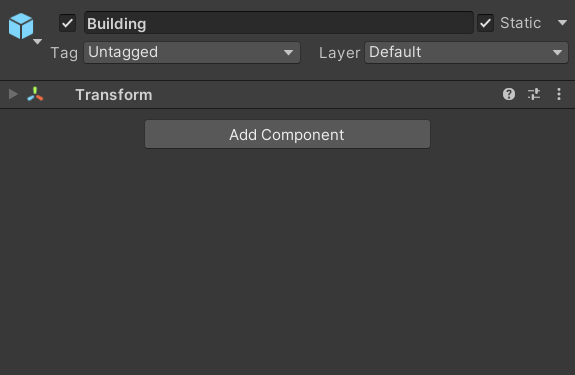
Next to the checkbox is a dropdown arrow that reveals more granular options. Each flag in the dropdown controls a specific type of static optimization. In most cases, leaving this set to Everything is sufficient.
For detailed descriptions of each option, see the Unity documentation: Static GameObjects.
Occlusion Culling
Occlusion culling prevents Unity from performing rendering calculations for GameObjects that are entirely hidden behind other objects.
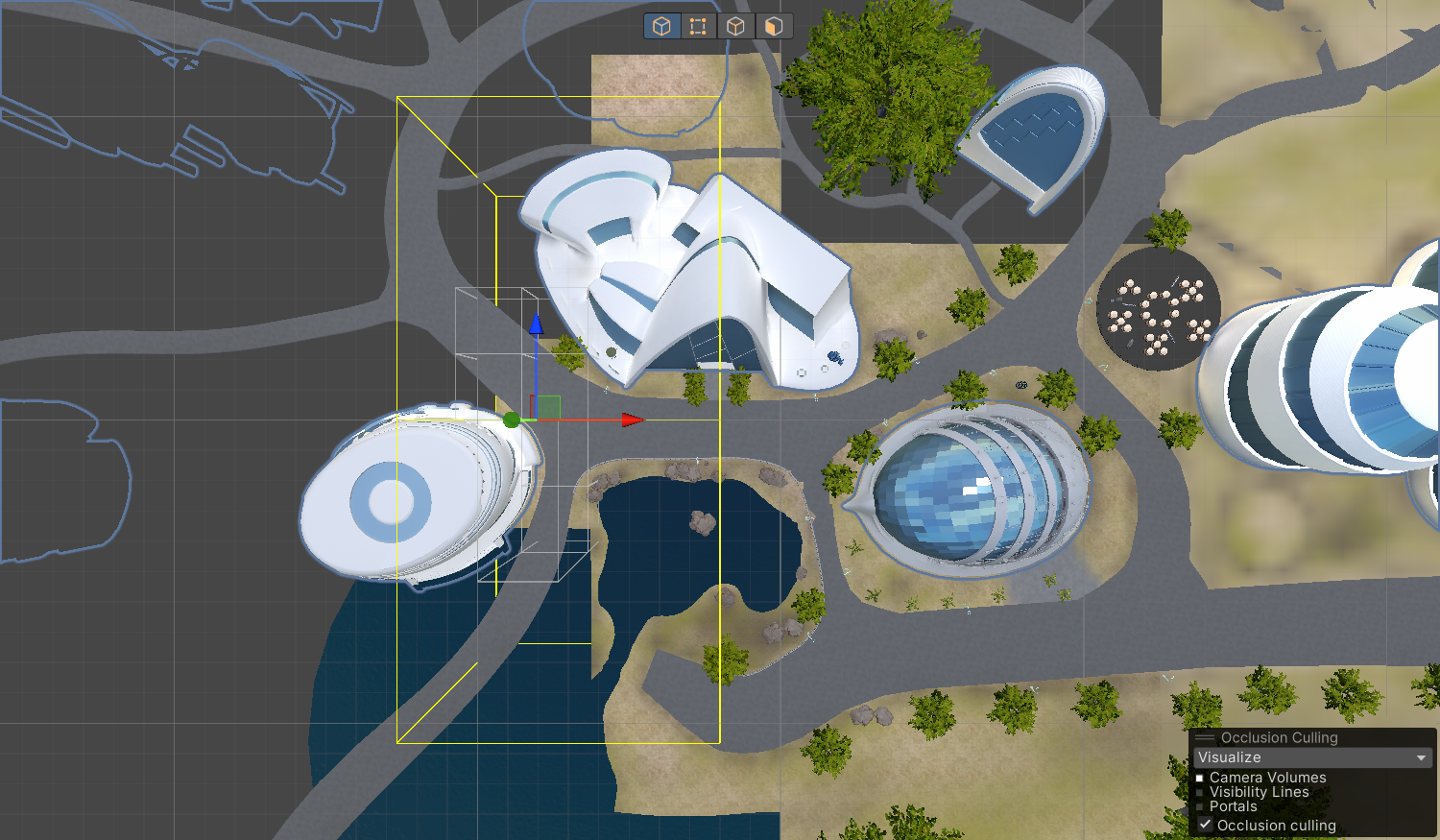
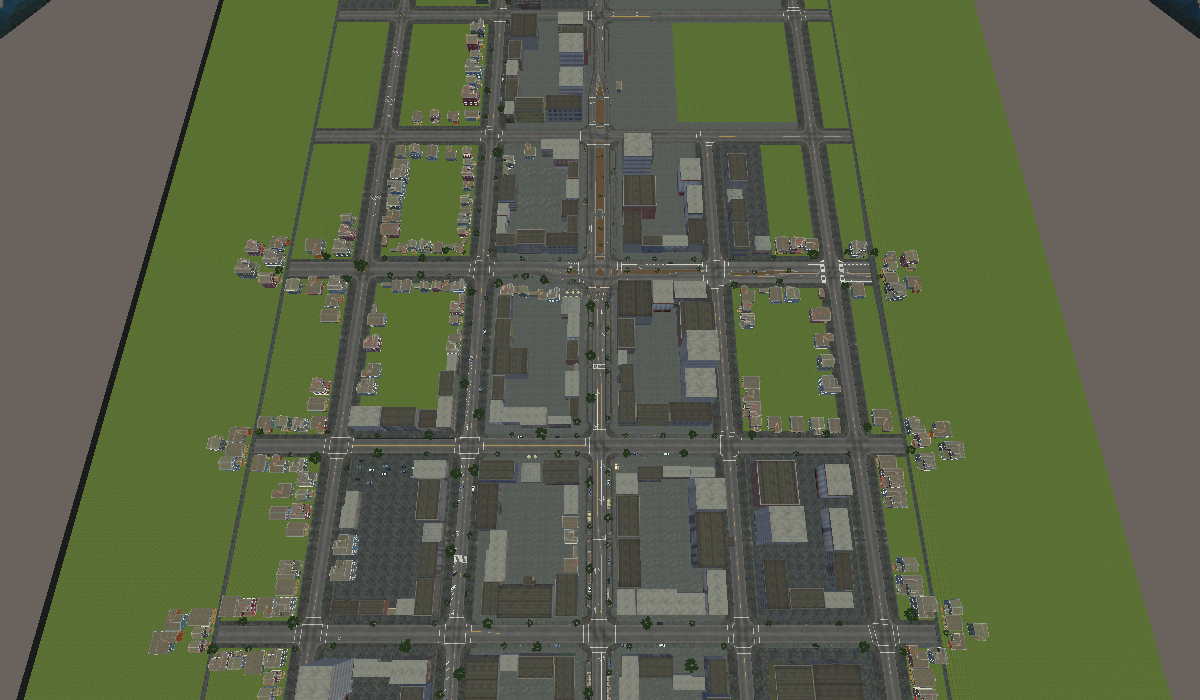
To enable occlusion culling for a scene, you need to bake occlusion culling data. To configure the baking process, change the parameters in the Occlusion Culling window and use Occlusion Areas in your Scene.
Occlusion Areas
An Occlusion Area component lets you define a View Volume, which is an area of the Scene where the Camera is most likely to be at runtime. Unity generates higher-precision occlusion culling data within these volumes and performs higher-precision calculations when the Camera is inside them.
If you don’t define any View Volumes in your Scene, Unity automatically generates one around your Scene geometry at bake time. This can lead to unnecessarily large occlusion data files and wasted runtime calculations. To avoid this, place Occlusion Areas around the areas where the Camera is likely to be at runtime.
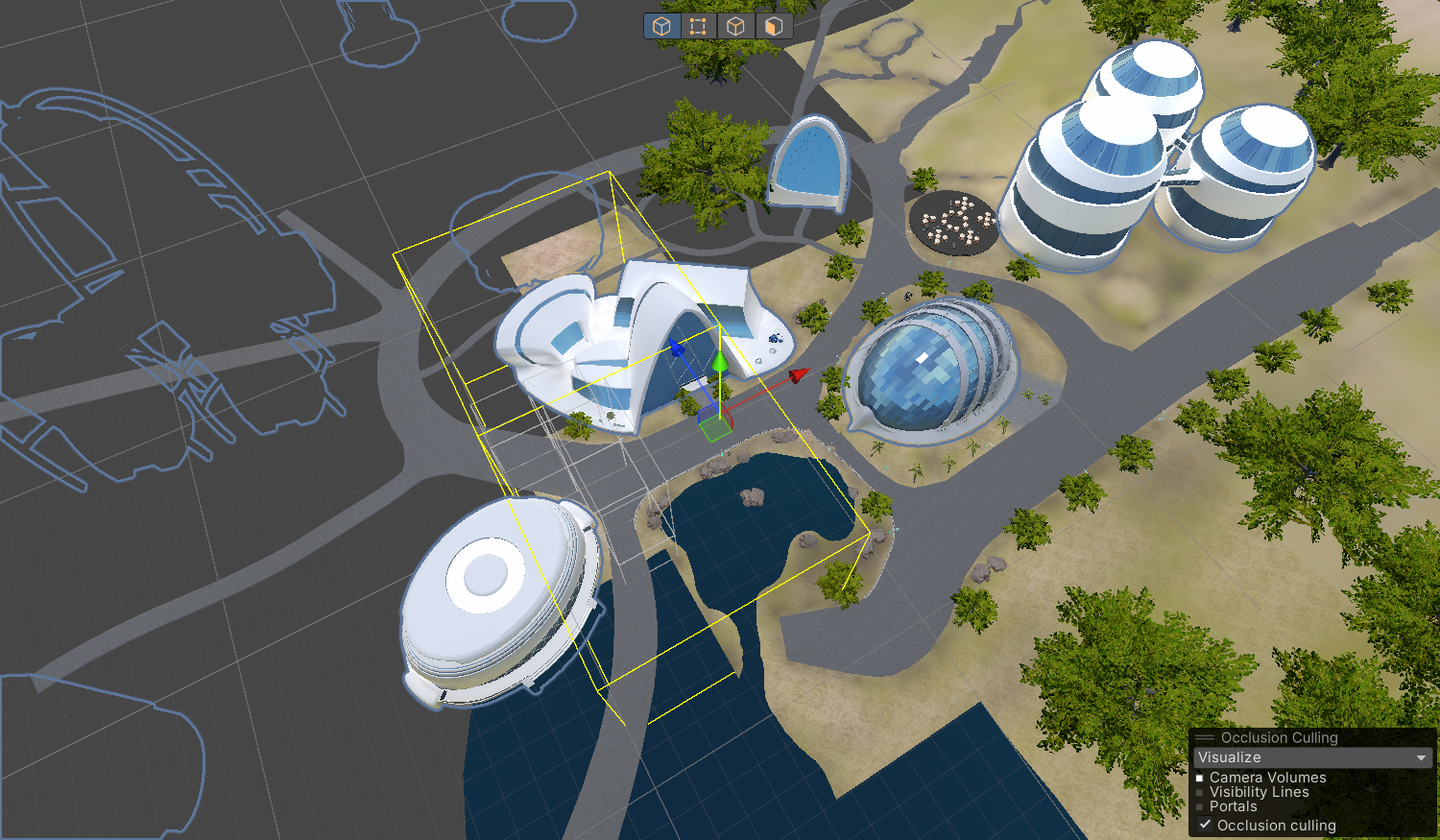
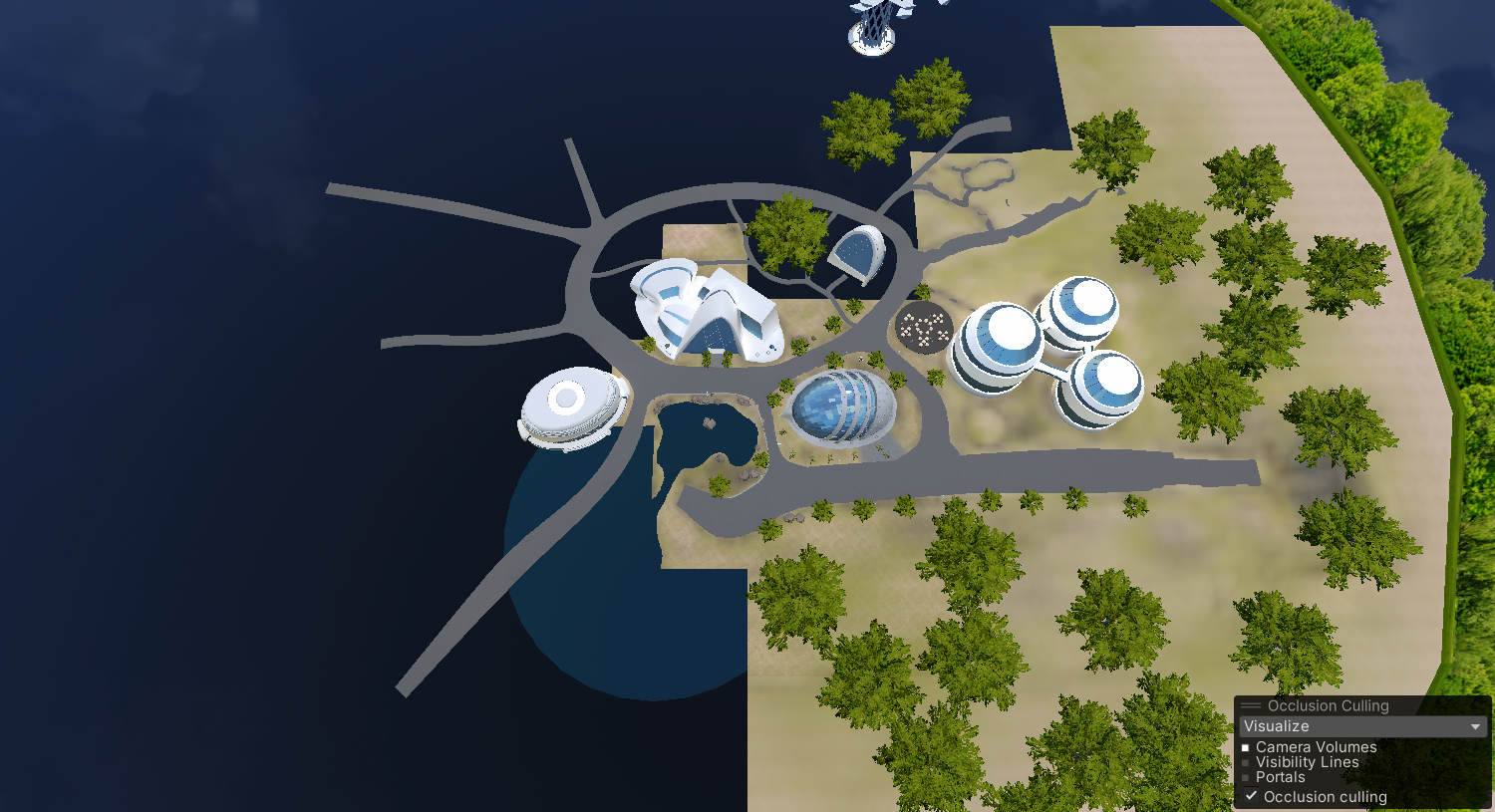
To set up an Occlusion Area in a scene:
- Add an Occlusion Area component to an empty GameObject in your Scene.
- In the Inspector window, configure the Size property so that the bounding volume covers the desired area.
- In the Inspector window, enable Is View Volume.
Occlusion Culling Window
To open the Occlusion Culling window, select Window > Rendering > Occlusion Culling in the menu bar.
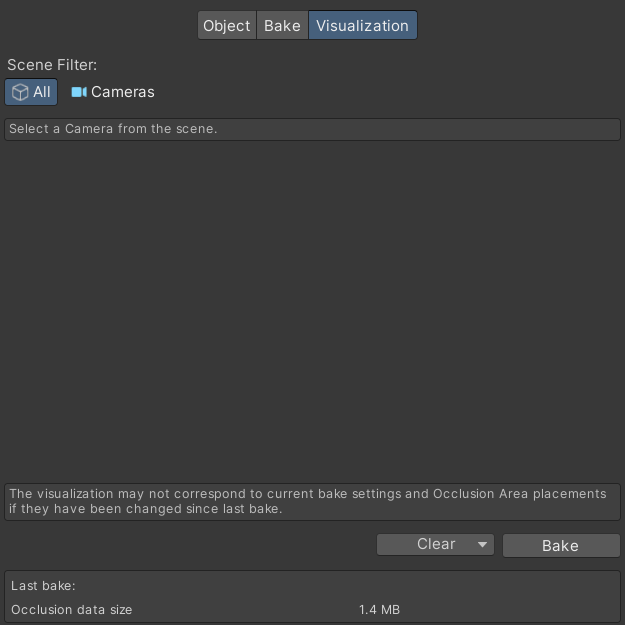
The window is divided into three tabs:
-
Object: Lets you filter the Hierarchy to show only Renderers or Occlusion Areas. Select a Renderer or Occlusion Area to view and change its occlusion culling settings in the Object tab.
-
Bake: Provides controls for bake parameters, allowing you to balance baking time, runtime data size, and visual accuracy.
-
Visualization: Lets you preview occlusion culling results in the Scene view when this tab is active and a Camera is selected in the Hierarchy or Scene view.
Once you have configured the parameters, click Bake at the bottom of the window to generate occlusion culling data. The Clear button, next to Bake, removes any previously baked data.
For a detailed explanation of each parameter, see the official Unity documentation: Occlusion Culling window.
Bake Lighting
In Unity, light sources have three light modes:
-
Realtime: Lights are calculated every frame, producing accurate dynamic lighting that can interact with moving objects and lights, but at a higher performance cost at runtime.
-
Baked: Lights are precomputed and stored as assets (lightmaps). These lights cannot move at runtime, and only static objects receive their effects. This mode is very efficient.
-
Mixed: Lights are precomputed for static objects (like baked lights) but still affect dynamic objects in real time. Mixed lights themselves should not move, but they can illuminate moving objects.
Bake Lighting is the process of precalculating Baked and Mixed lighting information (e.g., shadows) and storing it in lightmaps. This approach trades the ability to move lights in real time for better performance, which suits less powerful platforms such as WebGL.
Baking (precomputing) the lighting is a very slow process. Only do it if realtime lighting is causing performance issues, and only after the scene is finalized.
To bake lighting:
-
Make sure at least one light source in the scene is set to
BakedorMixedmode.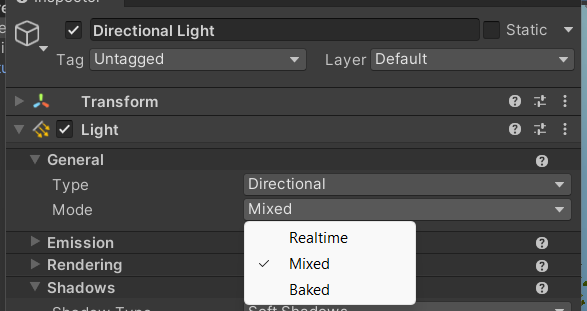
-
Make sure all static objects that you want baked lighting to affect have Contribute GI enabled in the Static dropdown. If this isn’t enabled, baked lighting does not affect the object.
-
Open the Lighting window by selecting Window > Rendering > Lighting in the menu bar.
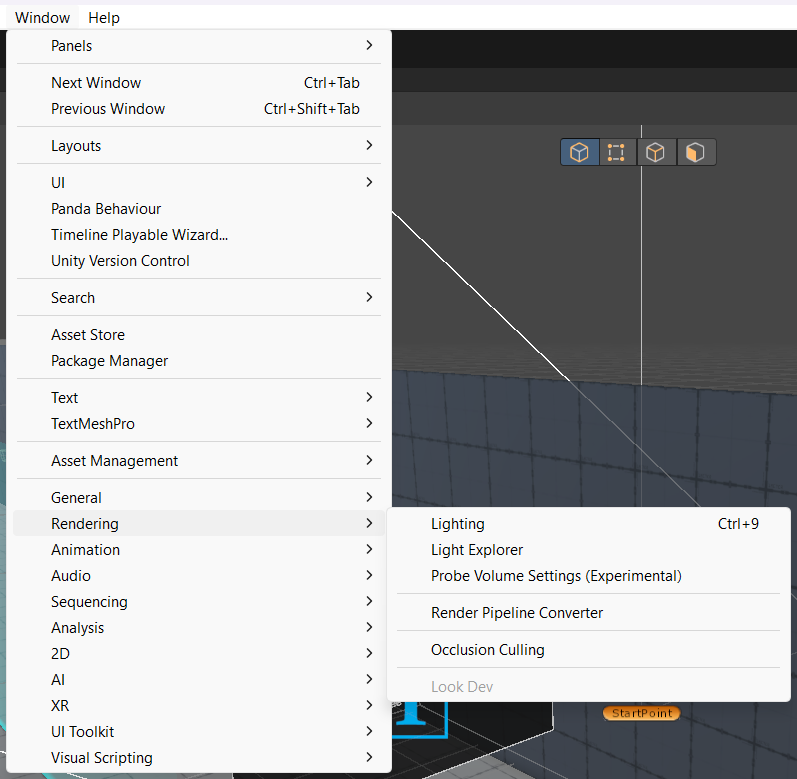
-
Click Generate Lighting in the Lighting window to start the baking process.
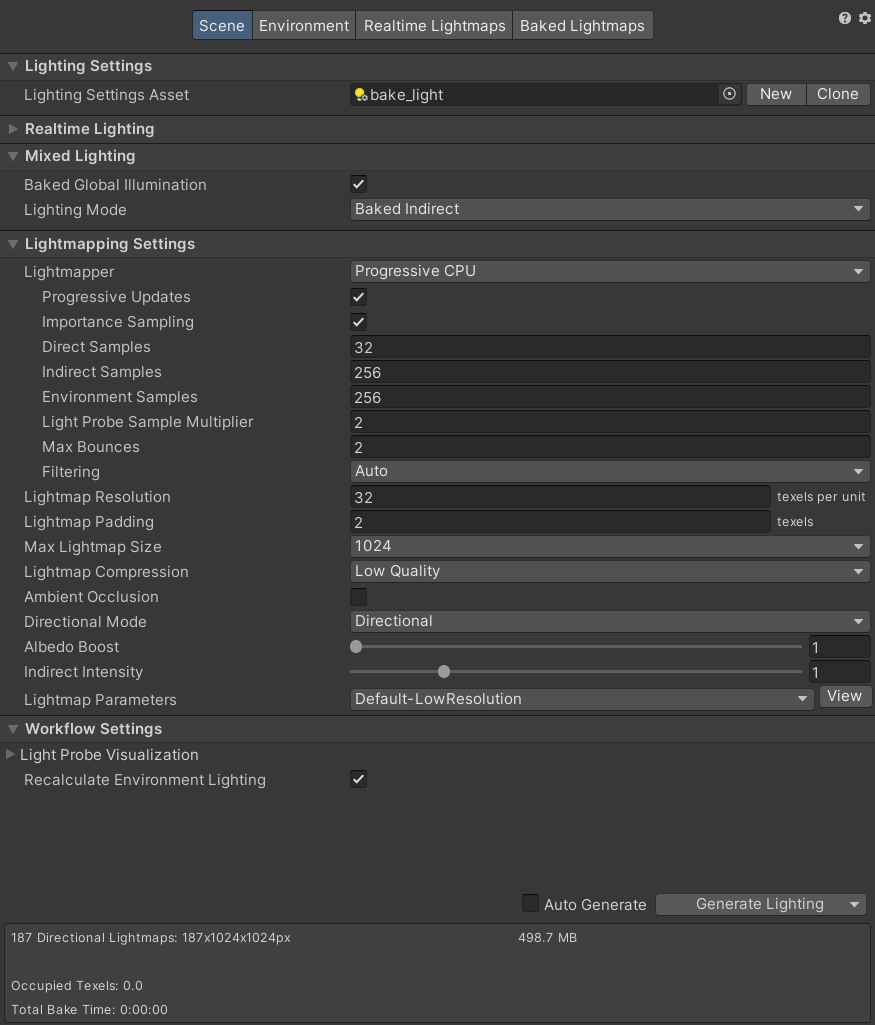
Any change to baked or mixed lights requires rebaking the lighting. Avoid unnecessary changes after your scene is finalized.