Debug Tools
Smooth performance is essential to creating an effective simulation-based study. Unity provides tools for investigating performance and memory use.
The Unity Profiler helps you examine how much processing time different parts of the application take, while the Memory Profiler helps you investigate which objects and resources occupy memory. You can use these alongside tools designed for the platform running your study, such as browser profiling tools for a WebGL build. Unity's overview of profiling and debugging tools introduces these options and points to their documentation.
HRI-MobiSim complements these tools with built-in utilities for testing your scenarios. They provide quick checks within the running scene, such as viewing performance information, observing an interaction from another angle, or testing an action with a keyboard shortcut. This guide introduces the debugging tools available in HRI-MobiSim, explains when to use them, and shows how to set them up for scenario testing.
Debug Manager
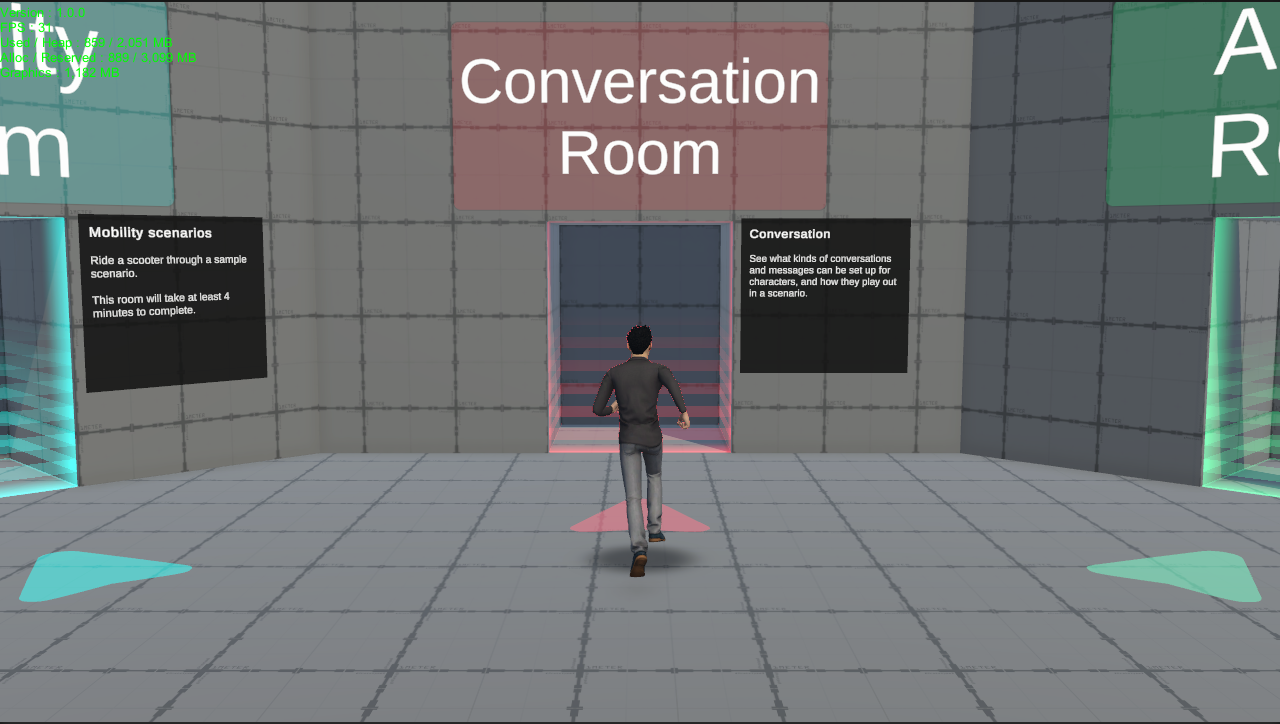
The DebugManager is a ready-to-use prefab that draws a green readout in the Game view to show statistics such as the current frame rate, and how much memory Unity is using.
The manager requires the custom scripting symbol DEVELOPMENT to remain in the running scene. If the symbol is missing, the component destroys its GameObject and all its children at startup, including the performance readout. This applies both in Editor Play mode and in built applications. Adding the prefab to a scene is therefore not enough on its own; define the symbol for the active target platform before testing it.
Do not confuse Development Build in Build Settings with the custom DEVELOPMENT symbol. DebugManager checks DEVELOPMENT, not Unity's DEVELOPMENT_BUILD symbol. Enabling Development Build alone will not keep this manager alive.
To define the symbol, add its name to Player settings using the steps below. Unity then recompiles the scripts with that setting. You only need to do this once for the target platform, not every time you enter Play mode. Removing it later and recompiling restores the manager's removal behavior for subsequent runs.
Go to Edit > Project Settings, then select Player in the left sidebar.
Select the Player settings tab for your target, such as PC, Mac & Linux Standalone or WebGL. These settings are platform-specific. You can check the active target in File > Build Settings.
Expand Other Settings and find Scripting Define Symbols under Script Compilation. Add DEVELOPMENT as a new entry, using the + control if shown. If the Editor displays a single text field, separate it from existing symbols with a semicolon, for example EXISTING_SYMBOL;DEVELOPMENT.
Symbols are case-sensitive: enter DEVELOPMENT in uppercase, without quotes.
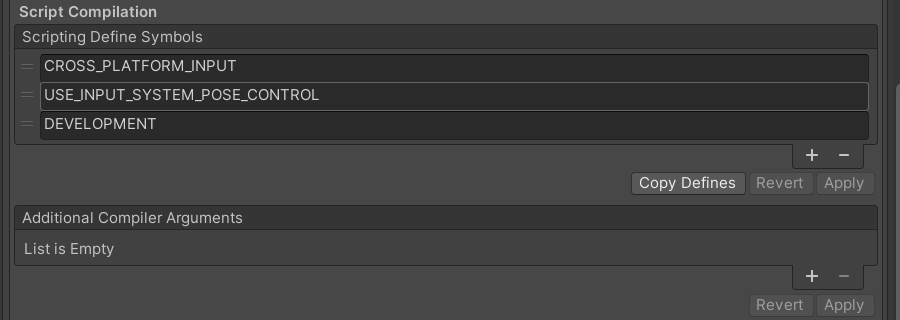
Click Apply if the settings show that button, then wait for Unity to finish recompiling scripts.
In the Project window, go to Assets > mobisim > Debug > Prefabs, and drag the DebugManager prefab into the Hierarchy. Keep it at the top level, rather than making it a child of a vehicle or UI panel.
Expand the new object and select its PerformanceStatusMonitoring child to see the readout settings in the Inspector.
Enter Play mode. With DEVELOPMENT defined for the active target, the manager should remain in the Hierarchy and green performance text should appear in the Game view after the first refresh. If the manager disappears, recheck the active platform's symbol settings. If it remains but no text appears, check that its child is active and Show Status On Gui is enabled.
To keep the Debug Manager available across scene loads, add the DebugManager prefab to the Prefabs list on the StartUpInitialization component in the Initialization scene. Initialization creates it under a persistent parent, so you do not need to add it to each scenario scene.
Reading the Values
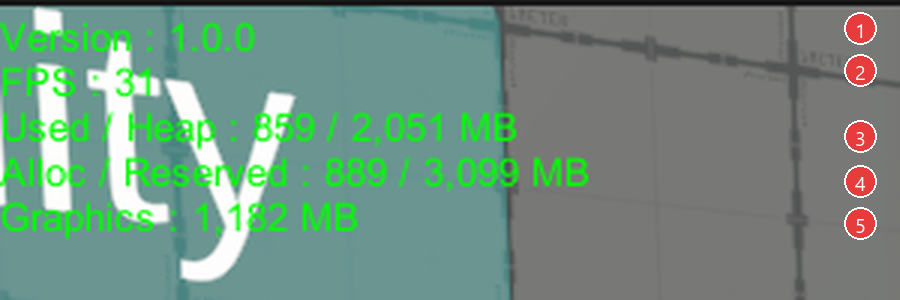
The numbered labels identify each line of the readout, from top to bottom:
- Version: The application's version number, as configured in the project. Use it to identify the version you are testing; it is not the Unity Editor version.
- FPS: An estimate of how many frames the application produces per second.
- Used / Heap: Memory used by the C# scripting runtime, followed by the total size of its managed heap, in megabytes (MB). The heap is the area where the runtime stores managed objects. Its total size includes space available for reuse, so the second number can be larger than the first without indicating a problem.
- Alloc / Reserved: Memory currently allocated through Unity's memory allocators, followed by the total memory those allocators have set aside, in MB. Reserved memory includes both allocated memory and space available for reuse. The two numbers should not be added together.
- Graphics: Memory reported by Unity for the graphics driver, in MB. This indicates memory use associated with graphics resources, not how quickly the graphics processor renders the scene.
The memory readings (3 to 5) appear only in the Editor and include memory used by the Editor process. They do not represent the memory use of the final built application, and the categories should not be added together to calculate a total.
Spectator Camera
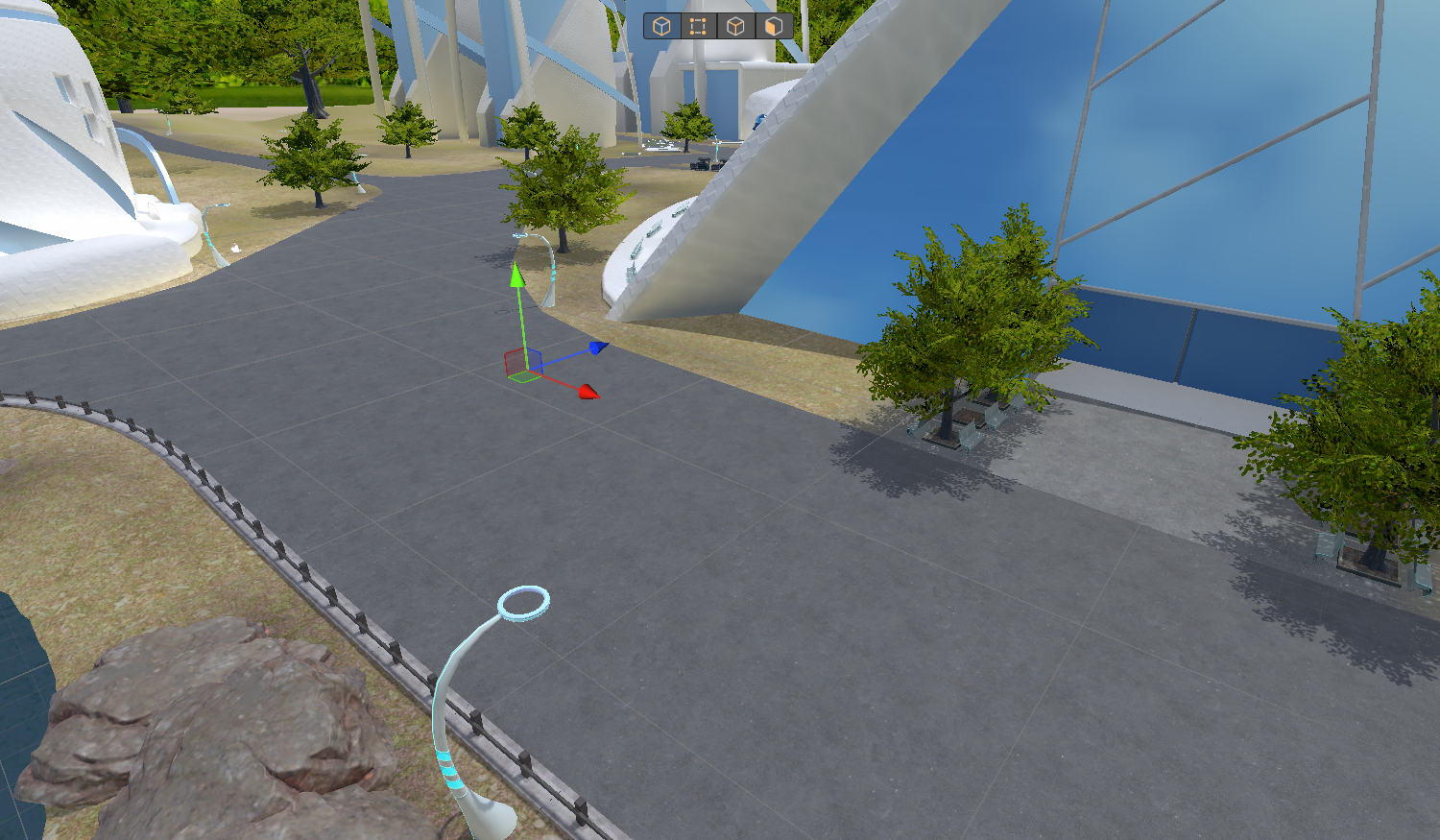
During testing, you may need to look around while using the running scenario's interface or keyboard shortcuts. You may also need to check camera-specific visual effects or behavior that depends on the camera's position. The Scene view uses the Editor's own navigation controls and viewing settings; moving it does not move the camera used by your scenario. It is also unavailable in a built application.
This is where the Spectator Camera comes in. It is a free-moving camera controlled with the keyboard and mouse, allowing you to navigate while keeping the Game view focused. It gives you a movable camera within the application, both in Editor Play mode and in test builds. To check particular visual effects or camera-dependent behavior, configure the spectator with the camera settings you want to test and ensure that the relevant scripts use it as their camera.
The prefab does not include a participant/spectator switching system. You therefore need to decide which camera renders during this test; leaving both active can make it unclear which view you are controlling.
Outside Play mode, open Assets > mobisim > Debug > Prefabs in the Project window and drag SpectatorCamera into your test scene's Hierarchy.
Select the new object and use its Transform controls to position it near the area you want to inspect, facing the interaction.
Keep the spectator's Camera component enabled. In your test scene, select any camera that would otherwise render the participant's view and uncheck its Camera component in the Inspector. This lets you inspect the scene through the spectator camera without another camera drawing over its view.
If your scenario creates a participant camera at runtime, account for that camera in your test setup too. The spectator prefab does not automatically switch off other cameras, and its keyboard controls can also reach participant input scripts using the same keys.
Enter Play mode and click inside the Game view so it receives keyboard and mouse input. Use the controls below to move around the scene and examine the interaction from different angles.
If the camera moves too slowly or turns too quickly, select SpectatorCamera in the Hierarchy and adjust the following settings on its Spectator Camera component in the Inspector. Increase a value for faster movement or turning, or decrease it for finer control.
Changes made during Play mode are temporary. To keep your adjustments, note the values, stop Play mode, and enter them again on the scene's spectator camera.
You can also configure the spectator camera to activate a scenario's Event Triggers by moving into their trigger areas, rather than driving or walking there.
Add a small Sphere Collider and a Rigidbody to the SpectatorCamera GameObject. On the Rigidbody, enable Is Kinematic and disable Use Gravity so the camera can participate in trigger detection without being moved by gravity or collisions.
Make sure the event trigger's filters accept the camera. For example, in a test scene, use an Object filter that references the SpectatorCamera GameObject. The camera's layer and the trigger's layer must also be allowed to interact in the Physics Layer Collision Matrix. Moving the camera's collider into the trigger area can then invoke its entry event; navigating Scene view alone cannot do this.
Use this setup for testing, and check that the connected actions can work with the camera as the triggering object rather than requiring a vehicle or pedestrian component.
Key Code Trigger
An interaction usually has both a condition that starts it and an action that follows. For example, entering an area might cause an object to become visible. If that object never appears, you need to determine whether the starting condition was reached or whether the action itself is incorrectly configured.
The KeyCodeTrigger lets you call a configured action with a key press. Connecting the same action to a temporary shortcut allows you to test it without repeatedly travelling to the area that normally triggers it. If the action works from the shortcut under the same required conditions, you can focus your next checks on the normal trigger and its connections. If it still fails, inspect the target object, the selected function, and any state that function requires.
The connection is configured through a UnityEvent, an Inspector list of functions to call. Each entry, called a listener, specifies an object and a function on that object or one of its components. A key press invokes the list. This lets you connect an existing action without writing a new script; it does not make every operation available automatically, because the function must be suitable for selection in the event menu.
Treat this as a test of the selected action, not of the whole interaction. Calling one function does not recreate earlier scenario events or satisfy conditions that the function depends on. After checking the action, repeat the normal participant sequence to verify that it is also reached correctly during the scenario.
Trigger Modes
The Mode setting controls whether the key trigger can invoke its event in the Unity Editor, in a built application, or in both. Use it to choose where the keyboard shortcut should be available.
KeyCodeTrigger is intended as a testing utility and is not recommended for deployed studies. Although you can enable it in a build using Player Only or Both for simple keyboard interactions, use it sparingly. For more complex interactions or a larger set of controls, use a dedicated input-handling system rather than relying on many separate key triggers.
Example: Hide a Test Object with a Key
The following example connects a key to Unity's built-in SetActive function. Setting a GameObject inactive hides its rendered objects and stops its normal component updates. A cube makes this result easy to see, so you can learn the event connection before using it on a scenario component.
Outside Play mode, choose GameObject > 3D Object > Cube and name it Test Marker. Put it where the test camera can see it. Leave the GameObject active.
Choose GameObject > Create Empty, name it Debug Shortcuts, and add the KeyCodeTrigger component through Add Component. Keep this object separate from Test Marker so hiding the marker does not disable the shortcut.
Set Mode to Editor Only and Key to F8, provided that key is not already used by your test setup. You can choose another unused key instead.
Under Event, click + to add a listener. Drag Test Marker from the Hierarchy into the listener's object slot. Open the No Function menu, choose GameObject > SetActive(bool), and leave its Boolean checkbox unchecked. That means the event will set the marker's active state to false.
Enter Play mode, click in the Game view, and press F8. The marker should disappear, while Debug Shortcuts stays active. Stop Play mode to return to the saved scene state. For a real debug action, replace the listener with the intended target component and method.
In this example, every key press requests the same action: set Test Marker inactive. It is not a toggle, so pressing the key a second time will not make the cube reappear. To test it again in the same run, reactivate Test Marker using its checkbox at the top of the Inspector, then press the shortcut again.
The event fires once when the key is first pressed. Holding the key does not repeatedly invoke it. It also does not consume the key: other input scripts and other KeyCodeTriggers can respond to the same press. Choosing an unused key keeps this test from also steering a vehicle or activating another shortcut.