Command-Line Arguments
You can pass command-line arguments when you launch your built application to change how it runs. Only Windows standalone builds read command-line arguments; they do not work in WebGL builds.
On Windows, you can add arguments to a shortcut to launch the application with those arguments. Shortcut arguments are command-line parameters added to a program's shortcut to customize how it runs.
-
First, locate or create the shortcut pointing to the application's executable file.
-
Then, open the shortcut's properties window.
-
In the properties window, locate the Target field on the Shortcut tab. You add arguments by editing Target.
For example, say the shortcut points to:
"C:\Program Files\Some App\Some App.exe"To add arguments, type each argument and its value at the end of the line, separated by single spaces. For example, to force the application to use subject ID 1, the Target becomes:
"C:\Program Files\Some App\Some App.exe" -force-subject-id 1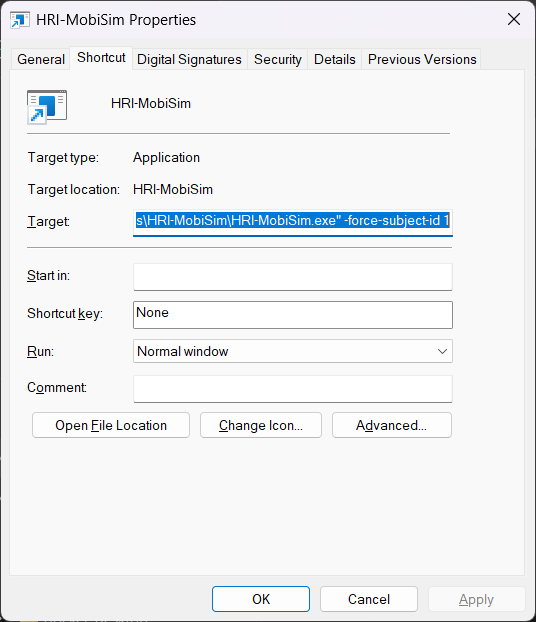
-
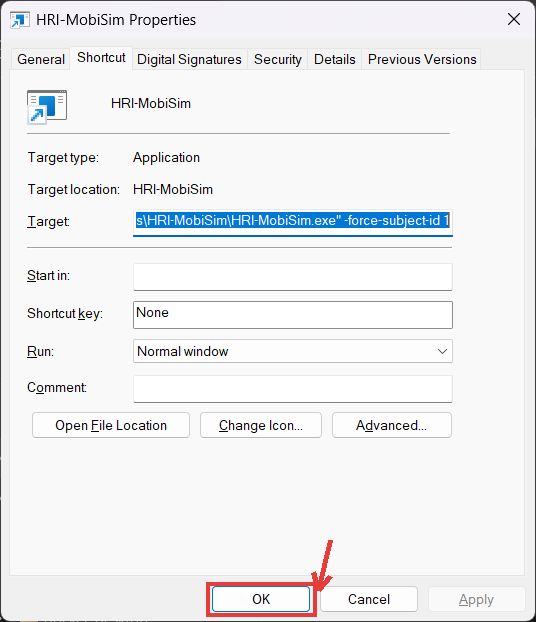
When you are done editing the shortcut, click Apply or OK to save your changes.
For Unity's built-in command-line options, see the Unity documentation: Unity Standalone Player command line arguments.