Building the Application
While you can test your project in the Unity Editor, you often need to run a build outside the Editor. Playtesting in the Editor often suffers from reduced performance due to the Editor's own overhead, and some issues only appear in a standalone build. Creating a build is also an essential step when preparing for deployment or release. To test your project properly and prepare it for distribution, you need to build the simulator.
To do this, open File > Build Settings.
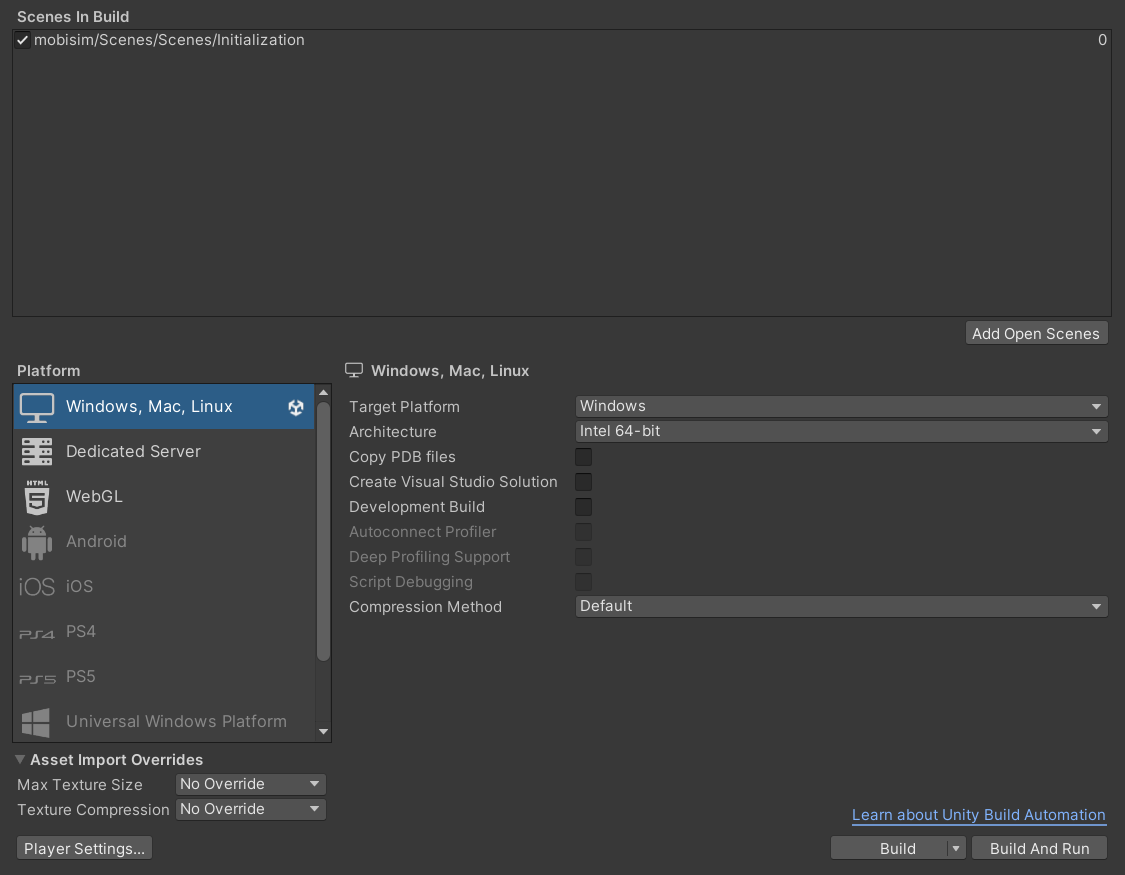
In the Build Settings window, make sure that the Initialization scene (mobisim/Scenes/Scenes/Initialization) is included in the Scenes In Build list. This scene must be enabled (checked) and placed at index 0 in the list. The scene at index 0 is always the first scene loaded when the simulation starts, so this step is critical for the build to run as expected.

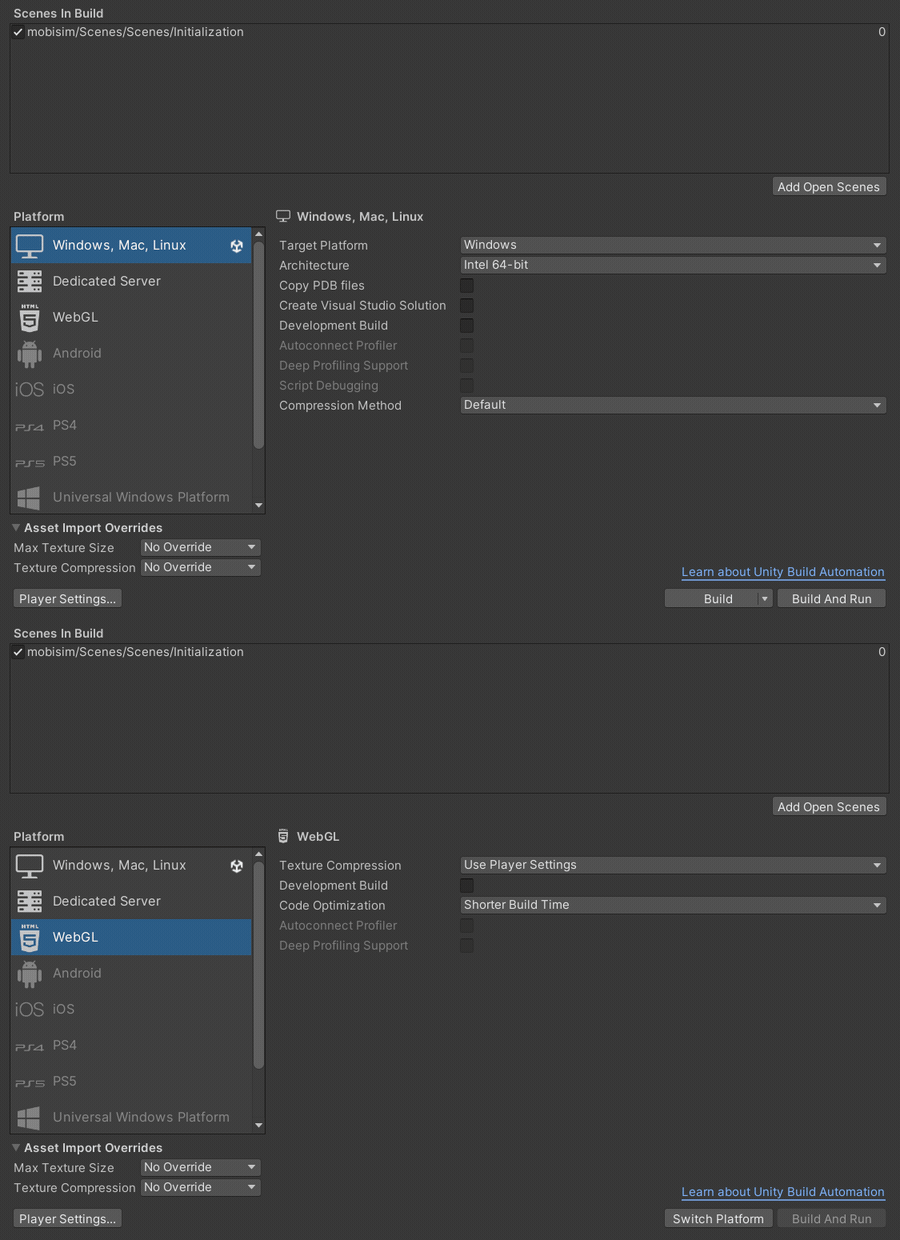
Next, select the platform you want to build for. In the Build Settings window, select the platform from the list on the left and click Switch Platform.
Switching platforms takes some time. Wait for the switch to complete before continuing with the build process.
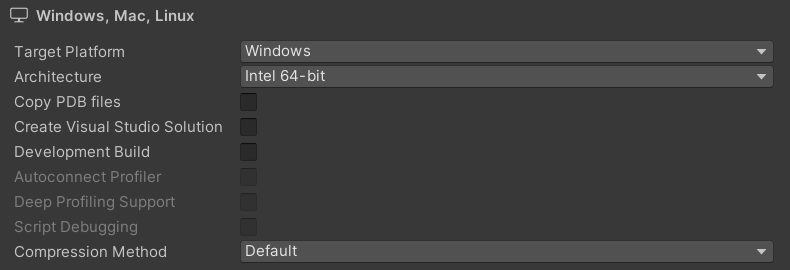
Unity produces two build types:
- Release build: includes only what’s necessary to run the application. This is intended for distribution to end users.
- Development build: includes scripting debug symbols and the Profiler to help with debugging and performance analysis.
Development builds typically compile faster but result in larger file sizes. They are useful for quick testing during development. For final deployment, always use a Release build to ensure optimal performance and a smaller build size.
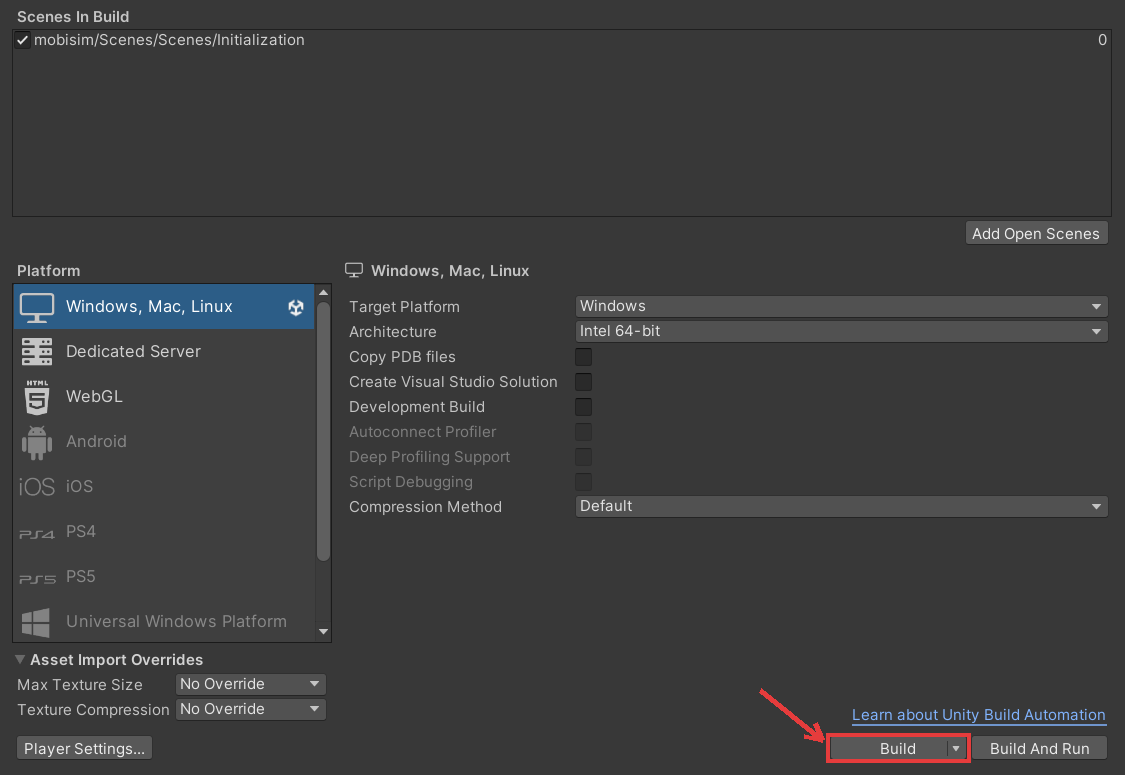
Finally, click Build or Build and Run.
Build generates the WebGL build in the chosen folder. Build and Run builds the project and immediately launches it.
Select the folder where you want to save the build, and wait for the process to complete.
For more information about Unity’s build system, see the official documentation.