Addressables
The simulator uses Unity’s Addressables system to manage assets at runtime. The Addressables system lets you mark assets (such as scenes or ScriptableObjects) so Unity can load them by reference when needed, rather than including them directly in scenes. This is a standard Unity feature for managing runtime content.
Addressables are not a “set it and forget it” feature: you need to understand how to set them up and maintain them properly to avoid issues.
How to Work with Addressables in the Editor
Here’s how to work with Addressables in the Unity Editor:
Step 1: Mark Assets as Addressable
To have Unity manage specific assets as Addressables, mark them as Addressable.
- Select your assets in the Project window.
- In the Inspector, enable the Addressable checkbox.
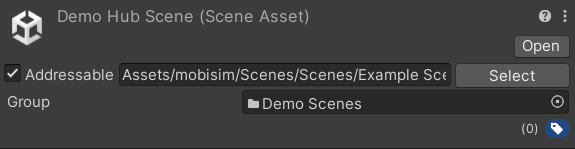
Mark any scene that should be included in the final build as Addressable. This is required if you want to load scenes at runtime through Addressables.
Also mark any ScriptableObjects as Addressable if you want them to be shared consistently across scenes. Otherwise, Unity might create duplicate copies when building, and the data won’t stay shared.
Step 2: Assign and Rename Addresses
Unity assigns a default address, usually based on the asset’s path, but you can rename it to something more meaningful that is easier to reference.
- Open the Addressables Groups window (
Window > Asset Management > Addressables > Groups). - Find your asset listed under its group.
- Click its address to rename it for clarity (optional but recommended).
Use clear, unique names for your addresses to avoid confusion.
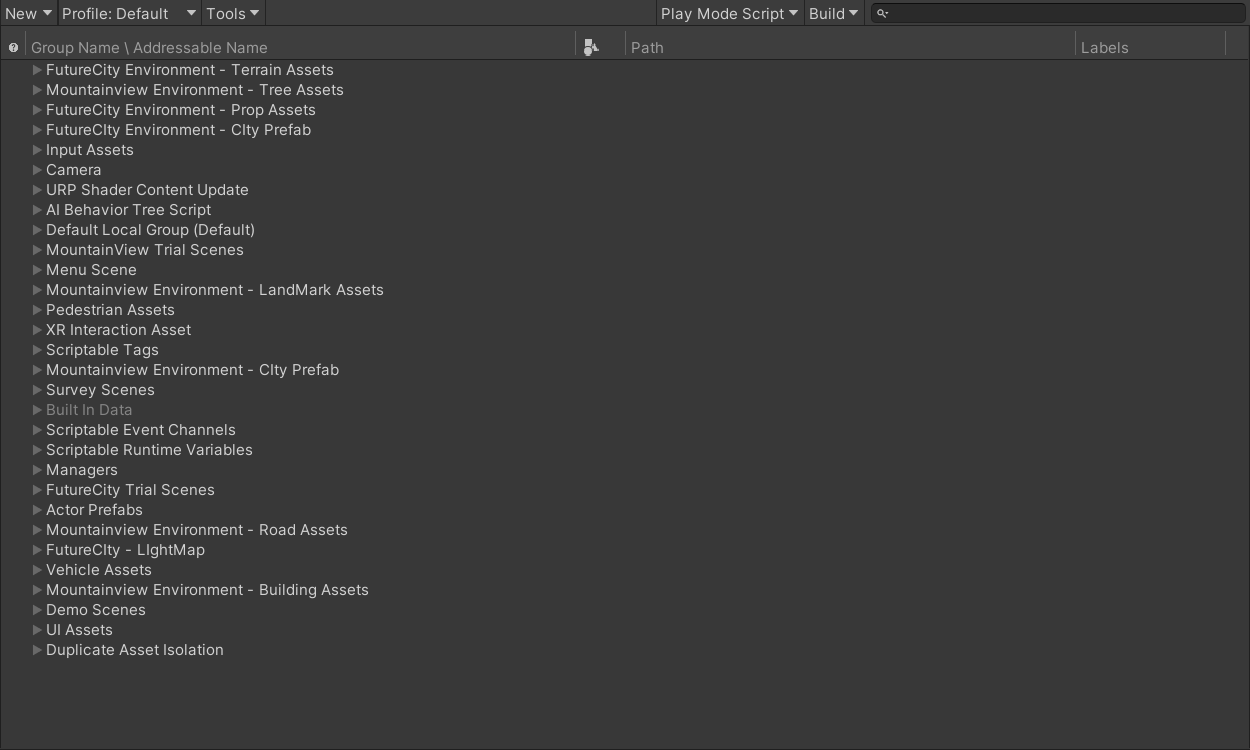

You can also assign or rename the Address directly in the Inspector after marking the asset as Addressable.
Example: Rename Assets/Data/MyScriptableObject.asset to GameData/MainSettings.
Step 3: Organize Assets into Groups
You can group assets in the Addressables Groups window. Groups help organize your assets and control how they are bundled and loaded.
- In the Addressables Groups window, drag assets into meaningful groups (for example, “Scenes”, “UI”, and “Data”).
- You can create new groups by right-clicking in the window and selecting Create Group.
There is no single right way to group Addressable assets. Use the approach that best suits your needs.
Here are three common approaches to grouping Addressable assets in the simulator, with their advantages and trade-offs:
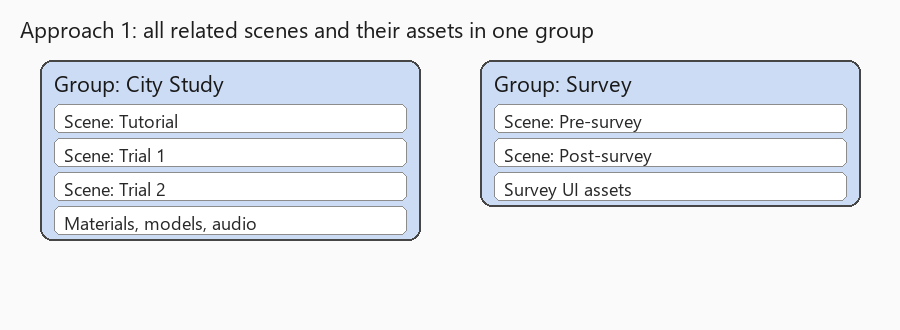
- Group all related scenes together
- Simple to manage, with fewer groups.
- Scenes and shared assets load together, which can mean loading unnecessary data if only one scene is needed.
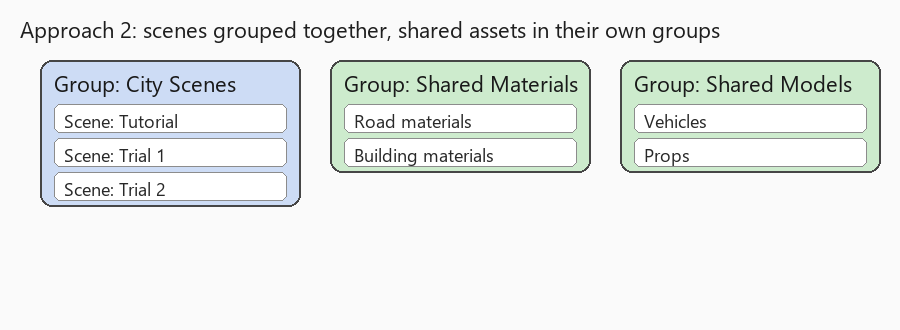
- Group related scenes together and shared assets into separate groups
- Shared assets (such as materials and models) load once and can be reused across scenes.
- Scene groups (asset bundles) stay smaller, improving load times.
- More groups to manage, which can add complexity.
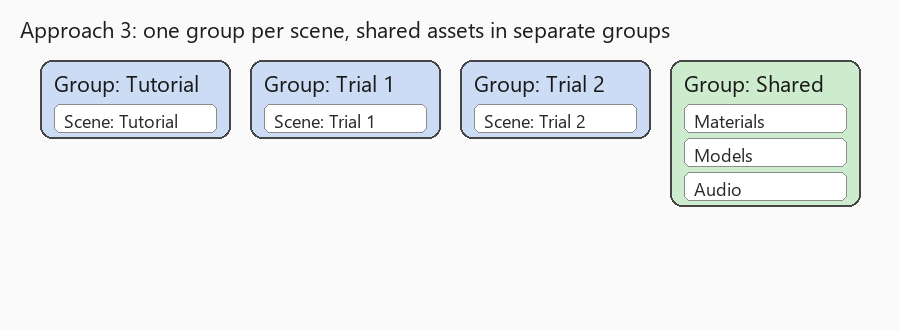
- Group related assets into one or multiple groups, and keep each scene in its own group
- Maximizes flexibility and memory efficiency.
- Shared assets are loaded separately and reused.
- Allows loading only the exact scene you need without extra data.
- Even more groups to manage, which adds further complexity.
Step 4: Build Addressables
After setting up your assets, build the Addressables from the Addressables Groups window. This process prepares your assets so Unity can load them when the game runs.
- In the Addressables Groups window, select
Build > New Build > Default Build Script. - This step packages the assets and prepares them for loading during gameplay.

Whenever you add or modify Addressable assets, remember to update the Addressables build to keep it current.
You don’t need to update after every small change, but be sure to update before building the simulator.
To update, use Build > Update a Previous Build.
Step 5 (Optional): Review the Addressables Report
After building Addressables, you can review how assets are bundled and how large each bundle is.
- Open the Addressables Report window:
Window > Asset Management > Addressables > Addressables Report. - Review bundle sizes, duplication warnings, and dependencies.
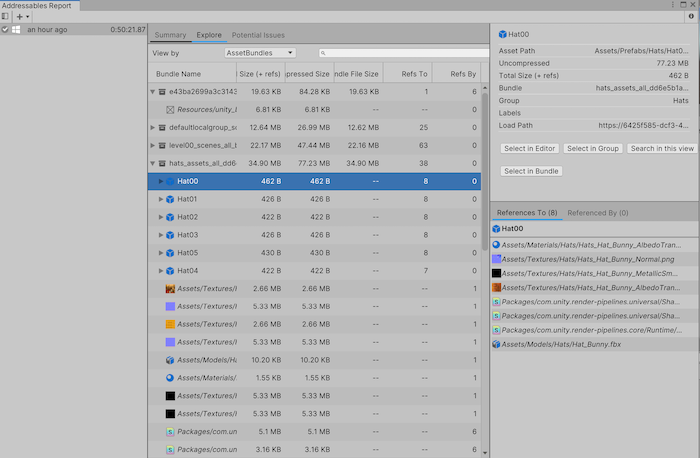
Reviewing the build report helps you catch assets that were accidentally grouped together, or bundles that exceed size limits.
Step 6 (Optional): Reduce Asset Bundle Size (under 10 MB)
If you plan to host the project on Git, keep individual bundles under 10 MB to avoid Git LFS issues.
- If a bundle/group is too large, split it into smaller, more focused groups.
- Rebuild Addressables after adjusting your groups.
Unity provides Analyze rules that help identify problems such as duplicated assets or inefficient bundles, which can help reduce bundle size.
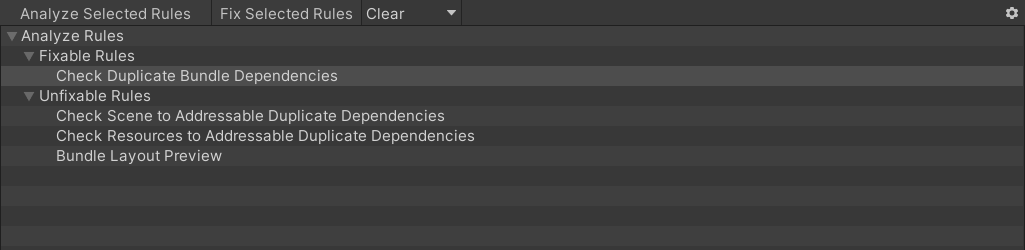
- Open the Analyze window:
Window > Asset Management > Addressables > Analyze. - Run rules like Check Duplicate Bundle Dependencies to find shared assets included in multiple bundles.
- After you run a rule, some rules offer Fix options that clean up the issues automatically.
Additional Resources
For more detailed guidance and best practices, see the official Unity Addressables documentation: