Creating Your First Survey
This quick start guide walks you through creating a basic survey scene in Unity. By the end of this guide, you'll have a fully functional survey ready for deployment in your study.
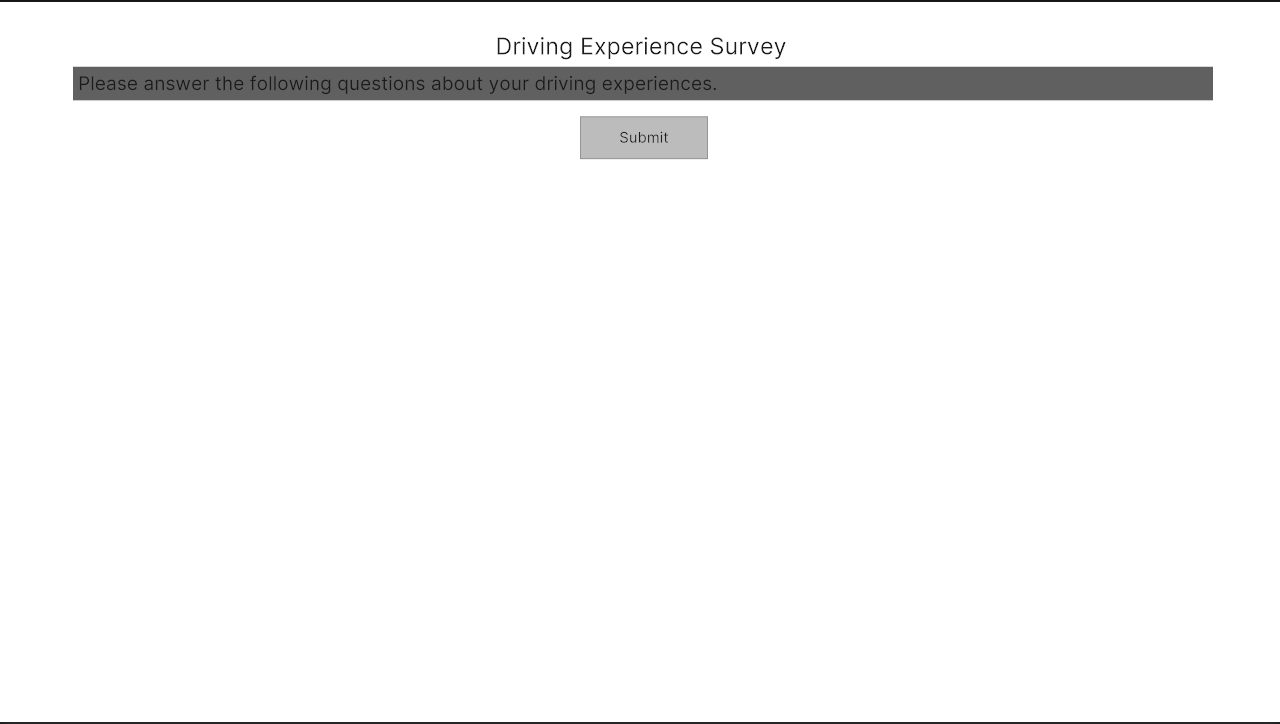
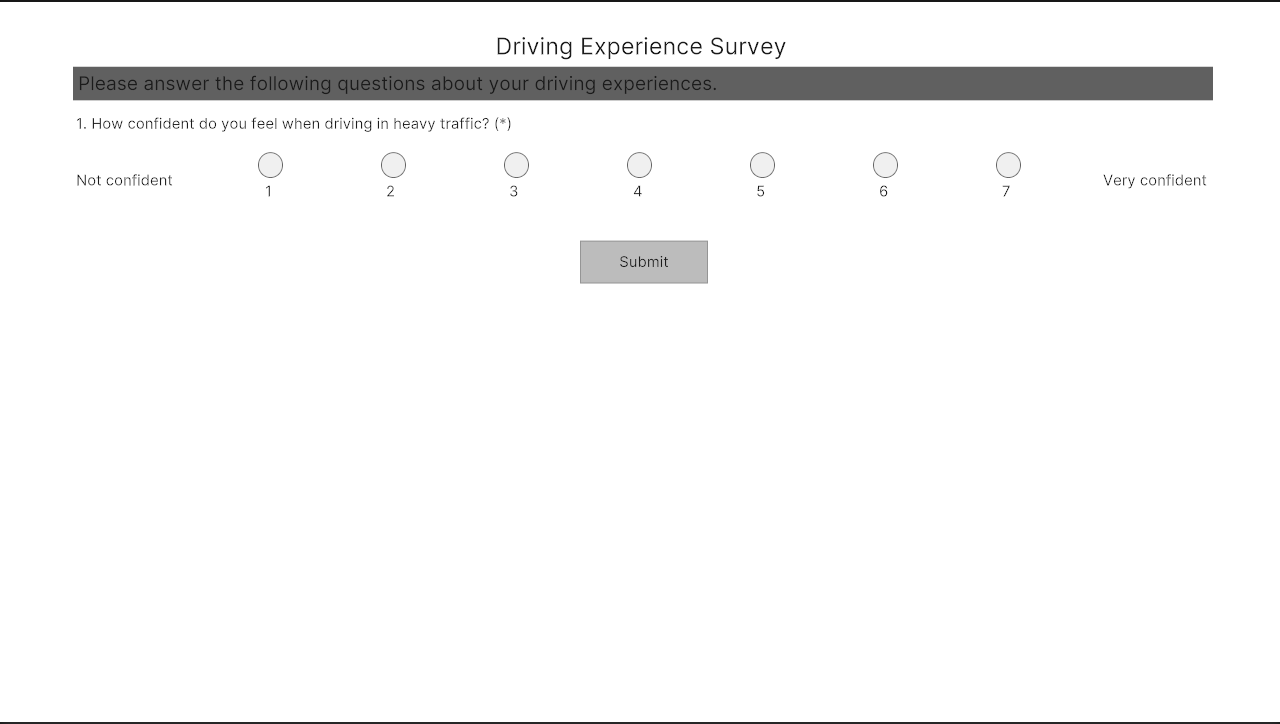
Here's what the finished survey will look like:
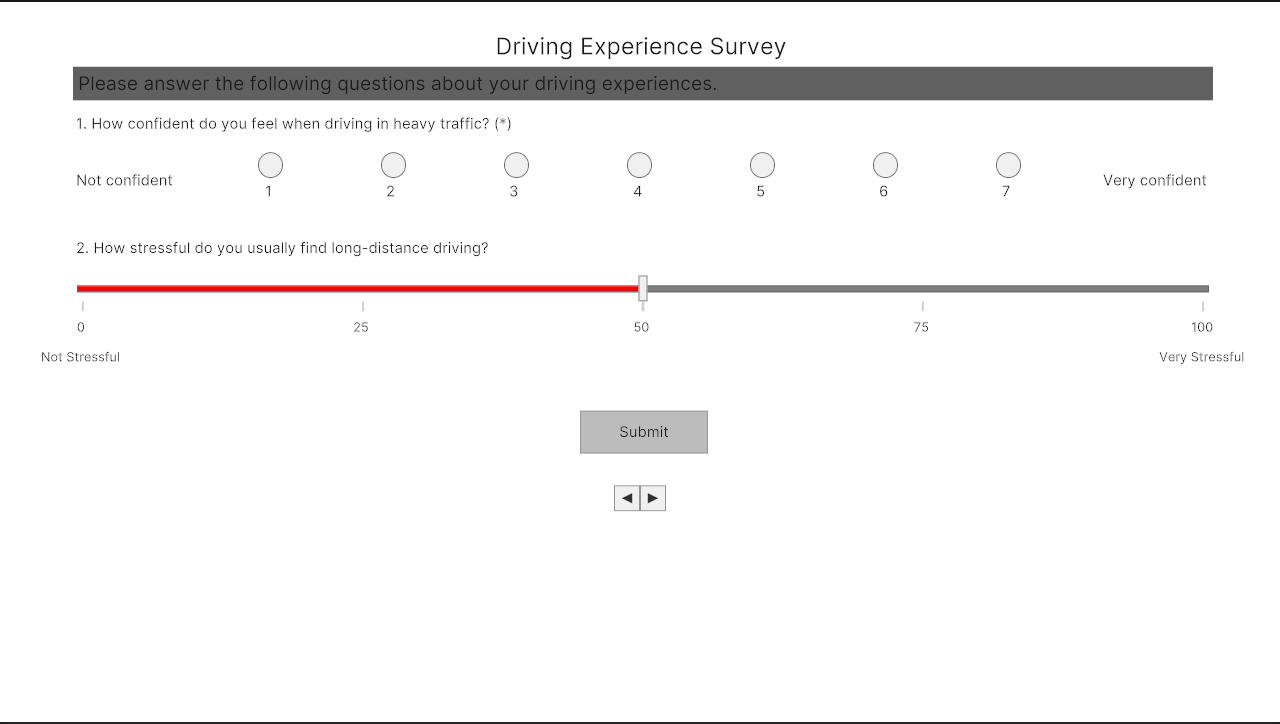
1. Create the Survey Scene
First, create a Survey Scene. Use the Survey Page scene template, which provides a ready-made setup with all the necessary components for running a survey.
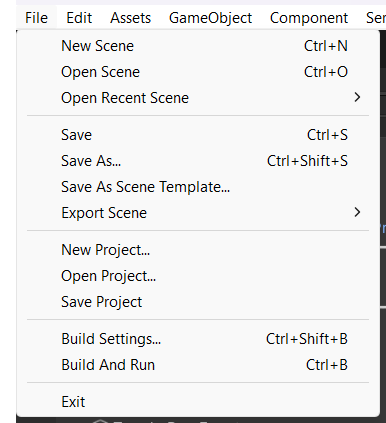
In Unity's main menu, select File > New Scene (or press Ctrl + N).
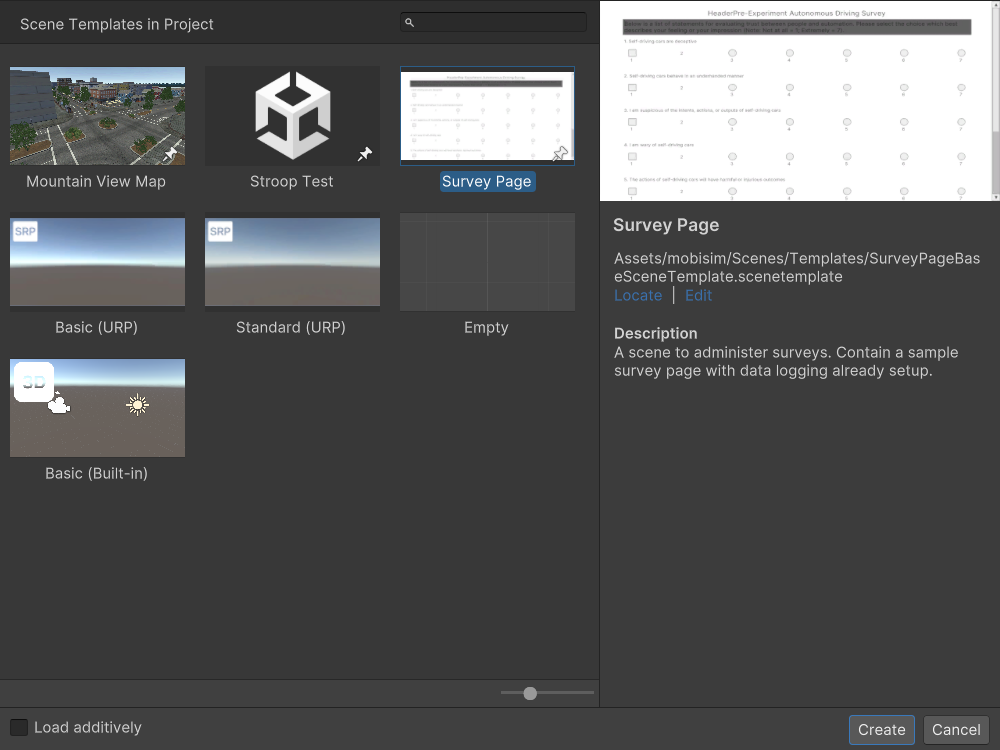
In the New Scene Dialog, select the Survey Page template.
An Untitled Survey scene opens in the Editor.
Save the scene immediately (Ctrl + S), choose a location, and give it a meaningful name (for example, MyDrivingExperienceSurvey).
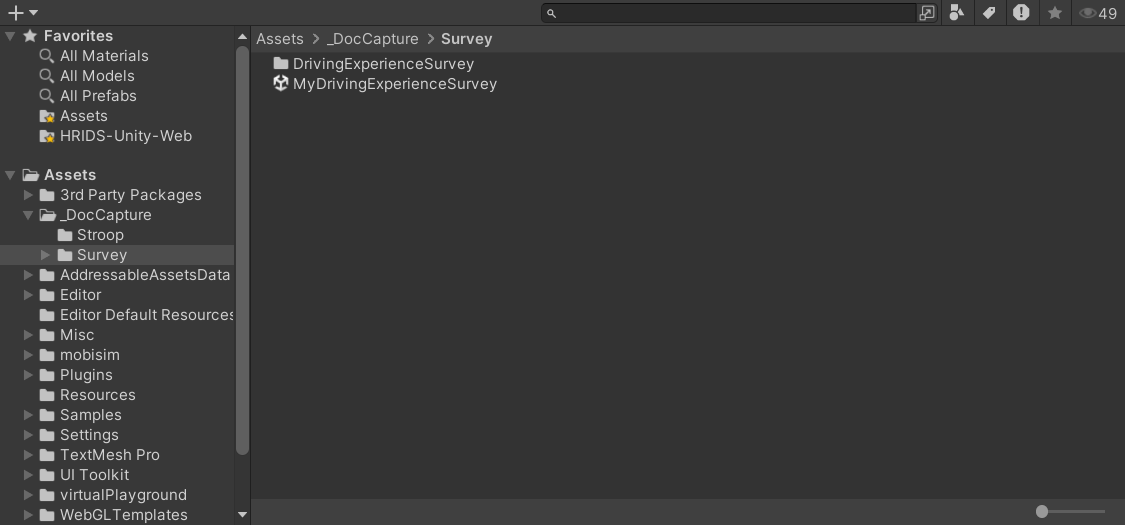
You should now have a Survey Scene ready, with a sample Survey Page already set up.
2. Create Survey Page Data
Next, create a Survey Page Data ScriptableObject to hold the content of the Driving Experience Survey page.
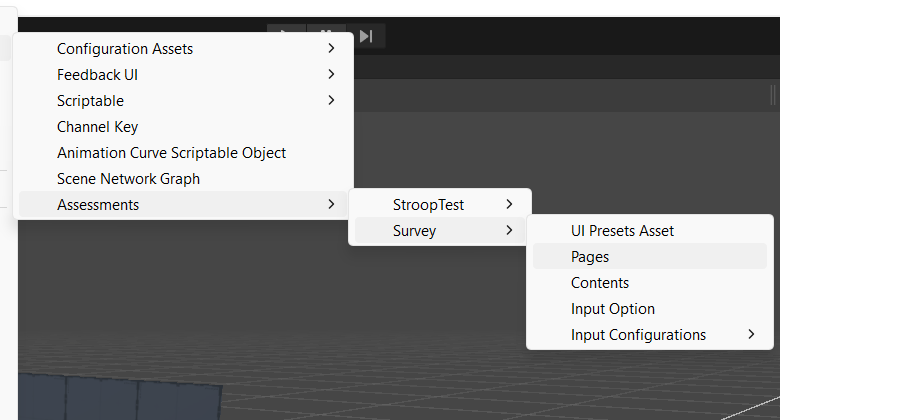
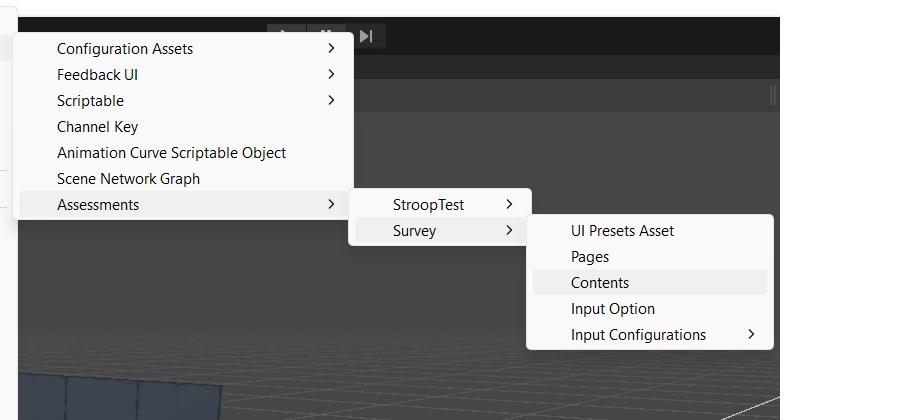
In the Project Window, right-click and select Create > ScriptableObject > Assessments > Survey > Pages. Name it DrivingExperiencePage.
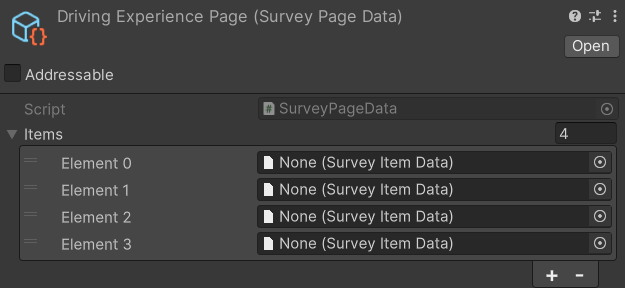
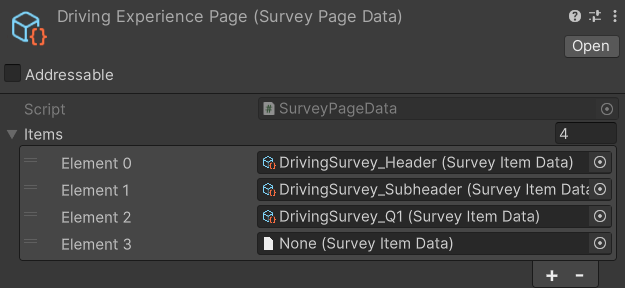
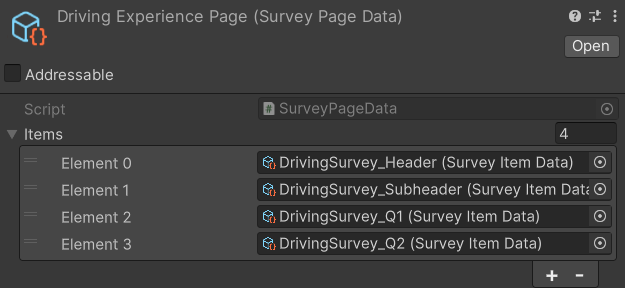
In the Inspector, set the page data's Items list size to 4.
In the Hierarchy, select the SurveyUIDocument GameObject.
Drag the ScriptableObject you just created from the Project window into the Survey Page Data field of the Survey Page Generator component in the Inspector.
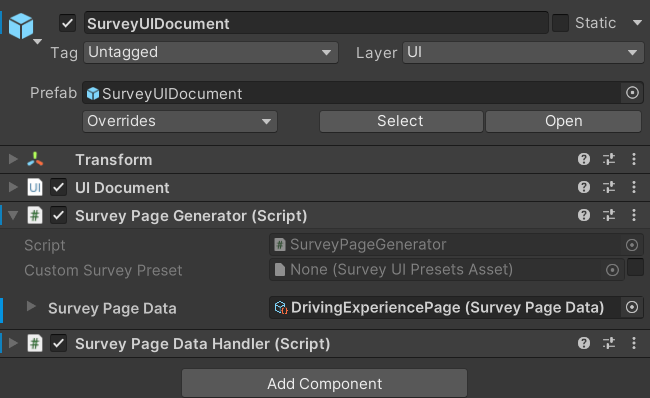
You now have a page container ready to hold all survey items for your survey. With the page set up, you can move on to creating the individual survey items.
3. Create Survey Items: Header and Subheader
In the Project Window, right-click and select Create > ScriptableObject > Assessments > Survey > Contents.
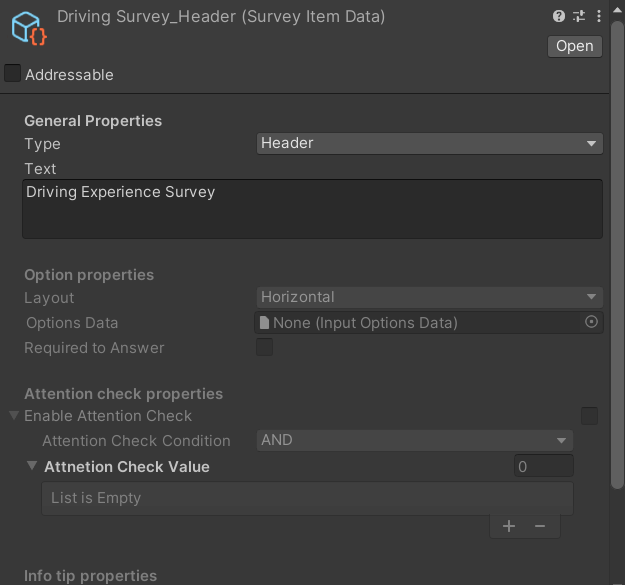
Name the first item DrivingSurvey_Header.
In the Inspector, set the Type field to Header.
Type Driving Experience Survey into the Text field.
In the Project Window, right-click again and select Create > ScriptableObject > Assessments > Survey > Contents.
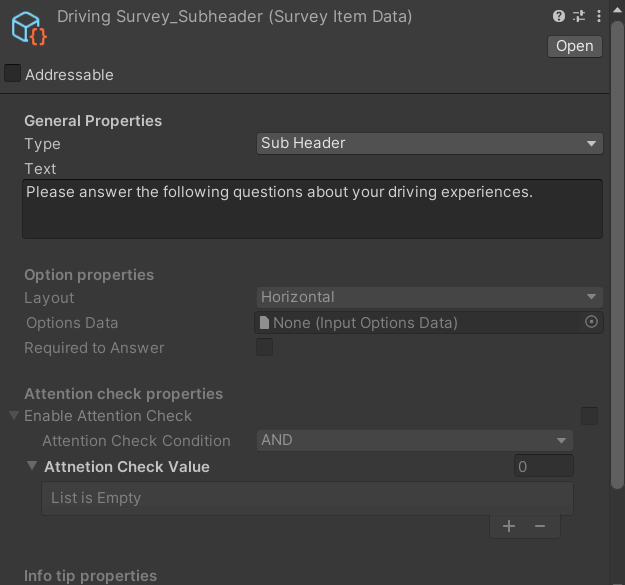
Name the second item DrivingSurvey_Subheader.
In the Inspector, set the Type field to Sub Header.
Type Please answer the following questions about your driving experiences. into the Text field.
Select the DrivingExperiencePage ScriptableObject in the Project Window.
In the Inspector, assign DrivingSurvey_Header to Element 0 and DrivingSurvey_Subheader to Element 1 of the Items list.
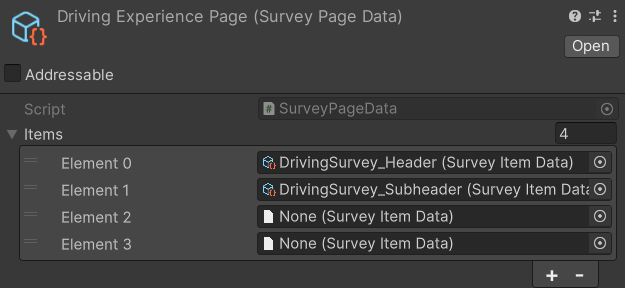
The page now includes the header and subheader, ready for adding the first question.
4. Create Survey Items: First Question
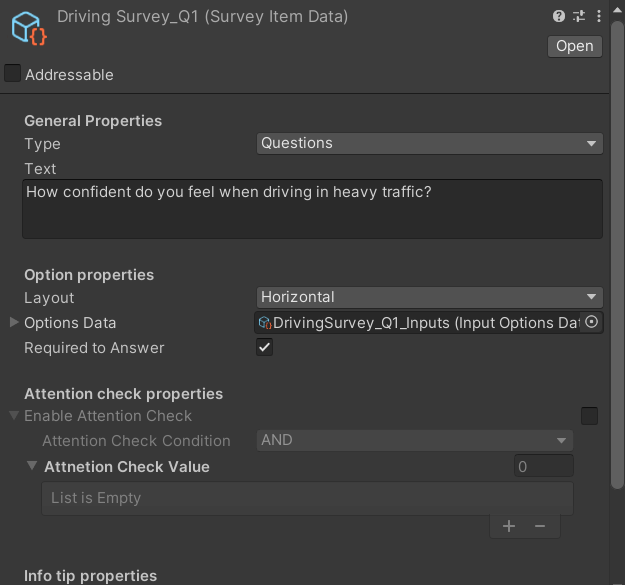
In the Project Window, right-click and select Create > ScriptableObject > Assessments > Survey > Contents to create a Survey Item. Name it DrivingSurvey_Q1.
In the Inspector, set the Type field to Questions.
Type How confident do you feel when driving in heavy traffic? into the Text field.
Enable Required to Answer.
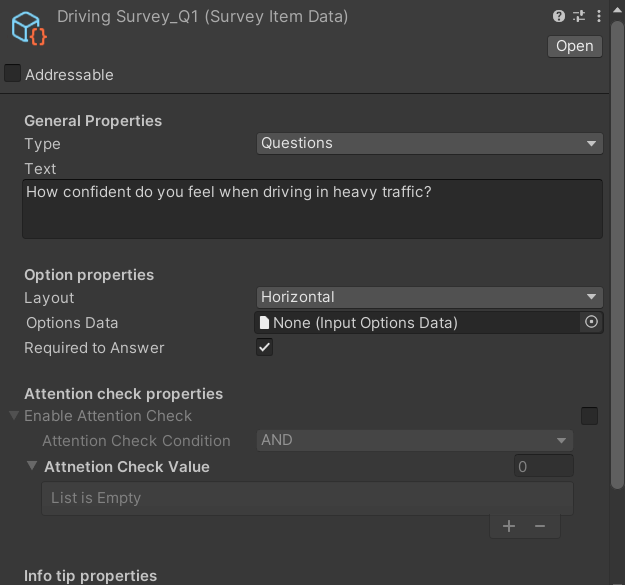
In DrivingExperiencePage's Inspector, drag DrivingSurvey_Q1 to Element 2 of the Items list.
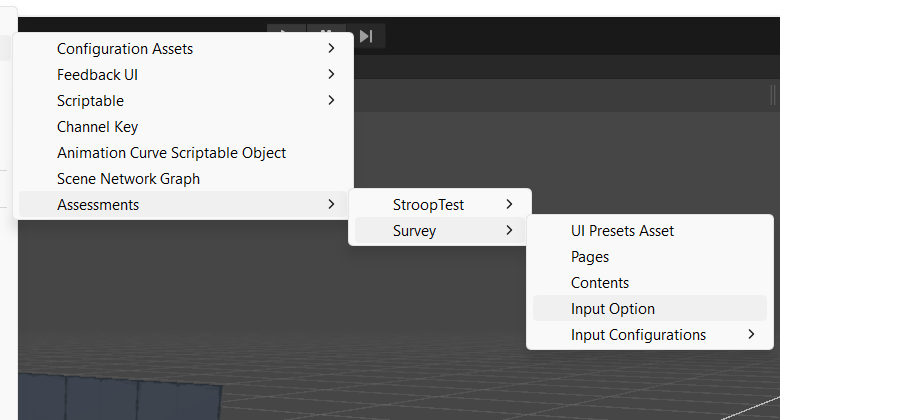
In the Project Window, right-click and select Create > ScriptableObject > Assessments > Survey > Input Option to create a Survey Input. Name it DrivingSurvey_Q1_Inputs.
With DrivingSurvey_Q1_Inputs selected, set the Options list size to 9 and configure each element as follows:
- Element 0 — Type:
Label; Label:Not confident - Element 1 — Type:
Radio; Label:1 - Element 2 — Type:
Radio; Label:2 - Element 3 — Type:
Radio; Label:3 - Element 4 — Type:
Radio; Label:4 - Element 5 — Type:
Radio; Label:5 - Element 6 — Type:
Radio; Label:6 - Element 7 — Type:
Radio; Label:7 - Element 8 — Type:
Label; Label:Very confident
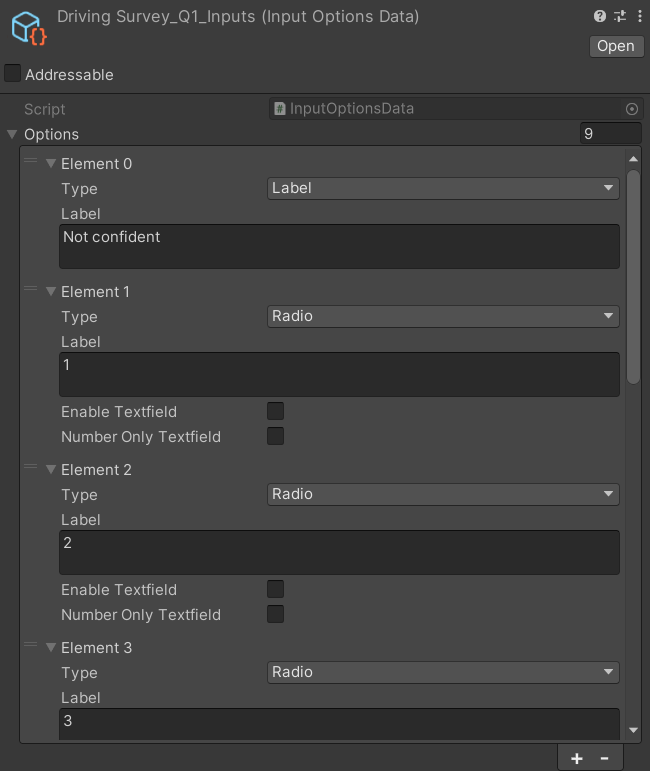
Select DrivingSurvey_Q1 and drag DrivingSurvey_Q1_Inputs to the Options Data field in the Inspector.
At this point, you've completed the first question of the Driving Experience Survey. The page now includes a header, subheader, and your first question with a 7-point confidence scale.
Next, you'll create the second and final survey question.
5. Create Survey Items: Second Question
In the Project Window, right-click and select Create > ScriptableObject > Assessments > Survey > Contents to create a Survey Item. Name it DrivingSurvey_Q2.
In the Inspector, set the Type field to Questions.
Type How stressful do you usually find long-distance driving? into the Text field.
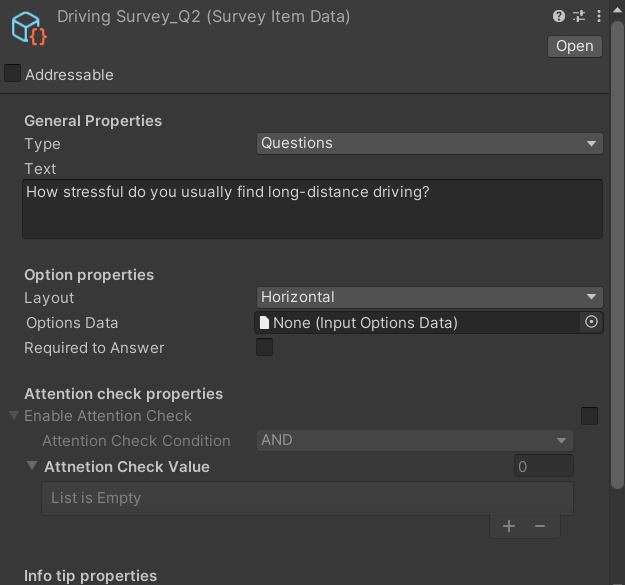
In DrivingExperiencePage's Inspector, drag DrivingSurvey_Q2 to Element 3 of the Items list.
In the Project Window, right-click and select Create > ScriptableObject > Assessments > Survey > Input Option to create a Survey Input. Name it DrivingSurvey_Q2_Inputs.
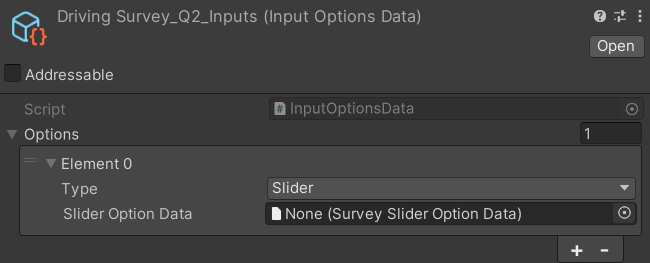
With DrivingSurvey_Q2_Inputs selected, set the Options list size to 1 and set Element 0's Type to Slider.
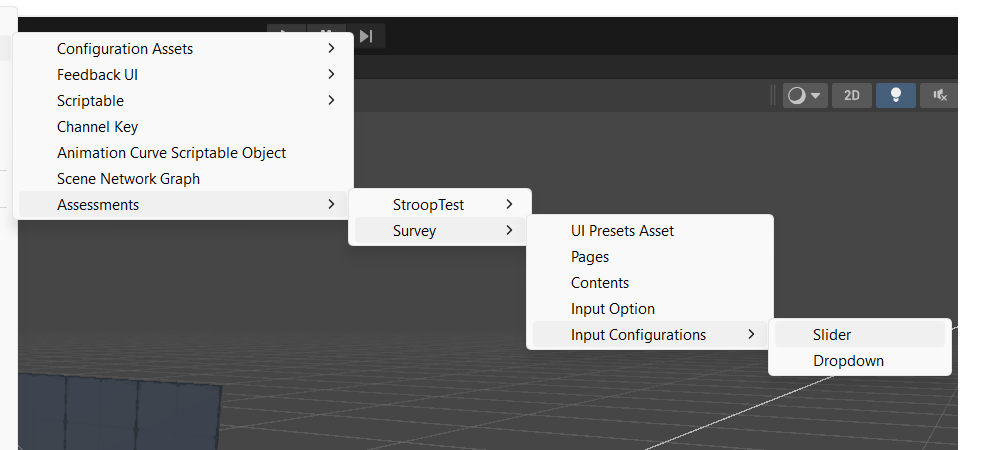
In the Project Window, right-click and select Create > ScriptableObject > Assessments > Survey > Input Configurations > Slider to create a slider configuration. Name it DrivingSurvey_Q2_Inputs_Slider.
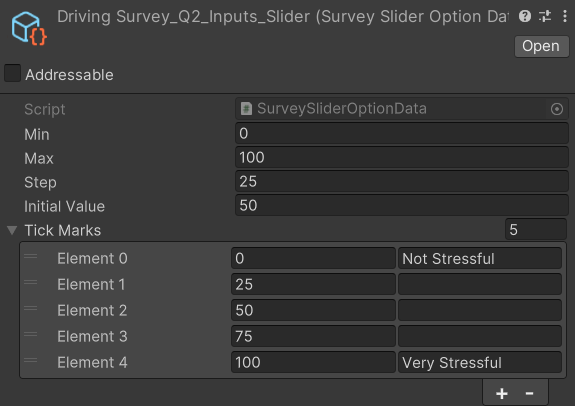
Configure DrivingSurvey_Q2_Inputs_Slider in the Inspector as follows:
- Min:
0 - Max:
100 - Step:
25 - Initial Value:
50 - Under Tick Marks, set the size to
5and configure each element as follows:- Element 0: Value =
0, Label =Not Stressful - Element 1: Value =
25 - Element 2: Value =
50 - Element 3: Value =
75 - Element 4: Value =
100, Label =Very Stressful
- Element 0: Value =
In the Project Window, select DrivingSurvey_Q2_Inputs.
In the Inspector, expand Element 0 of the Options list and drag DrivingSurvey_Q2_Inputs_Slider into the Slider Option Data field.
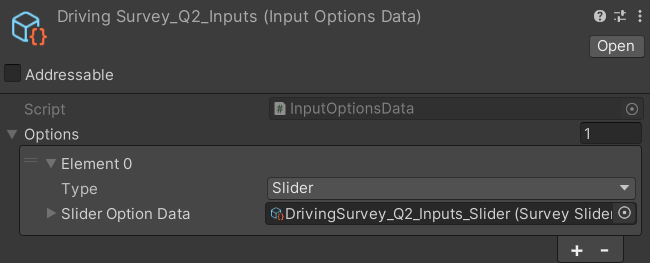
Select DrivingSurvey_Q2 and drag DrivingSurvey_Q2_Inputs to the Options Data field in the Inspector.
At this point, you've completed a fully functional Driving Experience Survey.
To expand the survey, try adding more questions on your own, such as a question with a text area, a question with a dropdown input, or other input types to collect different kinds of responses.