Survey Page
A working knowledge of ScriptableObjects is recommended before you continue. If you are unfamiliar with them, read the Unity ScriptableObject guide first.
This section gives an overview of how to create and implement surveys in Unity.
Assets > mobisim > Assessment > Survey > ScriptableObject
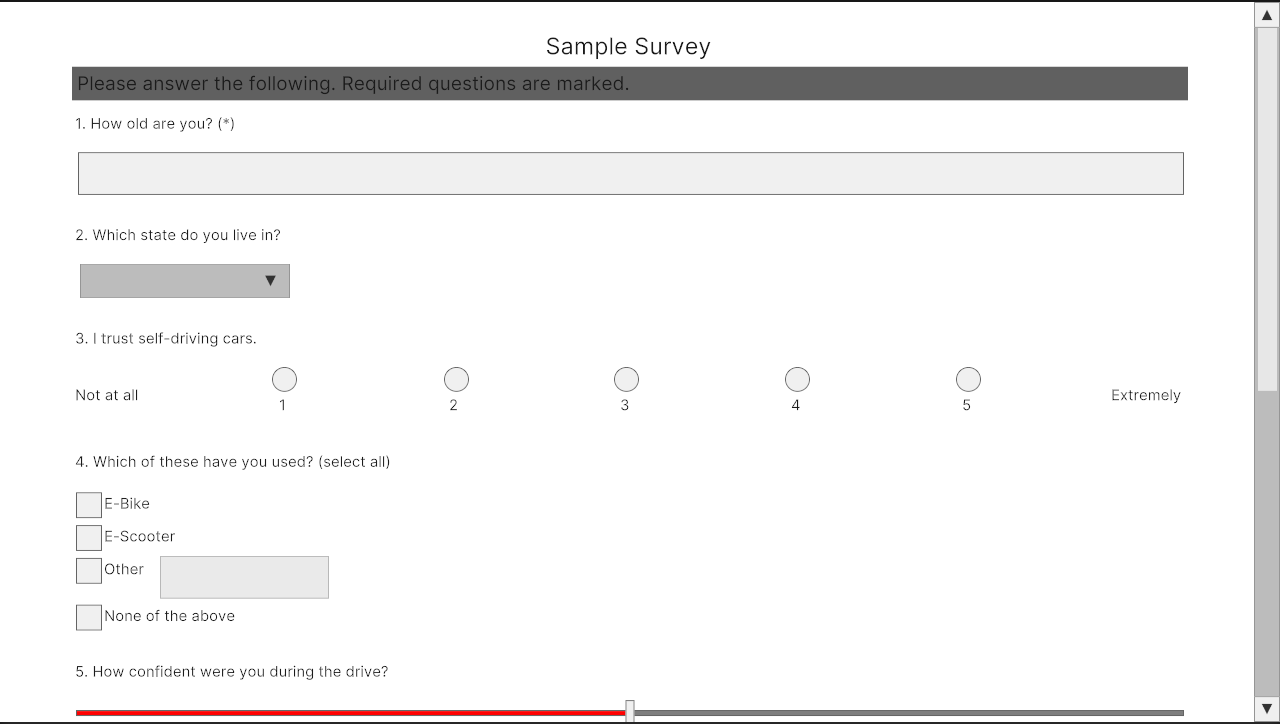
A single survey page in the simulator is built from three ScriptableObject assets:
- Survey Page: defines the layout and content of a single page of the questionnaire shown to participants.
- Survey Item: defines the individual questions or text of the questionnaire. You can also configure survey items as headers or subheaders.
- Survey Input: defines the response options (inputs) available for a question, such as radio buttons, checkboxes, or a slider.
You create these as assets in the Project window and assign them to a survey scene. At runtime, the scene automatically generates the questionnaire from them.
To keep assets organized, create a dedicated subfolder for each questionnaire inside your ScriptableObjects folder. Each questionnaire needs a Survey Page, one or more Survey Items, and a Survey Input.
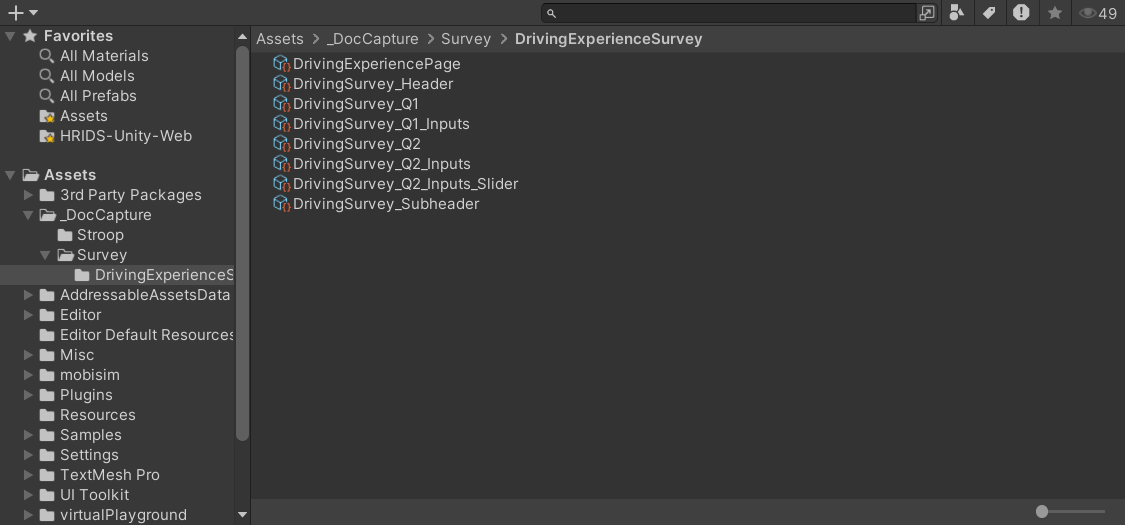
The sample survey page used by the Survey Page scene template is a working example of this structure. Its assets are in the survey project folder:
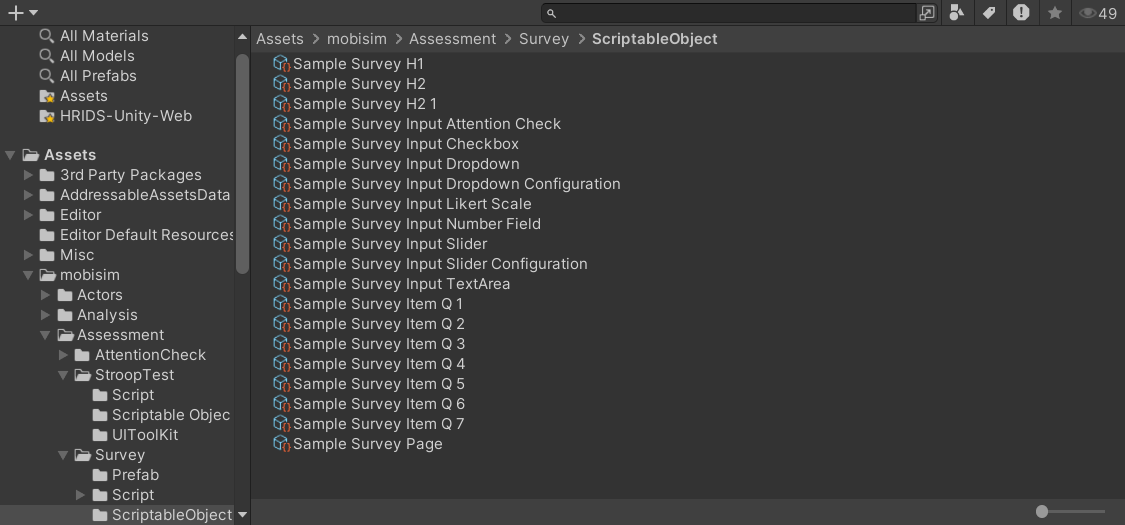
The diagram shows how the sample assets reference each other. The page lists its items in order, each question uses one input asset, and the slider and dropdown inputs each use a configuration asset:
Every asset name starts with Sample Survey, for example Sample Survey Item Q 3 and Sample Survey Input Likert Scale. The folder also contains Sample Survey H2 1, a second subheader that the sample page does not use.
Survey Page Data
A Survey Page Data asset defines the hierarchy of a single page of the questionnaire presented to participants. It holds an ordered list of Survey Item assets, and the simulator generates the questions in that order.
To create a Survey Page Data asset:
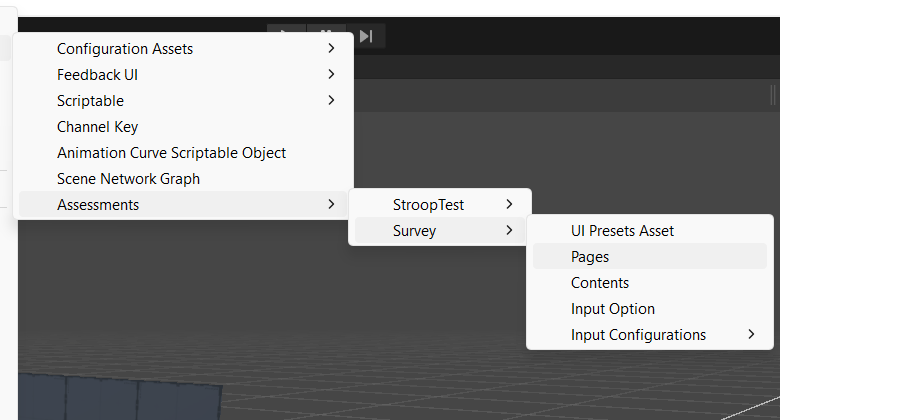
Right-click in Project window › Create › ScriptableObject › Assessments › Survey › Pages
In the asset, set the number of elements to match the number of survey items you have. Enter the number directly, or use the + / − buttons to change it.
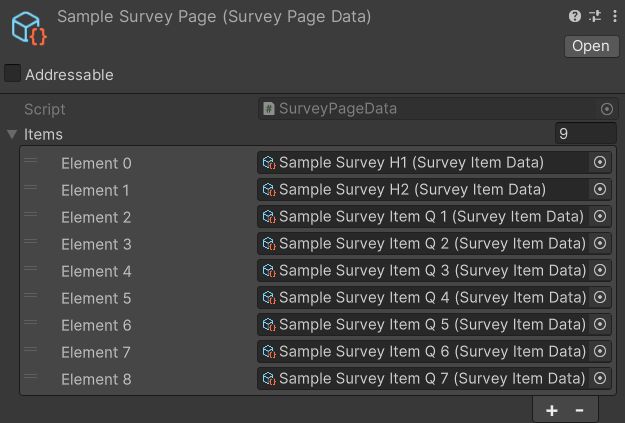
Drag the header or subheader and the rest of the survey questions into the elements, in order. To rearrange the order, drag elements up or down.
Survey Item Data

A Survey Item Data asset defines a single question or text element on the page. Items come in three types:



To create a Survey Item Data asset, either duplicate an existing one or use the following menu:
Right-click in Project window › Create › ScriptableObject › Assessments › Survey › Contents
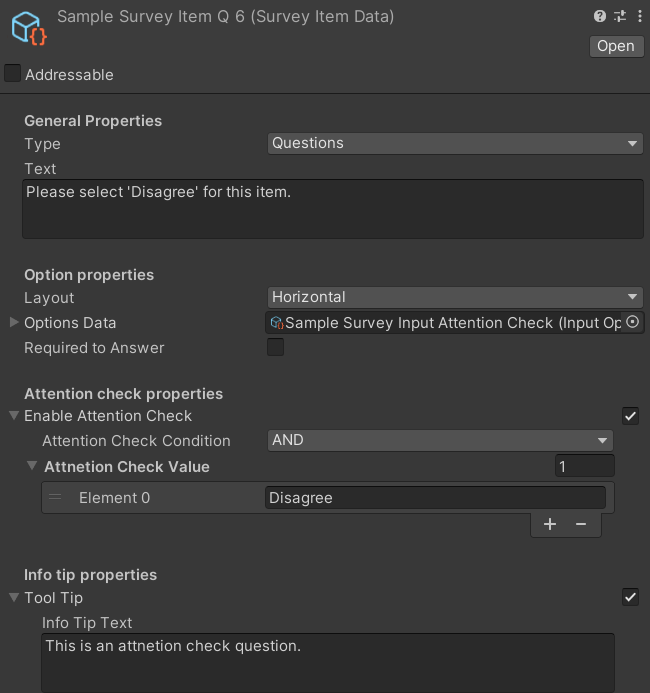
You can configure the following properties in the Inspector:
Survey Input Data
A Survey Input Option Data asset defines the response options (inputs) for a survey item. It is a list of elements, where each element represents one selectable input.
To create one:
Right-click in Project window › Create › ScriptableObject › Assessments › Survey › Input Option
In the data asset, set how many inputs you need by typing the number or using the + / − buttons to add or remove slots.
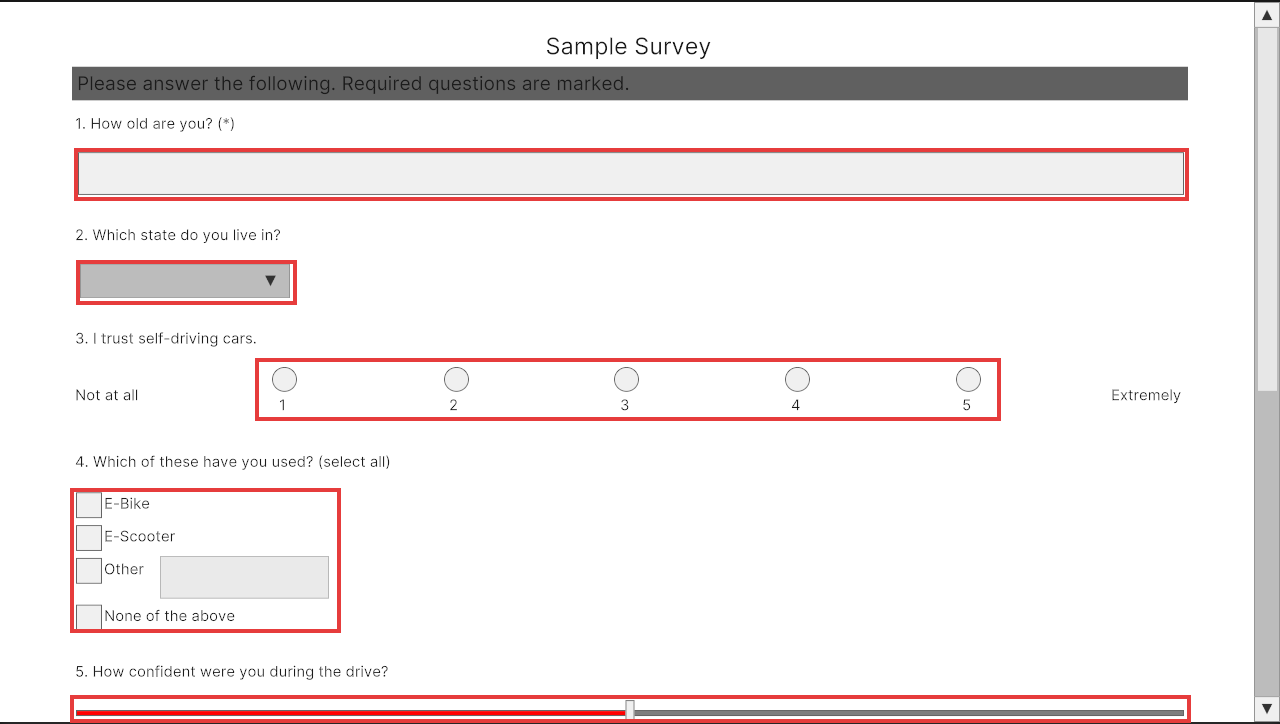
The simulator currently supports the following input types:






The numbering system starts with Element 0 as the first input.
Select any element in the list to show its properties in the Inspector. This is where you configure individual inputs, such as the values of a Likert scale (for example, a 5-point or 7-point Likert scale). Depending on the input type, some properties of the element are hidden or not editable in the Inspector.
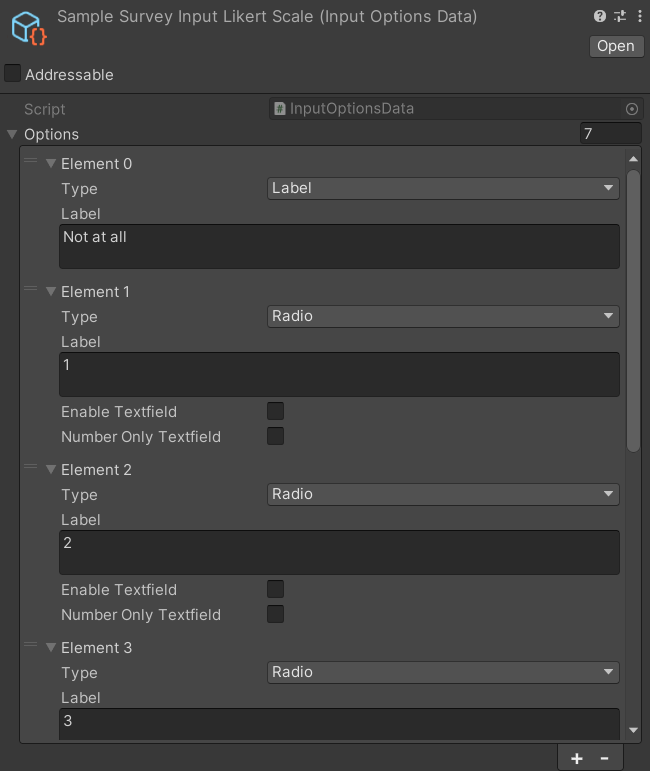
Of all the input types, only Slider and Dropdown inputs require an additional configuration ScriptableObject.
Slider
To create a slider option, you need a slider configuration asset to hold the input data. Use the following menu:
Right-click in Project window › Create › ScriptableObject › Assessments › Survey › Input Configurations › Slider
In the configuration asset, adjust the following values as needed:
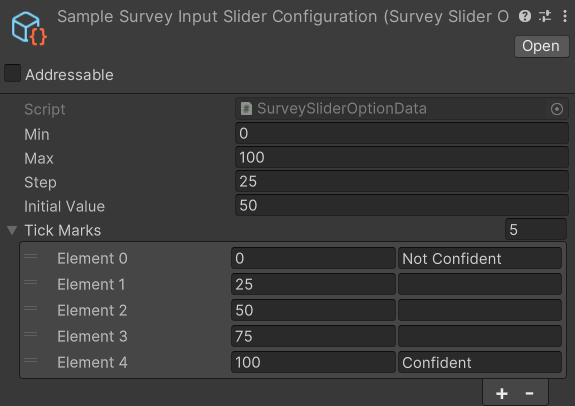
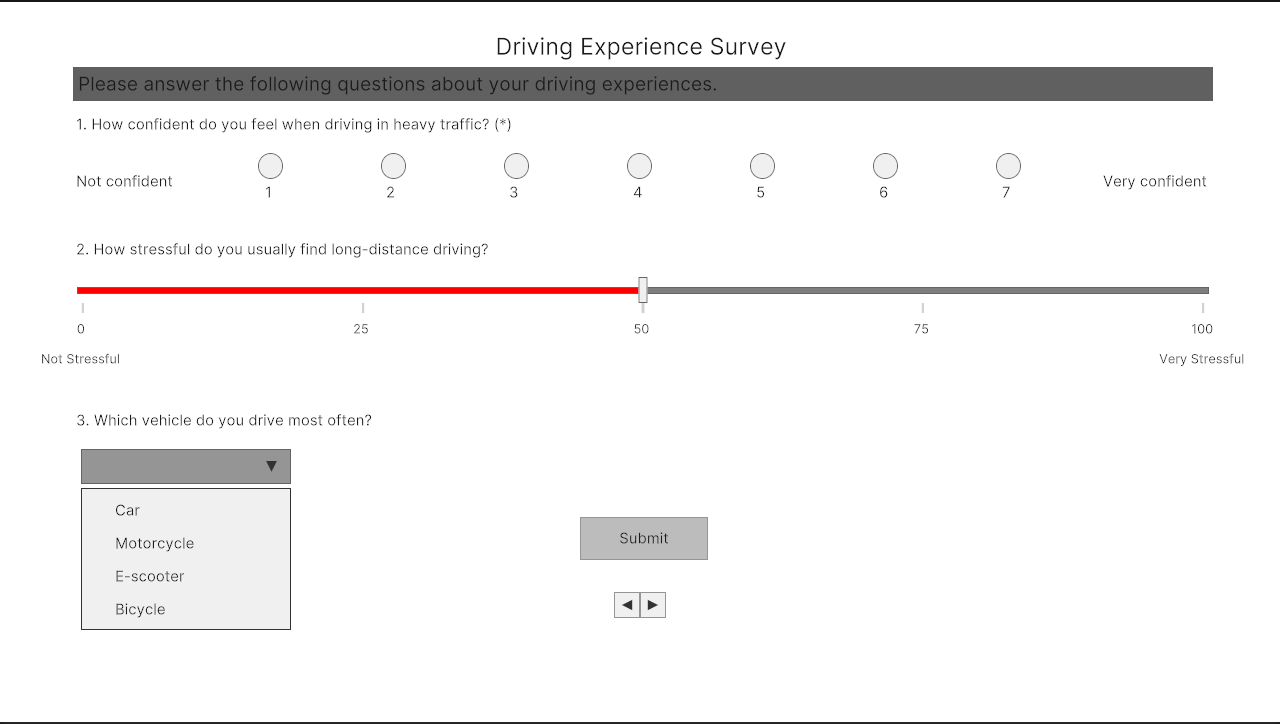
This configuration produces the following slider:

Dropdown
Create the configuration:
Right-click in Project window › Create › ScriptableObject › Assessments › Survey › Input Configurations › Dropdown
Use the + / − buttons under Choices to create the options for the dropdown menu, and label each one.
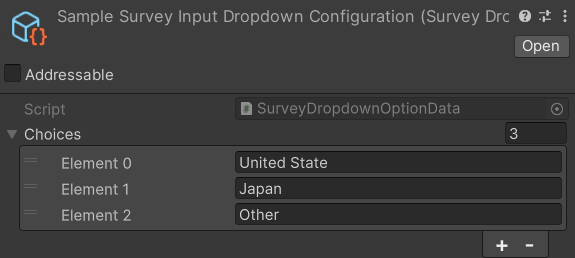
This configuration produces the following dropdown menu:
Once you've created the configuration assets, assign them to the corresponding fields of the Survey Input Option Data element in the Inspector.
Scene Setup
The survey ScriptableObject assets define the content of the questionnaire, but they need a scene to display and run it.
Open the New Scene Dialog and select the Survey Page template. This template comes pre-configured with the required scene setup for displaying a survey.
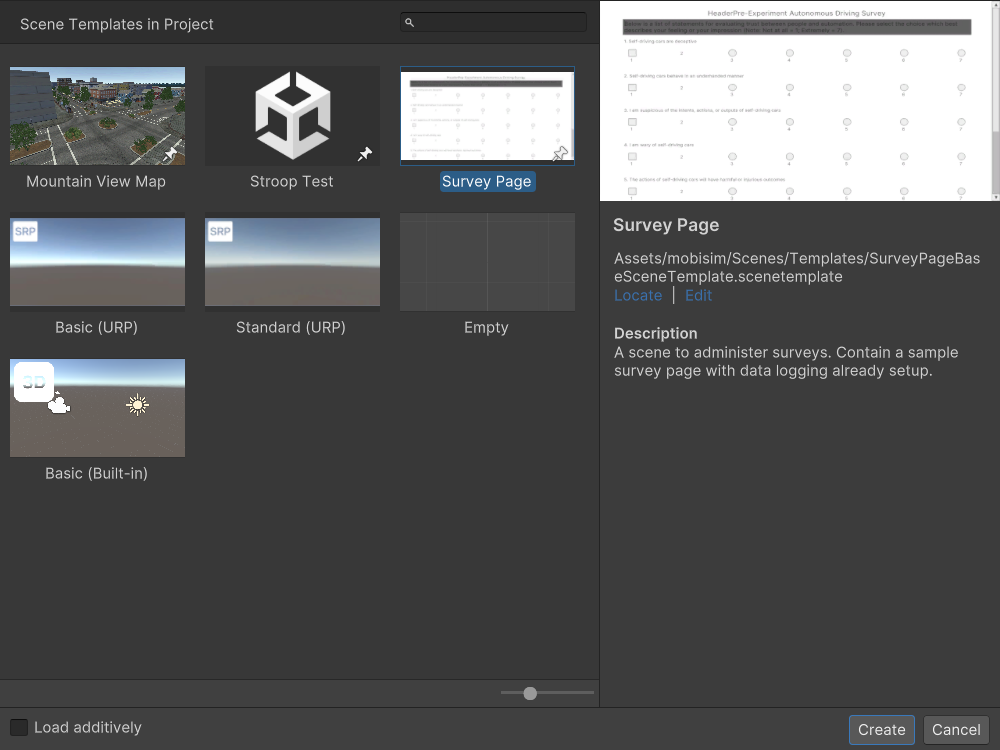
In the Hierarchy, find the SurveyUIDocument GameObject.
In the Inspector, locate the Survey Page Generator component and assign your Survey Page Data asset to its field.
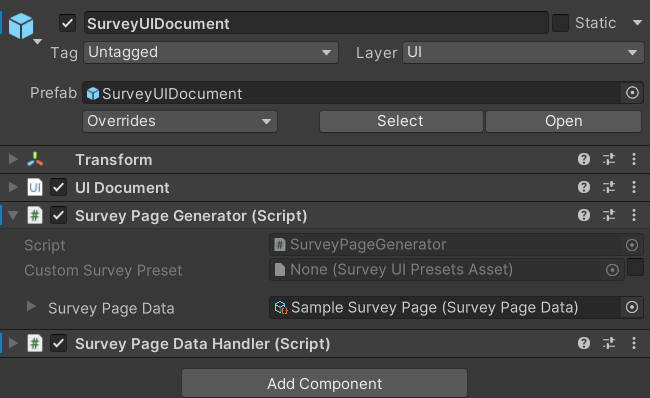
When you enter Play mode, you should see the survey displayed in the Game view.
The Survey Page Generator also has a Custom Survey Preset option. When enabled, the assigned Survey UI Presets asset (Create › ScriptableObject › Assessments › Survey › UI Presets Asset) is used to style this page instead of the master preset set in Project Settings › mobisim › Survey Templates.
A single survey scene displays one page only. For multi-page surveys, create one scene per page and assign each its corresponding Survey Page Data.
Data Collection
Participant responses are saved when the participant submits the survey page and the scene transitions. The survey response data is stored in JSON format with the following structure:
Below is an example snippet of the saved data:
{
  "SessionData": { "ParticipantID": "W1234", "subjectID": 3 },
  "start_unix_timestamp": 1748000000000,
  "end_unix_timestamp": 1748000120000,
  "QuestionnaireData": [
    {
      "title": "1. How do you feel right now? (*)",
      "values": ["Calm"],
      "attentionCheckValues": null,
      "isAttentionCheck": false,
      "attentionCondition": 0,
      "required": true
    },
    {
      "title": "2. Rate your stress level from 1 to 10",
      "values": ["4"],
      "attentionCheckValues": null,
      "isAttentionCheck": false,
      "attentionCondition": 0,
      "required": false
    }
  ]
}
The JSON data is saved in a Gzip-compressed file with the following naming convention:
mTkID[WorkerID]_subID[SubjectID]_[SceneName]_Survey_[yyyyMMddHHmmss]
For example, if WorkerID is A1B2C3D4E5F6G7H8I9J0, SubjectID is 101, the scene is SurveyScene, and the survey is submitted at 3:30:45 PM on August 22, 2025:
mTkIDA1B2C3D4E5F6G7H8I9J0_subID101_SurveyScene_Survey_20250822153045
The save location is defined in Project Settings (see Data Collection Settings).
Setup
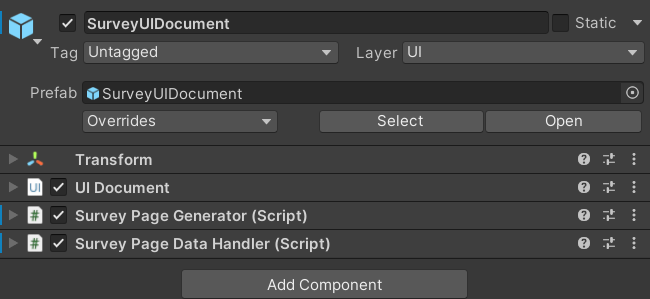
Data collection setup in a survey scene is minimal: a SurveyPageDataHandler component must be on the same GameObject as your SurveyPageGenerator. The SurveyUIDocument prefab used by the Survey Page scene template already includes it, so you only need to add it manually when building a survey UI from scratch.