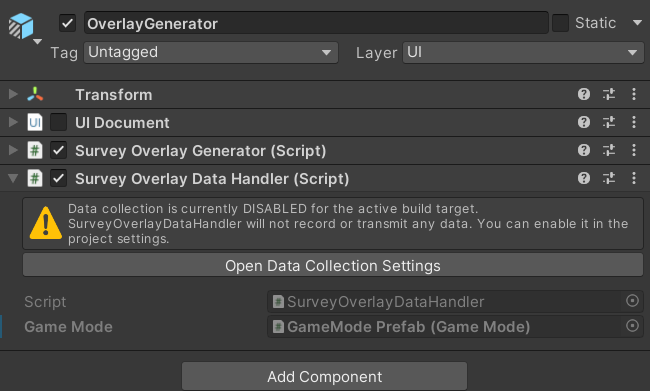
Survey Overlay
A Survey Overlay displays a questionnaire on top of an existing scene without requiring participants to leave the current environment. Unlike a standalone survey scene, an overlay can display multiple pages of questions within a single trigger, which makes it well suited for follow-up questions, mid-task check-ins, or attention checks.
The overlay uses the same Survey Page, Survey Item, and Survey Input ScriptableObject assets as a standalone survey scene. If you haven't created those yet, read Survey Page before continuing.
Setup
To add a Survey Overlay to a scene:
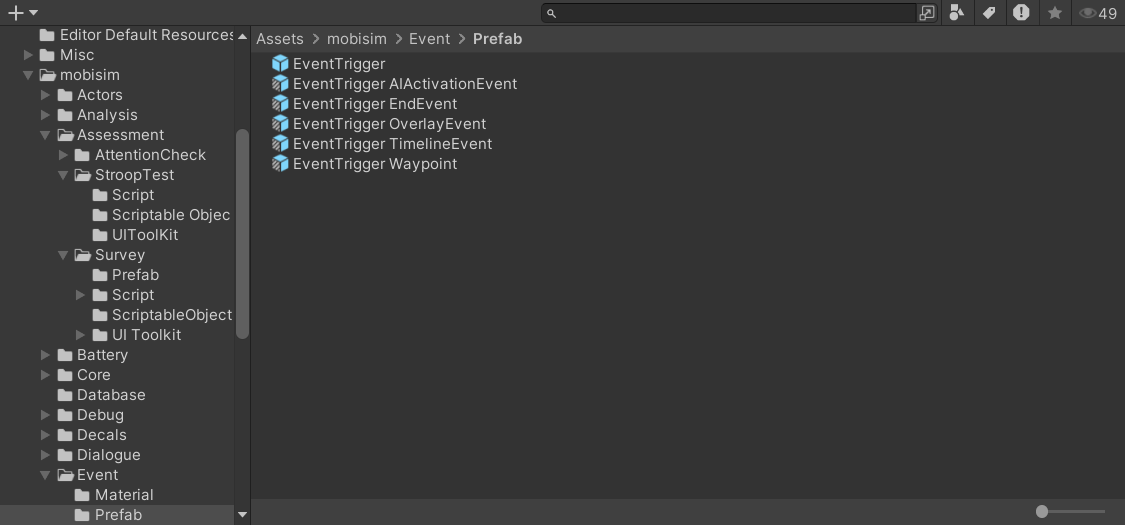
Inside the prefab, select the child GameObject OverlayGenerator.
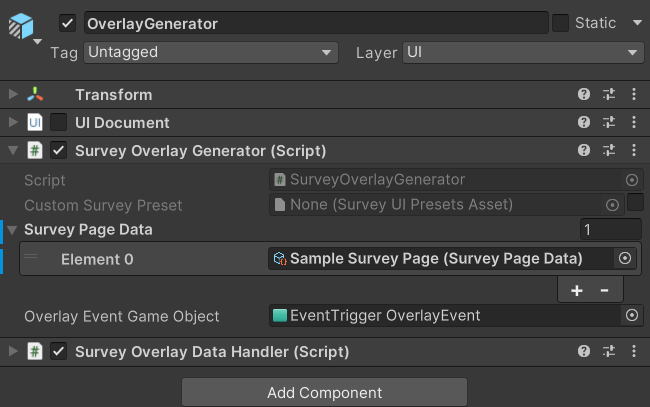
In the Inspector, find the Survey Overlay Generator component.
Configure the Survey Page Data list with the pages to display. Pages are shown to the participant in the listed order.
The overlay appears when a participant interacts with the trigger collider attached to the prefab. For full details on how the trigger works, see Event Trigger.
Data Collection
Survey Overlay responses are saved when the scene transitions to the next one. Unlike a standalone survey scene (which saves one page), an overlay saves all overlay events that occurred during the scene, with each event potentially containing multiple pages of responses.
The save location is defined in Project Settings (see Data Collection Settings).
Data is saved as a Gzip-compressed JSON file named:
mTkID[WorkerID]_subID[SubjectID]_[SceneName]_Overlay_[yyyyMMddHHmmss]
For example, if WorkerID is A1B2C3D4E5F6G7H8I9J0, SubjectID is 101, the scene is MountainviewMap1, and the scene ends at 3:30:45 PM on August 22, 2025:
mTkIDA1B2C3D4E5F6G7H8I9J0_subID101_MountainviewMap1_Overlay_20250822153045
The JSON mirrors the survey scene format but with additional nesting: each eventDataList entry represents one overlay trigger event, and each entry's surveyData contains one array per page. EventName is the name of the GameObject assigned to the generator's Overlay Event Game Object field (the prefab root by default), or the generator's own GameObject name if that field is empty. start_unix_timestamp is when the last page of the overlay was shown, and end_unix_timestamp is when it was submitted (Unix time in milliseconds).
Below is an example snippet of the saved data:
{
  "SessionData": { "ParticipantID": "W1234", "subjectID": 3 },
  "eventDataList": [
    {
      "EventName": "OverlayEvent_Intro",
      "surveyData": [
        [
          {
            "title": "1. Please select the type of vehicle you drive?",
            "values": ["Scooter"],
            "attentionCheckValues": [],
            "isAttentionCheck": false,
            "attentionCondition": 0,
            "required": true
          },
          {
            "title": "2. How satisfied were you with the instructions provided?",
            "values": ["Somewhat satisfied"],
            "attentionCheckValues": [],
            "isAttentionCheck": false,
            "attentionCondition": 0,
            "required": true
          }
        ],
        [
          {
            "title": "1. Please select the word 'FOCUS' in the box below.",
            "values": ["FOCUS"],
            "attentionCheckValues": ["FOCUS"],
            "isAttentionCheck": true,
            "attentionCondition": 0,
            "required": true
          }
        ]
      ],
      "start_unix_timestamp": 1724342240000,
      "end_unix_timestamp": 1724342245000
    }
  ]
}
Data Collection Setup
For overlay responses to be saved, a SurveyOverlayDataHandler component must be present somewhere in the scene.
The generator locates it automatically through the service locator at runtime, so it doesn't need to be on the same GameObject. Only one handler is used per scene; any additional SurveyOverlayDataHandler components remove themselves at startup.
The EventTrigger OverlayEvent prefab already has a Survey Overlay Data Handler on its OverlayGenerator child, so you only need the steps below if you build an overlay without this prefab.
On any GameObject in the scene (a dedicated data manager object is recommended), add the Survey Overlay Data Handler component.
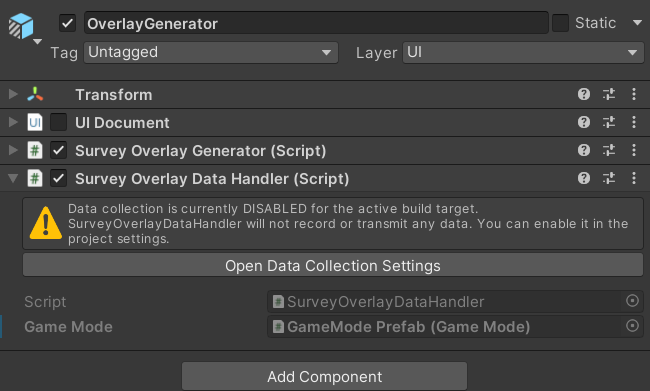
In the Inspector, assign the scene's Game Mode reference to the Game Mode field on the component. If left empty, the handler looks up the scene's Game Mode automatically at runtime.