Attention Check
Attention checks are special questions embedded in surveys to make sure participants are paying attention and giving thoughtful responses. They help identify inattentive participants, and failing too many attention checks can end the session early.
When you create a survey (either a Survey Scene or a Survey Overlay), you can designate specific questions as attention checks by configuring three things in the Survey Item Data:
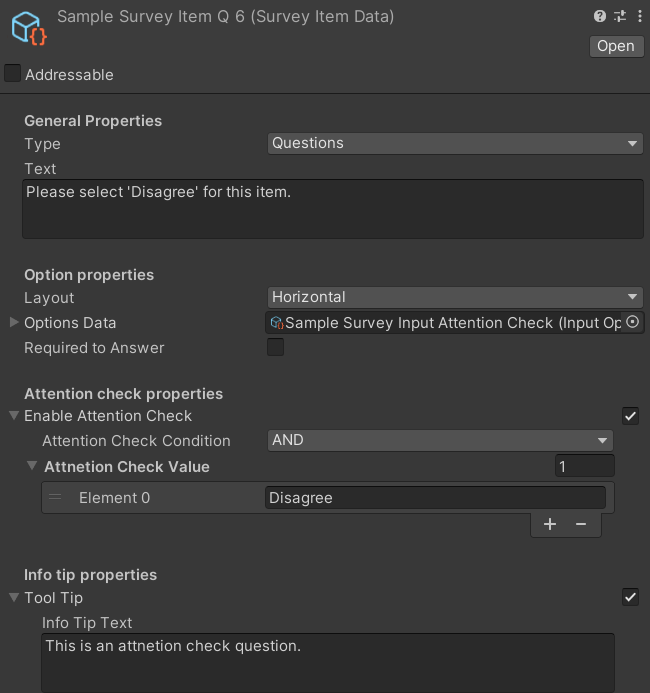
- Mark the question as an attention check. Enable the attention check option for the question.
- Set the expected responses. Specify the correct answers that the participant must select or enter.
- Define the evaluation condition. Choose whether the participant must match all expected responses (AND) or at least one (OR) to pass the check.
These question-level settings work together with the project-wide attention check controls, which you configure in the Project Settings. The master switch there determines whether attention checks are enforced at all: a question marked as an attention check is only evaluated if the master switch is enabled. Project Settings also let you define the maximum number of allowed failures and the scene to load if the participant exceeds that limit (Project Settings > mobisim > Attention Check: Enable Attention Check, Abort To, Allowed Fails).
When a participant fails an attention check, a pop-up window appears and the failure counter increases by one. Once the number of failures is greater than Allowed Fails, closing the pop-up loads the Abort To scene; otherwise, the participant continues to the next page or scene.