Stroop Test
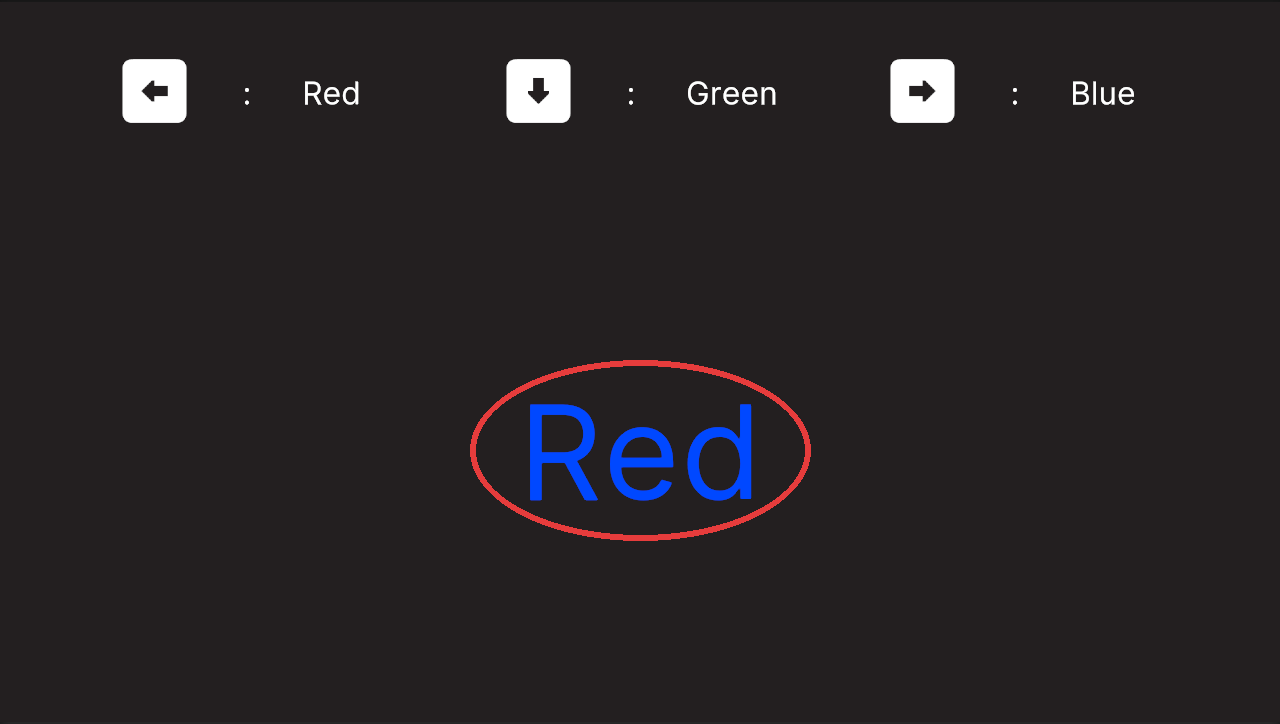
You can create and configure Stroop Tests directly in the simulator. The Stroop Test is a psychological task that measures a person's ability to process conflicting information by asking them to name the color of a word's font rather than the word itself.
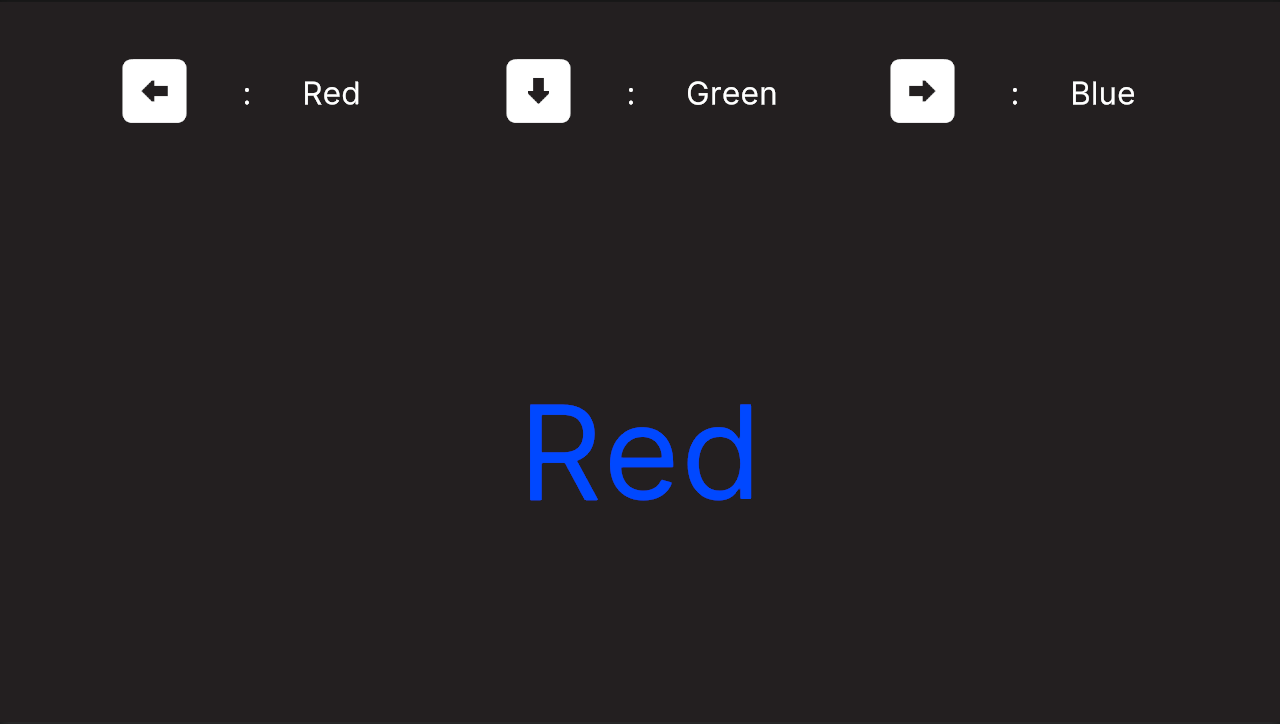
During a Stroop Test, participants see two things: input prompts and the Stroop stimulus.
The input prompts show the available response options and indicate which color or response each corresponds to. The simulator supports up to three input prompts, which are displayed at the top of the screen from left to right.
The Stroop stimulus is the word presented to the participant, displayed in a specific font color. The participant must respond based on the task rules, and the combination of the word's meaning and its color creates the cognitive challenge of the Stroop Test.
These elements are defined as ScriptableObjects and assigned to dedicated Stroop Test Scenes. At runtime, the scene automatically generates the test based on the assigned assets.
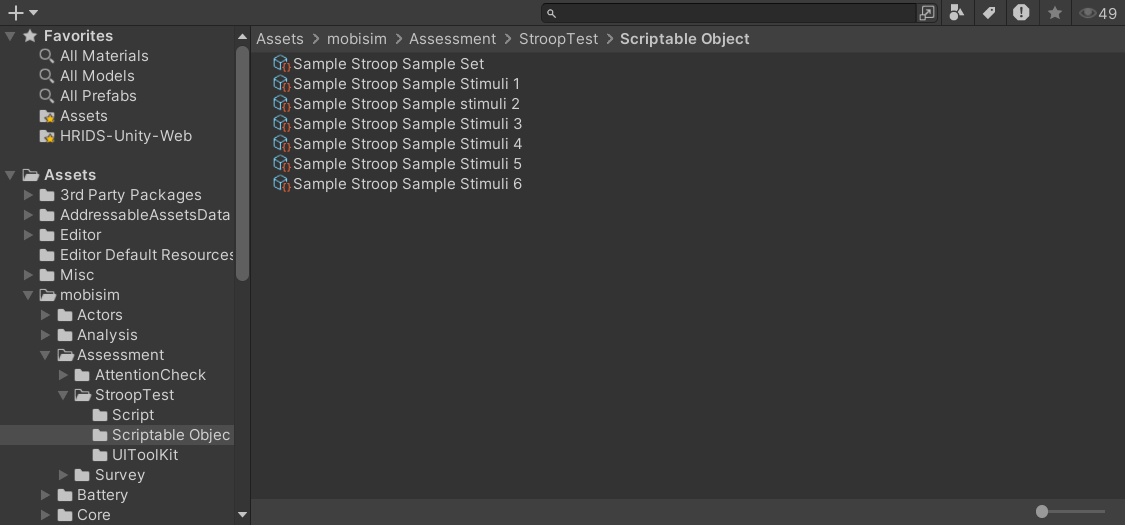
ScriptableObjects
The simulator uses two main ScriptableObjects for Stroop Tests:
1. Stroop Test Set Data
A Stroop Test Set Data asset defines the three input prompts and the sequence of stimuli.
To create a Stroop Test Set Data asset: Right-click in the Project window > Create > ScriptableObject > Assessments > StroopTest > Set.
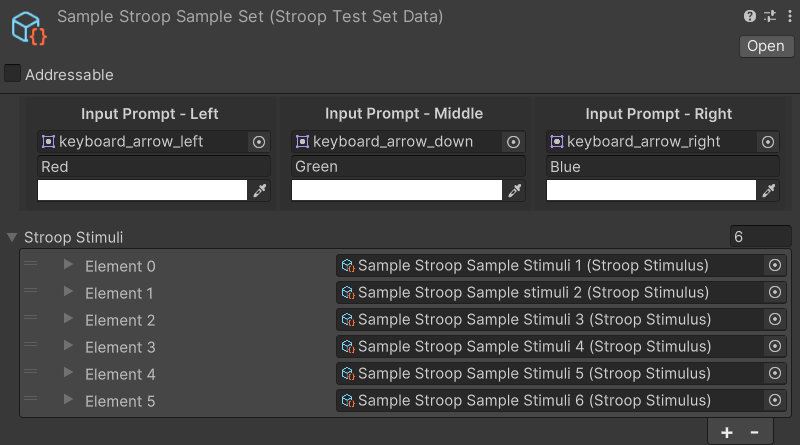
Input Prompt Settings
The Input Prompt Settings define how the three response buttons are displayed on screen during the Stroop Test. In the Inspector, you see three side-by-side boxes titled Input Prompt - Left, Input Prompt - Middle, and Input Prompt - Right:

Each box corresponds to one of the input prompts the participant can select during the test. For example, the Left box controls what the left prompt looks like on screen, the Middle box controls the middle prompt, and so on.
Inside each box are three fields:
-
Top field: The image that appears on screen to represent the input (for example, a keyboard down-arrow key icon).
-
Middle field: The text displayed in the prompt, showing which color the input corresponds to (for example, "Red").
-
Bottom field: The font color used for the text.
These settings only define the input prompts displayed on screen. They do not set the actual player input. Make sure the prompts match the configured input.
Stimuli Sequence Settings
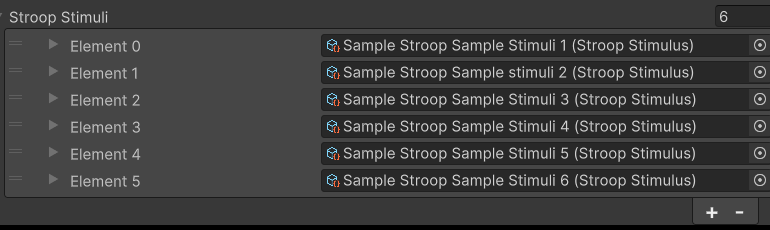
The Stroop Stimuli list defines the sequence of trials in the Stroop Test. Each element in the list references a Stroop Stimulus asset, and the order of the list determines the order in which the stimuli are shown on screen.
To assign a stimulus, drag a Stroop Stimulus asset into the slot or select it from the object picker. Use the + / − buttons to change the number of elements, and drag elements up or down to rearrange them.
2. Stroop Stimulus
A Stroop Stimulus asset represents an individual stimulus. It is a data container that defines both the word and its font color, which the system renders during the test.
To create a Stroop Stimulus asset: Right-click in the Project window > Create > ScriptableObject > Assessments > StroopTest > Stimulus.
Once created, you can configure the word and its color in the Inspector:
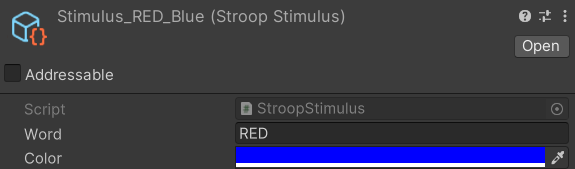
This asset produces the following stimulus:

You can reuse a Stroop Stimulus asset across different test sets, and also multiple times within the same set.
Stroop Test Scene
To administer the Stroop Test to participants, you need a correctly set up Unity scene. The simulator provides a Stroop Test Scene Template (listed as Stroop Test in the dialog) that contains all the components needed to administer a Stroop Test. Select it when you create a new scene in the New Scene Dialog.
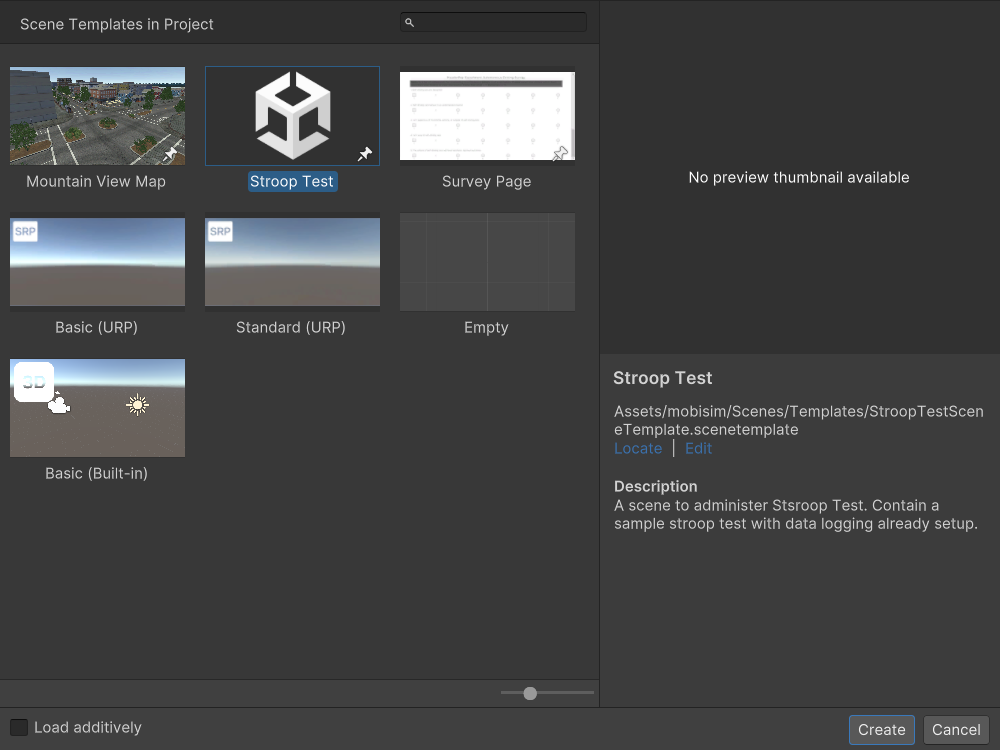
Linking Stroop Test Data to the Scene
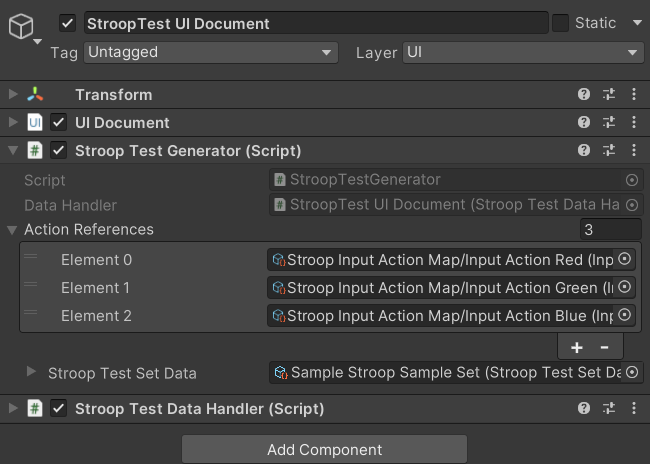
In the scene, you need to assign the Stroop Test Set Data asset to the appropriate component. The scene contains a StroopTest UI Document GameObject in the Hierarchy, which has a Stroop Test Generator component.
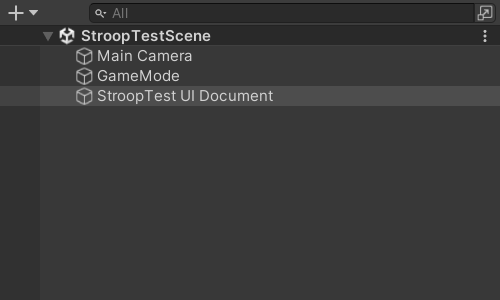
In the Inspector, assign your Stroop Test Set Data ScriptableObject to the Stroop Test Set Data field. The template comes with the Sample Stroop Sample Set asset assigned as an example.
Configure Player Input
The Stroop Test relies on input actions to listen for participant input. In the scene, the Stroop Test Generator component attached to StroopTest UI Document must be configured to respond to specific inputs.
A pre-configured Input Action Asset, StroopTestInputAction (located at Assets/mobisim/Assessment/StroopTest), is provided for the Stroop Test scene template. Its Stroop Input Action Map contains three actions, Input Action Red (Left Arrow), Input Action Green (Down Arrow), and Input Action Blue (Right Arrow), which are assigned to the generator's Action References list.
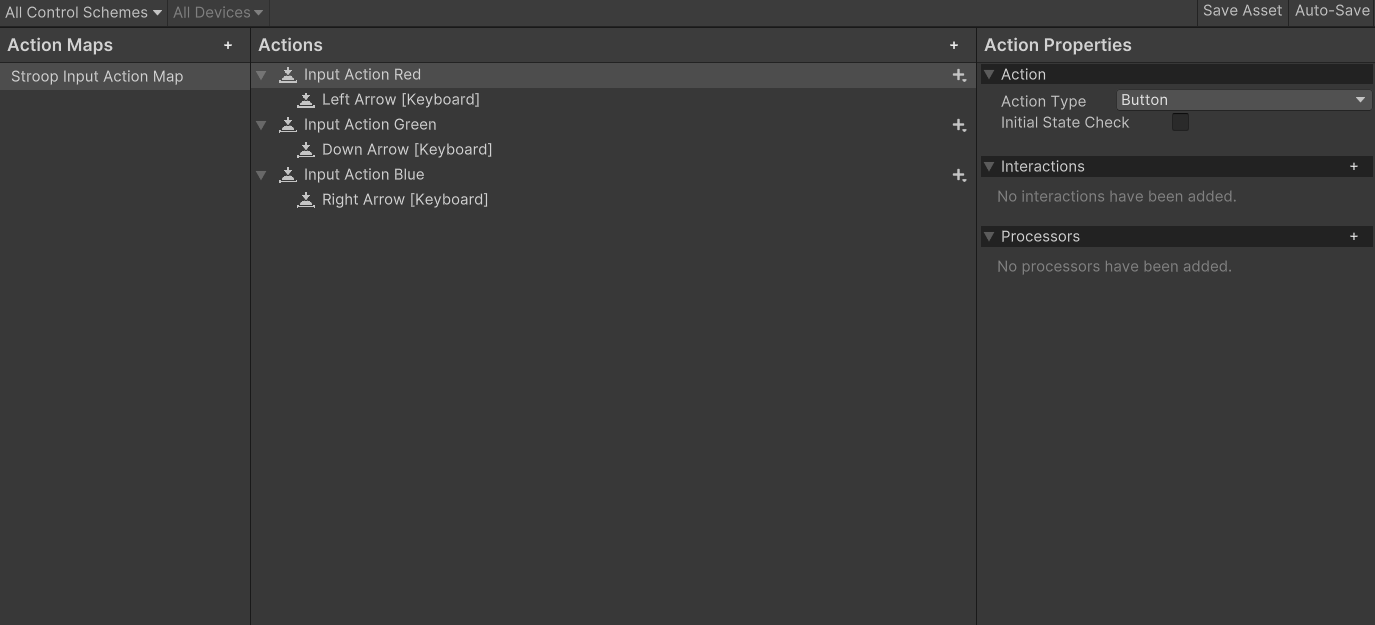
Changing the input bindings of the assigned actions affects every scene that uses them. If a specific Stroop Test requires a unique input setup, create your own input actions and assign them to the Action References list of the Stroop Test Generator component.
For full details on creating input actions, see Creating Input Action Assets.
Data Collection
Stroop Test results are collected at the end of the test. The test ends after the participant responds to the last stimulus in the set, at which point the session ends and the data is saved. Stroop Test results are stored in JSON format with the following structure:
Below is an example snippet of the saved data:
{
  "SessionData": { "ParticipantID": "W1234", "subjectID": 3 },
  "dataList": [
    {
      "inputAction": "Stroop Input Action Map/Input Action Blue[/Keyboard/rightArrow]", // The input action performed by the participant (key/button)
      "stroopTestEntryText": "RED",       // Word shown on the screen as the stimulus
      "stroopTestEntryColor": "RGBA(0.000, 0.000, 1.000, 1.000)",     // Color of the word stimulus displayed
      "unixTimeStamp": 1234567890123,     // Timestamp in milliseconds when the input was received
      "elapsedTime": 1.234                // Time in seconds since this stimulus appeared on screen
    },
    {
      "inputAction": "Stroop Input Action Map/Input Action Red[/Keyboard/leftArrow]",
      "stroopTestEntryText": "GREEN",
      "stroopTestEntryColor": "RGBA(1.000, 0.000, 0.000, 1.000)",
      "unixTimeStamp": 1234567890456,
      "elapsedTime": 2.345
    },
    // ... Other entries
  ]
}
Data is saved in a Gzip-compressed JSON file with the following name:
mTkID[ParticipantID]_subID[SubjectID]_[SceneName]_StroopTest_[yyyyMMddHHmmss]
For example, if ParticipantID is A1B2C3D4E5F6G7H8I9J0, SubjectID is 100, the scene is StroopTestScene, and the test is completed at 3:30:45 PM on August 22, 2025, the file name would be:
mTkIDA1B2C3D4E5F6G7H8I9J0_subID100_StroopTestScene_StroopTest_20250822153045
The save location is defined in the Project Settings (see Data Collection Settings for full details).
Setup
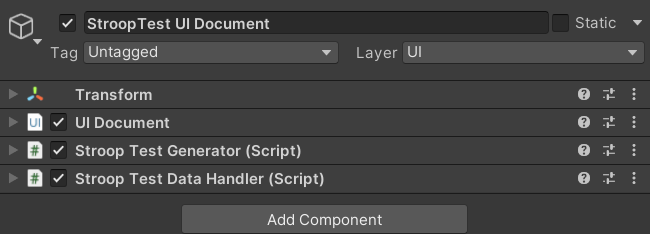
Data collection setup in a Stroop Test scene is minimal: a StroopTestDataHandler component must be on the same GameObject as your StroopTestGenerator (the generator references it and doesn't record inputs without it). The Stroop Test scene template already includes it on StroopTest UI Document.